The following explains how to check detailed log records of staff actions, Pricecalc and ensure accountability within the system.
- You can also check the PC logs, as they are related to the Logs page.
- The Billing Logs display detailed records such as Date, Member, Computer, Event, Cash, Card/QR, Coin, Balance, Bonus, Time, Details, and Staff. (Figure 1).
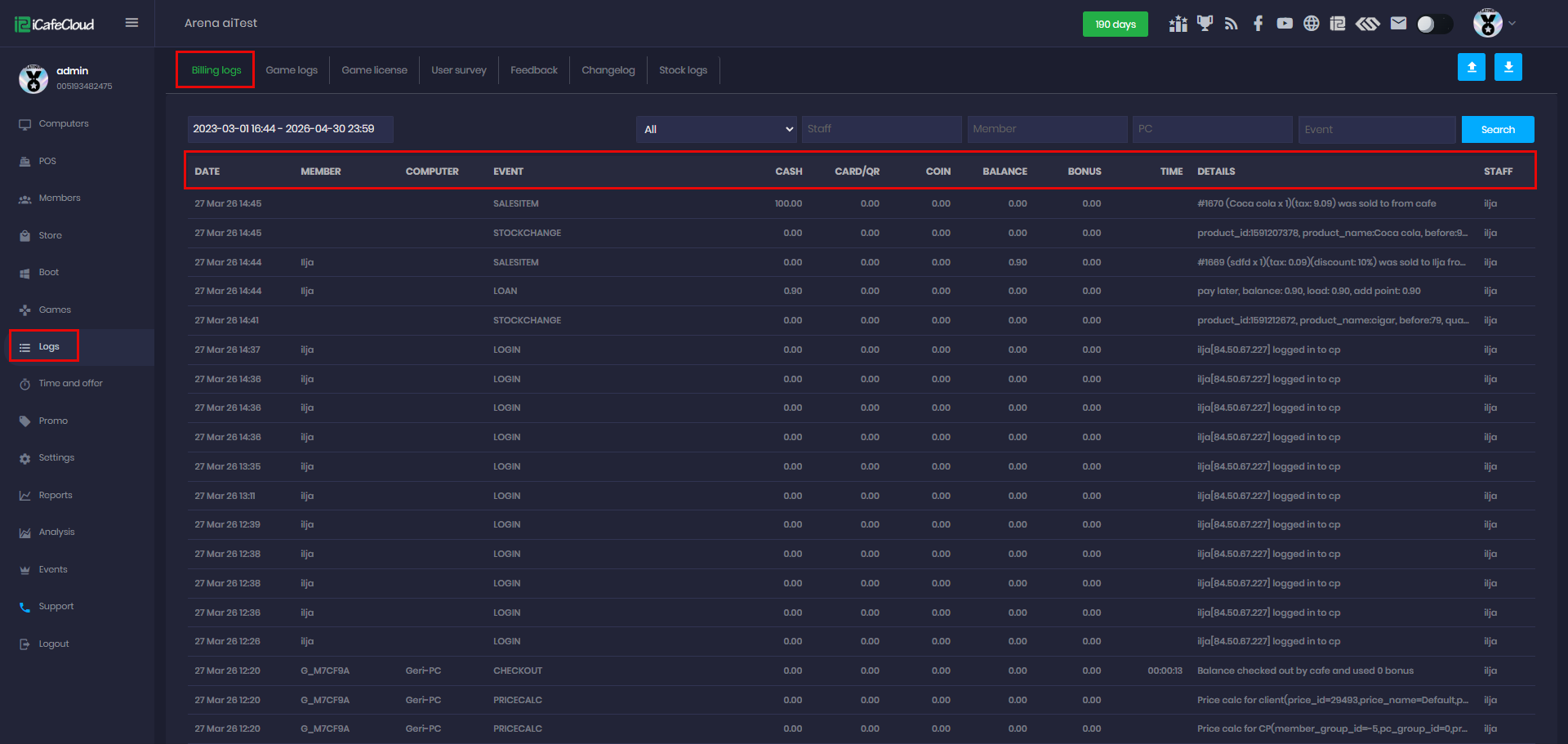
Figure 1
- Logs display up to 3 years. (Figure 2)
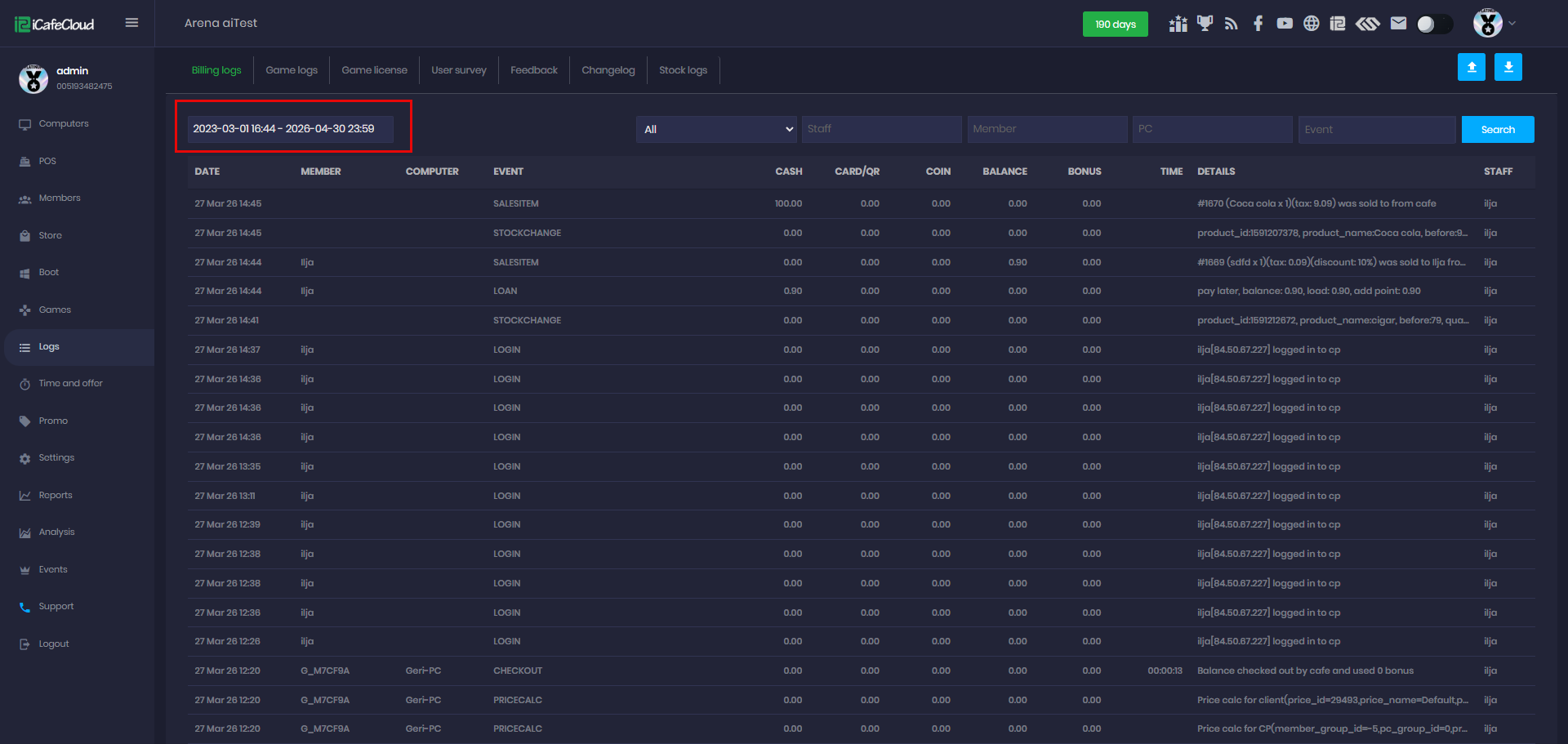
Figure 2
- When logging in to iCafeCloud using admin or employee accounts, the corresponding IP address will be displayed next to the login logs.(Figure 3)
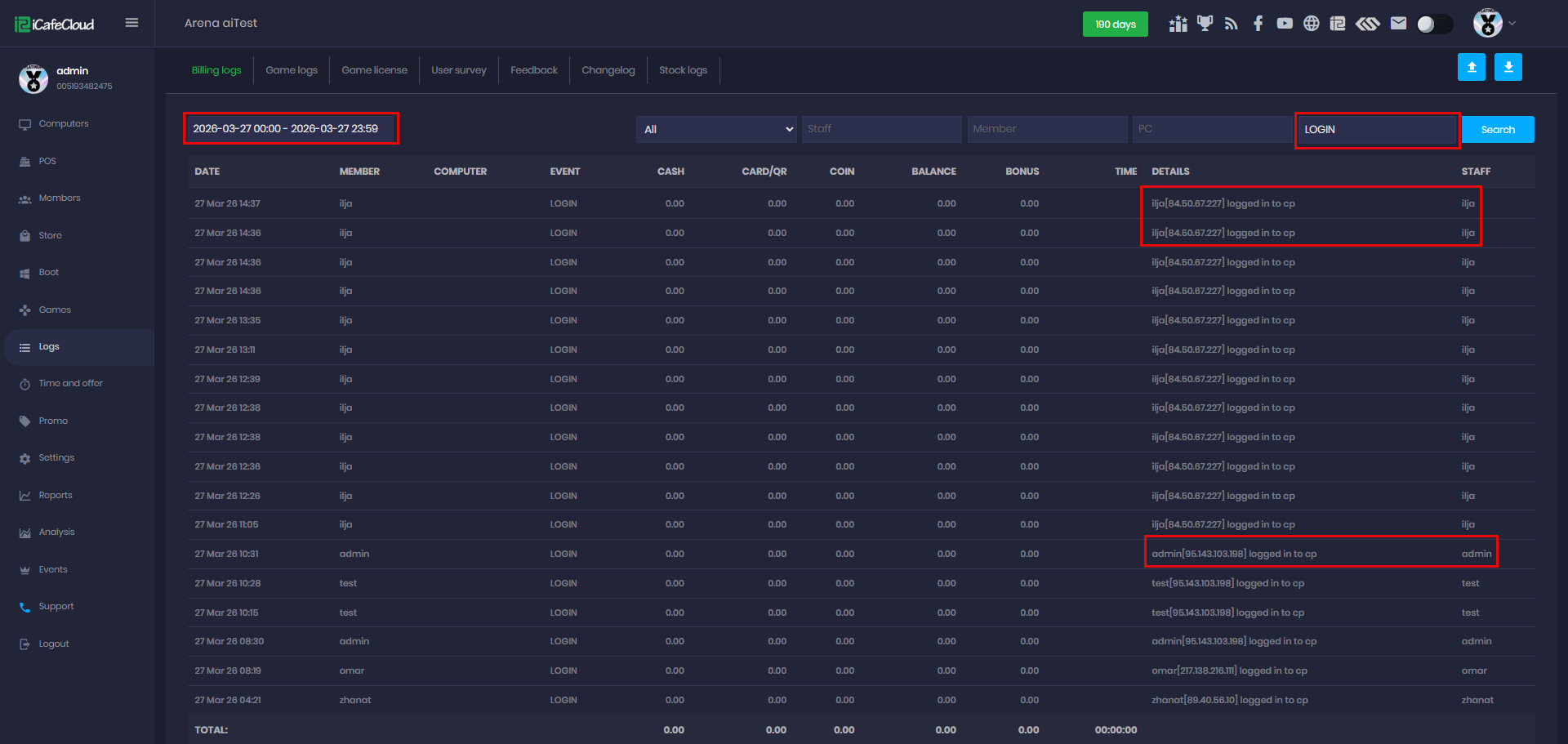
Figure 3
- By clicking on the event box, a list of all event logs will appear. (Figure 4)
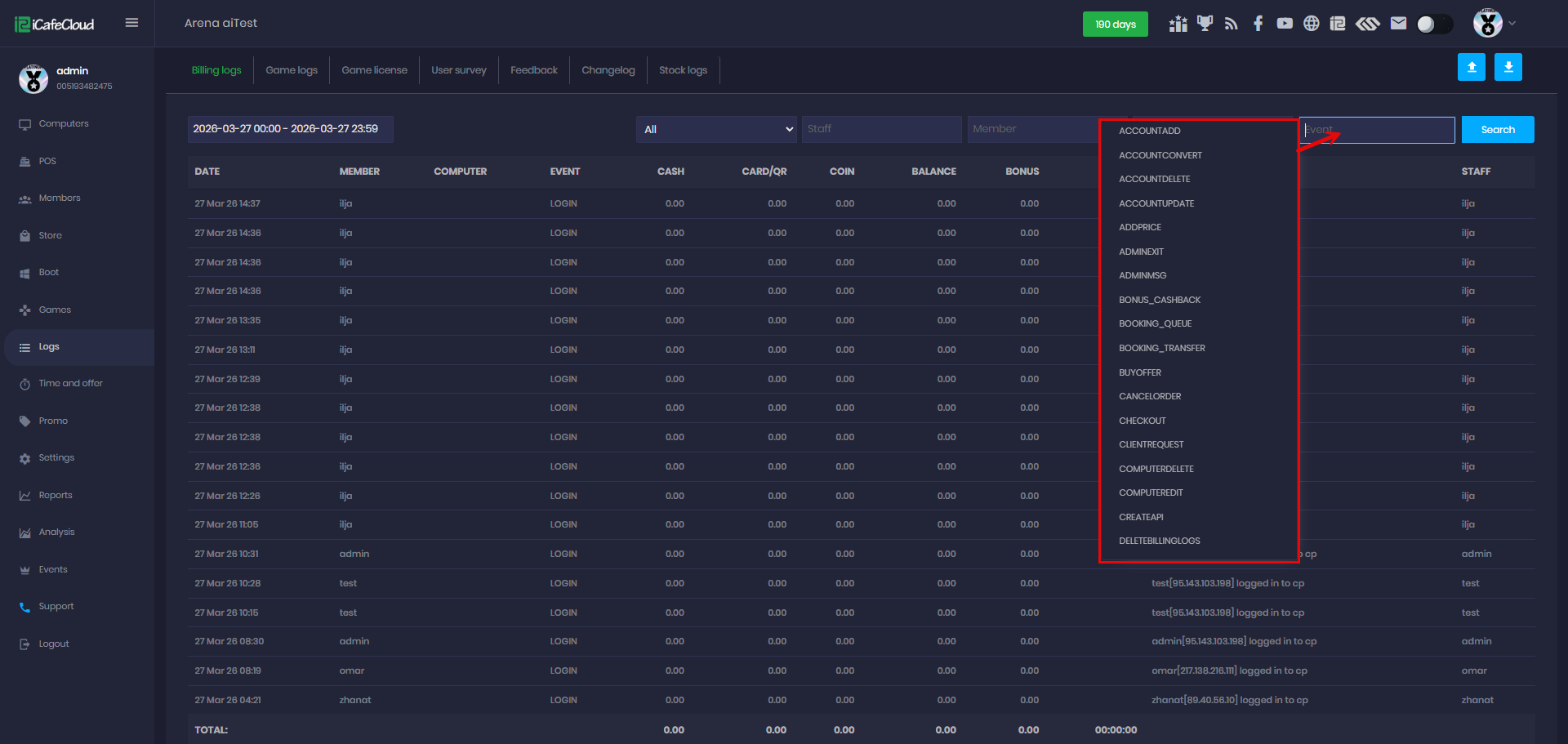
Figure 4
- Select the date and time range you want to review, then choose an event from the list to view detailed information about that specific event within the selected period. (Figure 5)
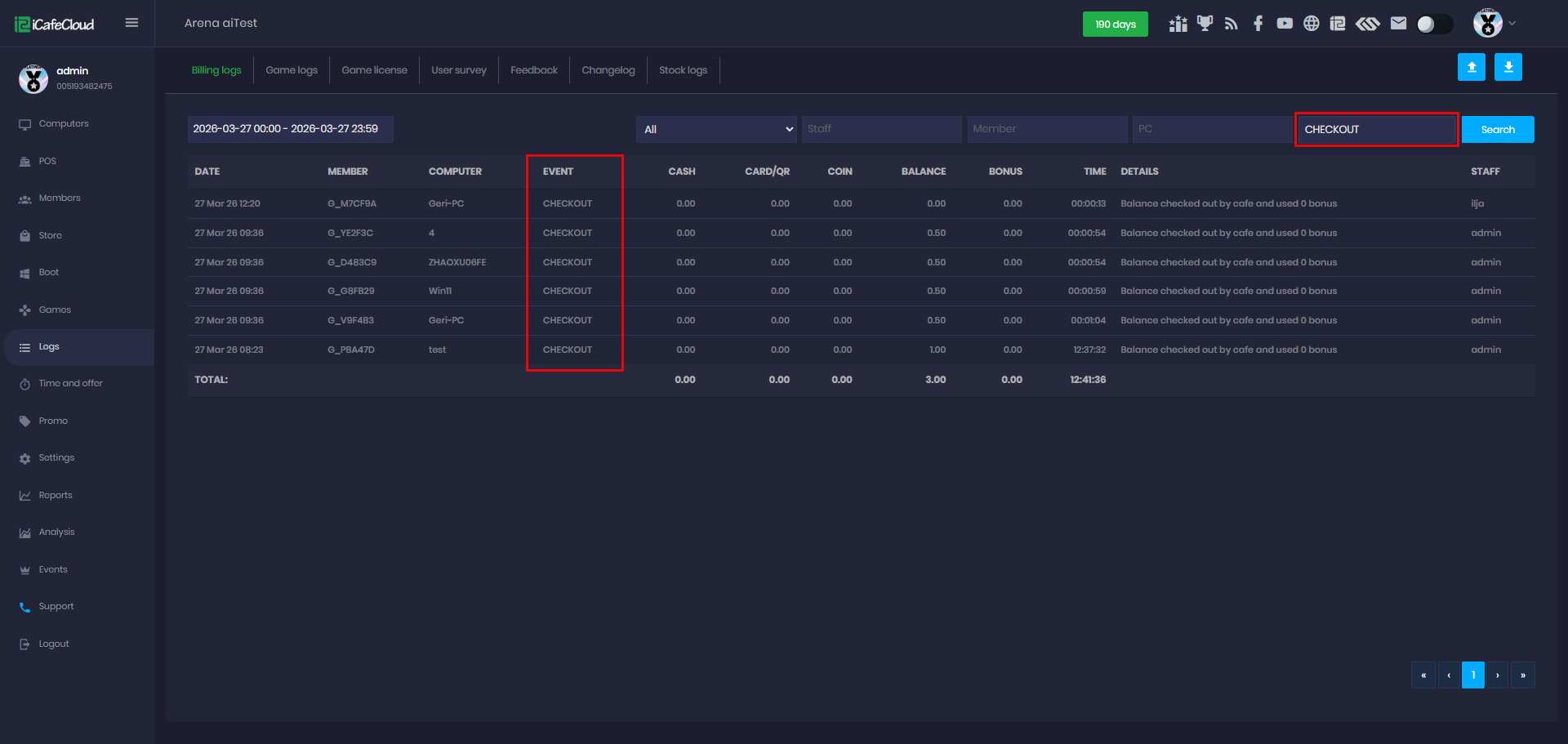
Figure 5
- Logs also show price calculations from checkouts (admin panel or client PC), including the applied price rule. (Figure 6)
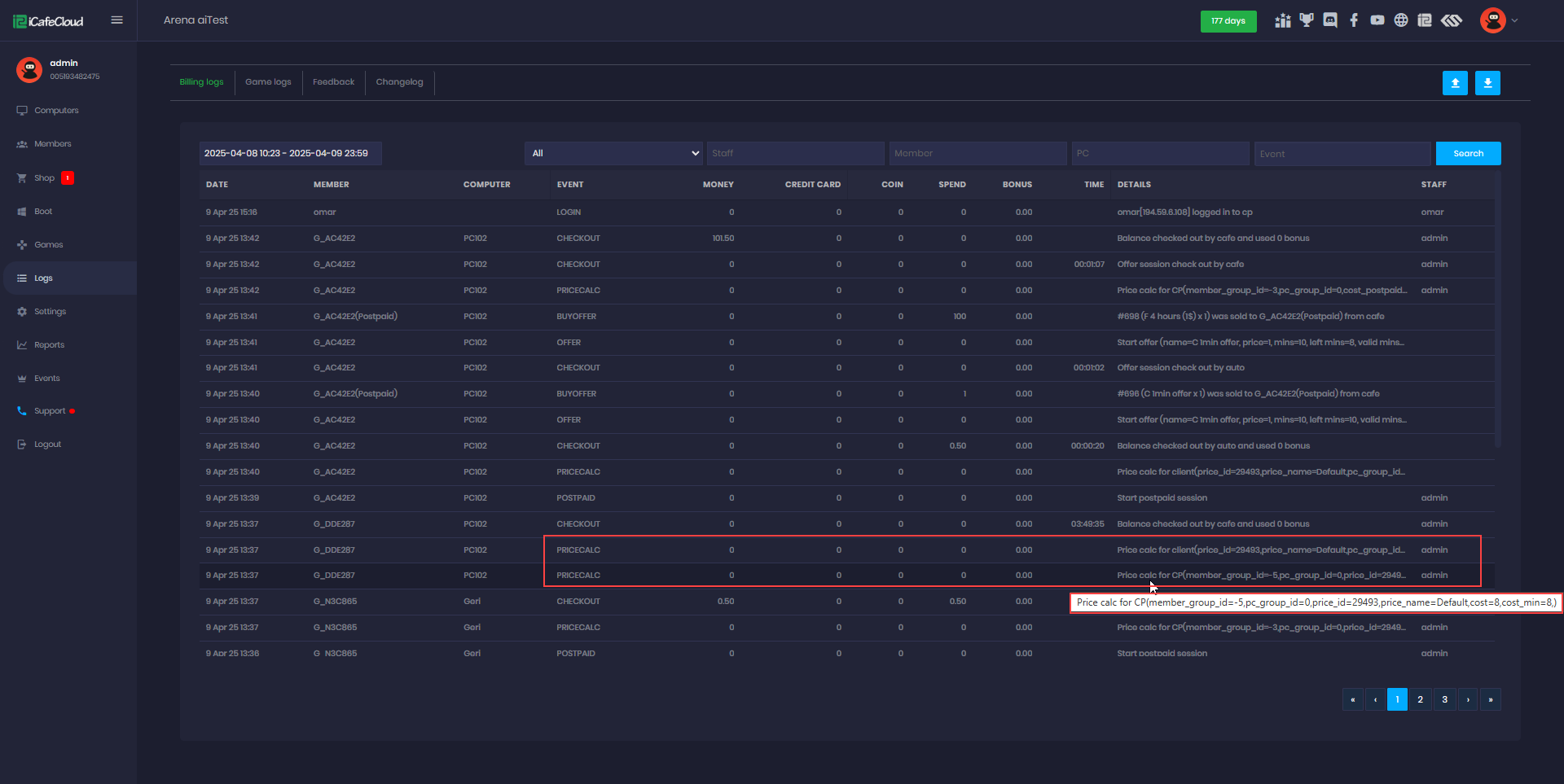
Figure 6
- Checkout by Cafe
Means an employee or admin manually checked out the session from the iCafeCloud control panel. - Checkout by Auto
Means the system automatically processes the checkout — for example, when time ends or when switching to another session type based on priority. - Checkout by Client
Means the customer checked out themselves from the client-side interface. (Figure 7)
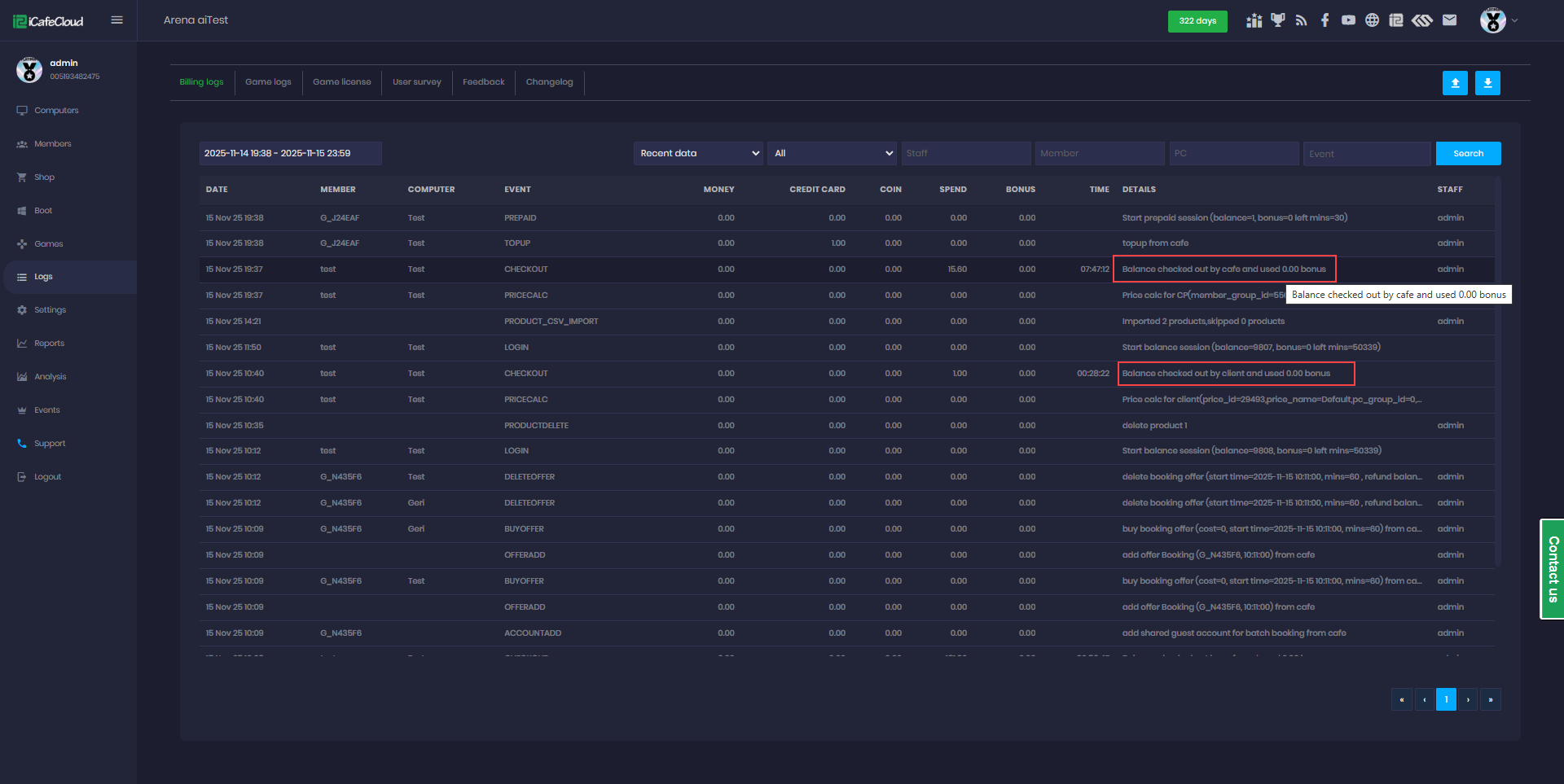
Figure 7