

A computer room that resets itself between classes
Students get the machines you prepared and nothing else. Lessons end on the clock, the desktop is locked to what belongs there, and the room is clean again by the next period.
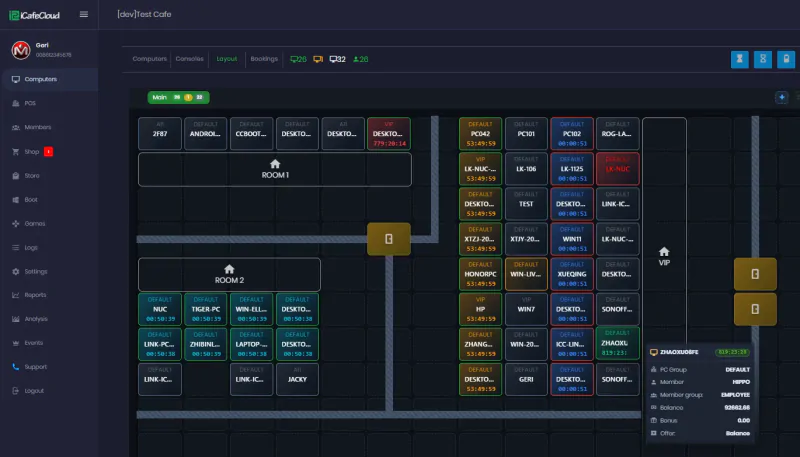
What it does
Nothing survives the reboot
Downloads, settings changes and anything a student picked up online are discarded when the machine restarts.
A controlled desktop
The iCafeMenu client replaces the shell, so a session shows the approved software and not the whole system.
Time-limited sessions
Sessions end when the period does. No one is quietly still on a machine after the bell.
One image for the room
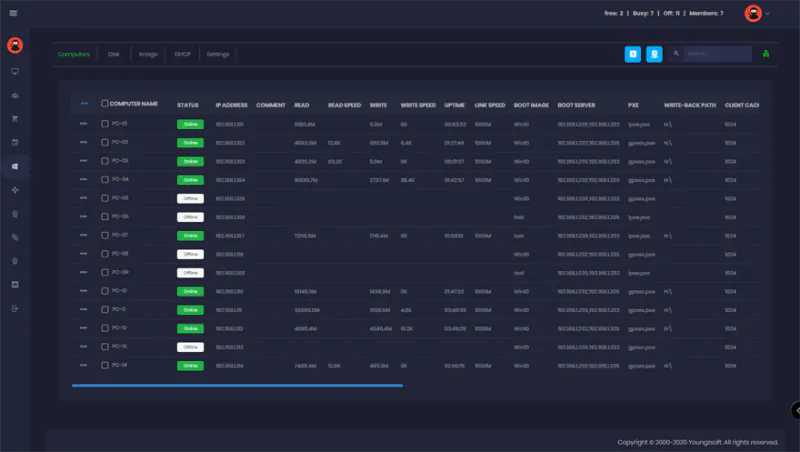
Install the term software once on the master and let every seat pick it up on the next restart.
Per-student sign-in
Students log in as themselves, so usage is attributable and coursework can follow the account.
Cheaper machines
Clients without hard drives cost less to buy and less to keep running, which matters at classroom scale.
Built for the way a lab is actually used
A school lab takes a new group every hour, and each group is capable of leaving the machines in a state the next class cannot use. The usual answer is imaging software and a technician with a long weekend.
Diskless boot changes the arithmetic. The machines have no persistent state to protect, so the reset is free and happens on every restart rather than once a term.
- Approved software only, through the client launcher
- Session limits that match the timetable
- Windows domain login where the school already runs one
- Personal disks when coursework has to persist
Only what you put there
The client shows a list you control, grouped into the categories you name — the applications for this term, the internet tools that are allowed, and nothing else. A student who goes looking for something else finds the launcher, not the file system.
Titles carrying an age rating can be restricted so they never appear for the accounts that should not see them, which keeps the decision in the settings rather than in a teacher supervising a screen.
- Categories you name, holding only the software you added
- Age-rated titles hidden from the accounts that should not see them
- The launcher replaces the shell, so the file system is not the fallback
- Change the list once and every seat picks it up on the next restart
Every student, on the timetable
Students sign in as themselves rather than sharing a generic lab account, so time on a machine is attributable and coursework can follow the person instead of the seat.
Accounts sit in groups — a class, a year, a club — and each group carries its own session length and its own software list. The period ends and the sessions end with it, without a teacher going desk to desk.
Common questions
Can we stop students reaching games or sites we have not approved?
The client replaces the desktop with a list you maintain, and titles with an age rating can be hidden from the accounts that should not see them. What is not on the list is not on the screen.
What happens to whatever a class installed or changed?
On a diskless room it is gone at the next restart. The machine boots from the master image, so every period starts from the state the school prepared.
Do sessions have to end manually at the bell?
No. Sessions can be time-limited to match the timetable and close themselves, so nobody is still on a machine after the period ends.