

Guide
Apply for a trial license
The following explains how to apply for a trial license for iCafeCloud or CCBoot. You can request a trial license for 10 or more PCs, valid for 15 days.
iCafeCloud
The billing and management server. You apply for the trial from its Options window.
CCBoot
The diskless boot server. Same Options window, same trial license.


-
Download the setup file
To initiate a trial, visit our website at ccboot.com, where you will be able to download the setup file.
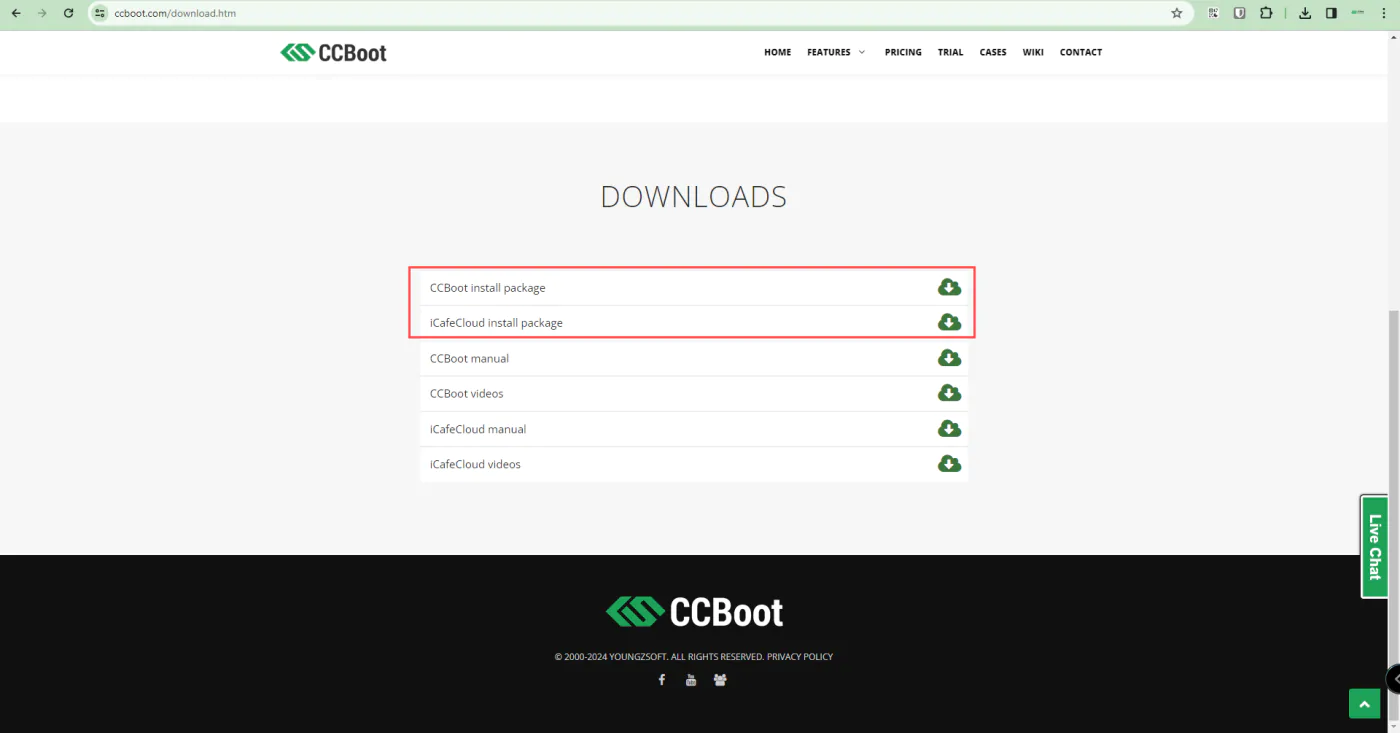
Figure 1 — The download page on ccboot.com. -
Open Options and click Get trial license
After successfully downloading and installing either the CCBootCloud server or the iCafeCloud server, you will encounter a popup window labeled “Options”. Within this window, you can apply for a trial license by clicking on the “Get trial license” button.
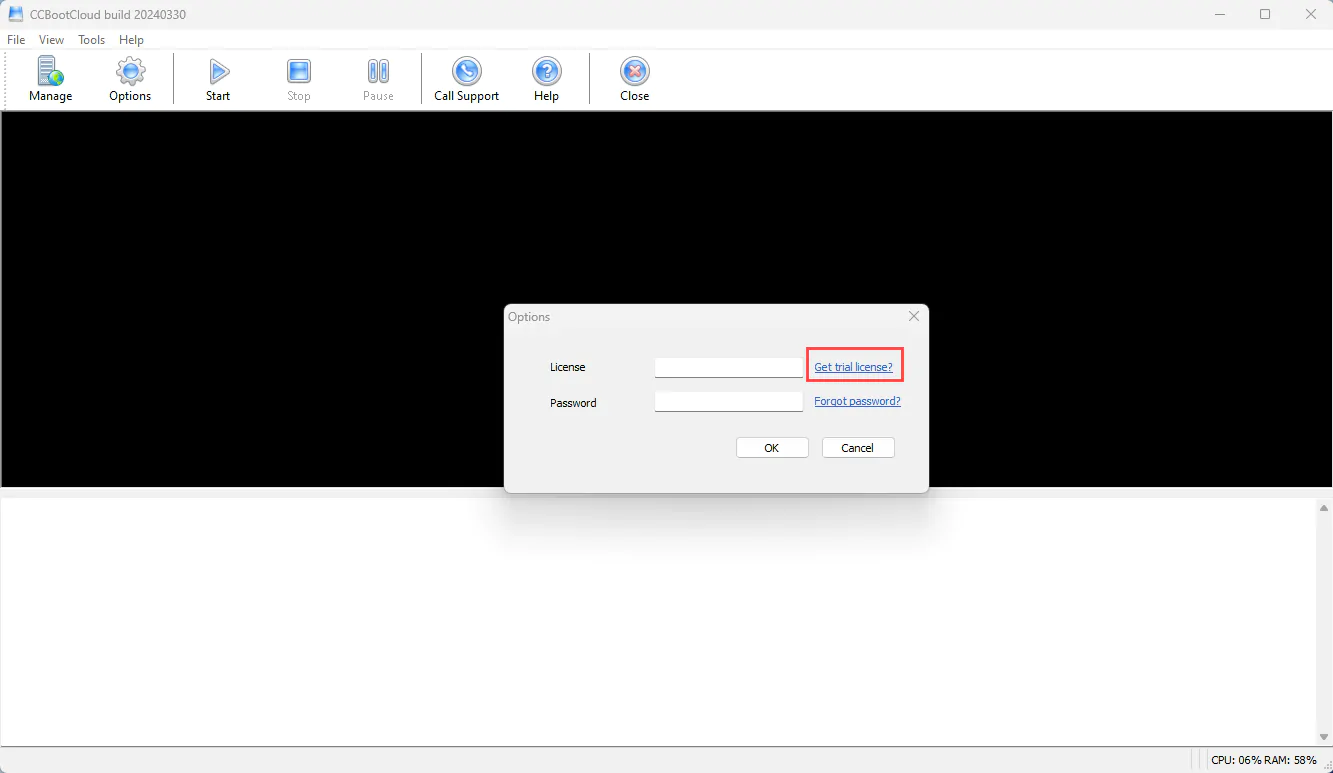
Figure 2 — Options in the CCBootCloud server. 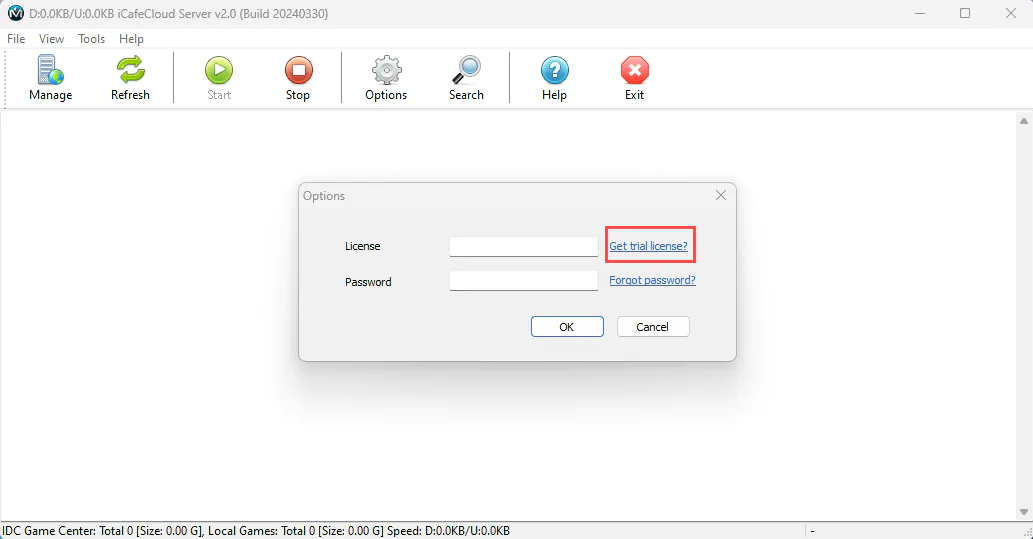
Figure 3 — Options in the iCafeCloud server. -
Your server hardware is checked
When you click “Get trial license”, if your server does not have the minimum hardware requirements (at least 16GB of RAM and 4 physical disks), a message will pop up telling you to upgrade it. You will then be directed to our manual, Requirements.
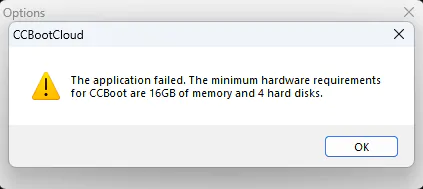
Figure 4 — The hardware requirement warning. -
Fill in the trial details
If your server meets the requirements, a window will pop up displaying the form for entering your trial details.
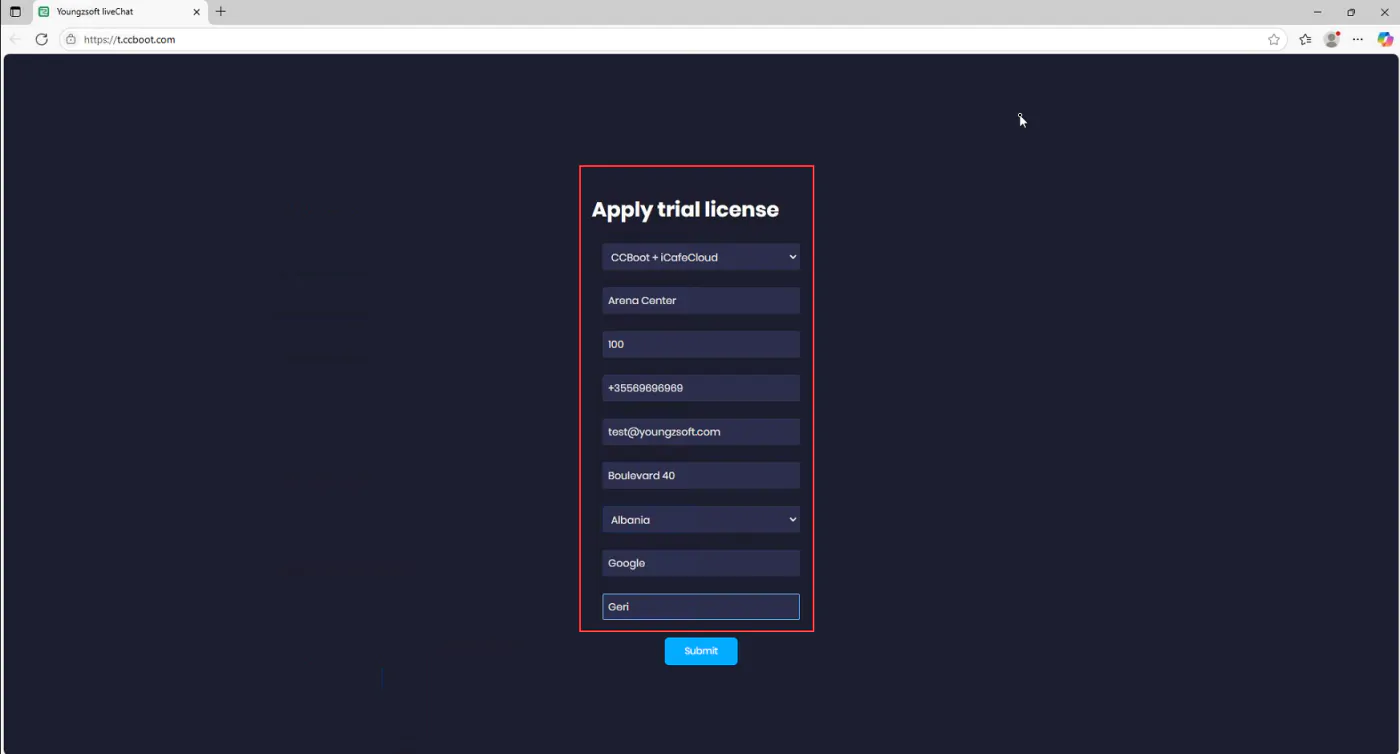
Figure 5 — The trial details form. -
Choose WhatsApp or Telegram
Once you fill in the details and submit the form, you will be redirected to choose a login method, either WhatsApp or Telegram. If you are on a PC, it is recommended to log in to the selected app beforehand, then choose your preferred option to continue.
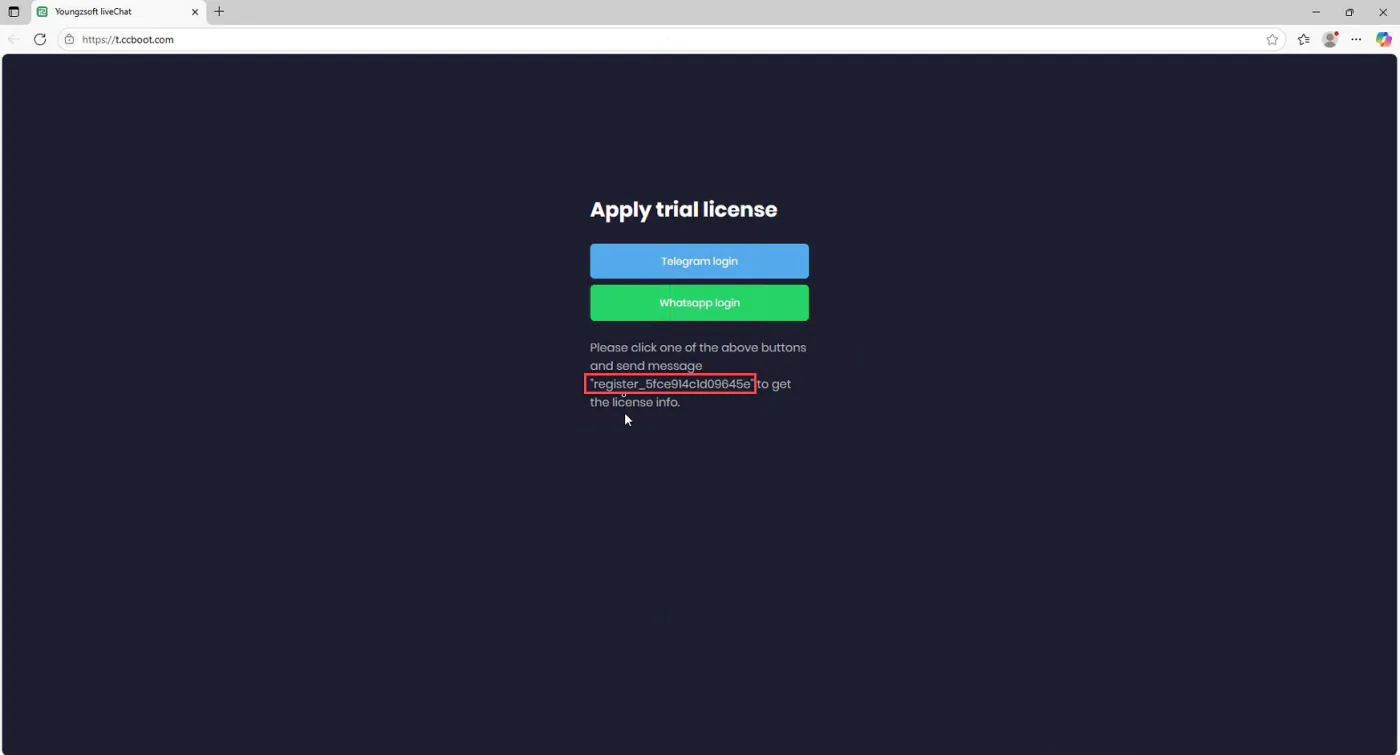
Figure 6 — Choose Telegram or WhatsApp; the registration code is shown below. -
Continue to chat and copy the registration code
Next, click “Continue to Chat”. You will see that the chat is with Youngzsoft, and the registration code will also be displayed.
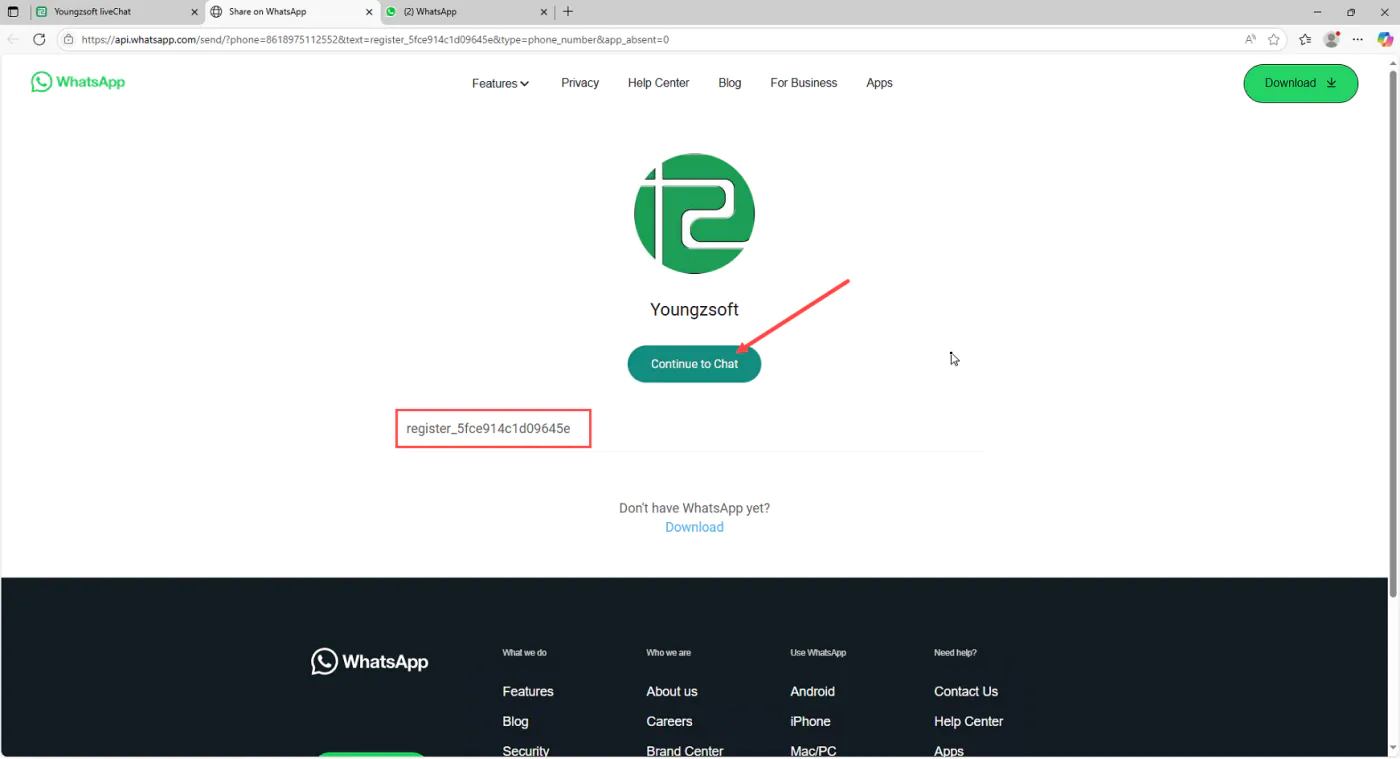
Figure 7 — Continue to Chat with Youngzsoft. -
Send the code in the chat
You will be redirected to the chat in the application you selected, for example WhatsApp Web. The registration code will be automatically inserted into the chat. If it is not, you can manually copy the code from the registration page and paste it into the chat, then click Send.
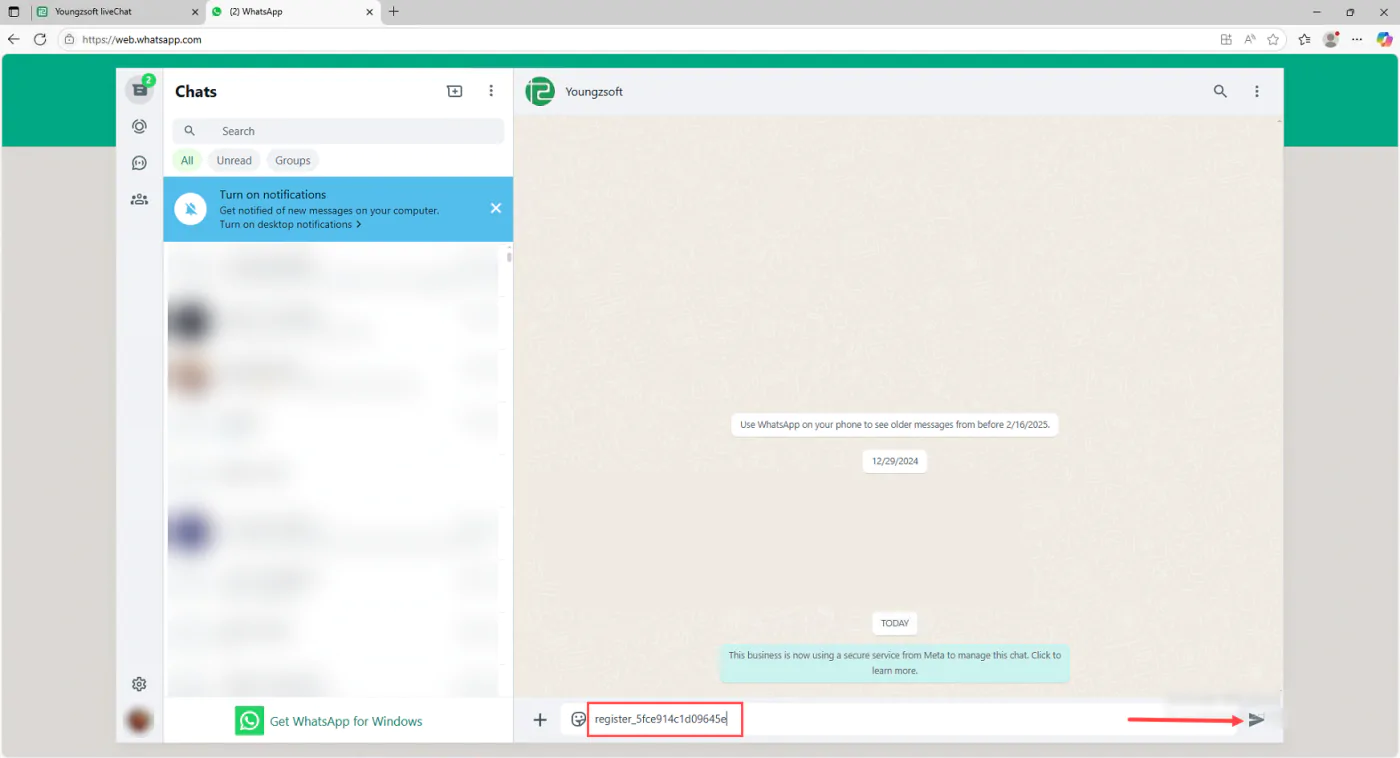
Figure 8 — The code pasted into the chat, ready to send. -
Receive your license
The license will be generated automatically and will include details such as the license number, license password, expiration date, and the number of PCs covered. This information will be sent directly to the same chat where you initiated the process.
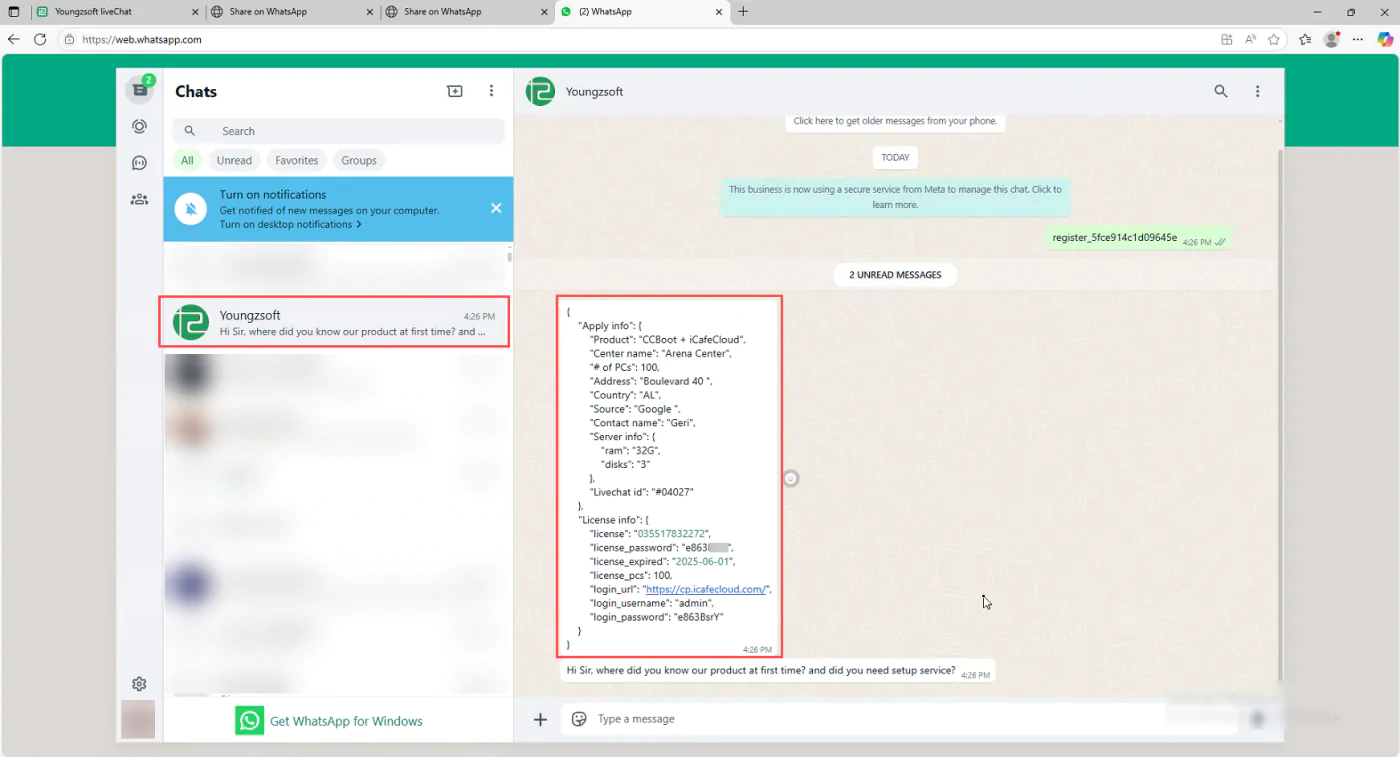
Figure 9 — The license details arrive in the same chat.
Good to know
One trial per machine ID
You can only obtain a trial license once for each machine ID. If you try to obtain it multiple times on the same machine ID, you will receive an error message. In such cases, please contact support for assistance.
Number of PCs
The minimum quantity is 10 PCs, and the maximum is 200 PCs, or more in special cases.
Trial period
The trial period is 15 days, and it can be extended to 30 days upon request.
Get started
Download the server, or message us and we will walk you through it.