

Console seats that start and stop on the clock
iCafeCloud starts and ends PlayStation and Xbox sessions the same way it handles PCs. Pick the control that suits your screens — a Sonoff smart switch, a Raspberry Pi on HDMI, or the iCafeTV app on a Google TV — and the TV goes dark the moment paid time runs out.
What it does
Automatic on and off
Starting a session switches the console TV on. Checking out switches it off, with no one crossing the floor.
One price list
Console seats use the same PC groups, member groups, offers and balances as your PCs.
Self-service by QR
Print a QR code for each console. Players scan it, log in and start their own session.
Alerts before time ends
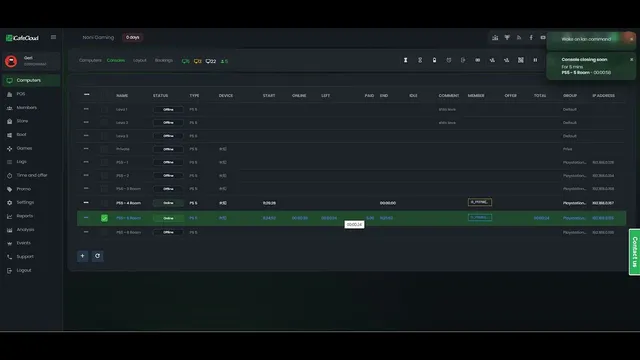
Notification Before Console End warns staff at the minutes you choose.
Controllers as seats
Add extra controllers to a running session and price them as their own group.
Consoles, VR and more
PlayStation, Xbox, VR headsets or any device on a screen can be added and timed like a PC.
Bookable seats
Consoles can be booked from the Consoles page, the same way as PCs.
Start without hardware
Add consoles manually and iCafeCloud times them. Add a controller later to automate the power.
Three ways to control a console
All three act on the TV, not the console, so play stops when the paid time does. Choose by the screens you already have.
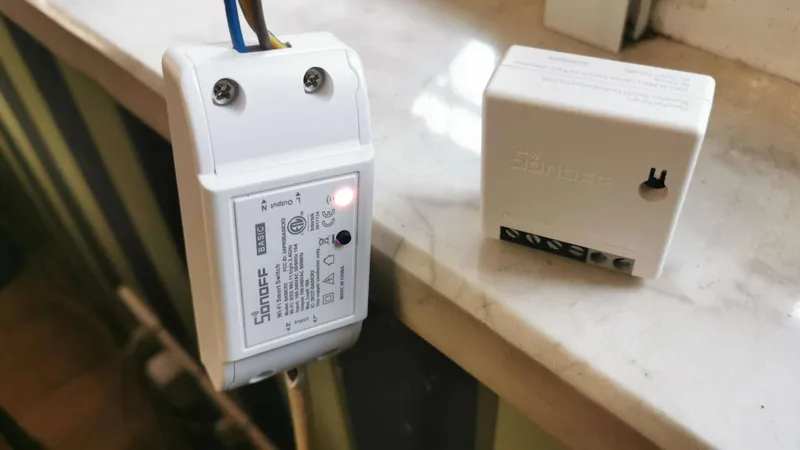
- Sonoff smart switchA Wi-Fi switch on the TV power line turns the screen on at session start and off at checkout.
- How it works
- iCafeCloud switches the TV power through the Sonoff over your LAN.
- Hardware
- Sonoff Basic R2, Mini R2 or Basic R4 on 2.4 GHz Wi-Fi.
- Best for
- Any TV, smart or not, including screens that cannot install apps.
- Raspberry PiA Raspberry Pi on the TV's HDMI port powers the screen on and off over HDMI-CEC.
- How it works
- The Pi sends HDMI-CEC power commands to the TV when iCafeCloud starts or ends the session.
- Hardware
- Raspberry Pi 4 Model B, microSD card and a micro-HDMI to HDMI cable.
- Best for
- TVs with HDMI-CEC where you would rather not touch the mains wiring.
- iCafeTVOur Android TV app locks a Google TV screen when time is up and shows a QR code for the next player.
- How it works
- The iCafeTV app runs on the TV, blocks the screen between sessions and unlocks it when one starts.
- Hardware
- No extra hardware: a Google TV or Android TV that can install apps.
- Best for
- Venues with Google TV or Android TV screens.
Compare the methods
| Method | Sonoff smart switch | Raspberry Pi | iCafeTV |
|---|---|---|---|
| What it controls | TV power, through the mains | TV power, through HDMI-CEC | The TV screen, with a lock screen |
| Extra hardware | One Sonoff switch per TV | One Raspberry Pi 4 per TV | None |
| Wiring | Inline on the TV power cable | One HDMI cable | None |
| Network | 2.4 GHz Wi-Fi, same LAN as the server | Wi-Fi or Ethernet | The TV's own network |
| Pairing | Found automatically, or with SonoffDevice for Basic R4 | TV PIN and a one-line install | TV PIN entered in the app |
| Screens | Any TV | TVs with HDMI-CEC | Google TV and Android TV |
Control the TV, not the console
Every method works at the screen. Cutting power to a PlayStation or Xbox skips its shutdown and can damage it, so the console is left on standby while the TV is switched off or locked.
That also means the brand and generation of the console do not matter. Whatever sits behind the TV, the game ends when the picture does.
Get started in four steps
- 01
Add console seats
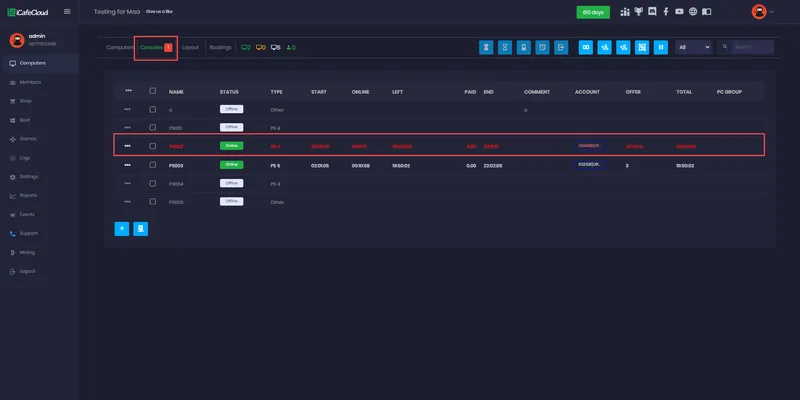
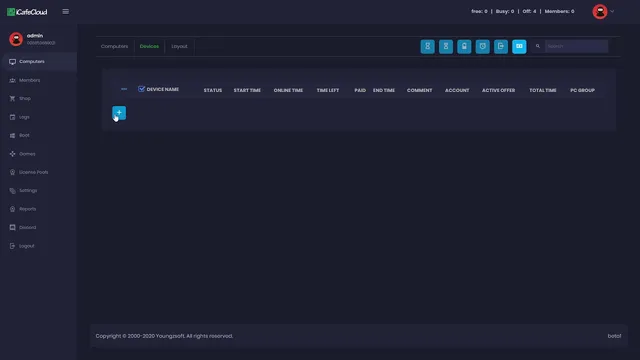
In iCafeCloud go to Computers → Consoles and add a seat for each console.
- 02
Pick a control method
Fit a Sonoff, connect a Raspberry Pi or install iCafeTV on each TV.
- 03
Set console prices
Put console seats in their own PC group with their own prices and offers.
- 04
Start playing
Start sessions from the panel, from a booking or from the QR code on the seat.
Documentation
Setup guides for each method and for running console seats day to day.
Watch it in action
Short tutorials from the iCafeCloud YouTube channel.
Common questions
Which consoles can iCafeCloud control?
PlayStation, Xbox and any other console that plays through a TV. The control happens at the screen, so the console model does not matter.
Which method should I choose?
Sonoff works with any TV but needs a switch on the power line. A Raspberry Pi needs HDMI-CEC on the TV but no mains wiring. iCafeTV needs no extra hardware but only runs on Google TV and Android TV.
Can I run console seats without any hardware?
Yes. Add the consoles manually and iCafeCloud acts as a timer, with alerts before time ends. Staff then switch the consoles off, and a member's next offer only starts after a manual check-out and log-in.
How are extra controllers counted?
Each controller added to a session counts as one more seat in your licence. Two consoles with four controllers each need ten seats in total.
Can players start a console session themselves?
Yes. Each console can have its own QR code. Players scan it, log in with their member account and start the session from their phone.