

A smart switch that ends every console session
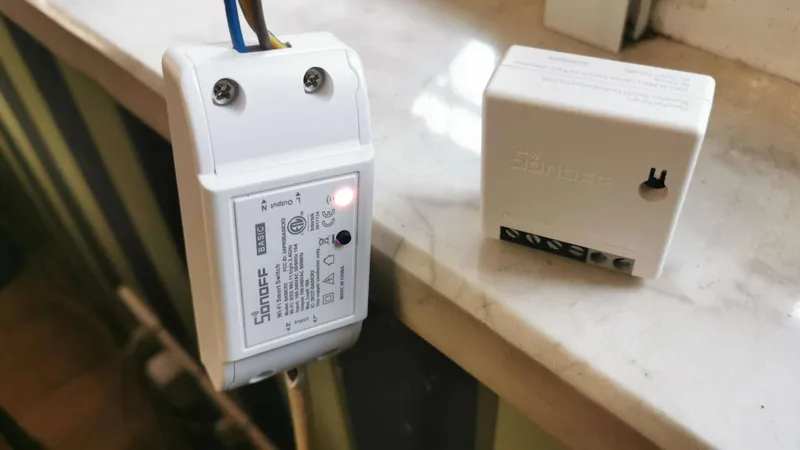
Wire a Sonoff Wi-Fi switch into the TV power line and iCafeCloud does the rest. The TV powers up when a session starts and powers down at checkout, so nobody has to walk over to the console.
What it does
On at start, off at checkout
Starting a session switches the TV on. Checking out switches it off, on the same clock as your PCs.
Found on the network
iCafeCloud scans the LAN and lists each switch as SONOFF_xxxx. Rename it to match the seat.
Idle protection
With Auto Shutdown Idle Sonoff on, a switch turned on without a session goes off again after a few seconds.
Offers that roll over
With a Sonoff attached, a member's next console offer starts by itself when the current one runs out.
Manual control
Switch any device on or off from the control panel, and find every action in the game logs.
Priced like any seat
Console seats use the PC groups, member groups, offers and balances you already set up.
Players start their own
Print a QR code for each console. Players scan it, log in and start the session from their phone.
Works on a VLAN
Consoles on their own VLAN work too, with multicast enabled and the right gateway set.
Three supported models
All three Sonoff models below are on sale and supported. They join your Wi-Fi, and iCafeCloud controls each one by its IP address on the LAN.
Basic R2 and Mini R2 are set up in eWeLink (API) mode. Basic R4 is added with the SonoffDevice tool that ships with iCafeCloud Server.
- Sonoff Basic R2 — eWeLink (API) mode
- Sonoff Mini R2 — eWeLink (API) or DIY mode
- Sonoff Basic R4 — added with SonoffDevice.exe and the eWeLink app
- 2.4 GHz Wi-Fi only — 5 GHz is not supported
Switch the TV, not the console
Put the Sonoff on the TV's power, never on the console. Cutting power to a PlayStation or Xbox skips a proper shutdown and can damage it.
Wire it as cable → Sonoff → cable → socket → TV, so the TV's own power cord stays uncut. Most venues fit the switch under the desk.
- The TV goes dark, the console stays on standby
- No cut in the TV's own power cord
- Fitted out of sight under the desk
- Works with any TV, smart or not
Every console on one screen
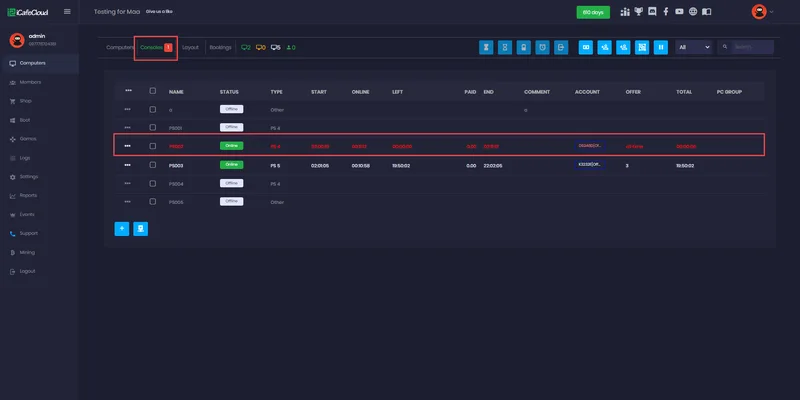
The Consoles tab shows each seat with its status, start time, time left, member and offer — the same view you use for PCs.
Start a prepaid, postpaid, offer or member session from the right-click menu, or switch a device on and off by hand when you need to.
Network setup
The Sonoff must be on the same network and subnet as the iCafeCloud server. Who hands out IP addresses depends on whether you also run CCBoot.
- With CCBoot: CCBoot is the DHCP server, so turn DHCP off on the Wi-Fi router or access point
- iCafeCloud only: leave DHCP on the router and let it give the Sonoff its address
- Consoles on a VLAN: enable multicast and set the correct gateway inside the VLAN
- If the router keeps Wi-Fi on a separate network, switch it to access point (AP) mode
Set up a Sonoff in four steps
- 01
Wire it in
Fit the switch on the TV power line and power it on.
- 02
Join the Wi-Fi
Pair it in the eWeLink app on 2.4 GHz Wi-Fi, on the same LAN as the iCafeCloud server.
- 03
Let iCafeCloud find it
Basic R2 and Mini R2 appear as SONOFF_xxxx. For Basic R4, run SonoffDevice.exe and click Add Console.
- 04
Name and price it
Rename the device after the seat, put it in a PC group and start the first session.
Documentation
Step-by-step guides from the iCafeCloud wiki, for each model and network layout.
Watch it in action
Short tutorials from the iCafeCloud YouTube channel.
Common questions
Which Sonoff models work with iCafeCloud?
Sonoff Basic R2, Sonoff Mini R2 and Sonoff Basic R4. All three are on sale and each has its own setup guide in the wiki.
Should the Sonoff power the console directly?
No. Put it on the TV. Cutting power to a console skips its shutdown and can damage it, while switching the TV simply takes the picture away.
Does it work on 5 GHz Wi-Fi?
No. The switches join 2.4 GHz Wi-Fi only, and they must be on the same LAN and subnet as the iCafeCloud server.
Do I need CCBoot?
No. With iCafeCloud alone the router hands out addresses as usual. If you also run CCBoot, CCBoot becomes the DHCP server and DHCP on the Wi-Fi router is turned off.
What if someone turns the TV on by hand?
Turn on Auto Shutdown Idle Sonoff. A device that shows as standby with no session running is switched off again after about five seconds.
Do console offers switch over automatically?
Yes, when a Sonoff is attached. Without one, iCafeCloud only times the seat, and staff check the member out and back in to start the next offer.