

Consoles that check themselves out
Install iCafeTV on the Smart TV and console seats behave like PC seats. When the paid time ends, the screen blocks and the session closes without anyone walking over.
What it does
Automatic checkout
Console sessions end on the clock, the same way PC sessions do, straight from iCafeCloud.
Screen blocking
When time is up the TV shows a block screen, so a finished session cannot quietly continue.
Same billing rules
Console seats use the price settings, offers and member balances you already configured for the PCs.
Two ways to install
Install from Google Play on the TV, or side-load the APK from a USB drive when the TV has no store access.
Any console behind the TV
The control point is the screen, so the console brand and generation do not matter.
No staff intervention
Nobody has to remember which room is due to finish. The floor gets quieter and the takings get more accurate.
Pair a TV in four steps
Installation happens once per screen and takes a few minutes. After that the TV stays paired with its console record in iCafeCloud.
The app needs permission to draw on top of other apps — that is what lets the lock screen cover the TV interface rather than sit behind it.
- Install iCafeTV from Google Play on the TV, or from a USB drive through the TV app manager
- Allow the app to display on top of other apps when the TV asks
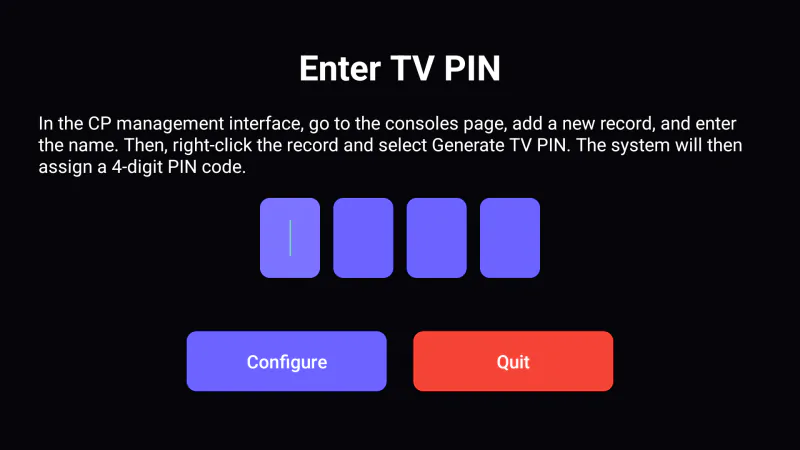
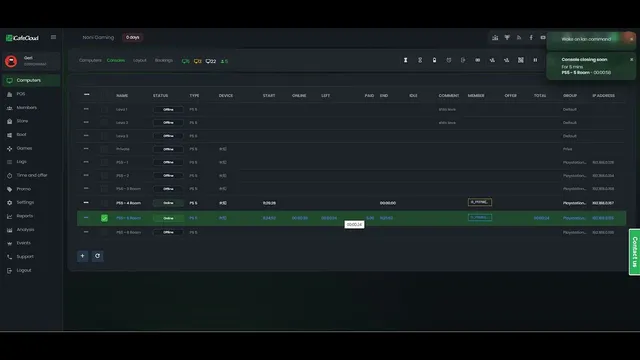
- In iCafeCloud go to Computers → Consoles, add the console and click Generate TV PIN
- Enter the 4-digit PIN on the TV — the app shows as connected
The lock screen does the asking
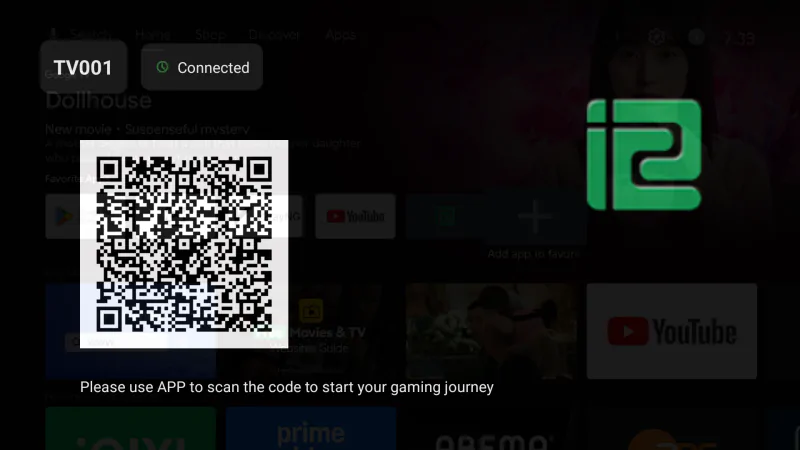
Between sessions the TV shows the iCafeTV lock screen, which blocks every app underneath it. The screen carries the console name and a QR code, so a player can scan it in the iCafeApp to start their own session.
Starting a session from iCafeCloud unlocks the screen. When the paid time runs out the lock returns by itself, and the console is ready for the next customer without anyone crossing the floor.
Before you install
- TV requirement
- A Smart TV that allows Android apps to be installed
- From USB
- Download the APK, copy it to a USB drive, install through the TV app manager
- Permission
- Allow an app to display on top of other apps
- Pairing
- A 4-digit TV PIN generated per console in iCafeCloud
- Not supported
- TVs with closed operating systems that block app installation
Watch it in action
Short tutorials from the iCafeCloud YouTube channel.
Common questions
Which TVs work?
Any Smart TV that lets you install Android applications. Some brands ship a locked-down system that will not allow it, and those cannot run iCafeTV.
Is iCafeTV the same app as iCafeApp?
No. iCafeApp is the phone app for owners, staff and players. iCafeTV is a separate Android TV build that runs on the screen itself, and it is on Google Play only — there is no iOS version, because the app has to run on the TV.
What if the TV has no Google Play access?
Download the APK on a PC, copy it to a USB drive, and install it through the TV app manager. The wiki walks through the whole side-load.
How does a player start a session on a console?
Either your staff start it from iCafeCloud, or the player scans the QR code on the lock screen with iCafeApp and starts it themselves.
Do I need one licence per TV?
Console seats are counted the same way PC seats are. Ask support how your current plan covers them.