

The following explains how to configure Stripe for a credit card terminal and how to use it, allowing customers to pay directly at the POS using their credit card.
- Navigate to POS → Settings, locate the Credit Card Terminal option, and set it to Stripe. (Figure 1)
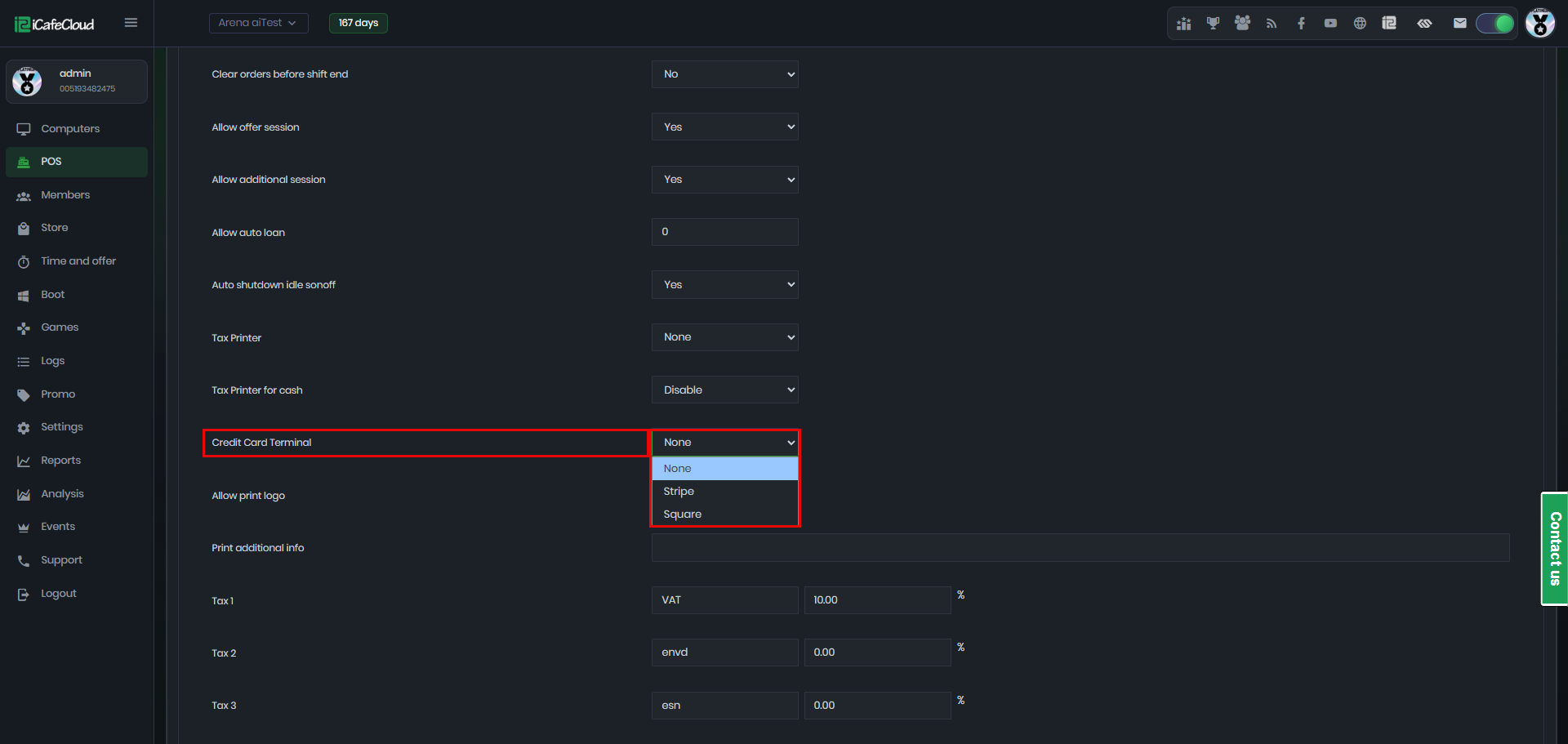
Figure 1
- To integrate with your own Stripe account, you need to obtain the following credentials:
Stripe Secret Key
Stripe Reader ID
Stripe Webhook Secret (Figure 2)
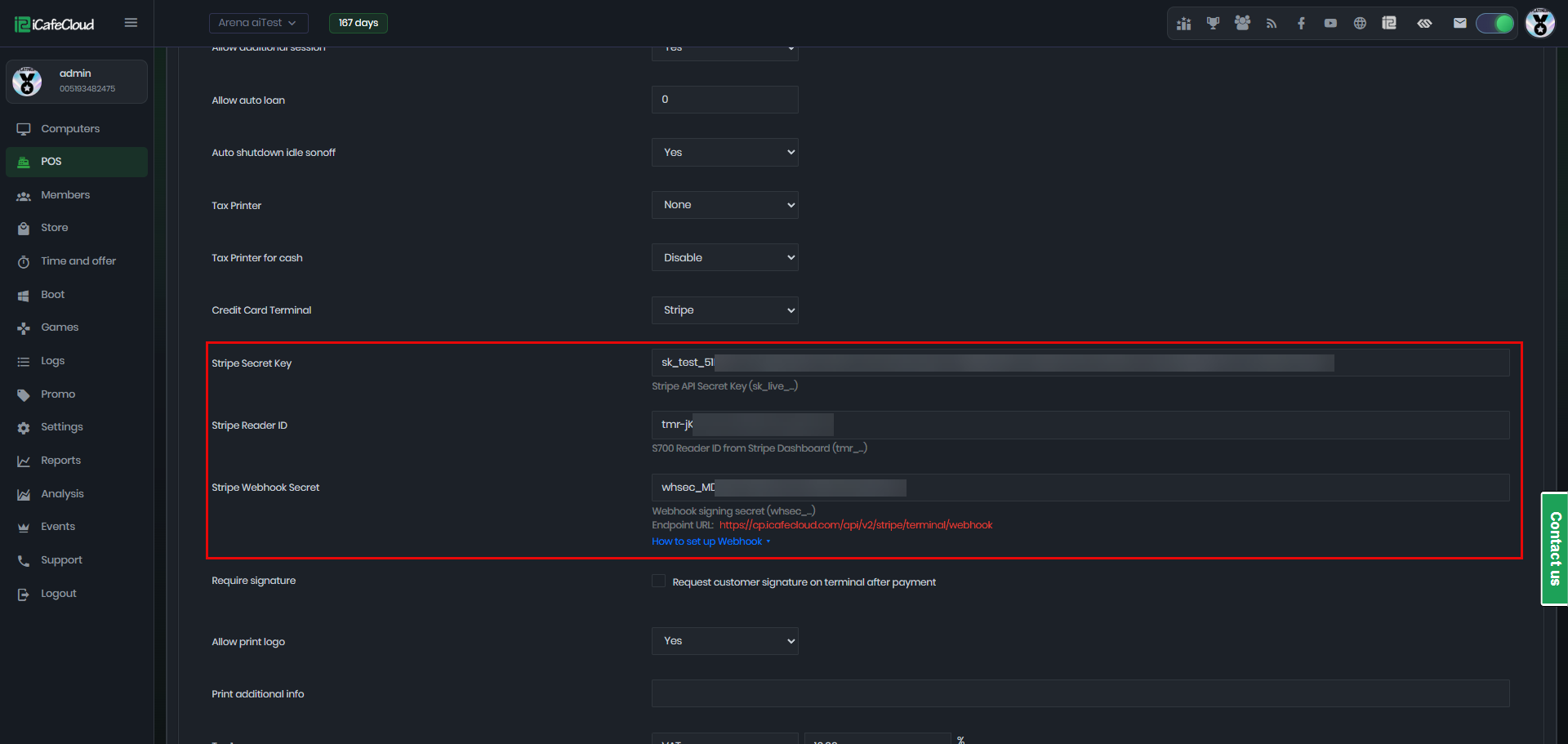
Figure 2
- Log in to your Stripe account. From the dashboard, scroll to the bottom and click Developers, then select API Keys from the menu. (Figure 3)

Figure 3
- On the API Keys page, click Create a restricted key. (Figure 4)
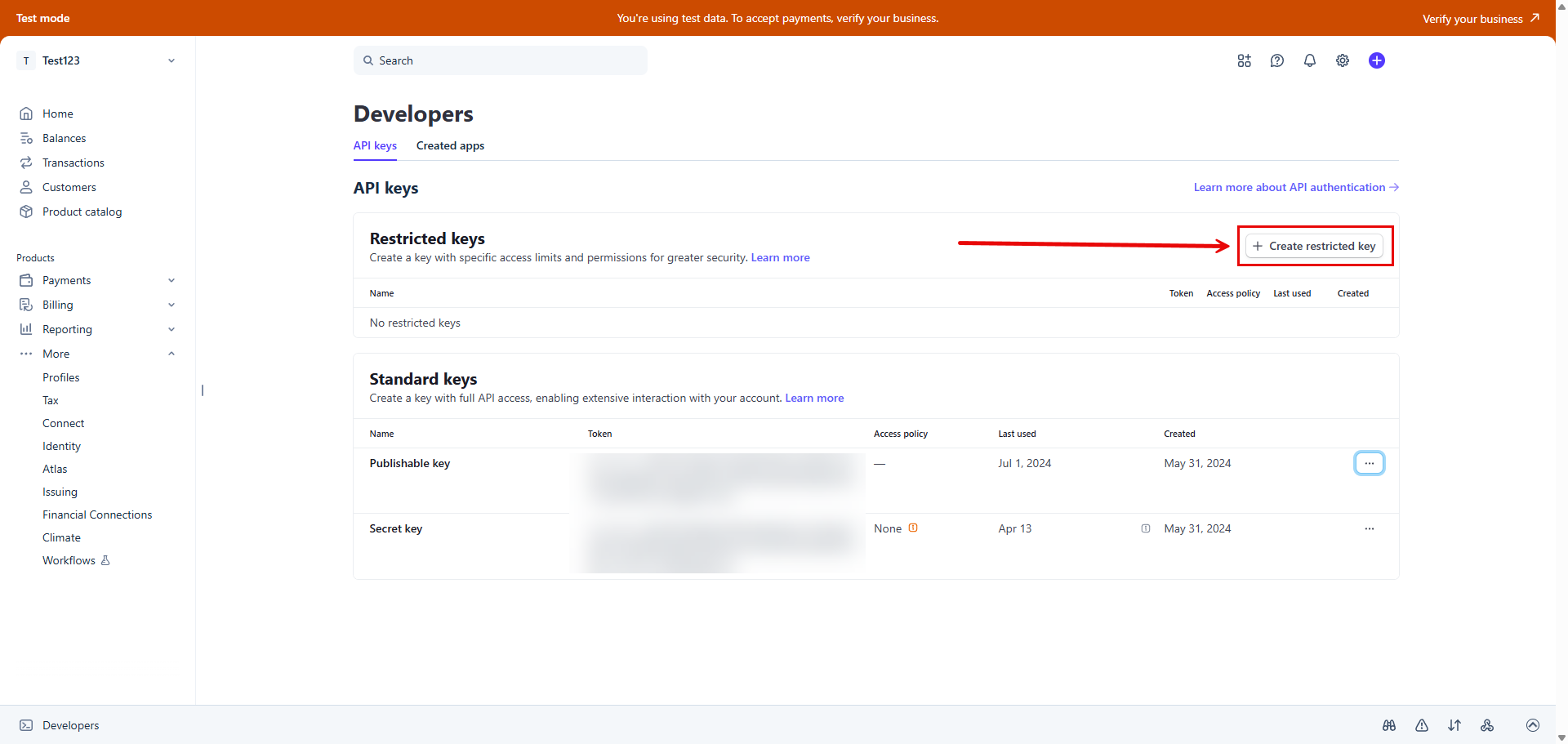
Figure 4
- Select the “Providing this key for a third-party application” option. (Figure 5)
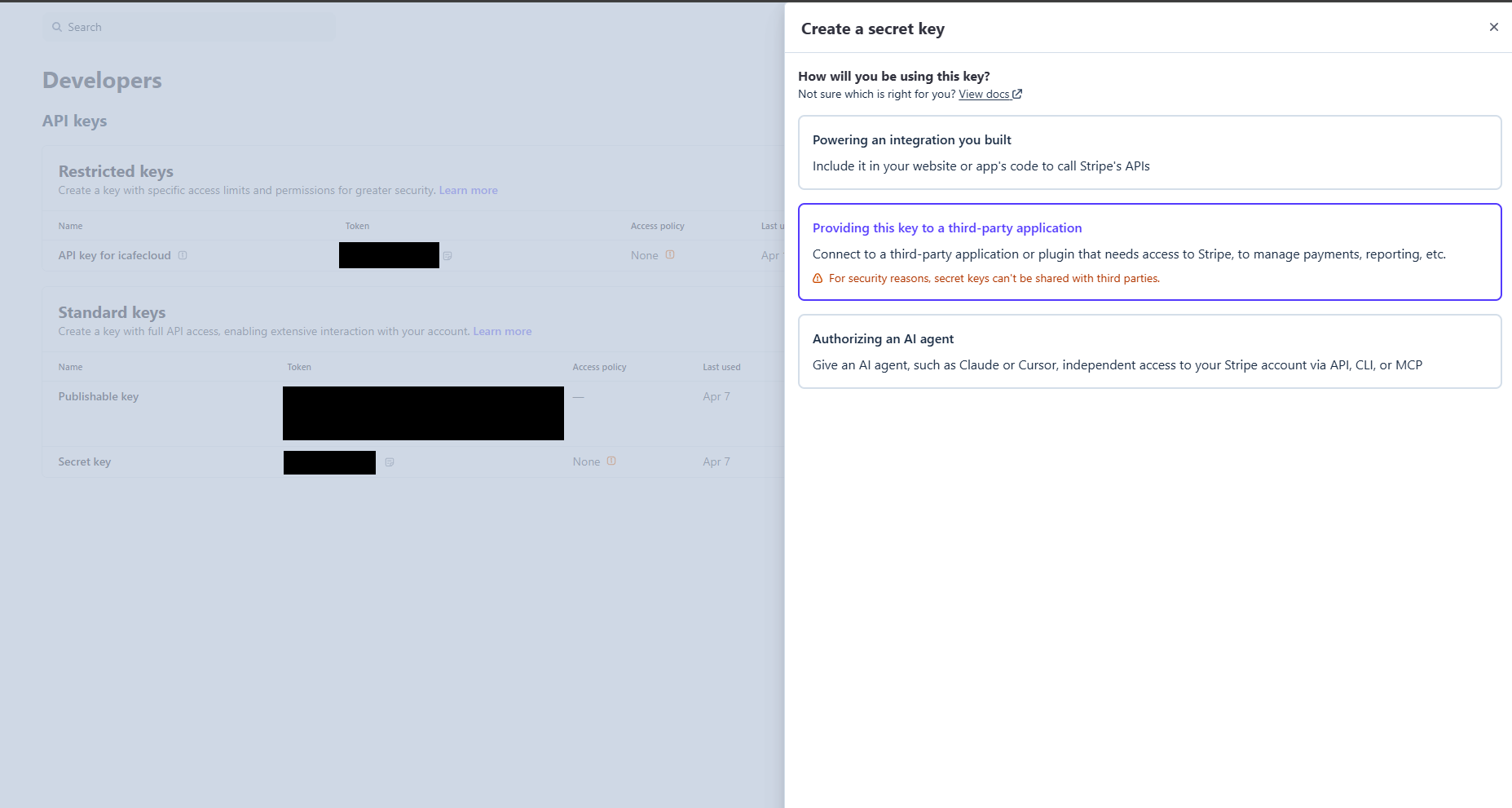
Figure 5
- On the restricted key setup page, enter iCafeCloud as the key name, set the URL to https://cp.icafecloud.com/, and choose Customize permissions for this key. (Figure 6)

Figure 6
- Select the required permissions, then scroll down and click Create key to finalize the key creation. (Figure 7)

Figure 7
- The key will be displayed on the API Keys page. Copy it and paste it into iCafeCloud. (Figure 8)
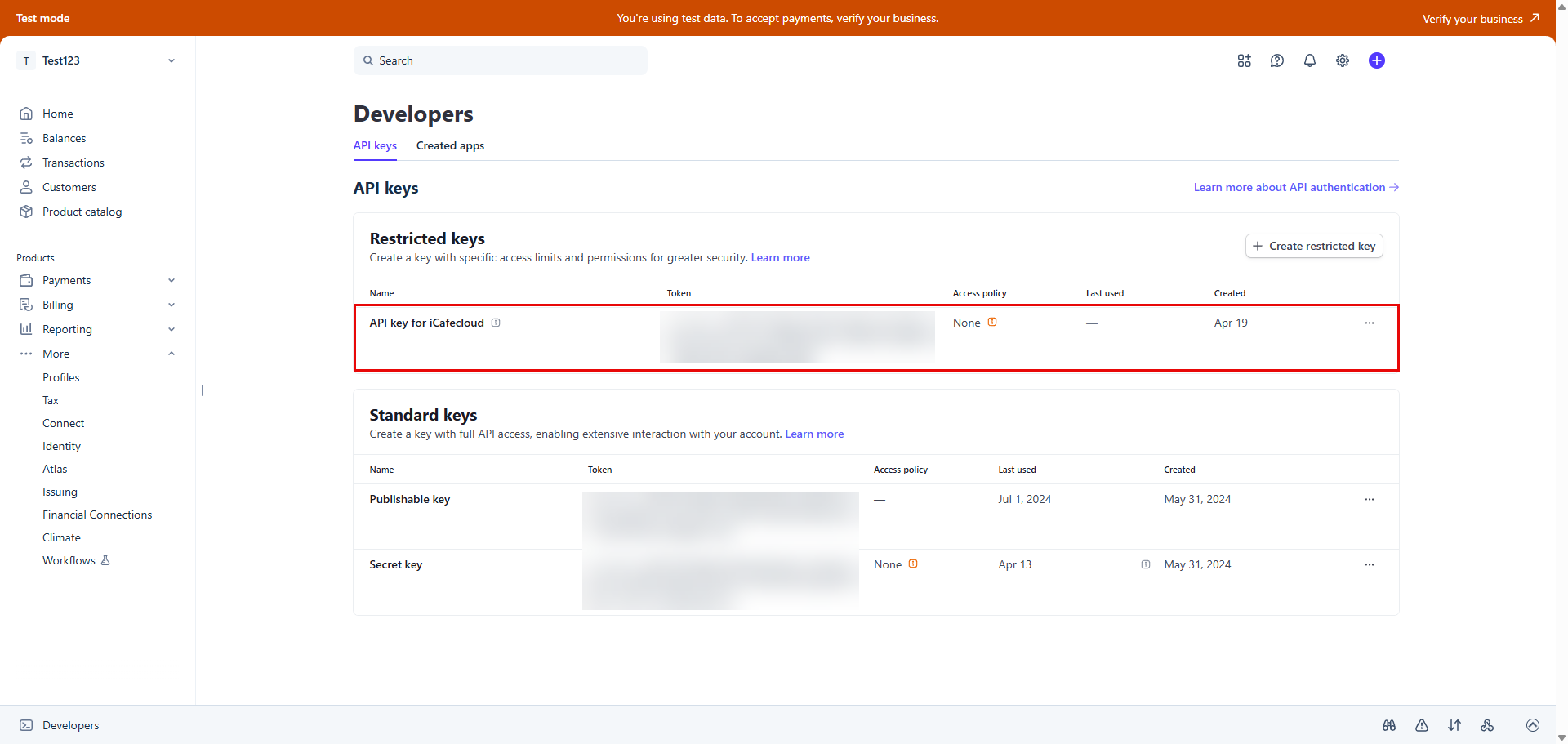
Figure 8
- Next, go to the Terminal page. Once the terminal shows as online, copy the Reader ID and enter it in iCafeCloud. (Figure 9)
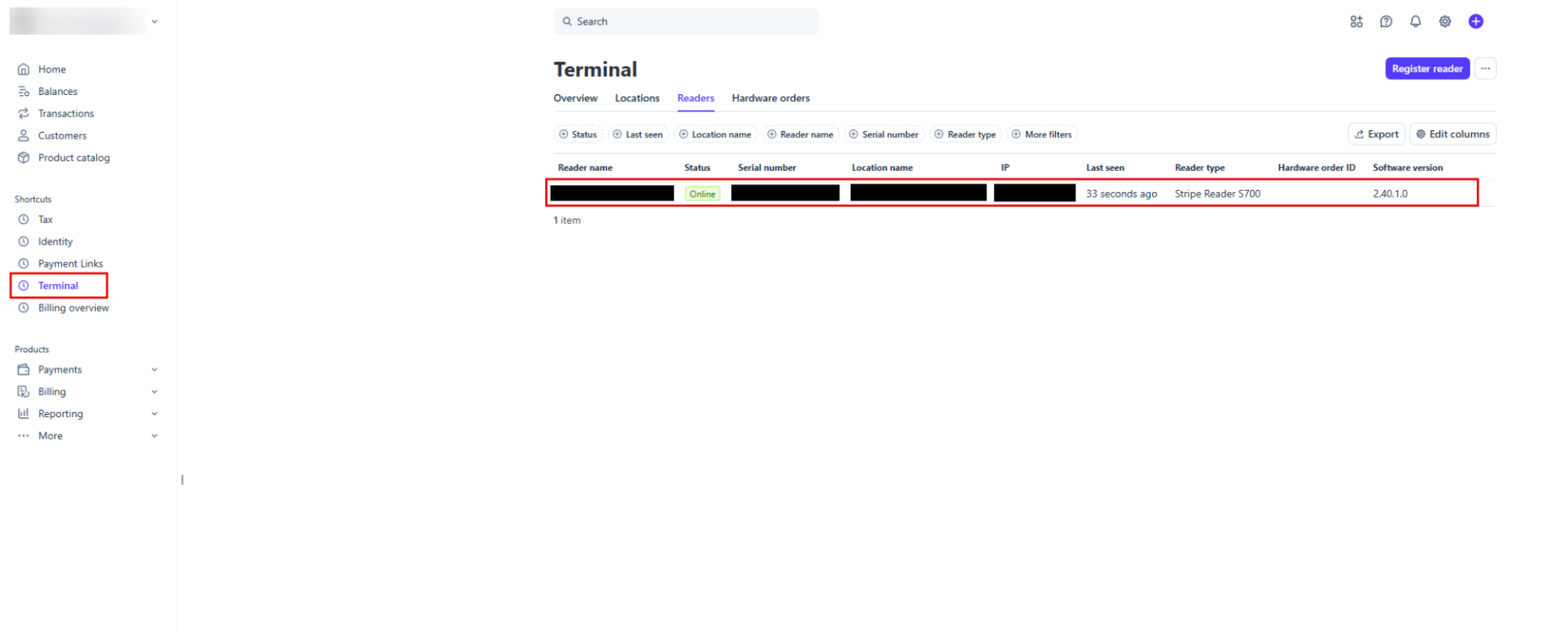
Figure 9
- For the webhook setup, go back to the Developer section and click on Webhooks. (Figure 10)
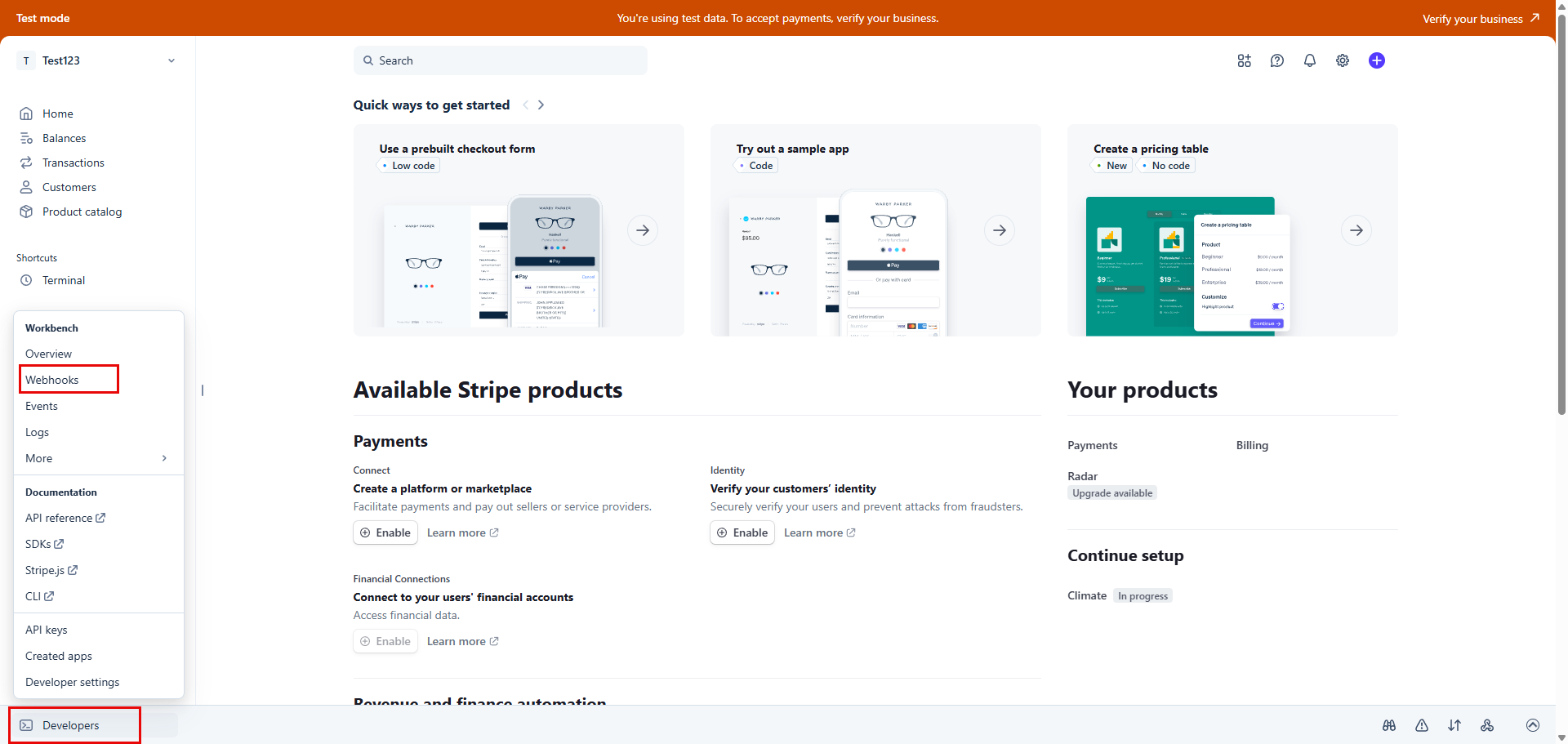
Figure 10
- Select add destination (Figure 11)

Figure 11
- Select the event type, API version, and enable the events payment_intent.succeeded, payment_intent.payment_failed , then click Continue. (Figure12)
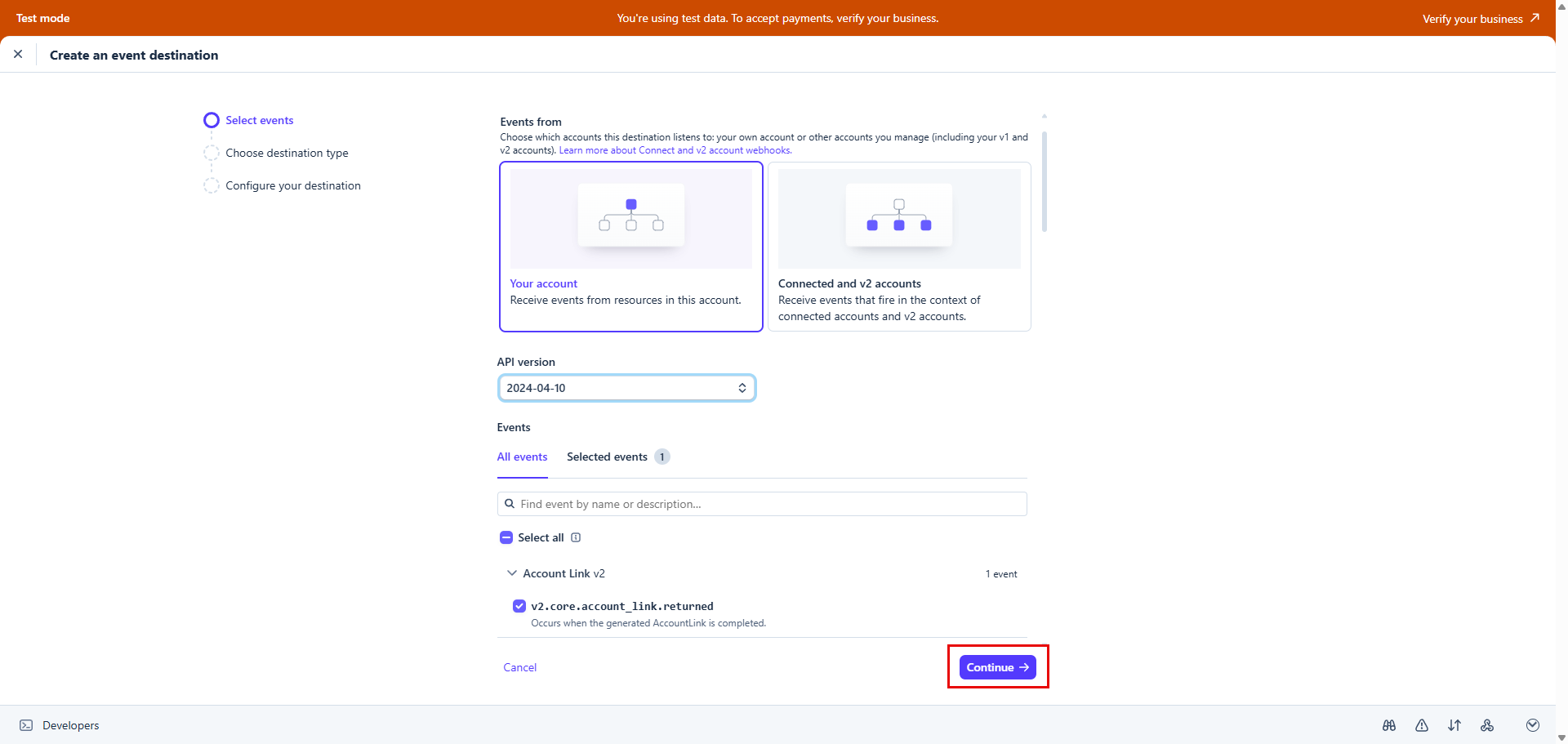
Figure 12
- Select the webhook endpoint, then click Continue. (Figure 13)
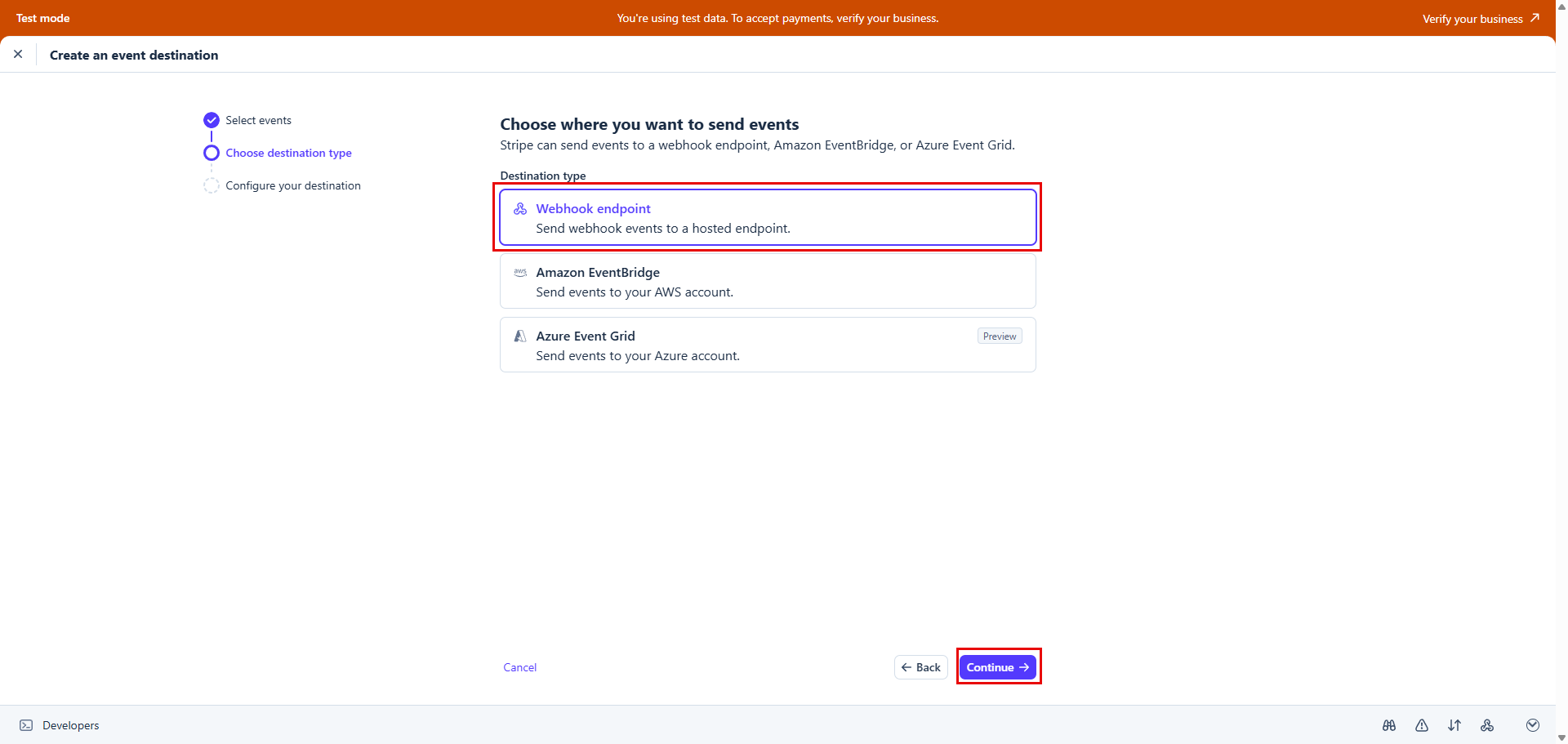
Figure 13
- Add the endpoint URL: https://cp.icafecloud.com/api/v2/stripe/terminal/webhook then click Create destination. (Figure 14)
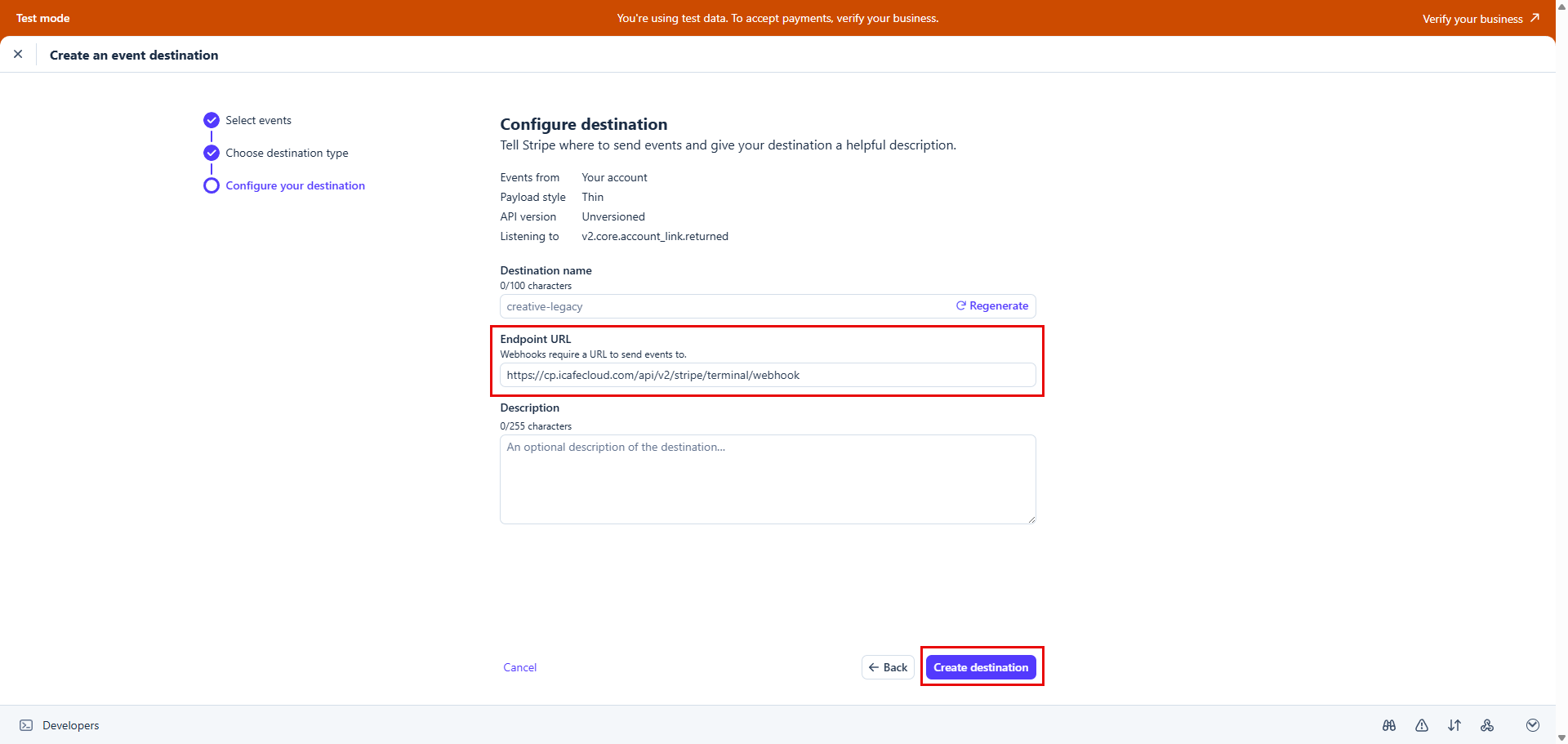
Figure 14
- Copy the signing secret and paste it into the Stripe Webhook Secret field.(Figure 15)
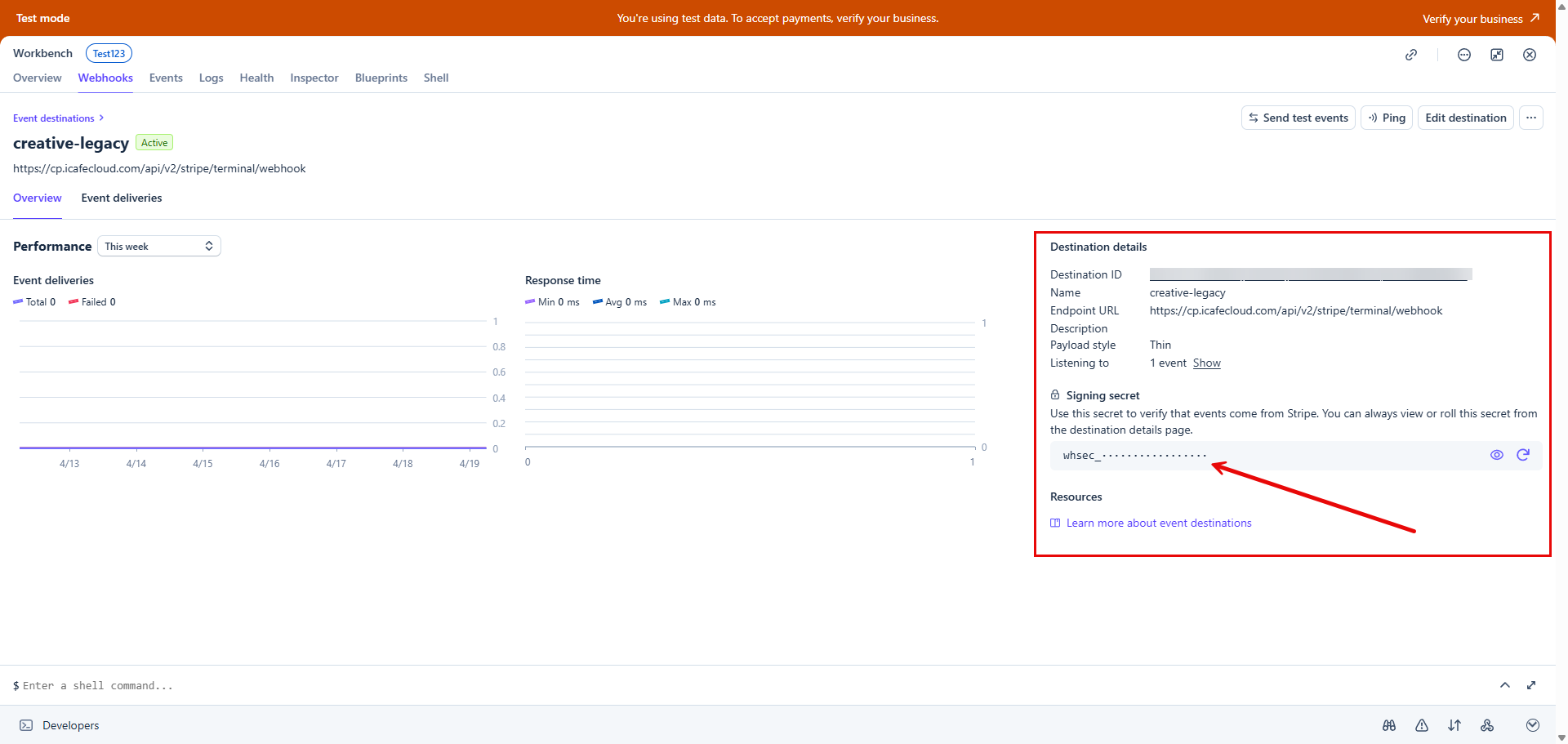
Figure 15
- iCafeCloud includes a signature option that requires customers to sign on the POS before a payment is completed. When enabled, signing becomes mandatory for each transaction. By default, this feature is disabled, meaning no signature is required. (Figure 16)
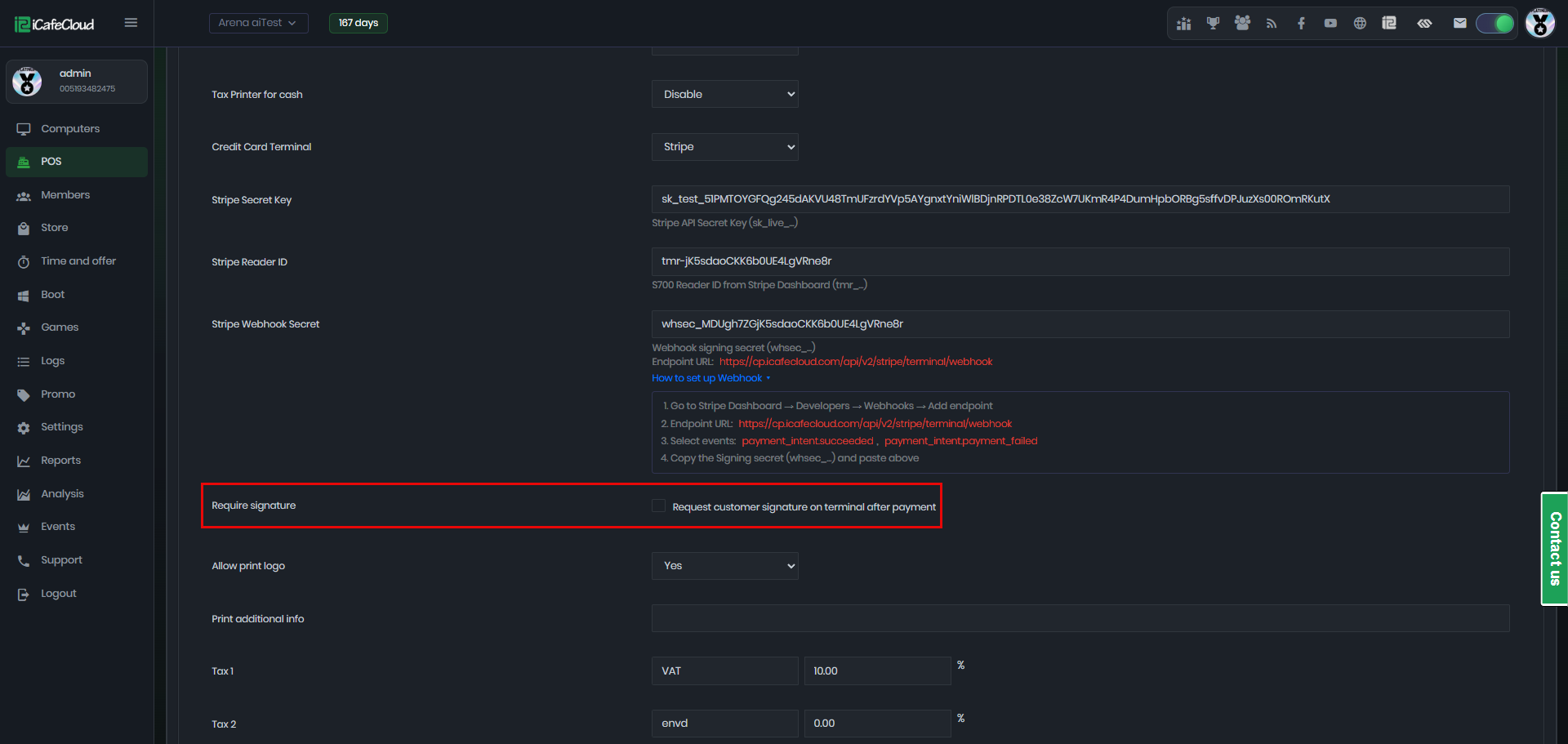
Figure 16
- Video demonstrating how Stripe payments work in the POS during an iCafeCloud purchase process.
https://www.youtube.com/watch?v=EA8Gm18rDpc