

TThe following explains how to configure a credit card or QR payment fixed fee, as well as the credit card or QR payment rate percentage.
- Go to POS → Settings → Credit card fixed fee you can change it based on preference and also Credit Card Price Rate % and change the value from 100% to your preferred amount (Figure 1).
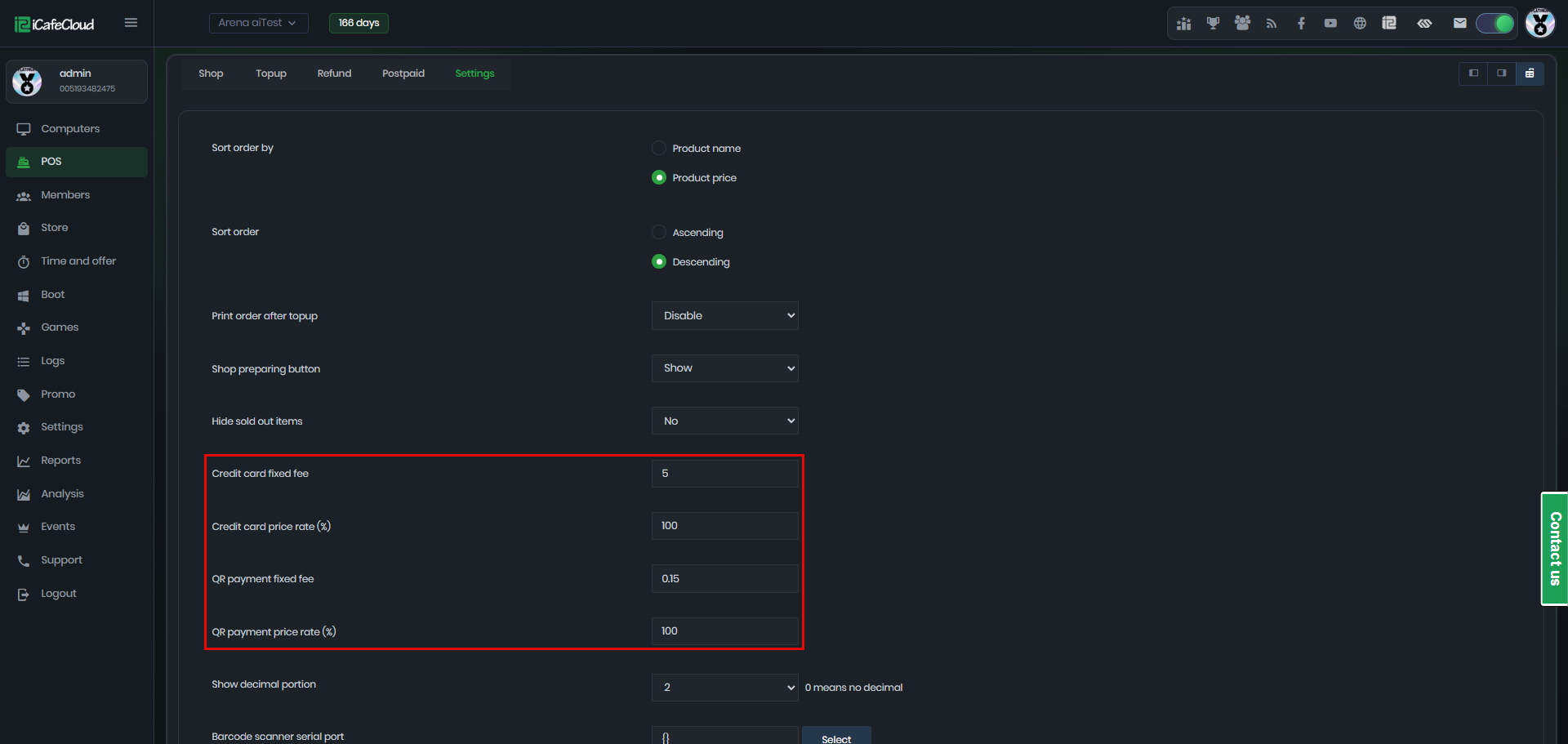
Figure 1
- By default, the credit card fee is set to 0 and the credit card rate is 100%, meaning credit card and cash payments are charged the same price.
- If you change it to another value, the credit card price will differ from the cash price.
- For example, if you set a $5 credit card fee in the shop, all products will display two prices: the cash/balance price and the credit card price. So, for a product priced at $100, paying by credit card will cost $105, with the $5 fee included.(Figure 2)
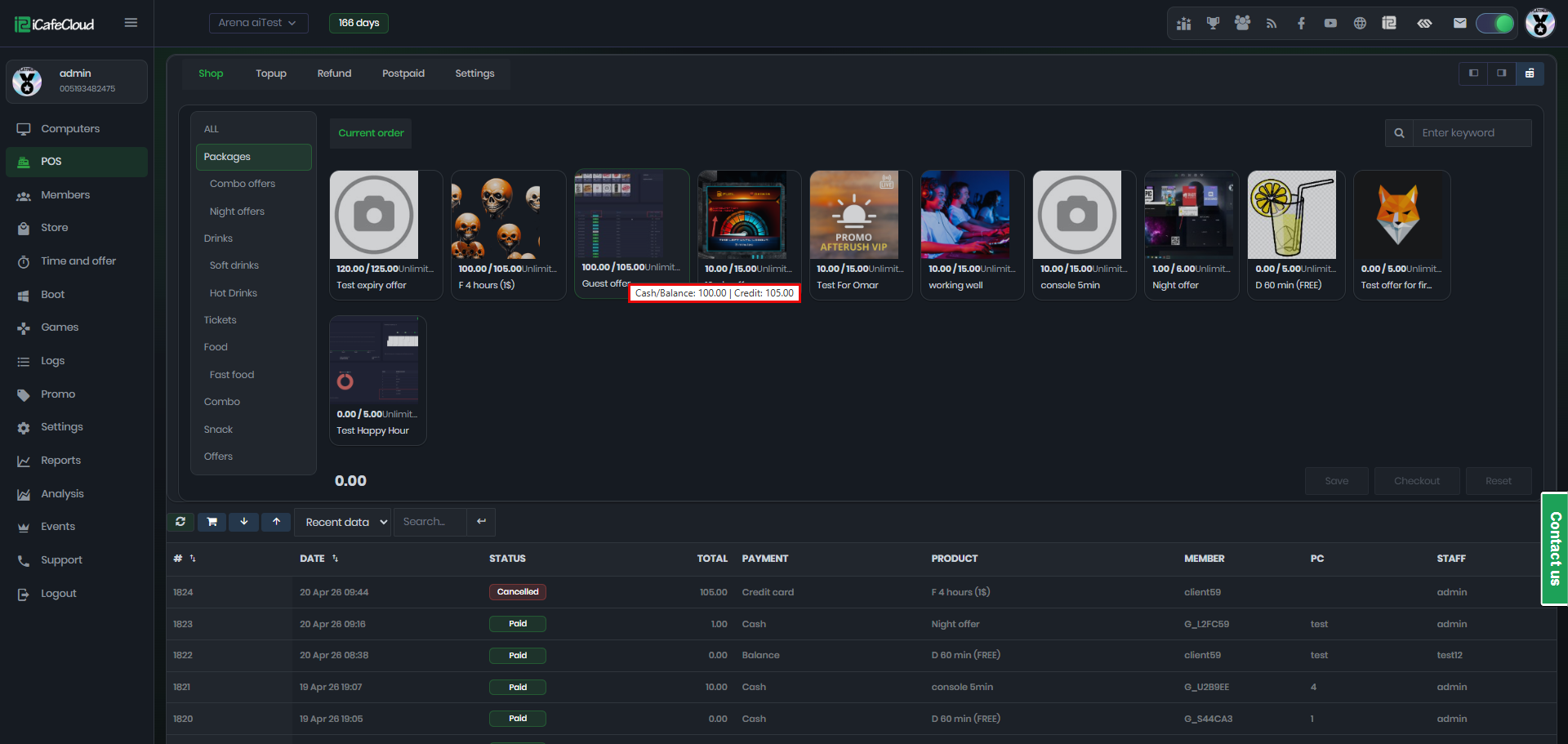
Figure 2
- If you change the credit card rate from 100% to 120%, the price will increase accordingly, for example, a $100 item will cost $120 when paid by credit card.
Credit Card Price = Original Price × (Rate ÷ 100)
(e.g., if the rate is 120%, use 120 in the calculation) - If the credit card fee is $5 and the credit card rate is 120%, the final product price will be $125. This includes the original $100 price, a $20 increase from the 120% rate, and the additional $5 fixed fee. (Figure 3)
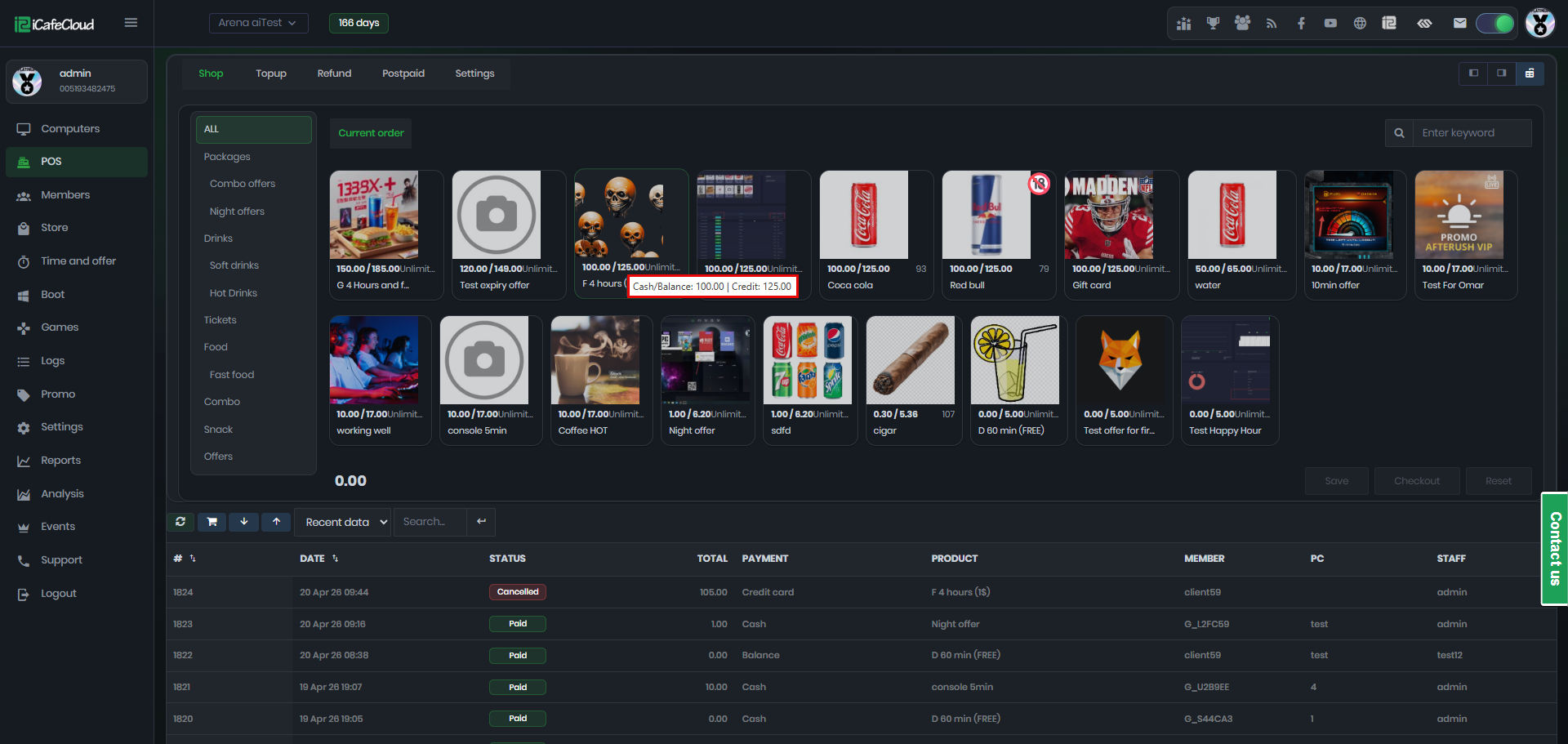
Figure 3
- For QR payments, the same fixed fee and percentage rate as credit card payments apply.
- QR payments are displayed on the portal or client side by showing the price difference between the default price and the fee-included price. (Figure 4)
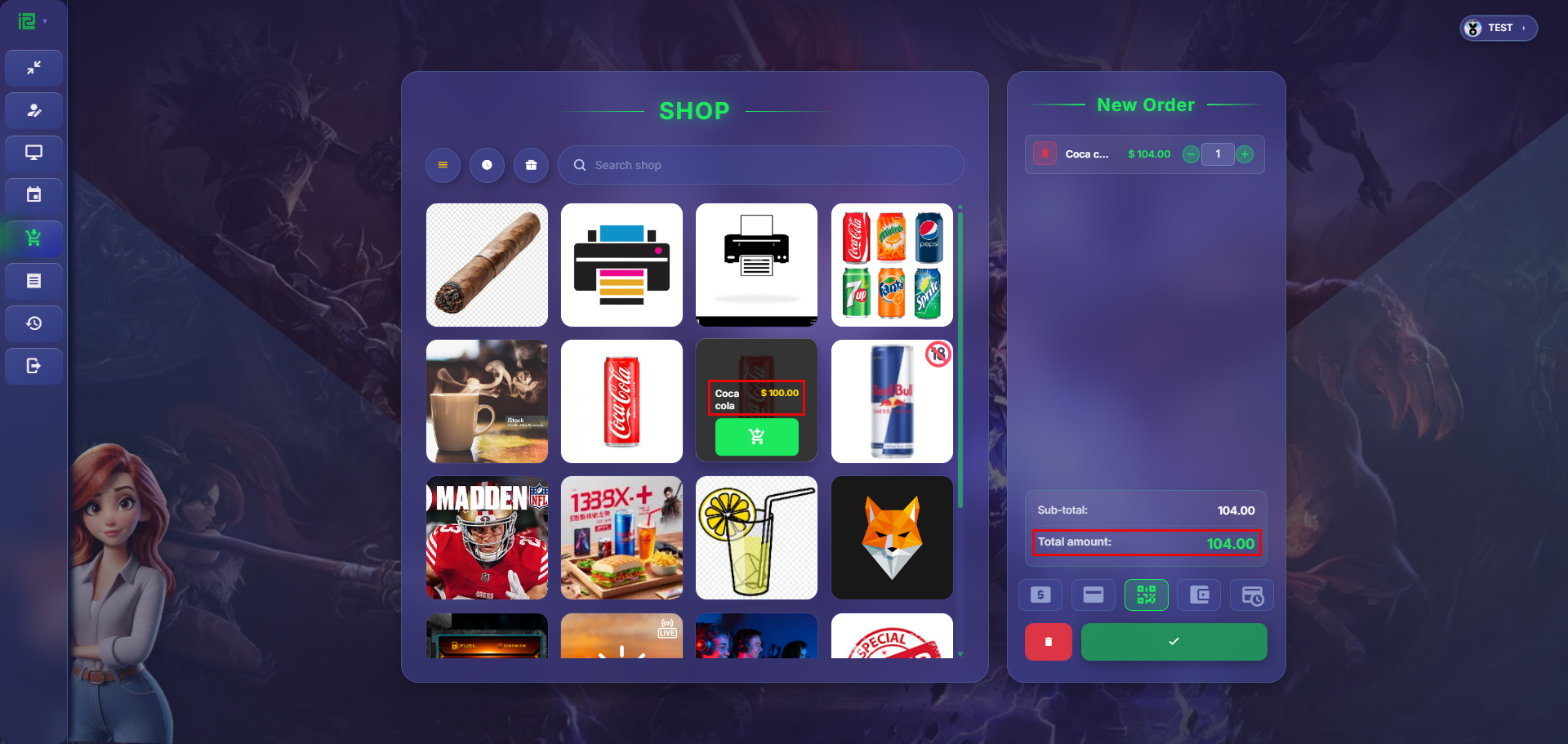
Figure 4
- You can verify QR payments in the transaction history logs after completion. For example, if a product costs $100 and the QR fee is $4, the total charged amount will be $104. (Figure 5)
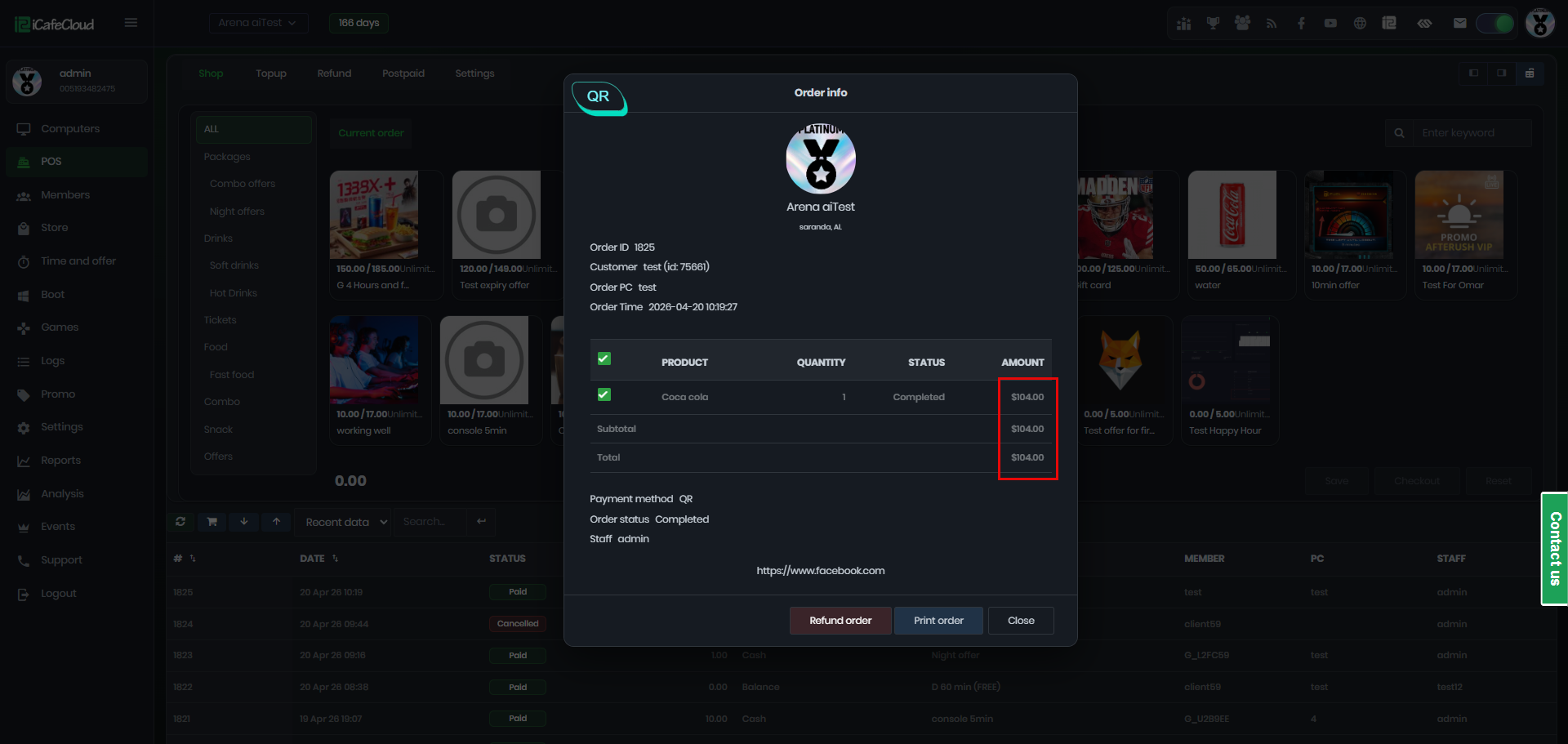
Figure 5