

The following explains how to reset the Admin password if you forget it and cannot access the iCafeCloud Control Panel. The password can only be reset up to four times per day.
- Open iCafeCloud CP, then click the “Reset admin password” link (Figure 1).
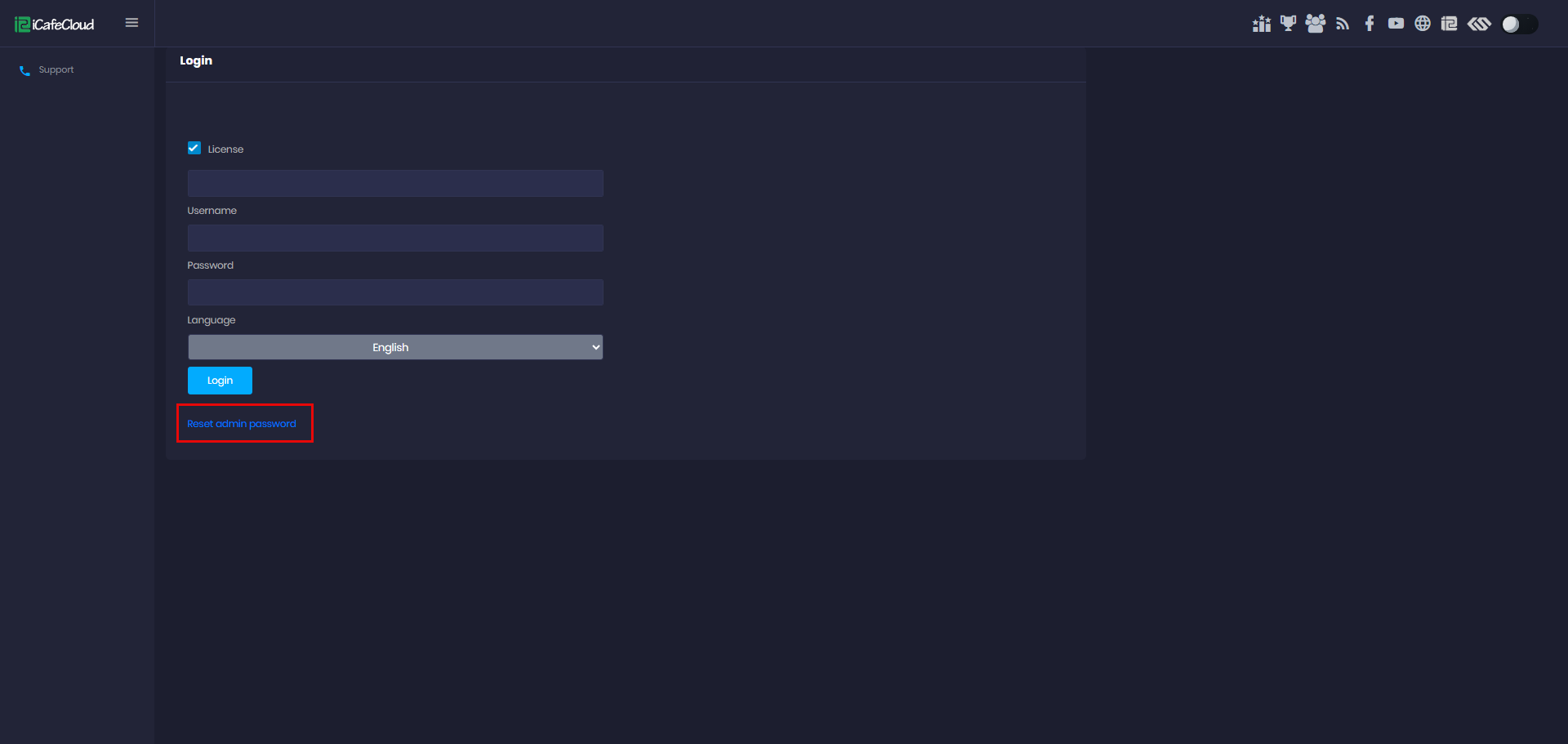
Figure 1
- Enter the license and click the “Reset” button (Figure 2).
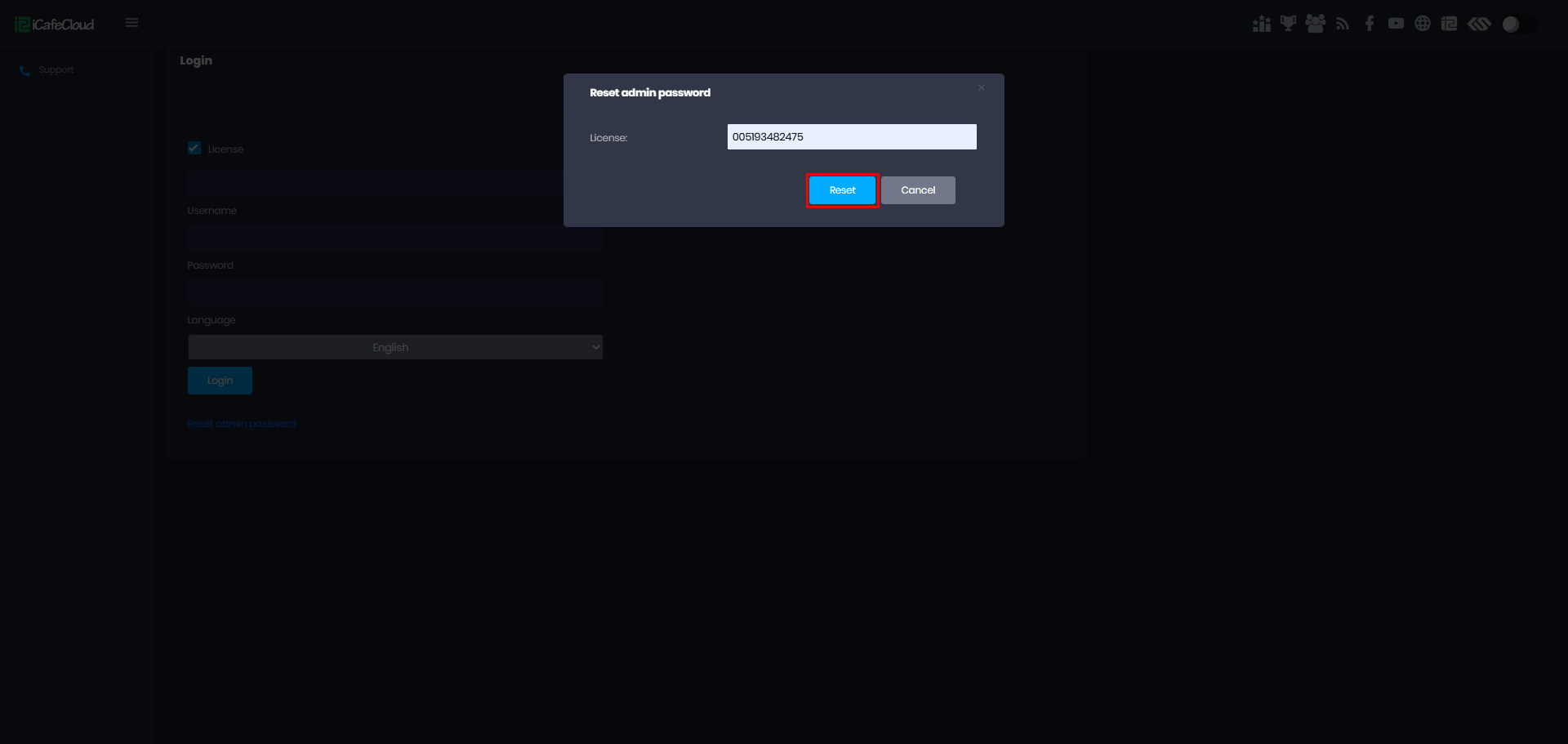
Figure 2
- A password reset link will be sent to your email address (Figure 3).
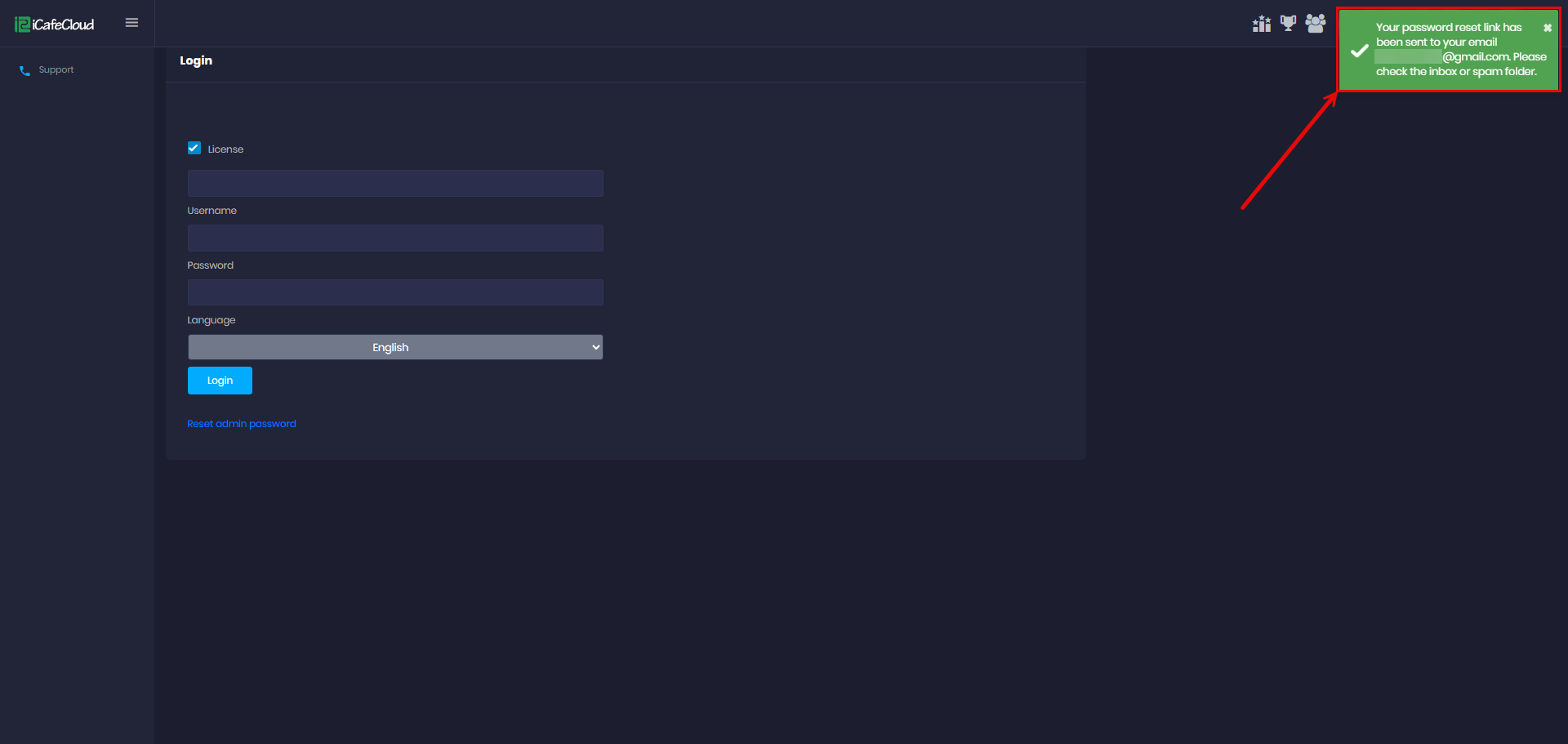
Figure 3.
- Login to your email account, open the “iCafeCloud password recovery” email and then click the password reset link (Figure 4).
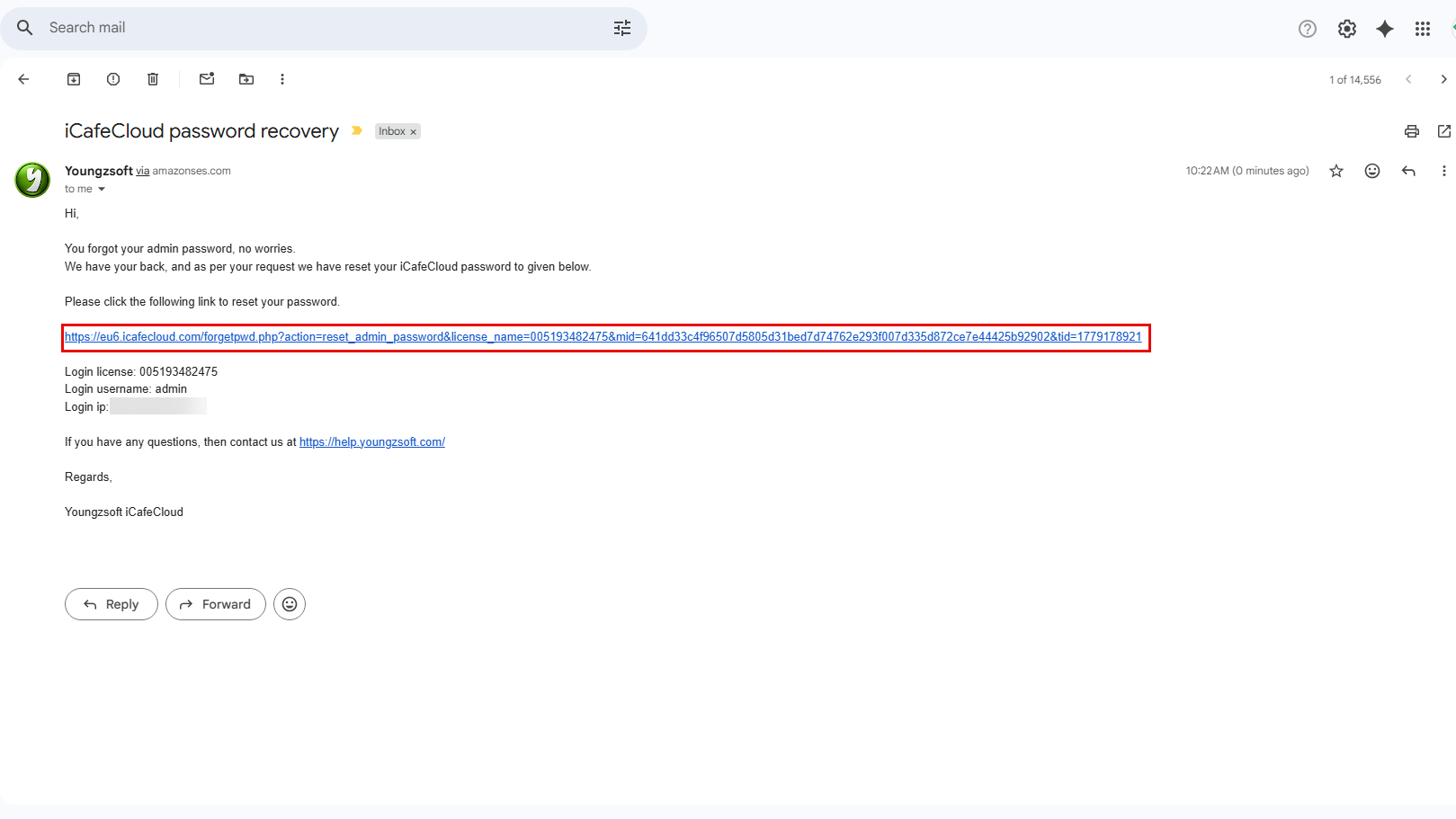
Figure 4
- “Next, you will be redirected to ‘Admin Password Reset’. Click ‘Change Password Now’. (Figure 5).
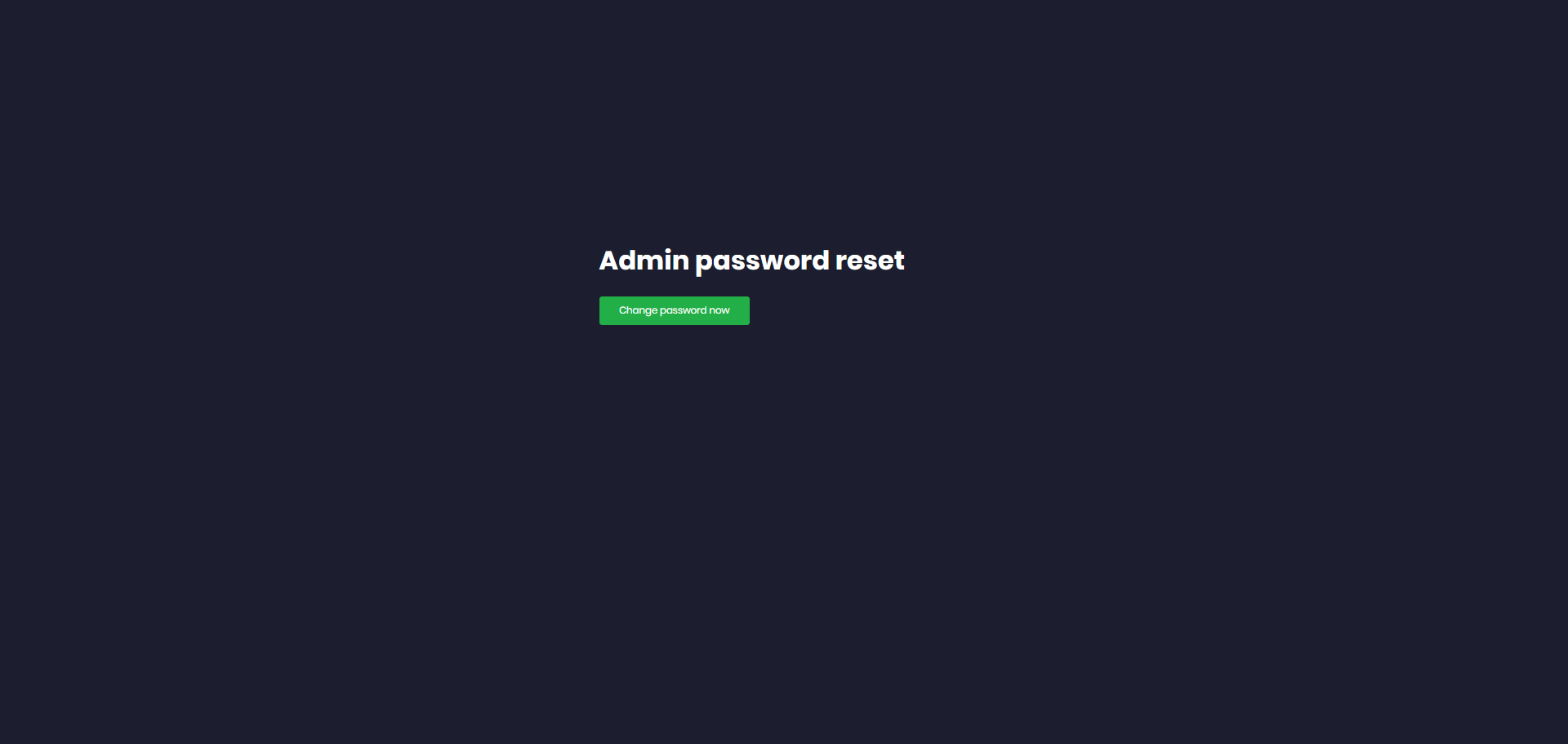
Figure 5
- After clicking it, the password details will be displayed for login access. Save the password for future use (Figure 6)
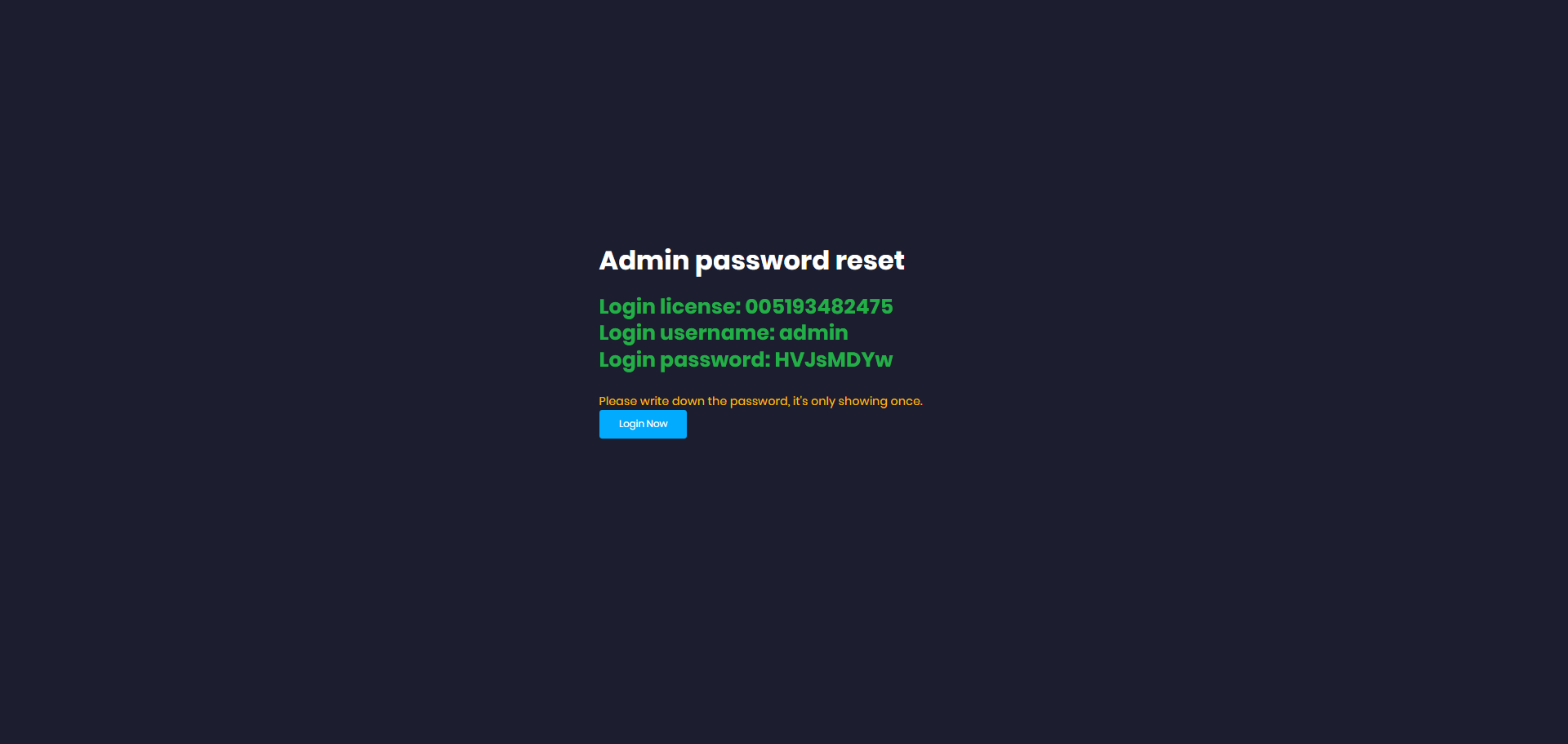
Figure 6
- If you accidentally close this page, you will need to repeat the process to receive a new email with a new reset password link.
- You can reset your license only 4 times a day
- Please note that when the Admin password is reset, the configured Staff IP restriction will be cleared and must be configured again if required.
- Make sure to use the most recent email you received, as it contains the latest reset link needed to reset the admin password. Changing the admin password does not affect the CCbootCloud/iCafeCloud license password.