

Game Library Management for Internet Cafes
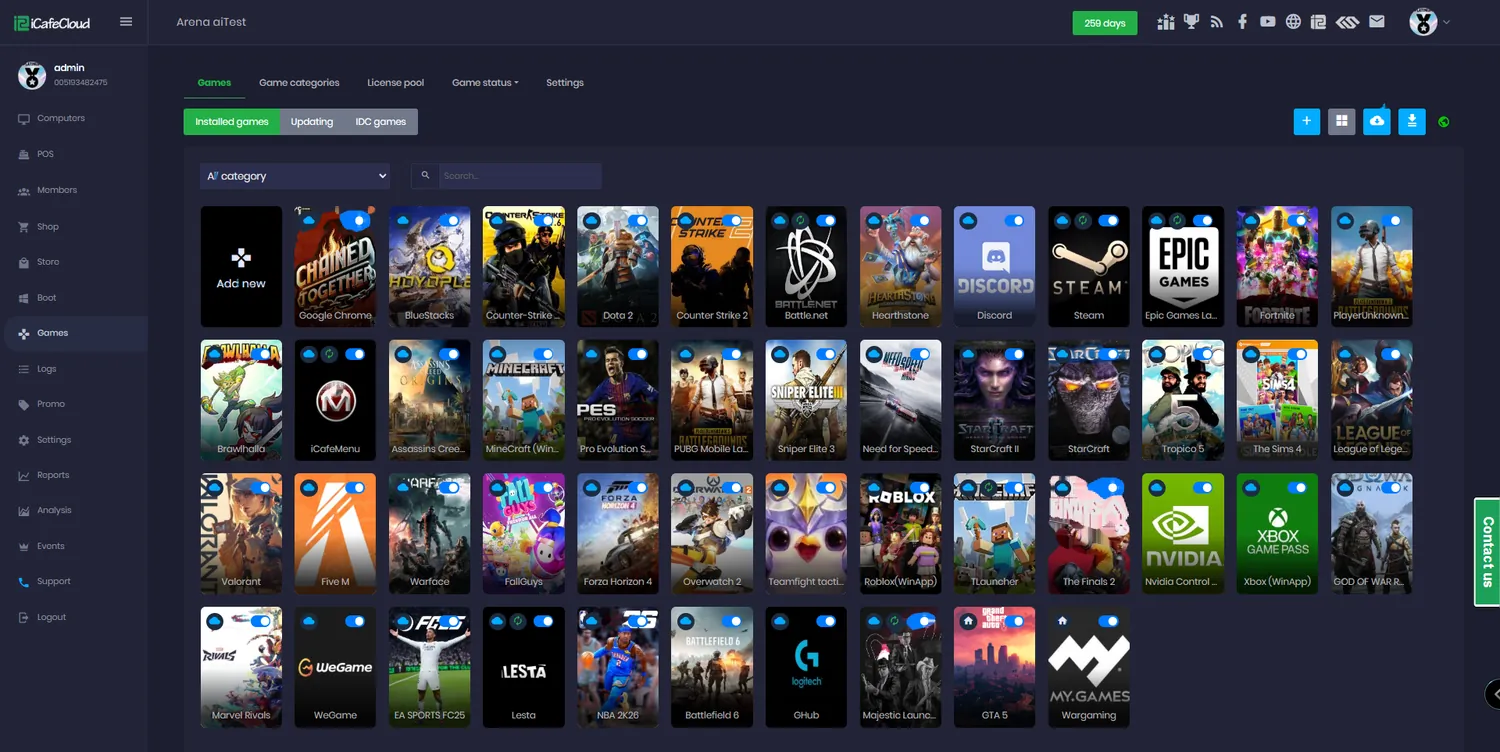
A gaming centre lives or dies on what is installed. iCafeCloud keeps one catalogue for the whole venue — what exists, where it lives, which machines can run it — and puts it in front of customers as a wall of covers instead of a desktop full of shortcuts.
What the library gives you
Enable from the catalogue
Thousands of titles are already in the iCafeCloud database. Search, click, and the game is enabled on your centre with its poster, category and launch settings already filled in.
Scan your own drive
Point the iCafeCloud server at your game disk and let it search. Anything it recognises is matched automatically; the rest you add by hand in a minute.
Every launcher in one list
Steam, Epic, Riot, Battle.net, EA, Uplay, Rockstar, Wargaming, VKPlay and Windows Store apps all sit in the same catalogue, under the same rules.
Categories you control
Group titles the way your customers think — MOBA, shooters, racing, kids. The categories you build are the tabs they see on the client.
Access per PC group
A heavy title only runs well on the new row? Restrict it to that PC group and it simply will not appear anywhere else.
Favourites and local hot
Customers pin their own favourites, and the five most-played titles at your venue surface on the client home tab by themselves.
Copy between centres
Running more than one venue? Import the whole game list from one licence to another instead of enabling hundreds of titles twice.
Game saves per member
Saves and shader caches can be stored on the server for each member, so a regular picks up where they left off on any machine.
The menu your customers actually see
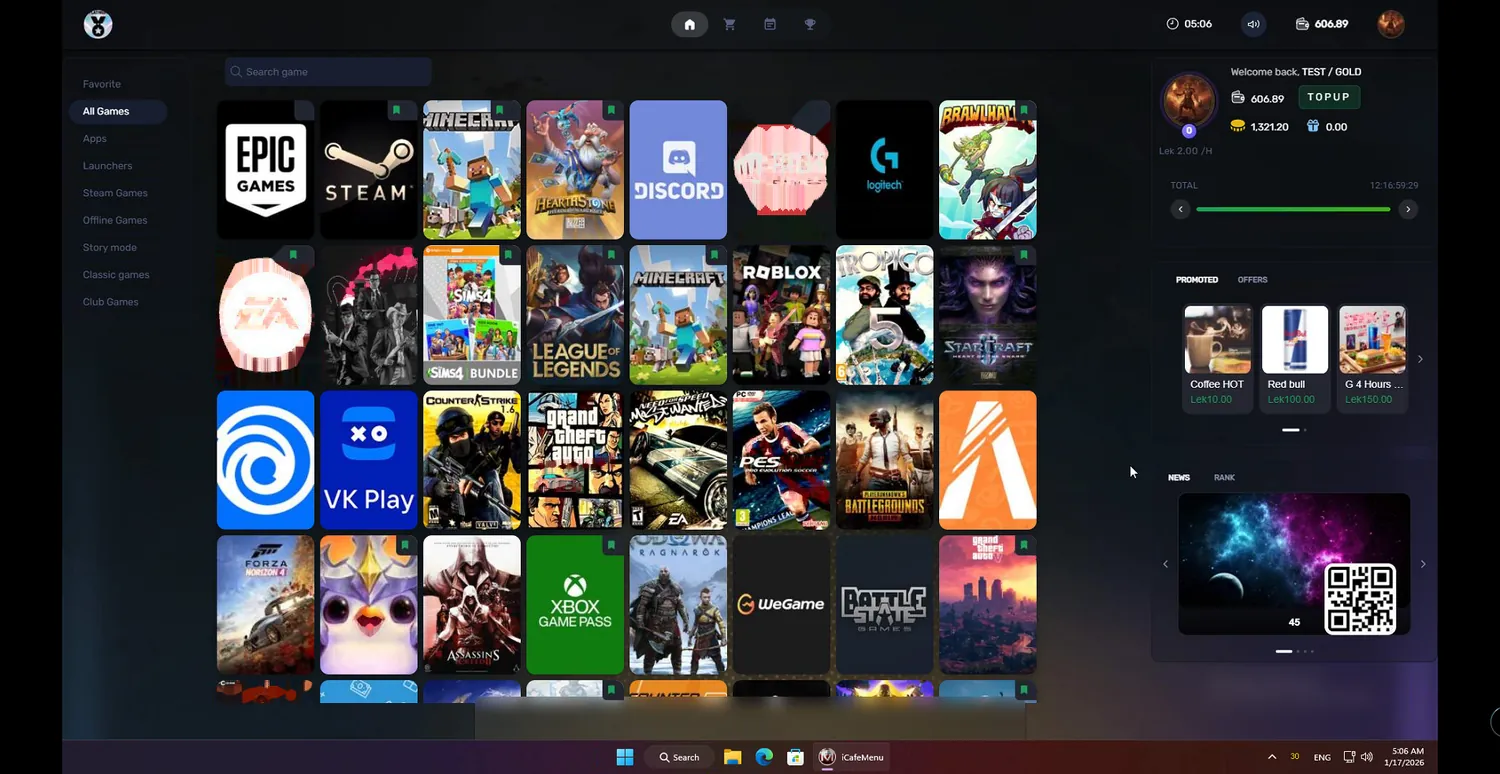
Whatever you enable on the Games page becomes the wall of cover art on iCafeMenu. Customers browse by the categories you created, search by name, or go straight to the titles they have marked as favourites.
The five most-played games at your venue show up on the home tab on their own, which is usually a better recommendation engine than anything you would build by hand.
Getting a game into the library
Most titles need a search box and one click — the iCafeCloud database already knows the poster, the category, the launcher type and the app ID.
For anything local or unusual you fill those in yourself, and there is a documented way to find the app ID for Steam, Epic and Uplay titles when it is not obvious.
- Enable from the iCafeCloud catalogue
- Download in bulk through IDC onto your game disk
- Scan the game drive from the iCafeCloud server
- Add manually with name, type, app ID and poster
- Import the whole list from another licence
Launchers, apps and local titles side by side
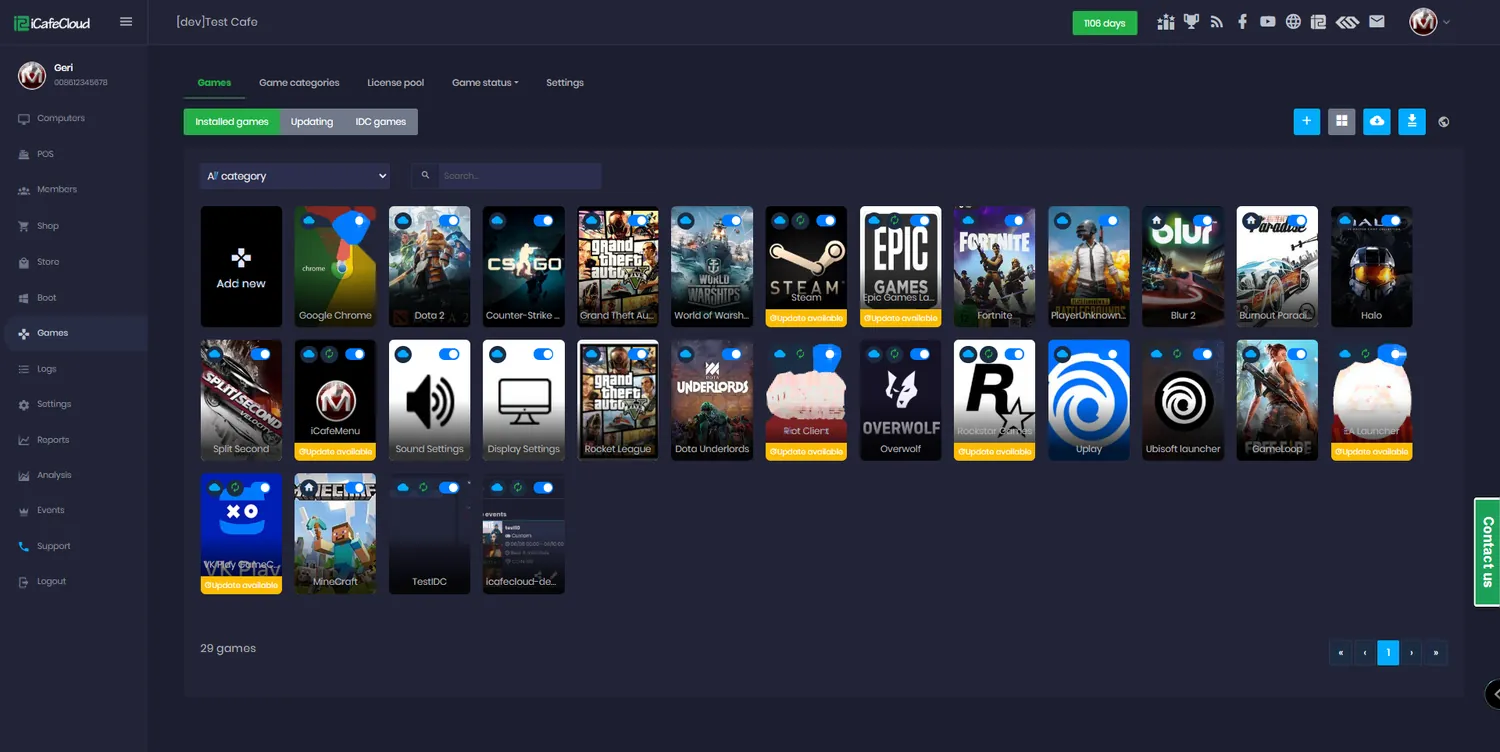
The installed list does not care where a game came from. A Steam title, an Epic title, a Windows Store app and a portable local game all appear as entries you can edit, categorise and scope the same way.
Launcher paths and posters for the major storefronts are preset, which also matters later — it is what lets the shared licence pool sign a customer in automatically.
Not every game belongs on every machine
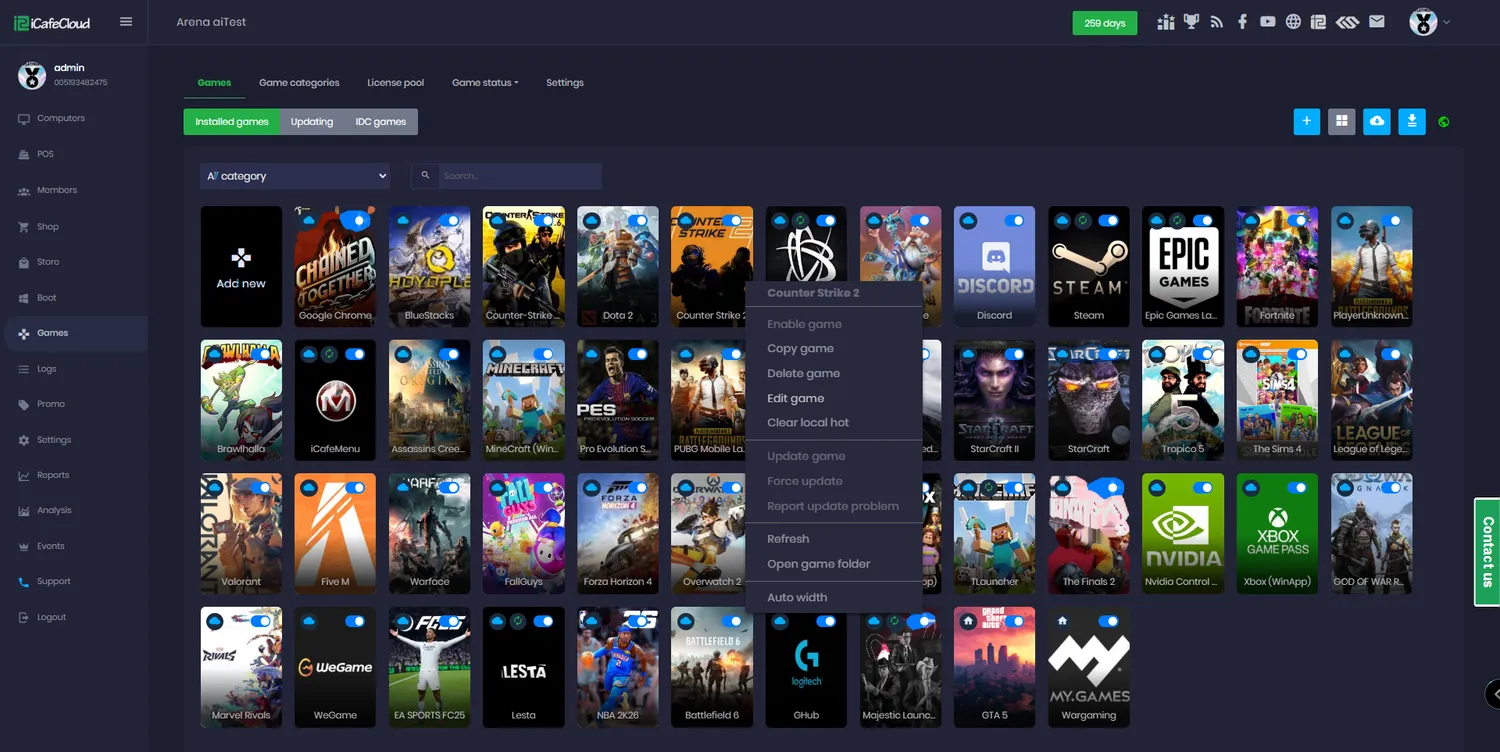
Right-click a title and edit which PC groups are allowed to run it. By default a game is available everywhere; restrict it and it disappears from the menu on machines that cannot handle it.
Age ratings work the same way. Set the rating on a game and it stops appearing for members whose birthday says they are too young, without anyone at the counter having to make that call.
How a game reaches the floor
- 01
Find it
Search the iCafeCloud catalogue from the Games page, or scan your game drive from the server.
- 02
Enable it
Poster, category, launcher type and app ID are filled in for known titles; you supply them for local ones.
- 03
Scope it
Choose which PC groups may run it, and set an age rating if the title needs one.
- 04
It appears
The game shows on the client menu on every machine allowed to run it, with its cover art and category.
Documentation
Every way of getting a game into iCafeCloud, documented in the wiki.
Common questions
Which game launchers does iCafeCloud support?
Steam, Epic, Riot, Battle.net, EA, Uplay, Rockstar, Wargaming and VKPlay (Mail.ru), plus Windows Store apps and any local game you add manually. They all appear in the same installed list.
Do I have to add every game by hand?
No. Most titles are already in the iCafeCloud database — search by name and enable. For local games the iCafeCloud server can scan your game drive and match what it finds; anything left over you add manually with a name, category, type and app ID.
Can I stop certain games appearing on certain PCs?
Yes. Each game is assigned to PC groups. By default it is available on every machine; restrict it and it only shows on the groups you picked. Age ratings hide titles from members who are too young.
How do customers find a game?
On iCafeMenu they browse the categories you created, search by name, or open their own favourites. The five most-played titles at your venue also appear on the home tab automatically.
Can I copy my game list to a second centre?
Yes. Import games copies the catalogue from one iCafeCloud licence to another, so a new branch opens with the same library instead of being set up from scratch.
Are game saves kept between visits?
They can be. Enable game saves and each member’s save data and shader cache is stored on the server, then restored whichever machine they sit at next time.
The rest of the platform
- BillingPrepaid, postpaid, member and offer sessions, priced by PC group, member tier and hour of the day.
- Game UpdatePatches land on the server image, not on your customers. Update once, serve every machine.
- License SharingA pool of centre-owned accounts that lends a licence to whoever is playing, then takes it back.
- ReportingIncome, top-ups, offers, products, games and members — by day, by shift, side by side.
- BookingCustomers reserve a seat from the portal or their phone; the machine is held and released for them.
- MembershipAccounts, groups, balances, bonuses and a self-service portal your regulars actually use.
- PromotionPromo codes, top-up rewards, points, bonus rules and a lucky spin — all running by themselves.
Put your whole library on every machine
Start a free trial, point iCafeCloud at your game drive, and watch the catalogue appear on the client.