The following explains how to add games on the Games page and enable them directly from the iCafeCloud database for faster access.
- Click the Games page and open the Games tab, where a list of all enabled games will be displayed.(Figure 1)
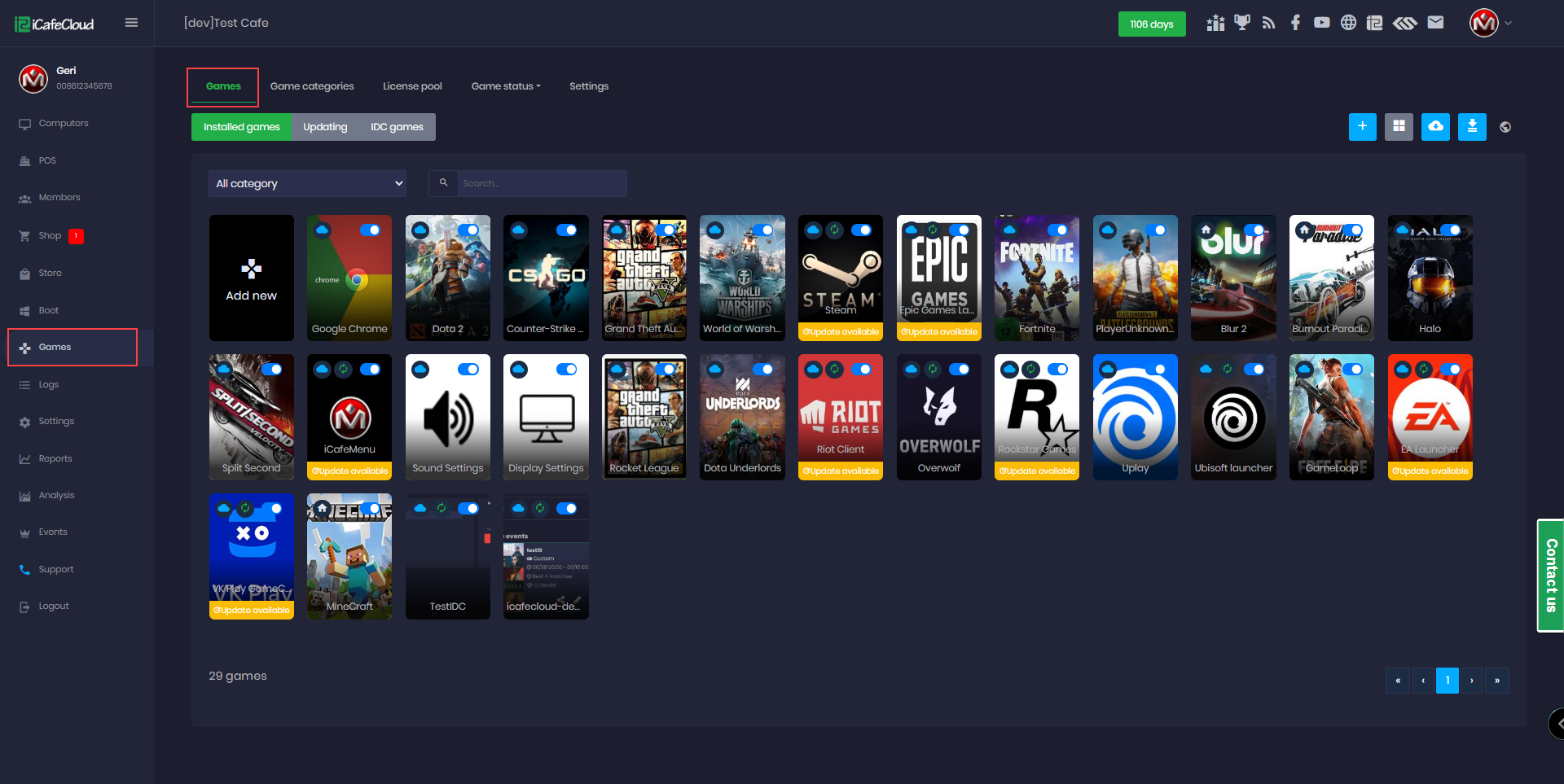
Figure 1
- To enable a new game, click Add New or the Add button on the top toolbar. (Figure 2).
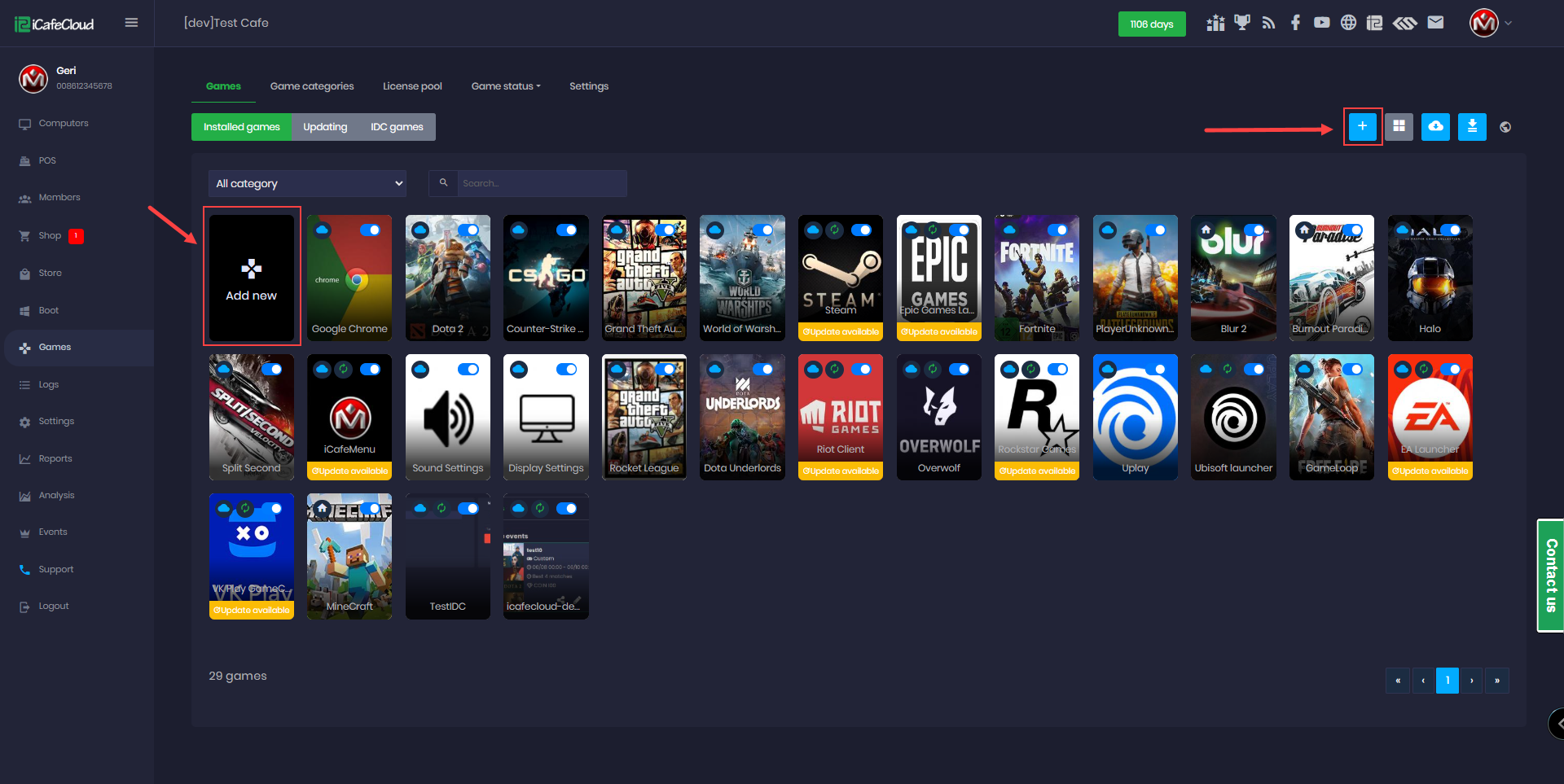
Figure 2
- Type to search for the game you want to add. A list of games available in the iCafeCloud database will appear, select the game and click Confirm to add it. (Figure 3)
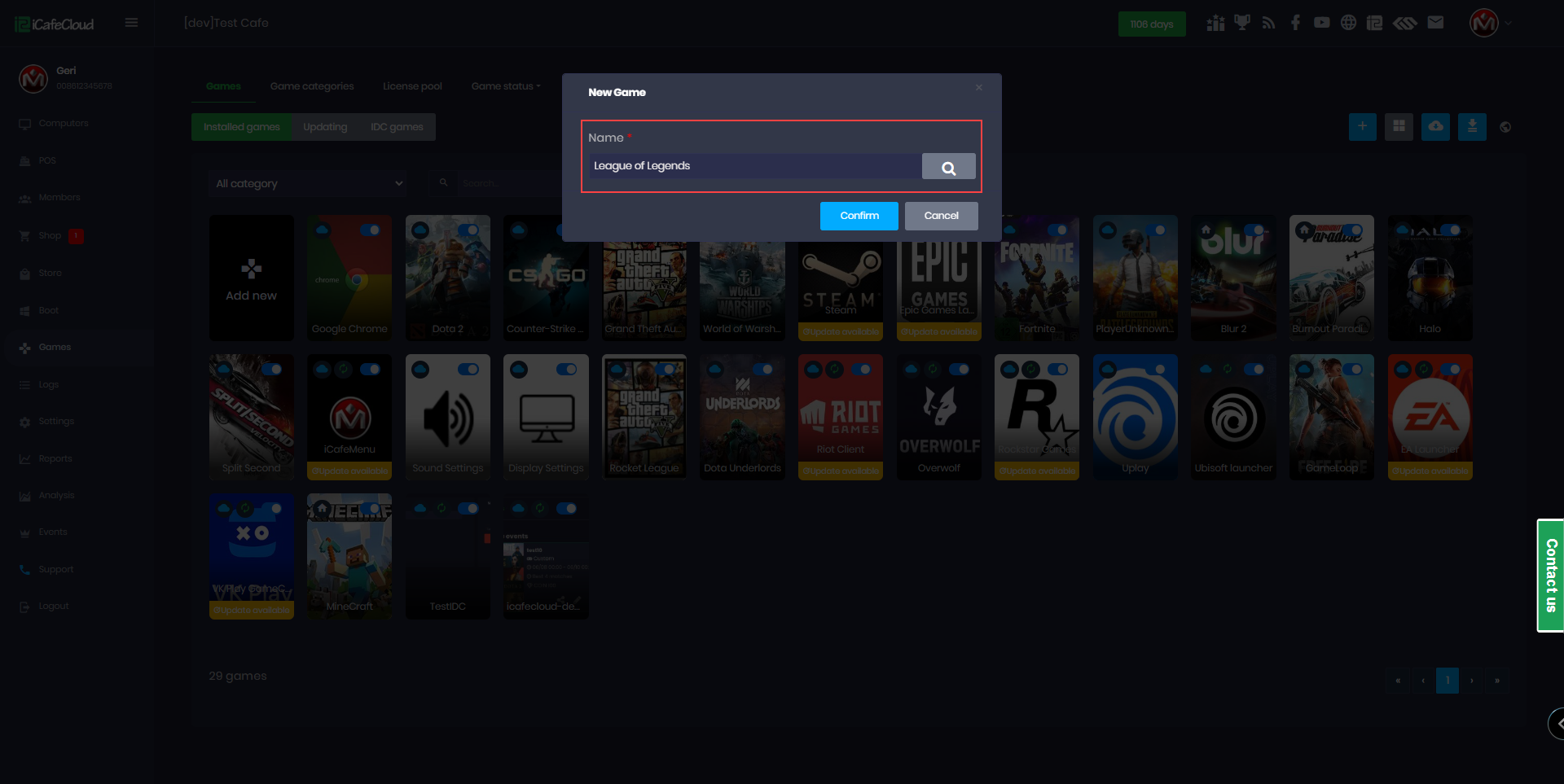
Figure 3
- You can modify and customize the fields as needed. It is recommended not to change the Game Type, as it is automatically linked to the correct launcher. All other settings can be adjusted based on your preferences and click Enable. (Figure 4).
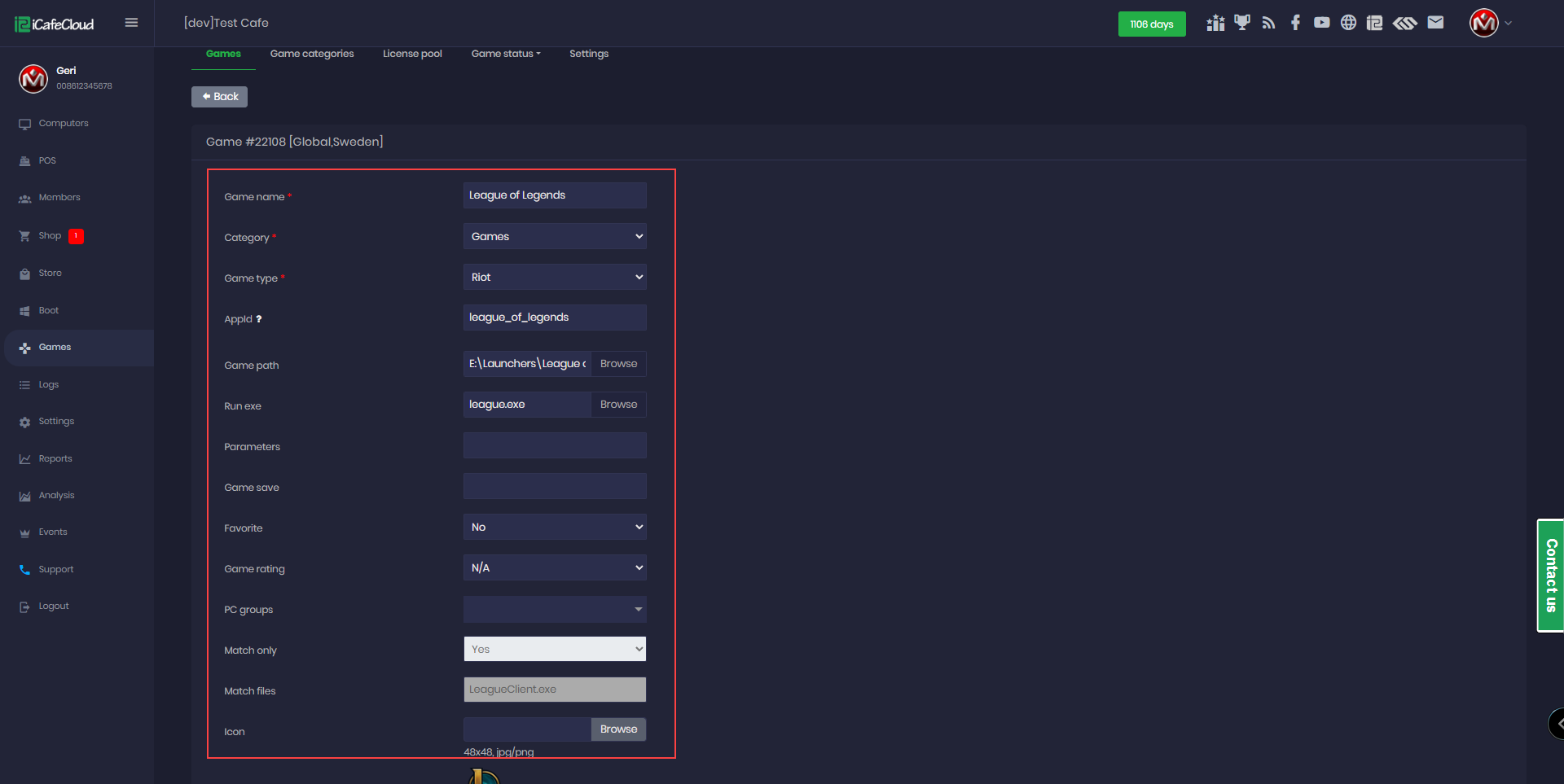
Figure 4
- Installed games are shown first by default, and you can view a list of all games you have enabled in iCafeCloud (Figure 5).
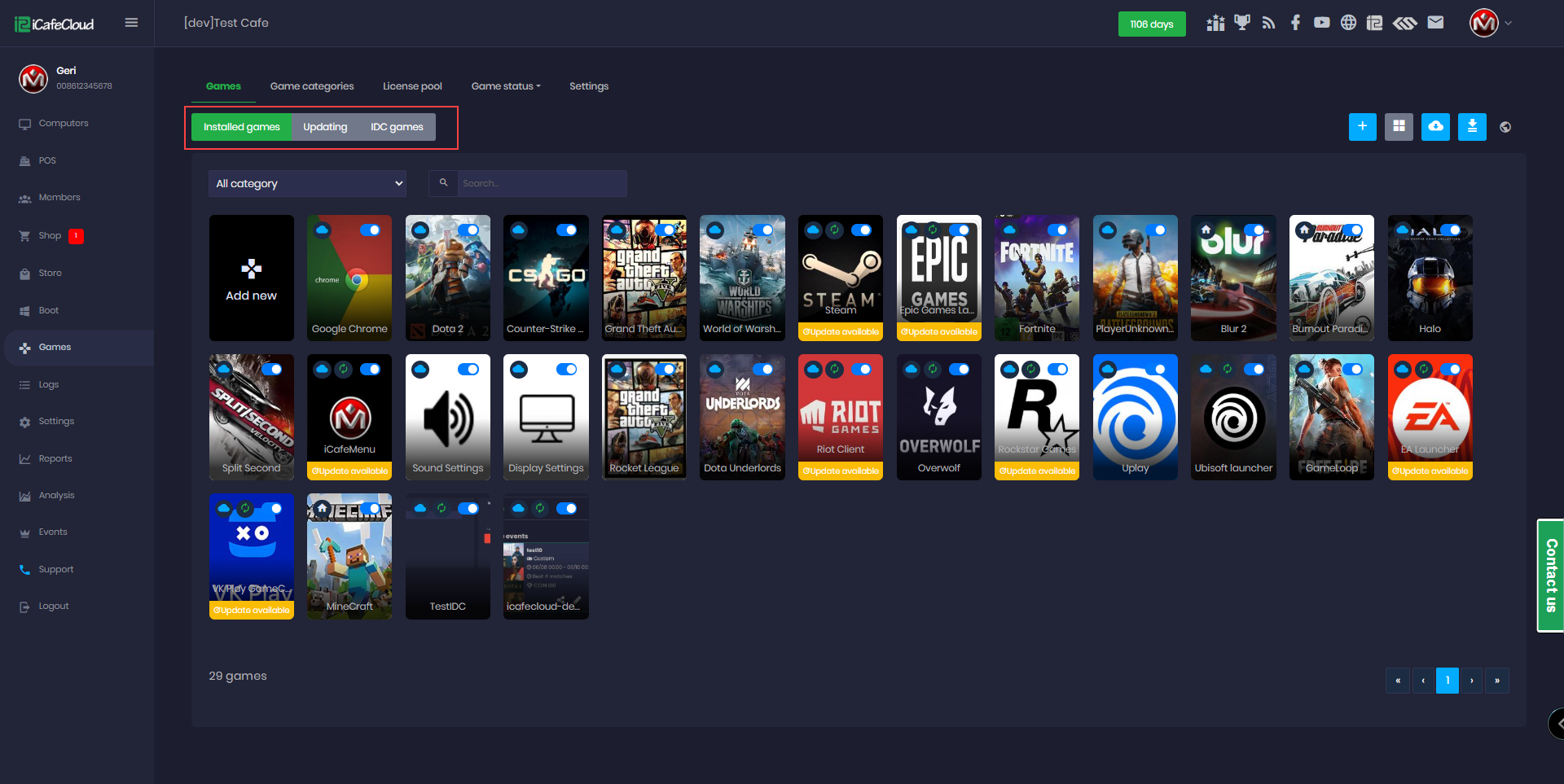
Figure 5
- You can also view Updating Games and IDC Games, which include all games available in the iCafeCloud IDC database that can be enabled (Figure 6).
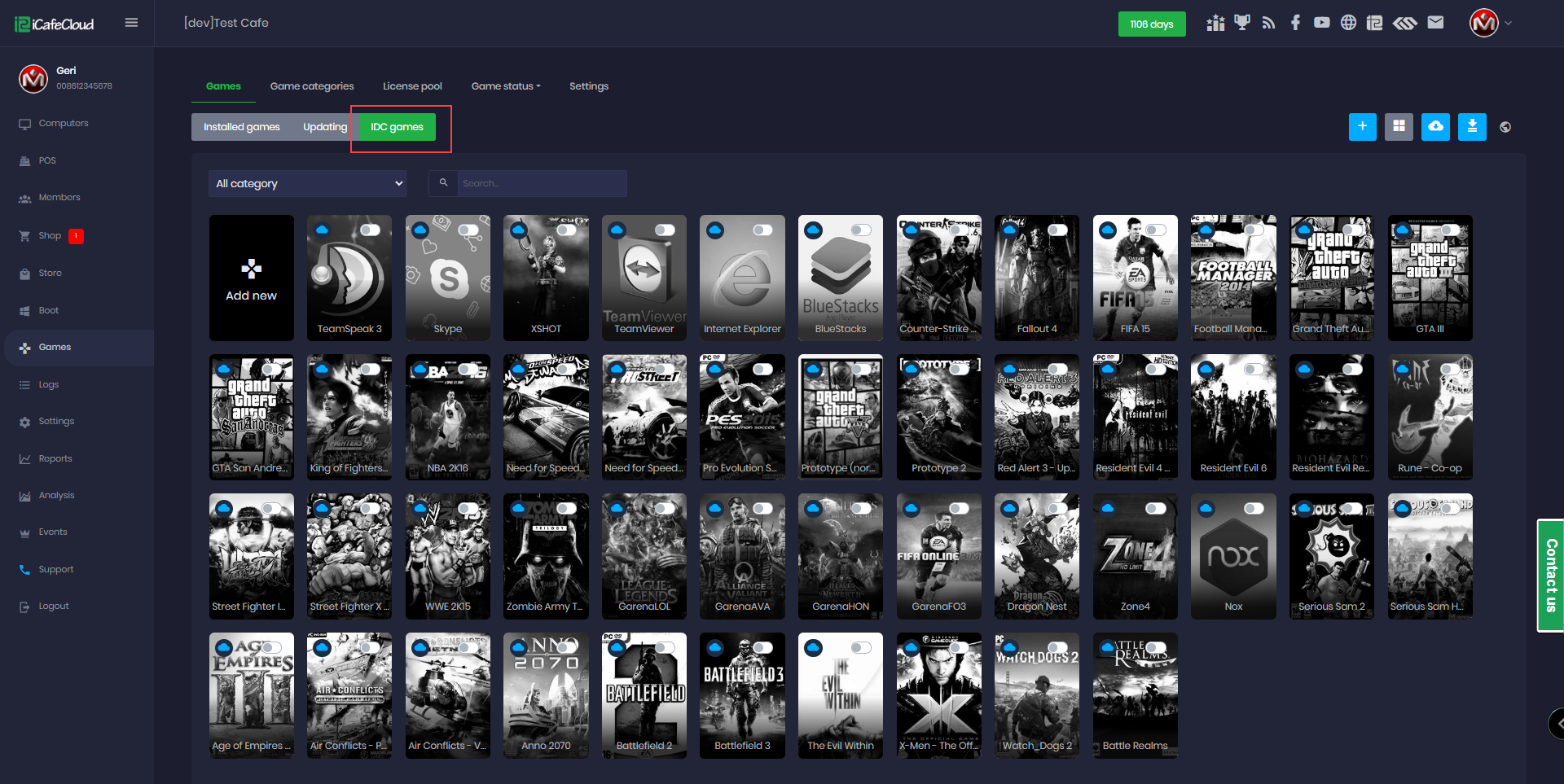
Figure 6
- You can switch between View Mode and List Mode using the top toolbar. View Mode displays game images, while List Mode shows a text-based list with detailed information. (Figure 7).
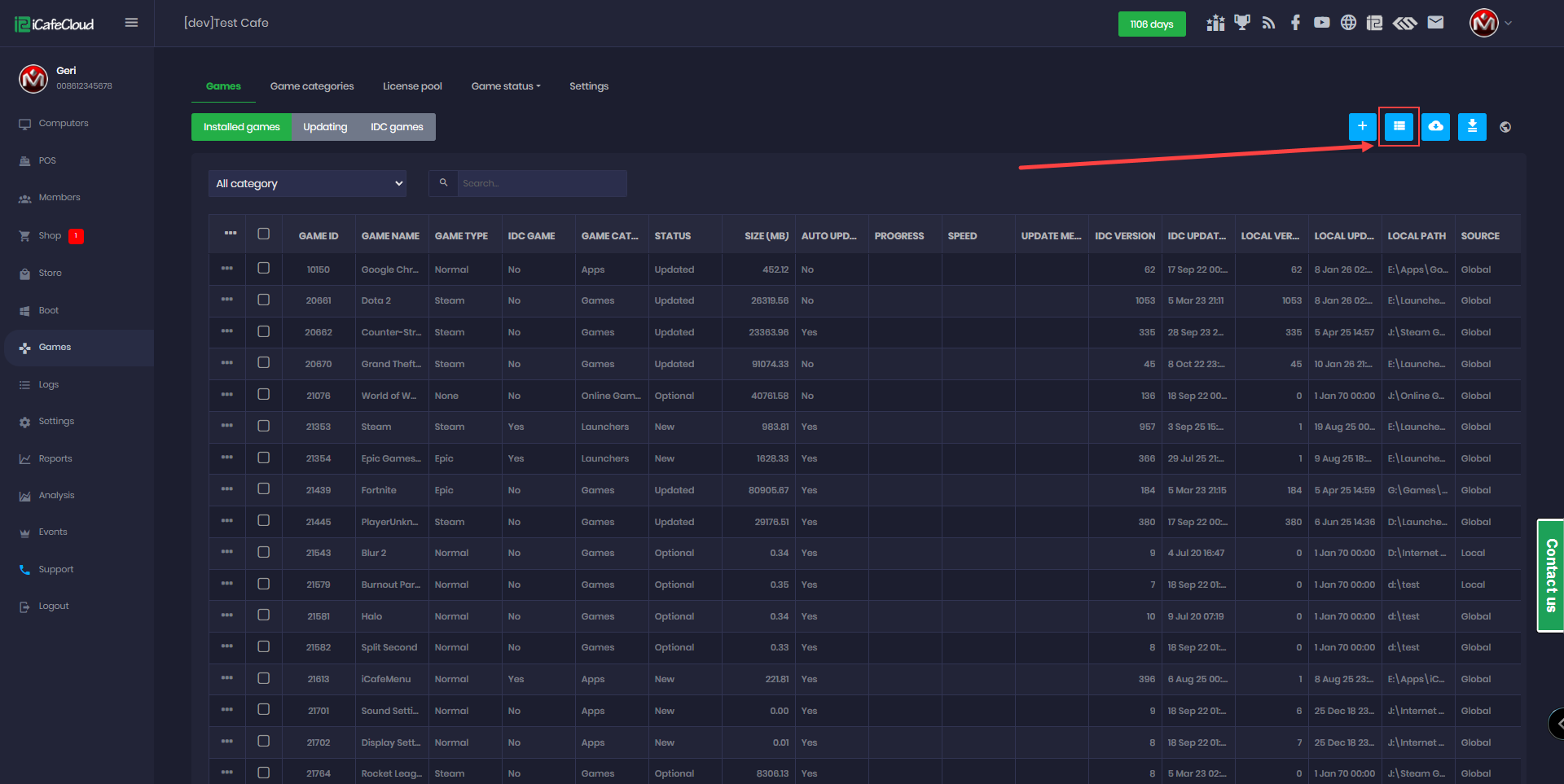
Figure 7
- On each game, you will notice three icons:
Blue cloud – Games enabled from the IDC
Green circle – Games that support automatic updates
White house – Games added locally
Yellow - Updates are available (Figure 8)
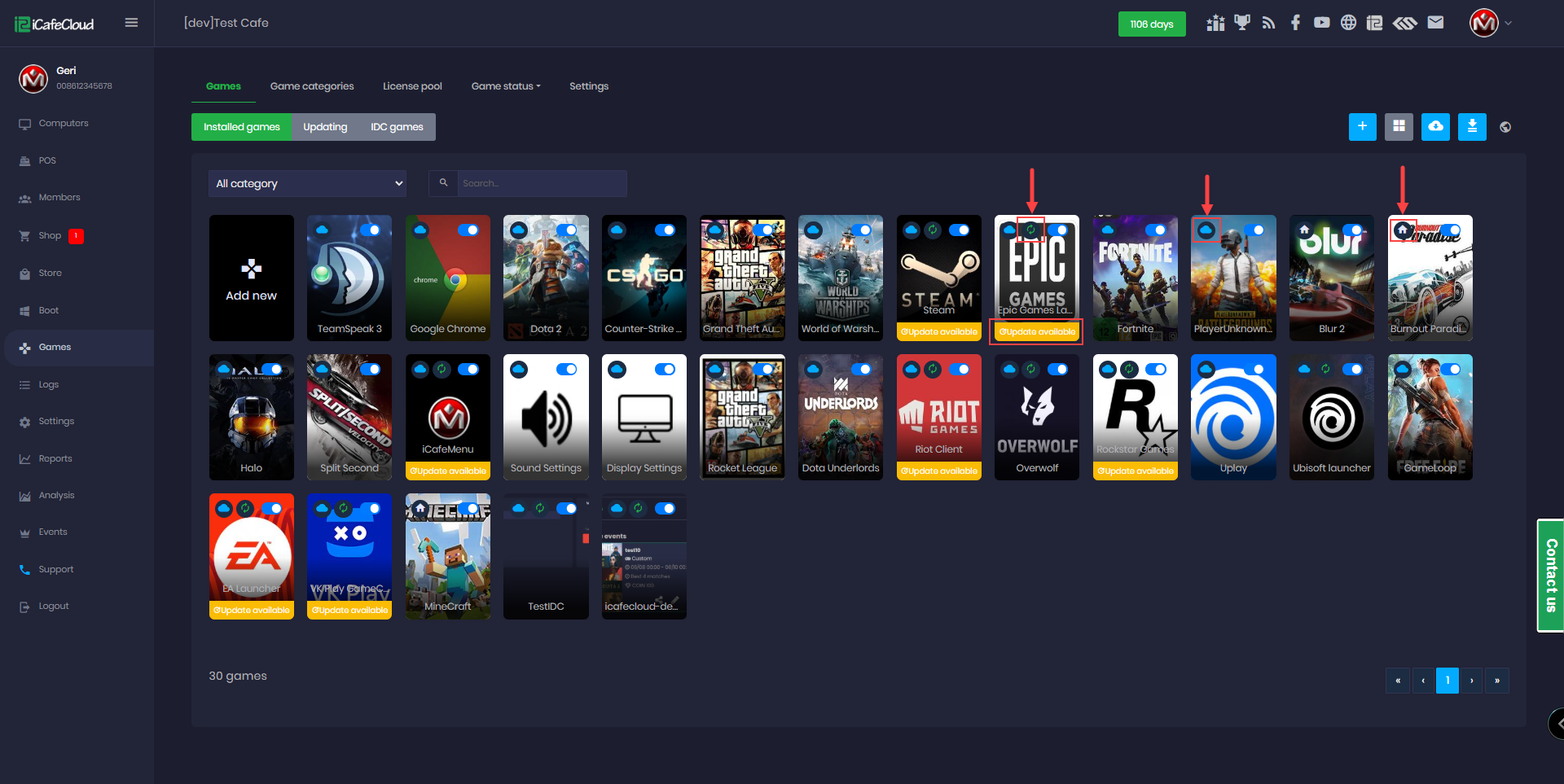
Figure 8
- Once the download is completed, restart the client once, then the game will be visible on the iCafeMenu UI.