

The following explains how to manage game downloads and updates using the IDC server system, covering the download process and automatic updates
- Go to Games page and locate the add default games (Figure 1)
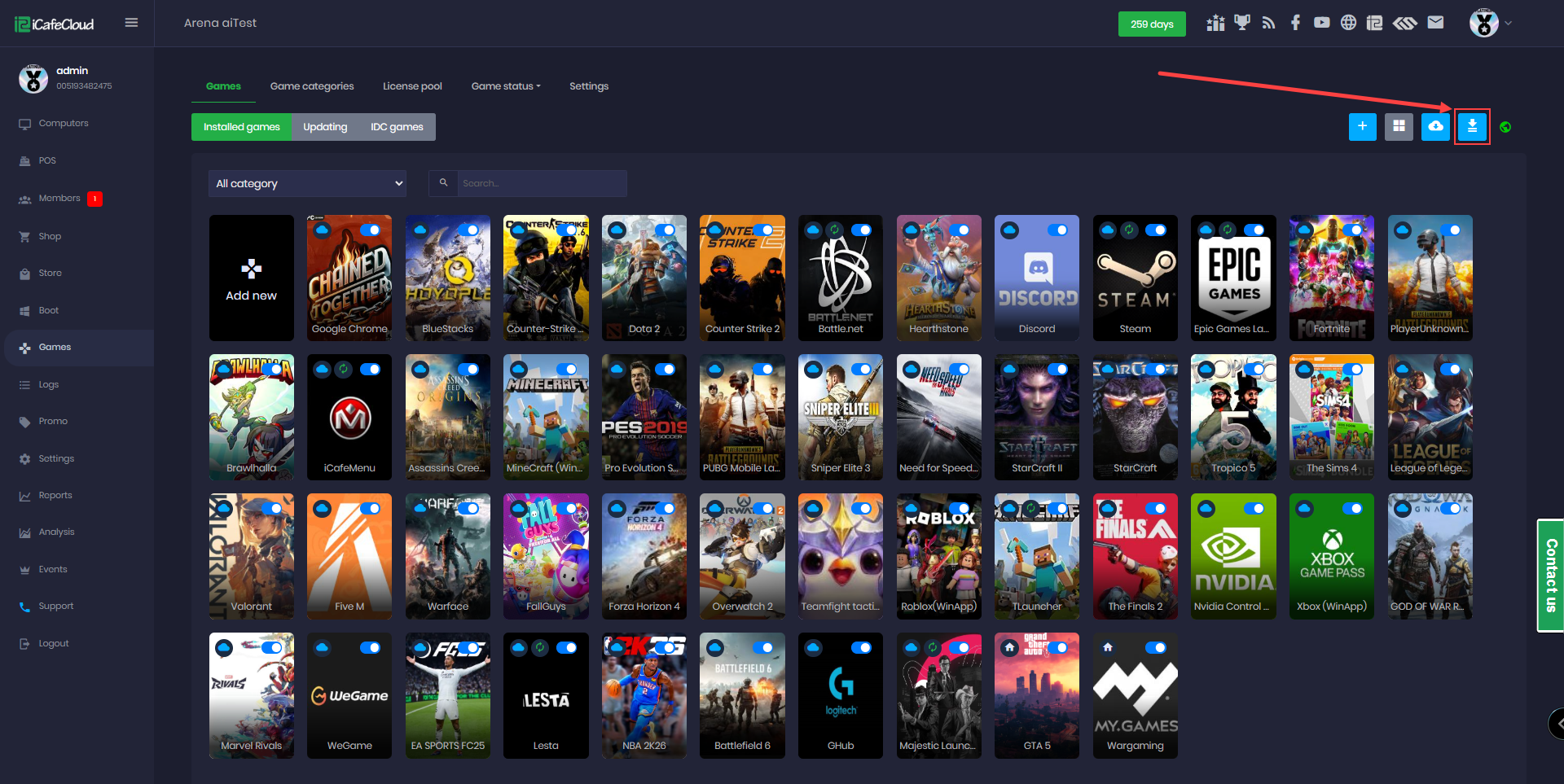
Figure 1
- Select the drive letter for the game disk where games will be stored.
- Select one or a batch of games you want to download.
- Click Download via IDC to begin the process. (Figure 2).
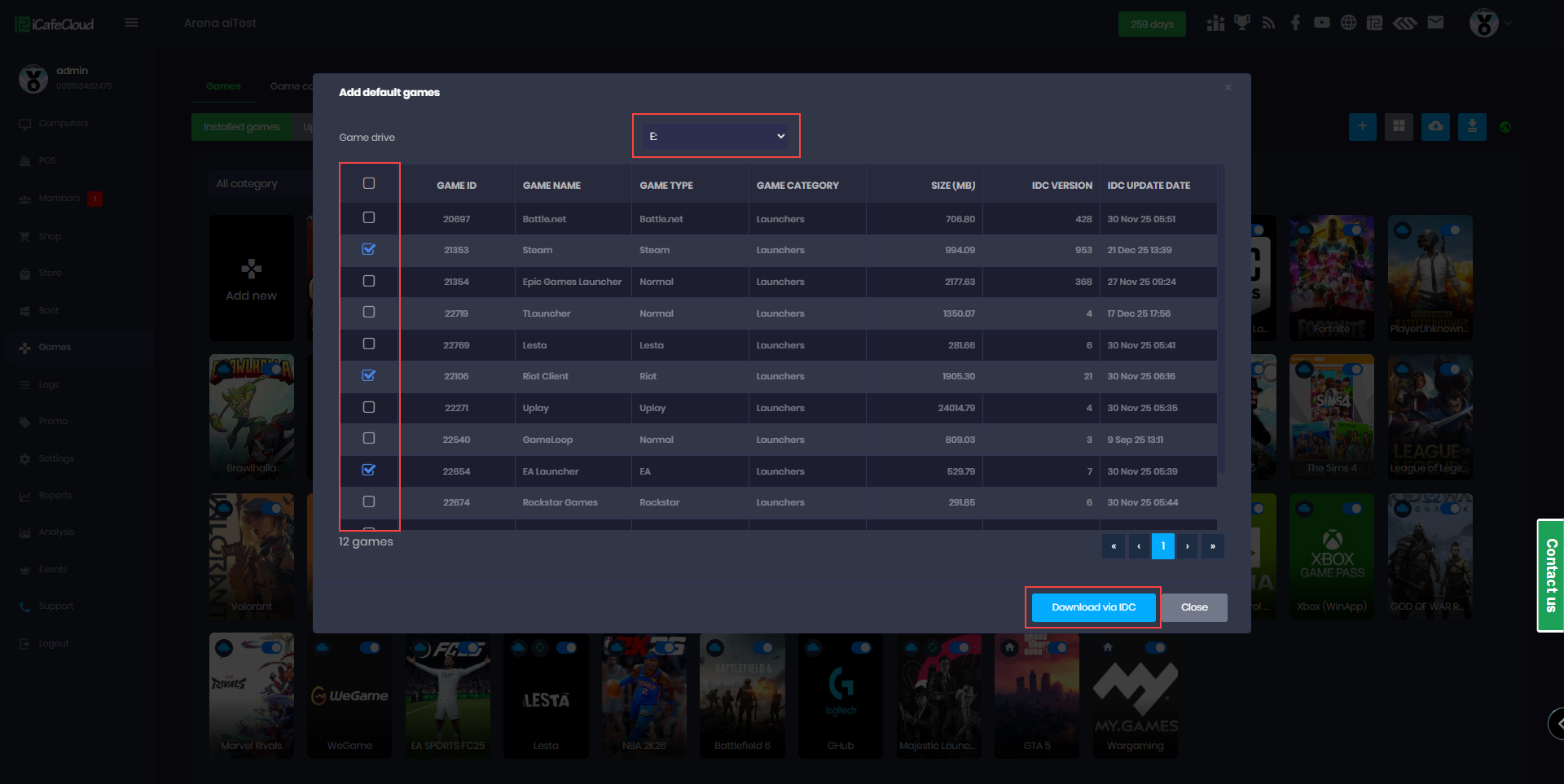
Figure 2
- You can monitor the download process in the iCafeCloud server, where it will display as a "Full Update Success" status.(Figure 3)
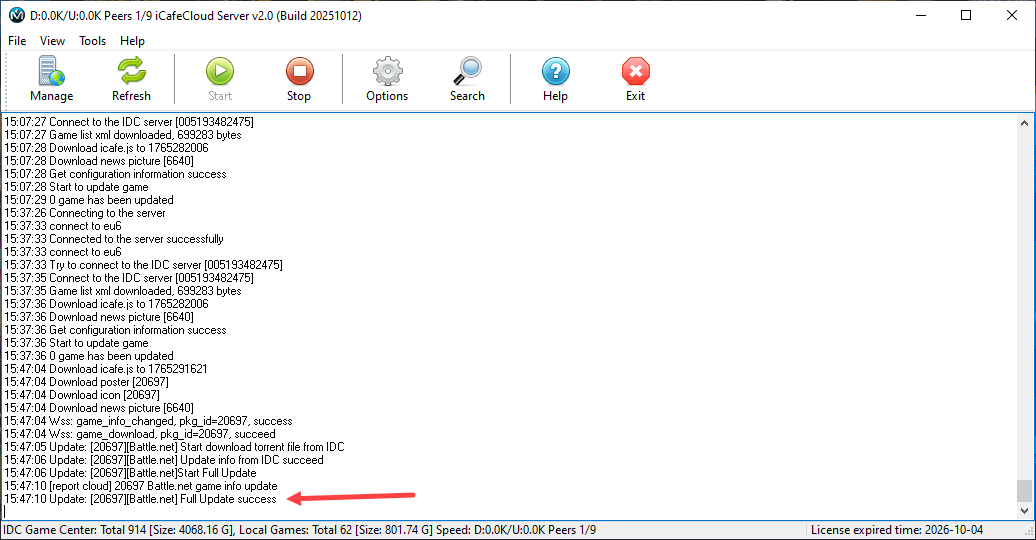
Figure 3
- Once you download at least one game it will automatically enable "Allow IDC game updates".
- The downloaded game will be automatically added to the games list and will appear in the client interface. GameFix does not need to be enabled, as all required files are already included.
- To disable a game from auto-updating, set its Auto Update setting to No. (Figure 4)
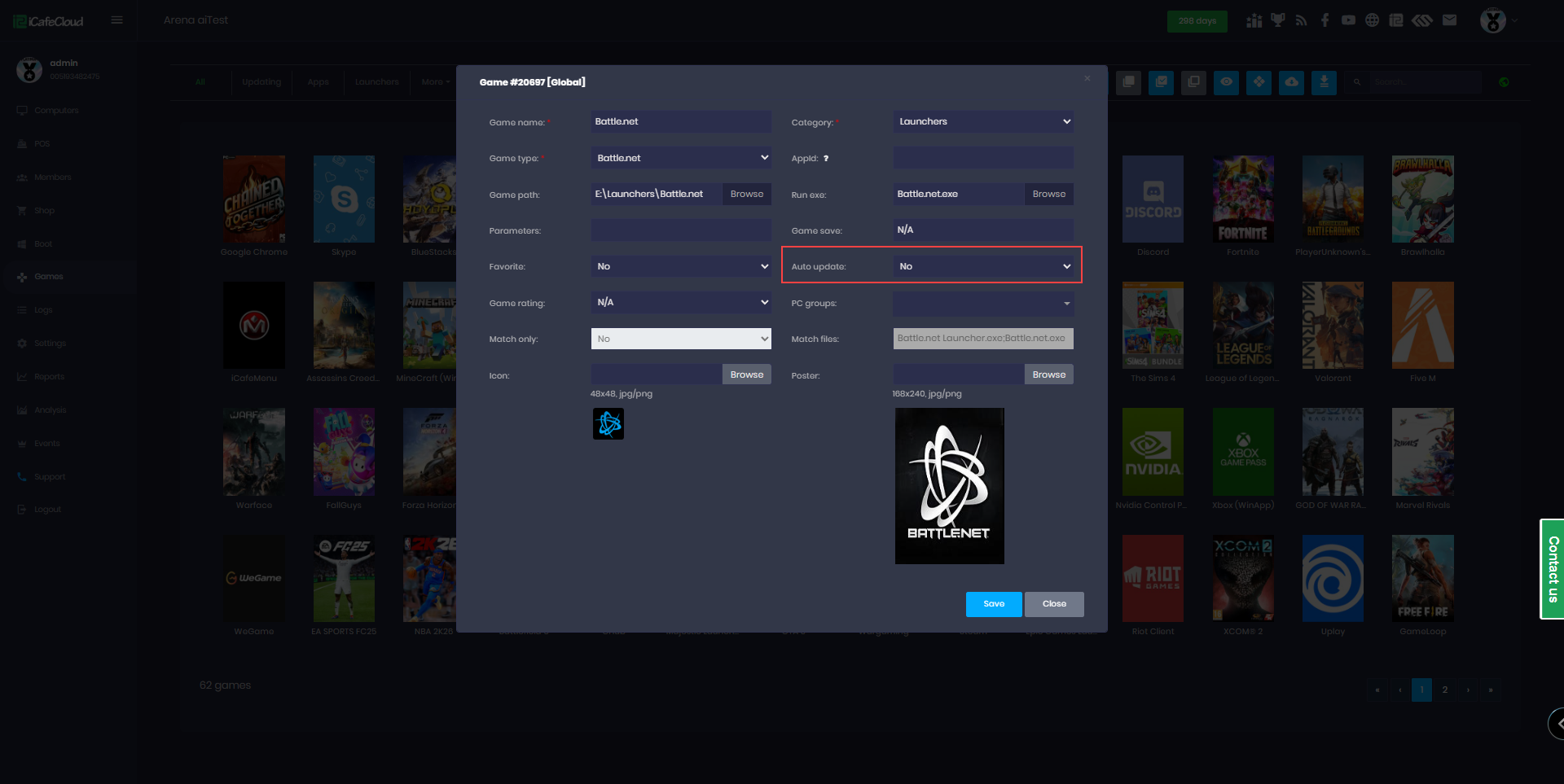
Figure 4
- When the "Allow IDC Game Update" setting is changed from Disable to Enable, the auto-update setting for local games that support IDC will automatically be set to No.