

The following explains how to count the real stock on the shelf and correct the quantity in the system.
- Navigate to Warehouse and click the Stocktake tab. The list shows every product with its System qty (Figure 1).
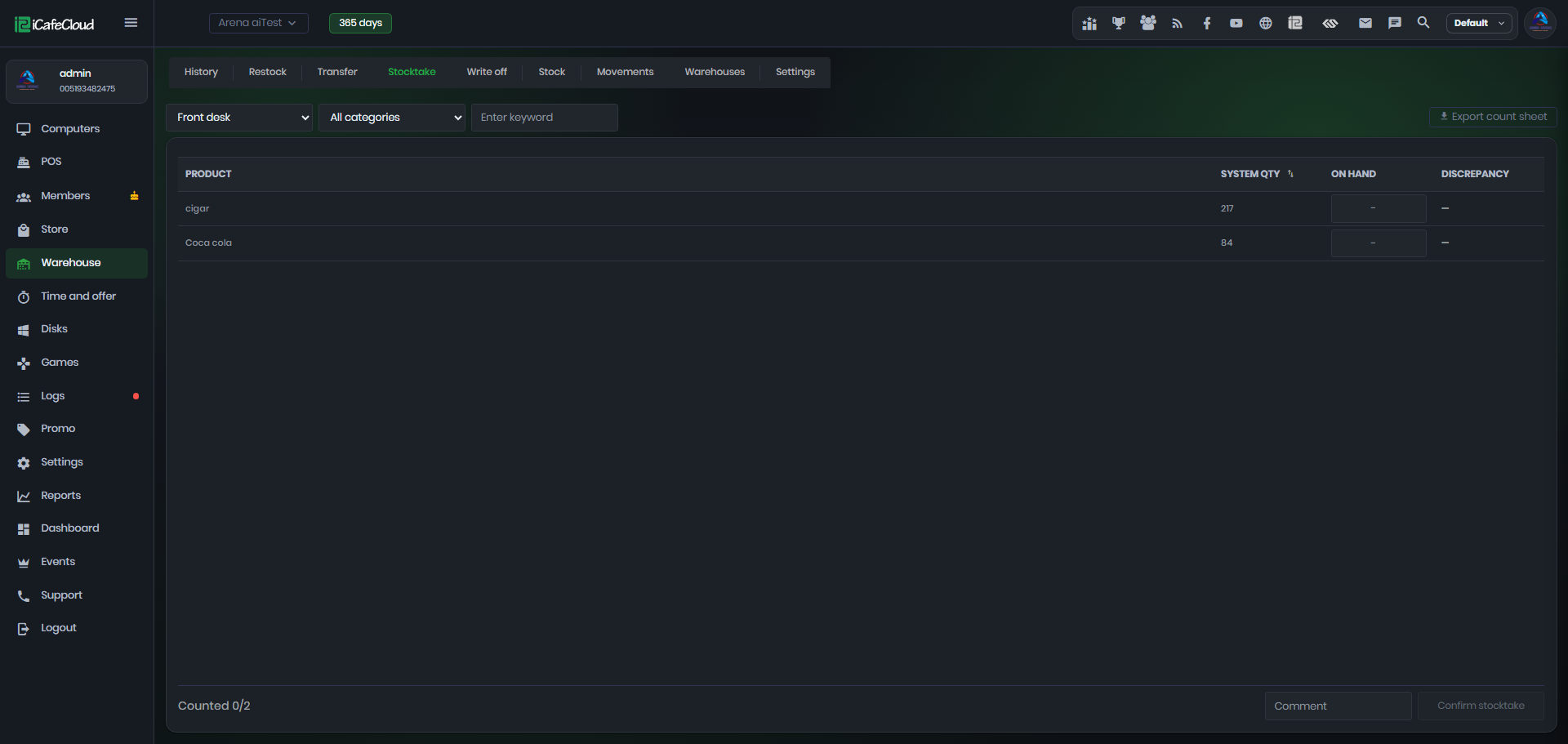
Figure 1
- Select the warehouse and use all categories or enter keywords to show only part of the list.
- Optional: click Export count sheet to download a list to count on paper.
- Type the counted quantity for each product in the On hand column.
The Discrepancy column shows the difference in red (missing) or green (extra) (Figure 2).
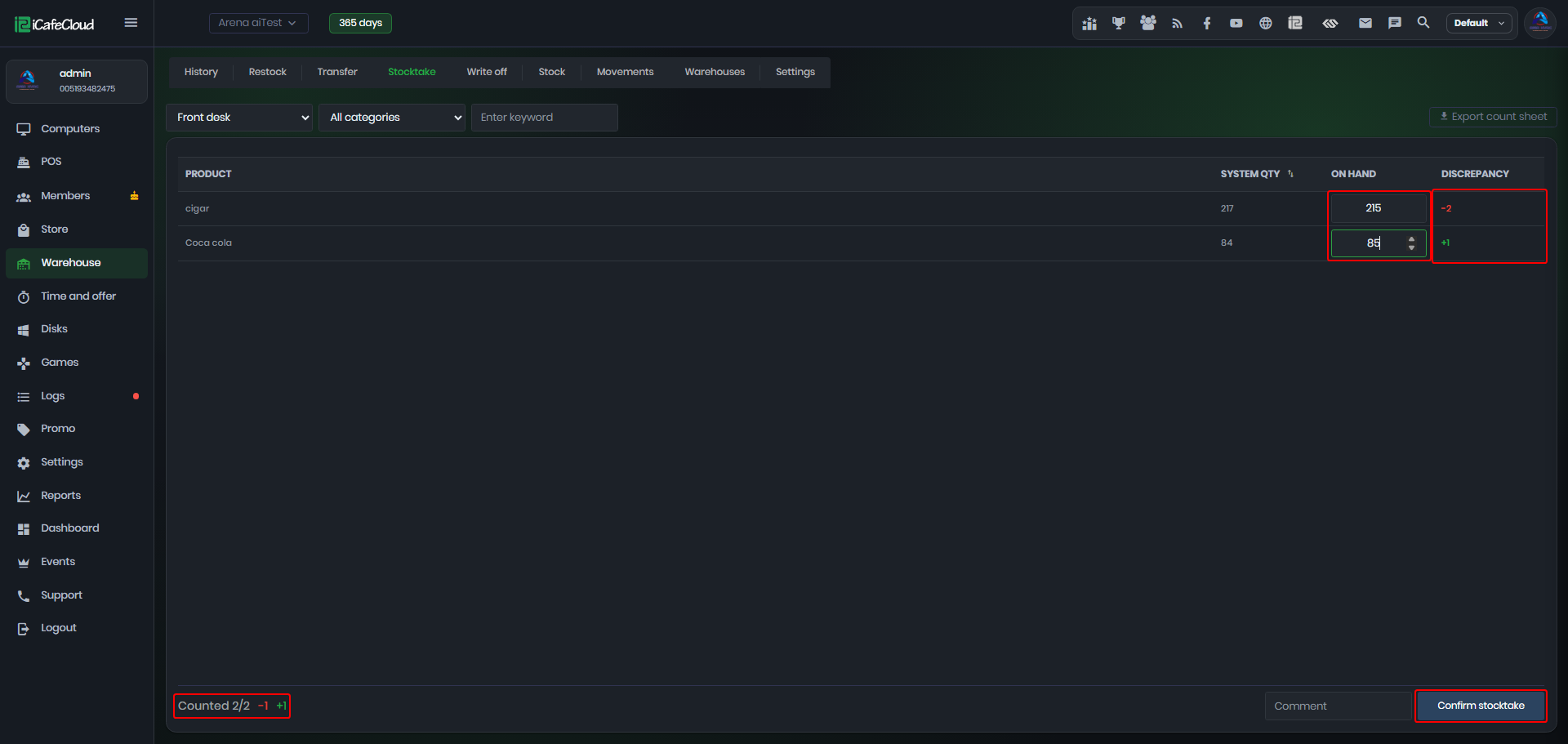
Figure 2
5. At the bottom, "Counted x/y" shows how many products you counted. The red and green numbers next to it are the number of products that are short or over, not the number of units.
6. Write a Comment if needed and click Confirm stocktake. The system quantities are