

The History tab is the first tab of the Warehouse page. It lists every stock document (restock, transfer, stocktake and write off) with its number, warehouse, staff, date and status.
- Navigate to Warehouse. The History tab opens by default. Use the warehouse filter to show documents from all warehouses or from one warehouse (Figure 1).
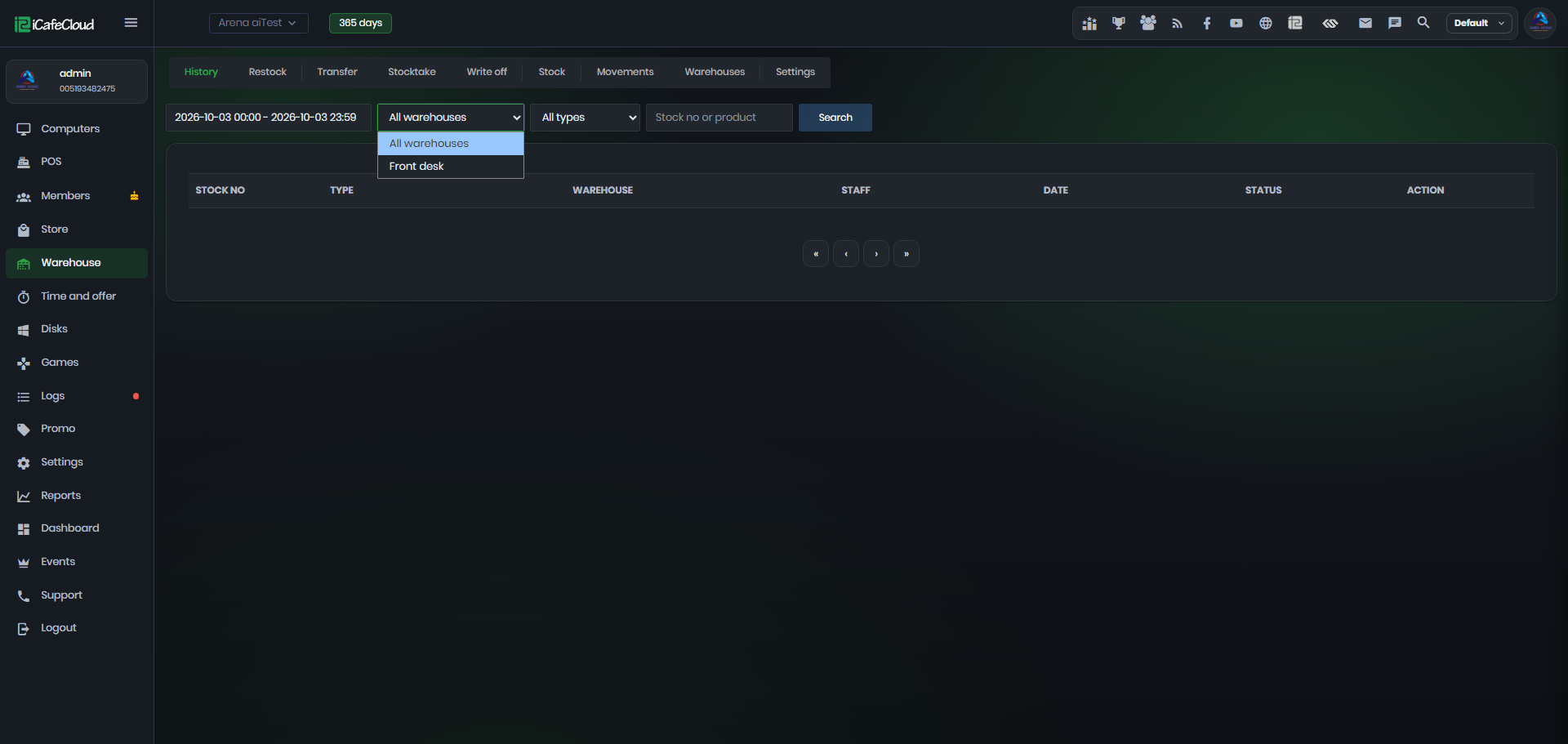
Figure 1
- Choose the date range, type a stock number or product if needed, and click Search. The list shows each document's stock number, type, warehouse, staff, date and status, and the number at the top right shows how many were found (Figure 2).
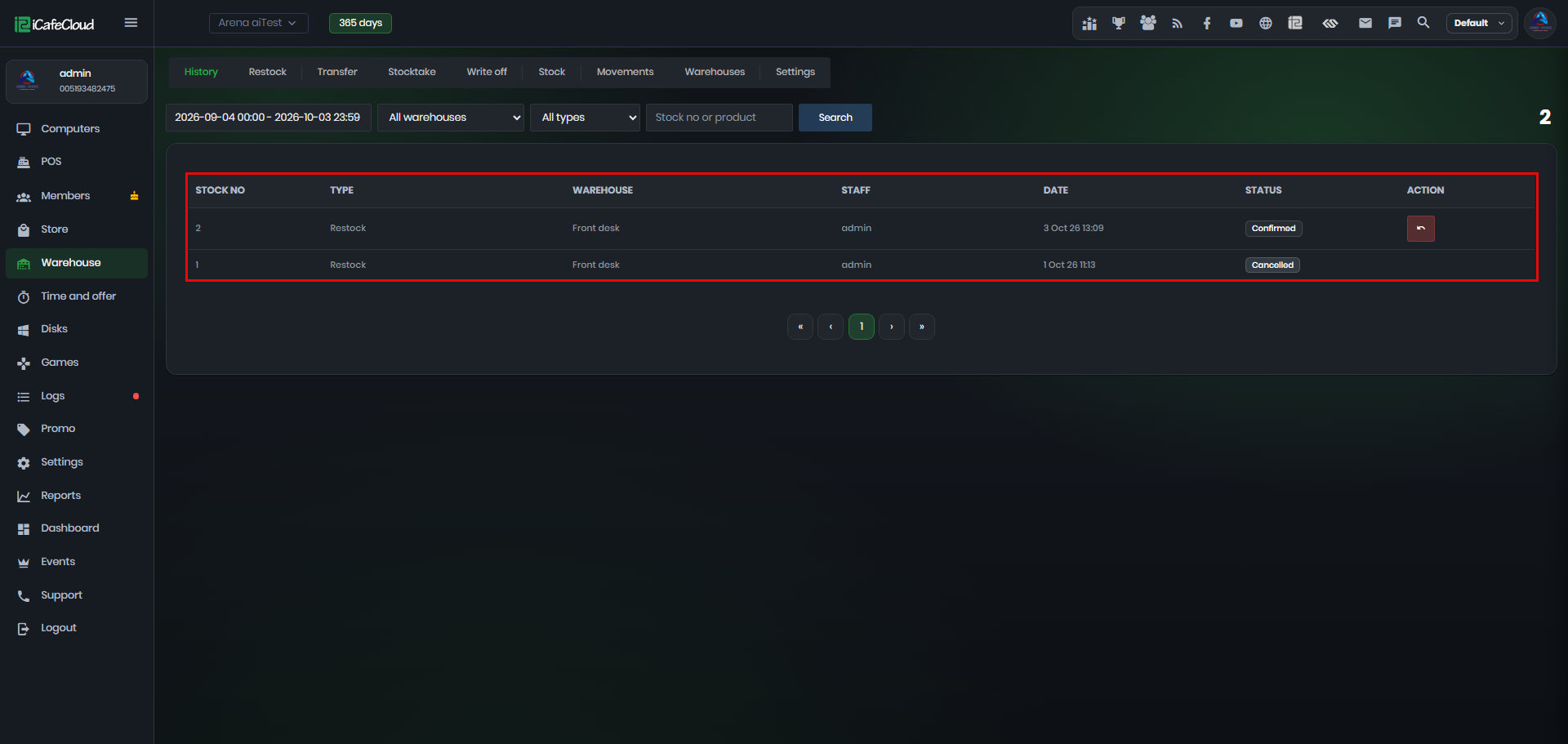
Figure 2
- To show only one kind of document, choose it in the type filter (Restock, Write off, Transfer or Stocktake), then click Search (Figure 3).
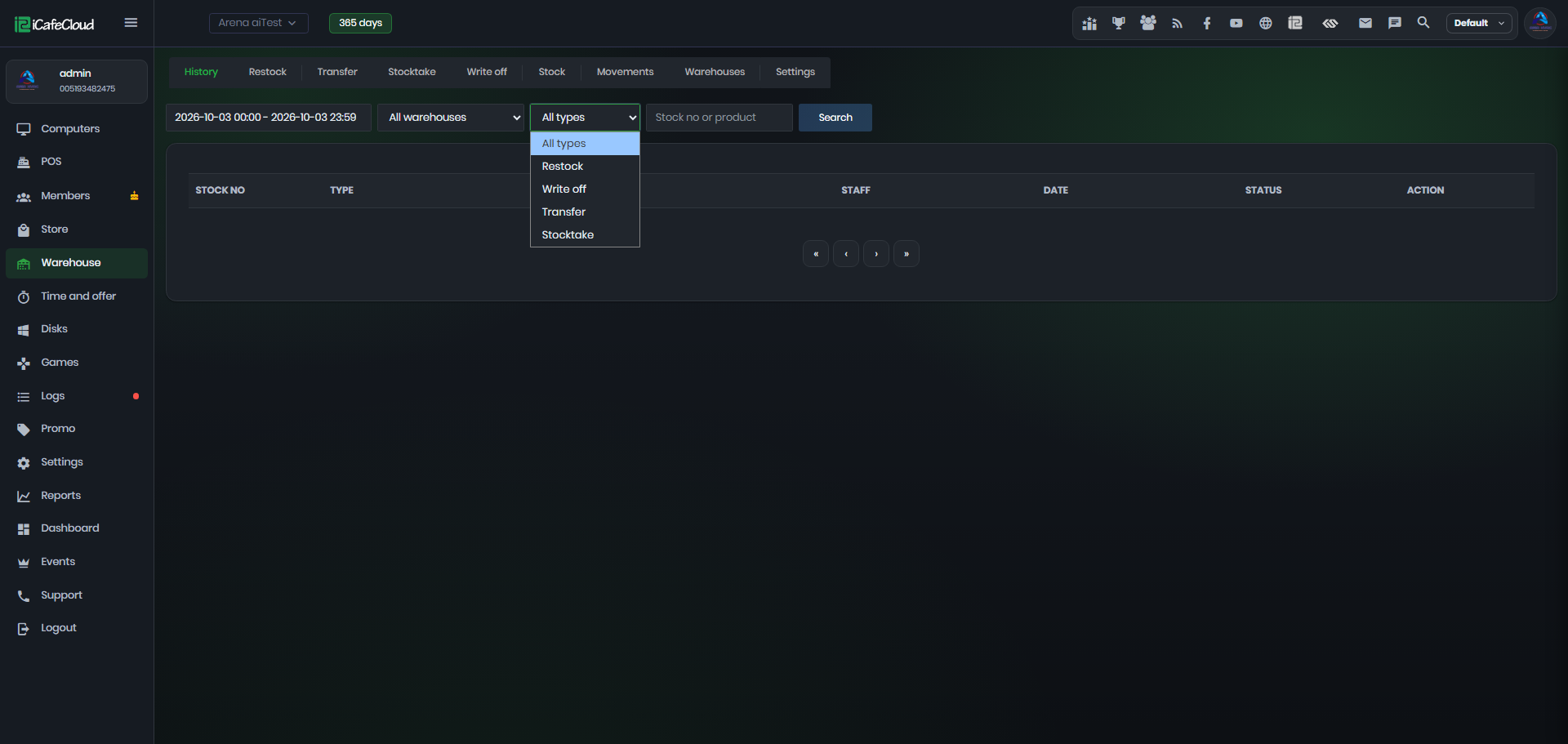
Figure 3
- Click a row to open the Detail window. It shows each product, the quantity, the stock before and after, and the cost (Figure 4). Click Close.
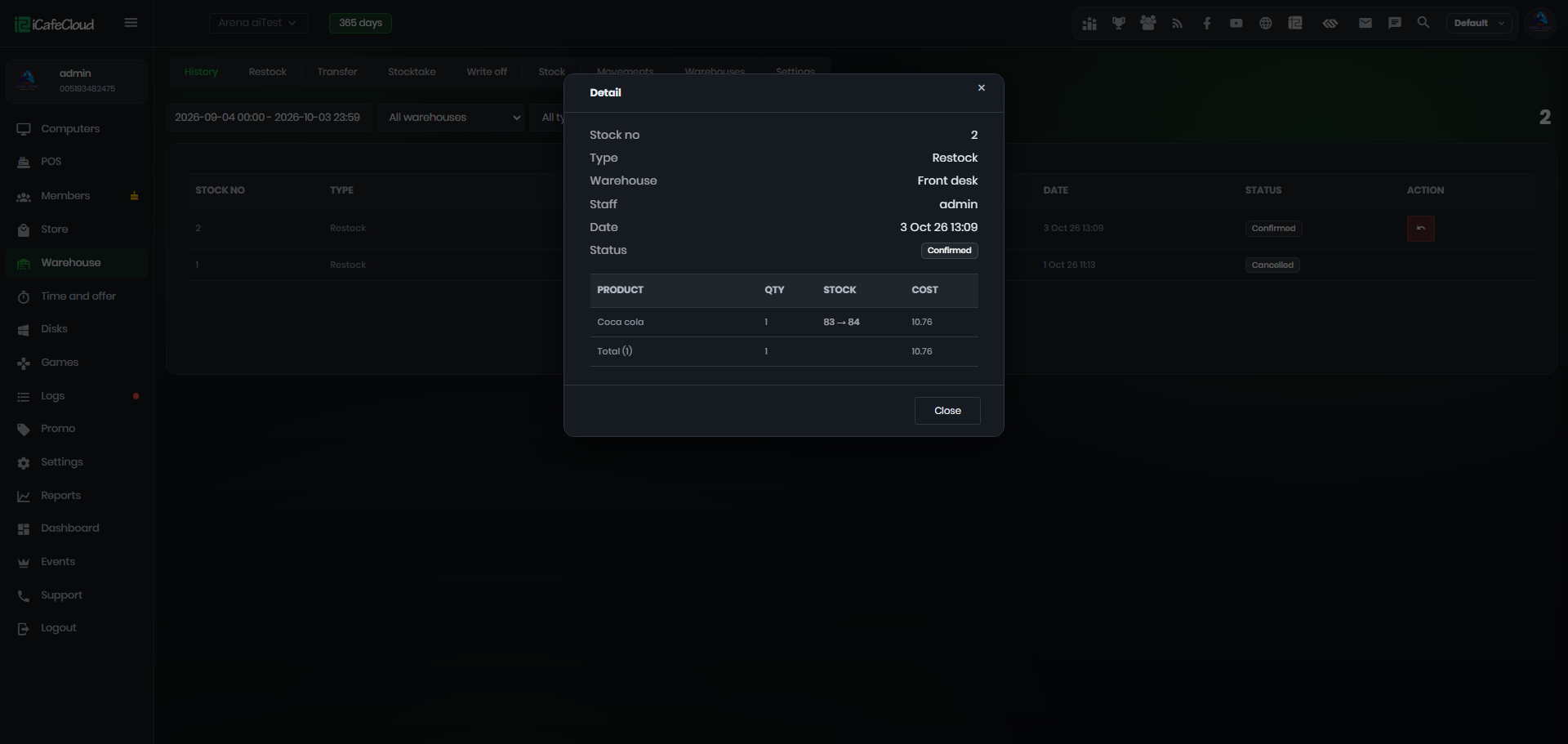
Figure 4
- To reverse a document, click the red button (Cancel) in the Action column. Its status changes to Cancelled and the Cancel button is no longer shown.
The Cancel button has no text label. It reverses a confirmed document, so be careful not to click it by mistake. (Figure 5)
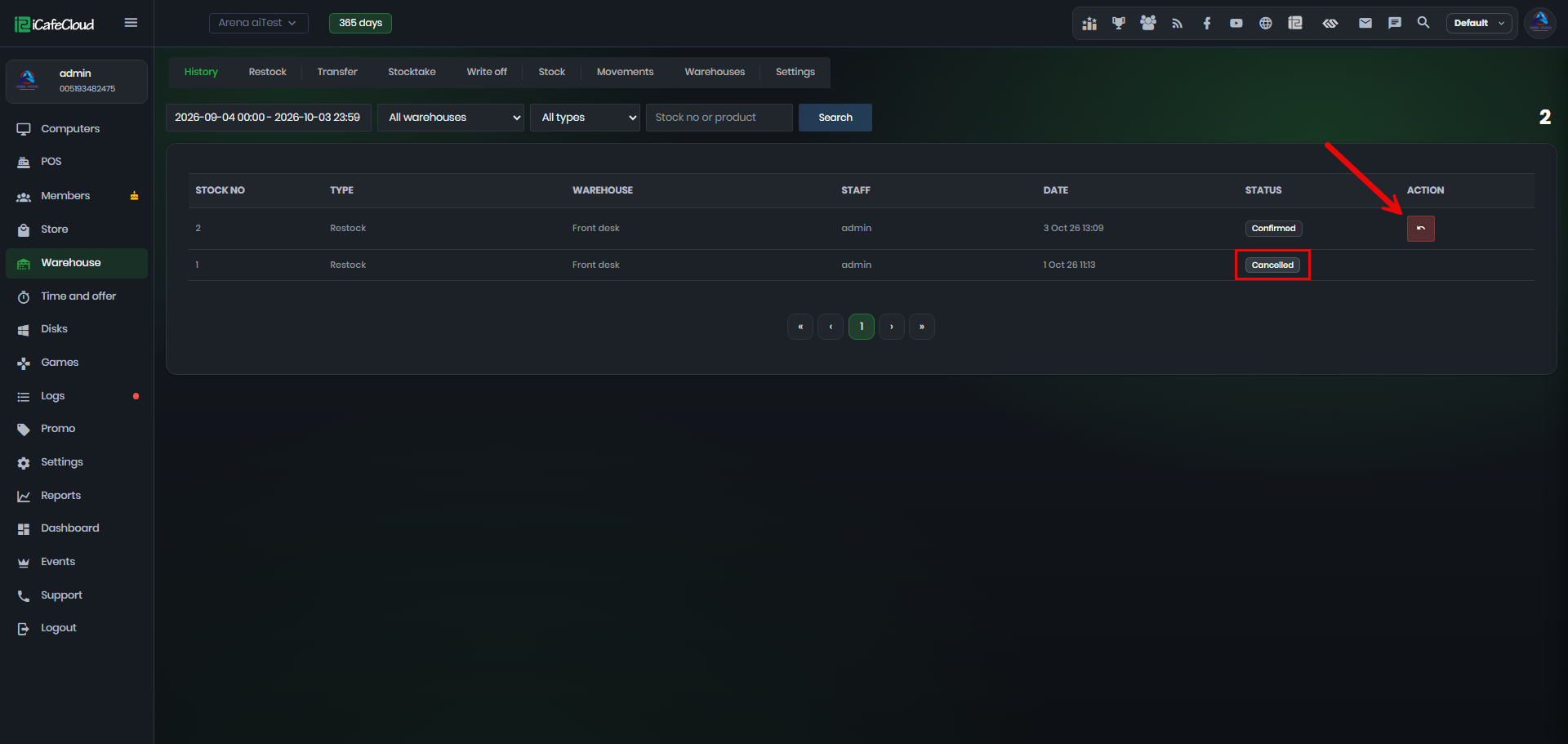
Figure 5