

The following explains how to add a new storage location, warehouse or change an existing one.
- Navigate to Warehouse and click the Warehouses tab. The list shows each warehouse with its number of products and total quantity. A lock icon next to a name means it cannot be deleted right now. Hover over it to see why (Figure 1).
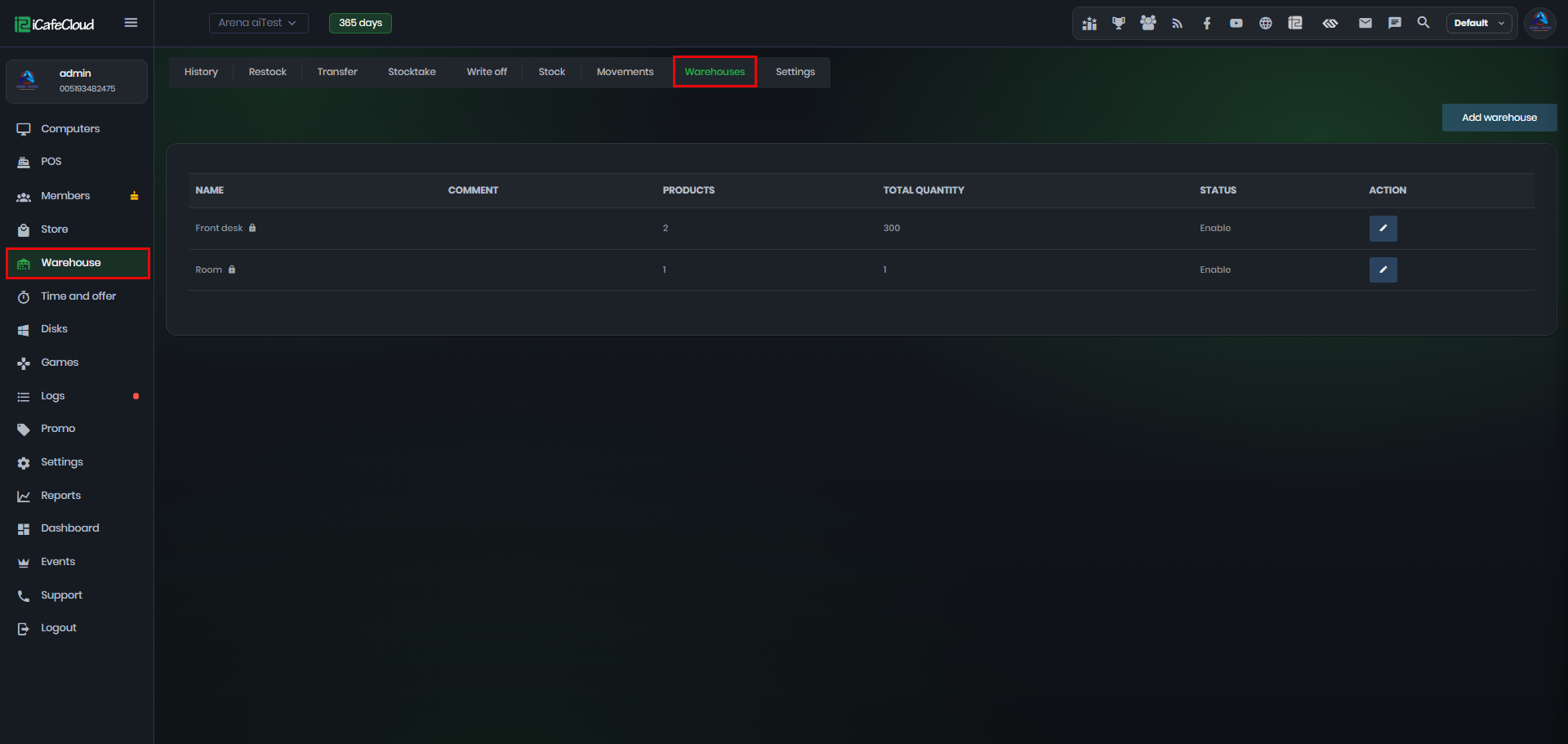
Figure 1
- Click Add warehouse.
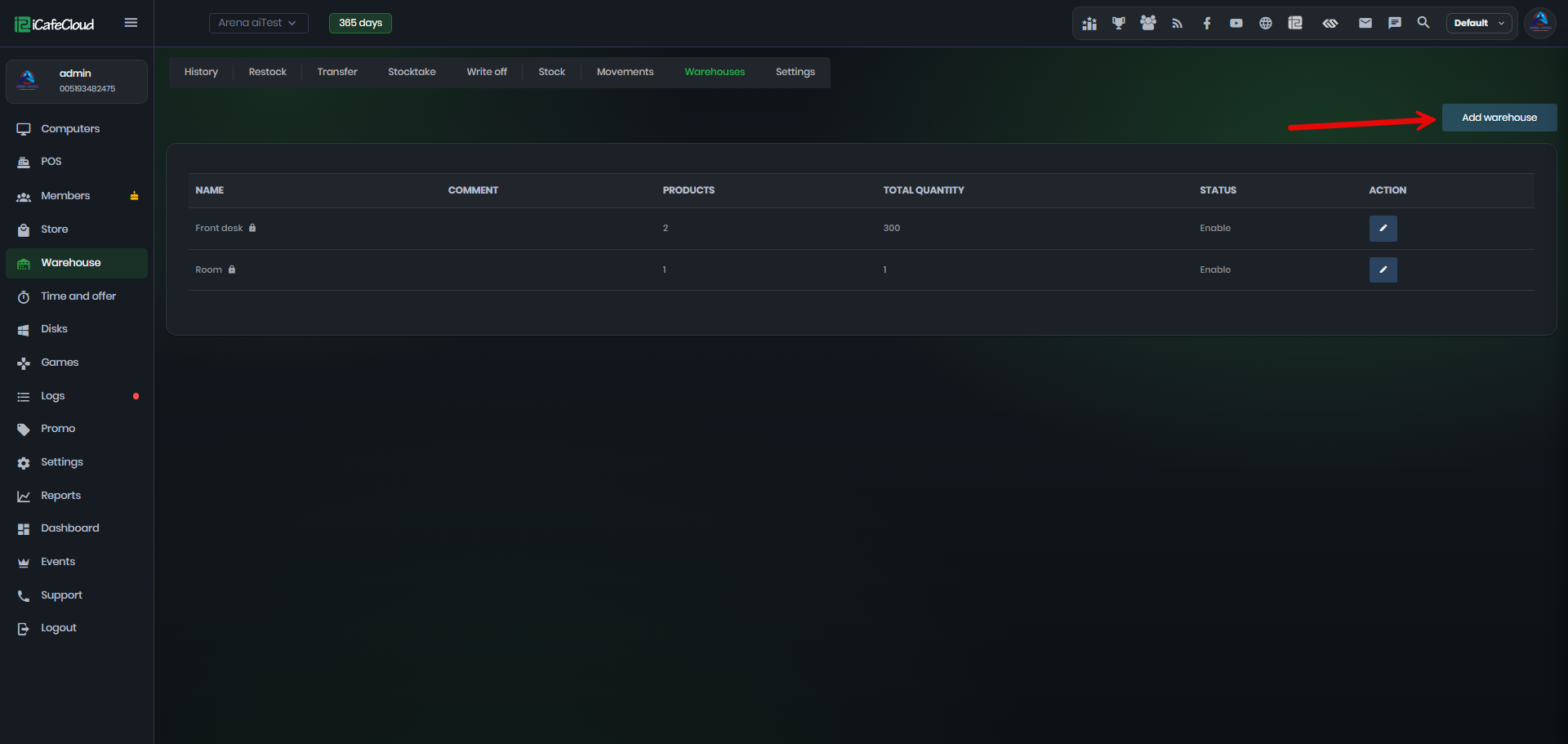
Figure 2
- Enter the Name, an optional Comment, the Sort number (default 0) and the Status (Enable or Disable), then click Add (Figure 2).
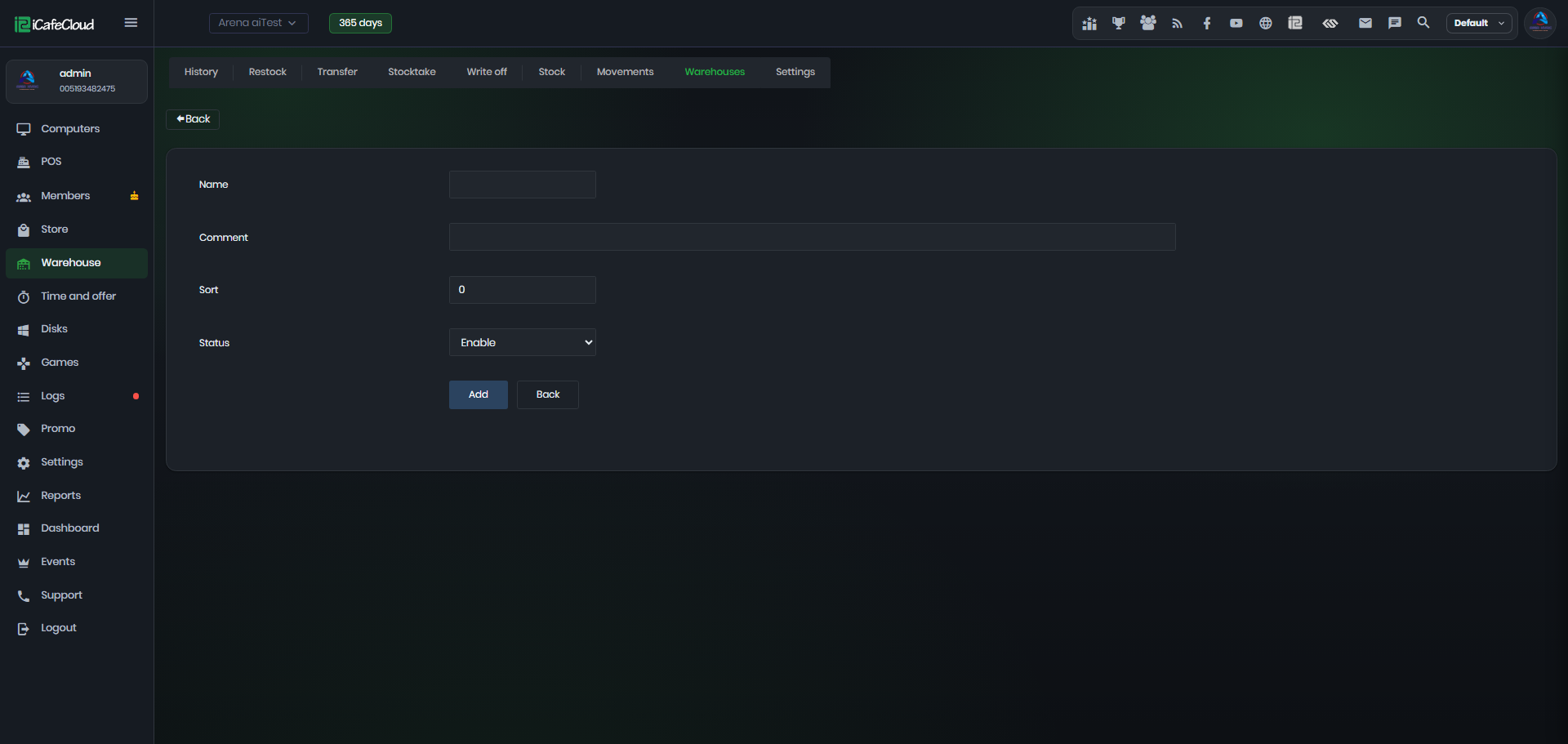
Figure 2
- To change a warehouse, click the edit button, change the fields and click Save.
The default warehouse has no Status field, so it always stays enabled.(Figure 3)
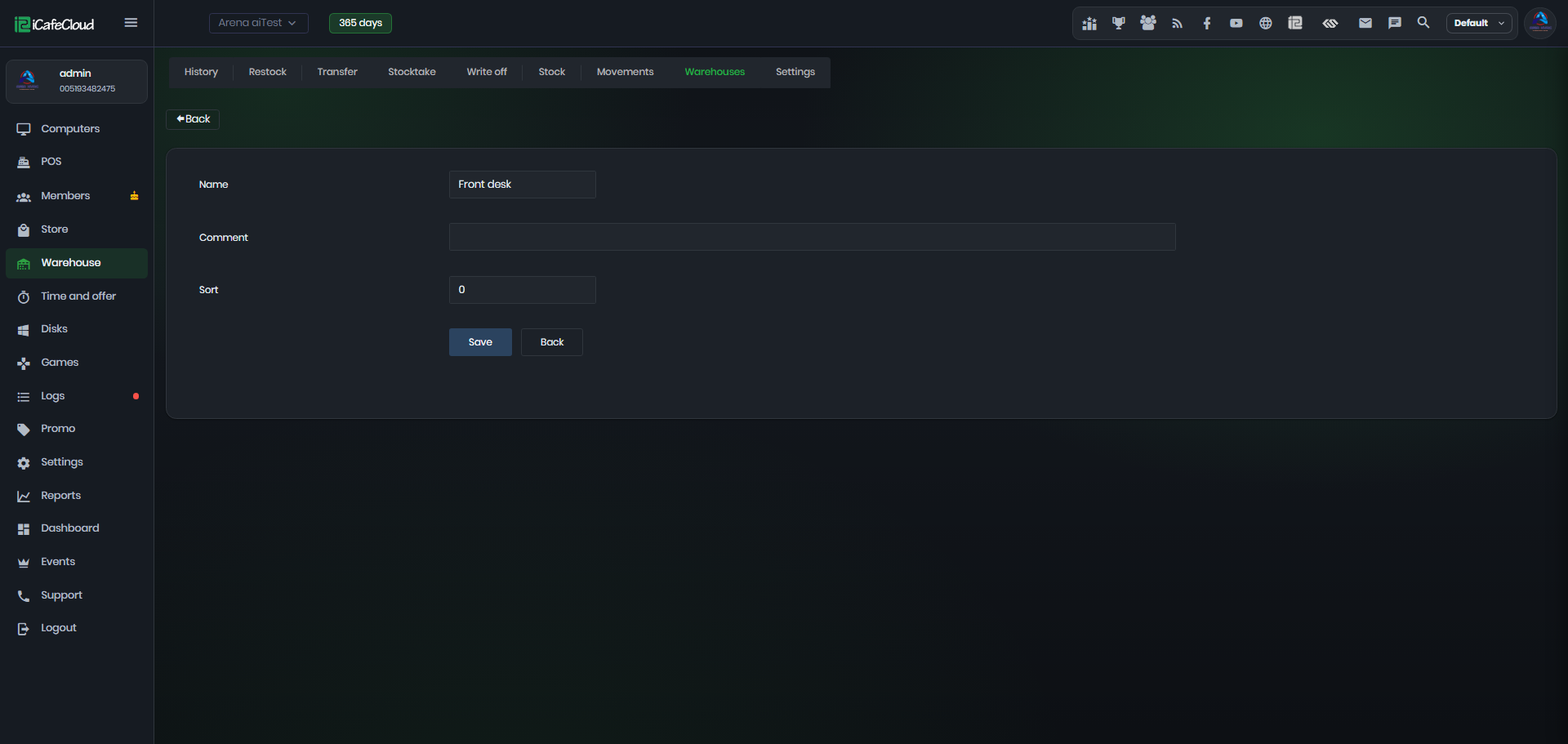
Figure 3
- Warehouse can be deleted only if it is not the default one, holds no stock and has no stock records. Otherwise a lock icon is shown instead of a delete button.