

The following explains how to see every change to a product's stock, including sales from POS or a customer PC.
- Navigate to Warehouse and click the Movements tab.
- Click the date box and choose a range, for example Last 30 Days, then click Search (Figure 1).
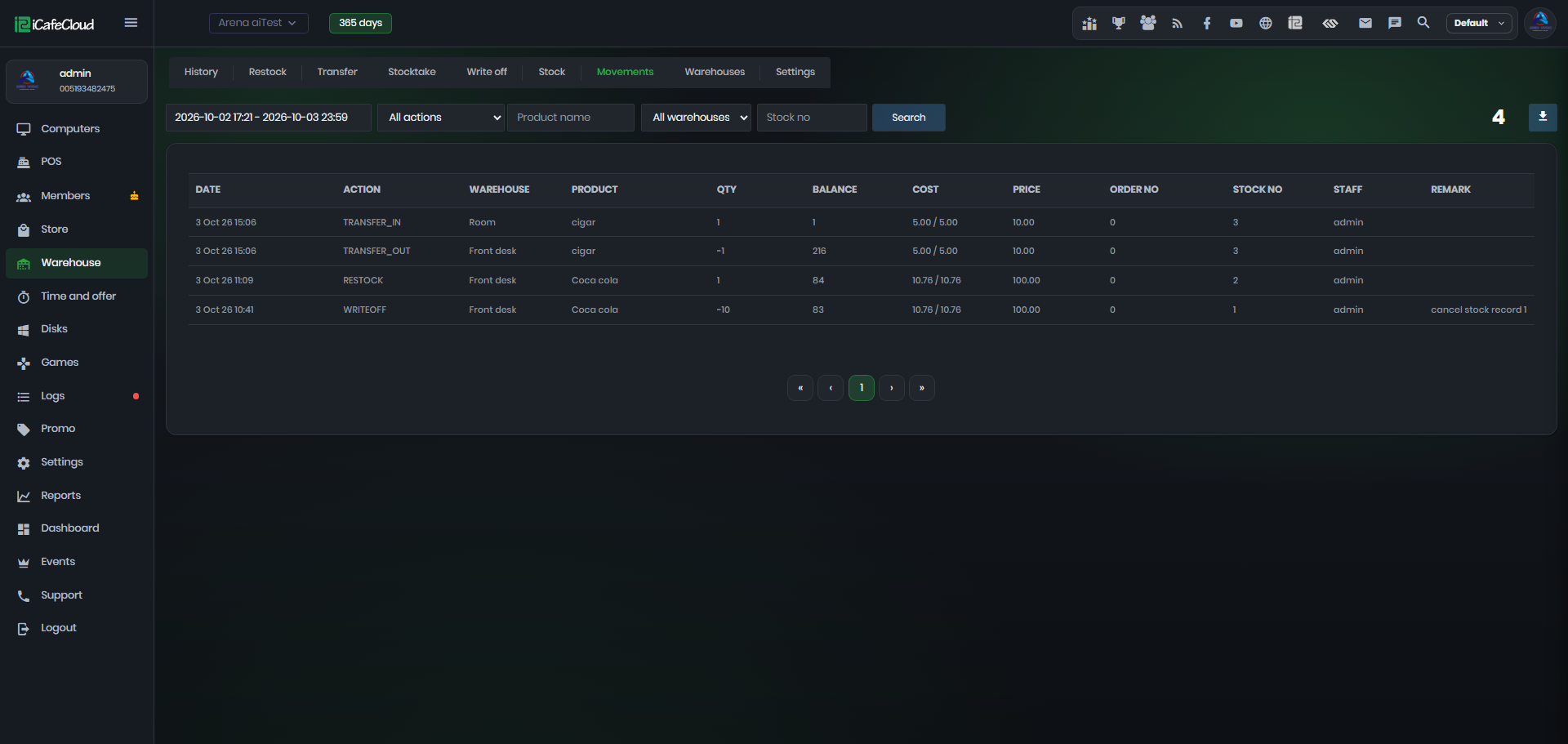
Figure 1
- Filter by action (SELL, RESTOCK, REFUND, WRITE OFF, TRANSFER OUT, TRANSFER IN, STOCKTAKE, INIT), product name, warehouse or stock number.
- Each line shows the quantity change, the Balance after the change, cost, price, order number, staff and a Remark with the PC and member.
- Click the download button at the top right to export the list.