

The following explains how to add new goods to a warehouse, restock when a delivery arrives, and how to set their cost.
- Select the warehouse in the dropdown at the top.
Each product card shows its cost price and its current stock in that warehouse. Use the category list on the left or the Enter keyword box to find the product. (Figure 1).
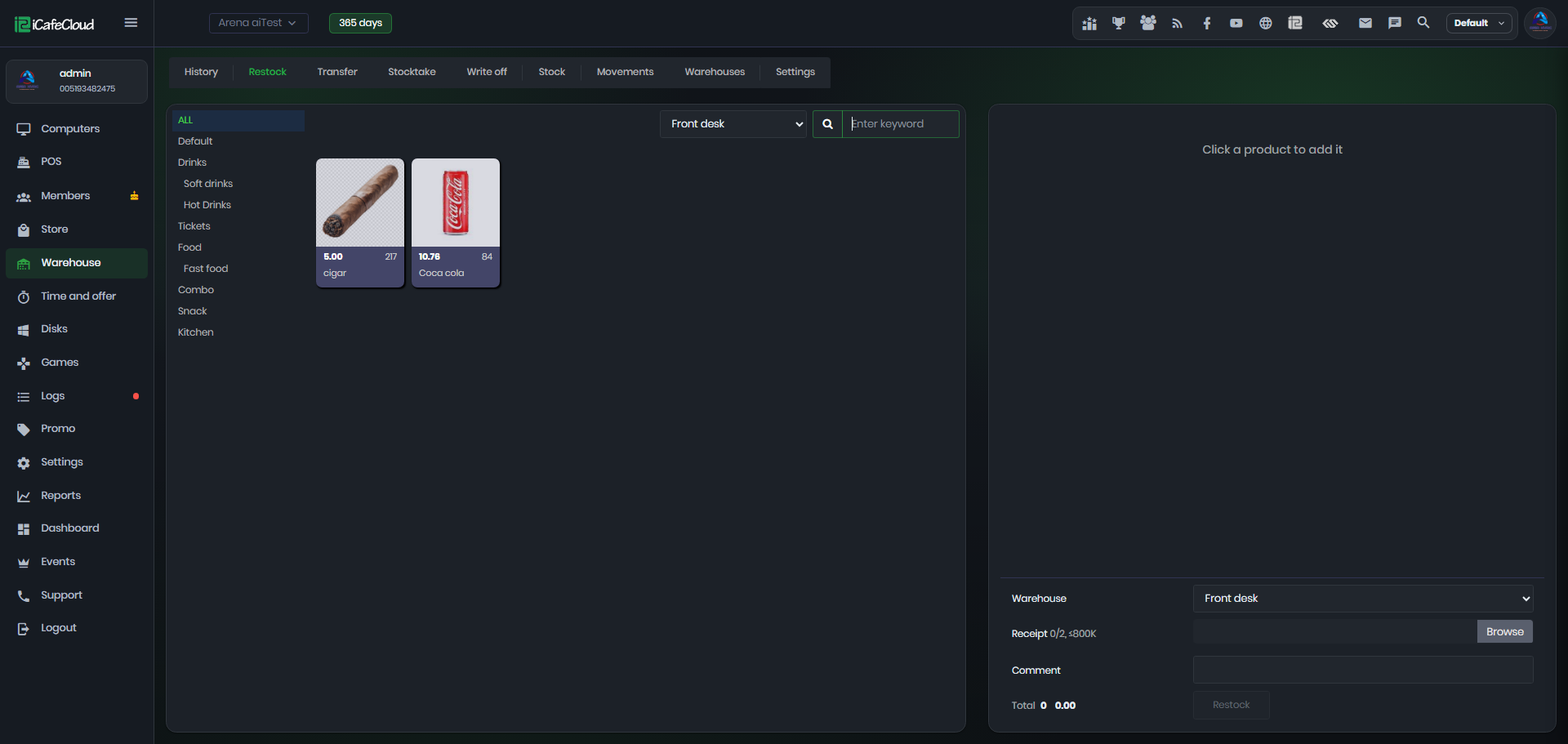
Figure 1
- Click a product to add it to the list on the right. A red badge on the product shows how many times it was added (Figure 2).
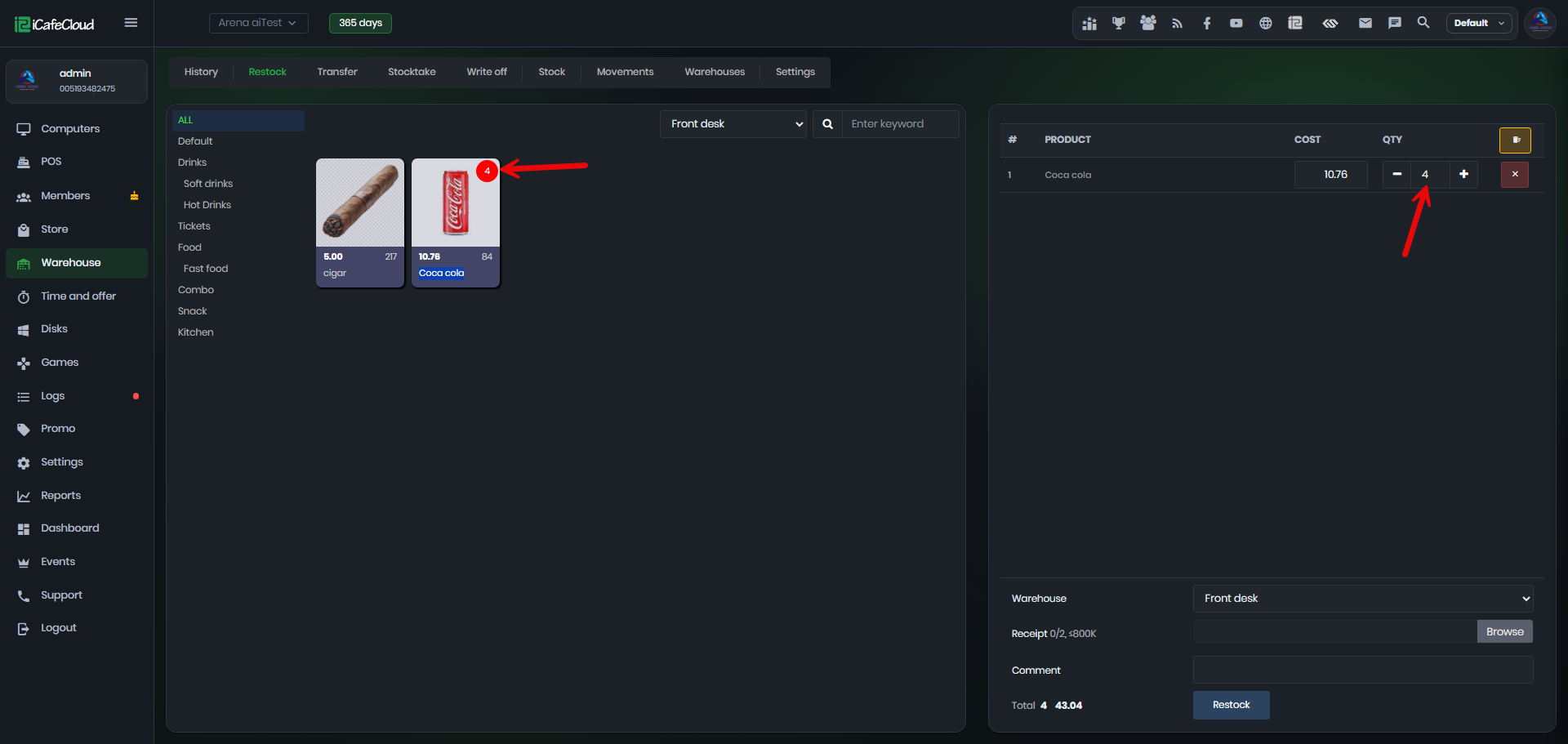
Figure 2
- Check the Cost for each line and set the quantity with − and +, or type it. Click × to remove a line. Click the yellow Reset button (top right of the list) to clear the whole list.
- Check that the Warehouse at the bottom is the one receiving the goods.
Optional: click Browse to attach up to 2 receipt images (max 800 KB each) and write a Comment.
A receipt is required if the required receipt on restock is enabled in Warehouse settings. - Check the Total (number of items and total cost) and click Restock (Figure 3).
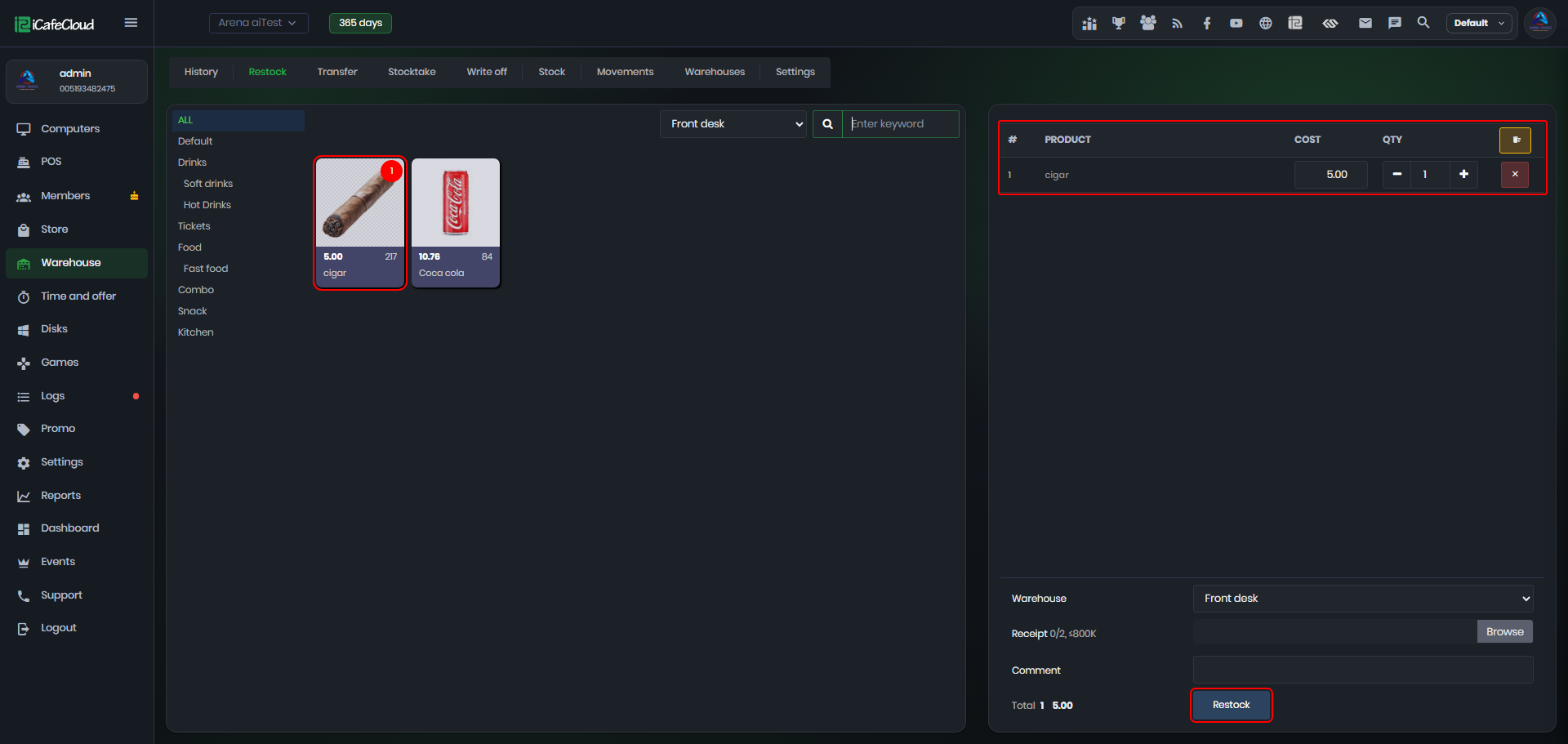
Figure 3
- The restock appears on the History tab with status Confirmed.