

The following explains how to move stock from one warehouse to another, for example from a storage room to the front desk. You need at least two warehouses.
- Before you start, read how to create warehouses
- Navigate to Warehouse and click the Transfer tab and choose a warehouse first. (Figure 1)
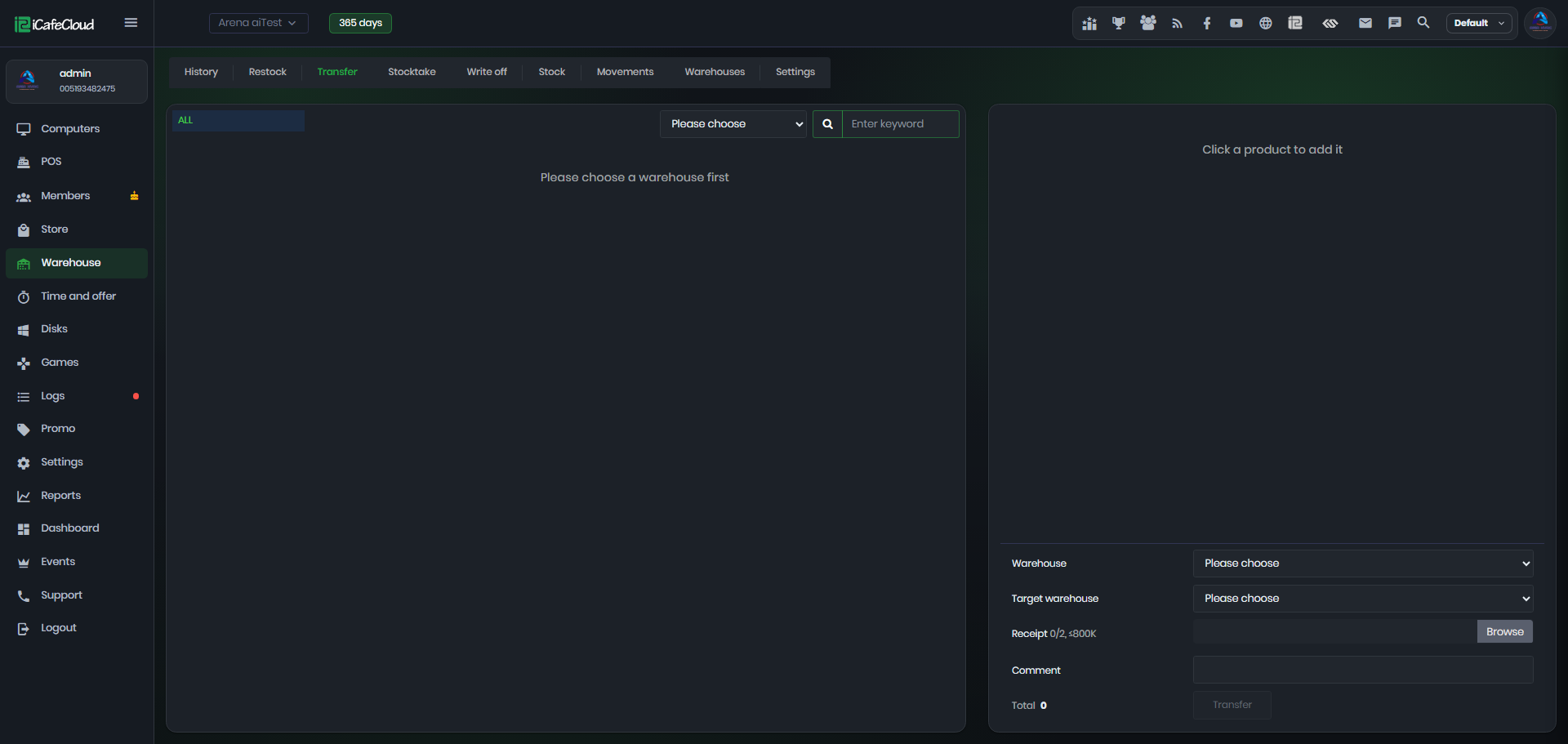
Figure 1
- Select the source warehouse in the dropdown at the top. Its products appear, and each card shows the current stock at the top right (Figure 2).
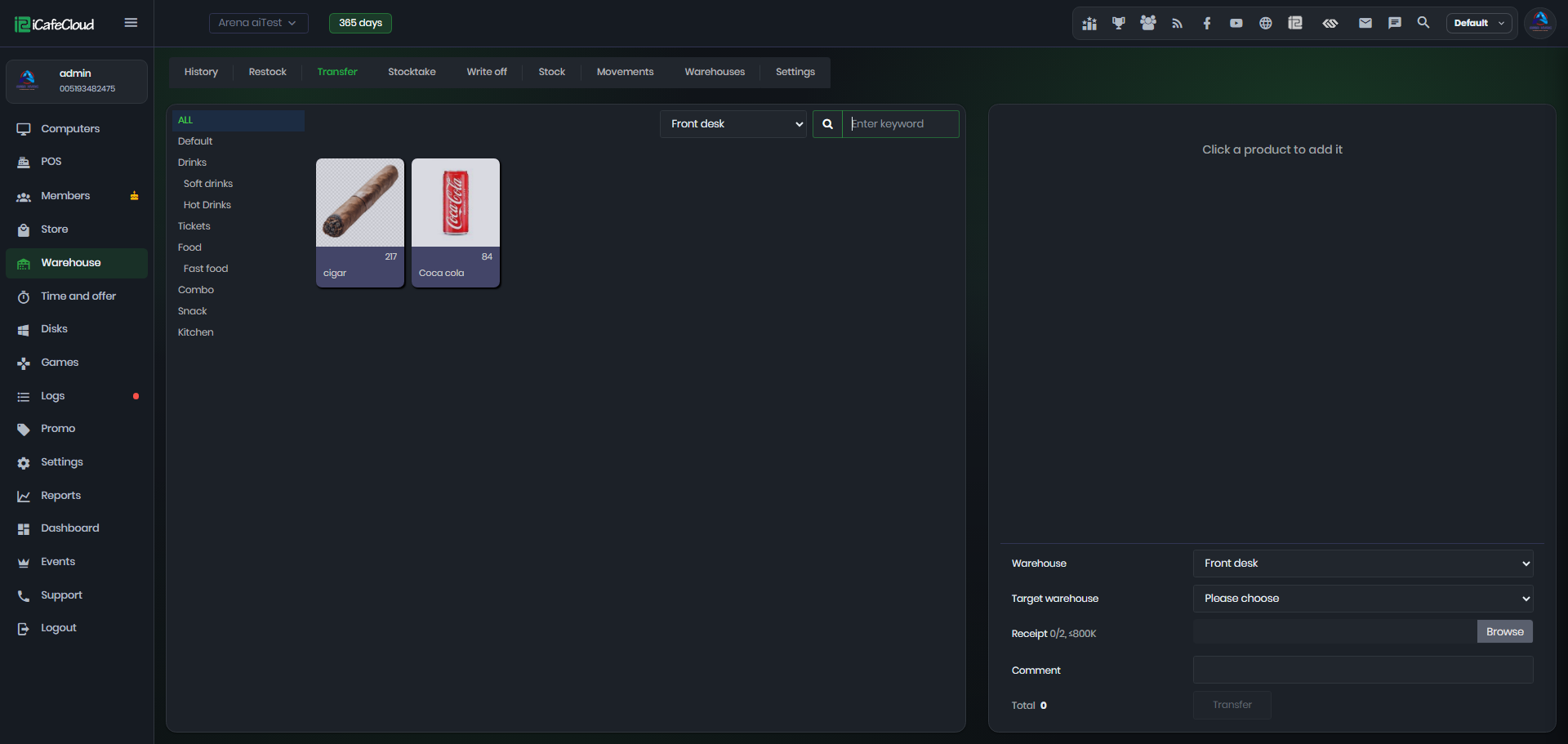
Figure 2
- Select a product then In the list, check the Stock column and set the Qty with − and +, or type it.
You cannot enter more than the current stock. Click × to remove a line. - At the bottom, check Warehouse and choose the Target warehouse. The source warehouse is not offered as a target (Figure 3).
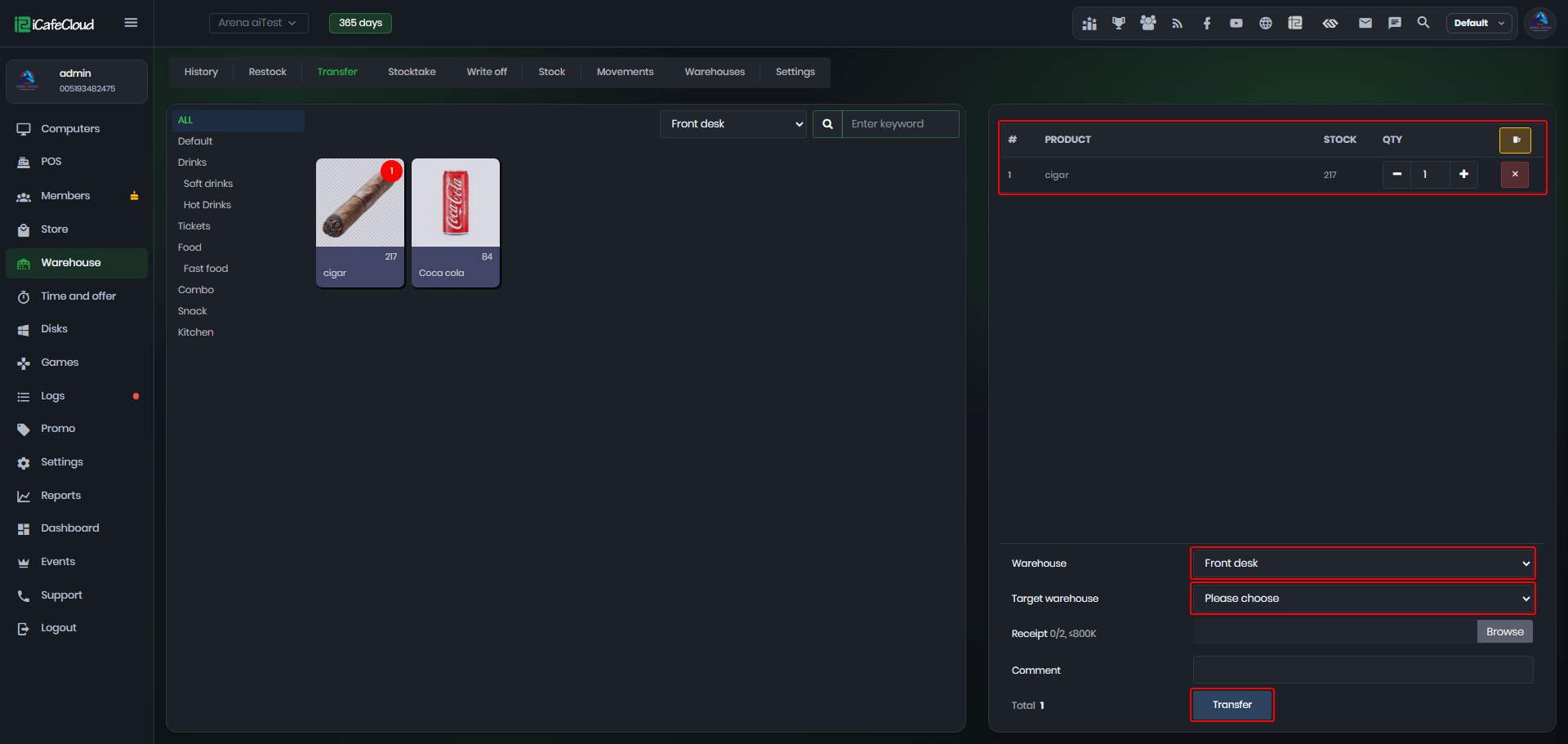
Figure 3
5. You can attach up to 2 receipt images by clicking Browse (maximum 800 KB each) and add a Comment if needed.A receipt is required when Require Receipt on Transfer is enabled in Warehouse Settings.
6. Check the Total and click Transfer.