

The following explains how to configure Lucky Spin, allowing customers to spin a prize wheel and win rewards configured by the center. This feature helps increase customer engagement and encourages repeat visits.
- Navigate to Promo - Settings, scroll down to Lucky Spin, and toggle to enable. (Figure 1)
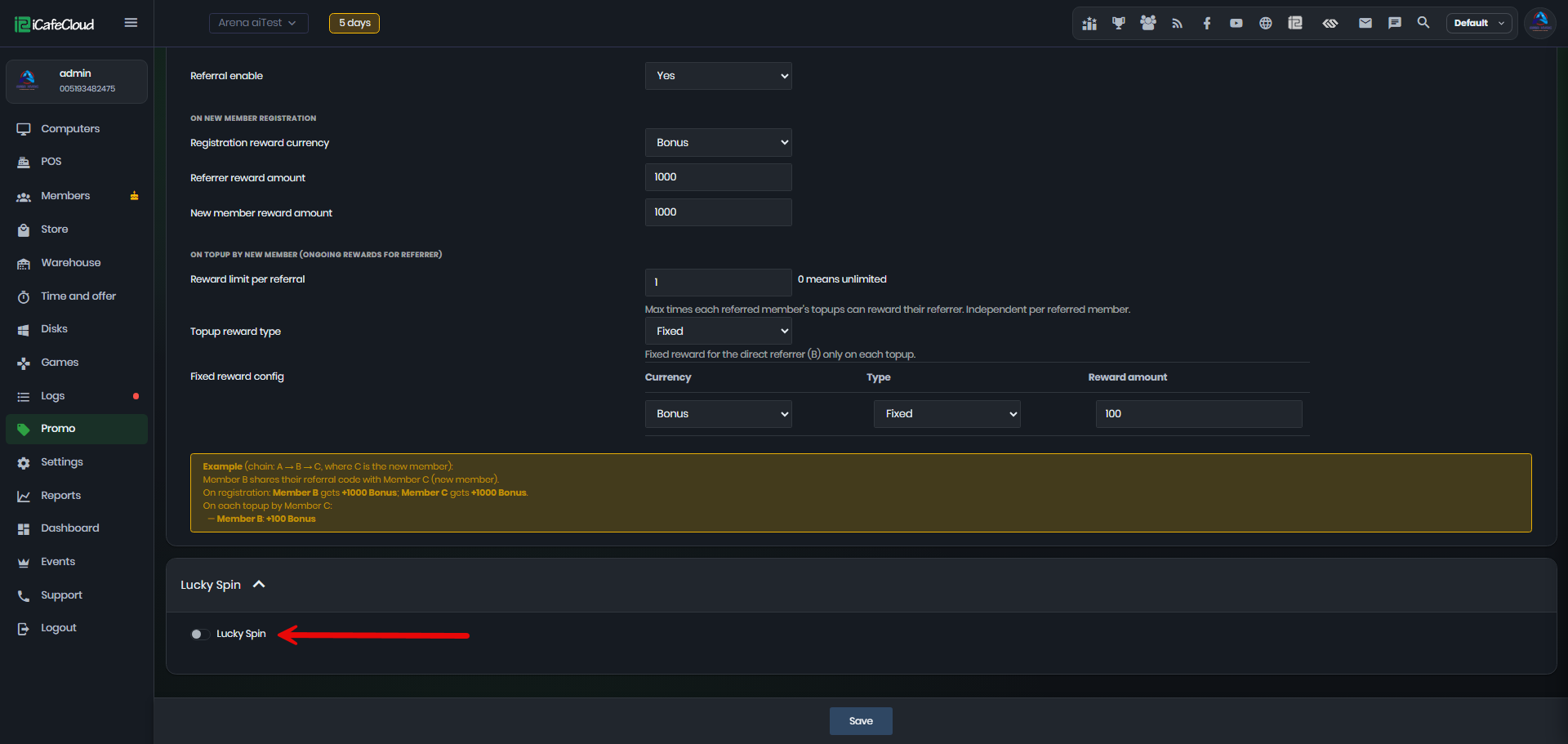
Figure 1
- After enabling Lucky Spin, the available configuration options will be displayed. (Figure 2)
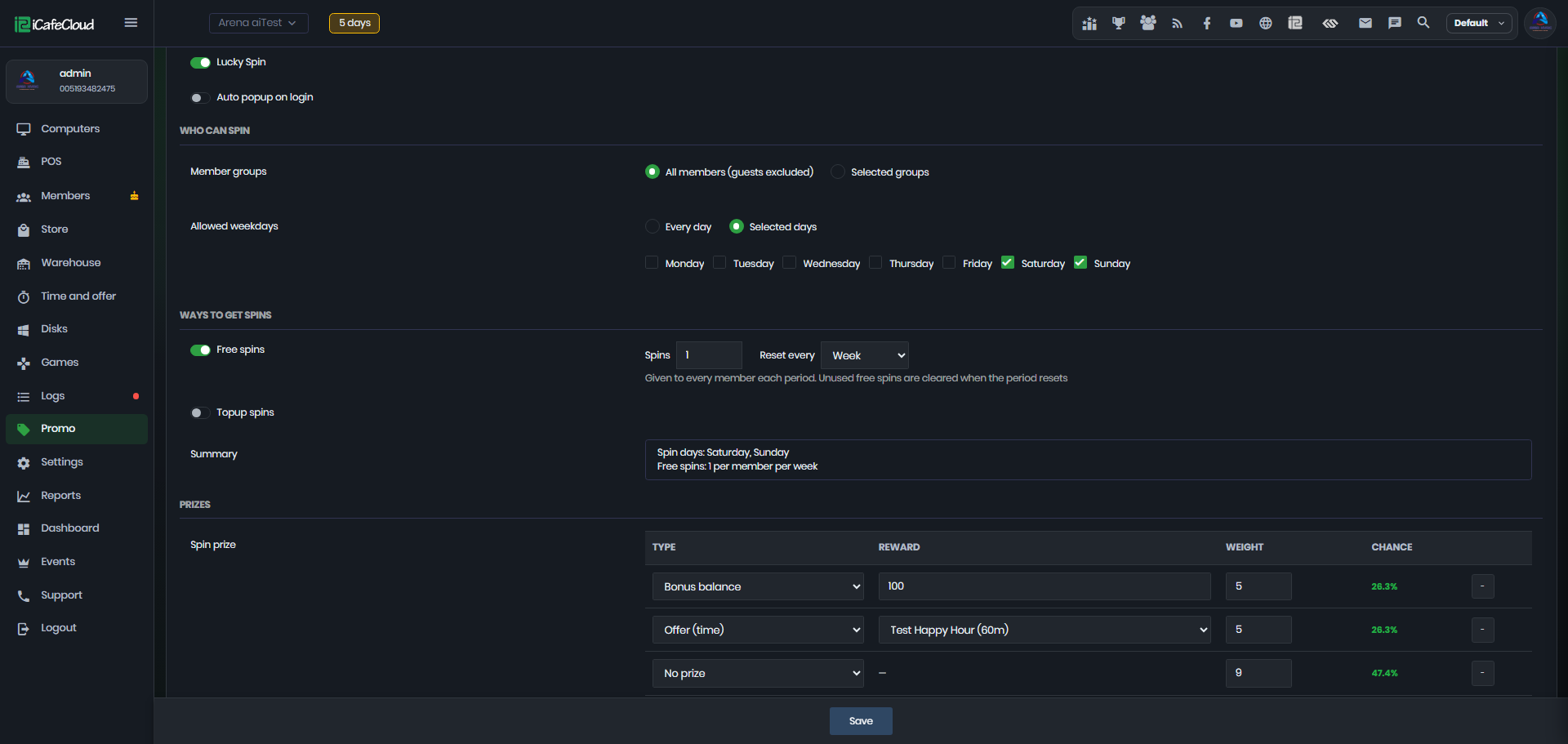
Figure 2
- Set Auto Popup at Login to Yes or No. (Figure 3)
No: The Lucky Spin option will not automatically appear at login
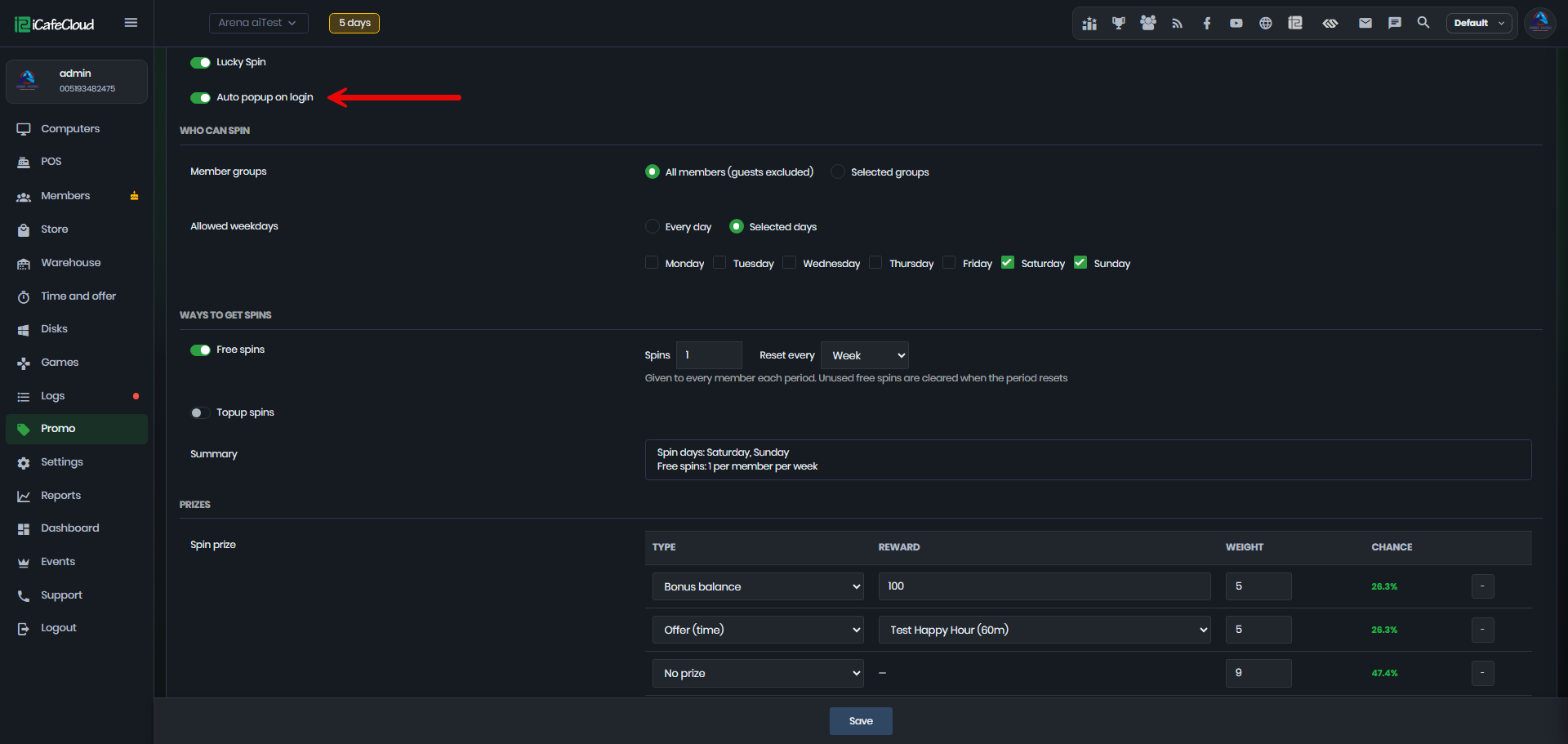
Figure 3
- Yes: The Lucky Spin option will automatically appear when a user logs in to the client PC. (Figure 4)
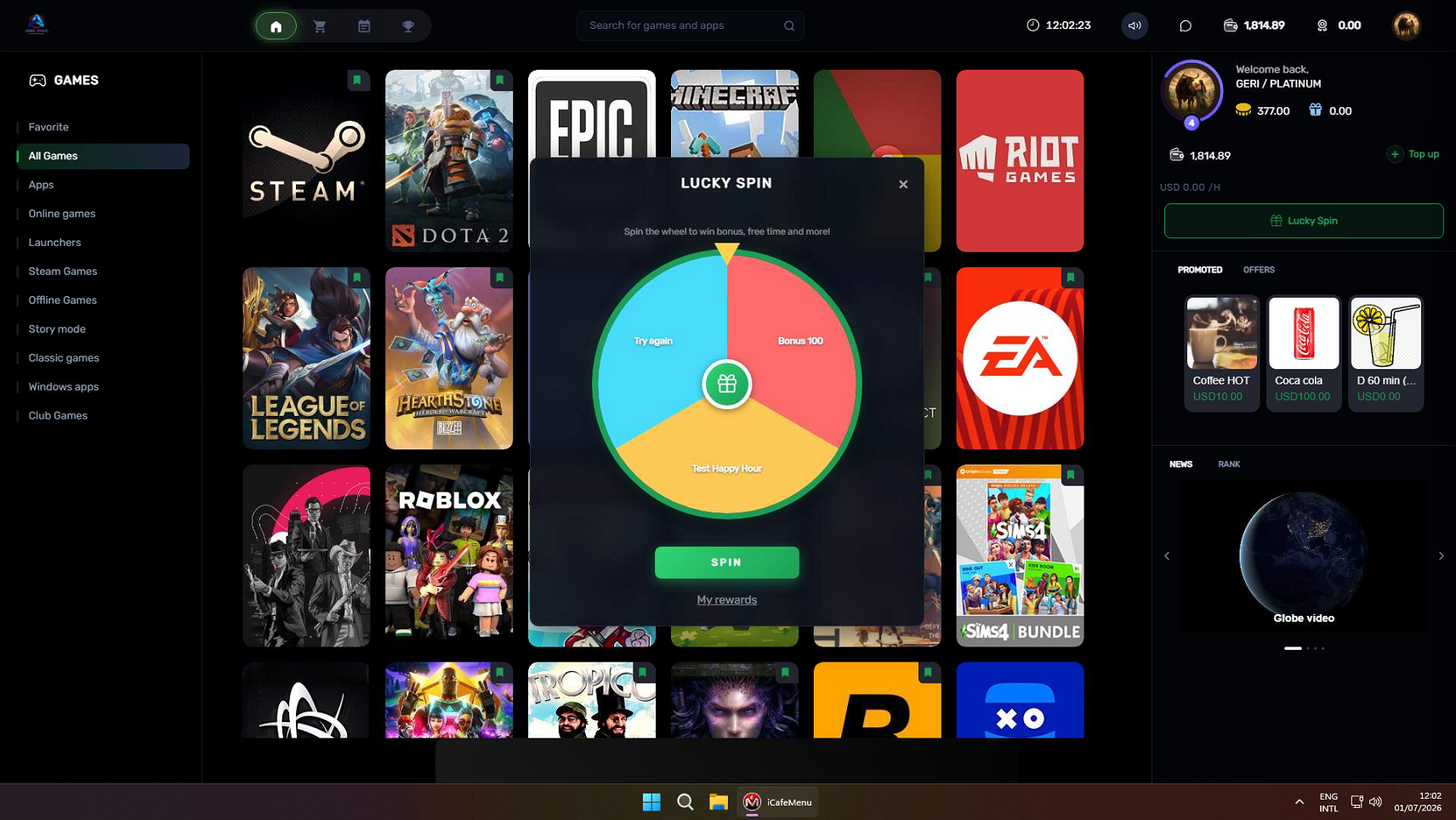
Figure 4
- You can choose to make the Lucky Spin available to all groups, or select specific groups that you want to have access to (Groups also display in sub center). (Figure 5)
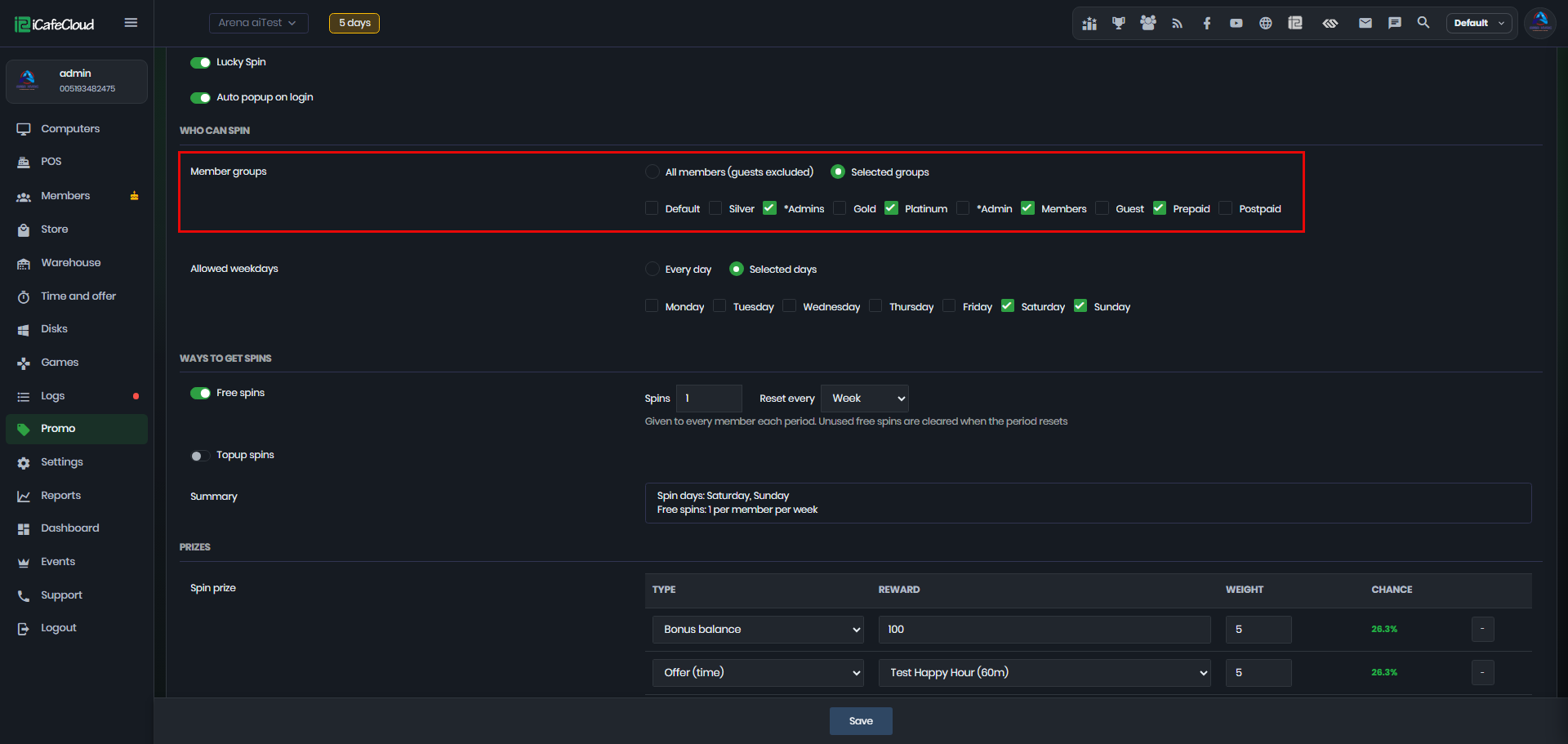
Figure 5
- You can choose to allow users to spin every day, or limit the Lucky Spin to specific selected days. (Figure 6)
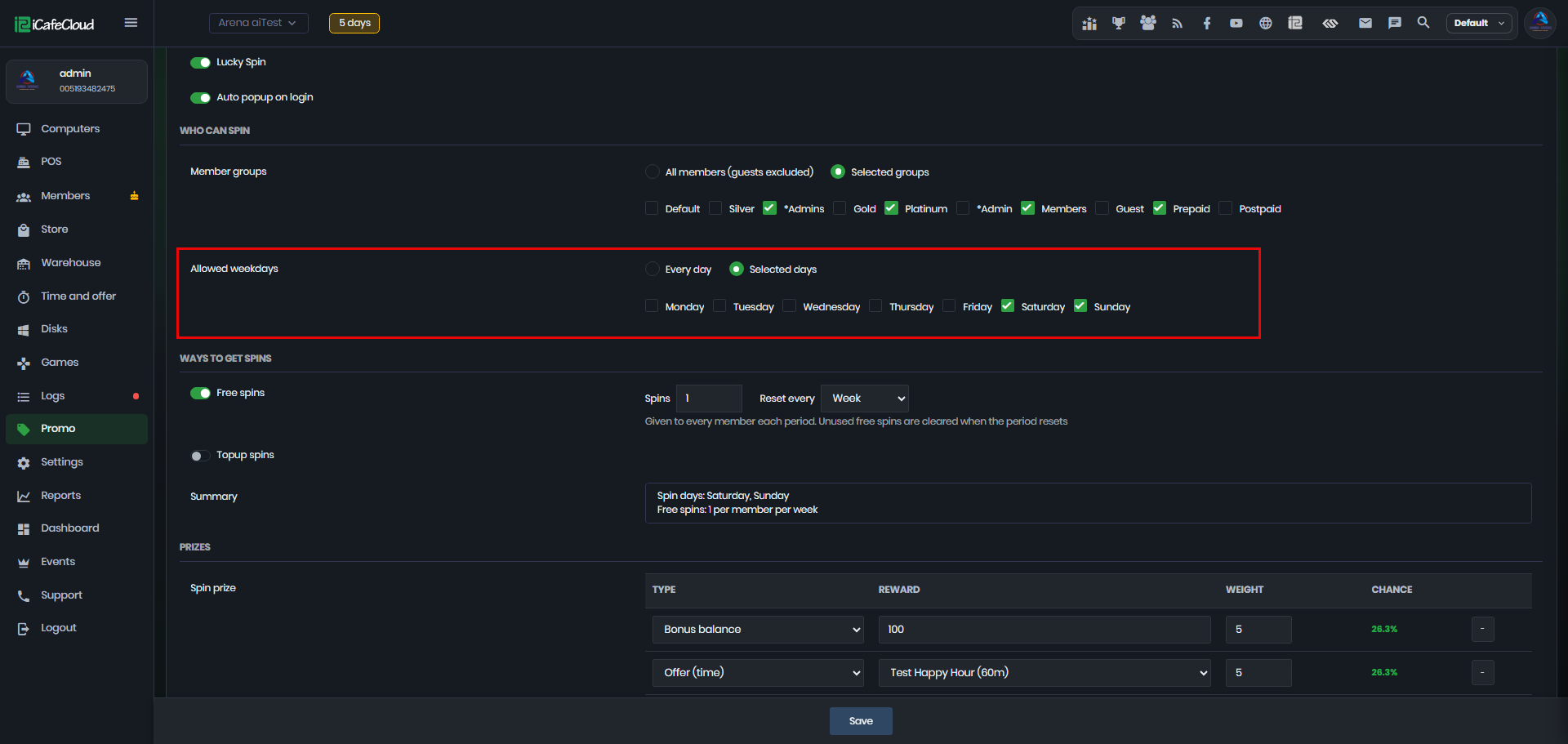
Figure 6
- You can enable Free Spins and configure both the number of free spins and the frequency at which they are given.
For example, you can give users 1 free spin every day or 1 free spin every week, depending on your preference.(Figure 7)
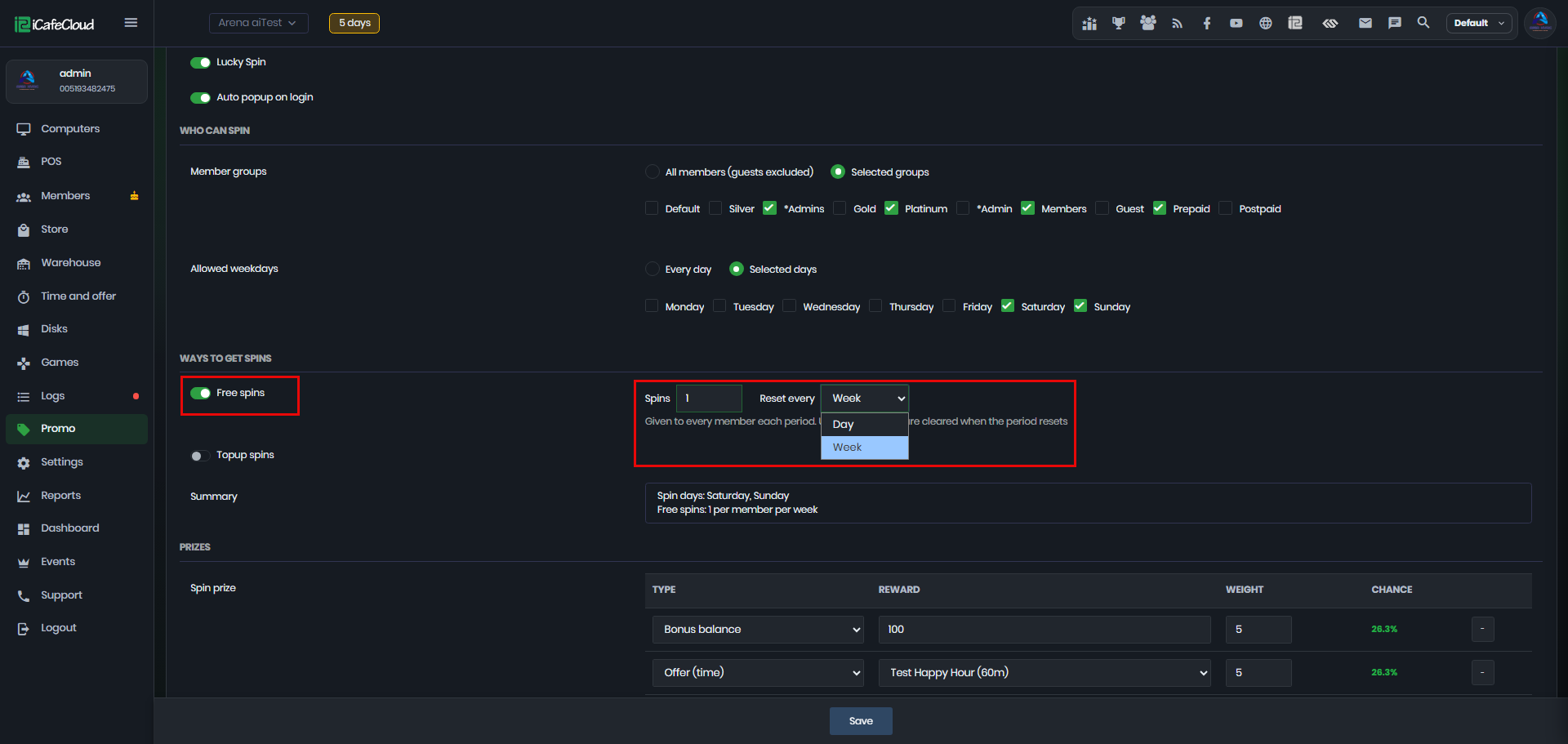
Figure 7
- You can also enable Top-Up & Spin, allowing users to purchase additional spins for a set amount.
For example, you can configure $1 = 1 spin (Figure 8).
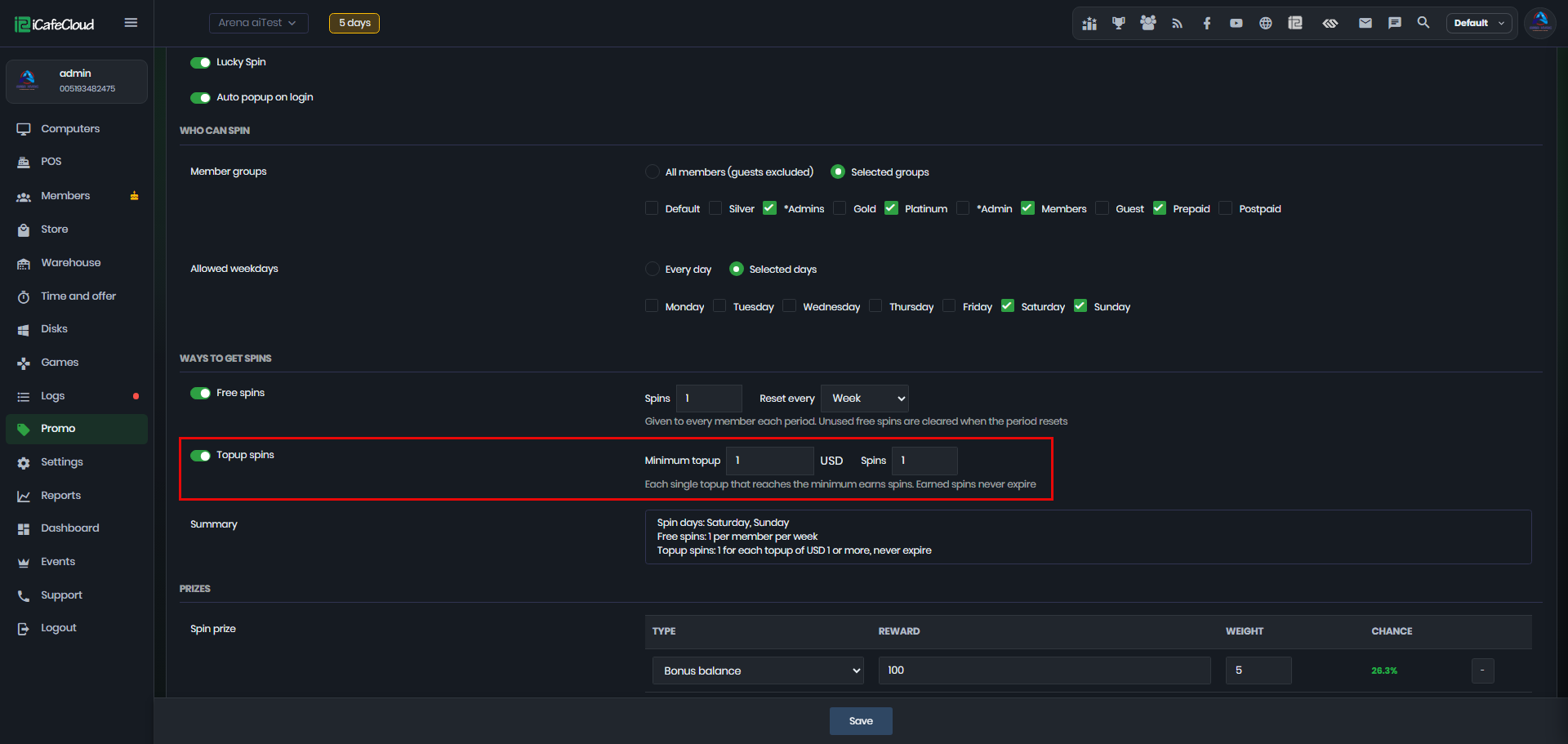
Figure 8
- After configuring the settings, the Summary field will display an overview of your selections and explain how the Lucky Spin will work. This makes it easier to review and understand the configured settings before applying them. (Figure 9)
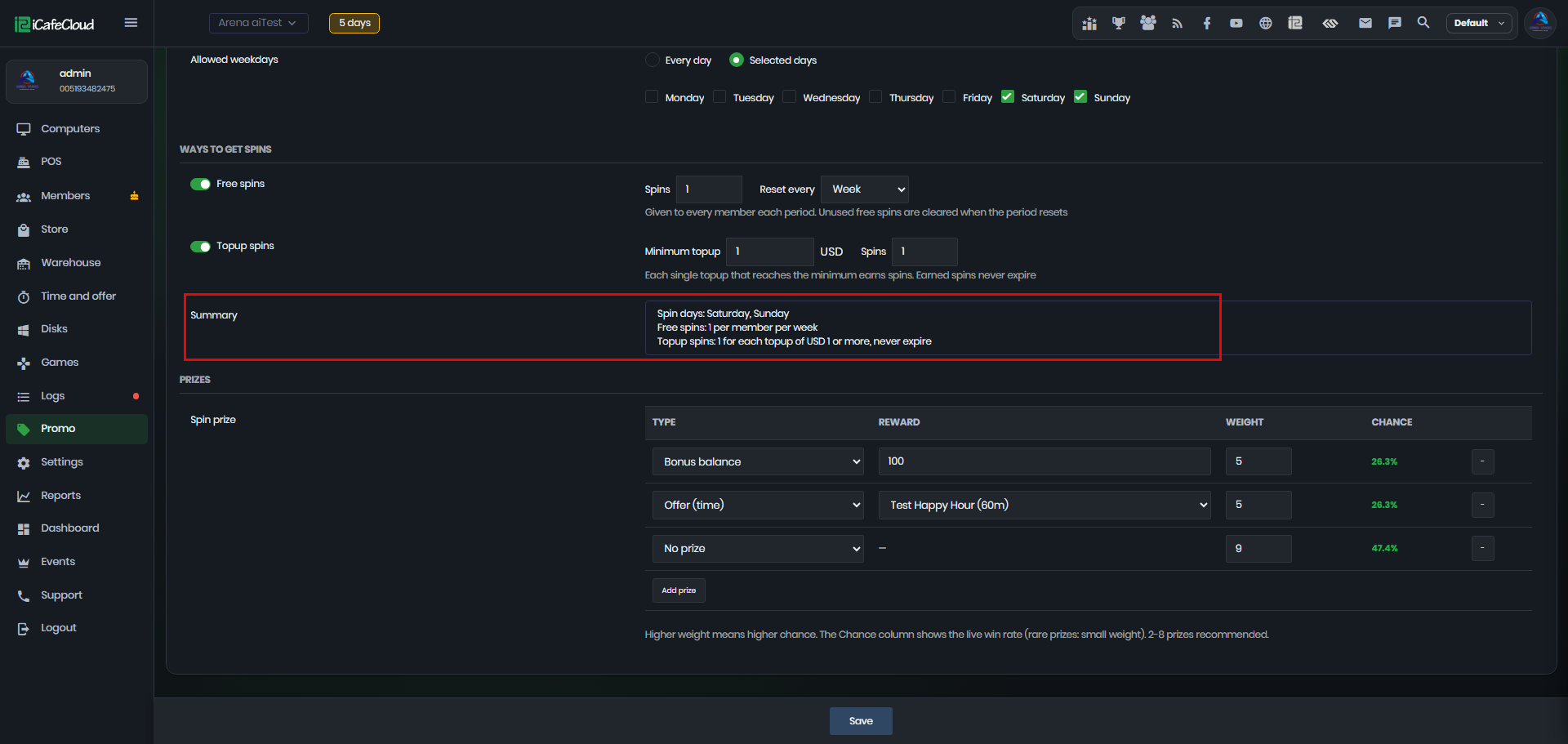
Figure 9
- Spin Prize allows you to define what users can win from Lucky Spin. You can choose between three types: Bonus Balance, Offers, or No Prize. For bonus and offers, you can set the reward amount or select available offers.
- Each prize also has a weight, which controls its chance of being won a higher weight increases the probability. The Chance column shows the live win rate, where rare rewards use lower weights. It is recommended to configure between 2 and 8 prizes for balanced results.(Figure 10)
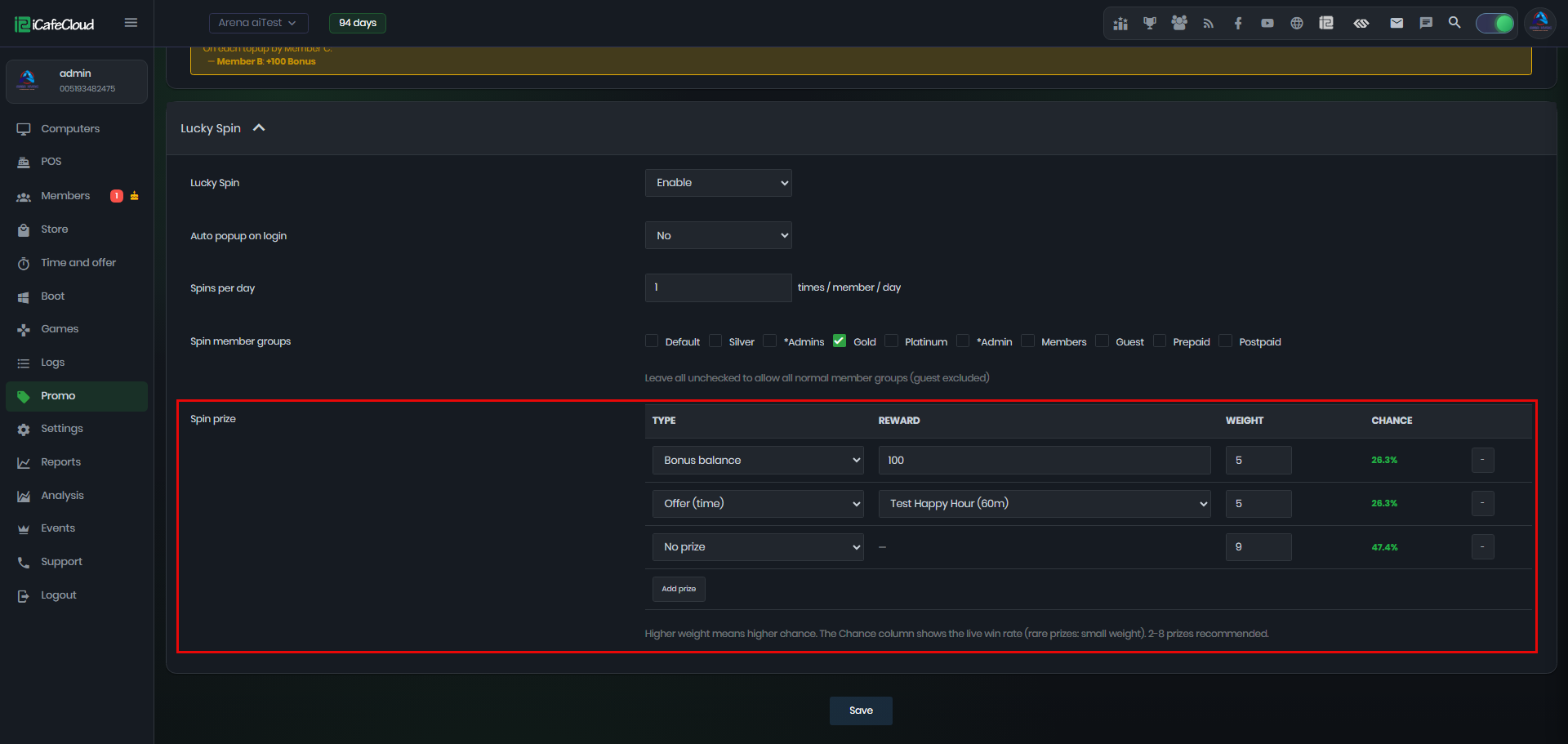
Figure 10
- If a member has already used their spin for the day, it will be displayed as Used Today.(Figure 11)
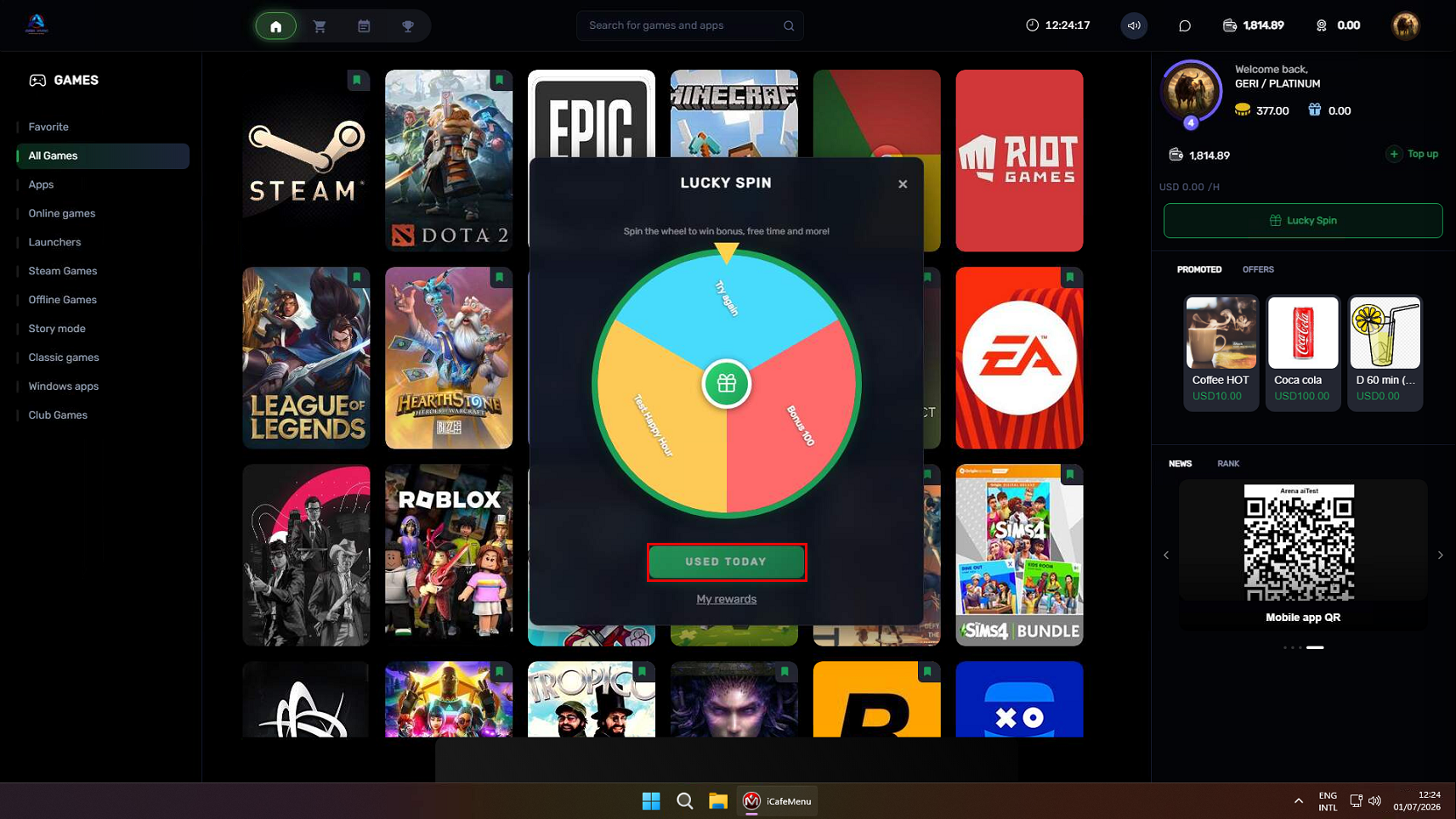
Figure 11
- Member accounts can access Lucky Spin from the left-side menu. (Figure 12)
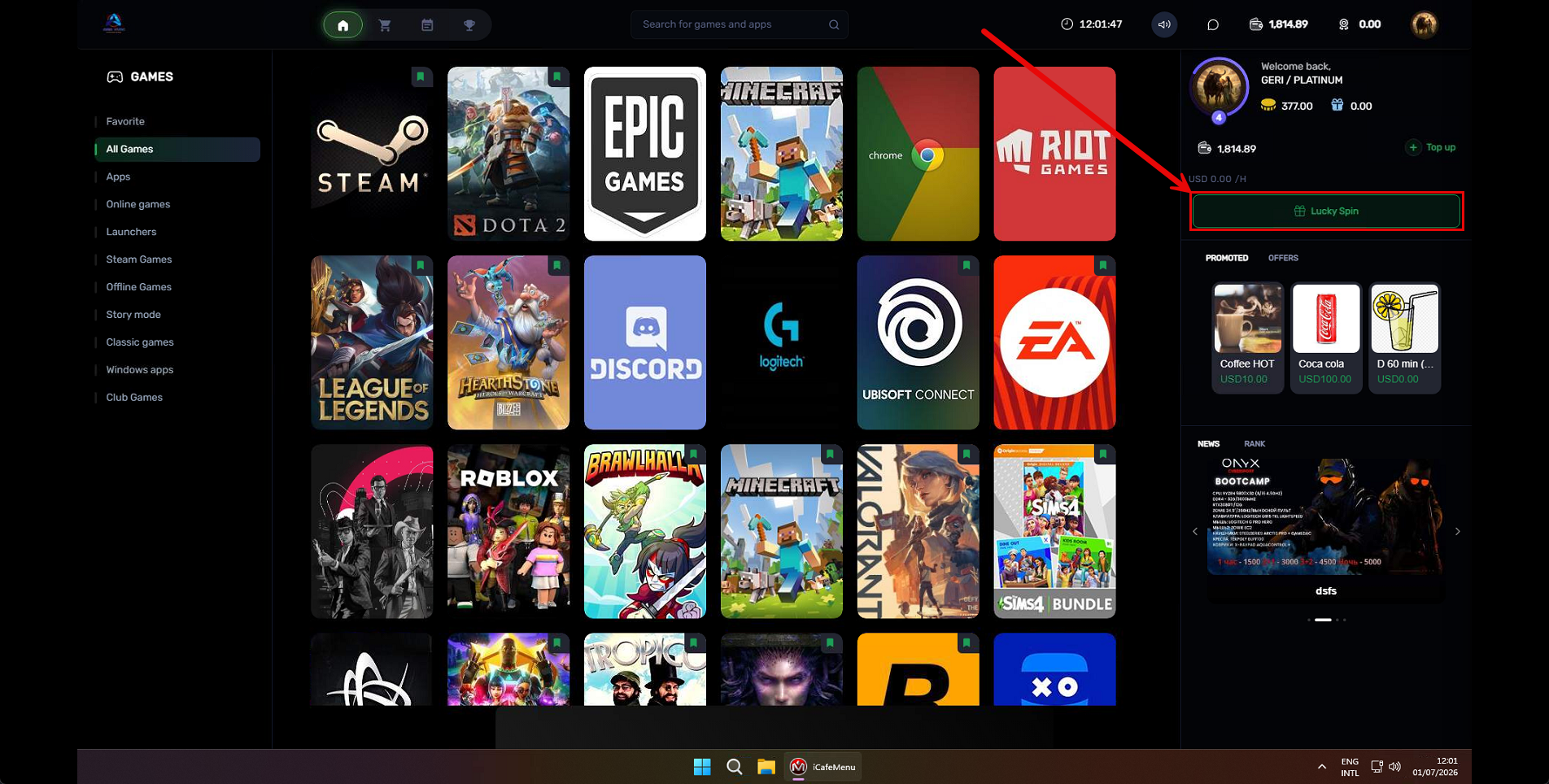
Figure 12