

The following explains how to create a promo code to work only for checkout in postpaid sessions and how to use it.
- To create a promo code, navigate to Promo > Promo Code, then click the “+” button to add a new promo code. (Figure 1)
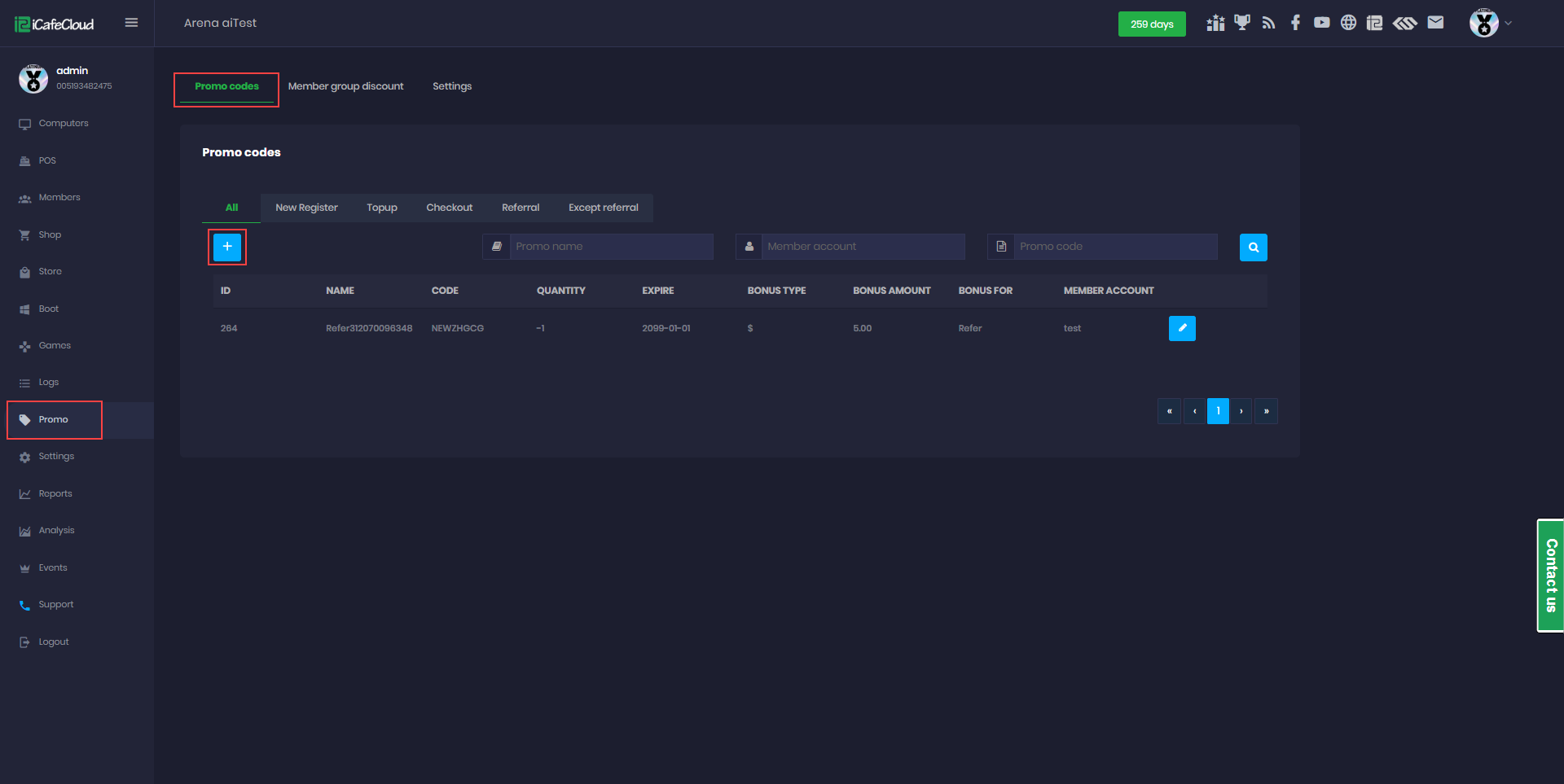
Figure 1
- At the “Promo Bonus for” select “Checkout” as option this will automatically change the promo bonus type to Percentage, which is the only available option for checkout promos. Add promo amount, name and code (Figure 2)
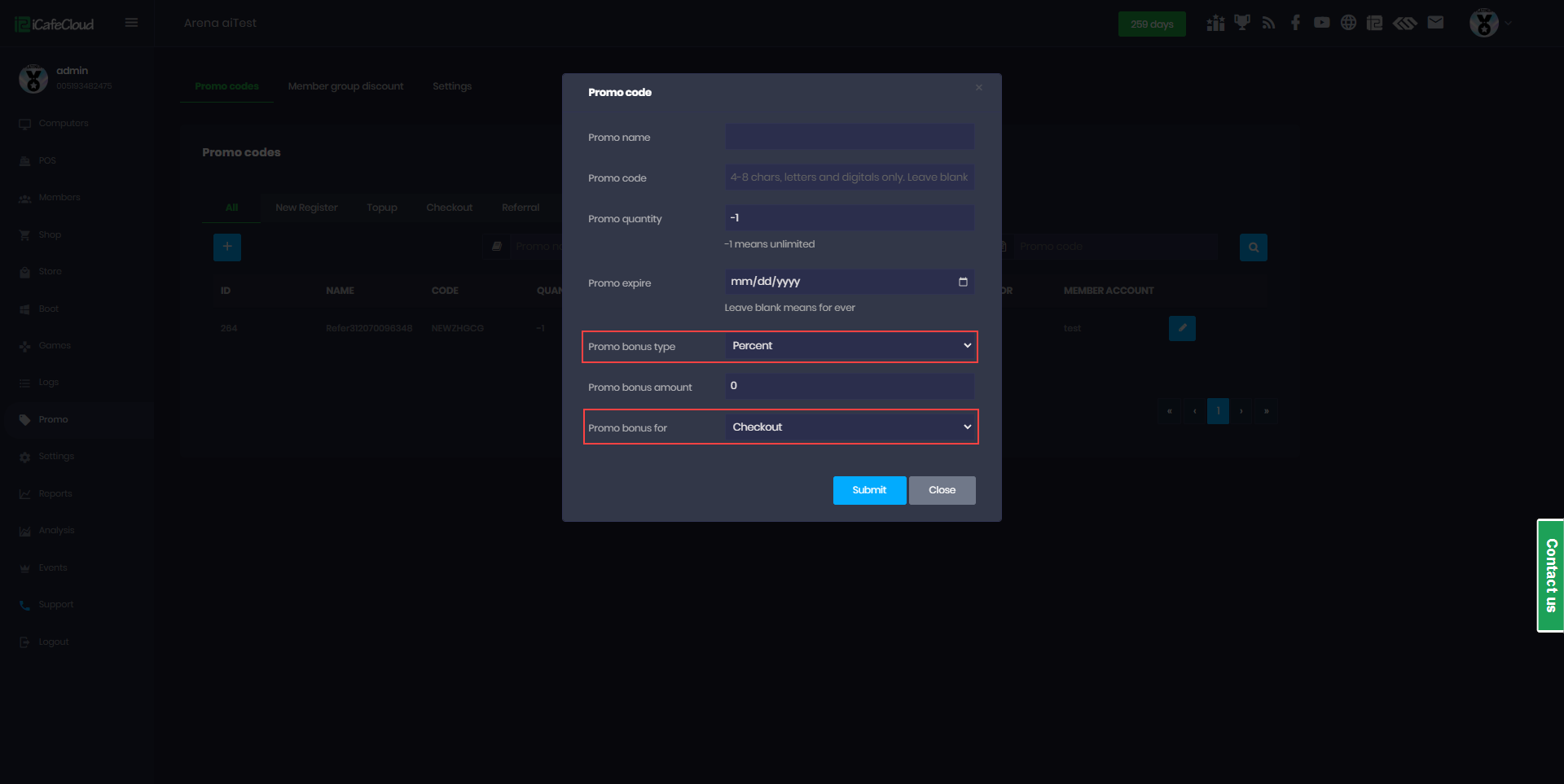
Figure 2
- Once you checkout a postpaid session, a Promo Code field will be displayed (Figure 3).
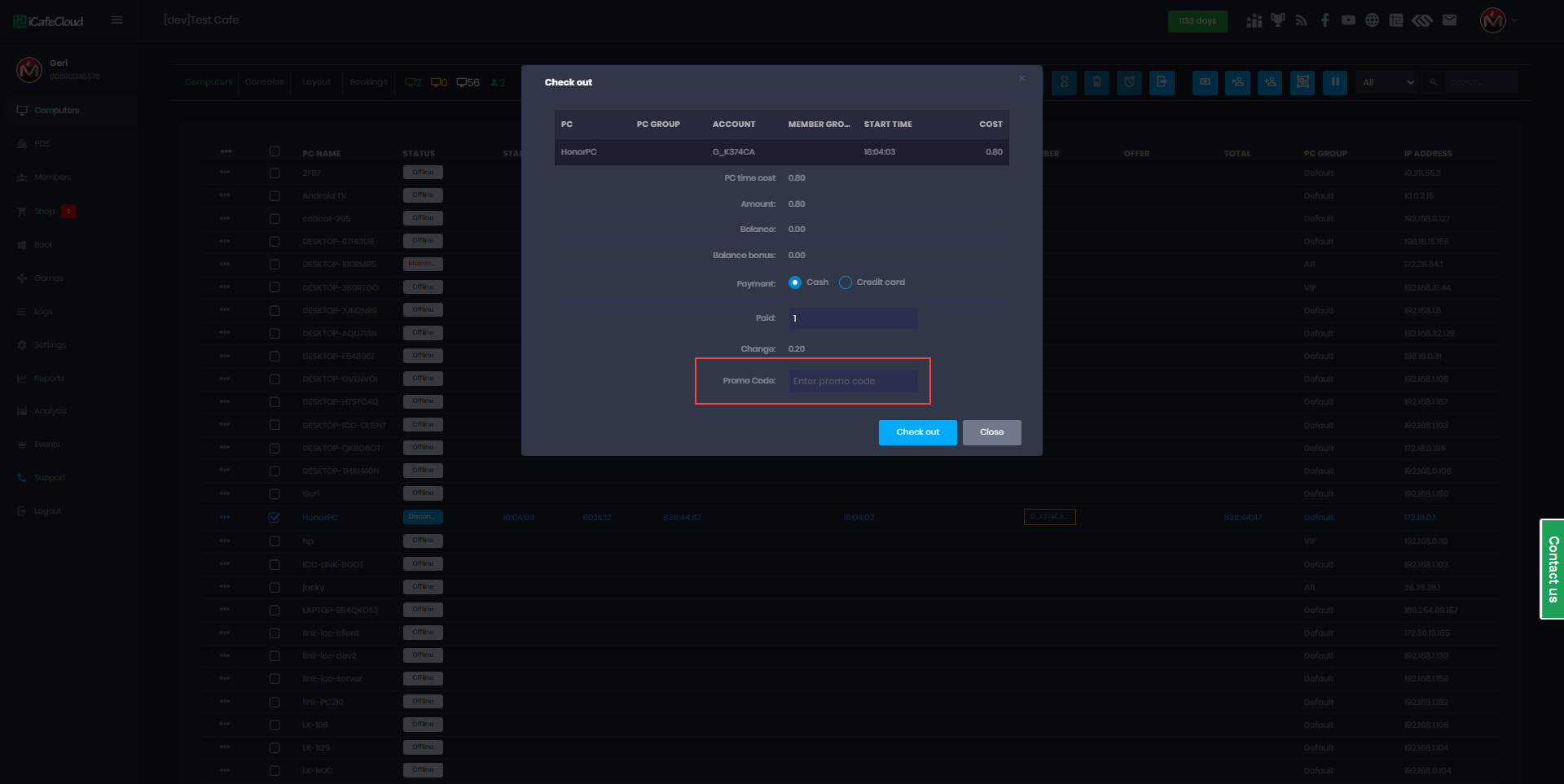
Figure 3
- If the promo code is incorrect, a message will appear below stating “Promo code does not exist.” The system checks the code as you type each letter, so you must enter the full promo code correctly. (Figure 4)
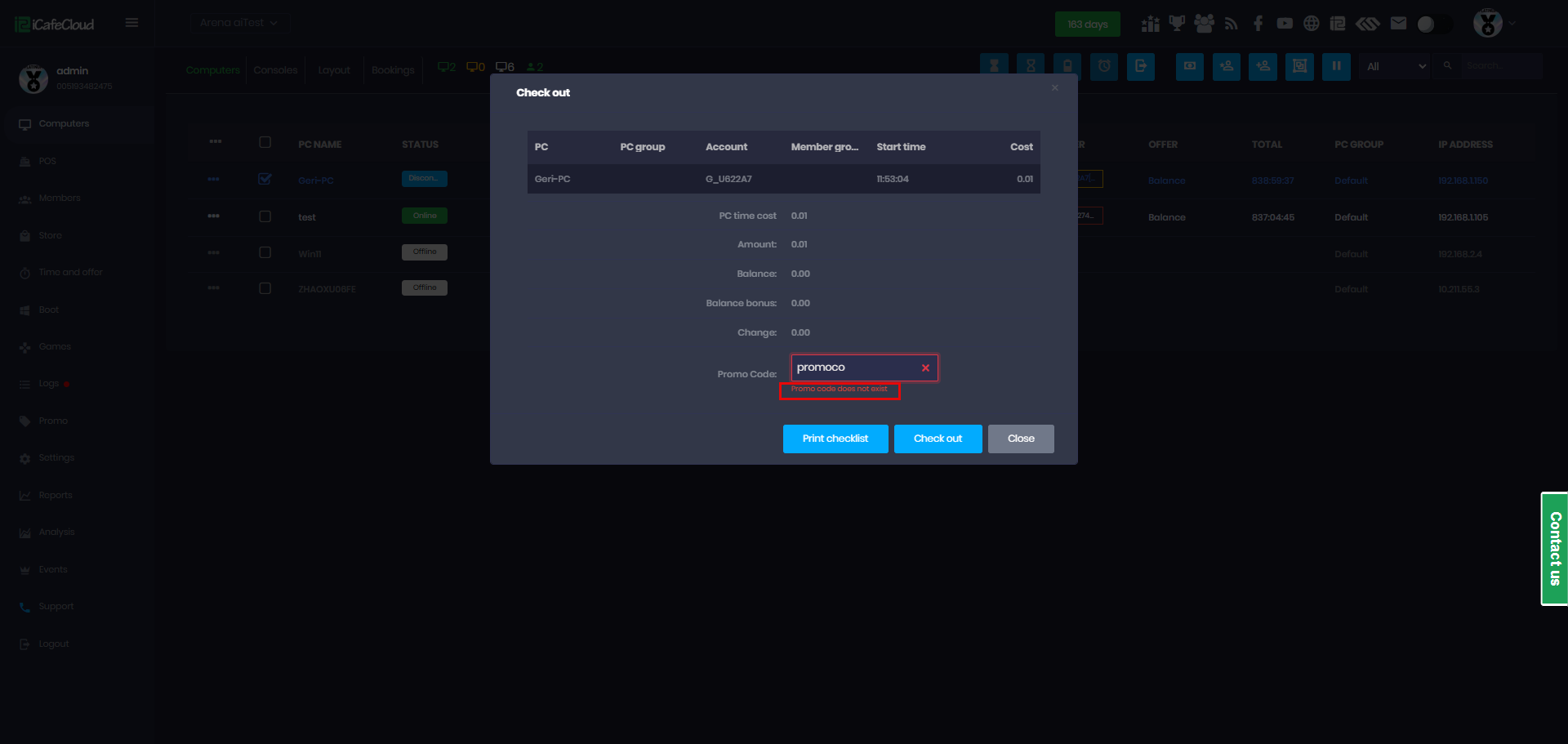
Figure 4
- Once you add the promo code, it will automatically calculate and display the promo discount price click Checkout to complete (Figure 5).
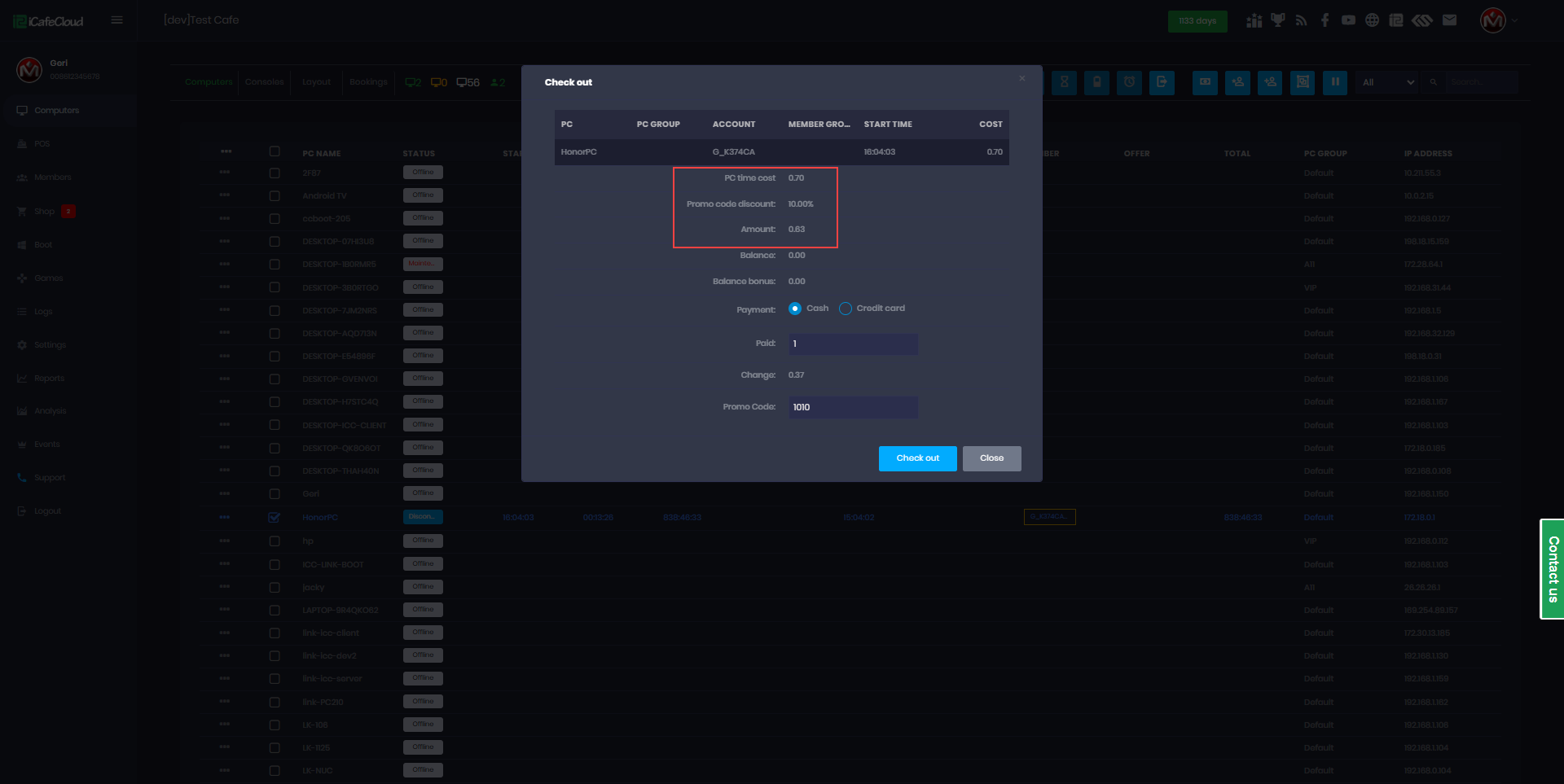
Figure 5
- The logs will display the promo code used and the discounted price (Figure 6).
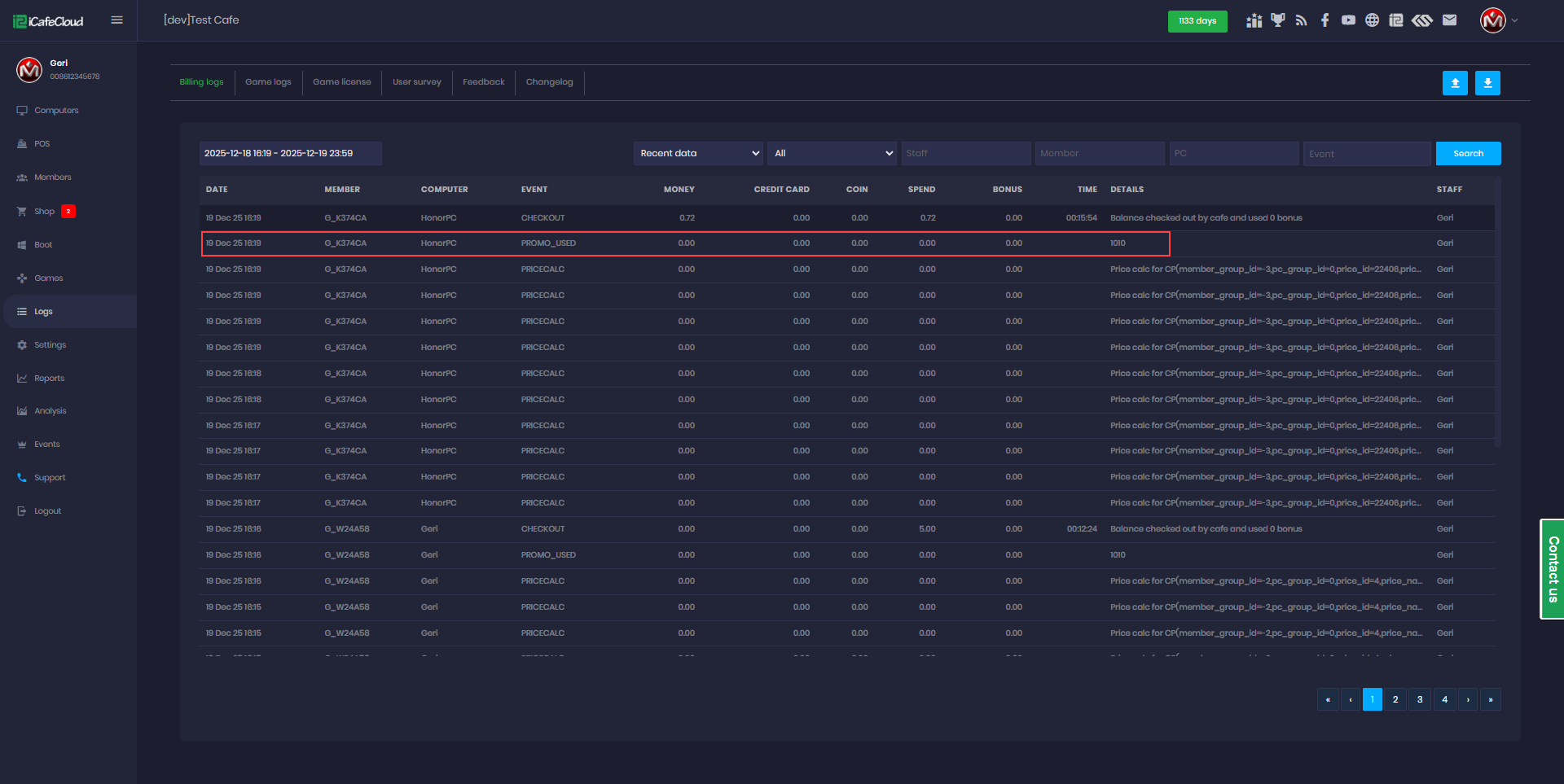
Figure 6