

The following explains how to configure personal discounts for individual customer accounts and choose how personal discounts interact with member group discounts.
- Go to Promo -> Settings.
- Locate “Group and personal discount” and select how the discounts should be applied. (Figure 1)
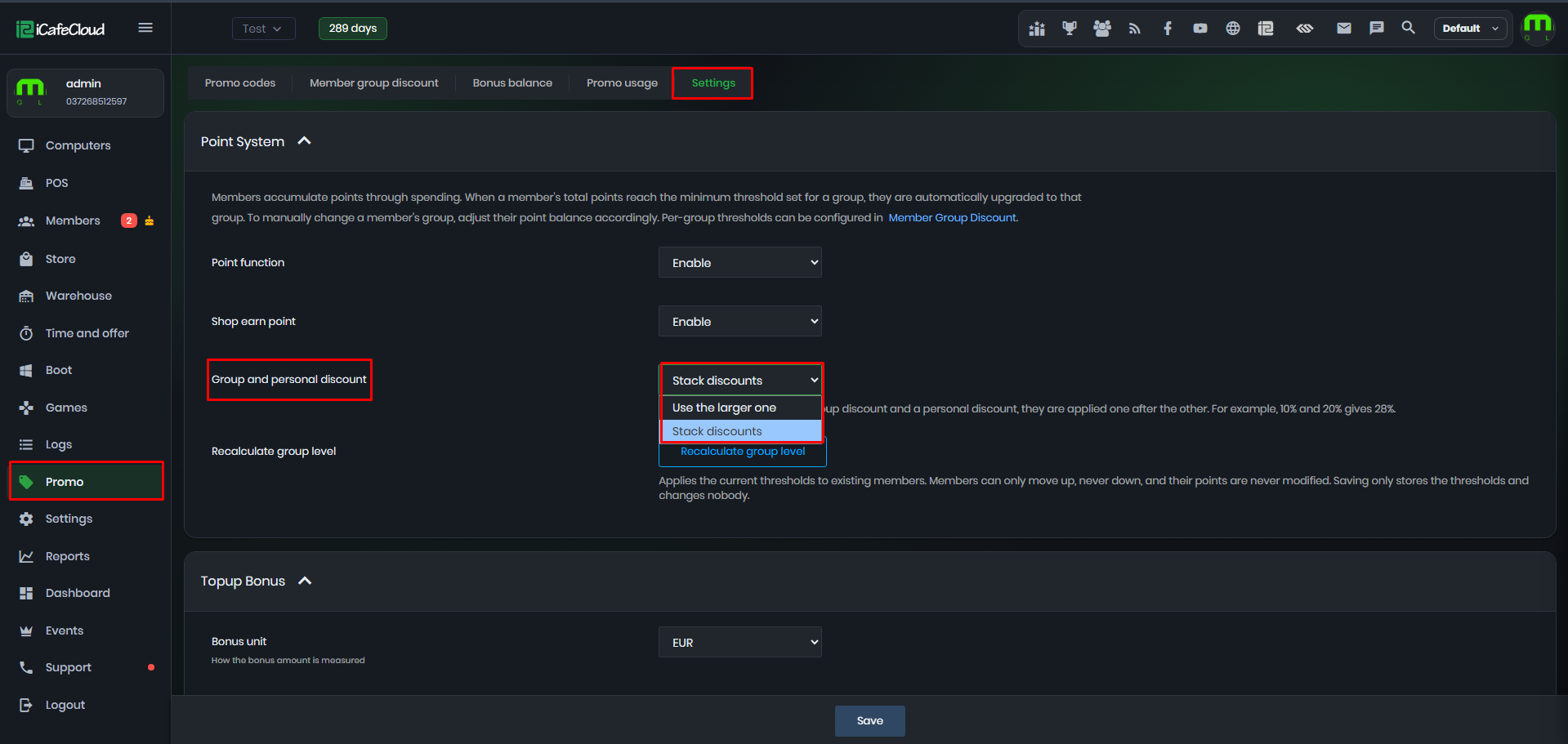
Figure 1
- Stack discounts: Applies both the member group discount and the personal discount. Discounts are calculated sequentially. For example, 10% and 20% gives 28%.
- Use the larger one: Applies only the higher discount between the member group discount and the personal discount. For example, 10% and 20% gives 20%.
- Only Admin accounts can set or modify personal discounts. For Employee accounts, personal discount settings are visible in read-only mode and cannot be edited.
- To set a personal discount, go to the customer's account and click Edit. (Figure 2)
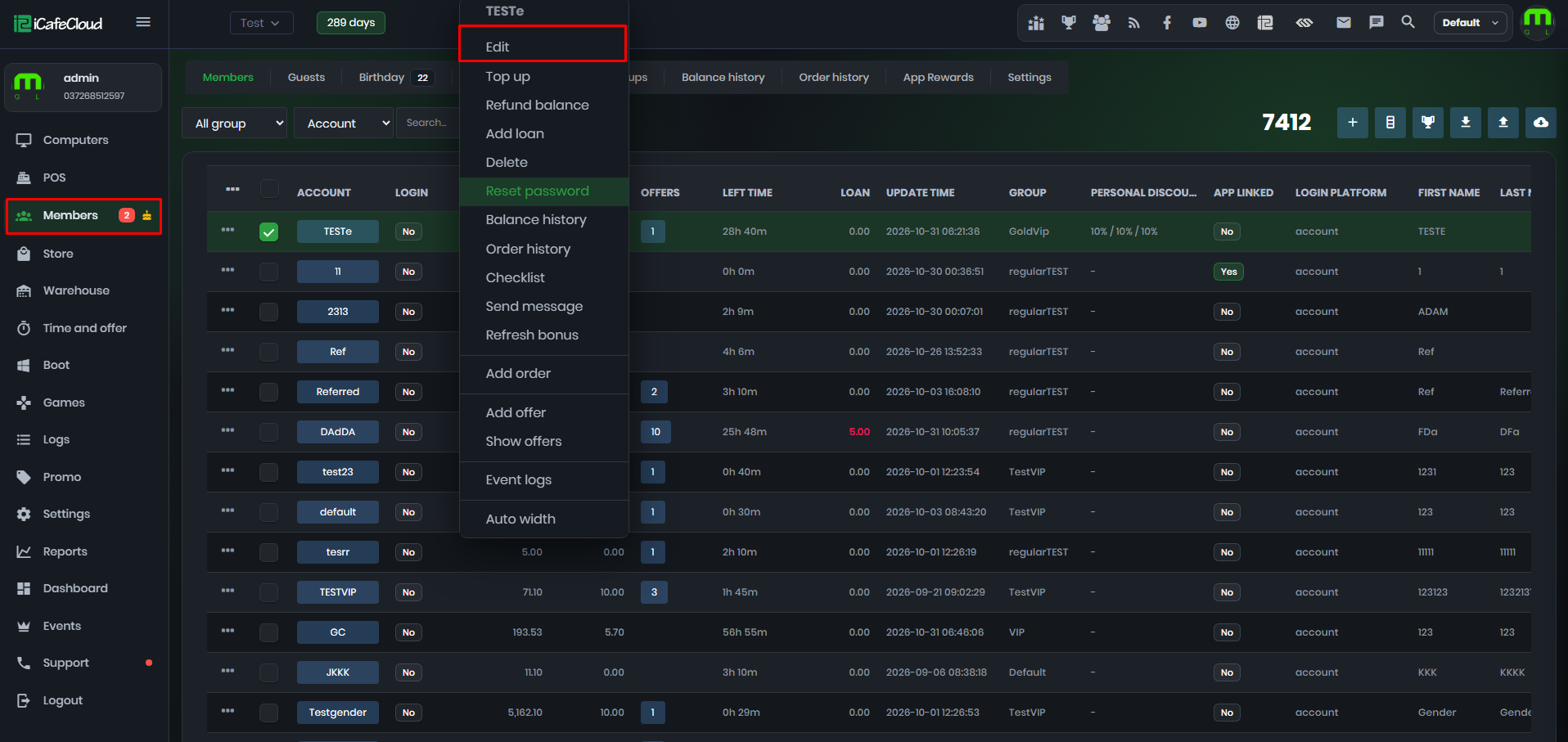
Figure 2
- Configure the desired personal discount for the following categories: PC Time, Offers and Products. Then click save (Figure 3)
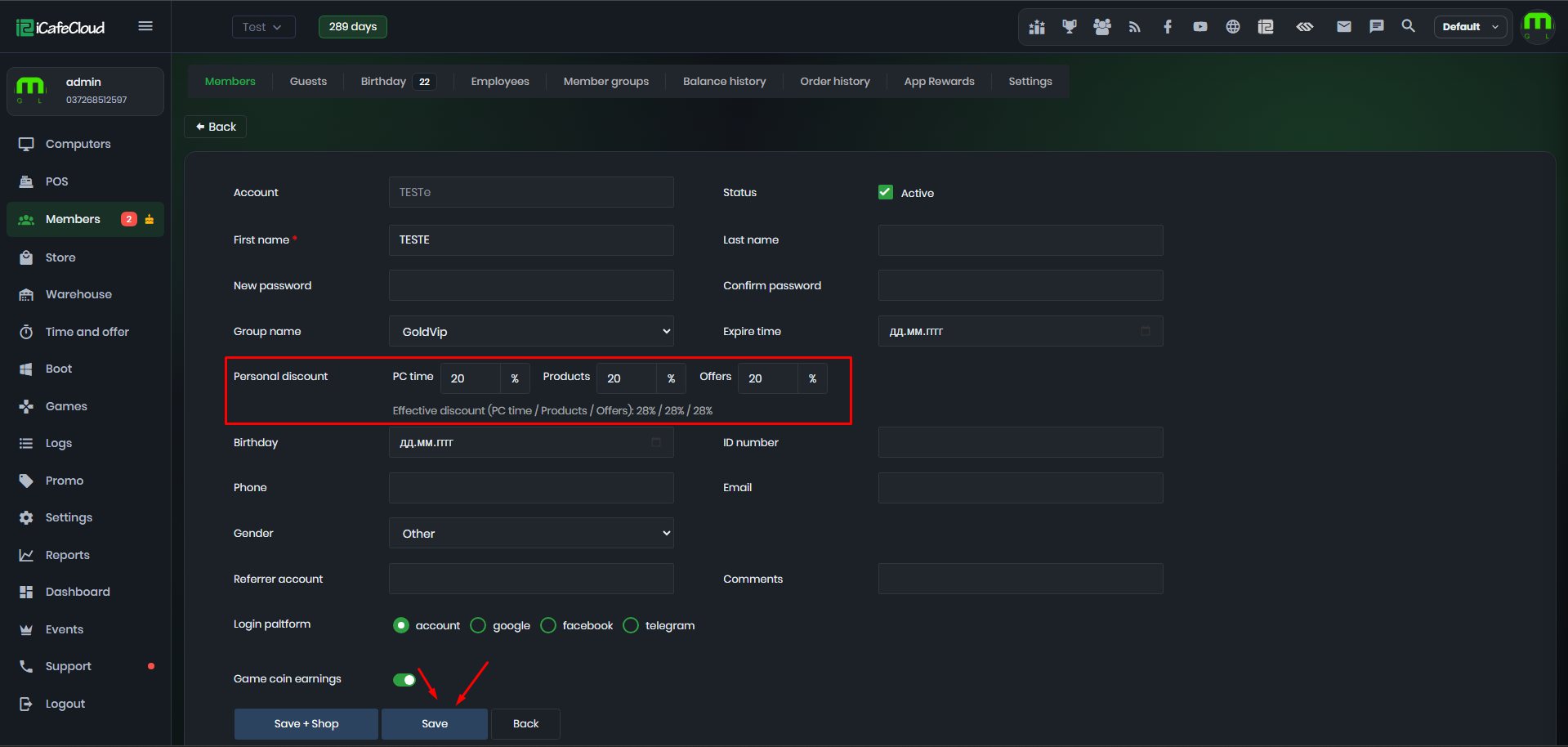
Figure 3
Discount Calculation Example
- Assume a customer has a 10% member group discount and a 20% personal discount on a $10 purchase:
- Stack discounts: Both discounts are applied sequentially. First, the 10% member group discount reduces the price to $9.00. Then, the 20% personal discount reduces it to $7.20. The total effective discount is 28%. (Figure 4)
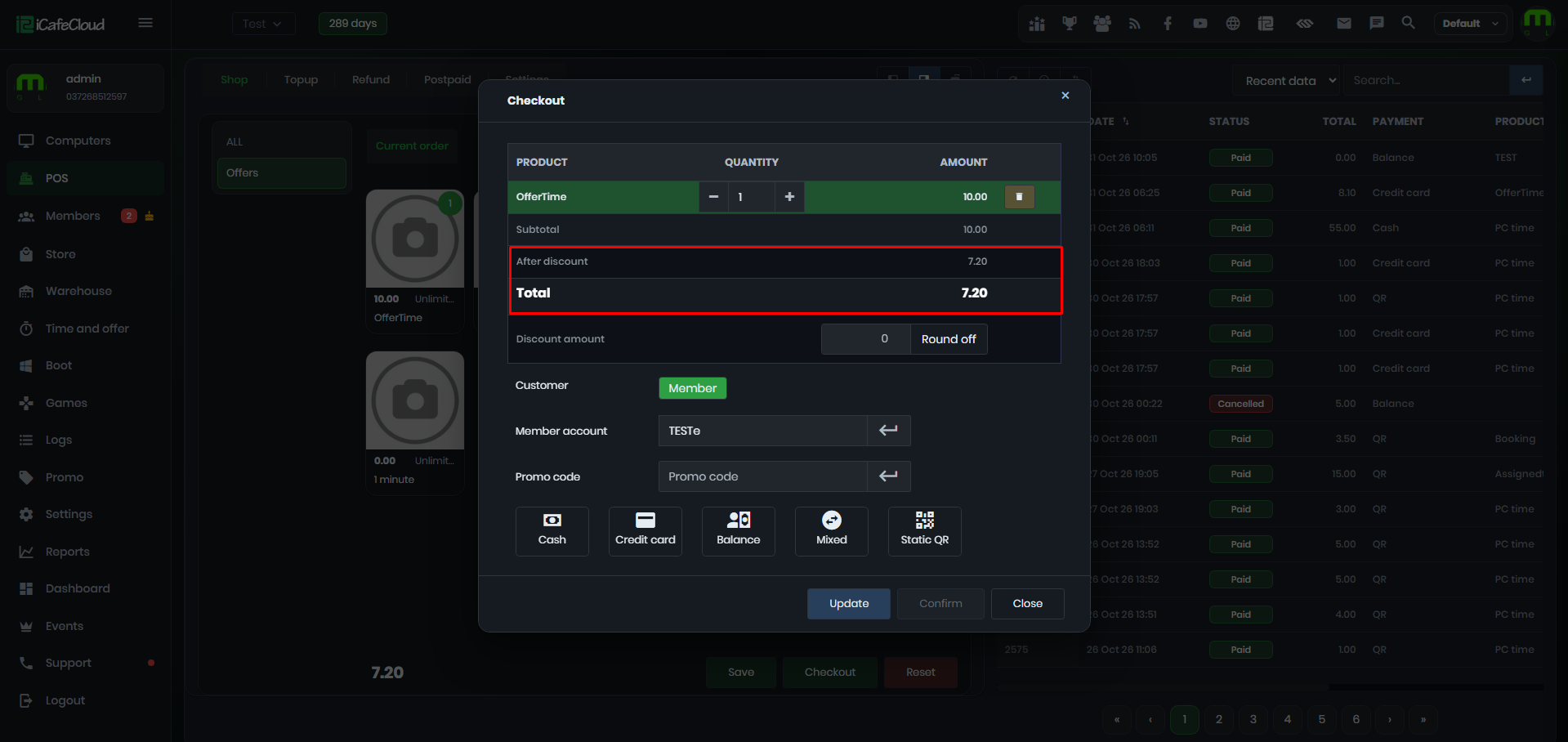
Figure 4
- Use the larger one: Only the higher discount is applied. In this case, the 20% personal discount is used, reducing the price to $8.00. (Figure 5)
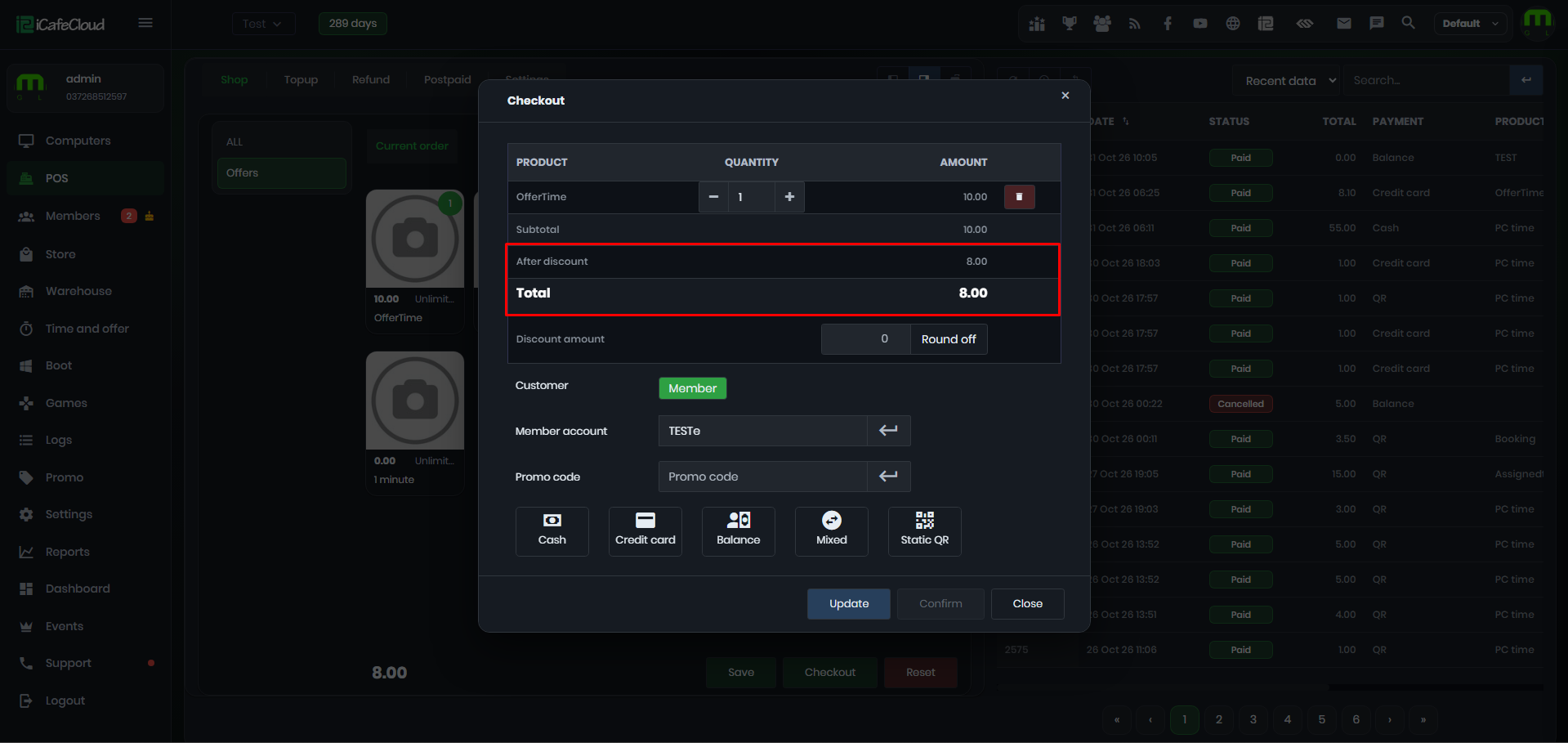
Figure 5