

The following explains how members can reset their password before logging in to the portal page with reset to SMS or reset to Email.
Reset to SMS
- Configure SMS provide settings
- Members should use their real phone numbers to receive SMS notifications. If a phone number is not set up, please update it in the Members page.
- Go to the Settings page → Member Settings, set Portal Reset Password Way to SMS, and click Save (Figure 1).
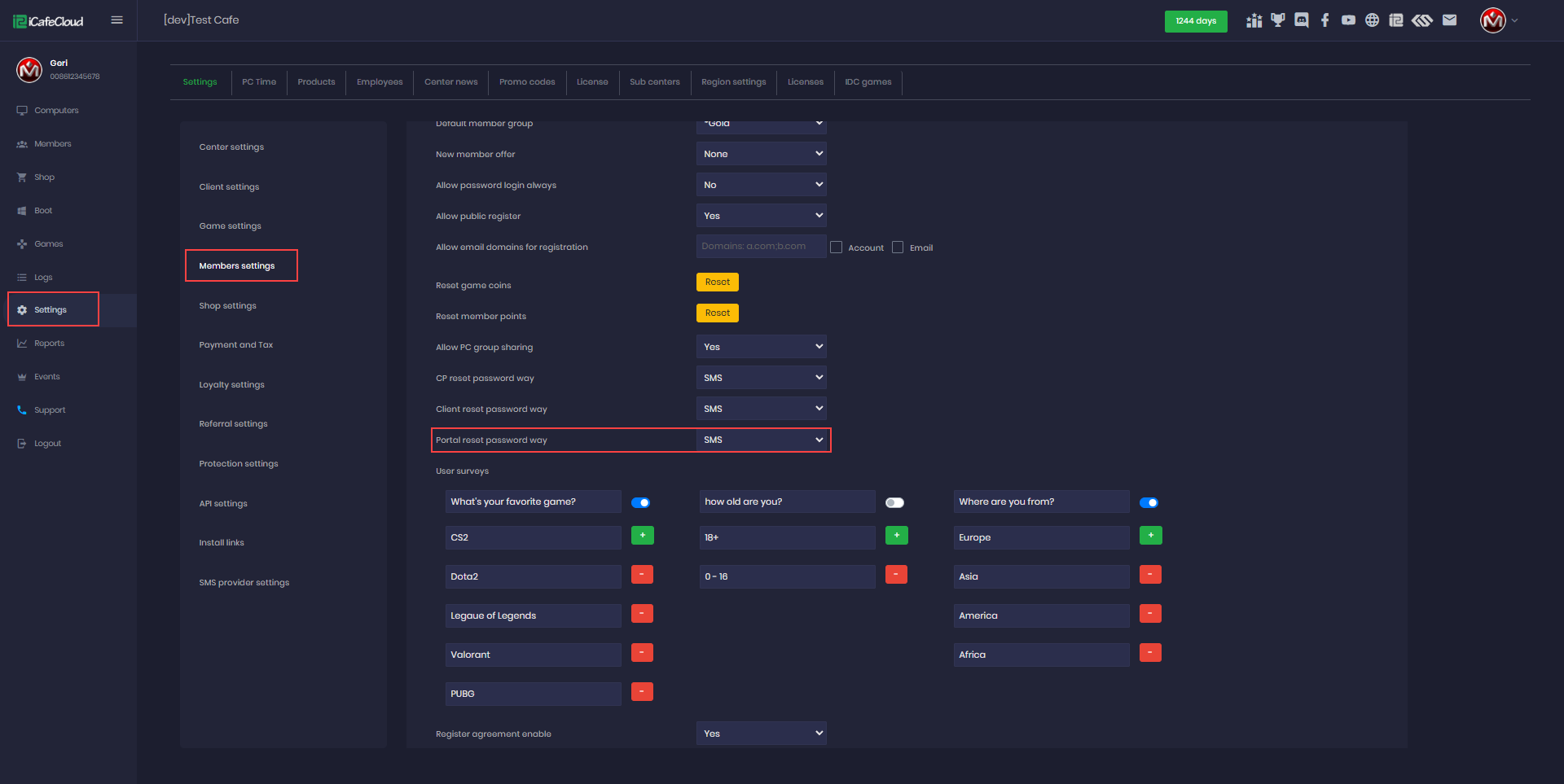
Figure 1
- On portal page new password button will be displayed (Figure 2)
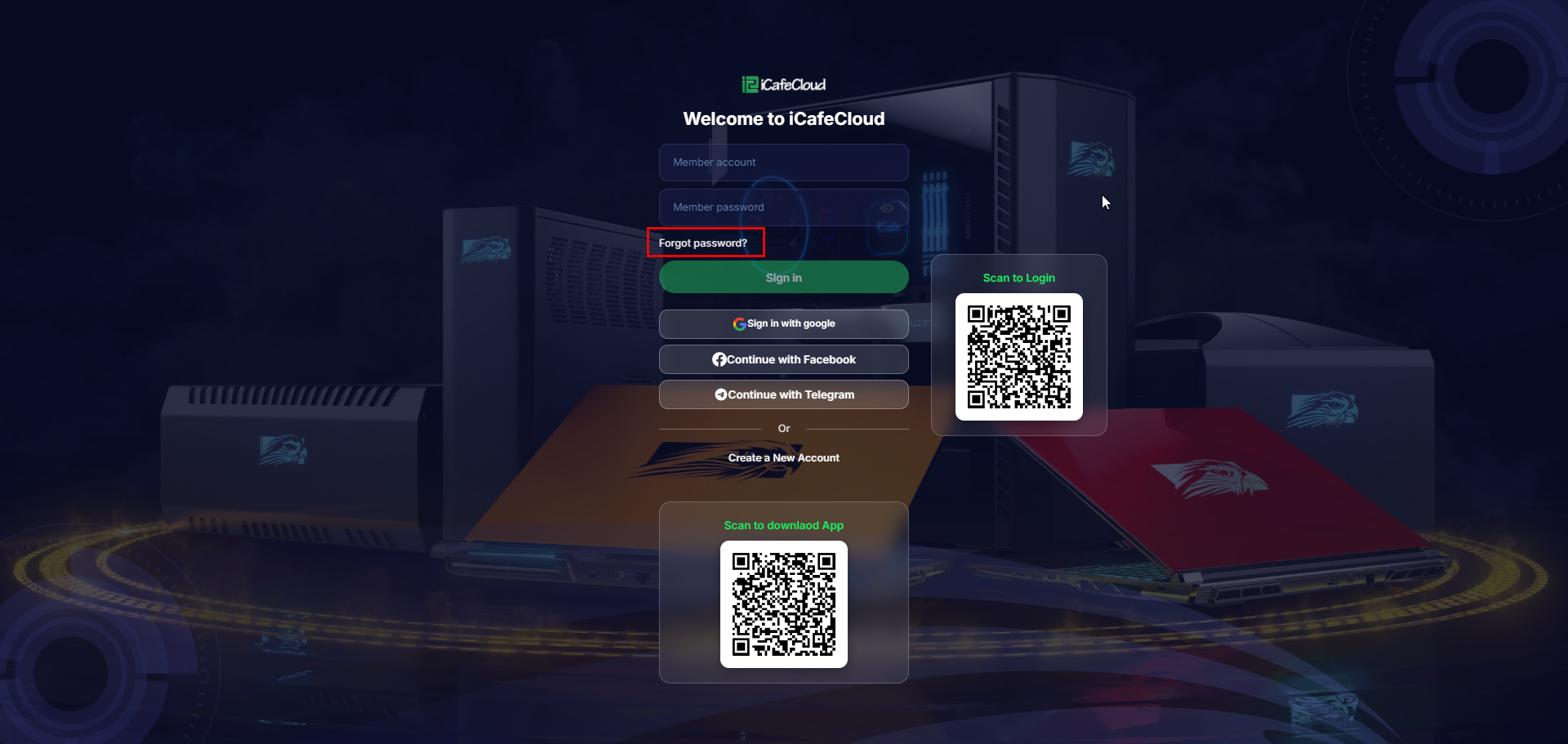
Figure 2
- When you click on Password, a new window will appear where you can enter your phone number and click OK. (Figure 3)
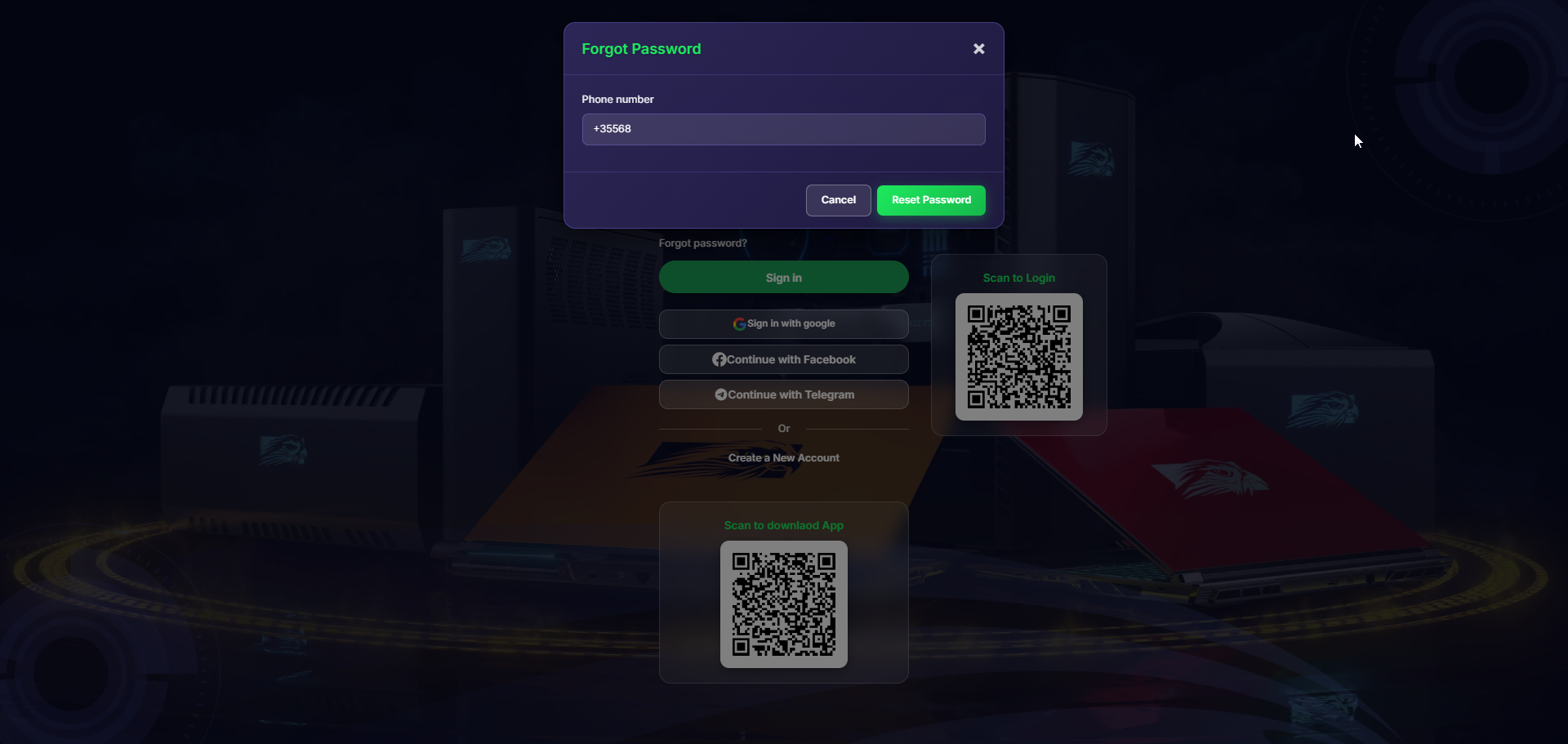
Figure 3
- An SMS code will then be sent to your mobile phone with a new password. (Figure 4)
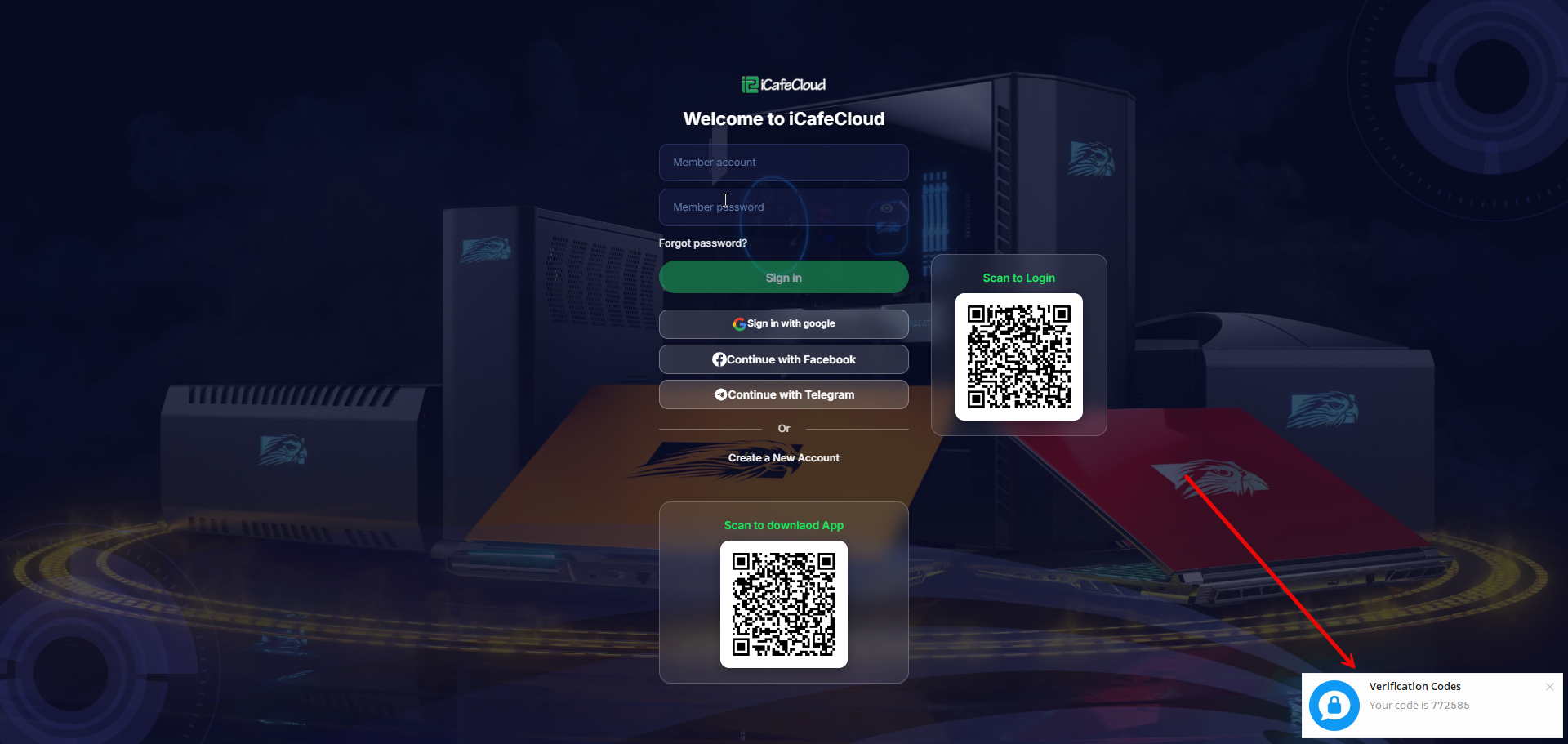
Figure 4
Reset to Email
- Members' accounts should use their correct email to receive email notifications. If the email is not set up, please update it in the Members page.
- Go to the Settings page → Member Settings, set Portal Reset Password Way to Email, and click Save (Figure 1).
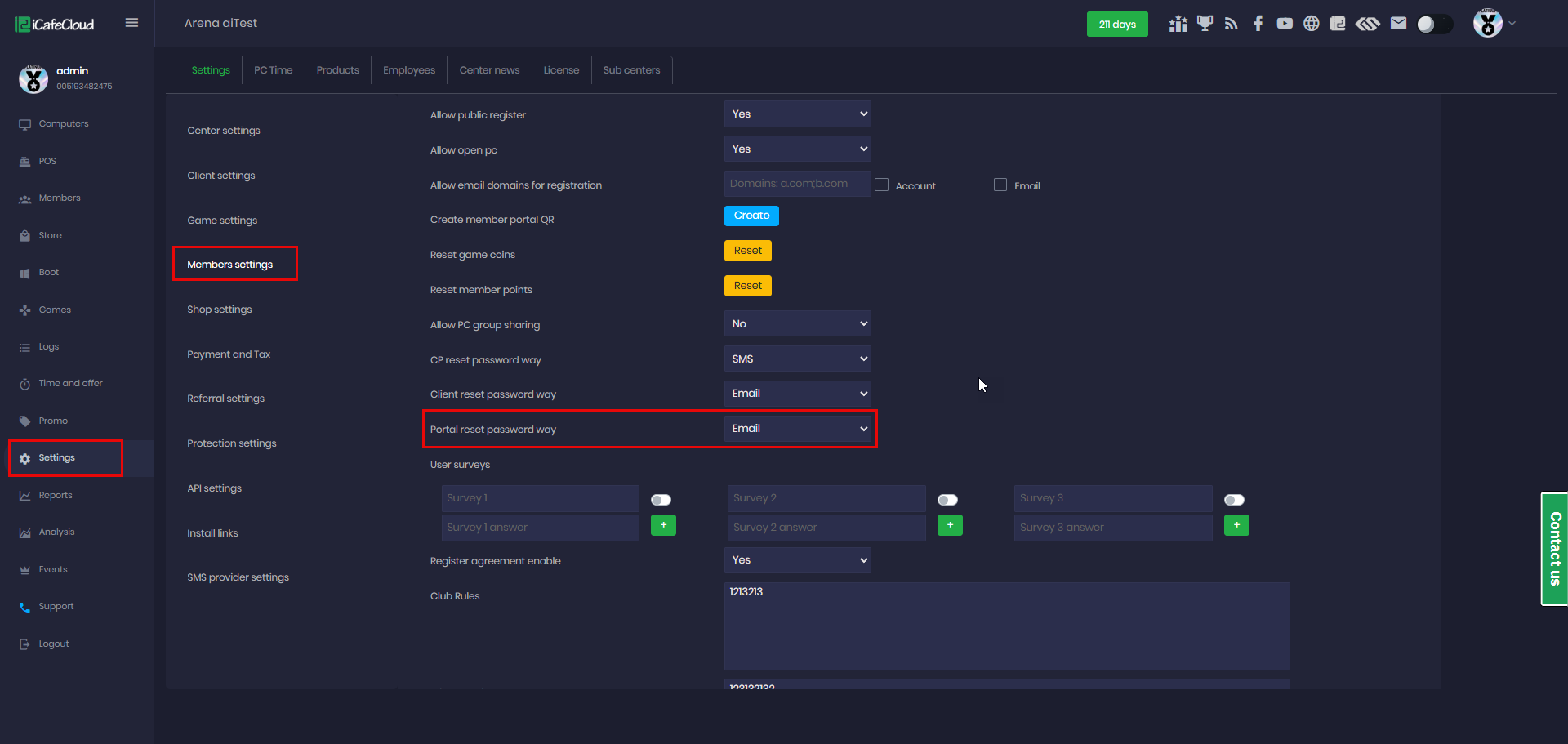
Figure 1
- On portal page new password button will be displayed (Figure 2)
Figure 2
- When you click on Password, a new window will appear where you can enter your email and click OK. (Figure 3)
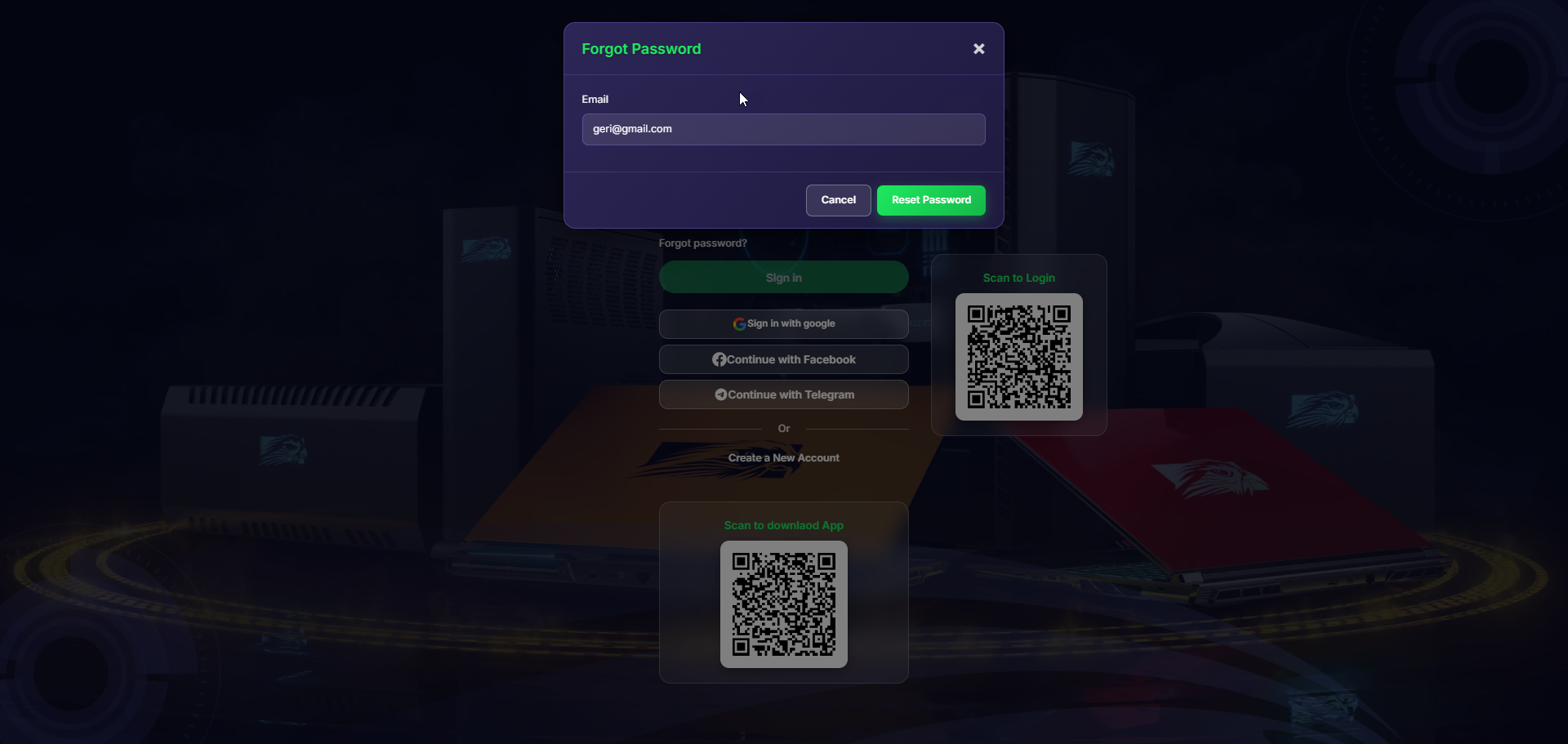
Figure 3
- An Email will then be sent to your email address with a new password. (Figure 4)
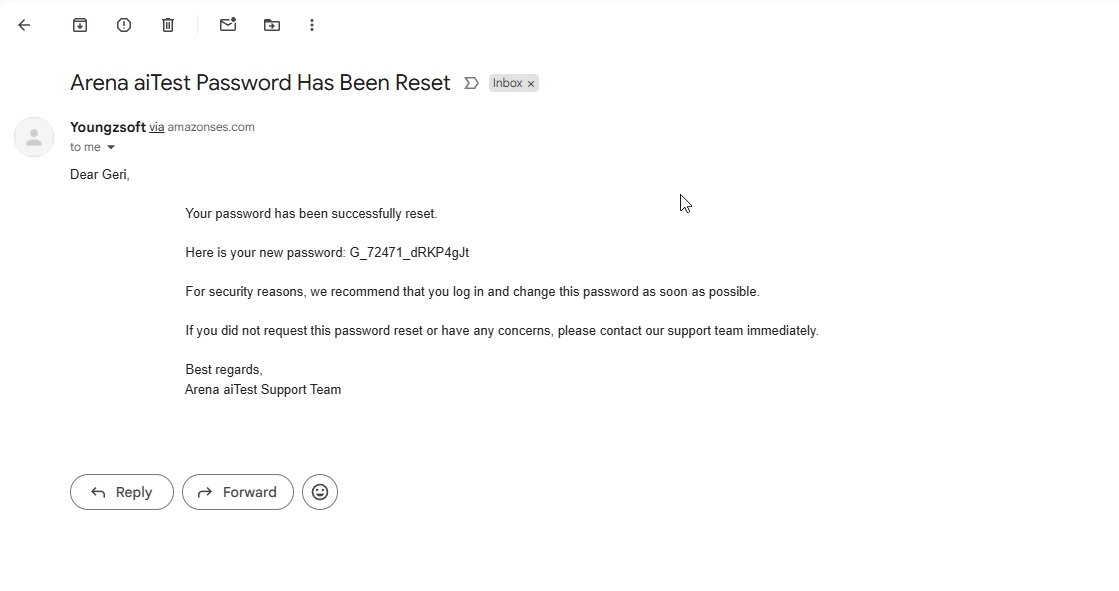
Figure 4