

Internet Cafe Billing Software
Billing is the part of the business you cannot get wrong. iCafeCloud starts the clock when a customer sits down, applies the rate that belongs to that machine, that member tier and that hour of the week, and stops charging the moment the session ends.
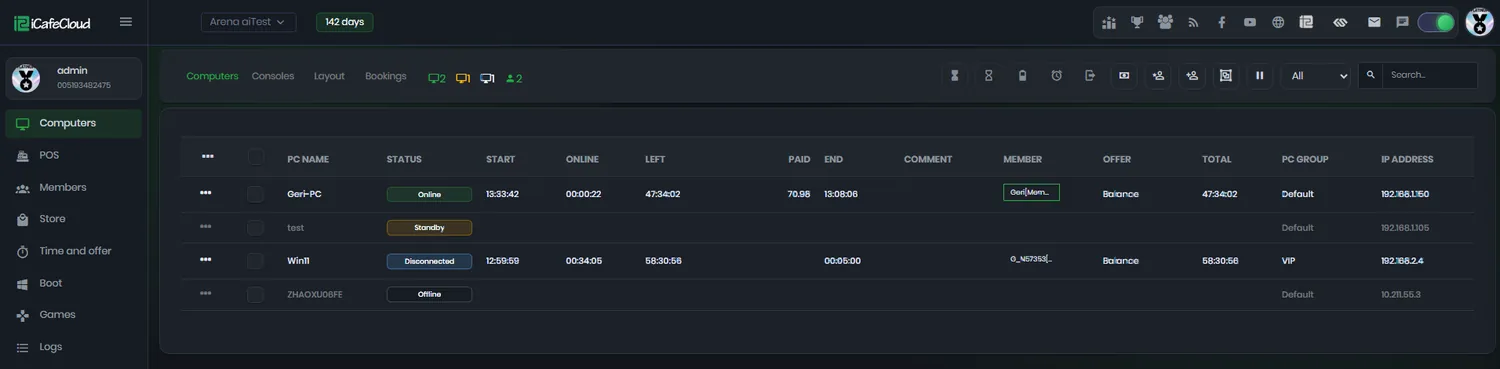
What the billing engine handles
Prepaid sessions
The customer pays first and gets exactly that much time. The session closes itself when the time runs out, so nobody has to watch a clock or chase a table.
Postpaid sessions
Open-ended play, settled at the counter. Cap it with a maximum number of hours, or let a postpaid max balance put a ceiling on the tab for you.
Member sessions
Regulars sign in with their own account and play against their balance. Time, money and bonuses all come off the same record, whichever PC they sit at.
Offer sessions
Packages like three hours for the price of two run as their own session type, with their own price, validity window and priority against other offers.
Free time sessions
Comp a customer, run a tournament or reward a regular. Free time is still a logged session, so the hours show up in your reports instead of disappearing.
Fixed and dynamic pricing
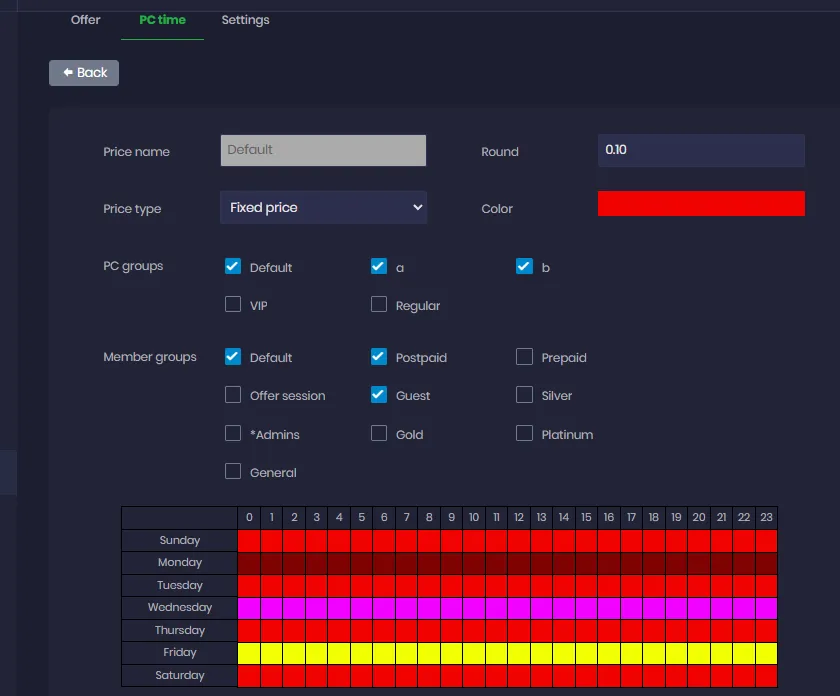
One rate all week, or a different rate for every hour of every day. Rates attach to PC groups and member groups, so a VIP row and a silver member can each have their own.
Tax, rounding and minimums
Set the tax rule for your country, decide how fractions round, and put a floor under very short sessions so a five-minute visit is still worth serving.
Automatic checkout
A proper shutdown or restart closes the session and writes the charge. Power cuts are handled too, so a blackout does not turn into an argument at the counter.
Five ways to start a session
The Computers page is the control surface. Right-click any machine and you choose how this particular customer is going to pay, and that decision is what the billing engine follows for the rest of the session.
You are not locked in afterwards. Time can be added mid-session, a postpaid session can be moved to another PC, and a mistake at the counter can be corrected without anyone touching the database.
- Prepaid — pay upfront, the session ends on time
- Postpaid — play now, settle at checkout
- Member — charged against an account balance
- Offer — a time package the customer already bought
- Free time — comped play that is still logged
Pricing that matches how you actually charge
Most venues do not have one price. Weekday mornings are dead and Saturday nights are packed, the VIP row costs more than the back corner, and a silver member pays less than a walk-in. The pricing grid takes all three at once.
Choose a fixed price if you charge one rate, or a dynamic price if the hour of the day should matter. Tick the PC groups and member groups the rate applies to, paint the hours onto a seven-day grid, and assign up to six price bands. The calendar preview shows what a customer will be charged at two in the afternoon on a Tuesday before you ever switch it on.
Taking the money, with or without a queue
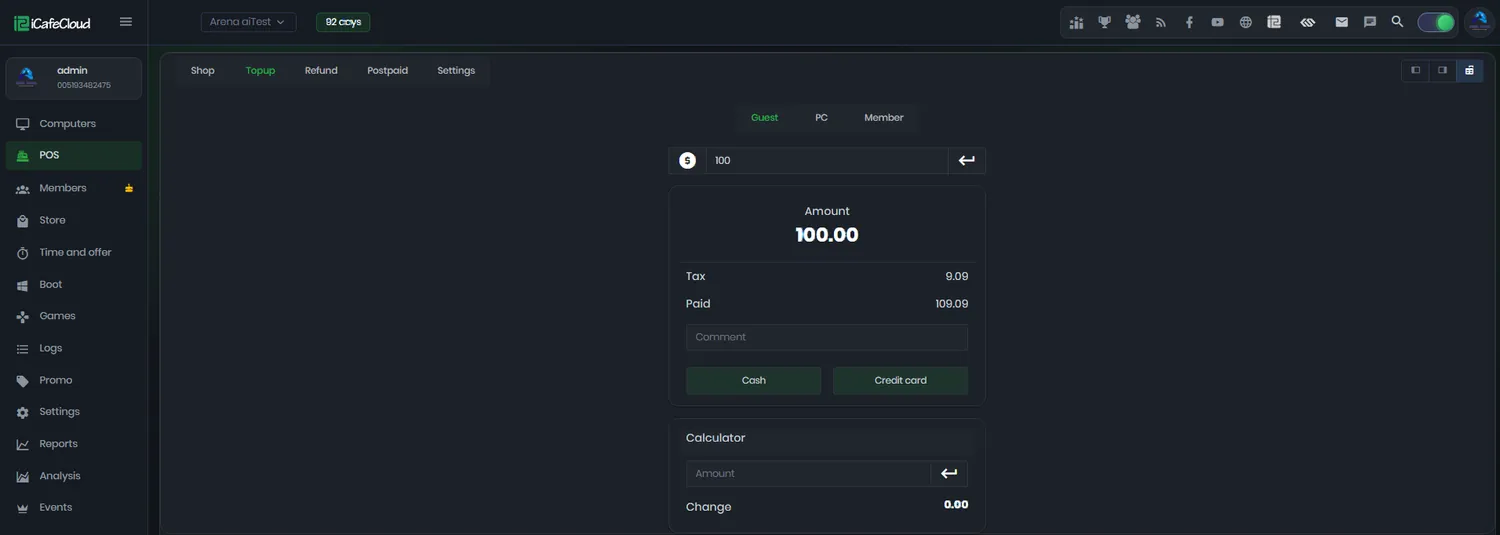
The POS page is where the counter works. Top up a guest, a specific PC or a named member, take cash or card, and let the built-in calculator work out the change so your staff are not doing mental arithmetic in the middle of a rush.
If you would rather not have a queue at all, customers can top up themselves from the client on the PC or from the member portal on their phone, through whichever payment gateway you have configured. The balance lands on the account and play continues without anyone leaving their seat.
Every cent leaves a trail
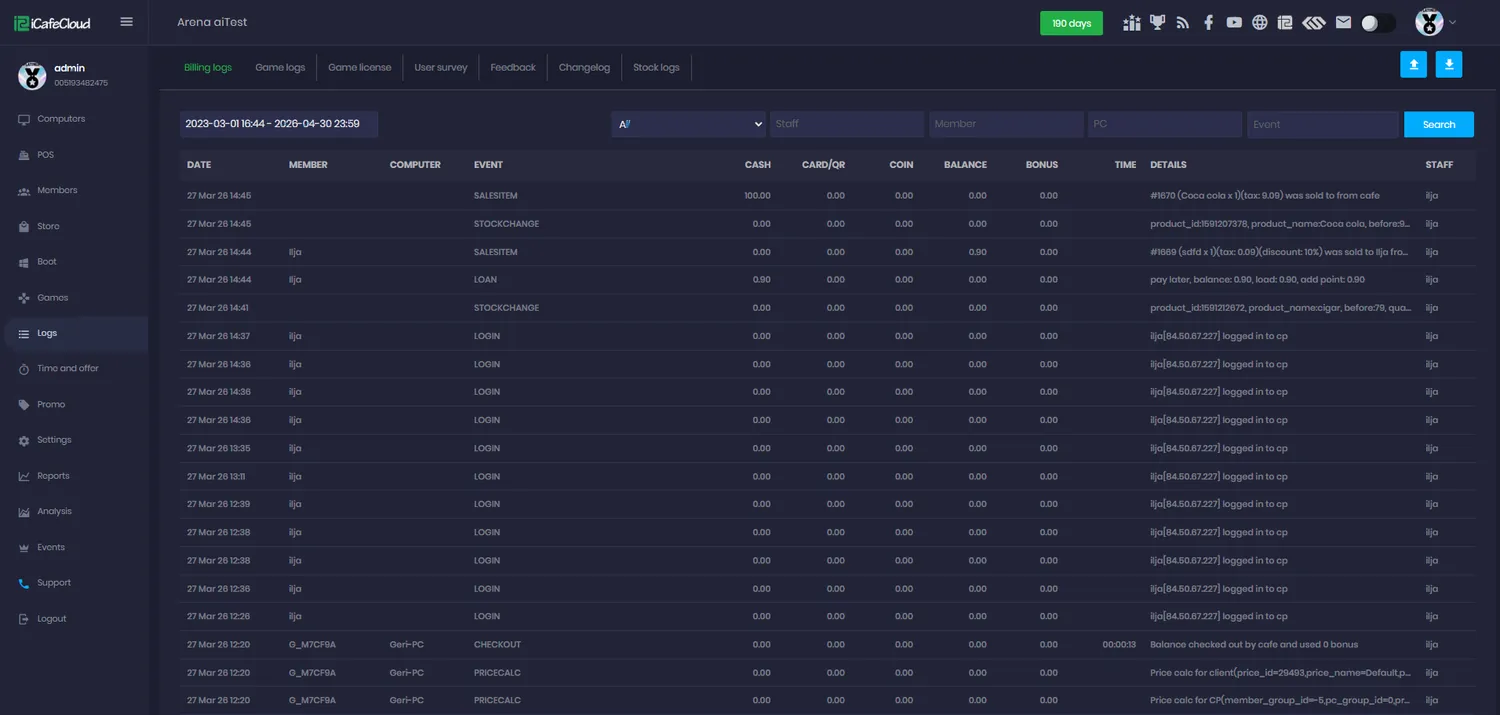
Billing logs record the date, member, computer, event, cash, card or QR, coin, balance, bonus, time, details and which staff member did it. Up to three years of history, filterable by date range, staff, member, PC or event type.
It is the answer to "where did that hundred go", and the reason a shift handover takes two minutes instead of twenty. Price calculations are logged as their own event, so when a customer disputes a charge you can show them exactly which rate applied and why.
How a session gets billed
- 01
The customer sits down
Staff start the session from the Computers page or POS, or the customer logs in at the PC and starts it themselves.
- 02
The rate is resolved
iCafeCloud reads the PC group, the member group and the current hour, then picks the price that matches all three.
- 03
The clock runs
Time left, amount paid and the running total update live on the admin dashboard and on the customer’s own screen.
- 04
The session closes
Time runs out, the customer checks out, or the PC shuts down. The charge is written to billing logs and into the day’s report.
Documentation
Step-by-step guides from the iCafeCloud wiki, for the people who will run this day to day.
Common questions
Does iCafeCloud support both prepaid and postpaid billing?
Yes, and they can be enabled or disabled independently. A prepaid session takes payment upfront and ends itself when the time is used up. A postpaid session stays open and is settled at the counter, capped either by a maximum number of hours or by a postpaid max balance.
Can I charge different rates at different times of day?
Yes. Set the price type to dynamic and paint rates onto a seven-day, twenty-four-hour grid. You get up to six price bands, and each rate can be restricted to specific PC groups and member groups, so happy hour on the standard row does not have to apply to the VIP machines.
What happens to billing if a PC loses power?
Auto checkout on power outage closes the session and writes the charge. If you run CCBootCloudX, rebooting from the boot page or cutting the power does not check out a prepaid or member session — it resumes once the PC is back, so the customer does not lose paid time.
Can customers pay without coming to the counter?
Yes. Top-up runs from the client on the PC and from the member portal on a phone, through the payment gateway you have configured. iCafeCloud supports local options across many markets, including Stripe, Square, Razorpay, Kaspi, QRIS, Midtrans, Payme, Mercado Pago and others.
Does it handle tax and printed receipts?
Tax rules are configurable per centre, including the specific requirements for Russia, and iCafeCloud works with tax printers and KKM cash registers where local law requires them.
How do I check what a shift actually took in?
The Reports page breaks income down by shift, and billing logs show every individual transaction with the staff member attached. If the till does not match, the two together tell you where the gap is.
The rest of the platform
- Game LibraryOne catalogue across every PC: Steam, Epic, Riot, Uplay, VKPlay, Windows Store and your own local titles.
- Game UpdatePatches land on the server image, not on your customers. Update once, serve every machine.
- License SharingA pool of centre-owned accounts that lends a licence to whoever is playing, then takes it back.
- ReportingIncome, top-ups, offers, products, games and members — by day, by shift, side by side.
- BookingCustomers reserve a seat from the portal or their phone; the machine is held and released for them.
- MembershipAccounts, groups, balances, bonuses and a self-service portal your regulars actually use.
- PromotionPromo codes, top-up rewards, points, bonus rules and a lucky spin — all running by themselves.
Bill every session correctly, from day one
Start a free trial and set up your prices, offers and payment methods on your own machines. Setup takes minutes, not an afternoon.