

The following explains how to cancel a PC booking from the admin panel, either individually or in bulk, in cases where the customer did not attend the scheduled booking time.
- Once the booking is confirmed, it will appear on the calendar on the booking page. Click on it to edit.(Figure 1)
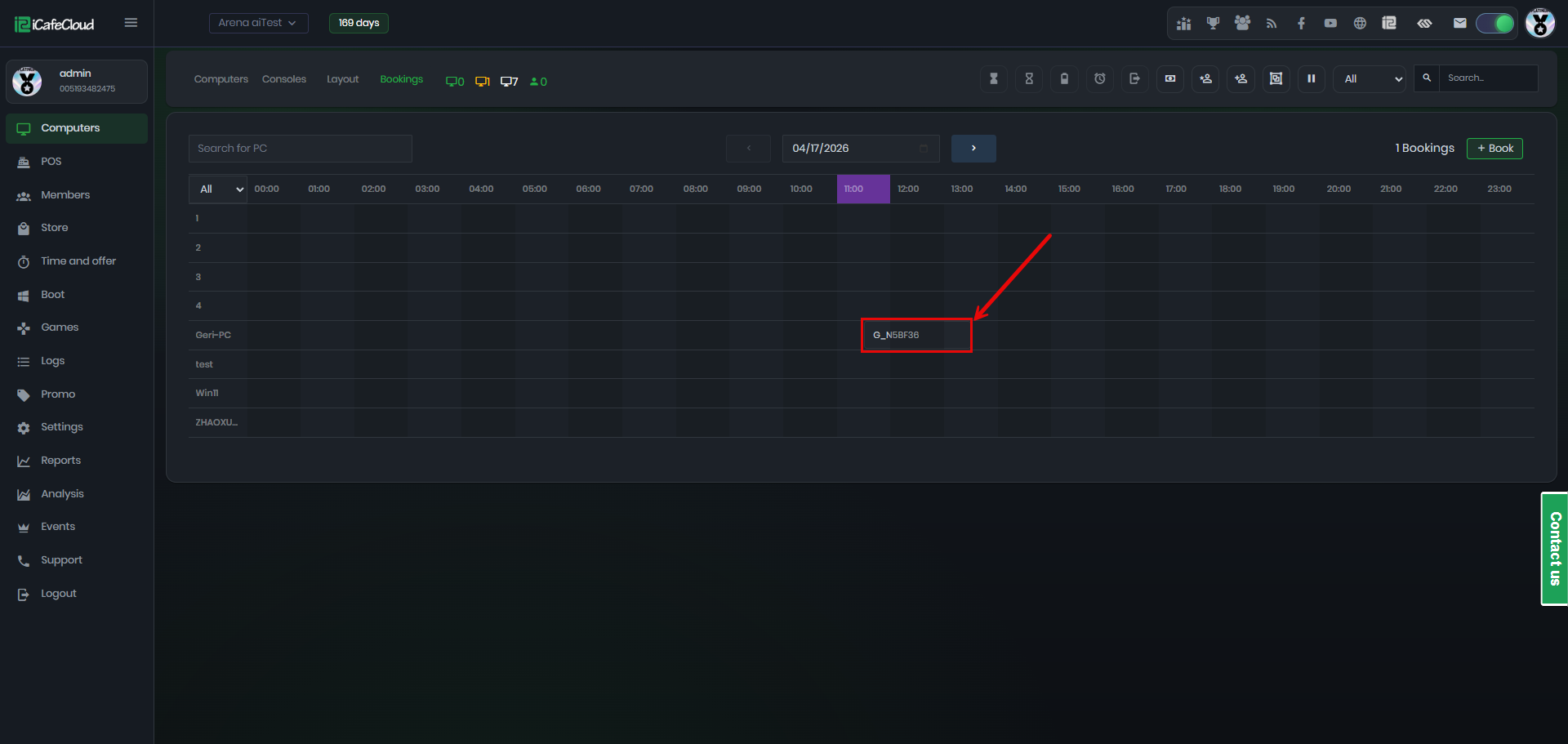
Figure 1
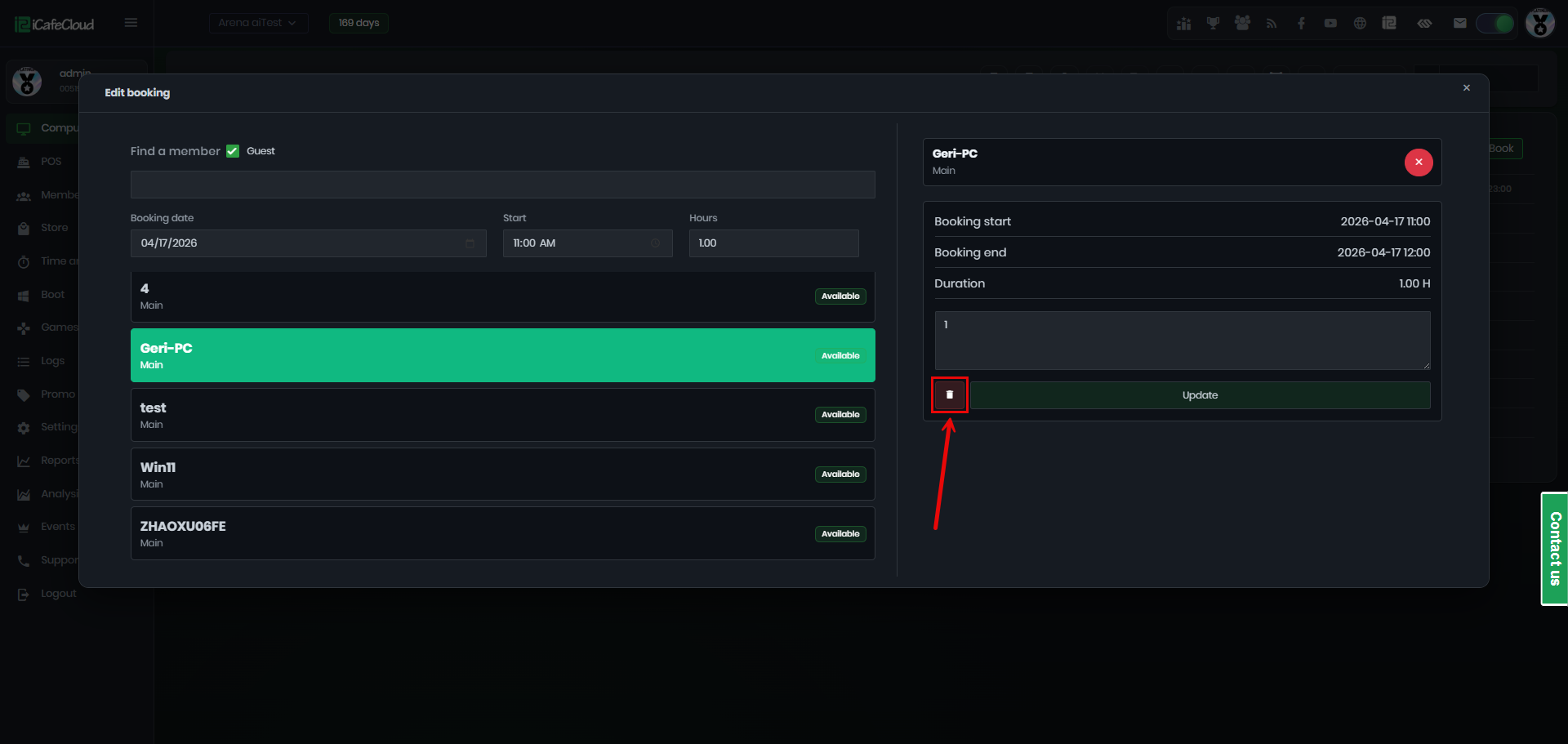
- To cancel a booking, the red button “Cancel Booking”.(Figure 2)
Figure 2
- To confirm the booking cancellation, you need to add a comment first and then click confirm. (Figure 3)
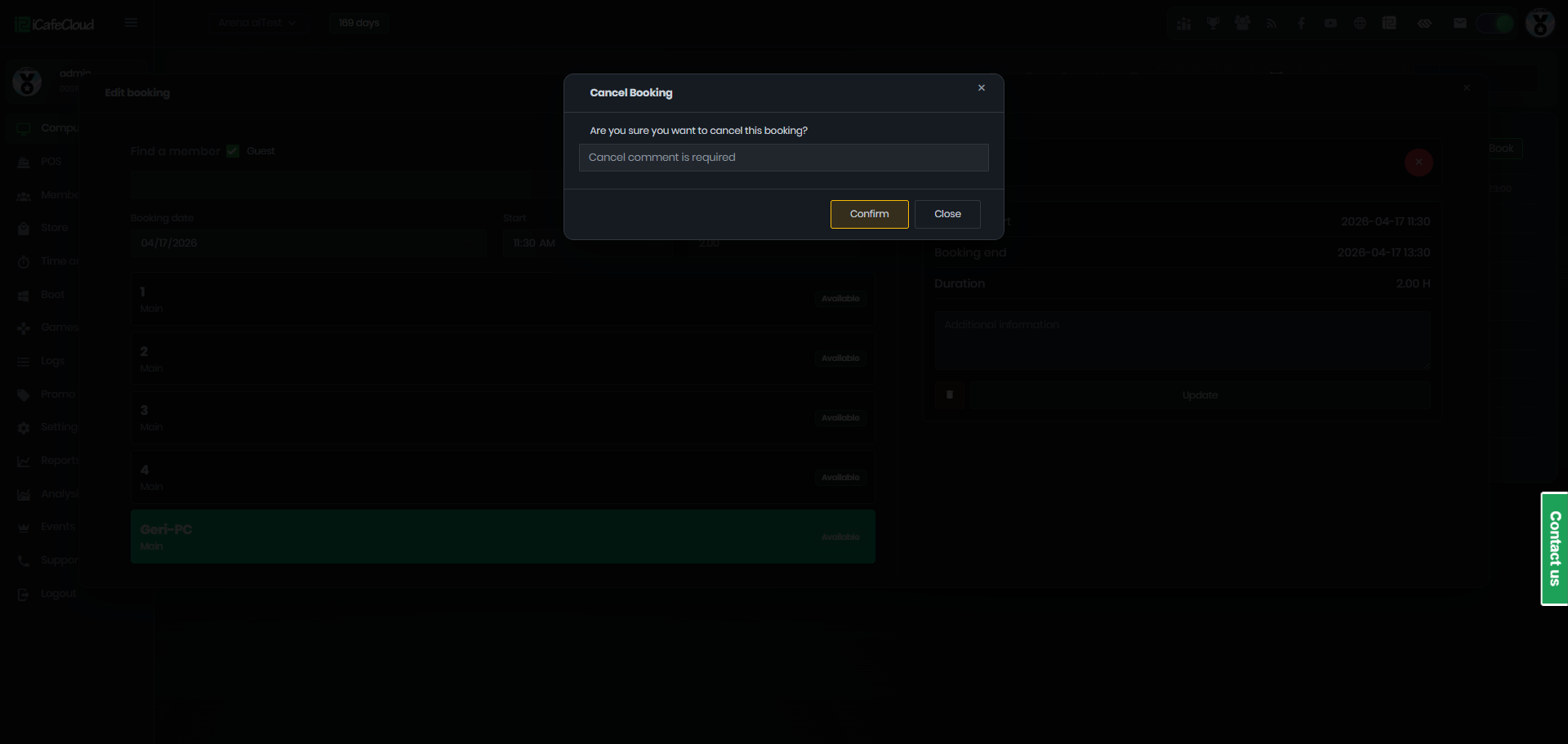
Figure 3
- A cancellation notification will appear, confirming that the booking has been successfully canceled.(Figure 4)
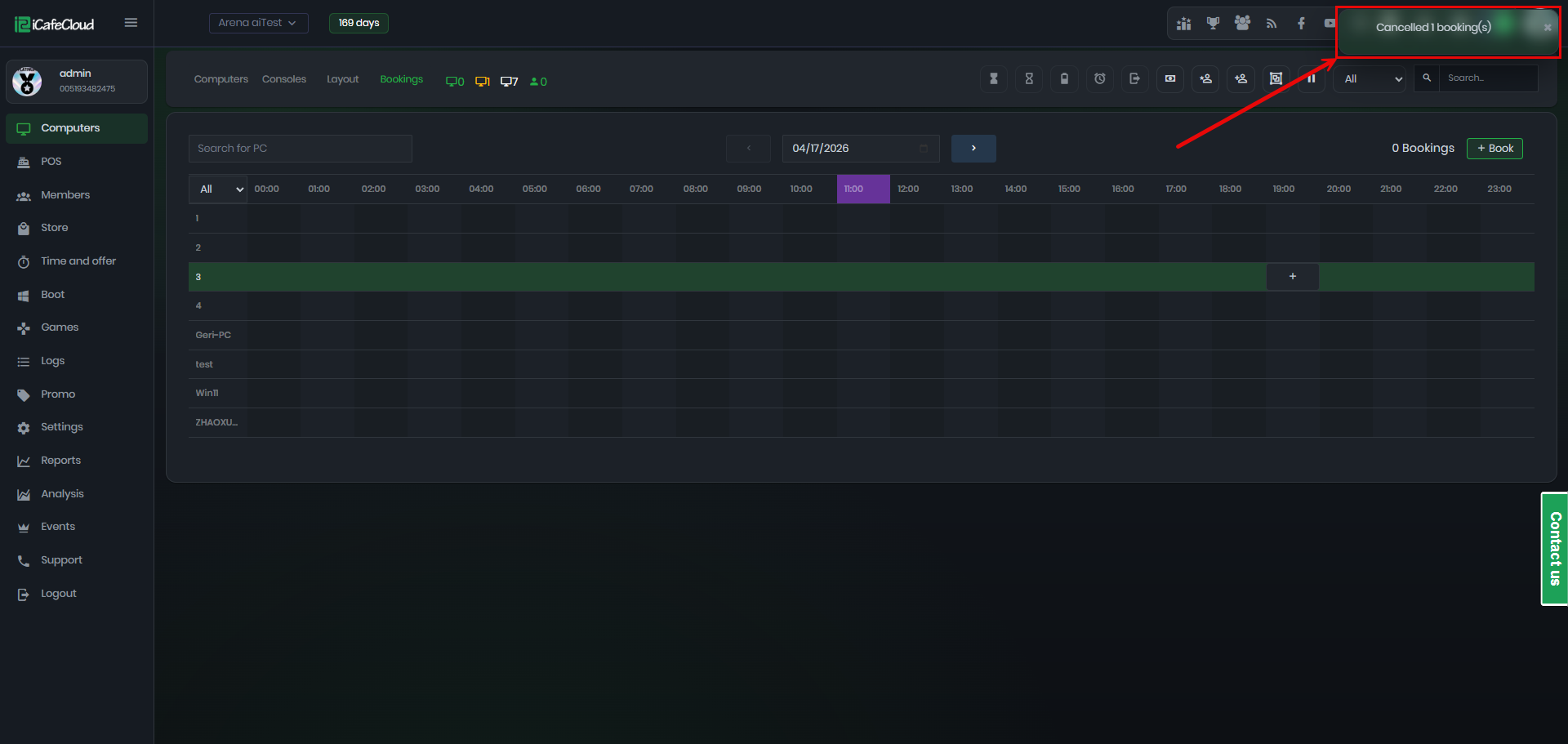
Figure 4
- Canceling a booking will automatically refund the full amount and any bonus used. These actions can be verified in the logs.(Figure 5)
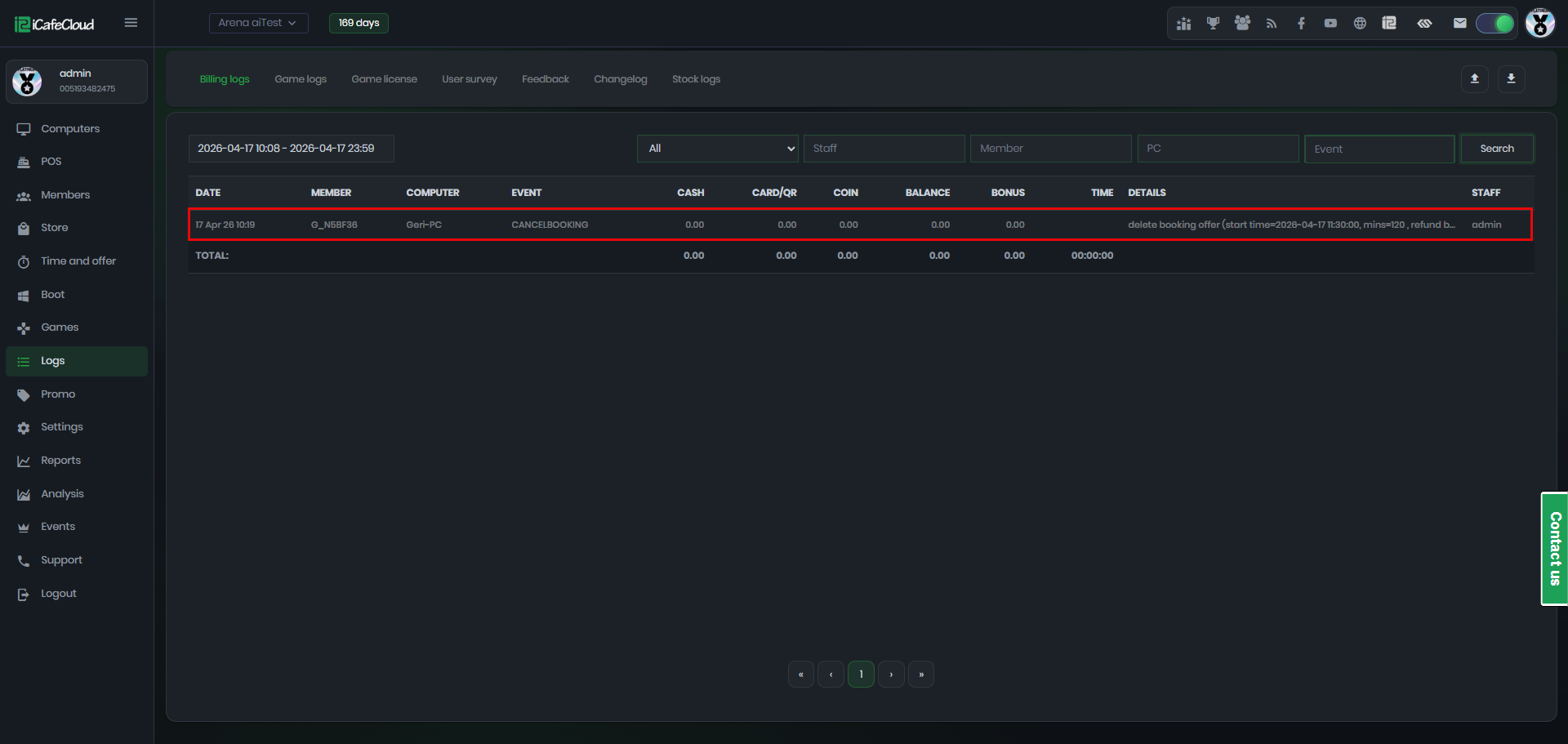
Figure 5
- The same rules apply when canceling a booking from the portal requires a comment. (Figure 6)
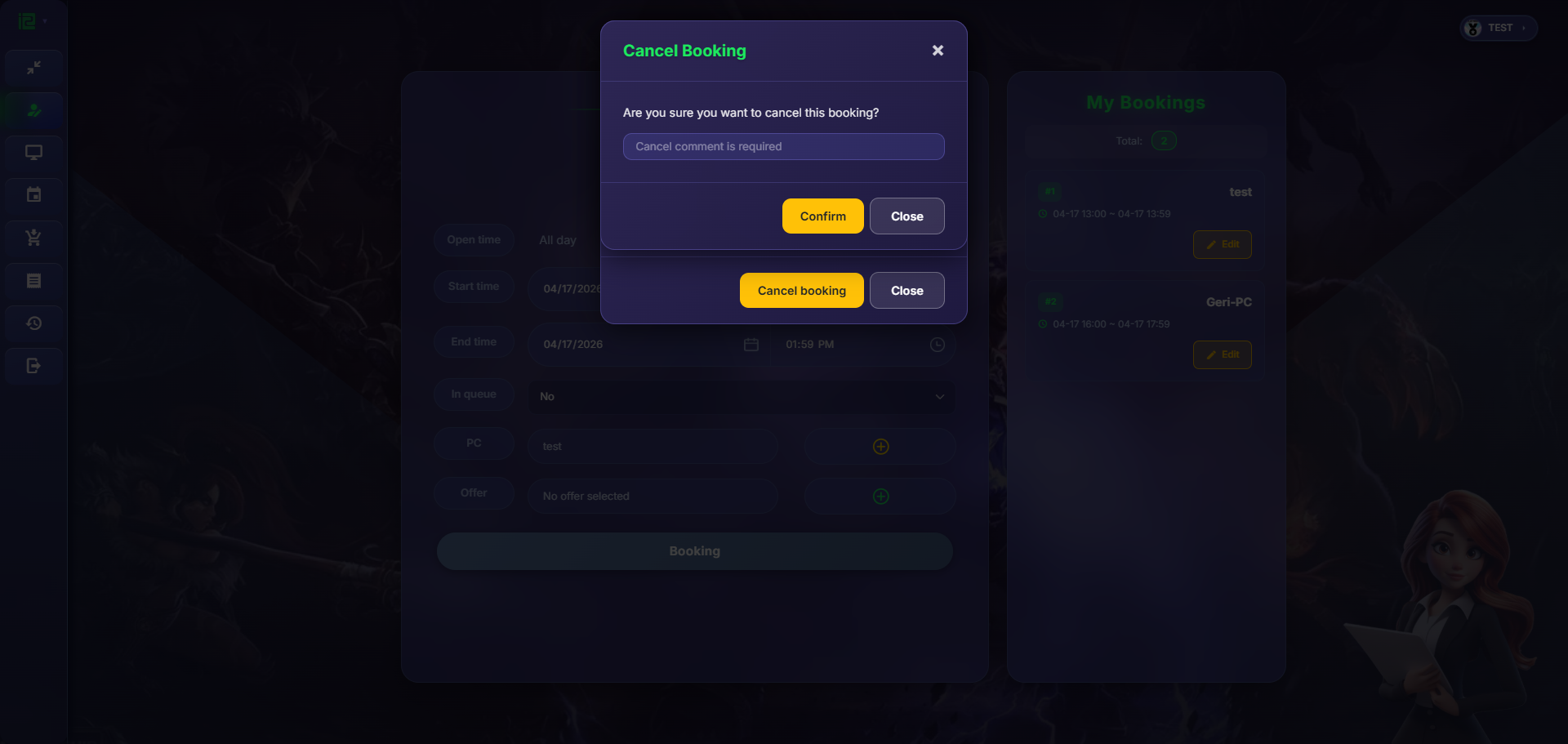
Figure 6