

- On the Store page, go to the Combo tab. (Figure 1)
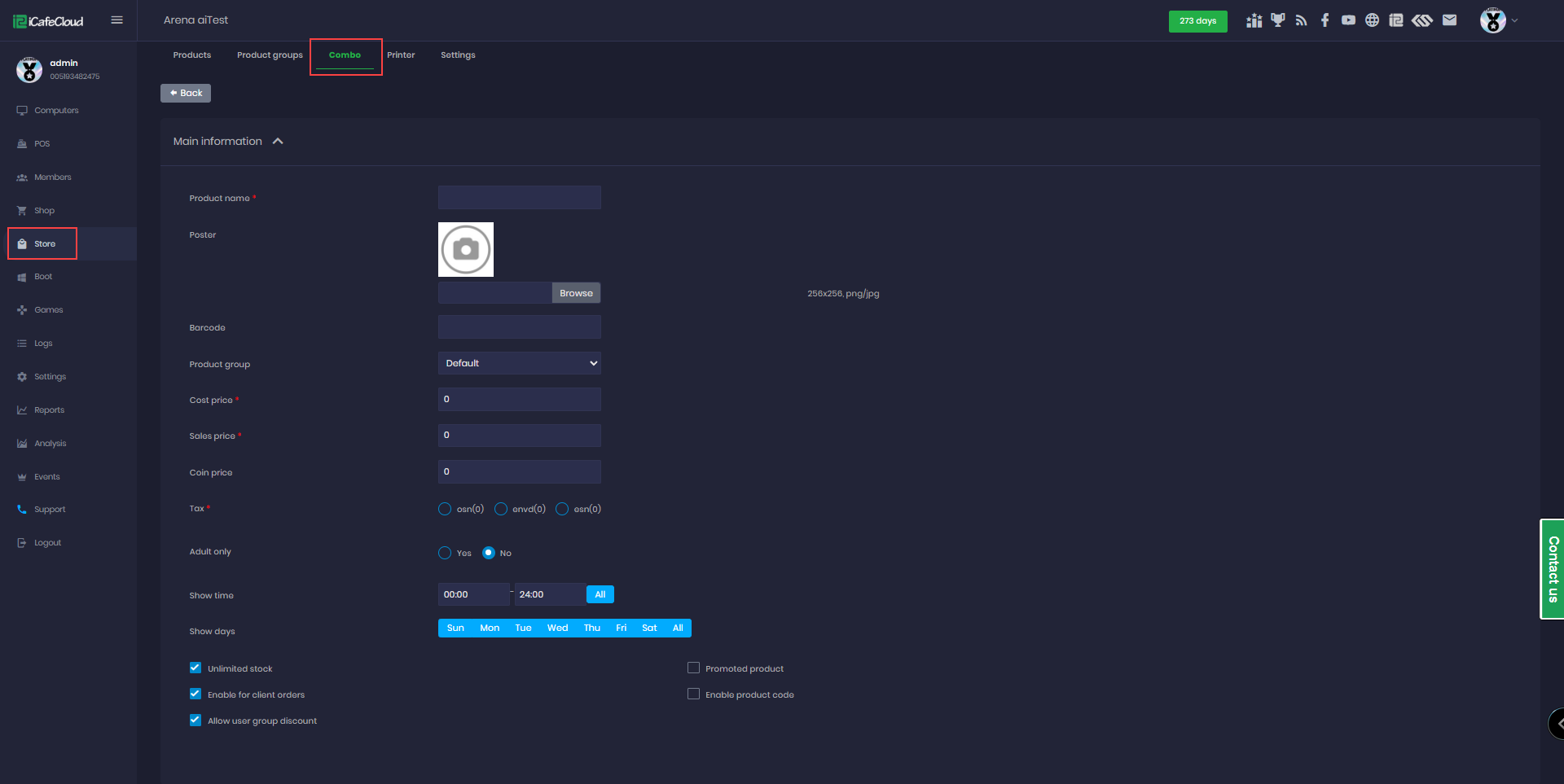
Figure 1
- On the main information enter the Product name and all relevant details, just like any other item. The cost price must be calculated manually.
- Scroll down to the Combo Components section, then select which option to add: + Product, + Offer, or + Printer.(Figure 2).
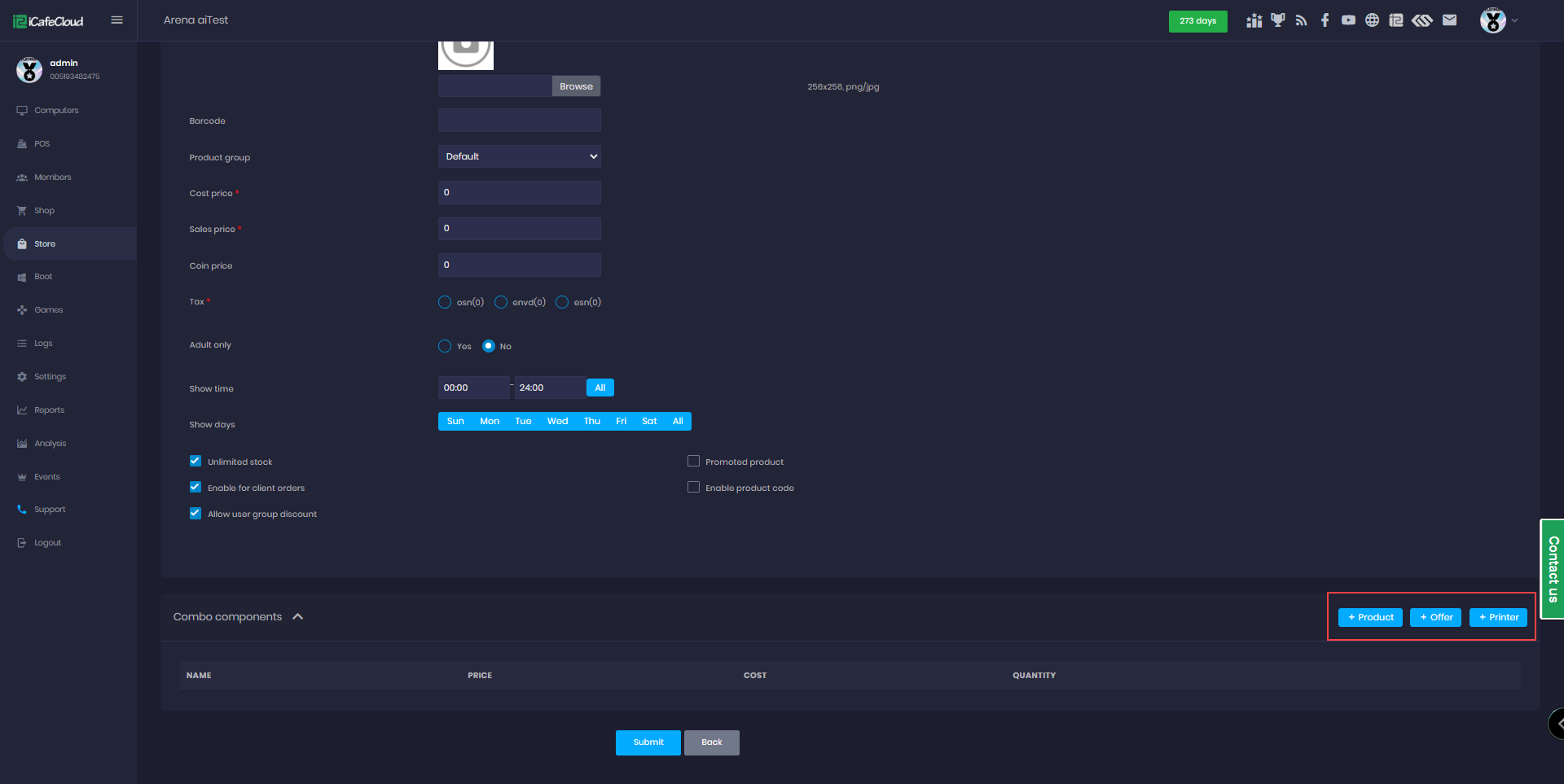
Figure 2
- If you select Products, a window will appear allowing you to choose products from the existing list to include in the combo. You can also specify the quantity of each product, then click Save and Submit (Figure 3).
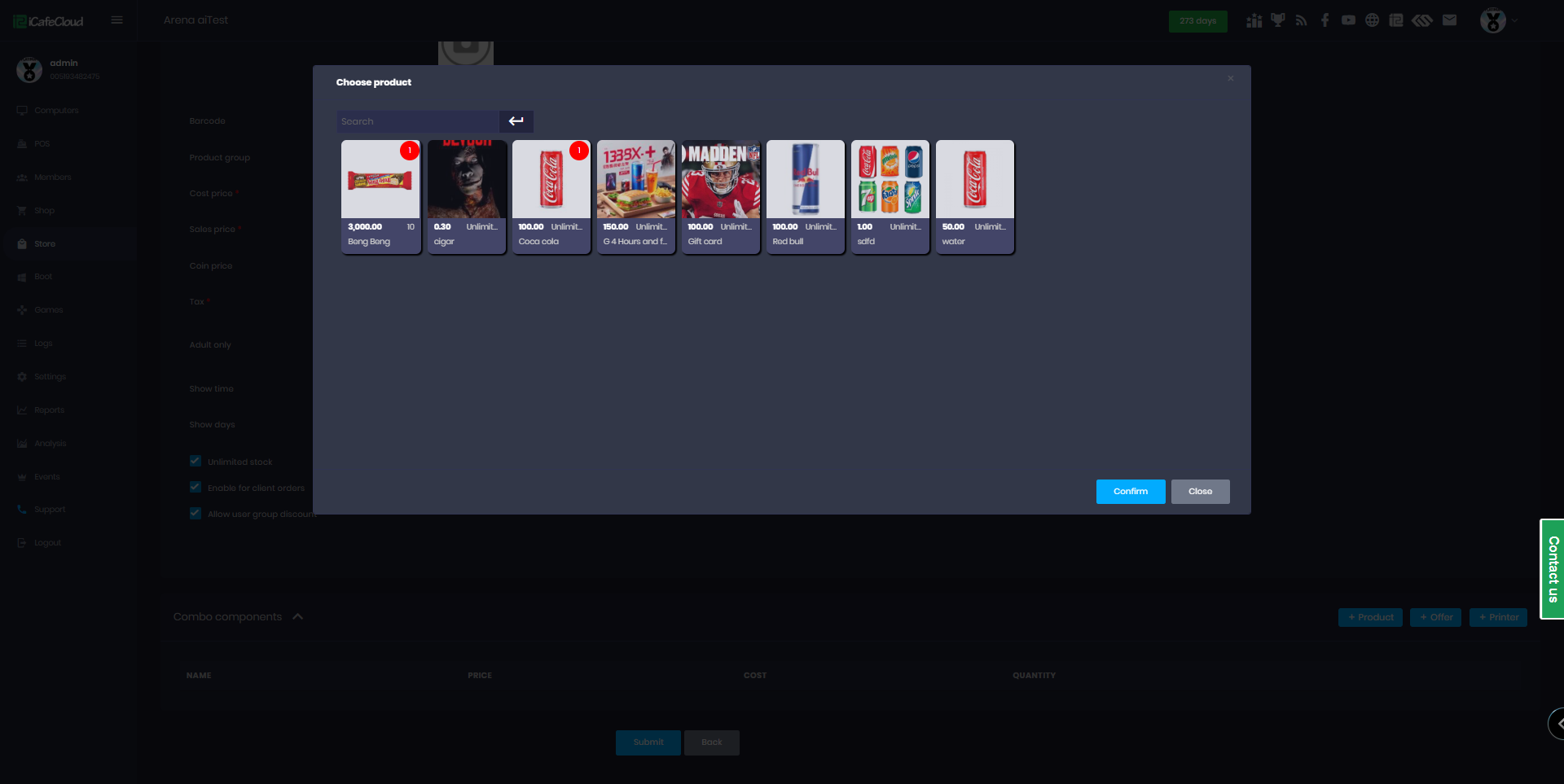
Figure 3
- To create a combo with both Offer and Product, select items from each category. They will appear in the Combo Components list. After specifying the quantity for each item, click Submit (Figure 4).
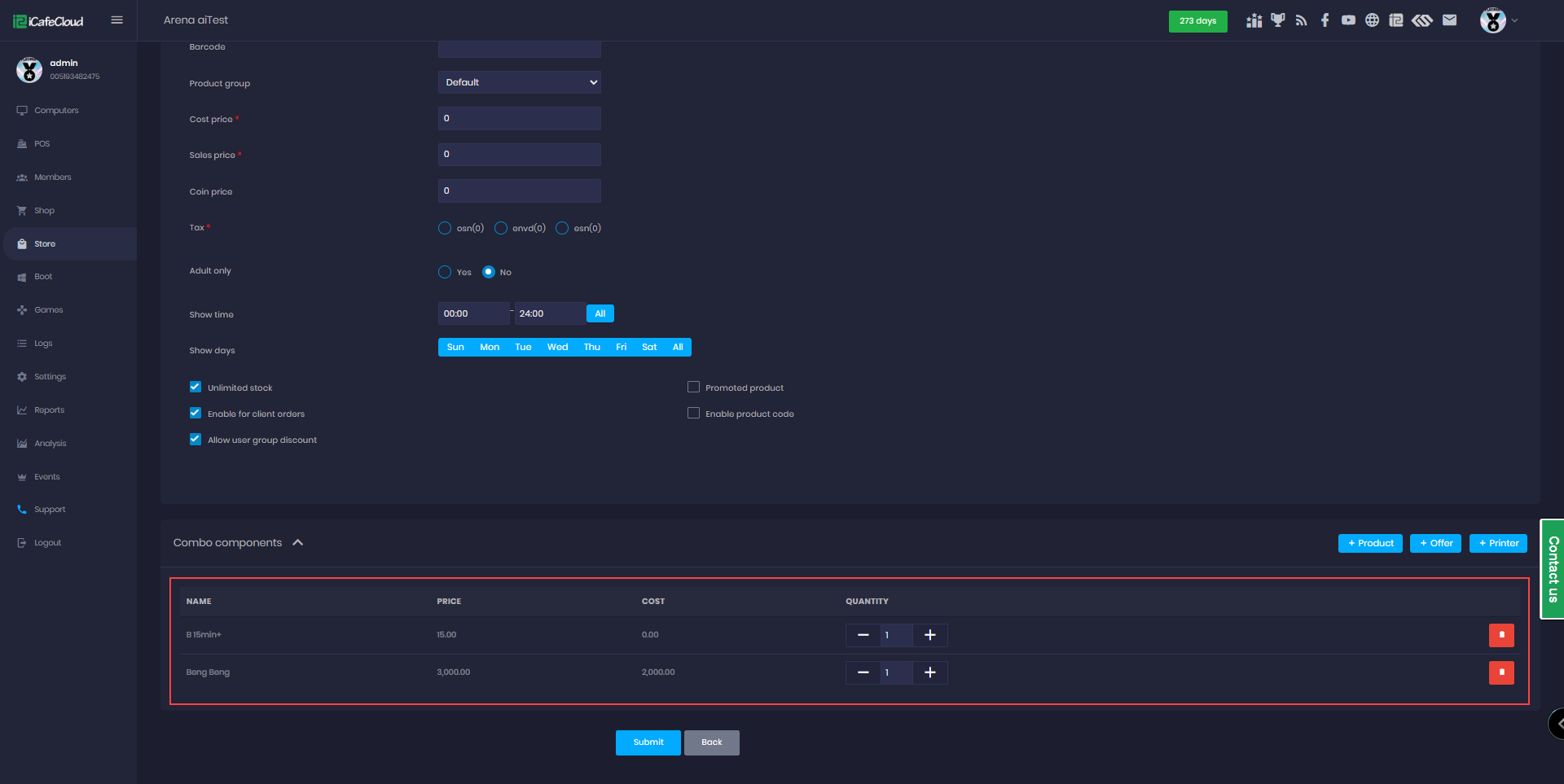
Figure 4
- The combo will be shown on the Shop panel as a product, just like any other item. (Figure 5)
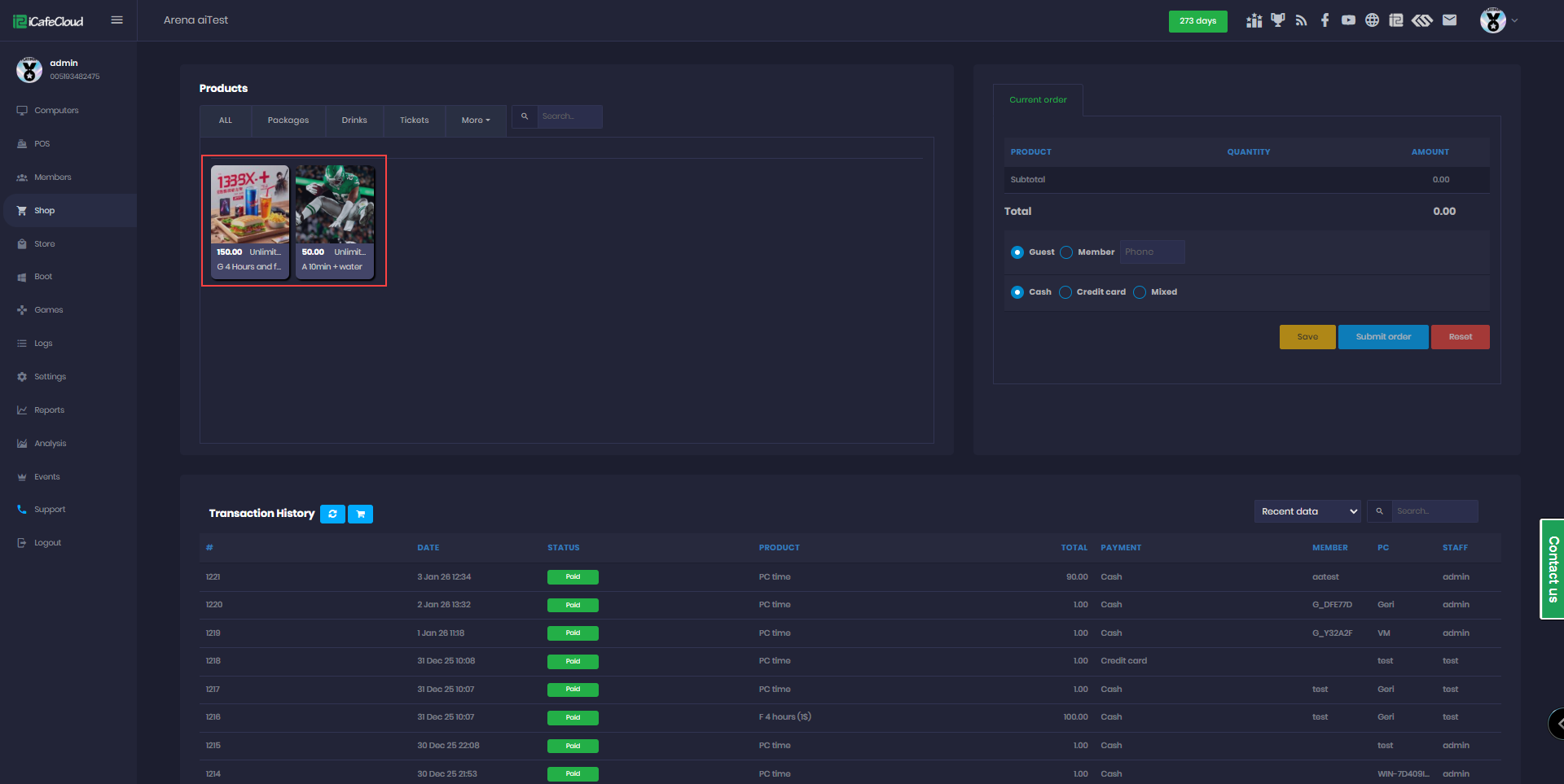
Figure 5
- Combo products will not appear separately in the sales report, instead, the entire combo is recorded as a single item.
- However, you can view the individual products included in the combo by checking the transaction history in the Shop.(Figure 6)
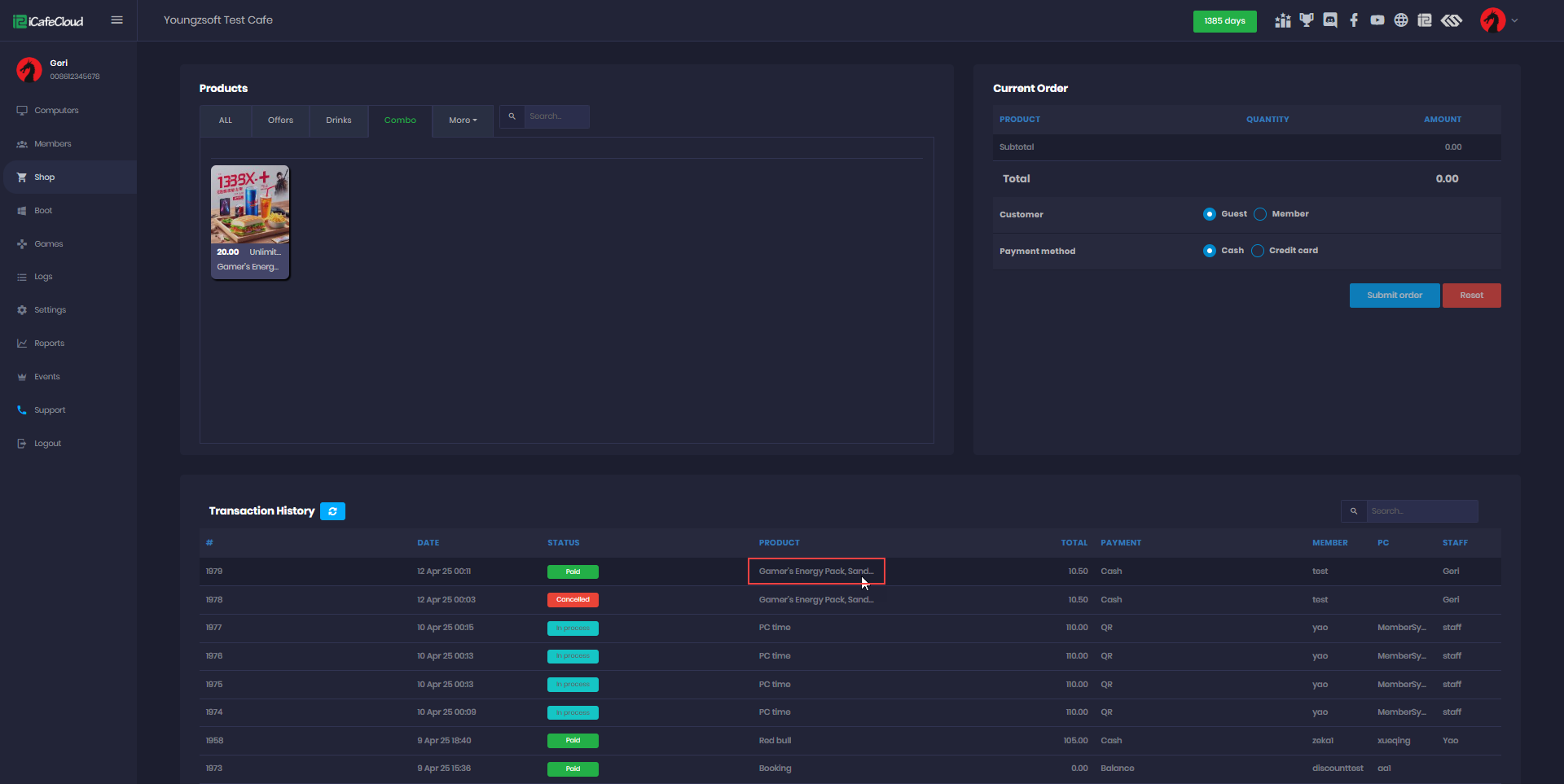
Figure 6
- If you want to modify a combo, you can delete the existing products and add new ones as needed.(Figure 7)
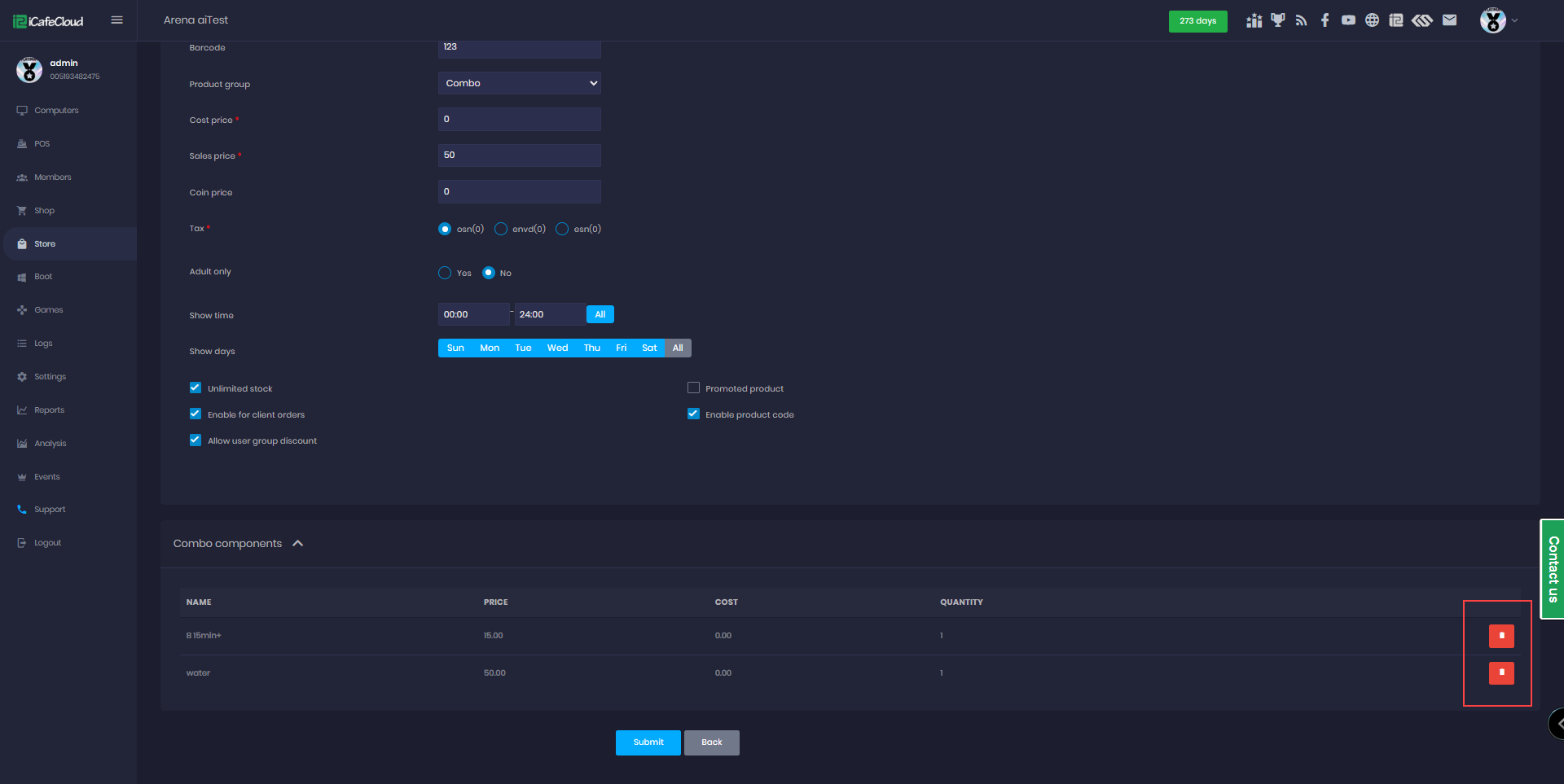
Figure 7
- The combo will automatically deduct the stock quantity of each included product when purchased. If the combo is refunded, the stock will be restocked accordingly.(Figure 8)
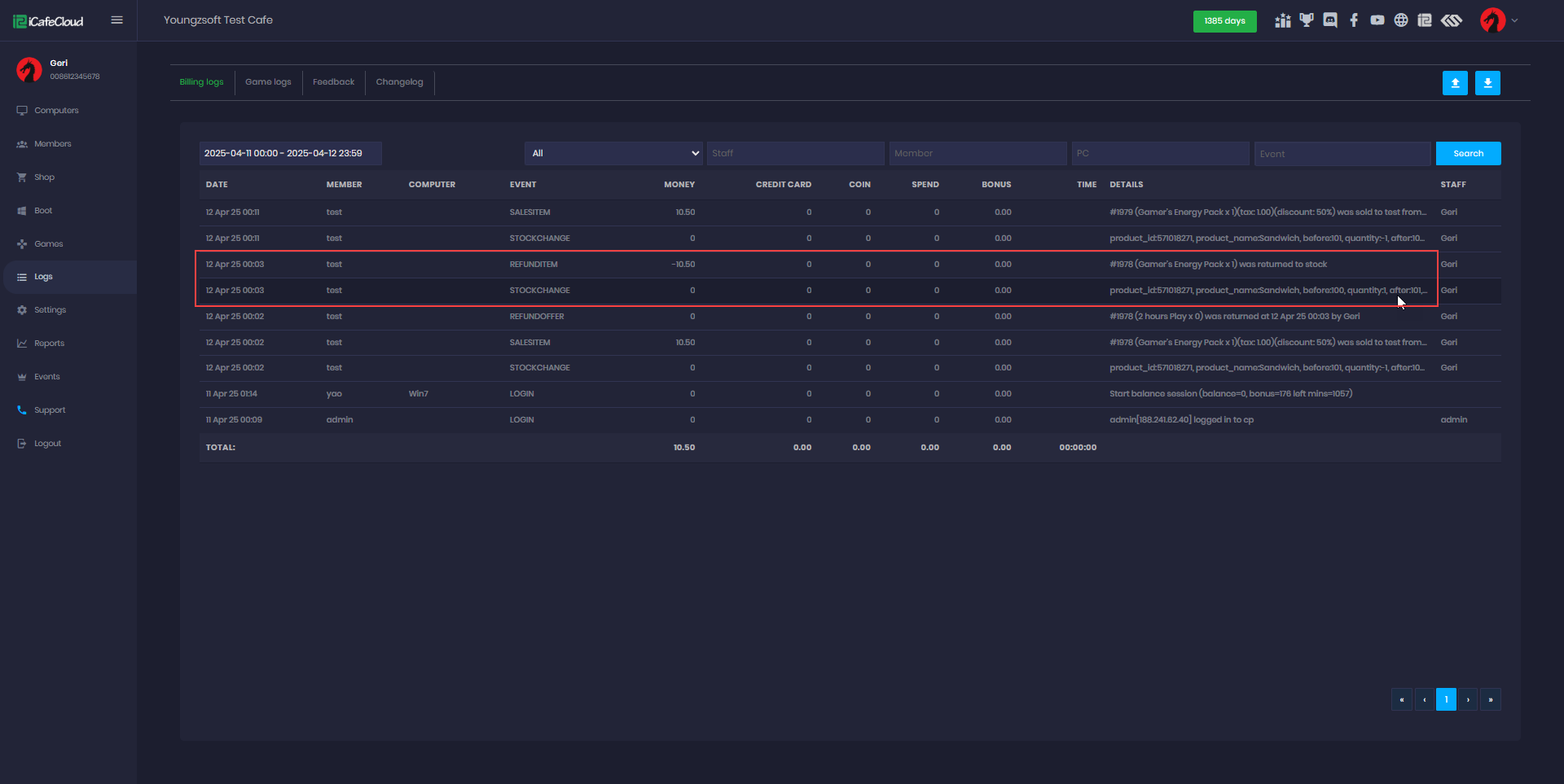
Figure 8
- A combo product can be set to unlimited stock, in which case the system will manage availability based on the stock of the individual products. If any product within the combo reaches zero stock, the combo cannot be purchased.
- If the combo is set to limited stock, the system will prioritize the combo’s stock count first. Once the combo stock reaches zero, it cannot be purchased. However, the individual product availability will still be checked, meaning that even if the combo stock is available, the purchase will only go through if all included products are in stock.
- If the combo contains a time offer, it cannot be sold to a guest. An error message will appear: "Only allow members to purchase Offer." (Figure 8)
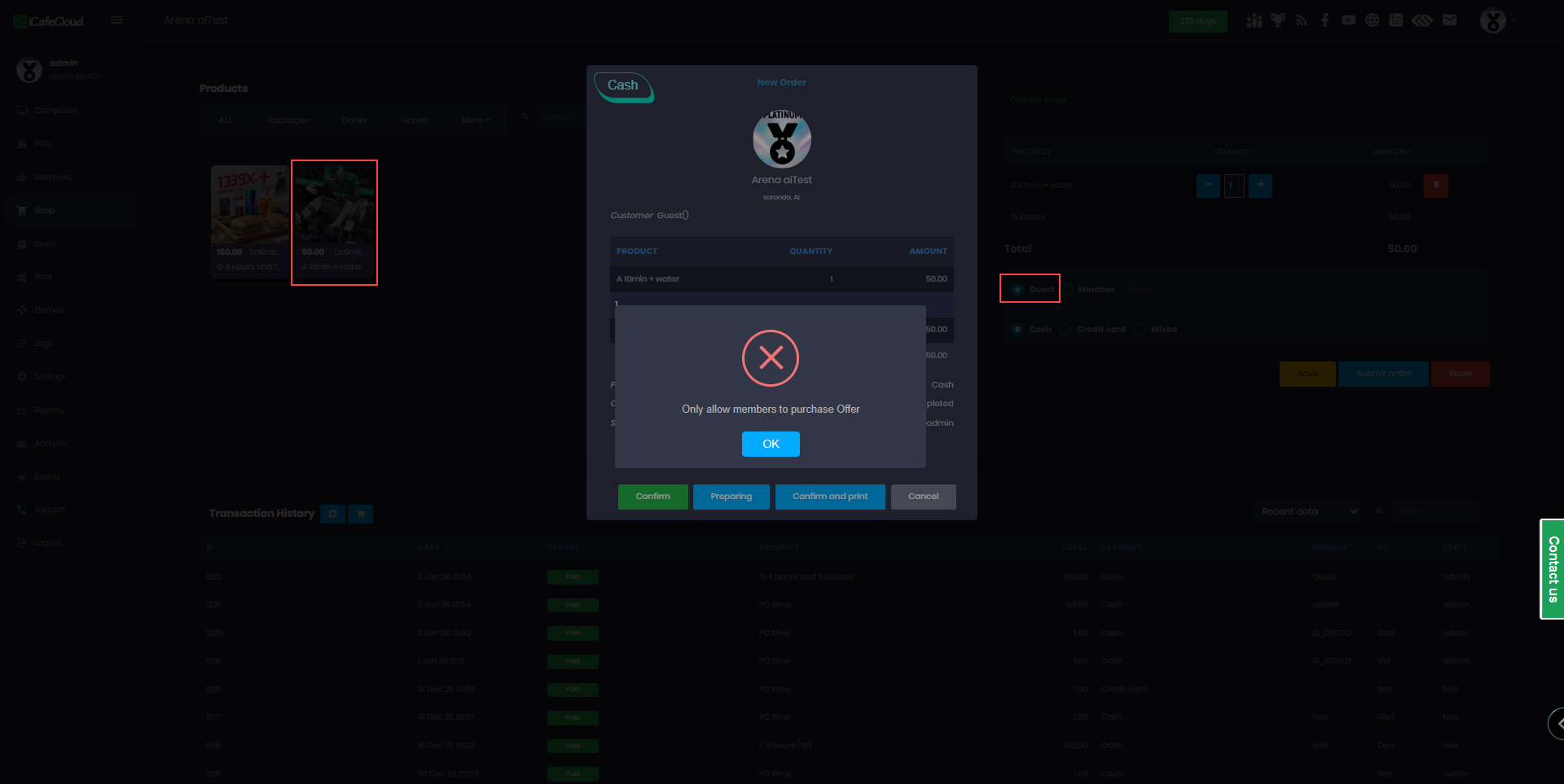
Figure 8