The following explains how to create Product Groups, how to add products to each group, and how to choose which payment methods each group can use for both members and guests.
- Navigate to Store, go to the Product Group page, and click the Add Product Group button. (Figure 1).
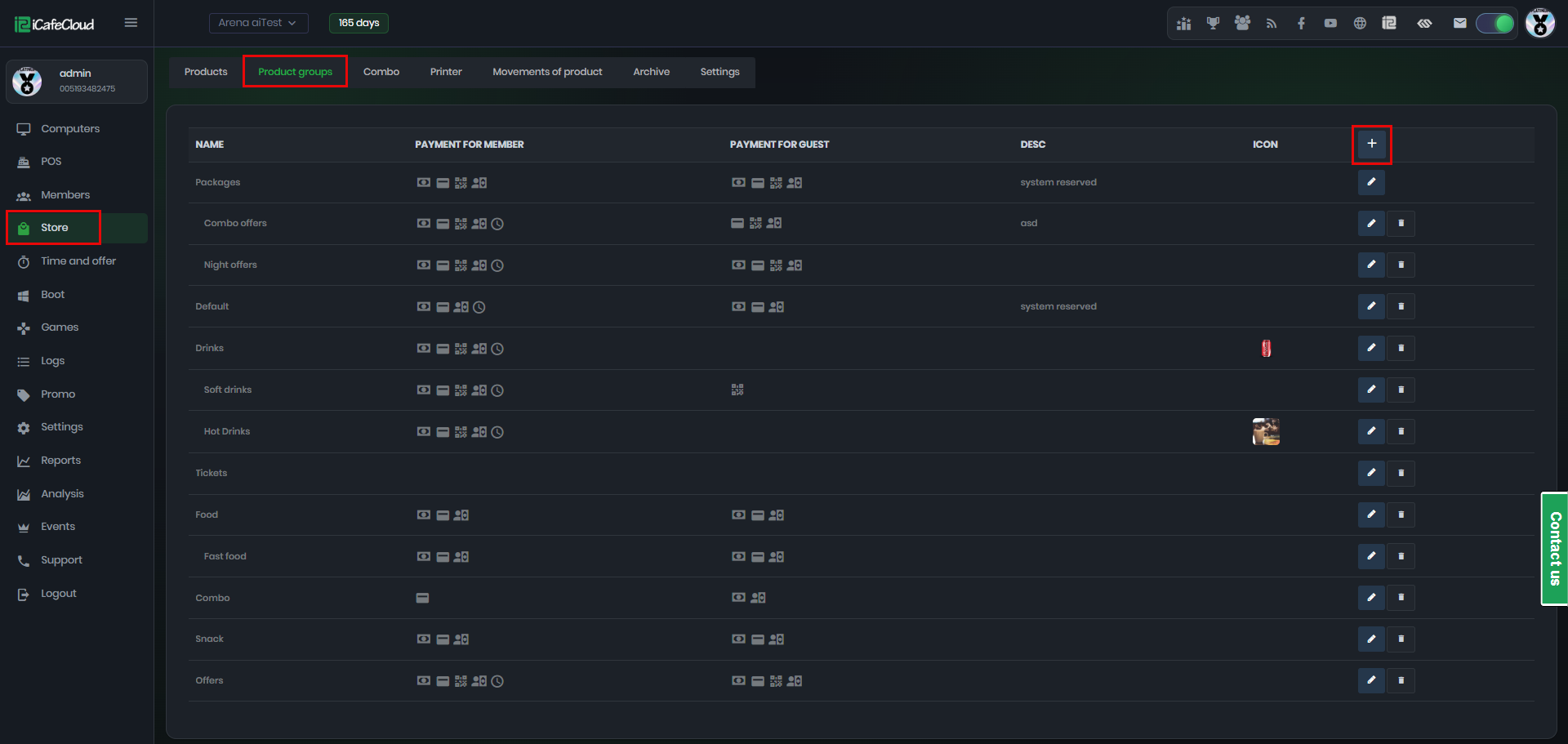
Figure 1
- Enter the Product Group Name.
- Select the Parent Group by choosing TOP to mark it as a parent group, and fill in the corresponding Description.
- Check the allowed Payment Methods for members and guest users each can have the same or different payment options.
- Select a Group Icon 50x50 pixel (JPEG or PNG recommended for better quality and transparent background).
- Finally, click Add (Figure 2).
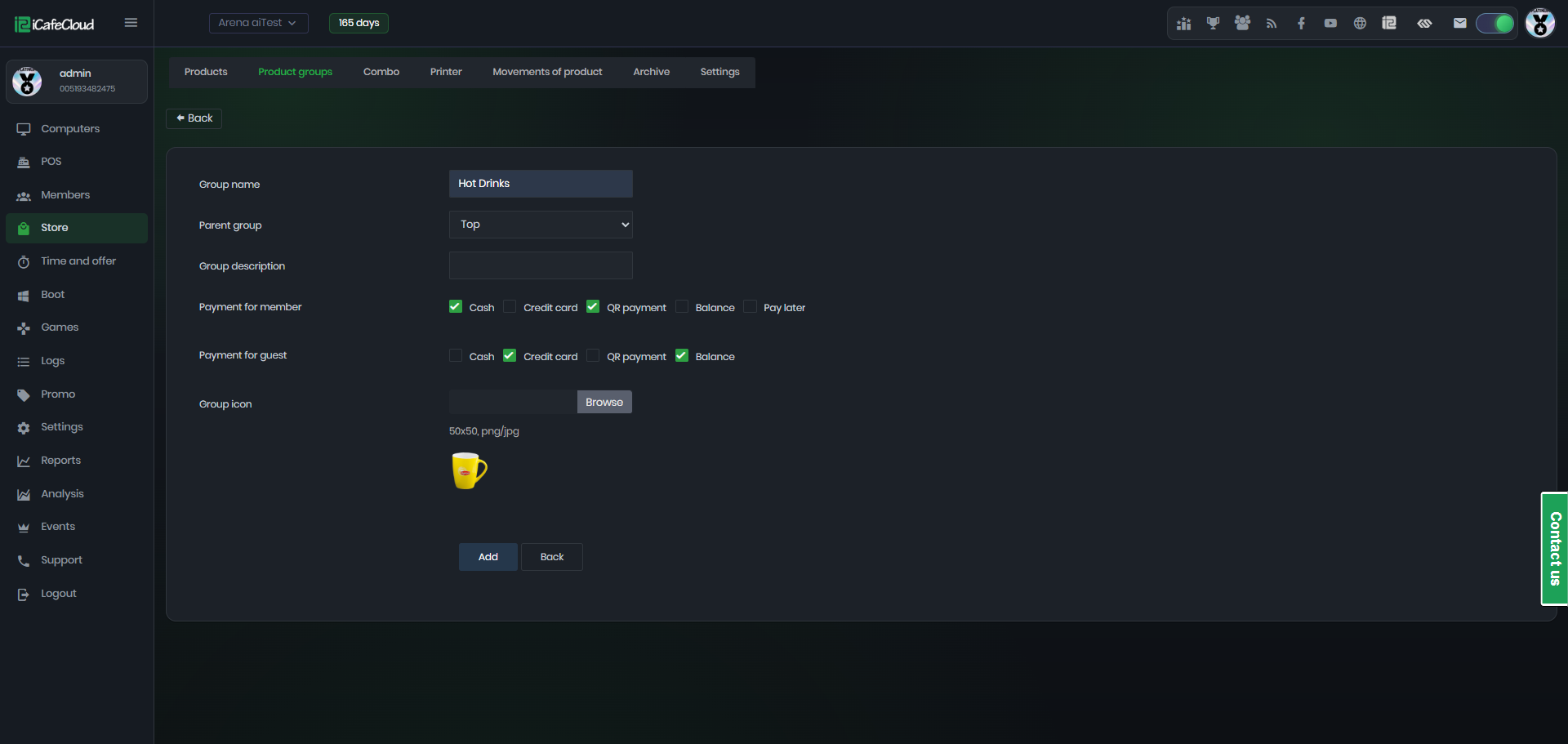
Figure 2
- The new group will be added to the Product Groups list. You can Edit or Delete it using the two available options. (Figure 3).
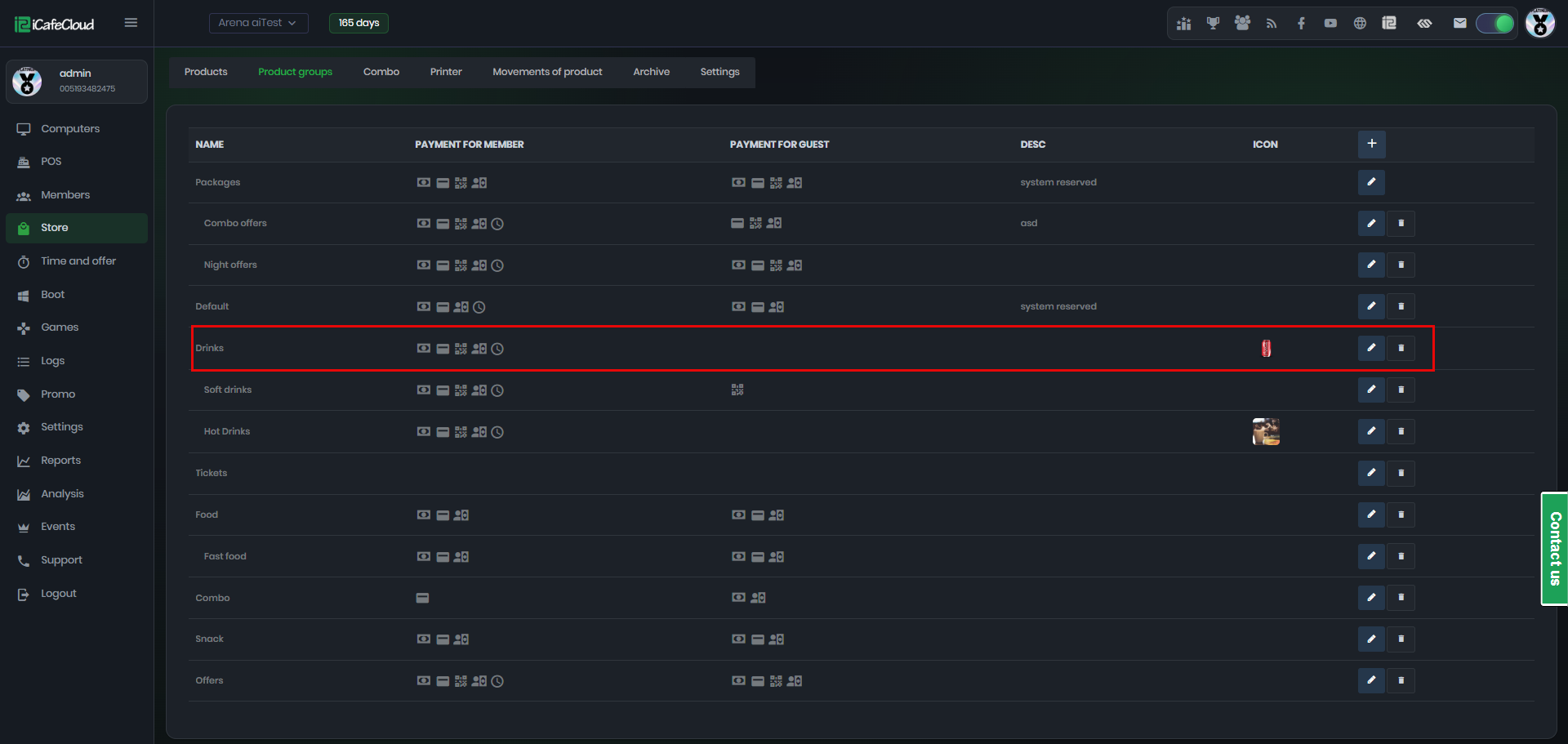
Figure 3
- For a group to be displayed to clients, it must either be in stock or have unlimited stock available.