

The following explains how to add and configure products on the Product page within the Store section.
- Click on Store, then select the Product tab. (Figure 1).
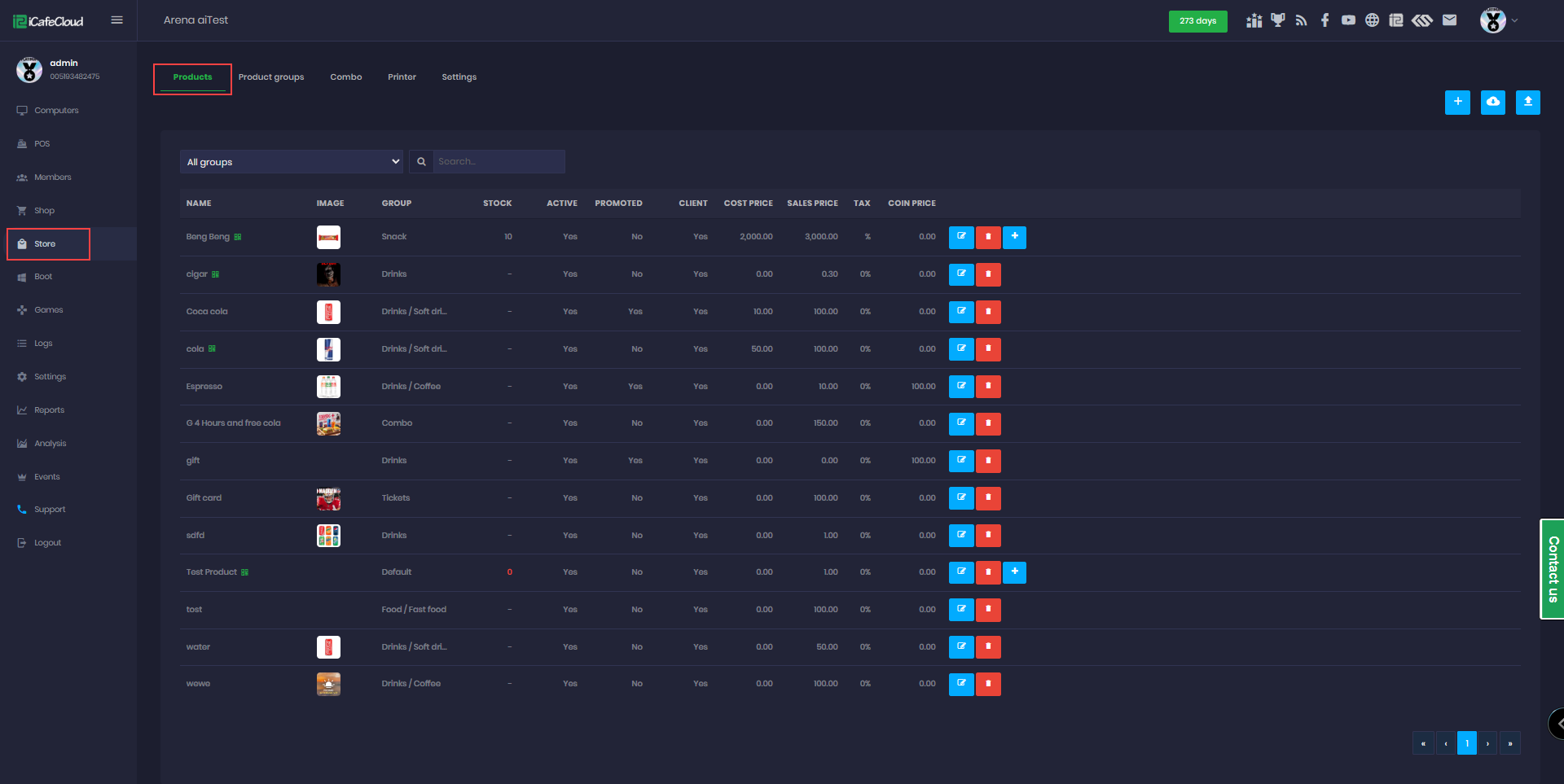
Figure 1
- Click the + button to open the Product modal. (Figure 2).
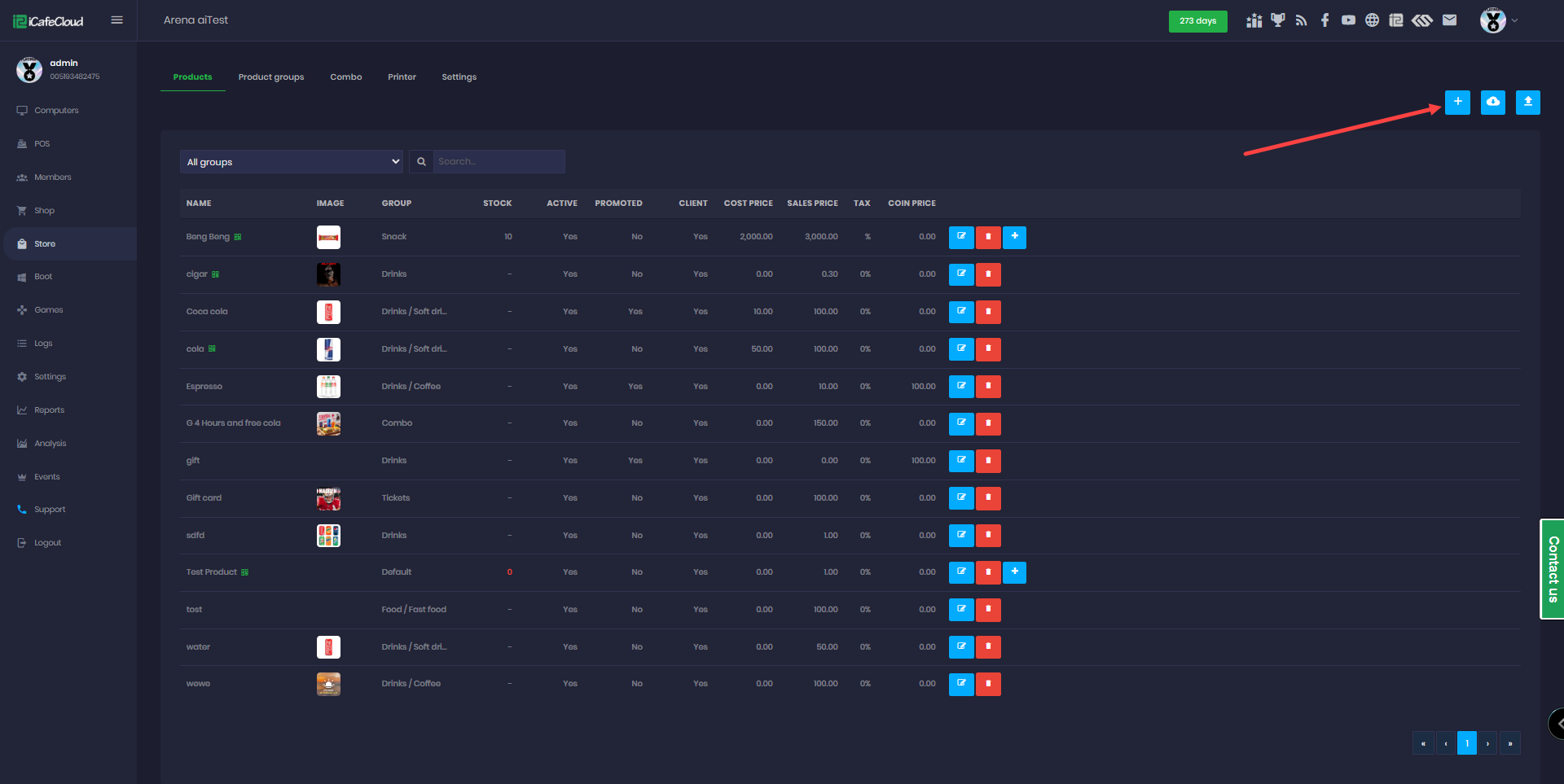
Figure 2
- Enter the Product Name, Poster (256 × 256 pixels), Barcode, and Product Group. Set the Cost Price, Sales Price, and Coin Price, then select the Tax option.
Configure additional settings as needed, including Adult Only, Show Time, Show Days, Unlimited Stock, Enable for Client Orders, Allow User Group Discount, Promote Product, and Enable Product Code.
Finally, click Submit (Figure 3).
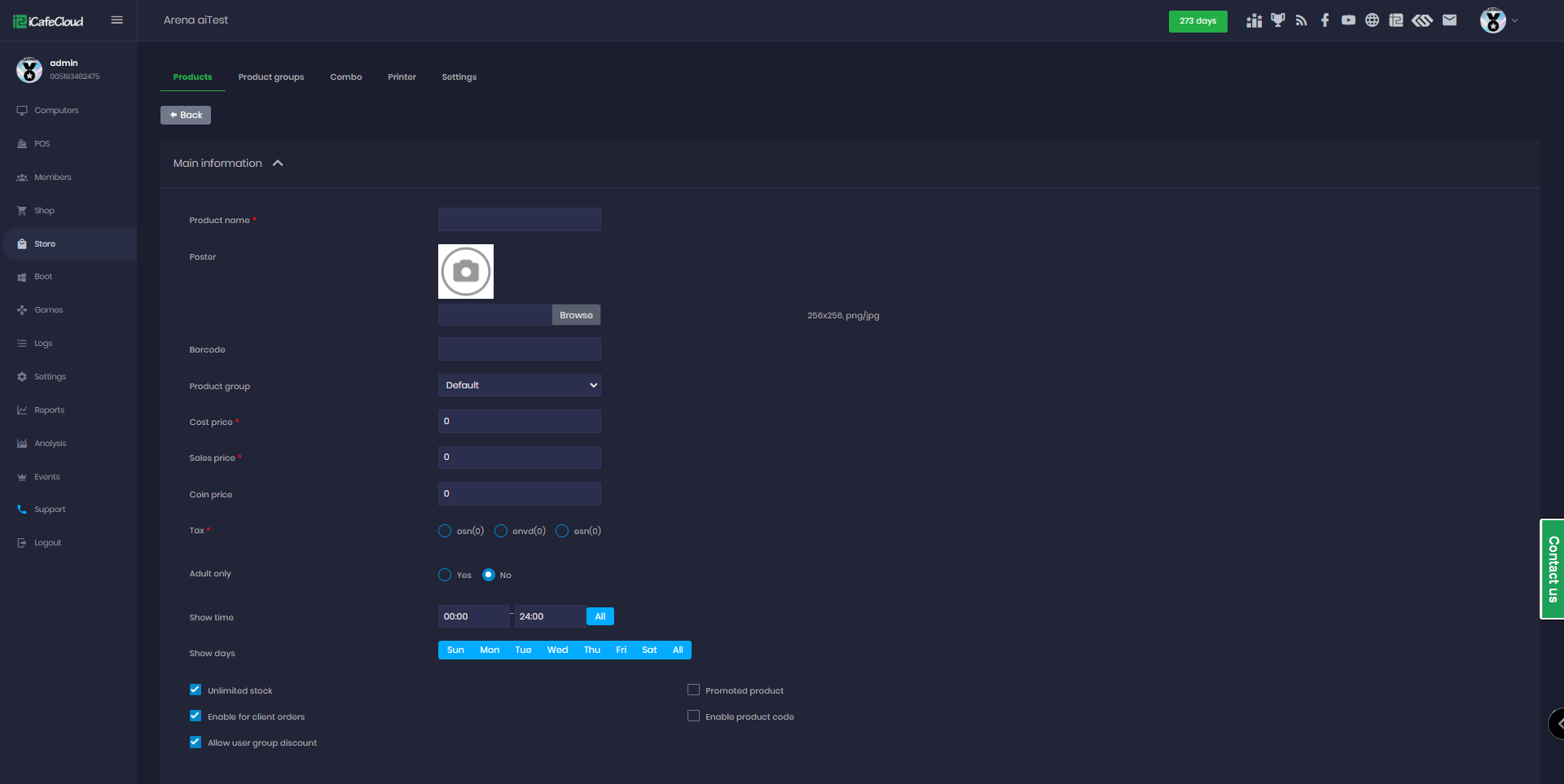
Figure 3
- If you set sales price “0”, the item will not show on the client side shop.
- If you set a coin price, the item will show up in the client shop in the gifts category. Read more about coins at Game ranking.
- If you want to sell the item with both money and coins, just set values in sales price and coin price fields.
- Show Time if you want the product to be available for order only within a specific time range.
- Show Days if you want the product to be available for order on specific days.
- When a product is added, the stock will be 0 (displayed in red). You need to add stock before it can be sold.
- If you want members to order items from the icafemenu client then check the “Available for client orders” check box
- To hide an Product from both the SHOP (admin panel) and the client, add an asterisk (*) before its name. Example: *Coca cola.
- If you only want to sell from your POS or sell from reception then uncheck the “Available for client orders” check box.
- The new item will be listed on the product page.
- If you want to give discounts to specific items, you can enable the "Allow user group discount" option. This feature lets those items receive discounts based on the group's “Discount for the shop”.
- No discounts are available for booking sessions.