

The following explains how subcategories can be established. For example, within the Beverages/Drinks category, you can include subcategories like Cold Drinks and Hot Drinks.
- Navigate to Store, go to the Product Group page, and click the Add Product Group button. (Figure 1).
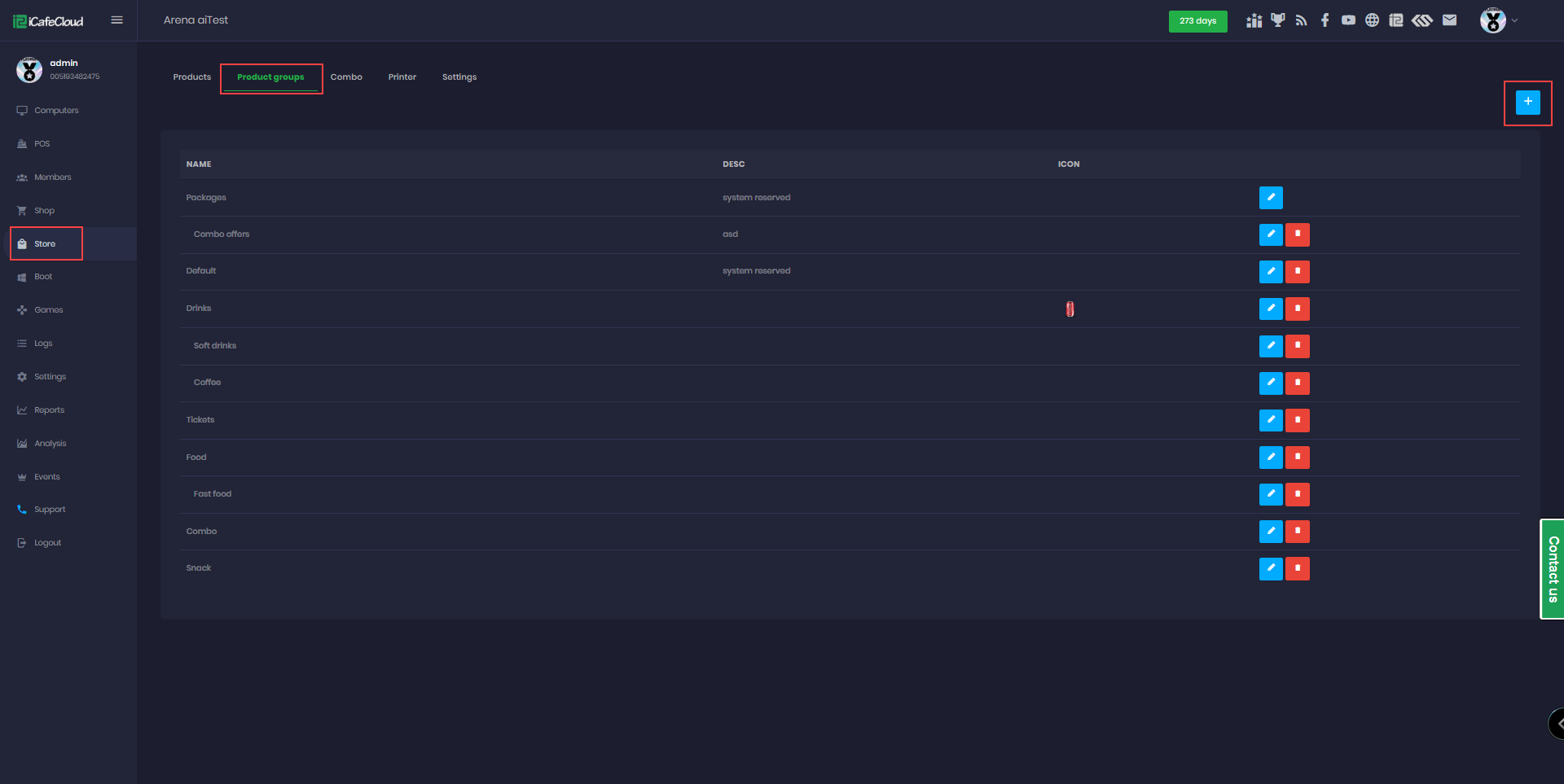
Figure 1
- Enter the Product Group Name.
- Select the Parent Group by choosing an actual group Example Drinks, and fill in the corresponding Description.
- Check the allowed Payment Methods for members and guest users each can have the same or different payment options.
- Select a Group Icon 50x50 pixel (JPEG or PNG recommended for better quality and transparent background).
- Finally, click Add (Figure 2).
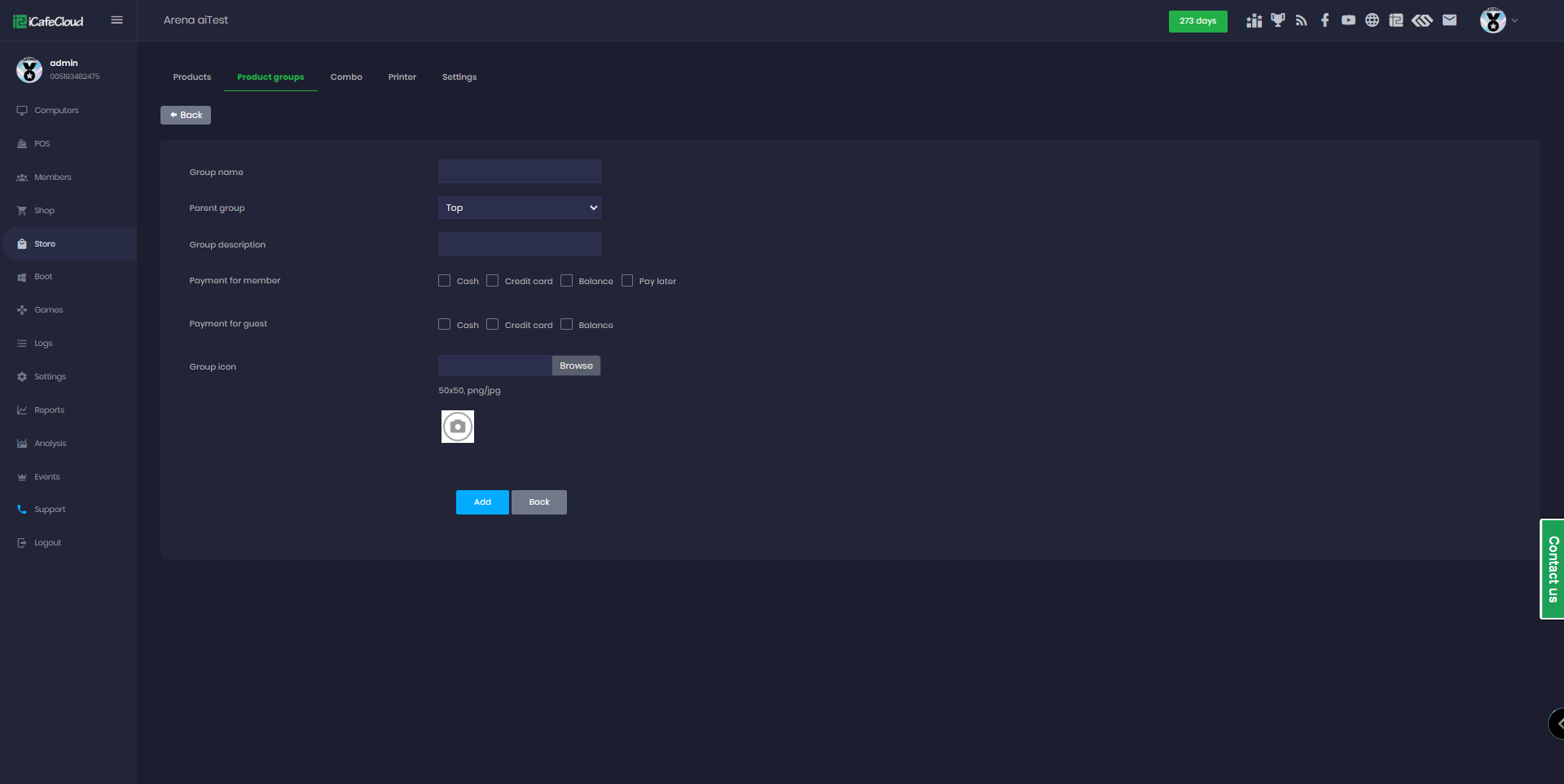
Figure 2
- The subcategory will be displayed under its corresponding main category. (Figure 4).
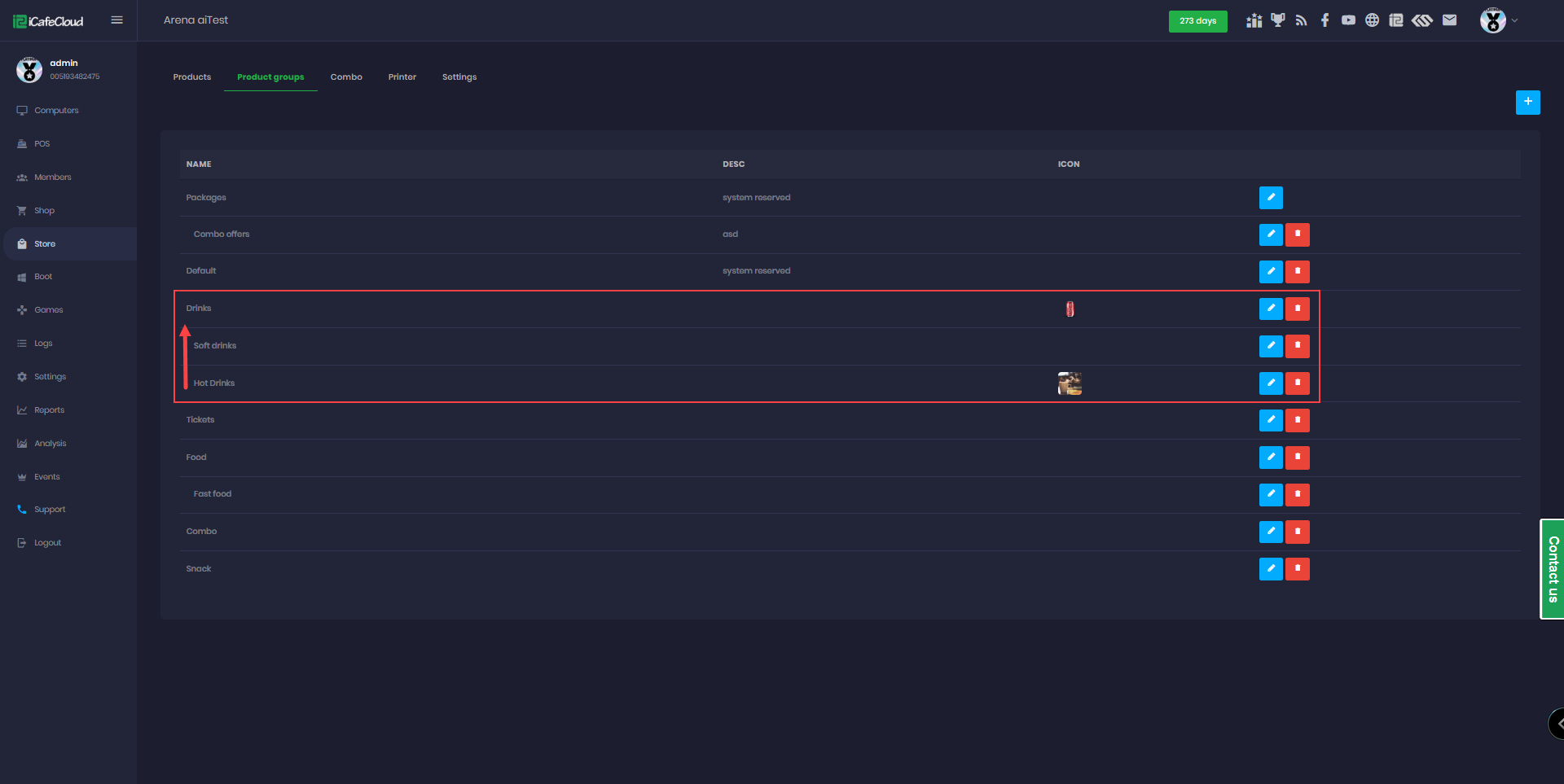
Figure 4
- Subcategories are also visible on the client side, displayed next to the main category.(Figure 5)
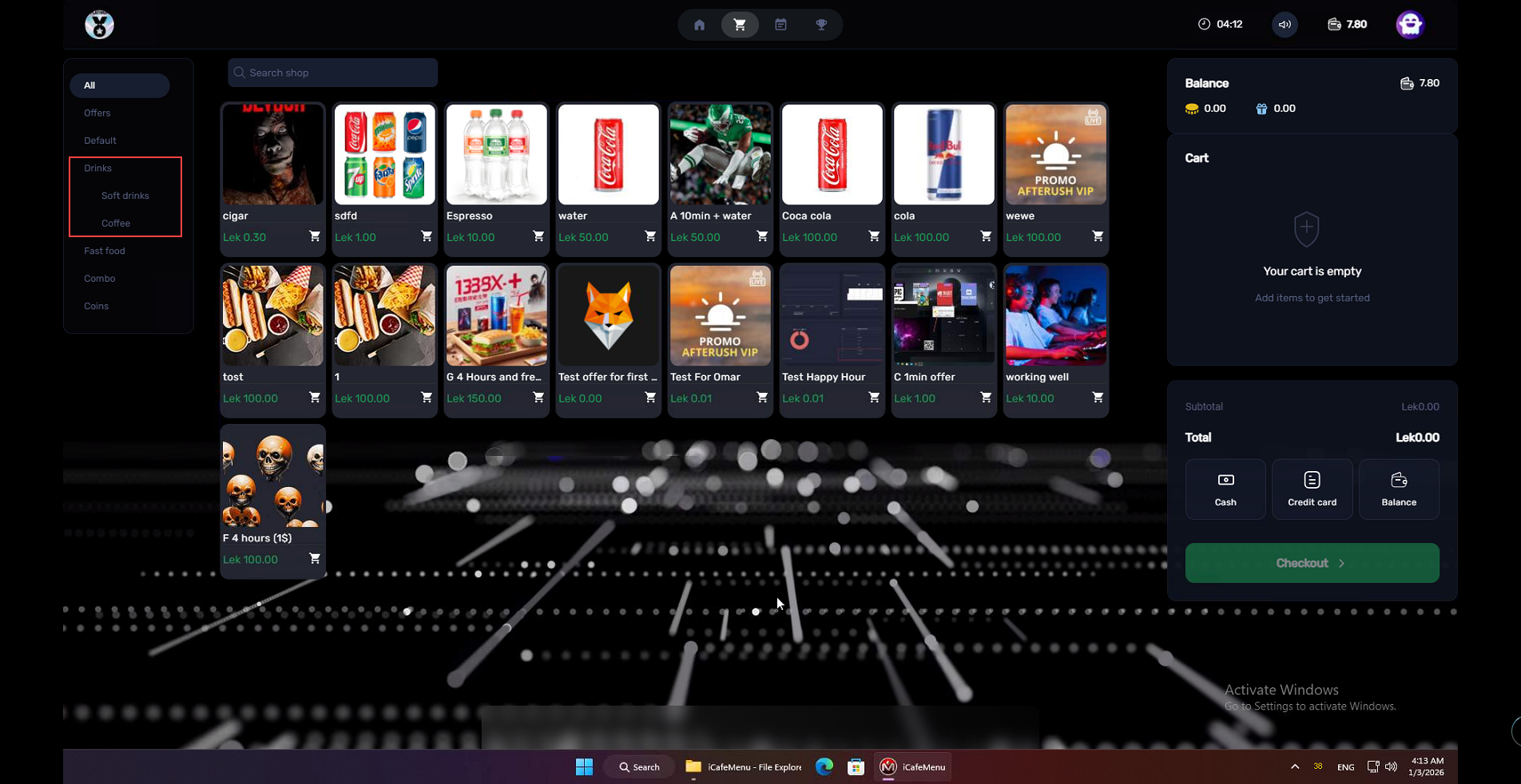
Figure 5
- The web portal also displays subcategories next to the main category.(Figure 6)
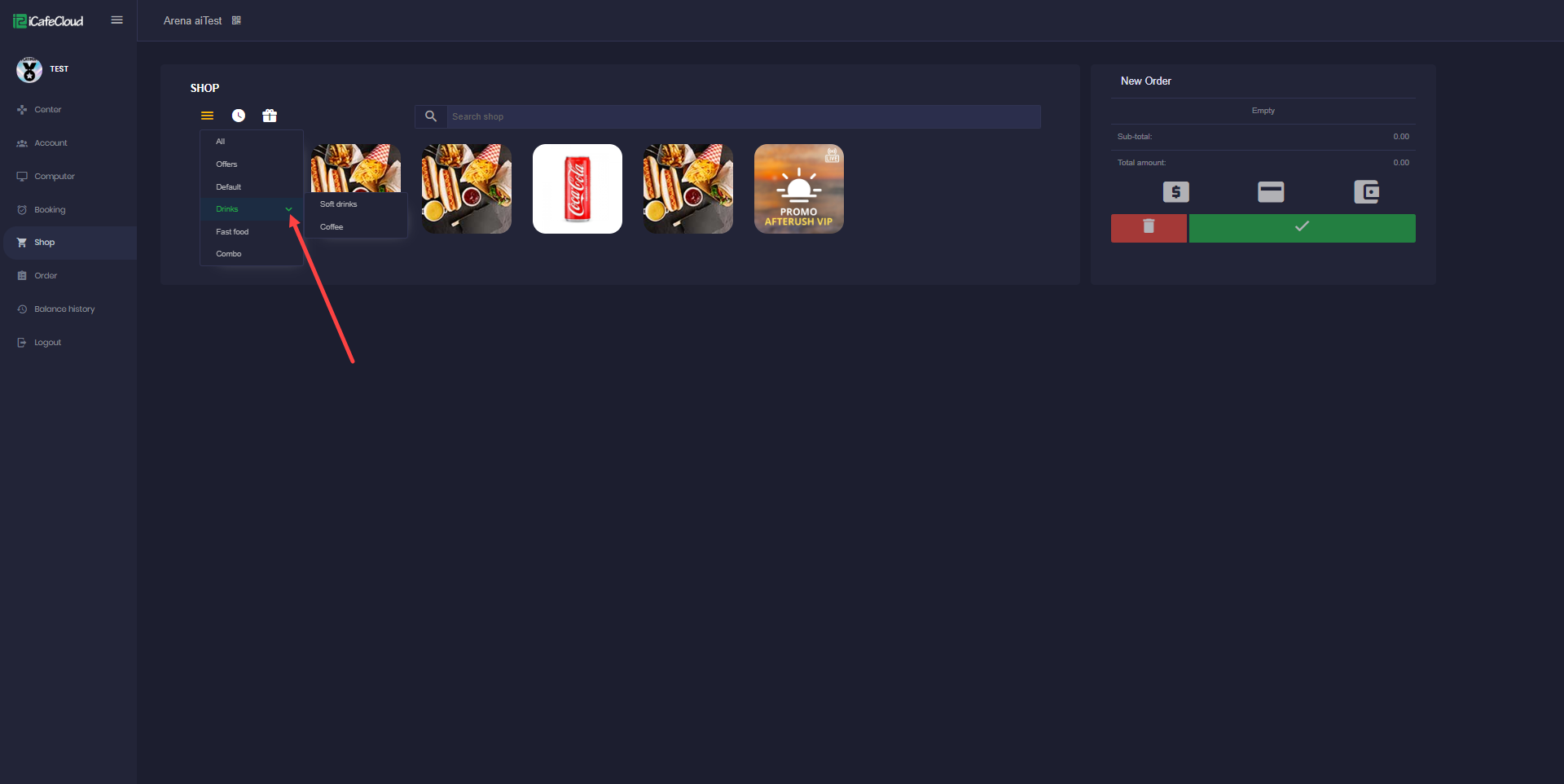
Figure 6