

The following explains how to compare reports across different time periods, such as days, weeks, months, and years, helping you track performance trends and business growth over time.
- Navigate to Reports → Income → Total. Then click the Comparison drop-down list to select a comparison period. (Figure 1)
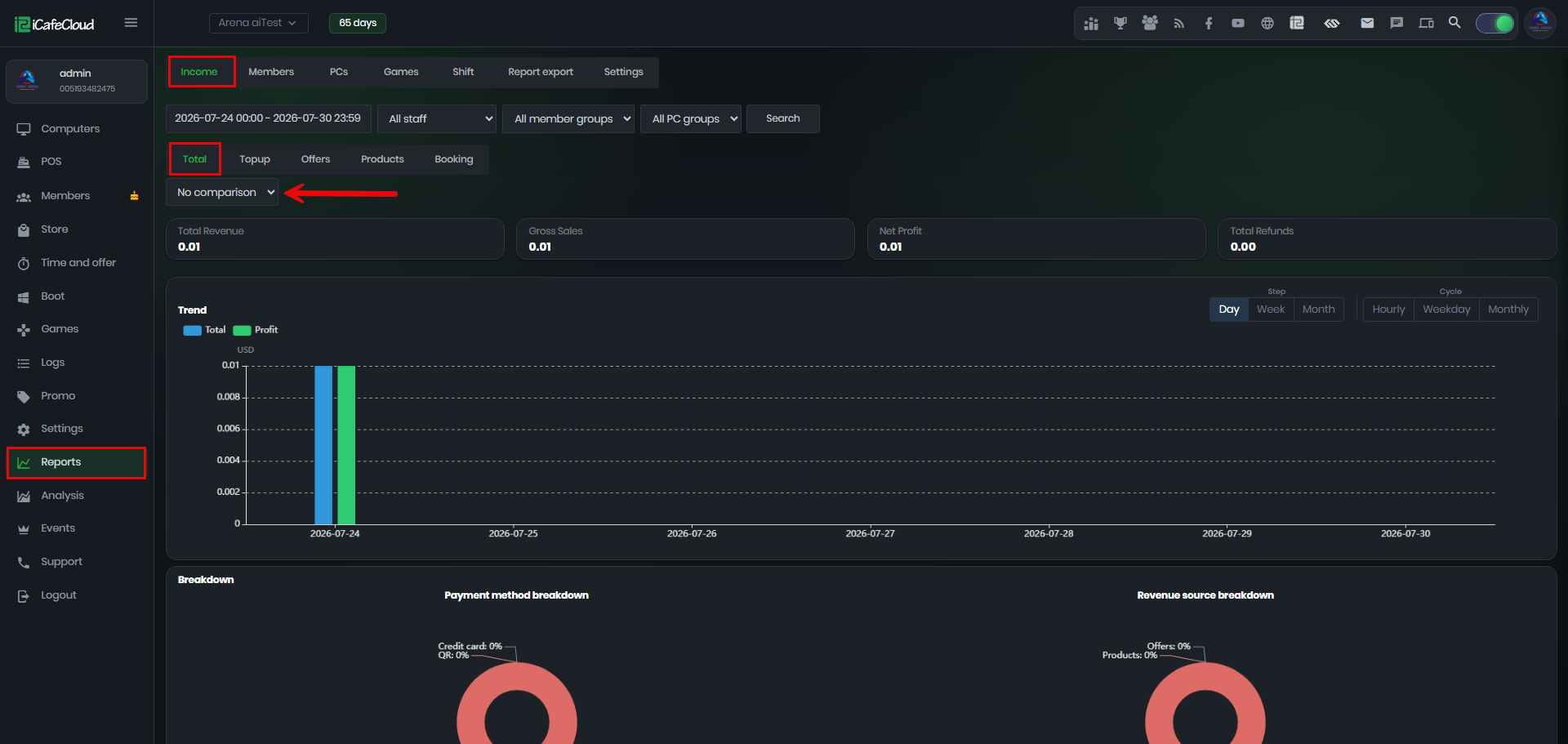
Figure 1
- Select the desired Date Range, then choose a Comparison period.
- For example, if you select Last 7 Days as the date range and Last Week as the comparison, the report will compare the selected 7-day period with the same 7-day period from the previous week. (Figure 2)
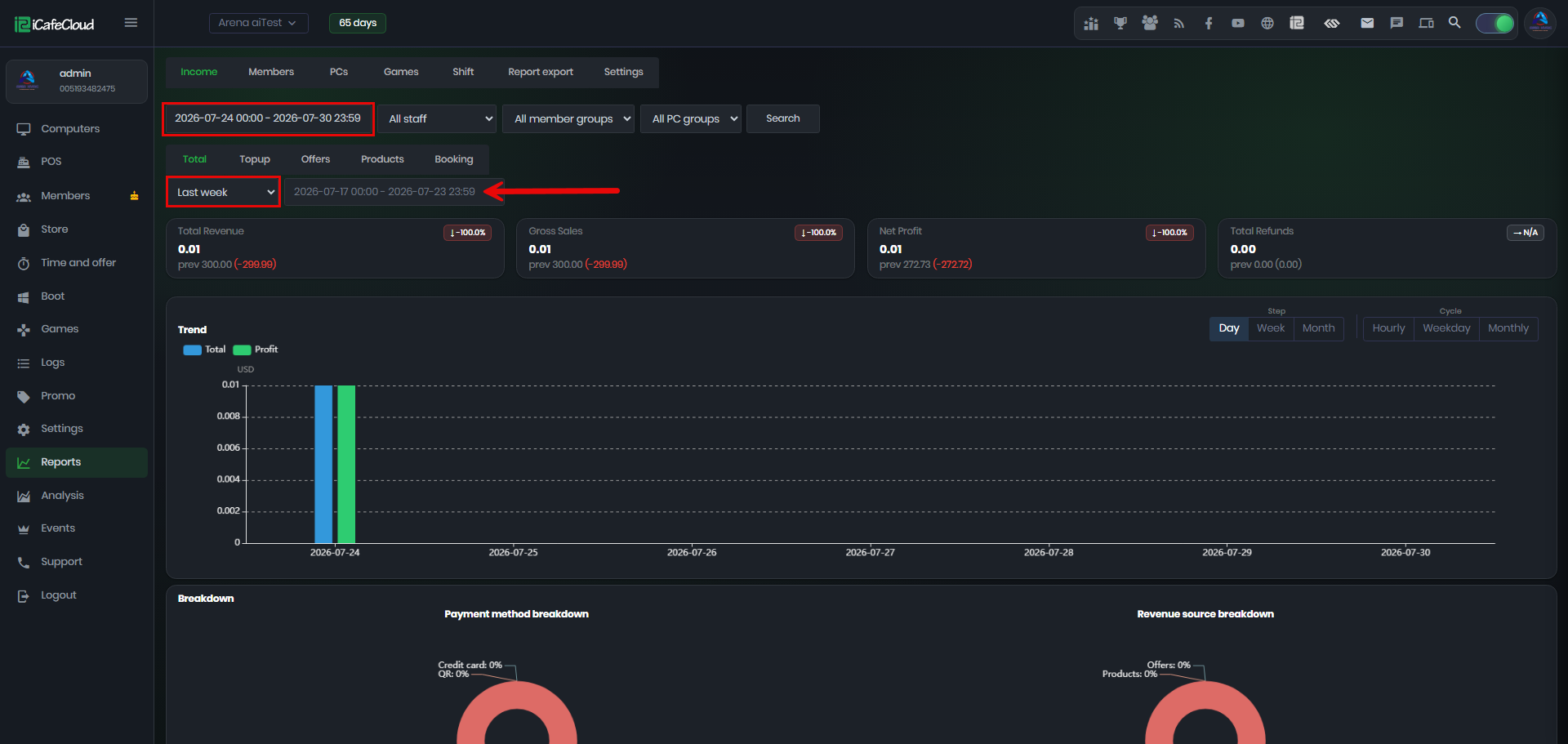
Figure 2
- There are three comparison periods available: Week, Month, and Year, allowing you to compare performance across different time ranges. (Figure 3)
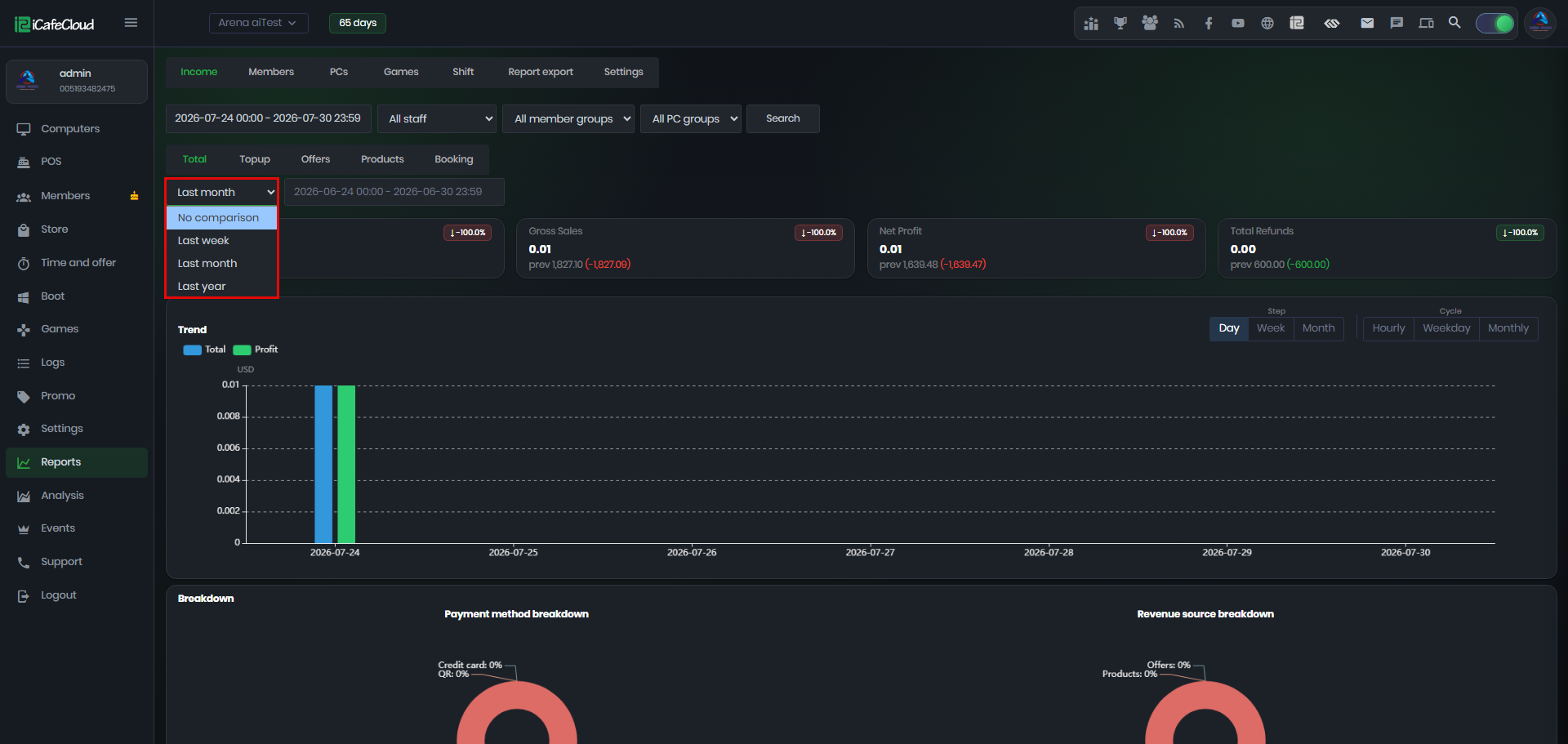
Figure 3
- The comparison results will be displayed in four cards: Total Revenue, Gross Sales, Net Profit, and Total Refund.
- Each card will show the performance change compared to the selected period, including both the percentage growth/loss and the actual amount difference. (Figure 4)
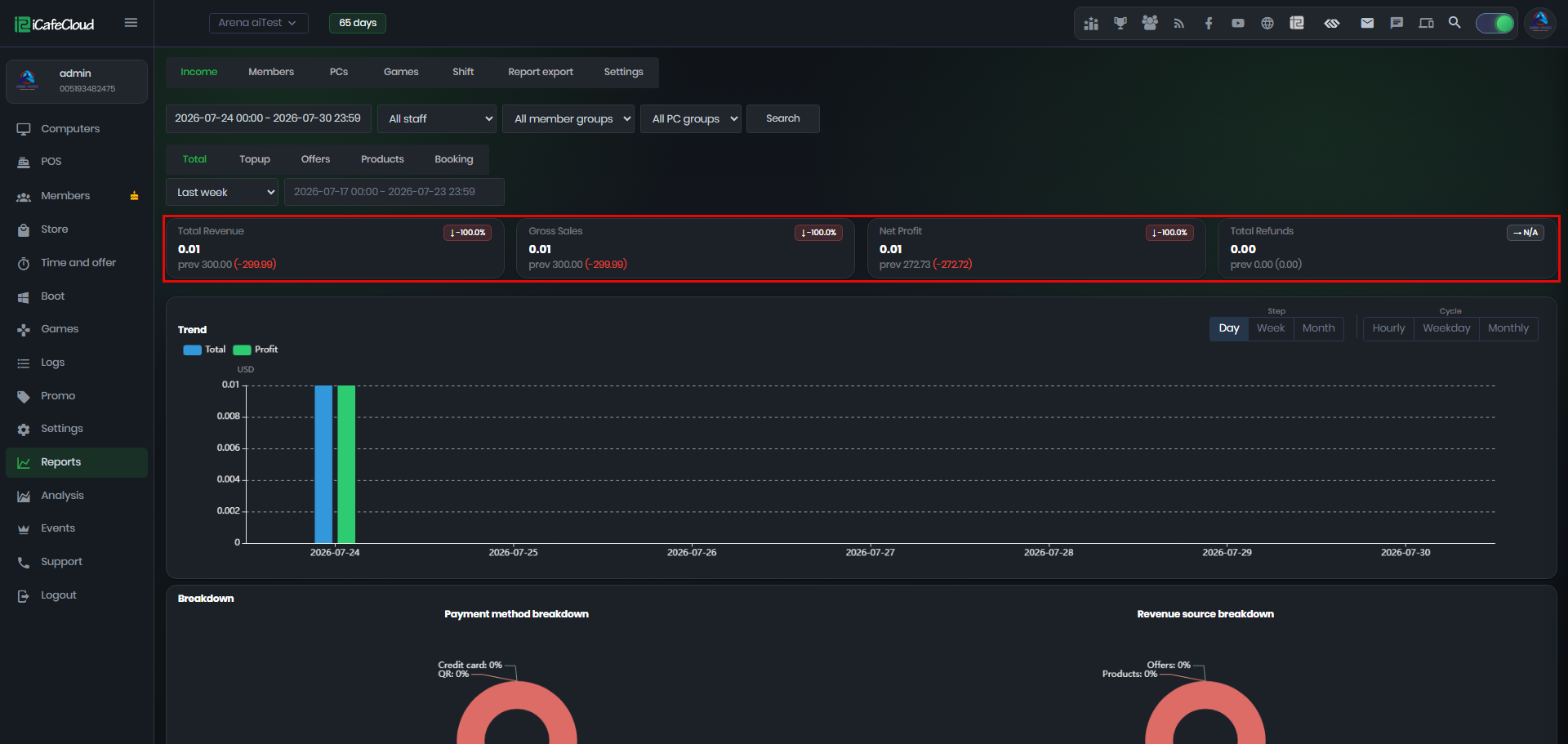
Figure 4