

The following steps explain how to upload your report data to your own Google Drive at different time intervals, allowing you to save it for future use.
- The report will be saved at 01:00 AM local time based on the selected schedule.
- Navigate to Reports and then to Settings. You’ll see the option "Save reports to GDrive". Next to it, click the dropdown button, which offers four options: None, Daily, Weekly, and Monthly. These options determine how often the reports will be automatically uploaded to your Google Drive. (Figure 1)
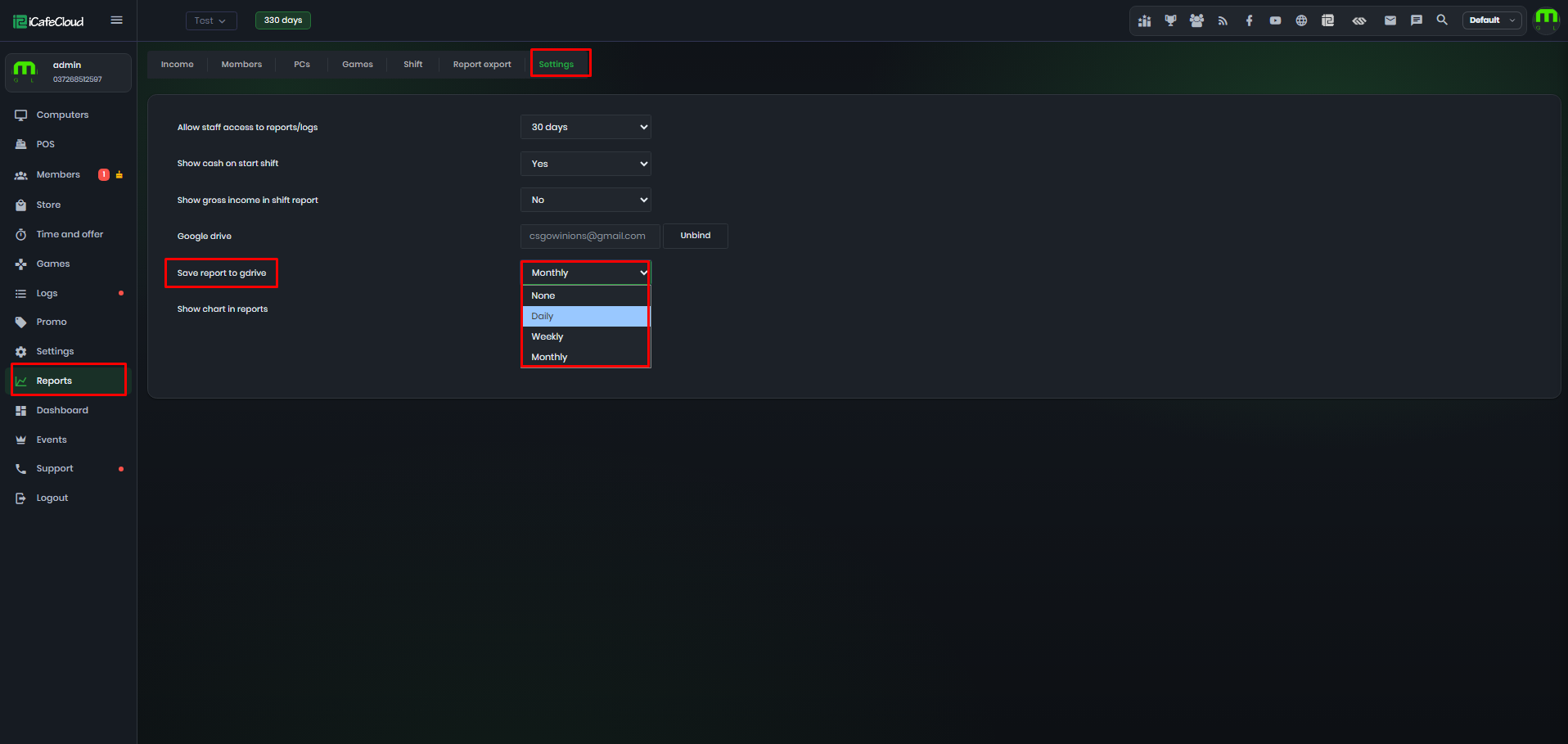
Figure 1
- A folder named iCafeCloudBackup will be automatically created in Google Drive. The system will generate CSV files within this folder according to the selected time period (Figure 2).
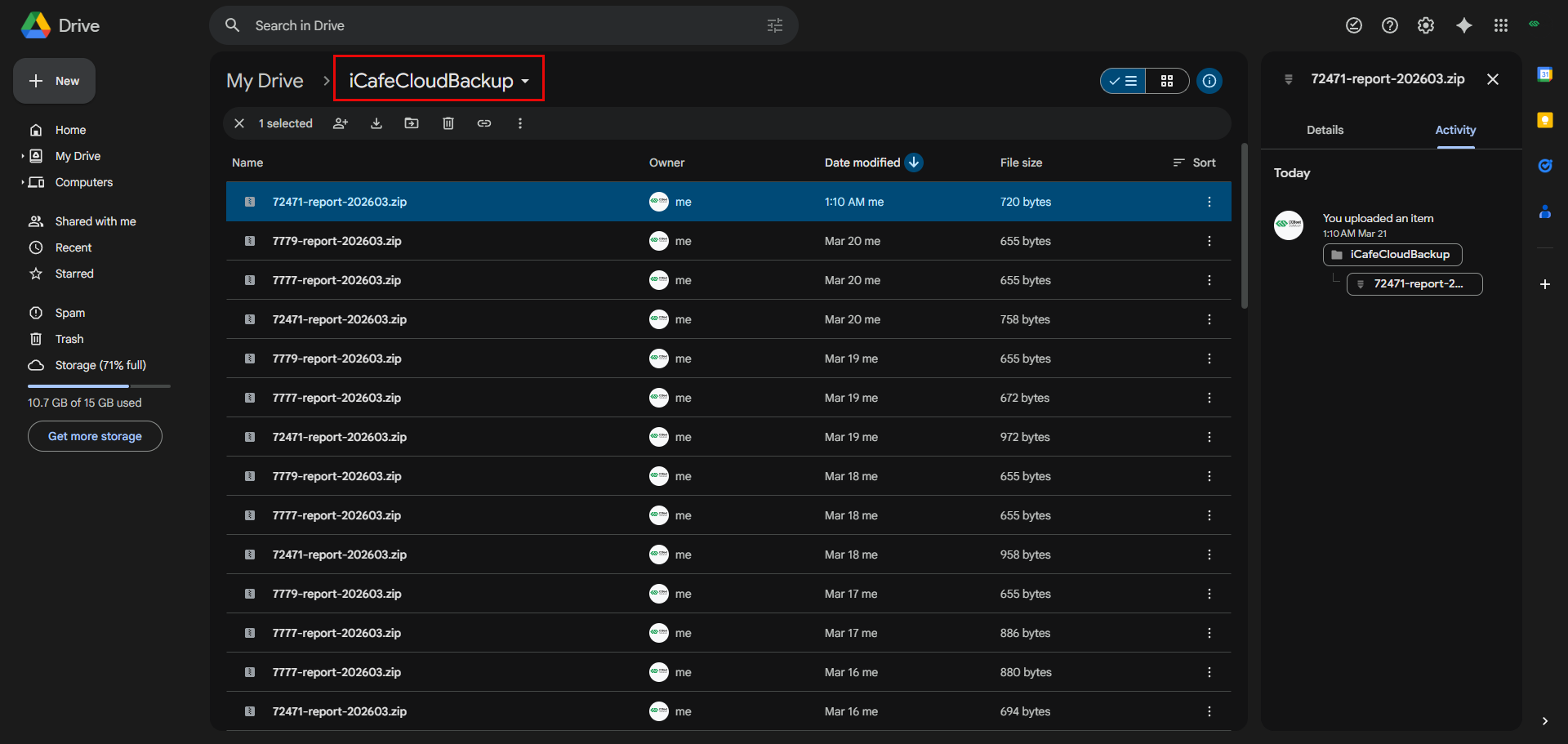
Figure 2
- Download the generated CSV file, which contains all report data in a single file, to your local system. You can then analyze the data on a daily, weekly, or monthly basis (Figure 3).
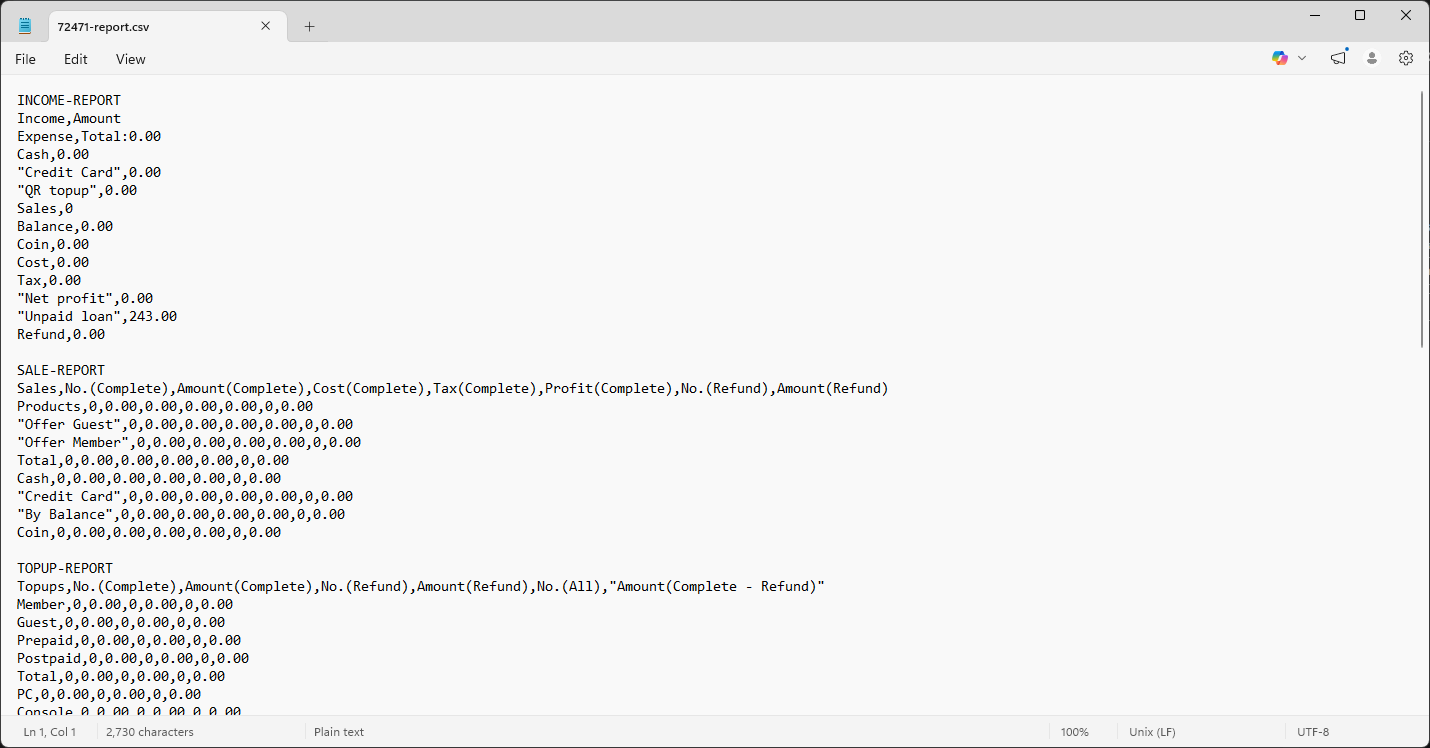
Figure 3