

The following explains how to enable the electric border animation for offers that use the Promoted functionality When this option is enabled, any offer marked as Promoted will be highlighted with an animated electric border, making it more visible to users compared to standard offers.
- Go to Time and offer page - settings and change the “Show electric border for offer” to Yes (Figure 1)
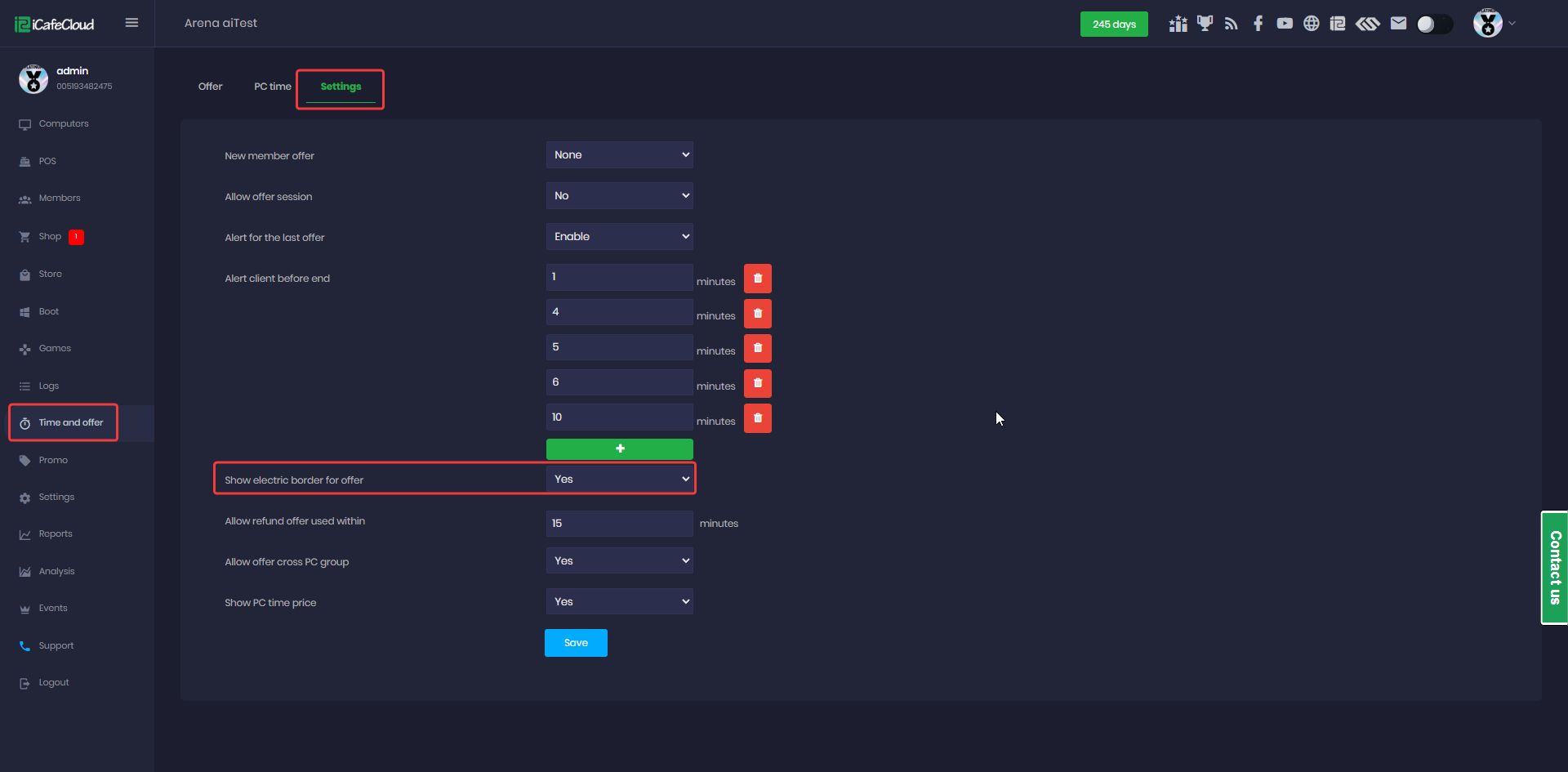
Figure 1
- Go to Offer , select the offer you want to edit, enable the Promoted option by ticking the checkbox, and then click Edit to save the changes (Figure 2).
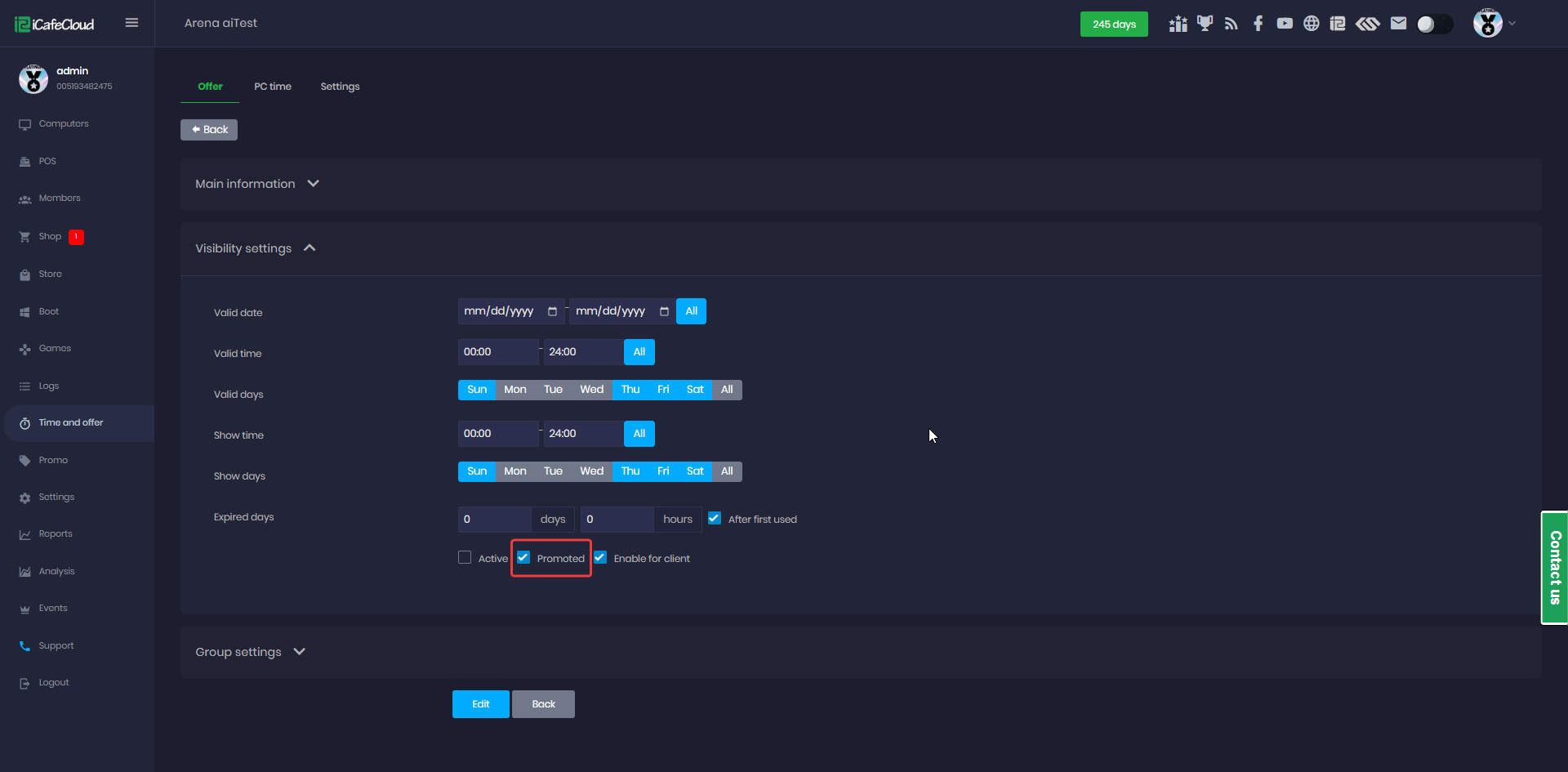
Figure 2
- Once the active offer changes from a promoted offer to a different offer, the electric border is automatically removed.
- On the client side, while a promoted offer is in use, an electric border animation will be visible on both the Games page and the Shop page, indicating that the promoted offer is currently active. (Figure 3)
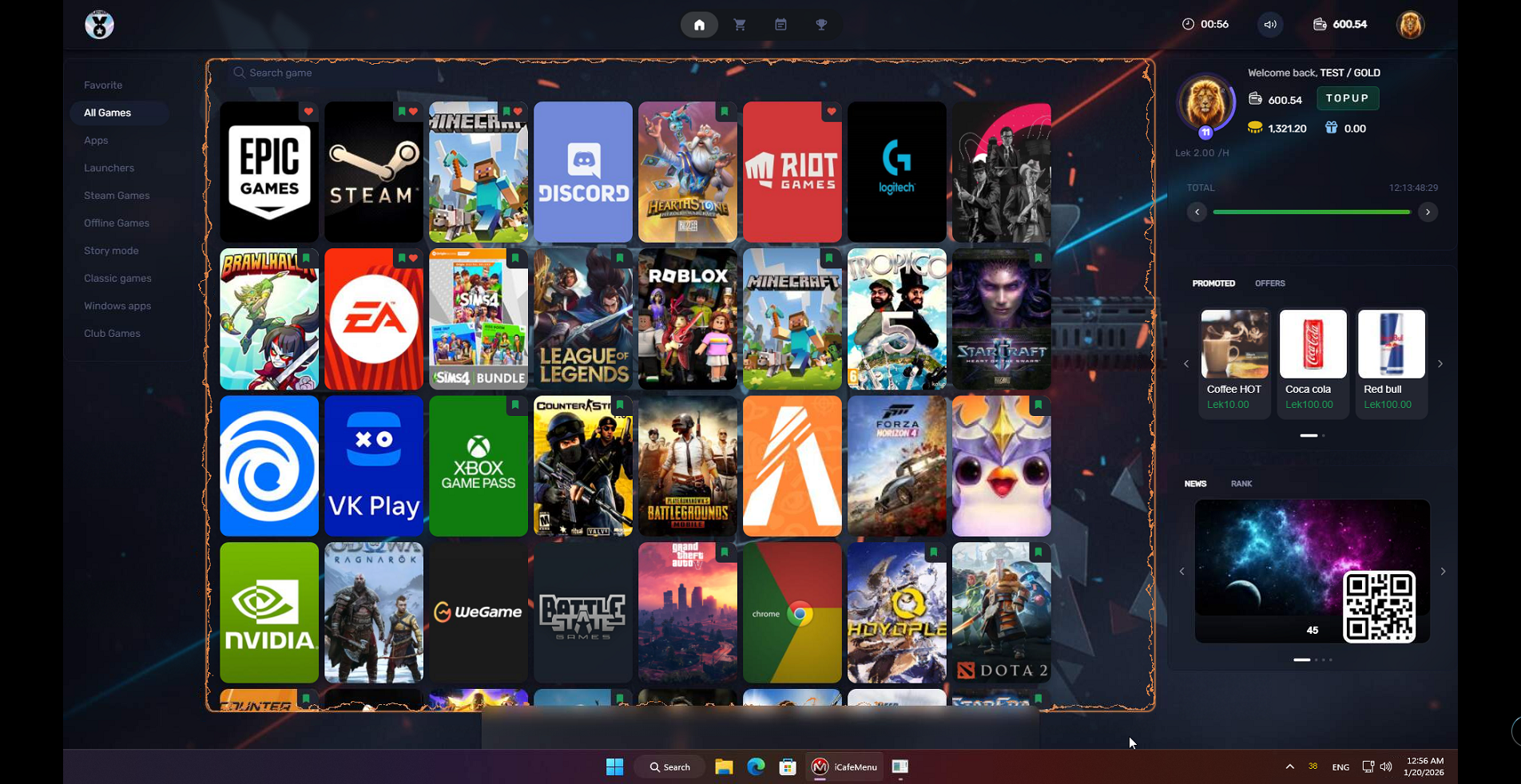
Figure 3