

The following explains how to change the color of each offer in the Offer Calendar. Assigning different colors to offers makes it easier to identify available time slots, distinguish between offers, and quickly locate schedule changes.
- Navigate to Times & Offers → Offers, then select and edit one of the available offers. (Figure 1)
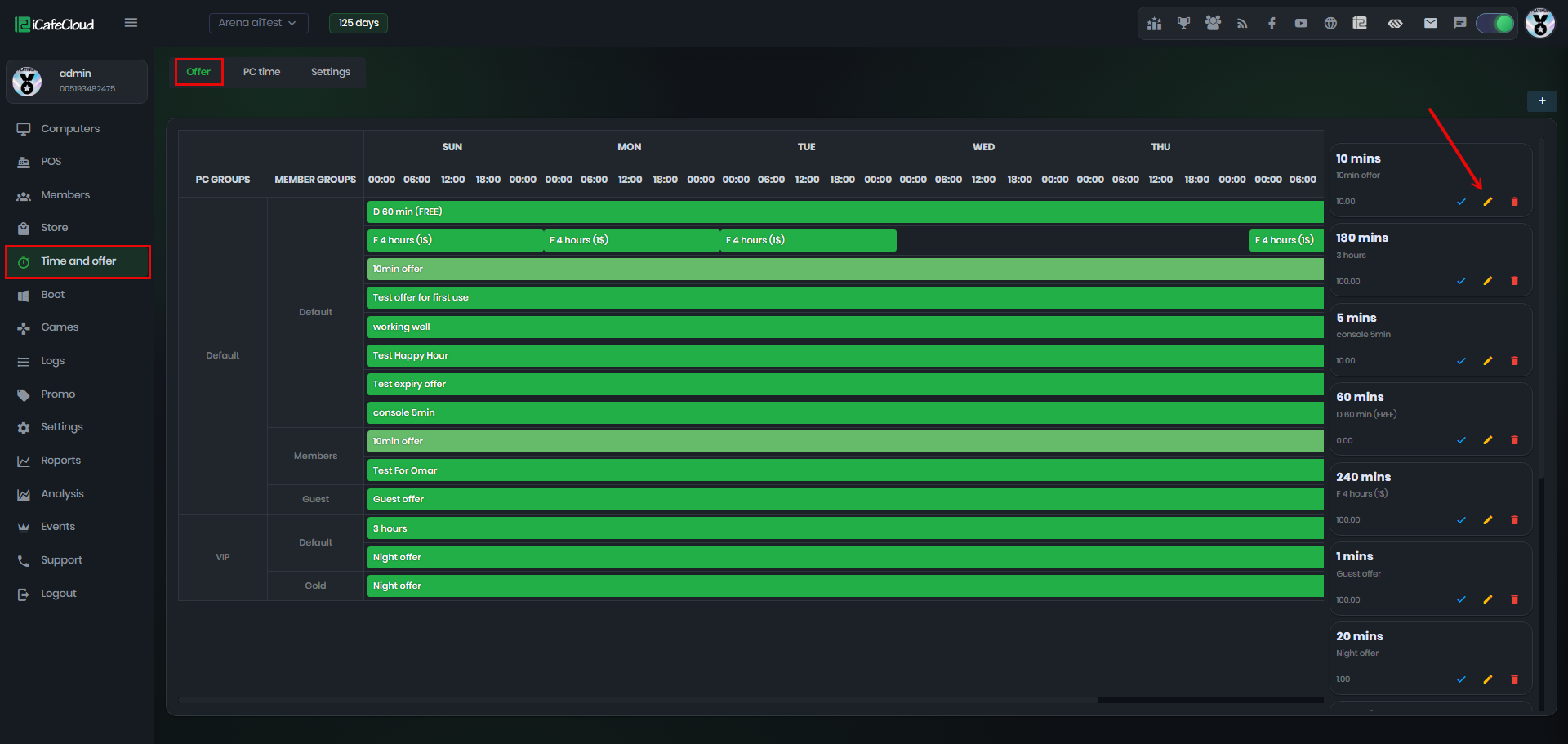
Figure 1
- Next, click the Offer Color field, select the desired color for the offer, and then click Save to apply the changes. (Figure 2)
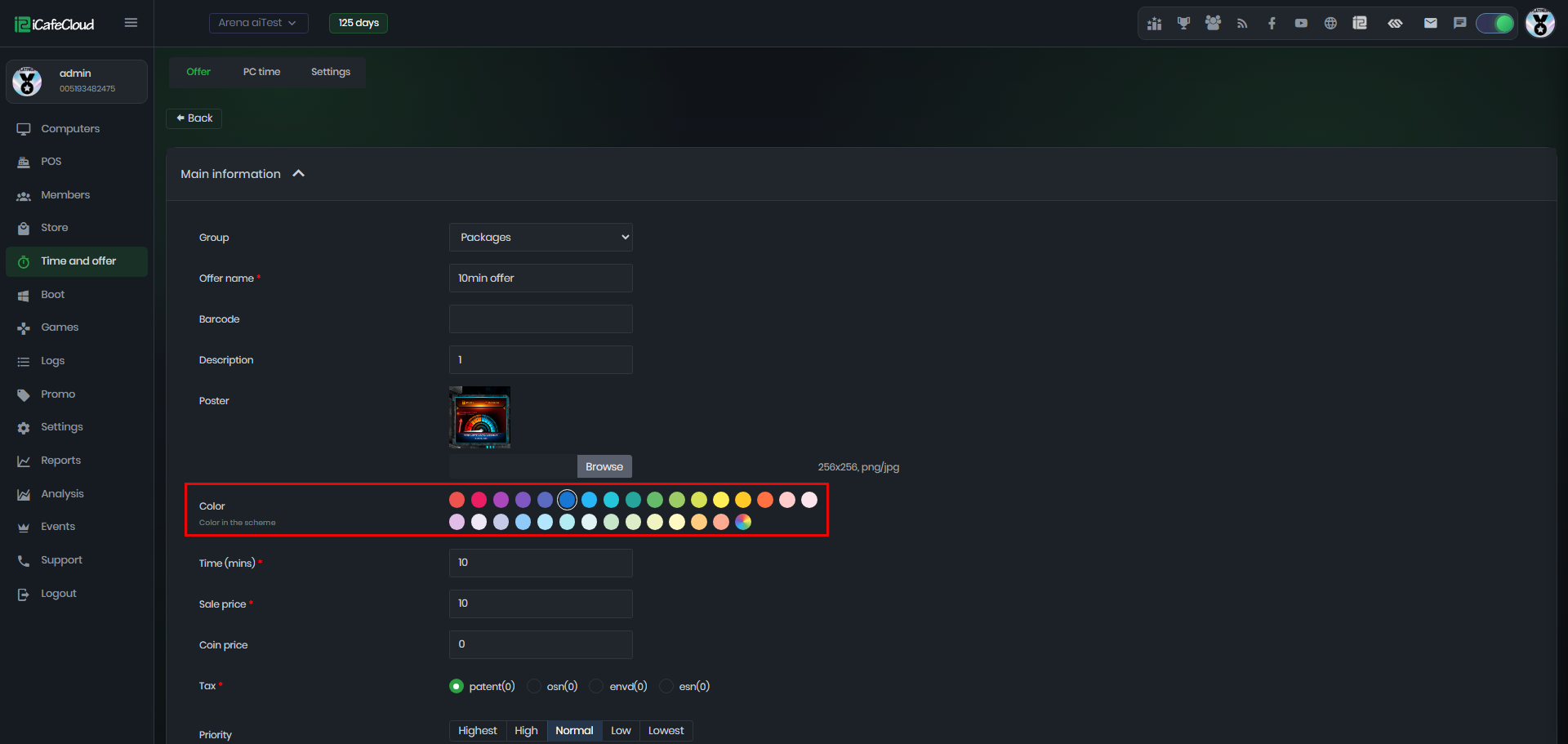
Figure 2
- The offers in the calendar will now be displayed using the selected colors, making it easier to distinguish between different offers and identify scheduled time slots. (Figure 3)
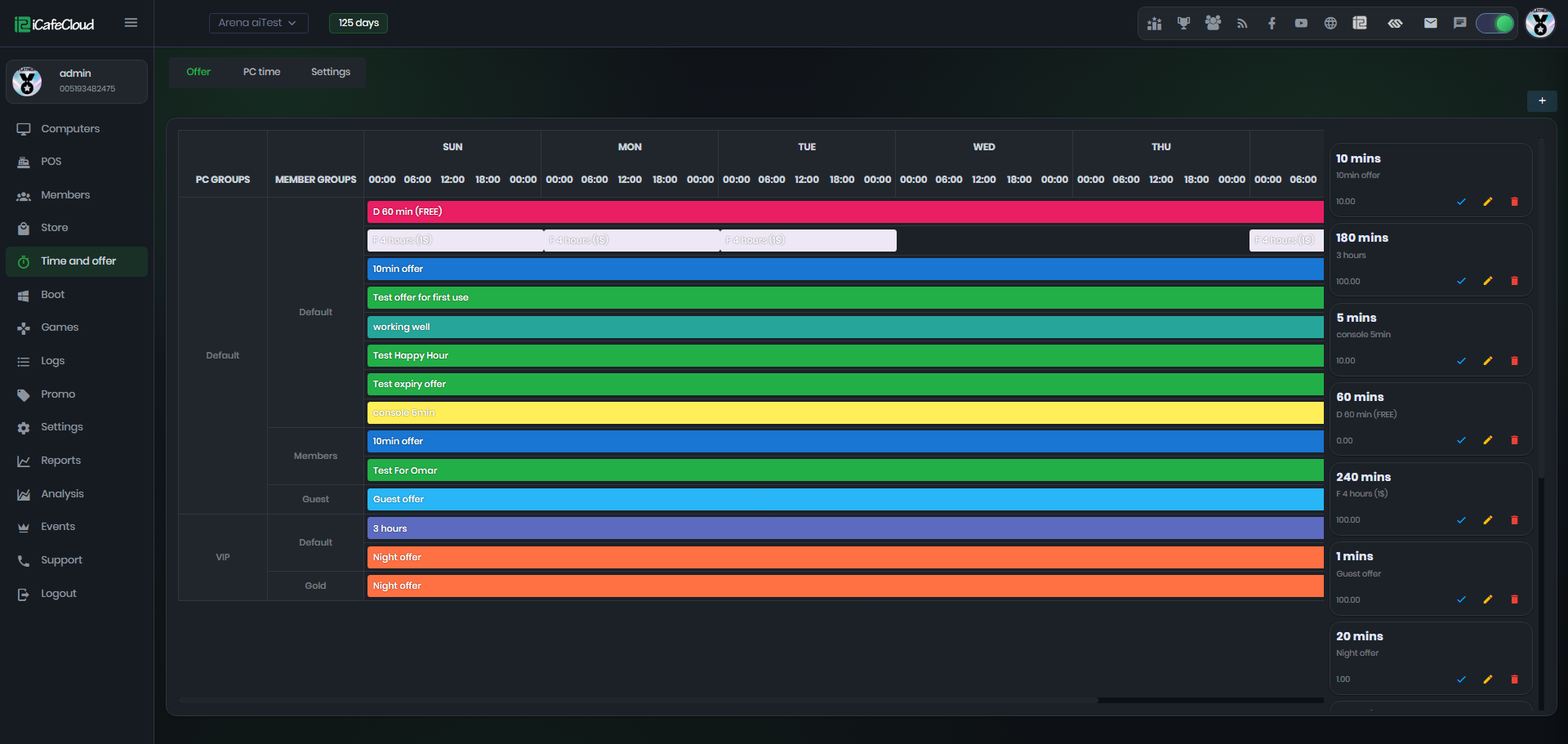
Figure 3