

The following explains how to configure offer access between different PC groups, allowing offers purchased for higher-level groups to also be used on lower-level groups.
- Navigate to Time and offer → Settings.
- Locate the option "Allow offer cross PC group" and change its value to Yes. (Figure 1).
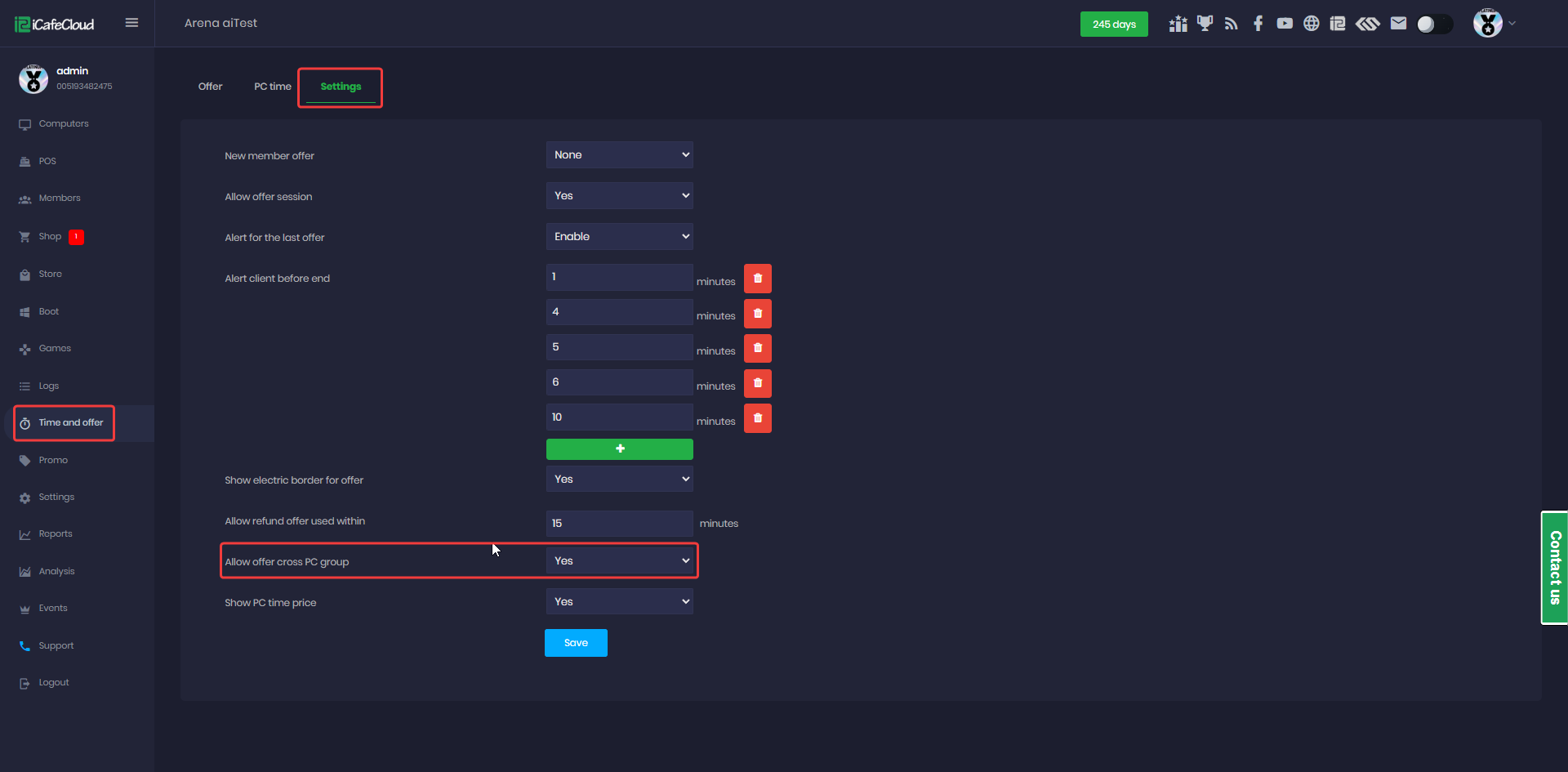
Figure 1
- This setting allows offers purchased for a higher-level PC group to also be used on lower-level PC groups.
- When setting up your PC groups, assign them levels using numbers:
Level 1 represents the lowest group (e.g., Budget or Basic PCs). - Progressively higher numbers (2, 3, 4, etc.) represent groups with higher priority or more features.
Example Setup:
Group "Budget PCs" = Level 1
Group "Standard PCs" = Level 2
Group "VIP PCs" = Level 3 - With this configuration, an offer purchased for VIP PCs (Level 3) can also be used on Standard (Level 2) and Budget PCs (Level 1).
- An offer purchased in a lower-level group cannot be used in a higher-level group. (Figure 2)
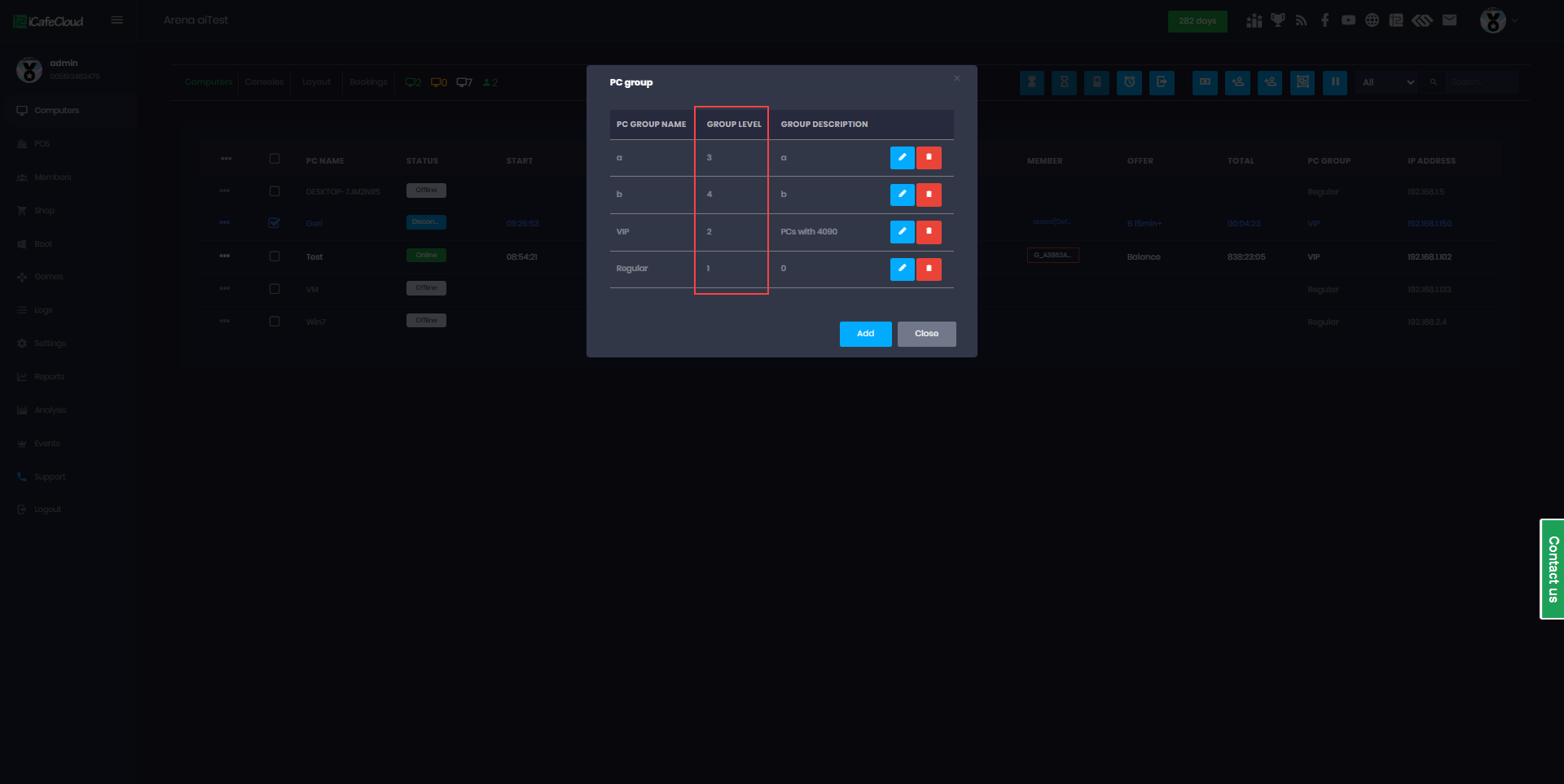
Figure 2
- If an offer is created to be used only on a specific PC group (e.g., VIP), and the VIP group is set at a higher level, then this offer can also be used on all groups at lower levels. (Figure 3)
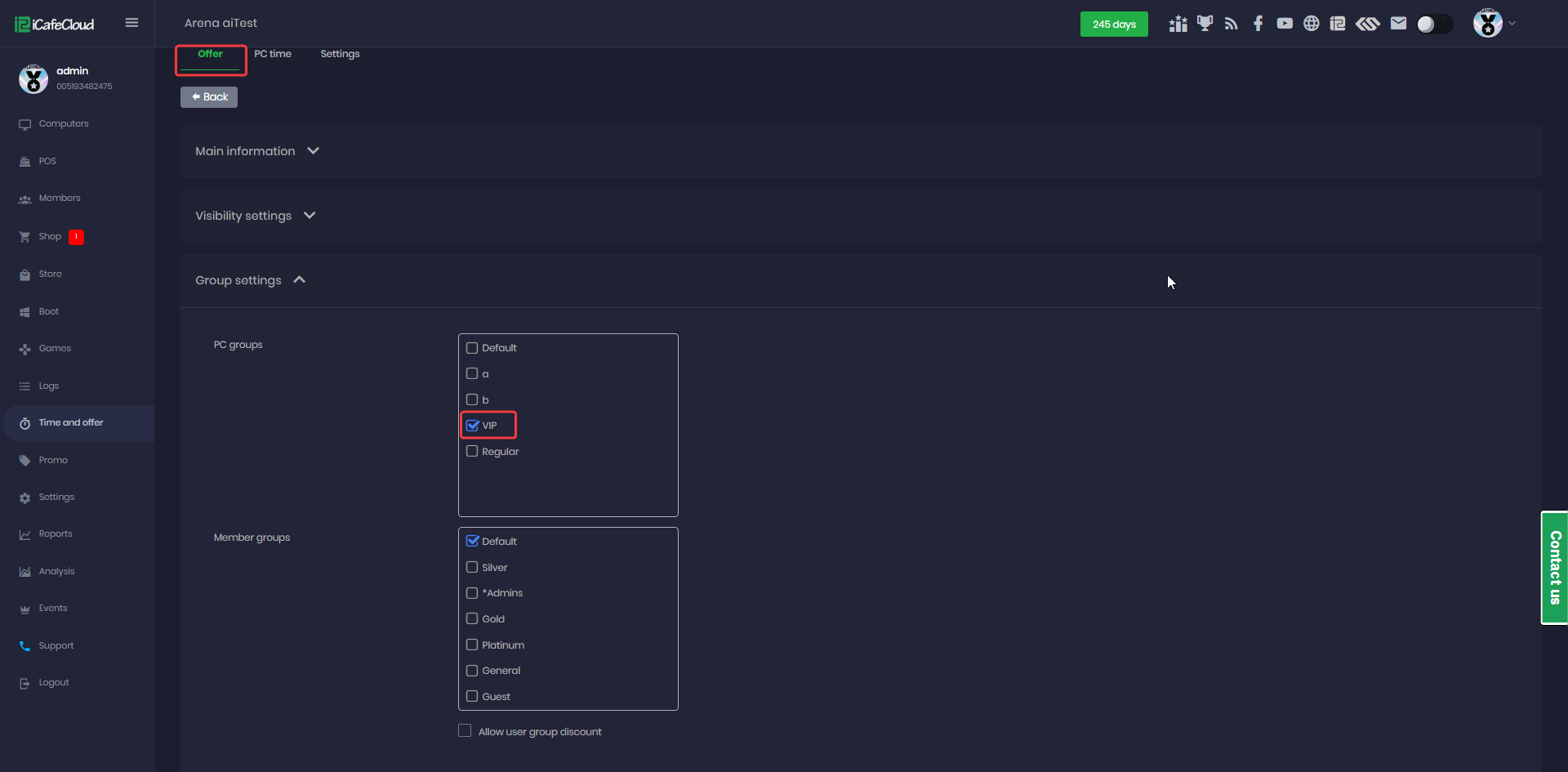
Figure 3
- That same offer can also be used on lower PC groups, such as a Regular group, because it is a lower level than VIP. (Figure 4)
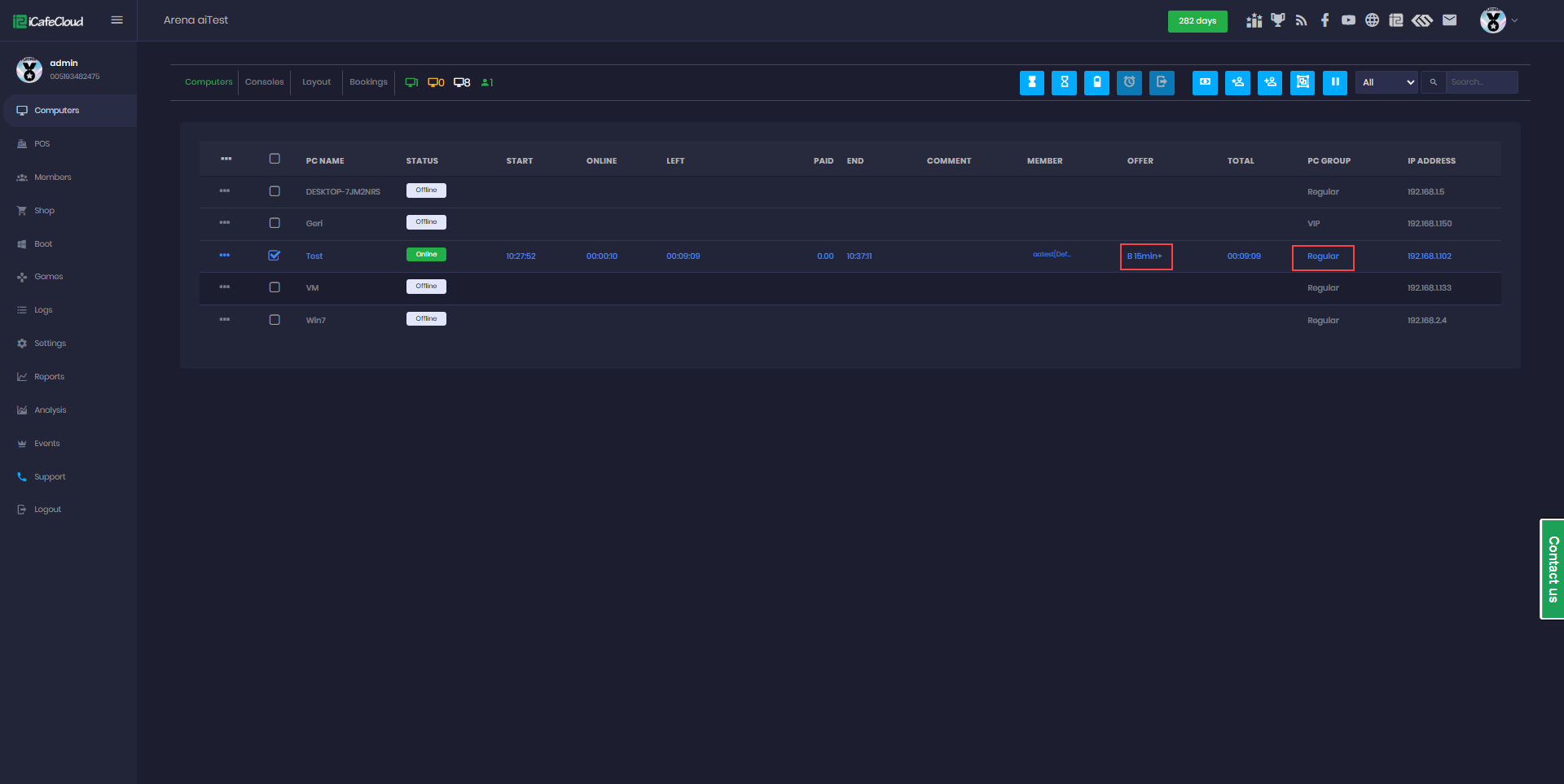
Figure 4