

The following explains how to configure Use remote UI (icafemenu) on client PCs without requiring a local server. In Serverless mode, iCafeMenu automatically downloads and updates its interface from the cloud, ensuring clients always use the latest version without hosting any iCafeMenu files on the server.
- Navigate to Settings → Client Settings, then set “use remote UI iCafeMenu” to Yes. (Figure 1)
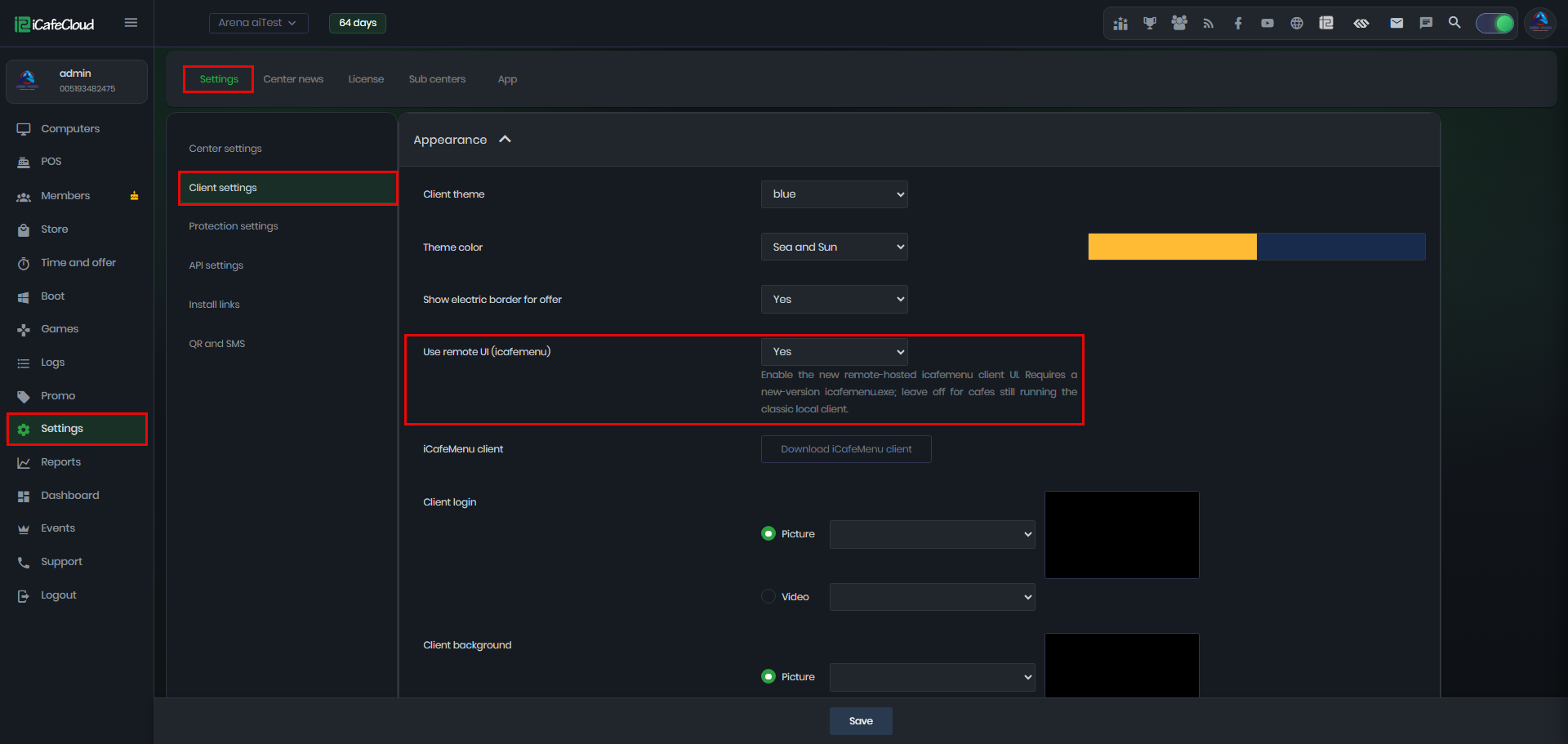
Figure 1
- Download the iCafeMenu Client using the Download button, then copy it to a USB drive or any storage device so you can install it on the client PCs later. (Figure 2)
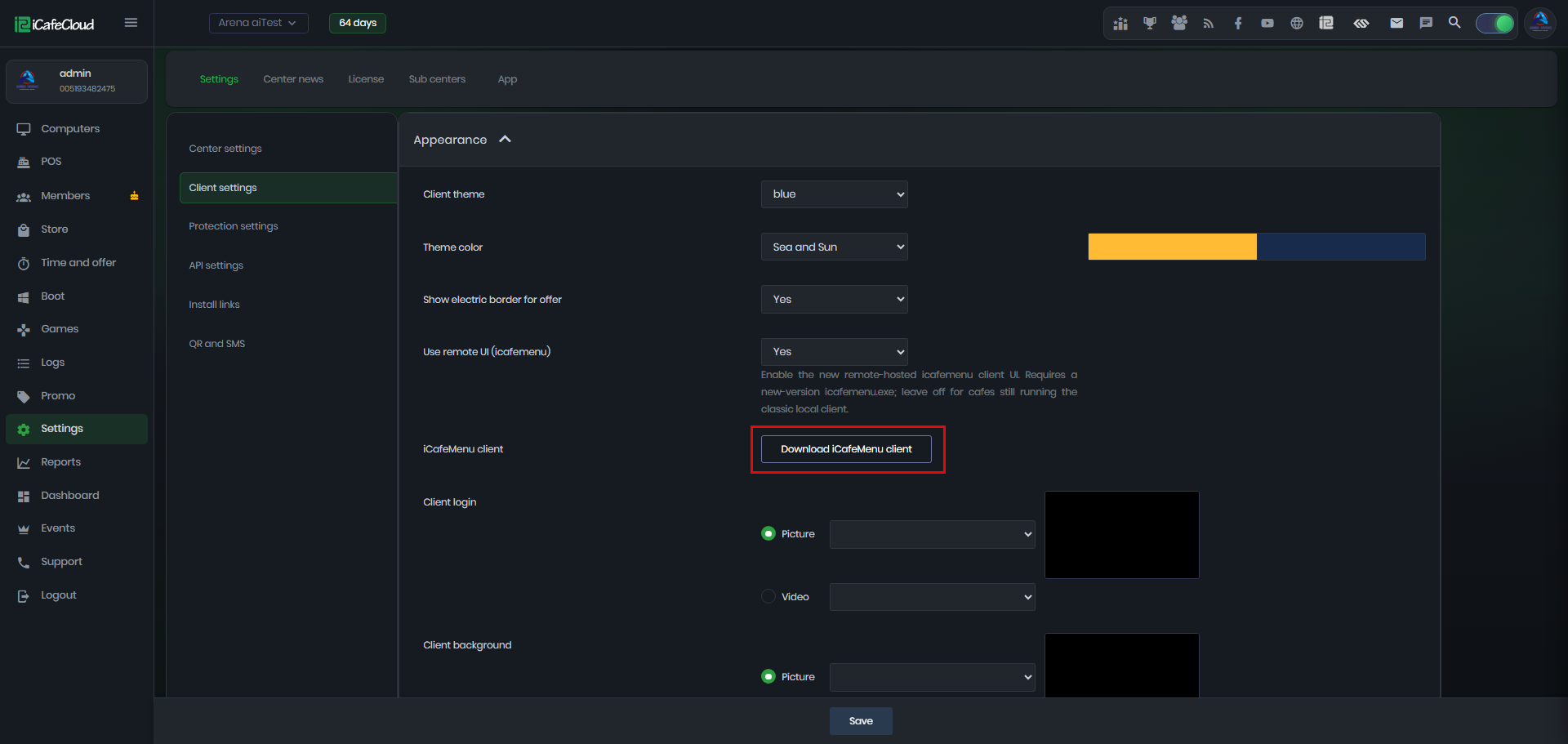
Figure 2
- On the client PC, copy the iCafeMenu files you downloaded earlier to the desired drive. In this example, the files are placed in C:\Apps.zip. (Figure 3)
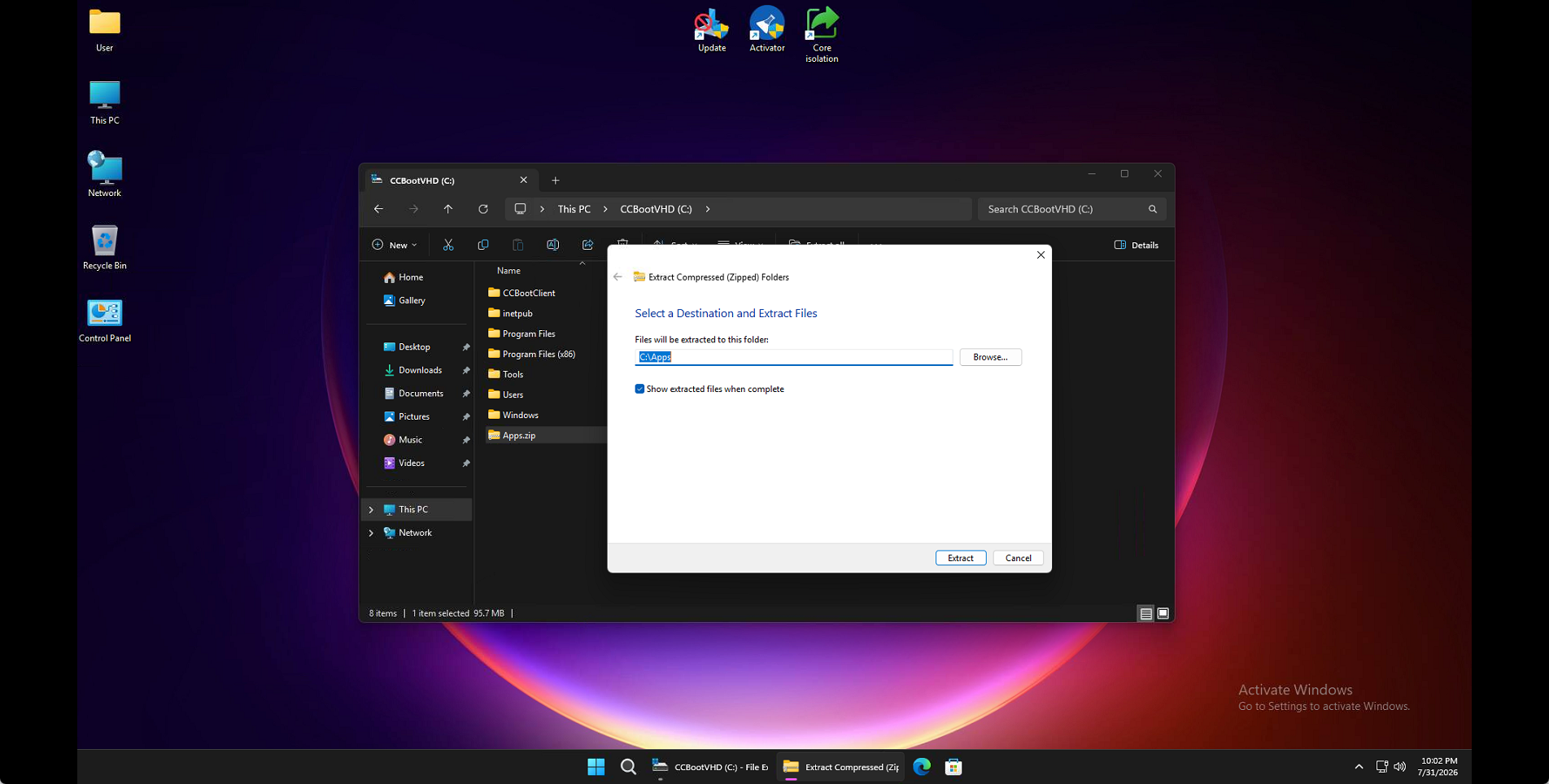
Figure 3
- Extract the archive to the same drive, creating the C:\Apps folder. Once extracted, open the folder and run iCafeMenu.exe. (Figure 4)
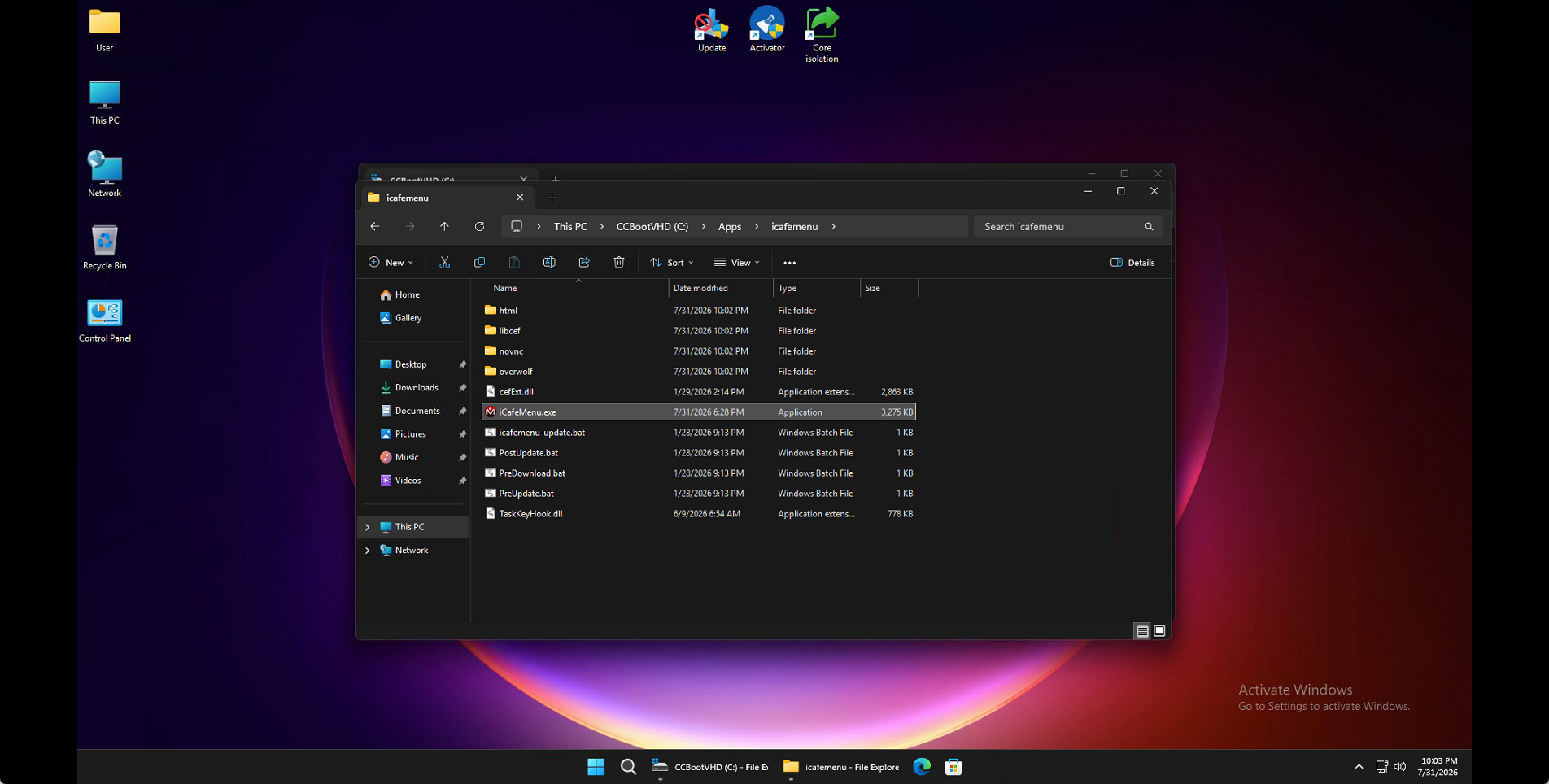
Figure 4
- After a few seconds, iCafeMenu will automatically download all required files from the cloud and will be ready to use. (Figure 5)
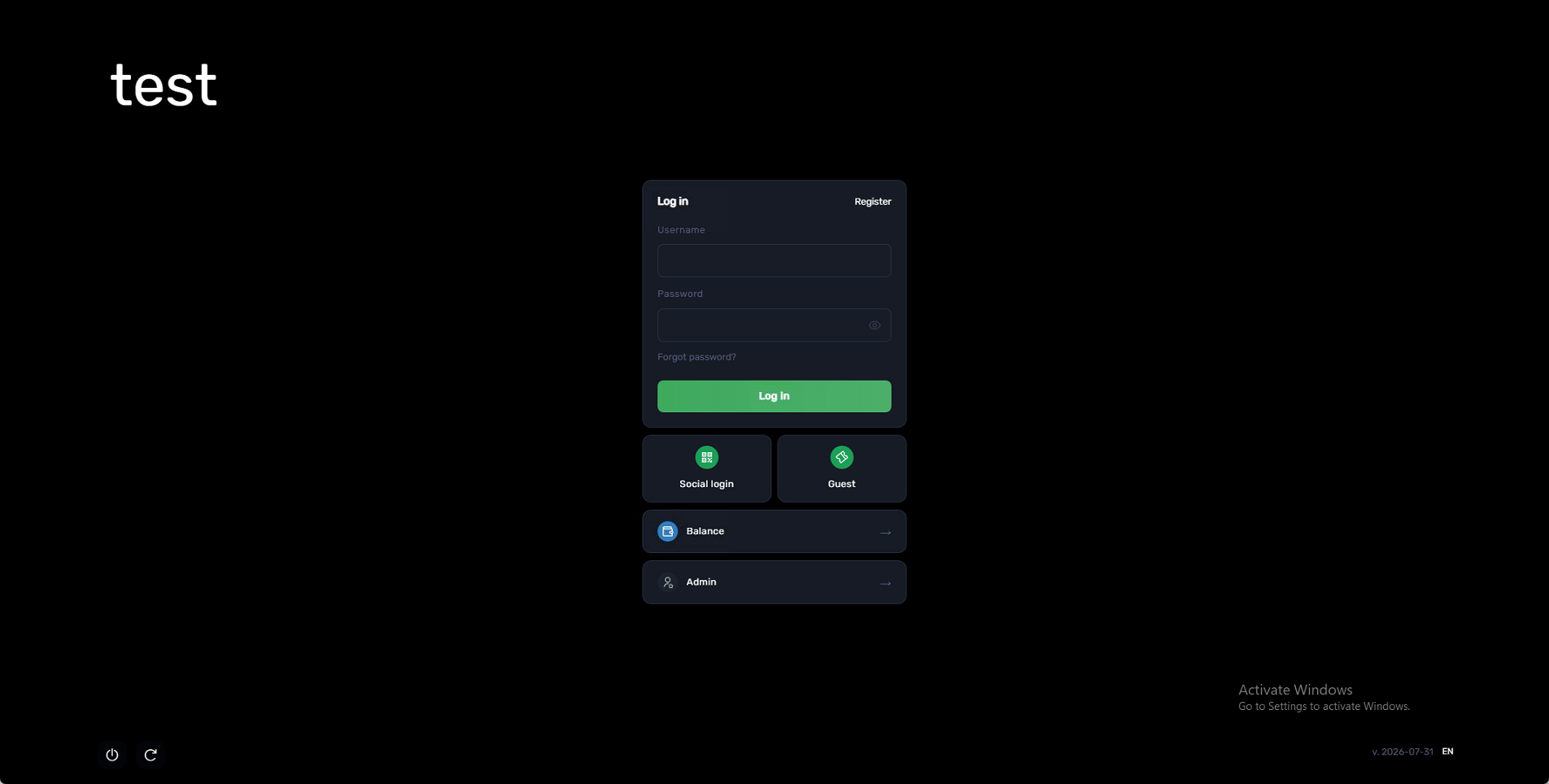
Figure 5