

The following explains how to create a Kitchen account and use it to manage and prepare orders received from the shop.
- Navigate to Members → Employees, then create a new employee account. (Figure 1)
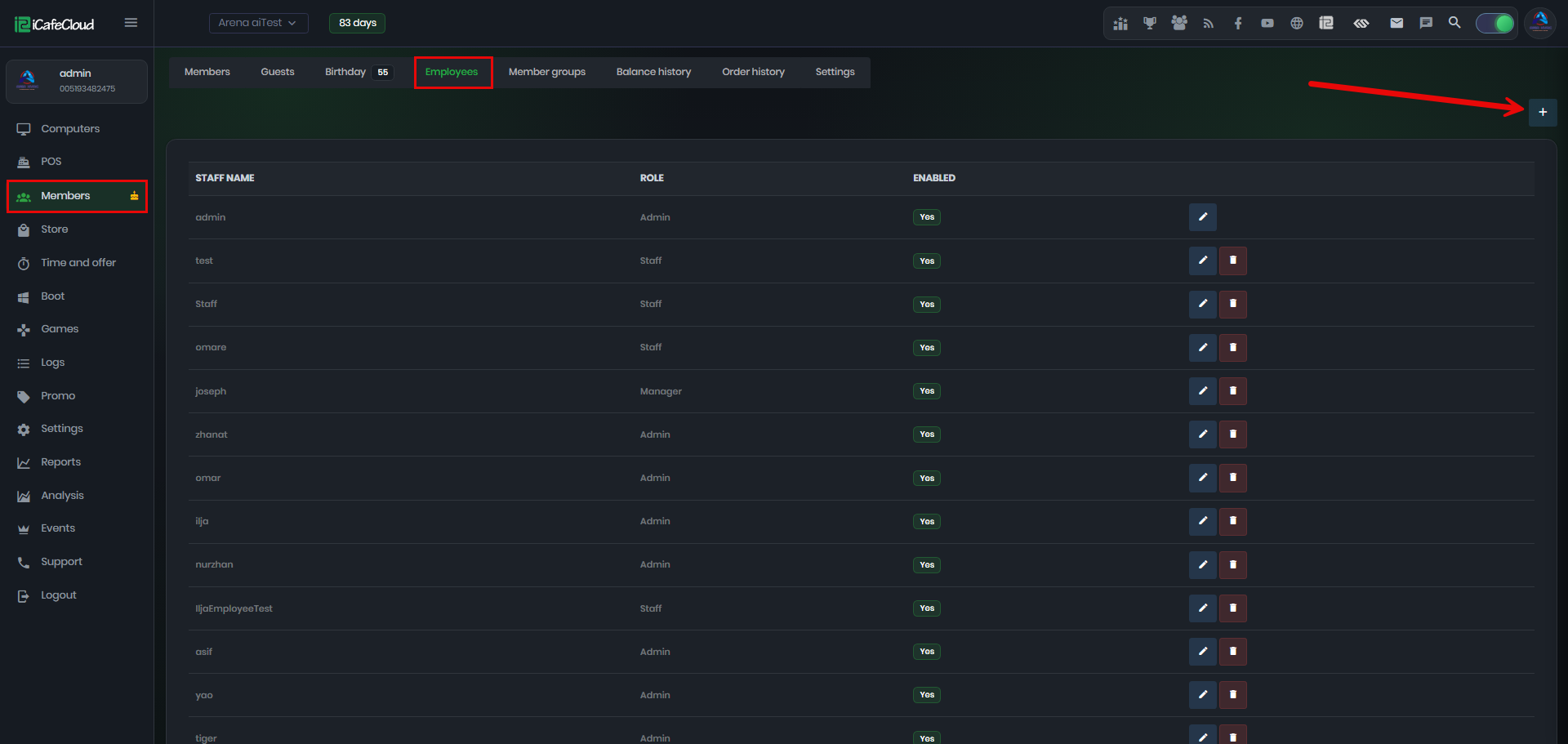
Figure 1
- Enter the preferred staff name and password, then select Kitchen as the Staff Role and click save.(Figure 2)
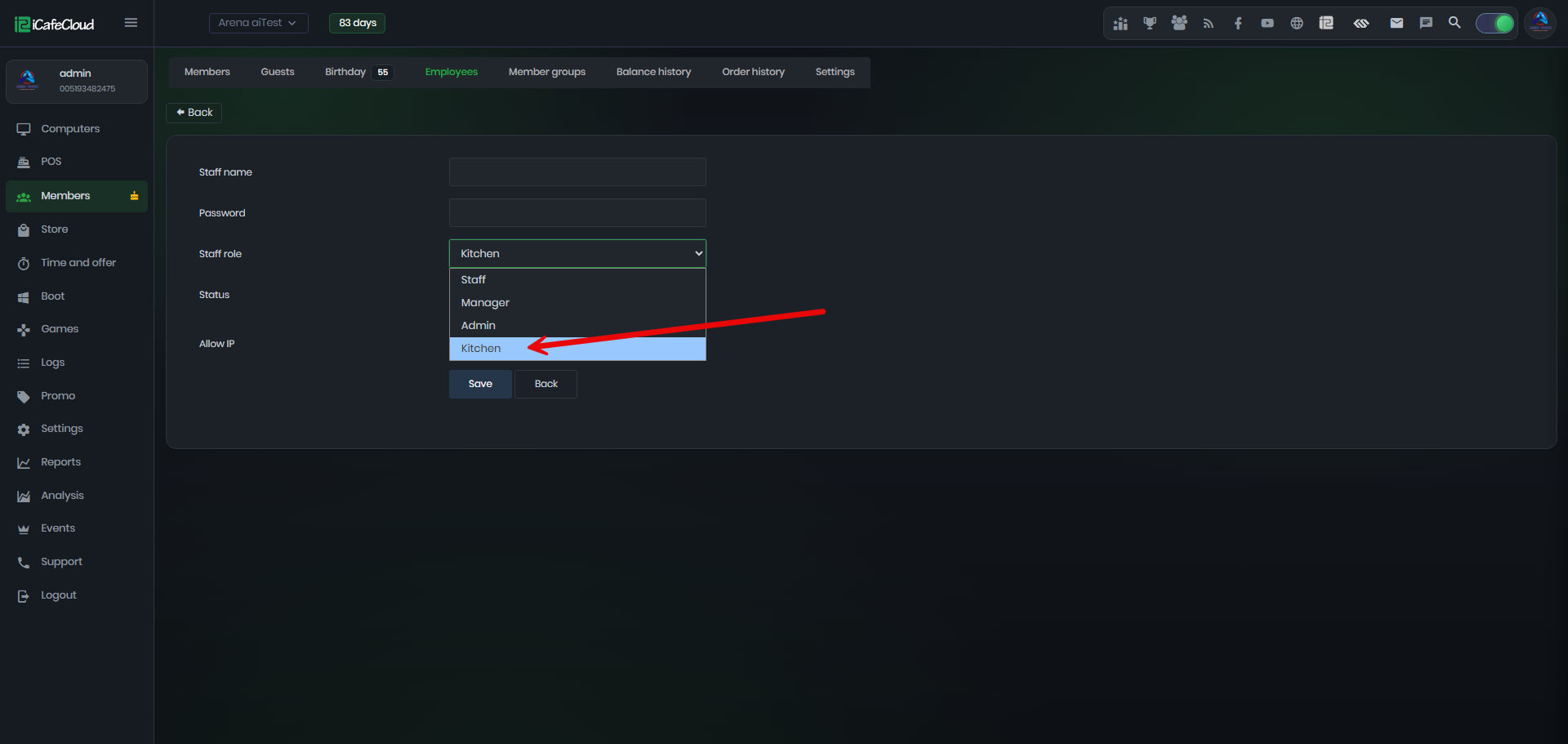
Figure 2
- Next, in the Store, create a product group for the kitchen, or use an existing group related to kitchen items. Then edit each product and assign the appropriate Kitchen staff account from the available list. (Figure 3)
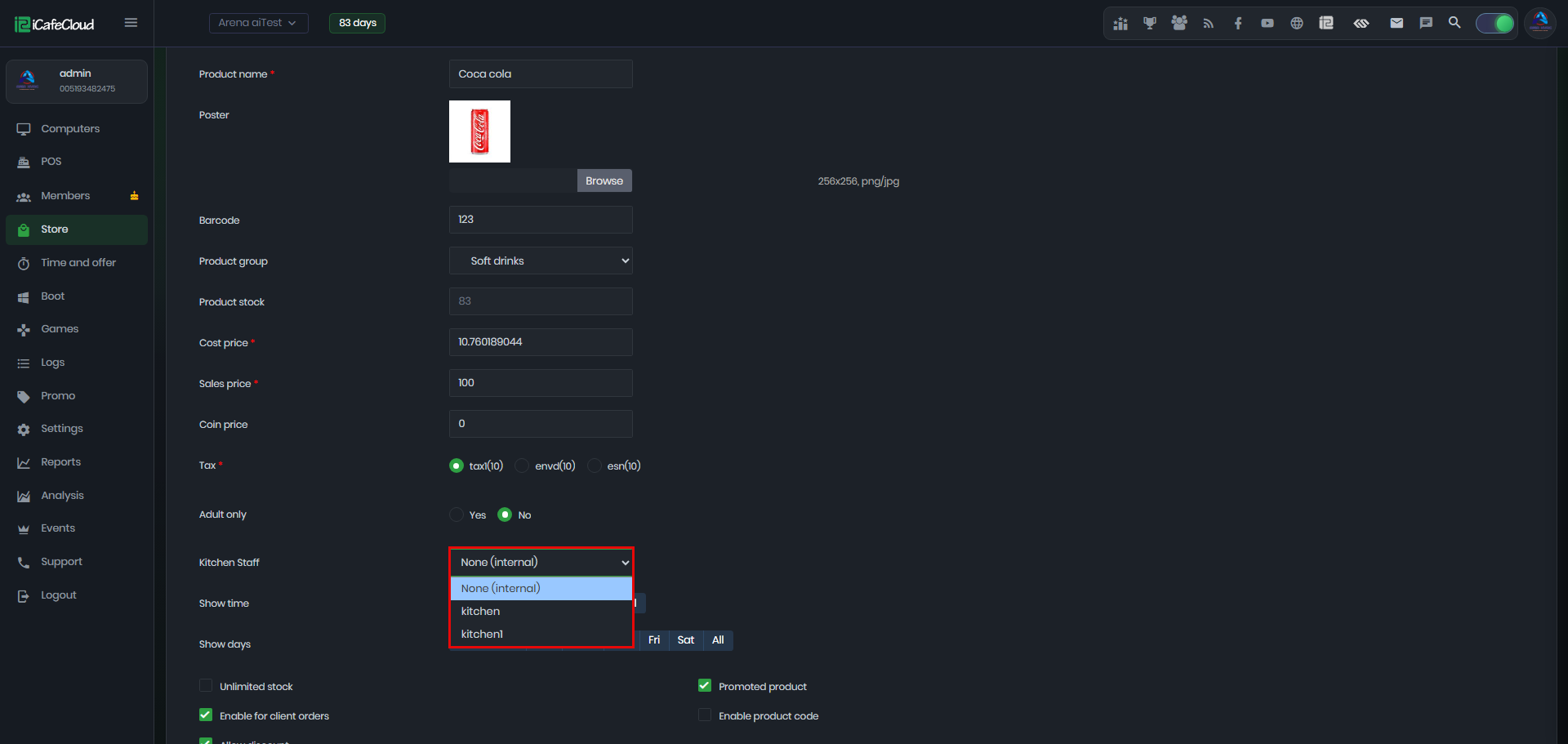
Figure 3
- None: The product will not appear in any kitchen staff's Prepared Items list.
- Kitchen Staff: Selecting a kitchen staff member assigns the product to that staff, and the item will appear only in that staff member's Prepared Items list.
- This is useful when you have multiple preparation areas. For example, Kitchen 1 prepares drinks, while Kitchen 2 prepares food, allowing each kitchen to receive only the orders assigned to it.
- Once logged in with a Kitchen account, the system will display all pending orders assigned to that kitchen staff. (Figure 4)

Figure 4
- When an order status is preparing and the product is assigned to a kitchen staff member, a fork icon will be displayed next to the item. (Figure 5)
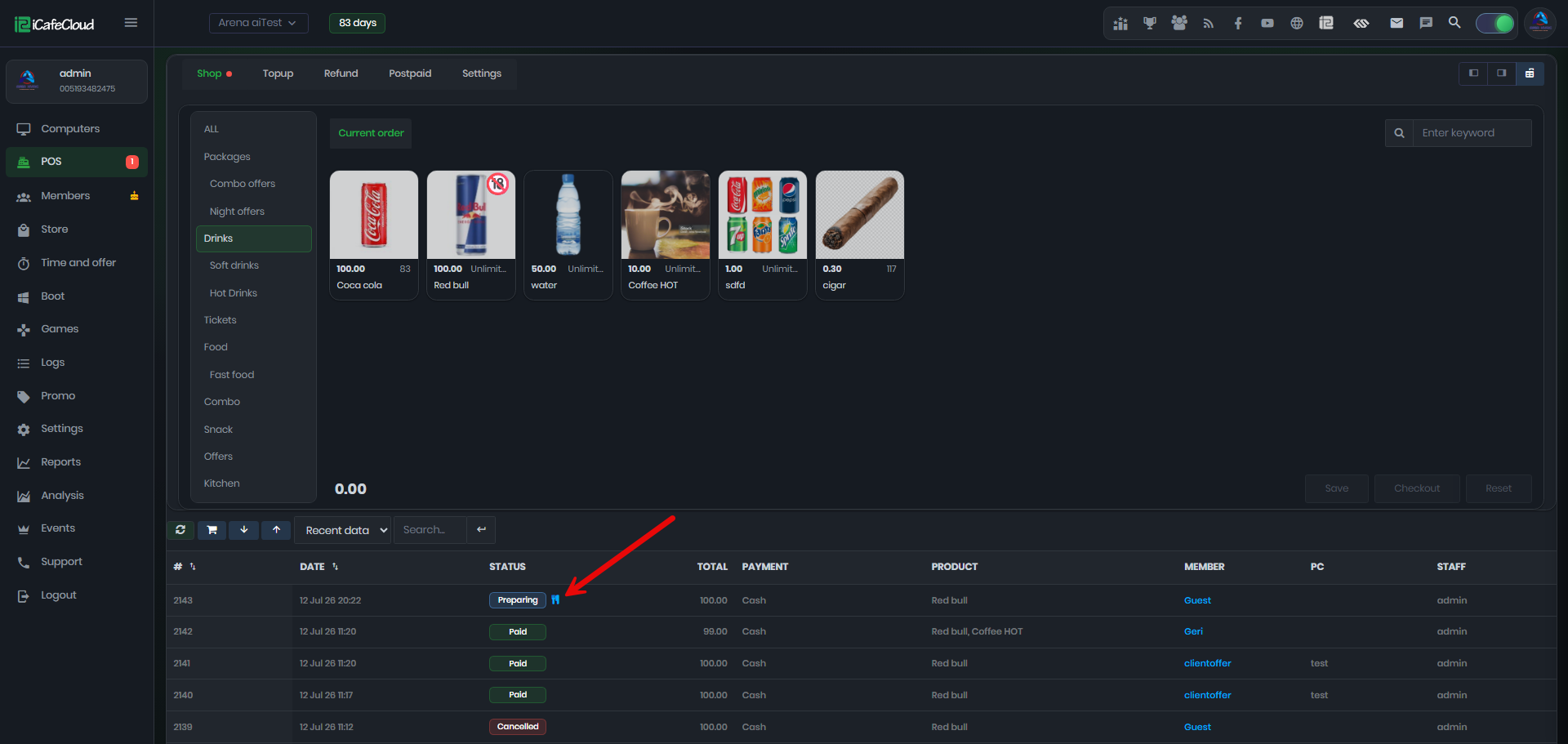
Figure 5
- Kitchen staff can view assigned orders and start preparing them. Once the order is ready, they can click Done to complete the preparation. (Figure 6)
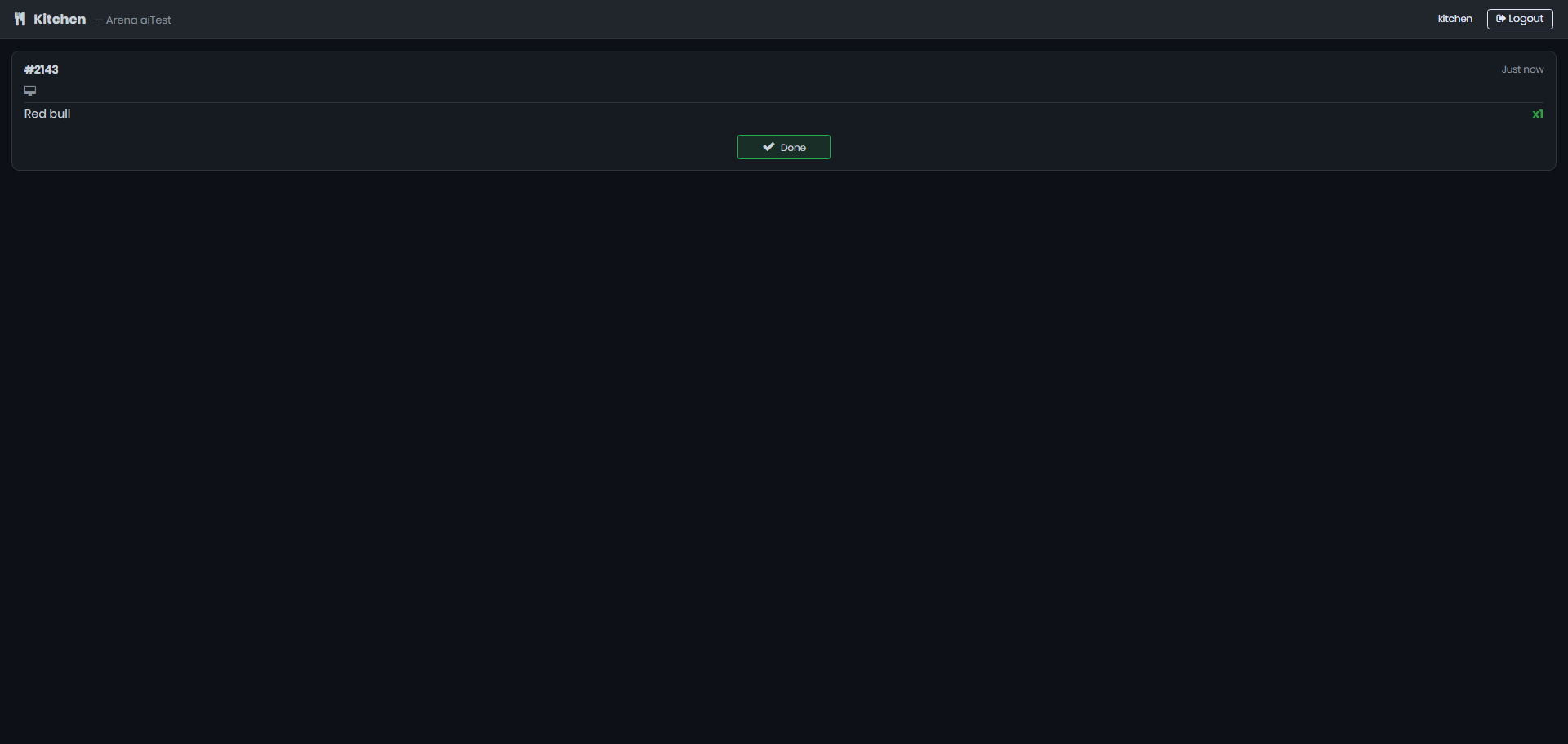
Figure 6
- Once the order is ready to be delivered to the customer it will display notification that order is ready. (Figure 7)
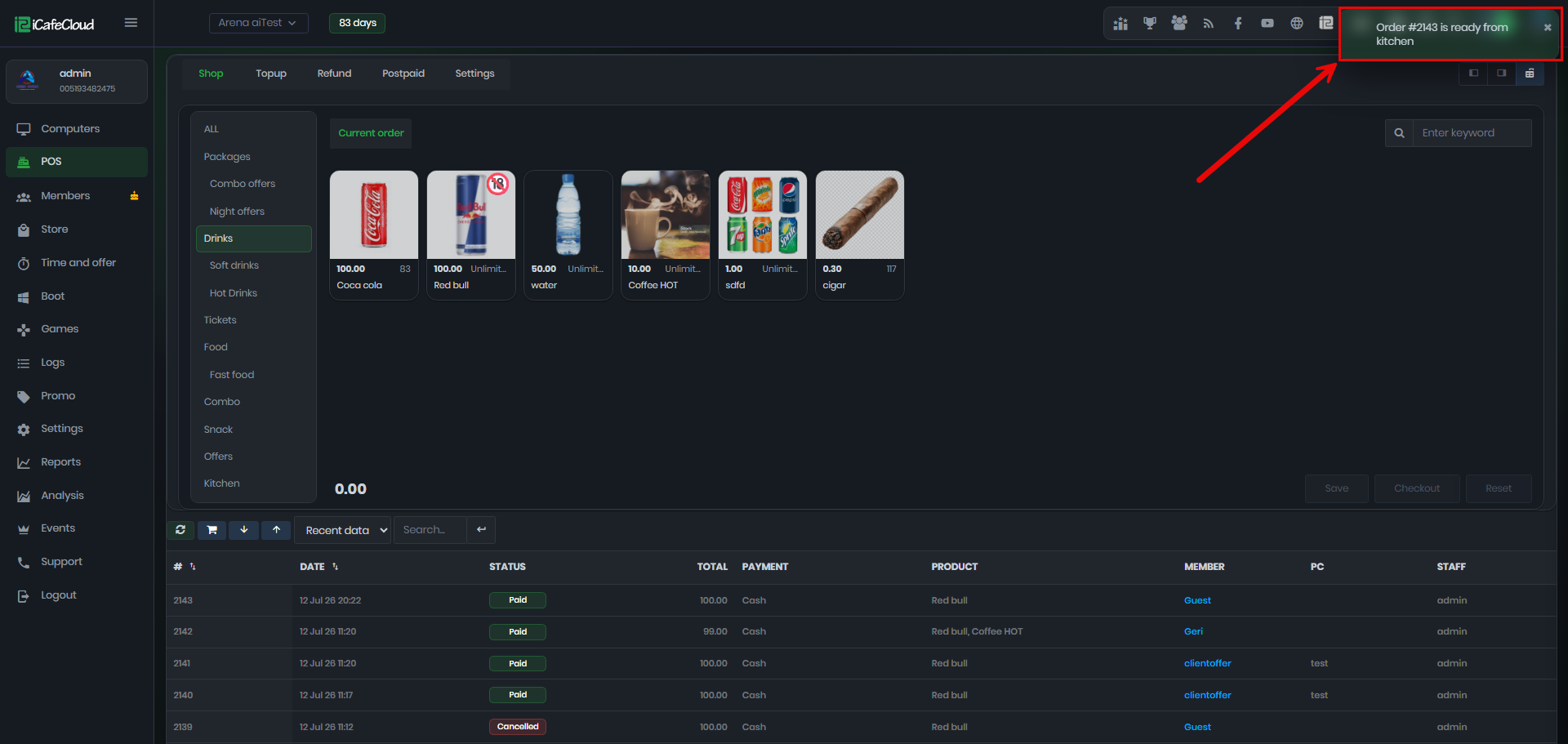
Figure 7