The following explains how to restrict employee access by IP address, allowing one or more specific IPs to be authorized for use with the account.
- Single IP
Examples:
27.189.219.188,27.189.219.199
2001:db8:85a3::8a2e:370:7334,2001:db8:85a3::8a2e:370:7777 - IP Range
Example:
27.189.219.100-27.189.219.200 - Wildcard (*)
Examples:
27.189.219.*
2001:db8:85a3::8a2e:370:*
- Go to settings , employees , select one of the account and click edit (Figure 1)
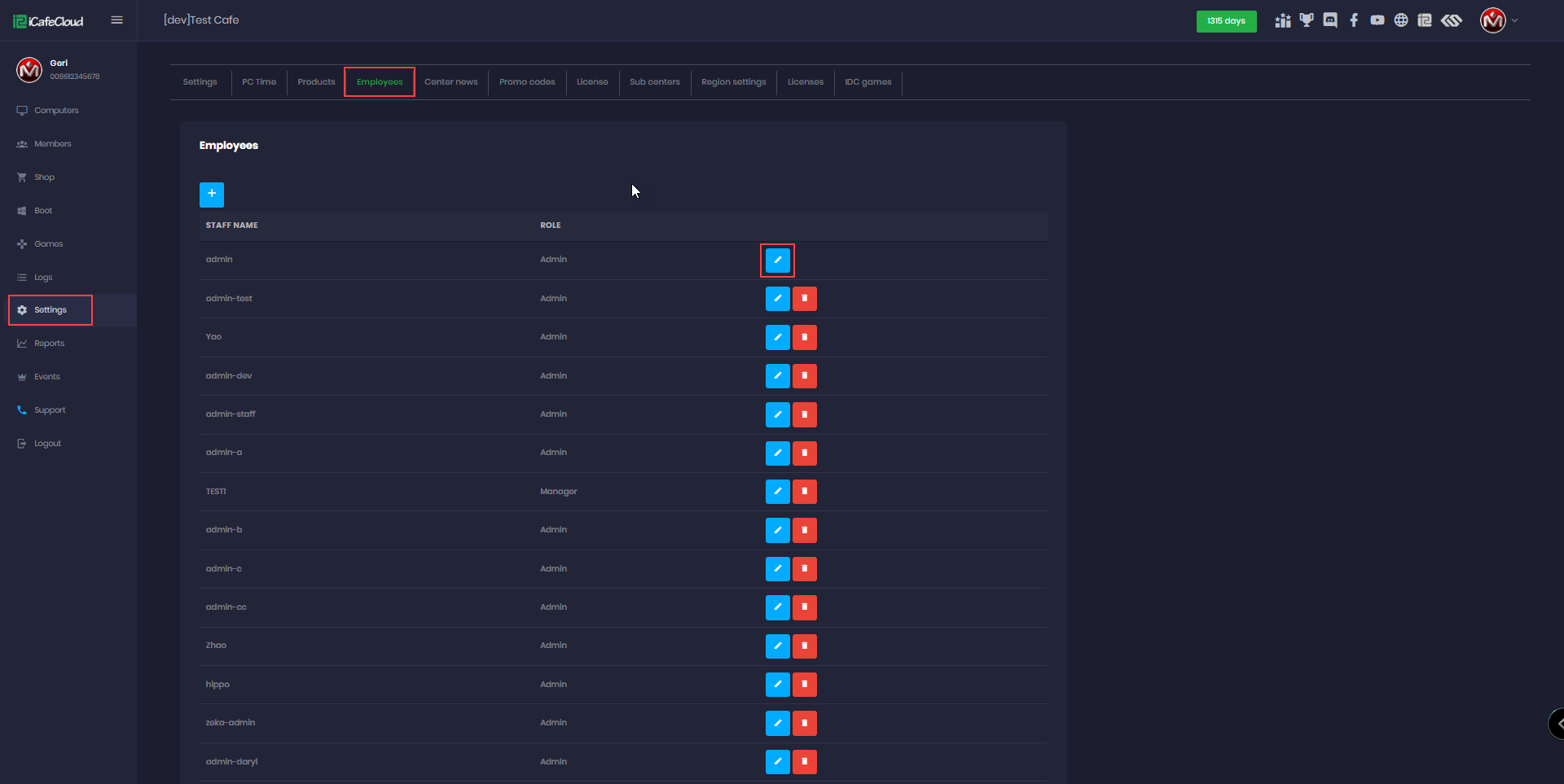
Figure 1
- In the Edit Staff panel, you'll find the "Allow IP" field. Enter the IP addresses you want to allow access from in this box. You can enter a single IP address or multiple addresses, separated by commas. (Figure 2)
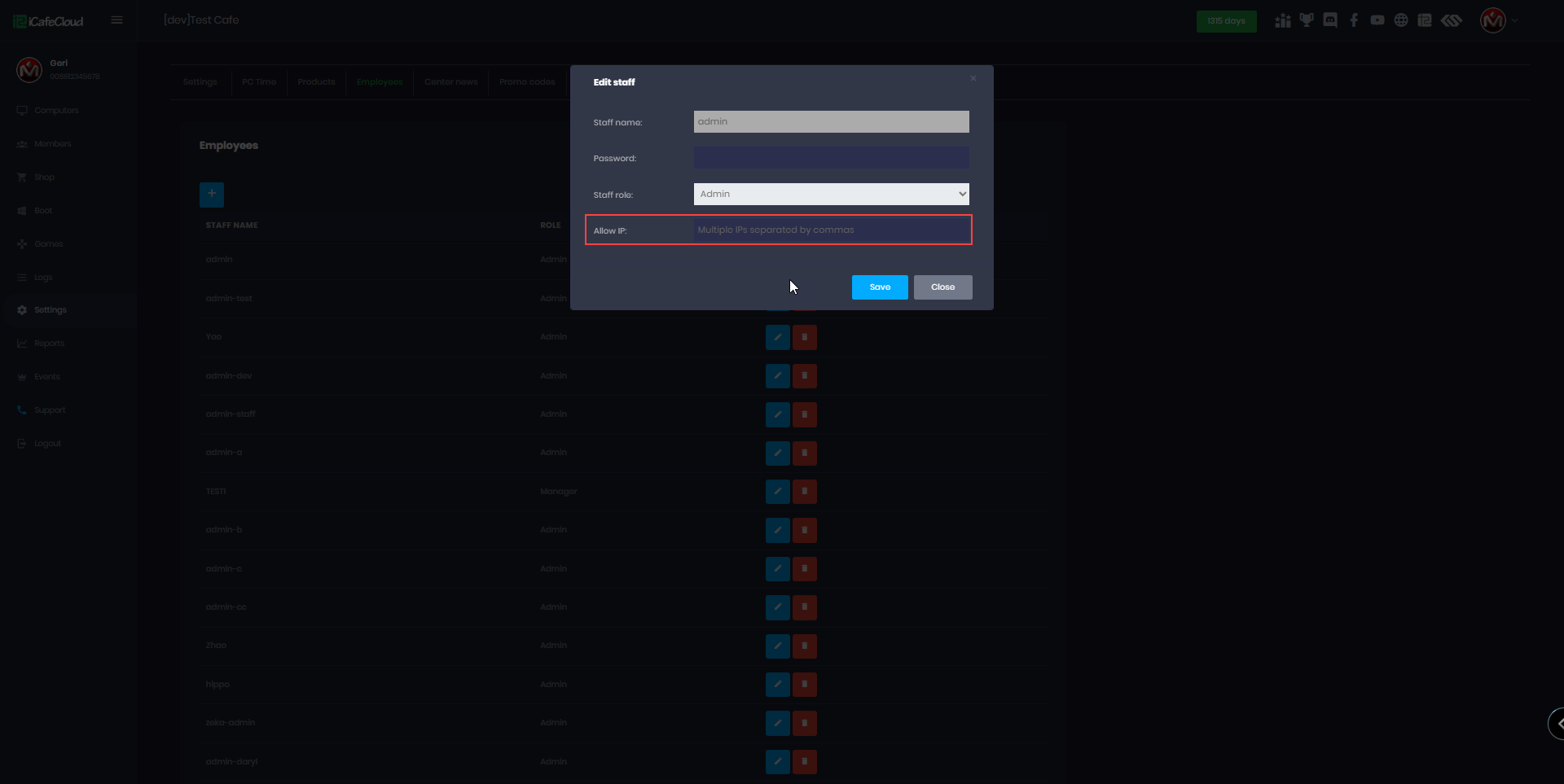
Figure 2
- You can restrict access for all account types, including Admin, Manager, and Staff.
- If you don't know your IP address, you can find it at https://whatismyipaddress.com or by searching “What is my IP” on Google.
- If the login attempt comes from an IP address that is not allowed, a notification will pop up displaying the IP address that attempted to connect(Figure 3)
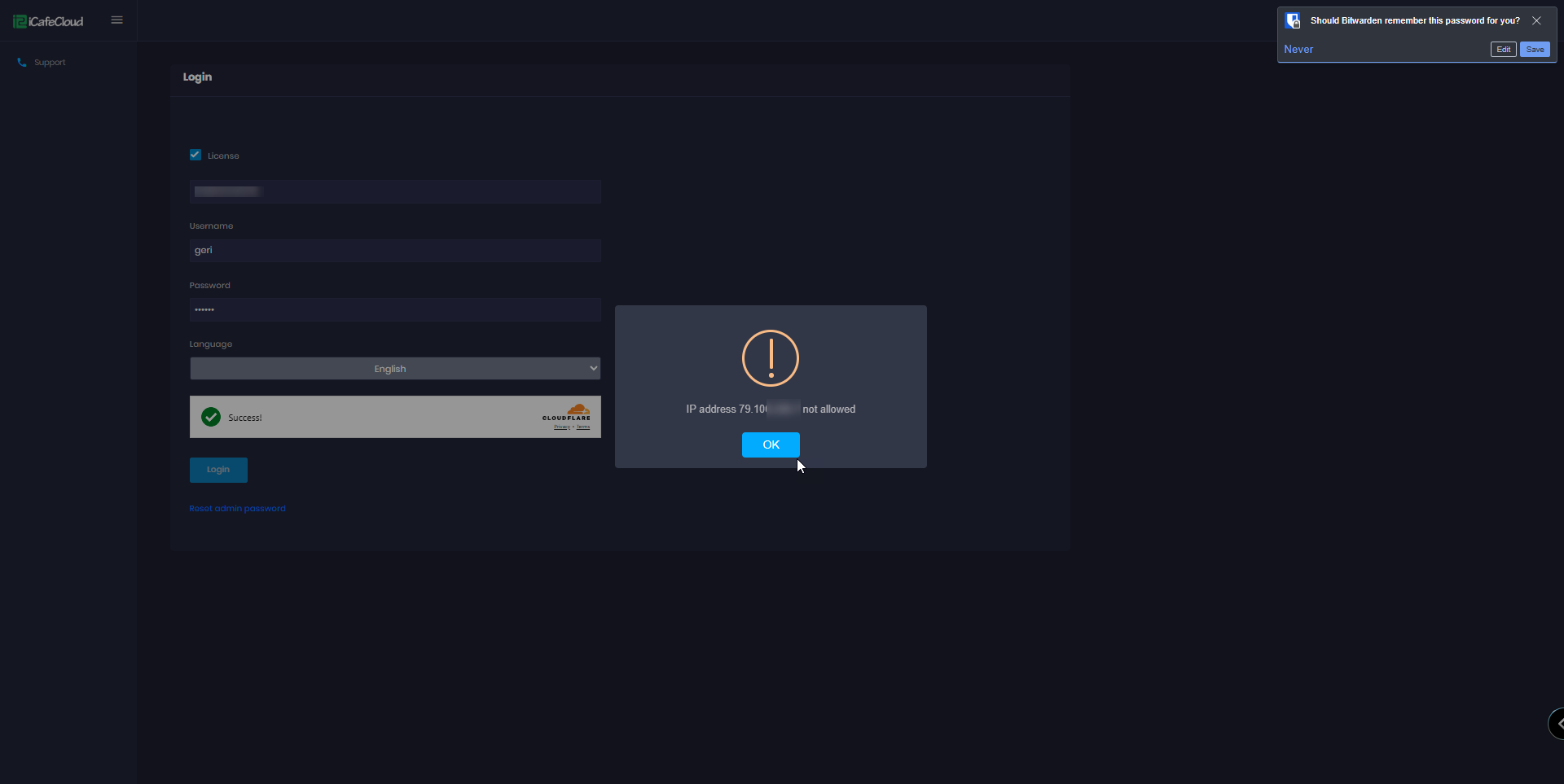
Figure 3
- If your license connection fails due to an incorrect or dynamic IP address, use the Admin Reset Password option. This will reset both the admin password and the associated IP restriction.