The following explains how to prevent multiple member accounts from using the same ID number, phone number, or email by enforcing unique values for these fields.
- On the Members → Settings page, under Member Required Settings, you will find a list of fields including Account, Password, First Name, Last Name, Expire Time, Birthday, ID Number, Phone, Email, Balance, and Comments (Figure 1).
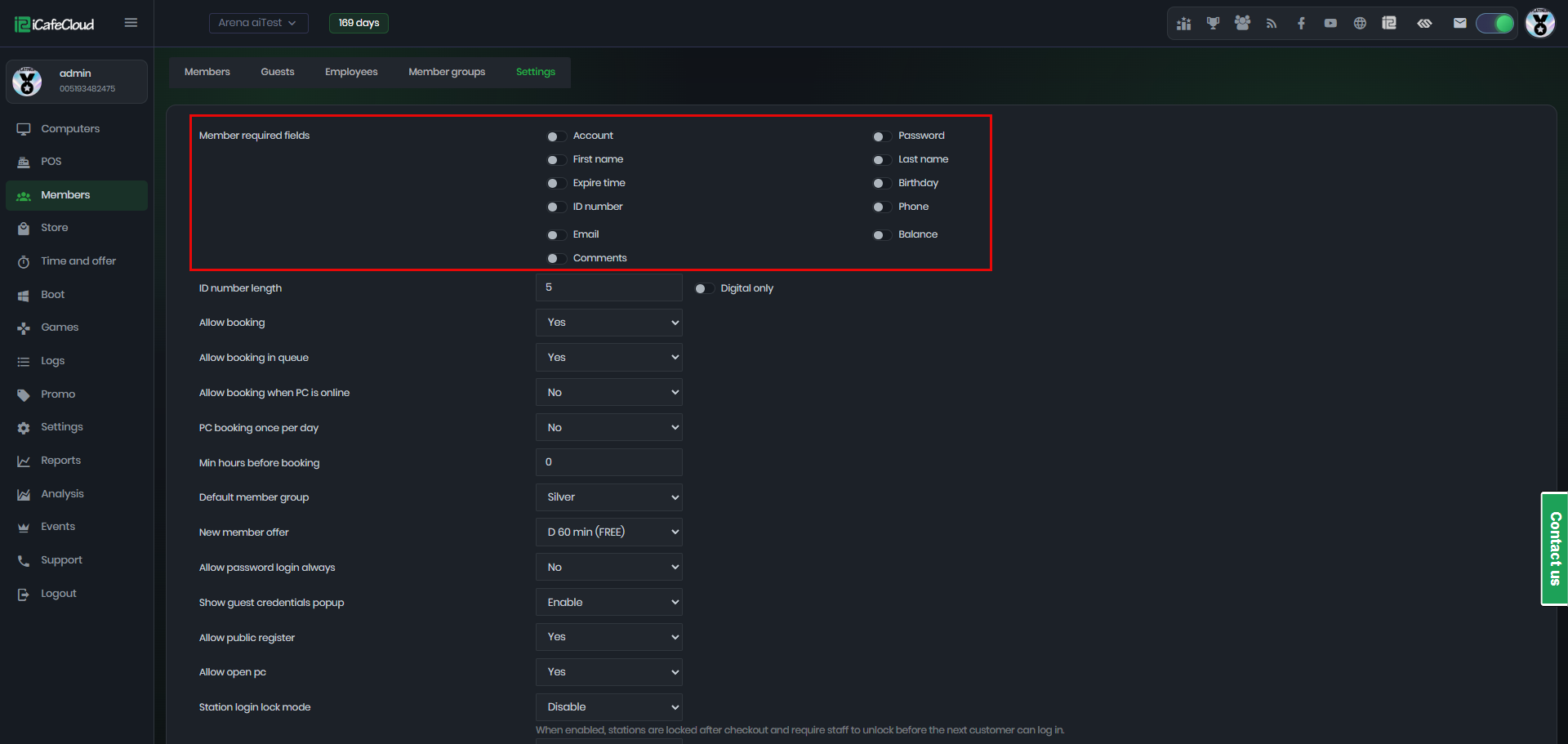
Figure 1
- By enabling any of these options using the toggle, the selected field becomes mandatory when creating a member account. Additionally, only certain fields can be set as unique to prevent duplicate entries. These include:
1. Account
2. ID Number
3. Email
4. Phone number (Figure 2)
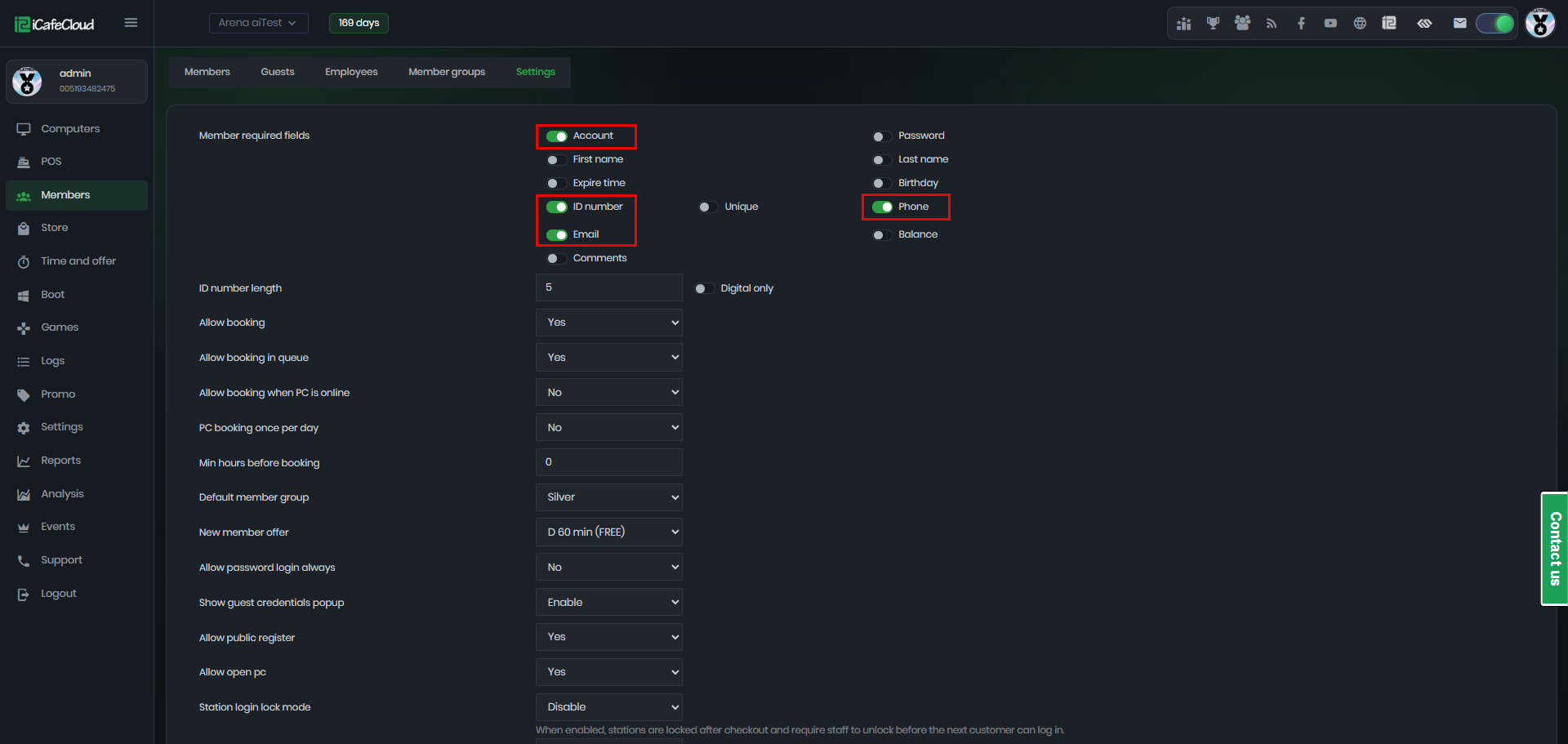
Figure 2
- The ID Number field includes a special Unique option that can be toggled on or off. This allows flexibility depending on how you use the field.
If enabled, each ID number must be unique for every member. If disabled, the field can be used more loosely—for example, entering values like “Passport” or “ID Card” instead of a real identification number. (Figure 3)
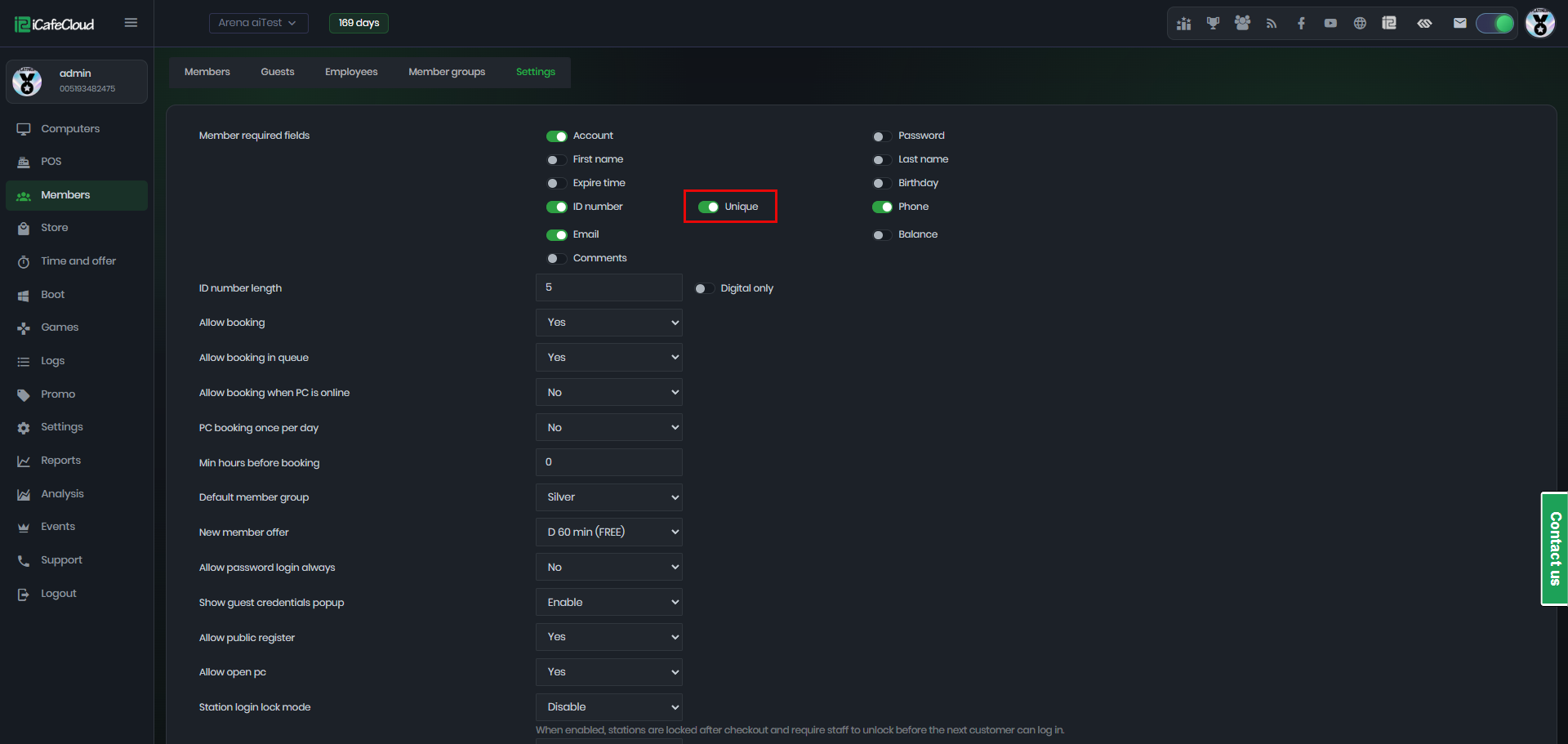
Figure 3
- Enabling this setting will prevent the addition of duplicate details for new member accounts. If an attempt is made to create a new account with existing details, an error message will be displayed indicating whether the ID number or email or phone number already exists in the system.(Figure 4)
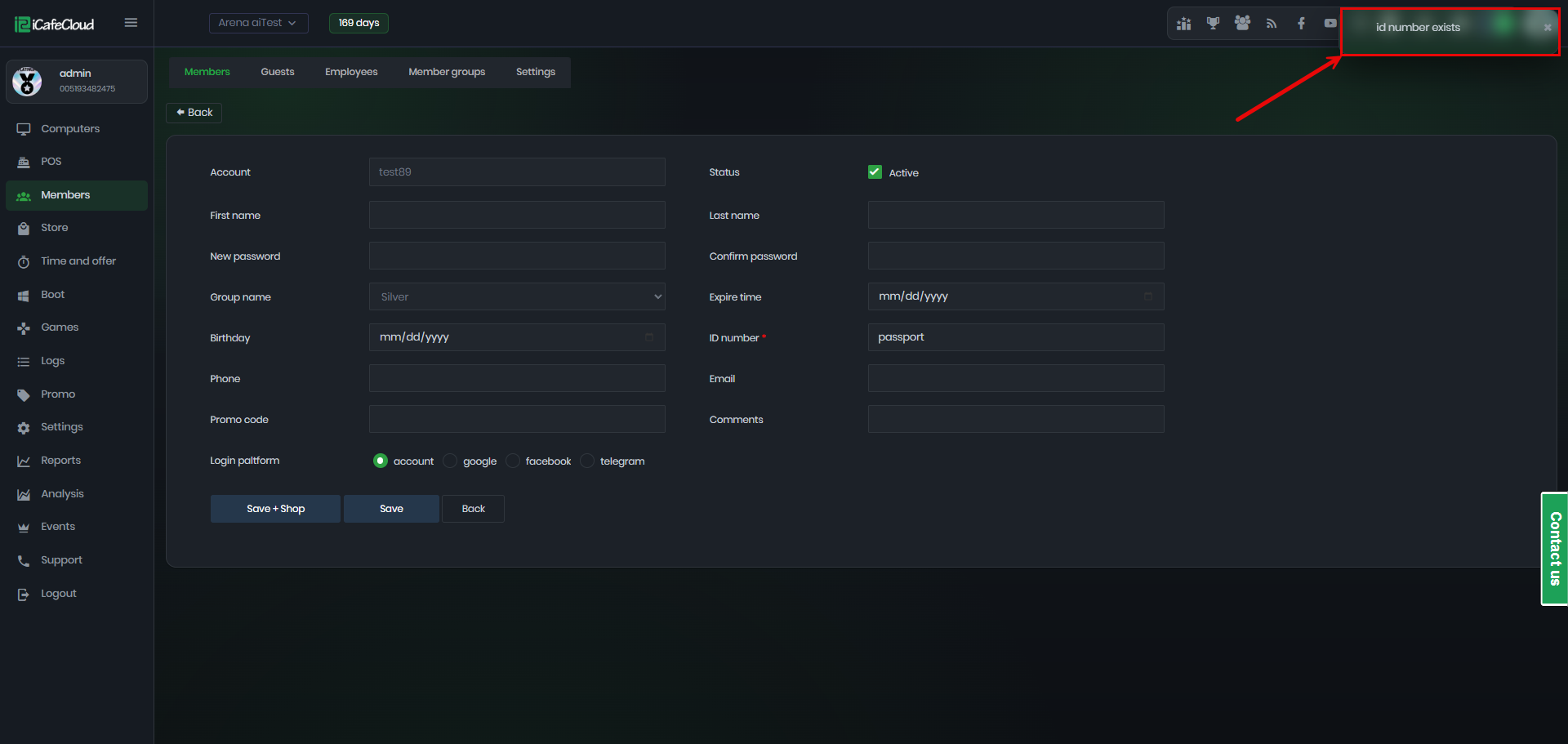
Figure 4
- Enabling this setting ensures consistency across all account creation channels. Whether an account is created by staff or directly by a customer on the client side, duplicate details will not be allowed.
- If a duplicate is entered, the system will display an error message indicating whether the email or phone number already exists.(Figure 5)

Figure 5