
2025-03-13
import, convert, member, csv
The following explains how to manually convert or auto convert members and import members from csv.
Manual convert
- Go to the Members page and click the Import Member button. (Figure 1)
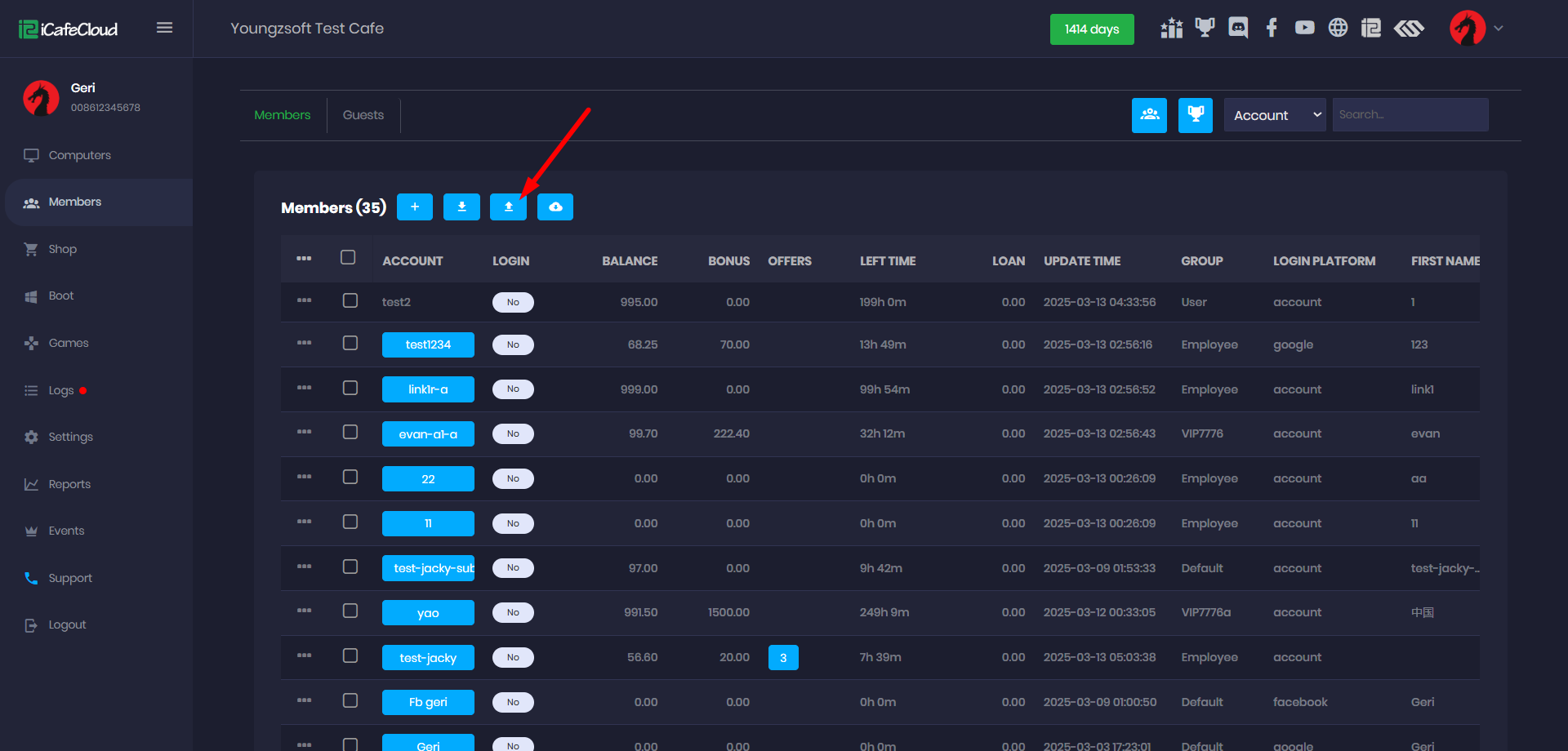
Figure 1
- The Import Members page will open.
First download the template.csv file to your local PC.(Figure 2)
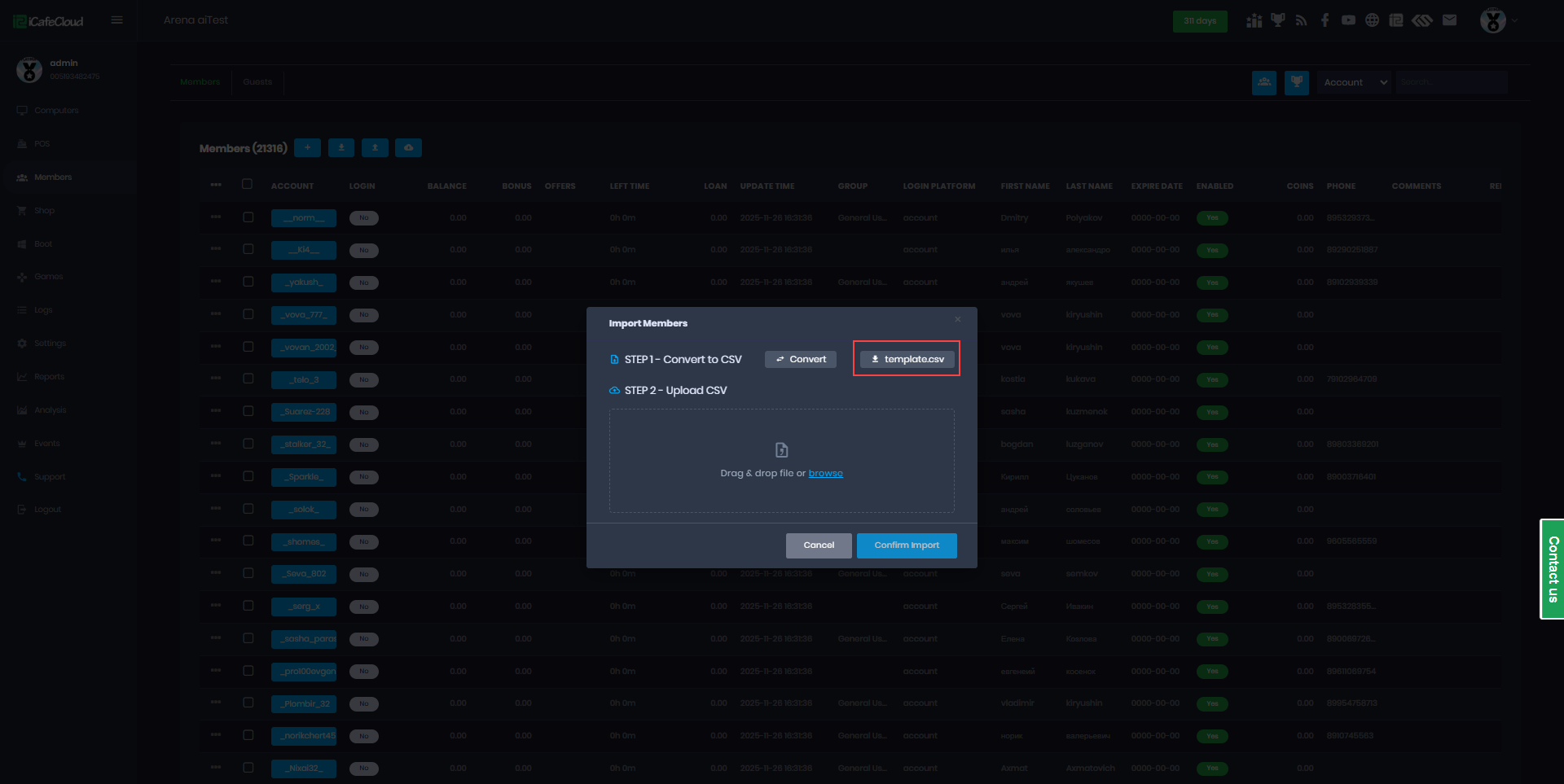
Figure 2
- Open the template.csv file and modify it by filling in all the required columns with data from the files you want to import. If you're transferring data from another database, you'll need to manually convert and format it to match the template structure.(Figure 3)
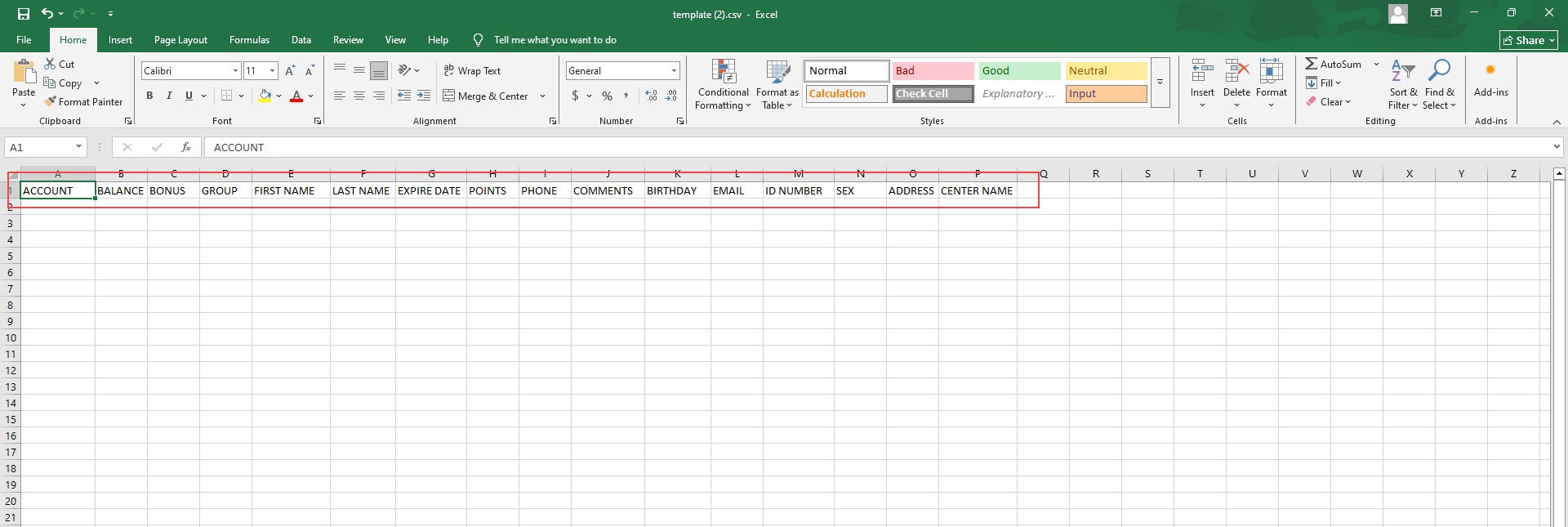
Figure 3
- The header columns must always remain exactly as shown and must not be changed or renamed.
Auto convert
- A the import member click the convert button (Figure 4)
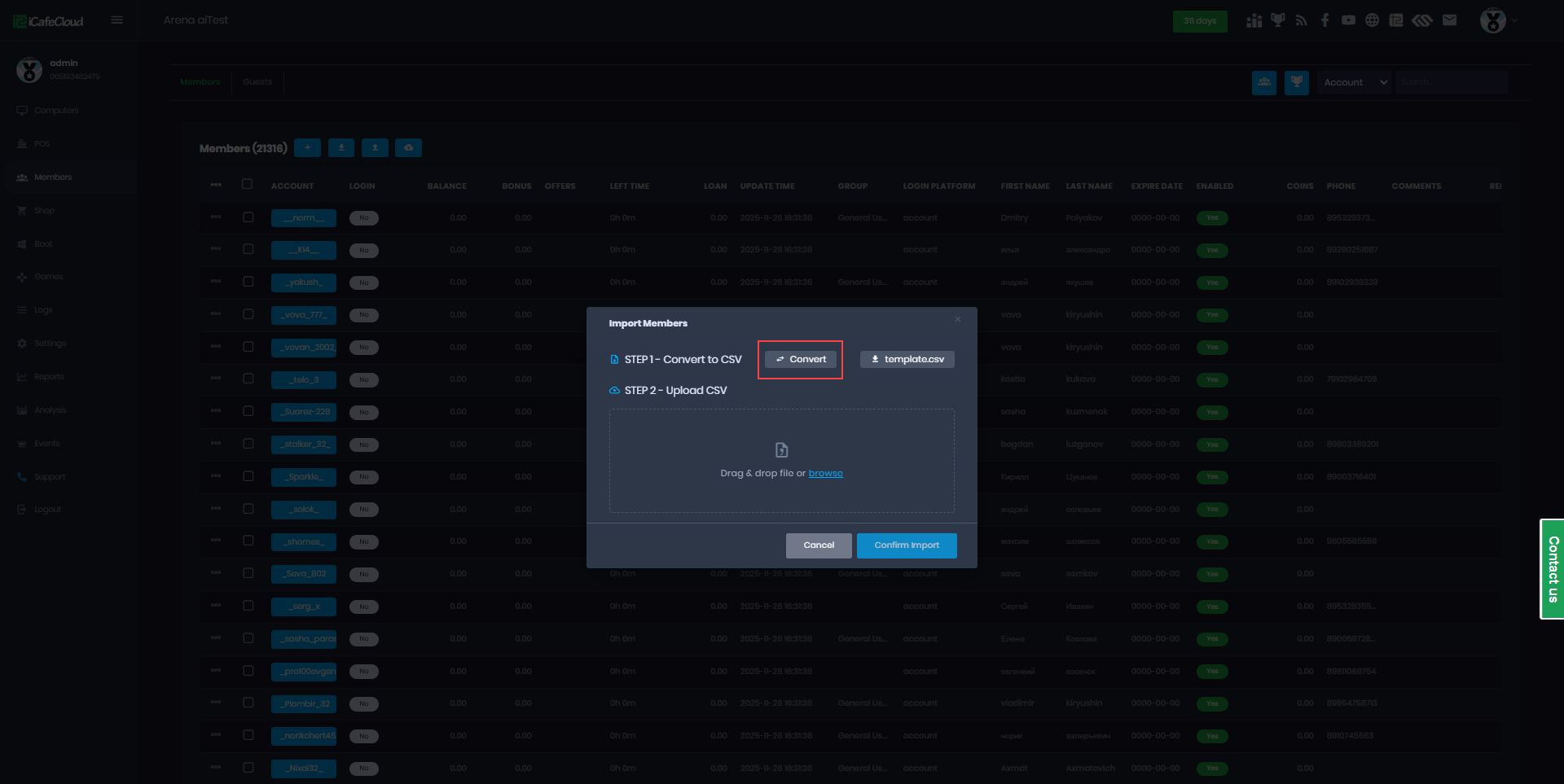
Figure 4
- Select the billing system you want to convert. Make sure to read the instructions carefully to know which data to export and which files are required for the conversion to work correctly. (Figure 5)

Figure 5
- Select the file and click “Convert.” (Figure 6)

Figure 6
- Once the conversion is complete, the system will automatically generate a new CSV file called “members export” and prompt it for download. (Figure 7)
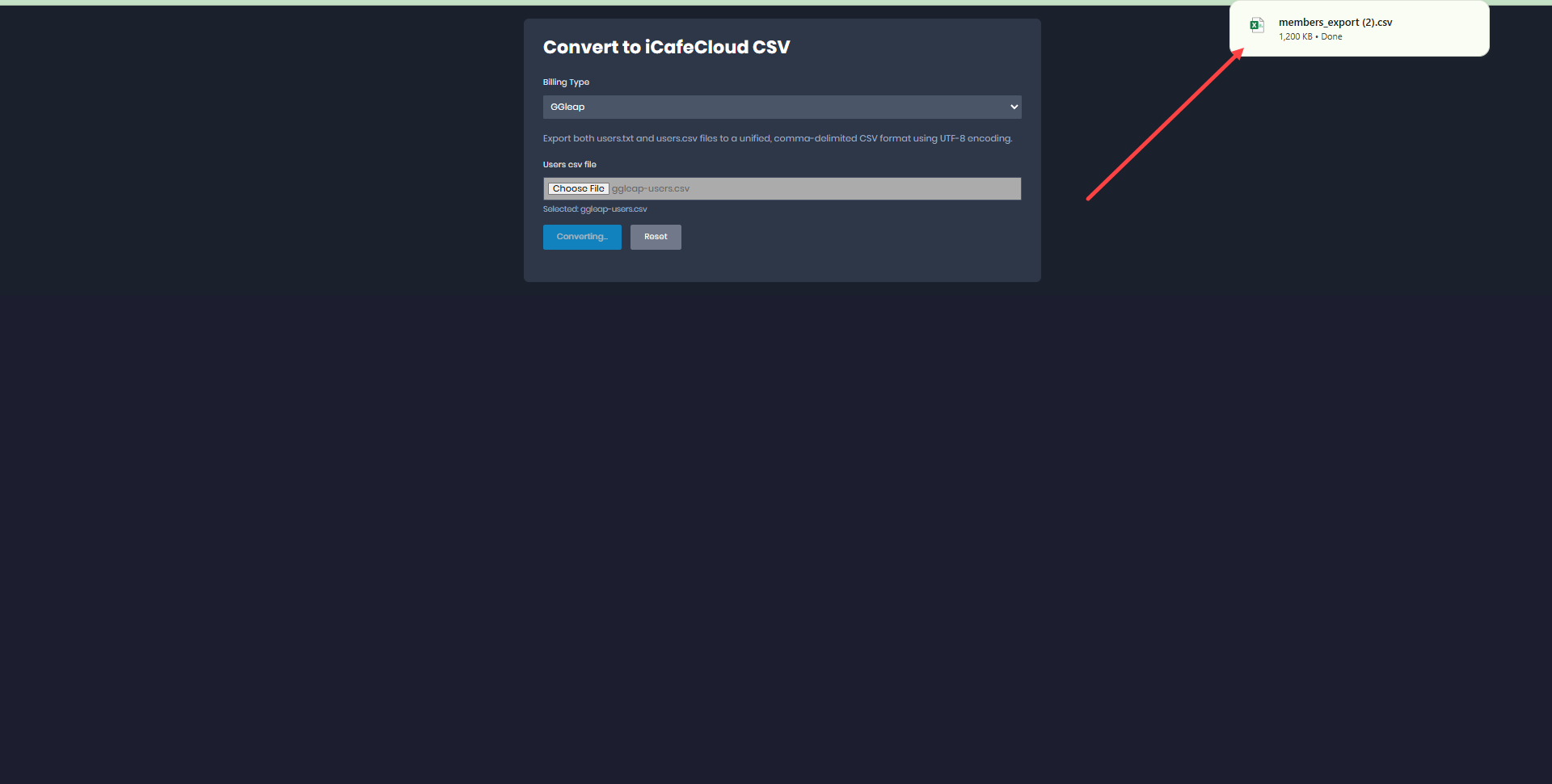
Figure 7
- To convert CafeSuite data, you must download the “cafesuite2csv.exe” conversion tool.
- You must also download and install Microsoft Access Database Engine then select the MDB file exported from CafeSuite and click Convert to CSV.
Import
- Once the CSV template is ready, click Browse to search for the file or simply drag and drop it onto the Import Members page. Then, click Confirm Import to start the process.(Figure 8)
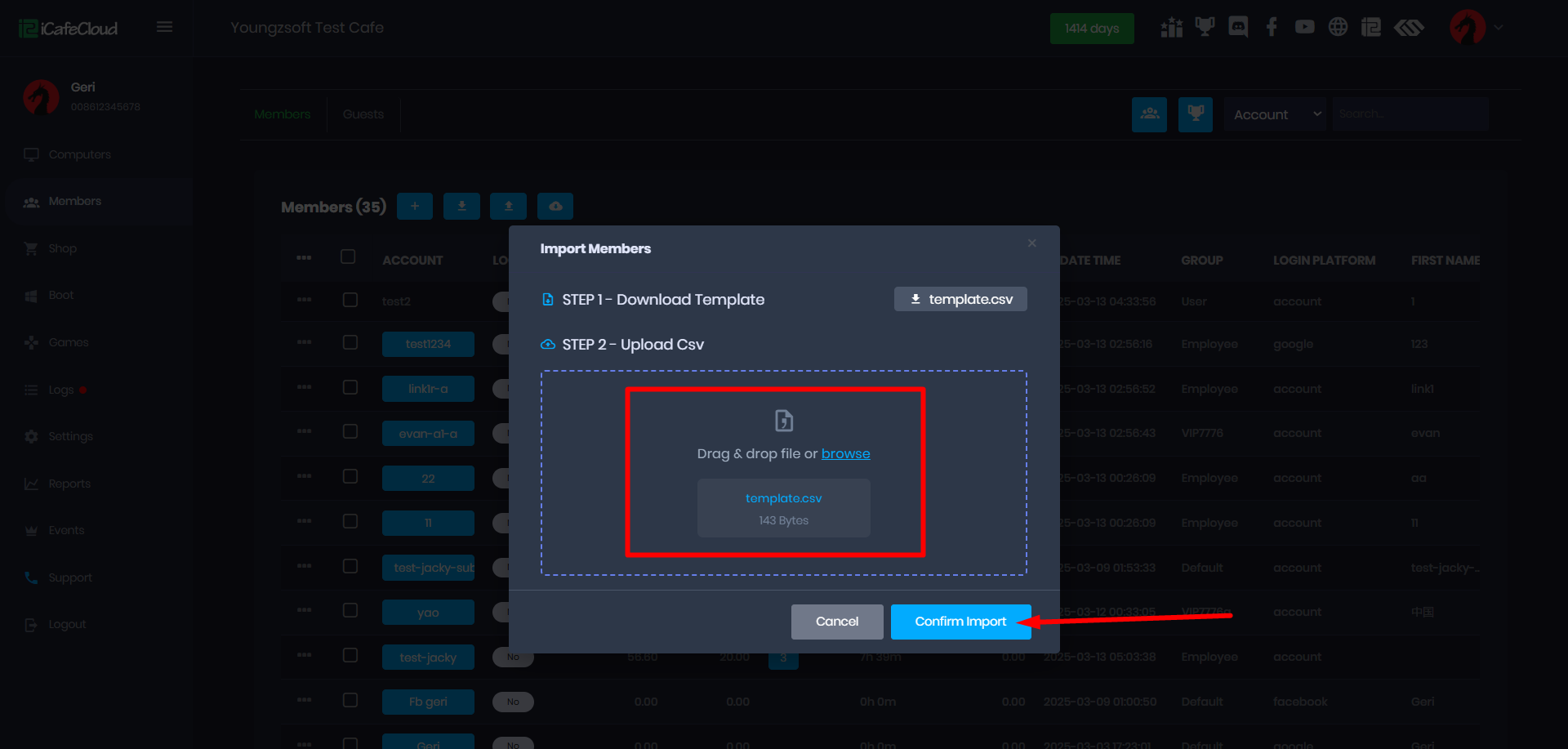
Figure 8
- Once the members are imported, a success message will appear displaying the total number of members successfully imported.(Figure 9)
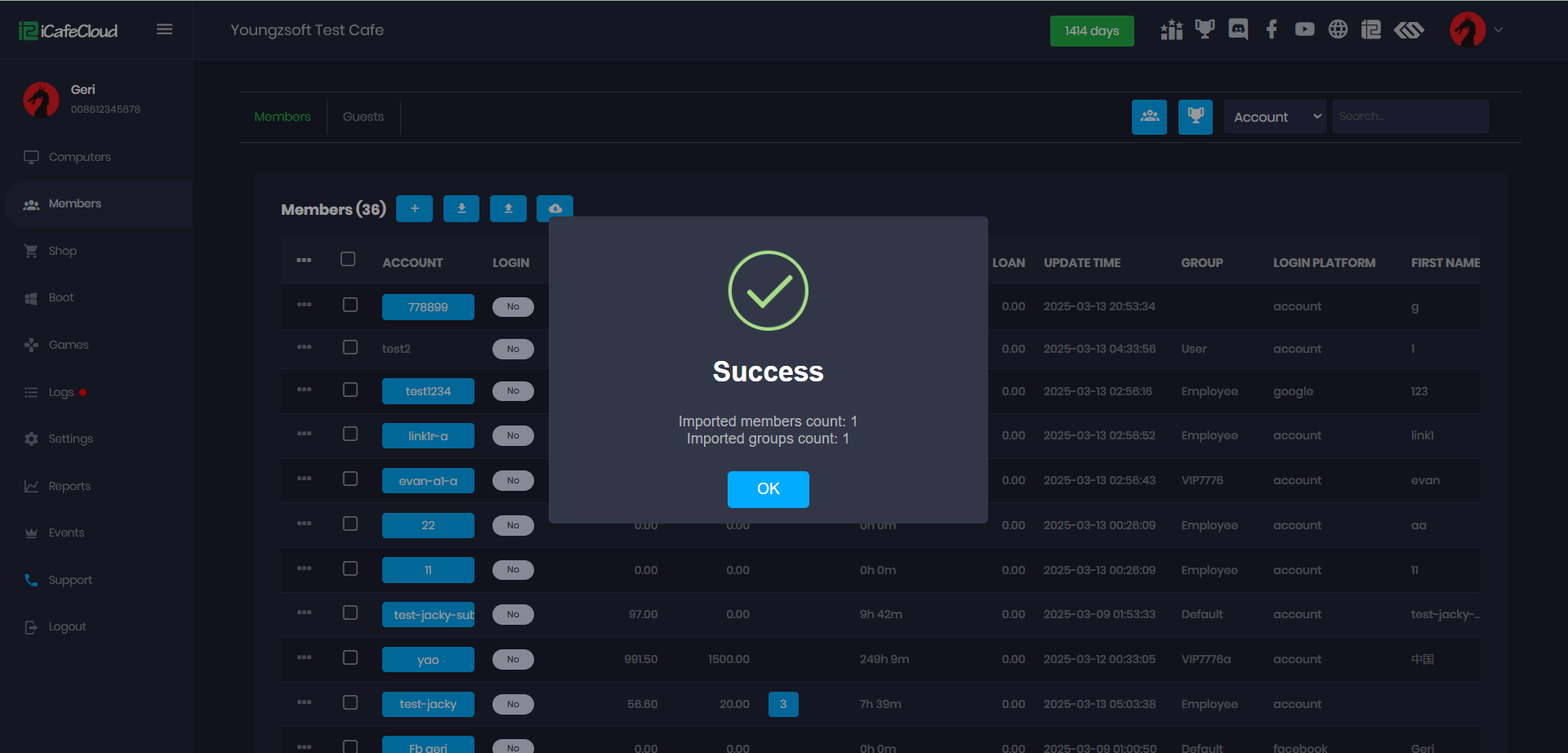
Figure 9
- If there is an issue with the converted data, an error message will appear detailing the problem, allowing you to edit and correct the CSV file before reattempting the import.
- If the member already exists and is imported again, their password will remain unchanged.