

The following explains how to lock and unlock a PC in the client iCafeMenu, allowing you to temporarily secure the computer while keeping your session active and preventing others from using it.
- Click the icon in the top-right corner of the iCafeMenu interface to open the menu, then select Lock PC.(Figure 1)
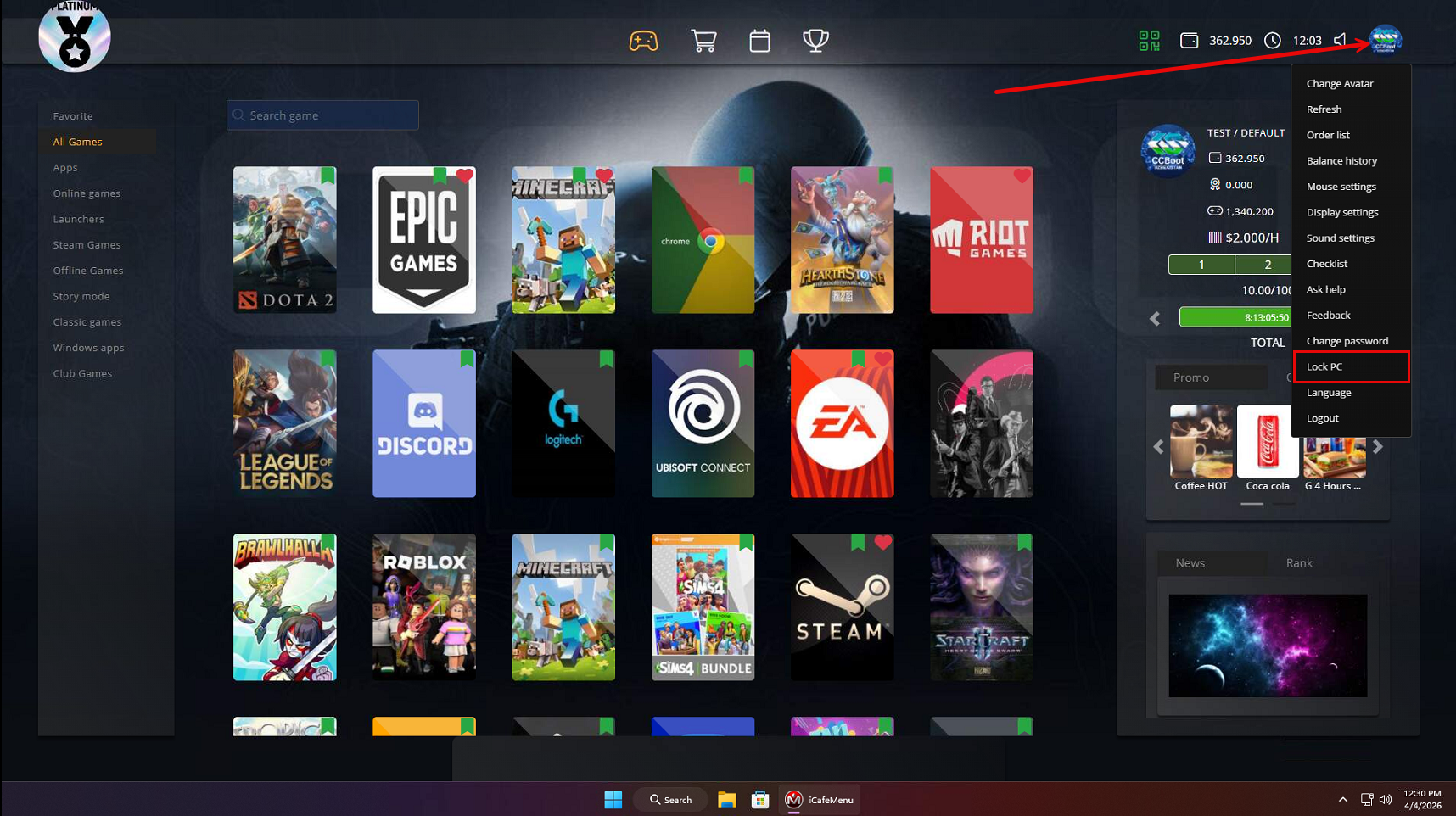
Figure 1
- A small window will appear prompting you to set a password. Make sure to remember it, as it will be required to unlock the PC later. Note that usage time will continue to run normally while the PC is locked. (Figure 2)
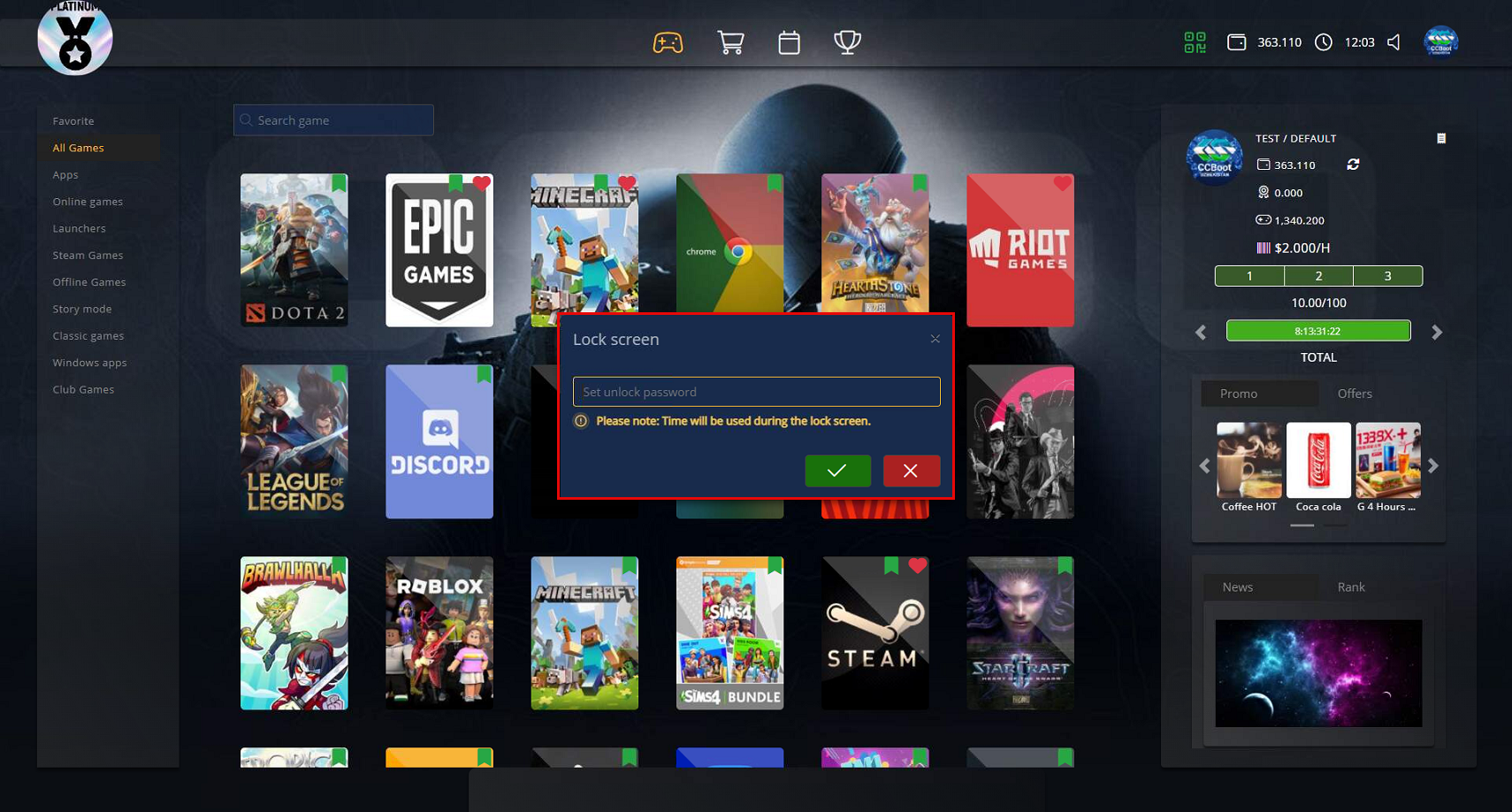
Figure 2
- After entering the password and clicking Confirm, the locking screen will appear. When you’re ready to resume, enter the password and click Unlock. (Figure 3)

Figure 3