

The following explains how favorite games can be selected and changed on the client side according to individual member or player preferences.
- On the client interface, on the Game page, you will notice a heart icon with a white outline, which indicates that the game is not selected as a favorite (Figure 1).
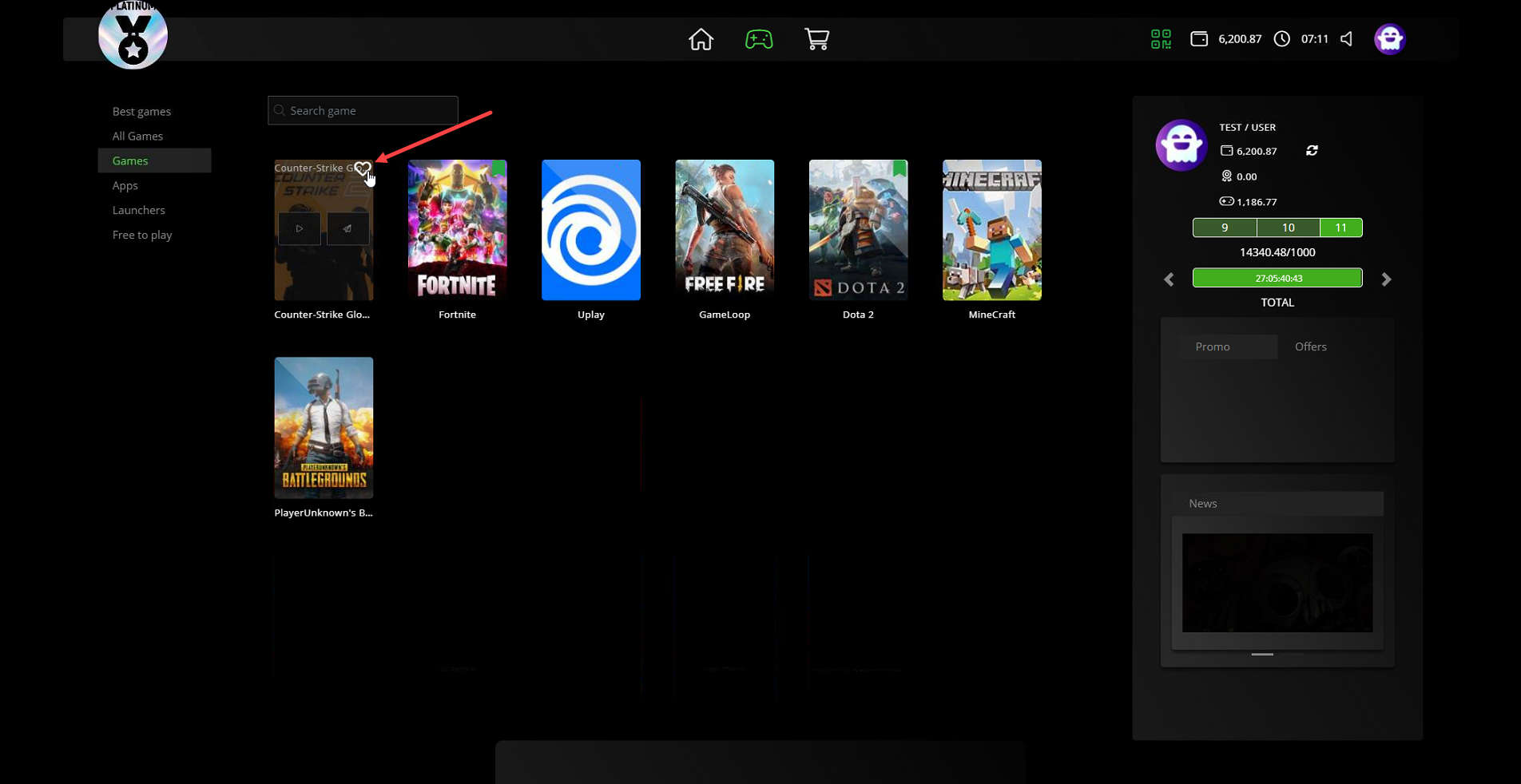
Figure 1
- Click the icon and it will change to a red heart, with a notification indicating that the game has been added to favorites (Figure 2).
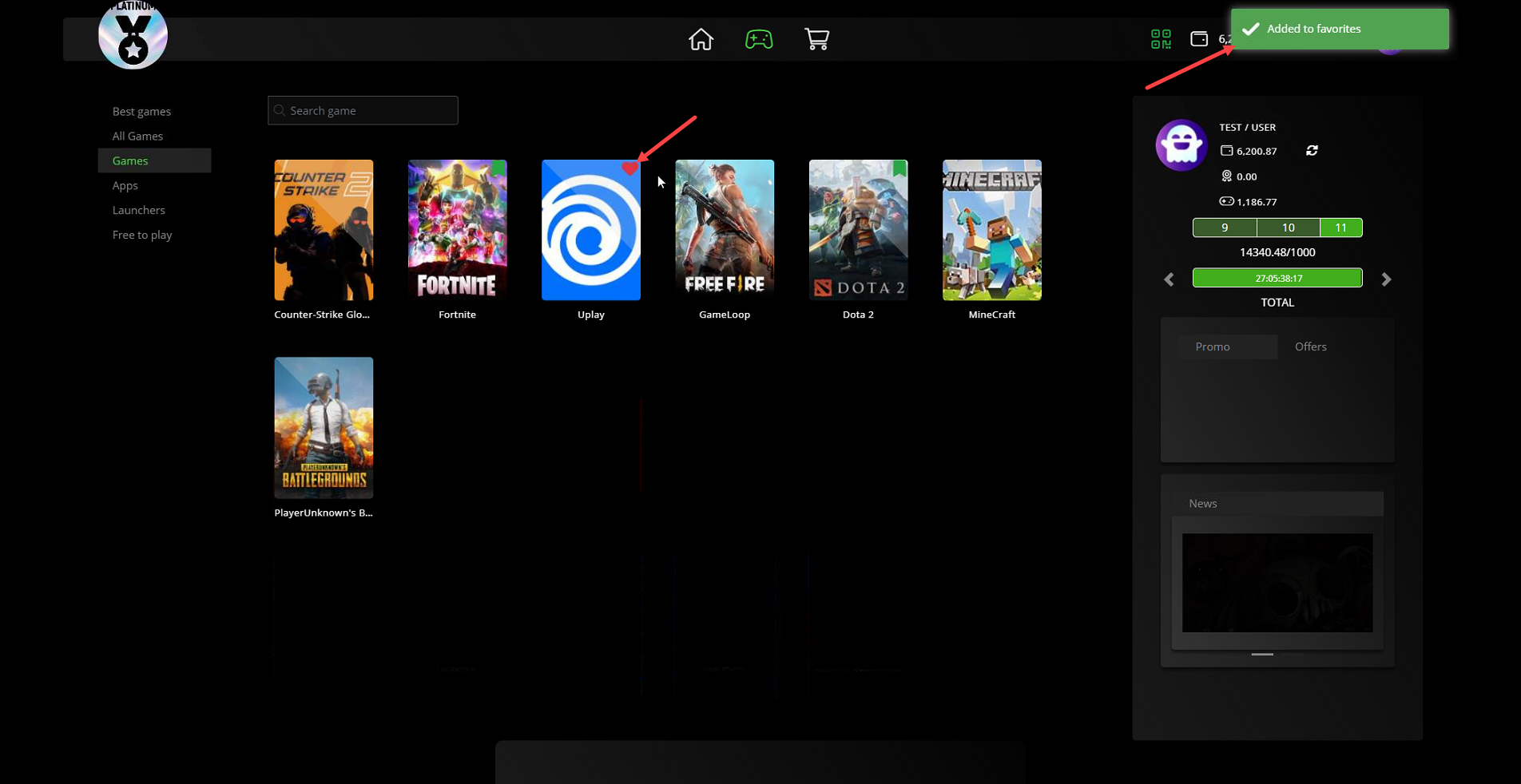
Figure 2
- You can remove selected games the same way they were added by clicking the heart icon.
- A maximum of five games can be marked as favorites to add a new one, first remove a game from the current favorites list, then select the new game. (Figure 3)
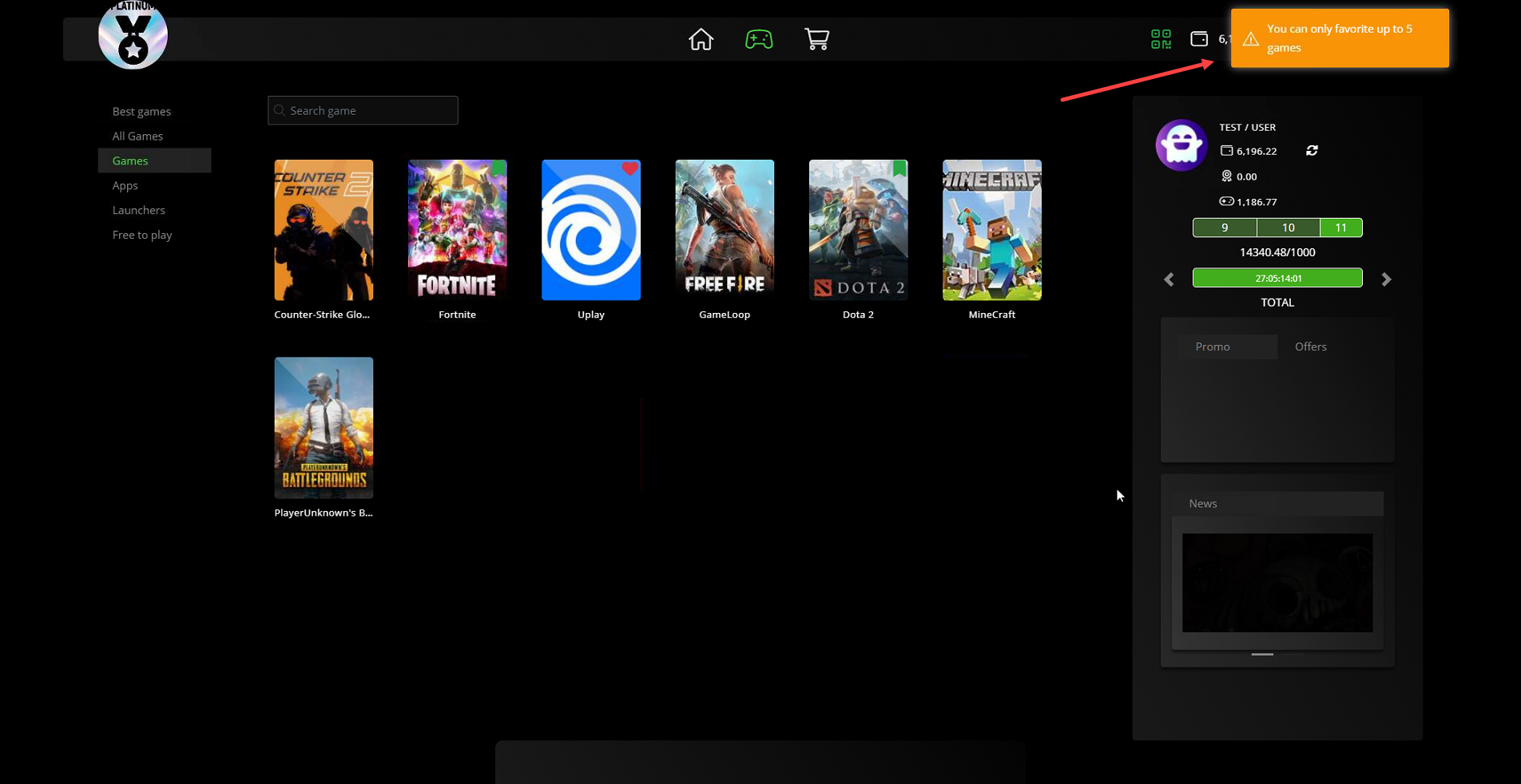
Figure 3
- You can view all selected games in the Favorites category, or under the category name you have set (Figure 4).
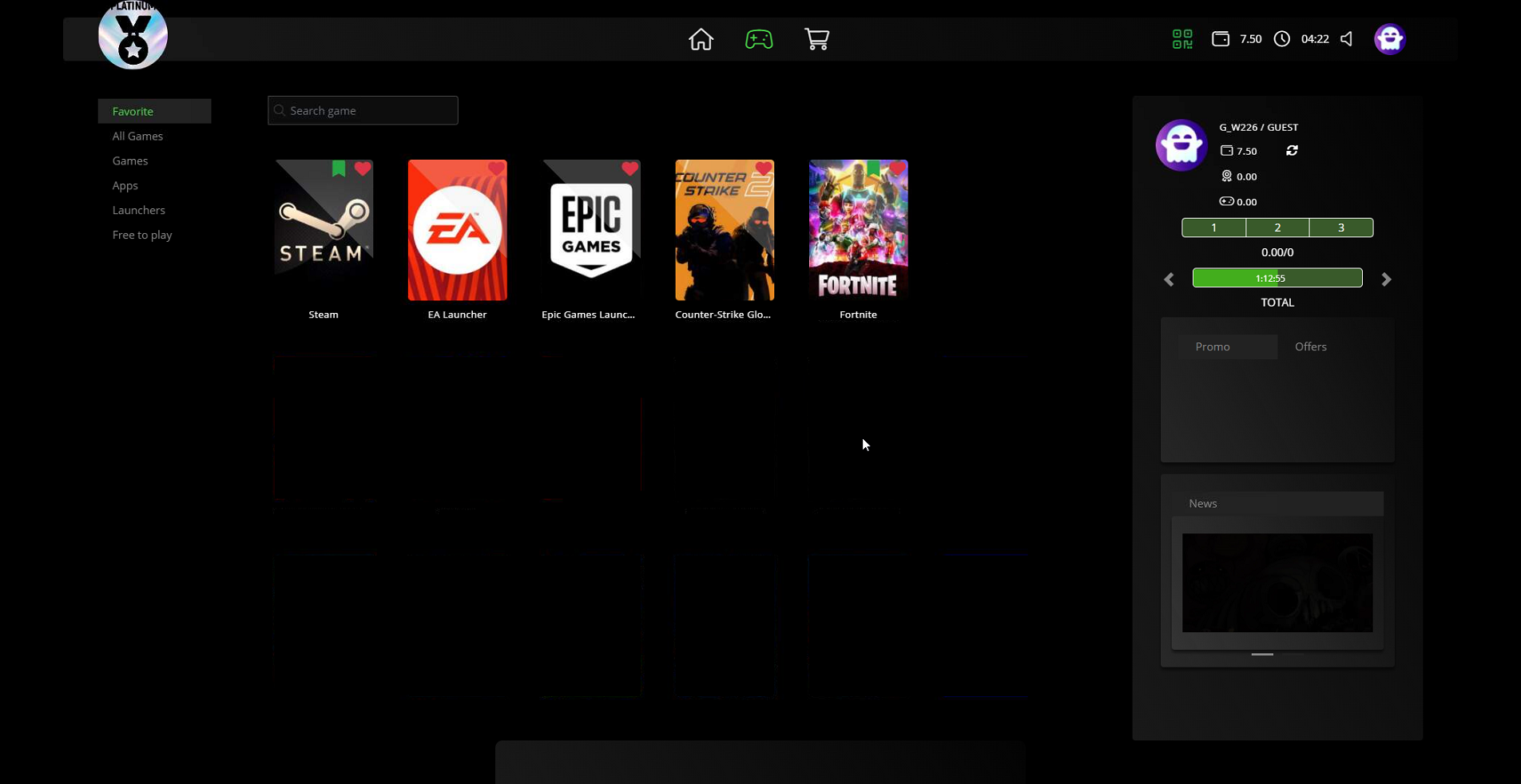
Figure 4
- On the Home page, only the selected favorite games will be listed. (Figure 5)
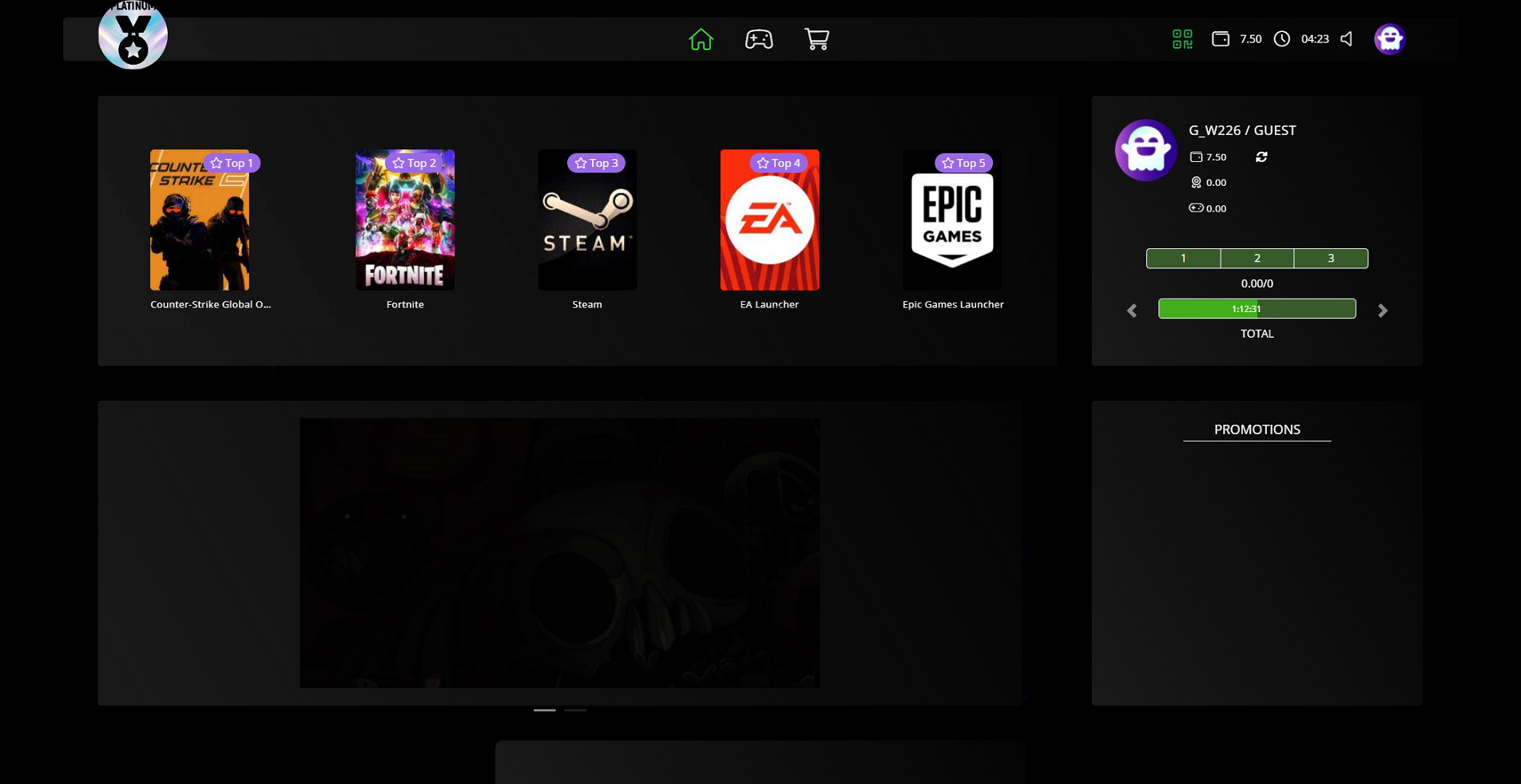
Figure 5
- Each member account will have its own favorites list based on the user’s preferences; otherwise, the existing popular games will be displayed.