

The following explains how the Maximum Lock Screen Time setting works.
This setting allows you to define the maximum amount of time a customer can keep their PC locked before their session is automatically checked out.
- Go to “Settings” -> “Client settings” and in “Session & Behavior” find the “Maximum lock screen time” setting and set the desired time limit in minutes. (Figure 1)
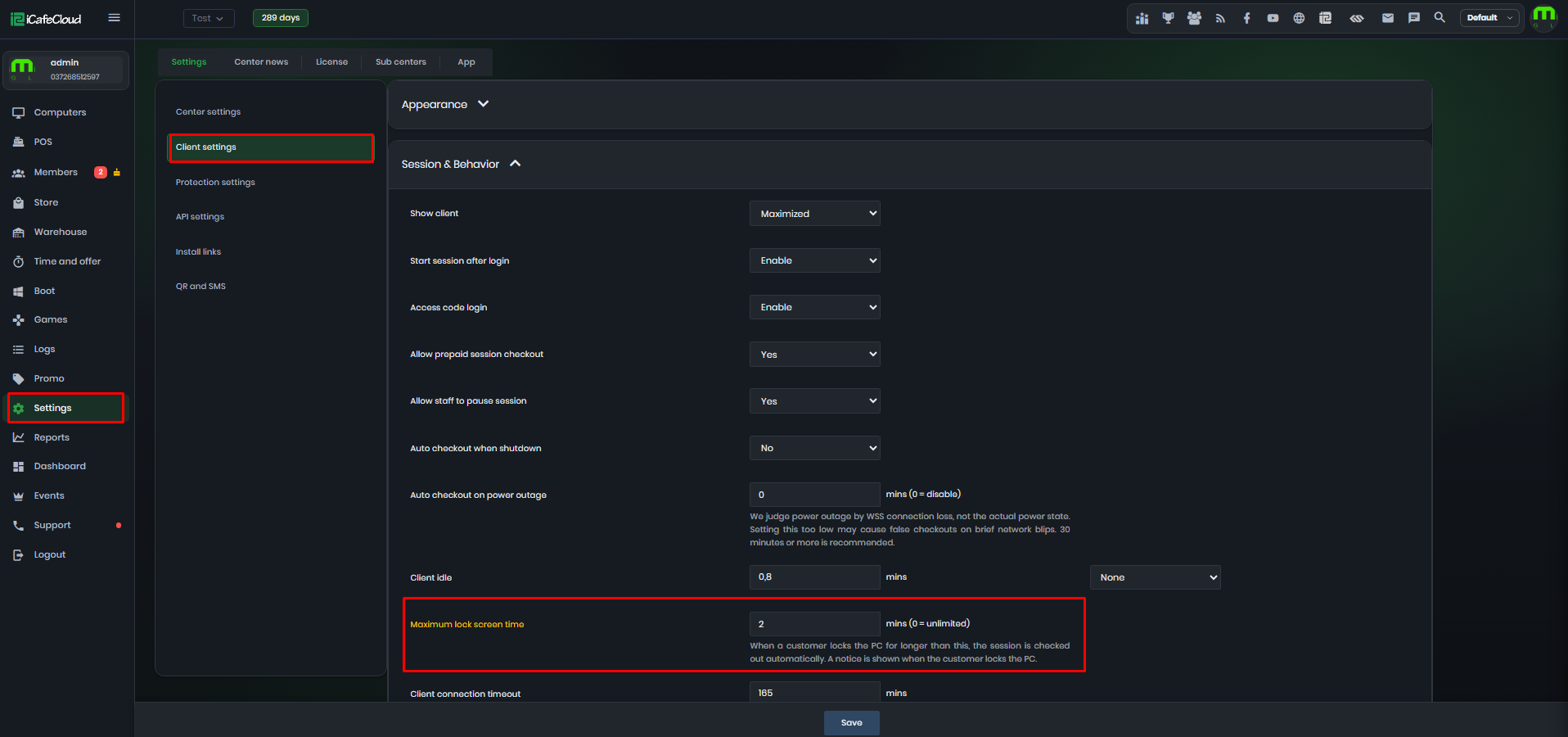
Figure 1
- When a customer locks their PC, a notice will be displayed informing them about the maximum allowed lock screen time. (Figure 2)
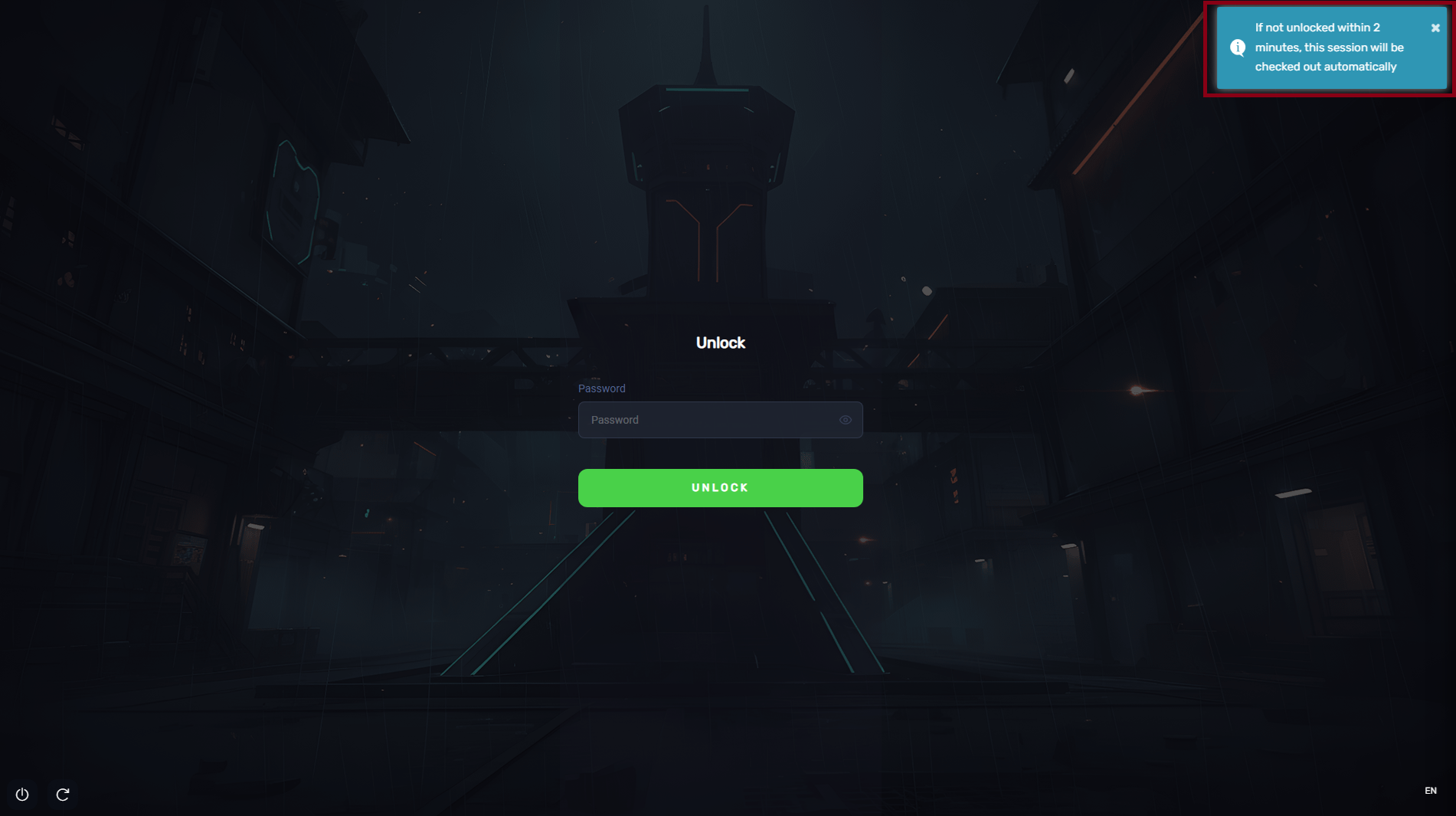
Figure 2
- If the PC remains locked longer than the configured time limit, the customer's session will be automatically checked out.