

The following guide explains how to arrange the games displayed on the client side in your preferred order by selecting which game appears first, followed by the remaining games.
- Navigate to the Games page and click the Game Display Order button to configure the order in which games appear on the client side. (Figure 1)
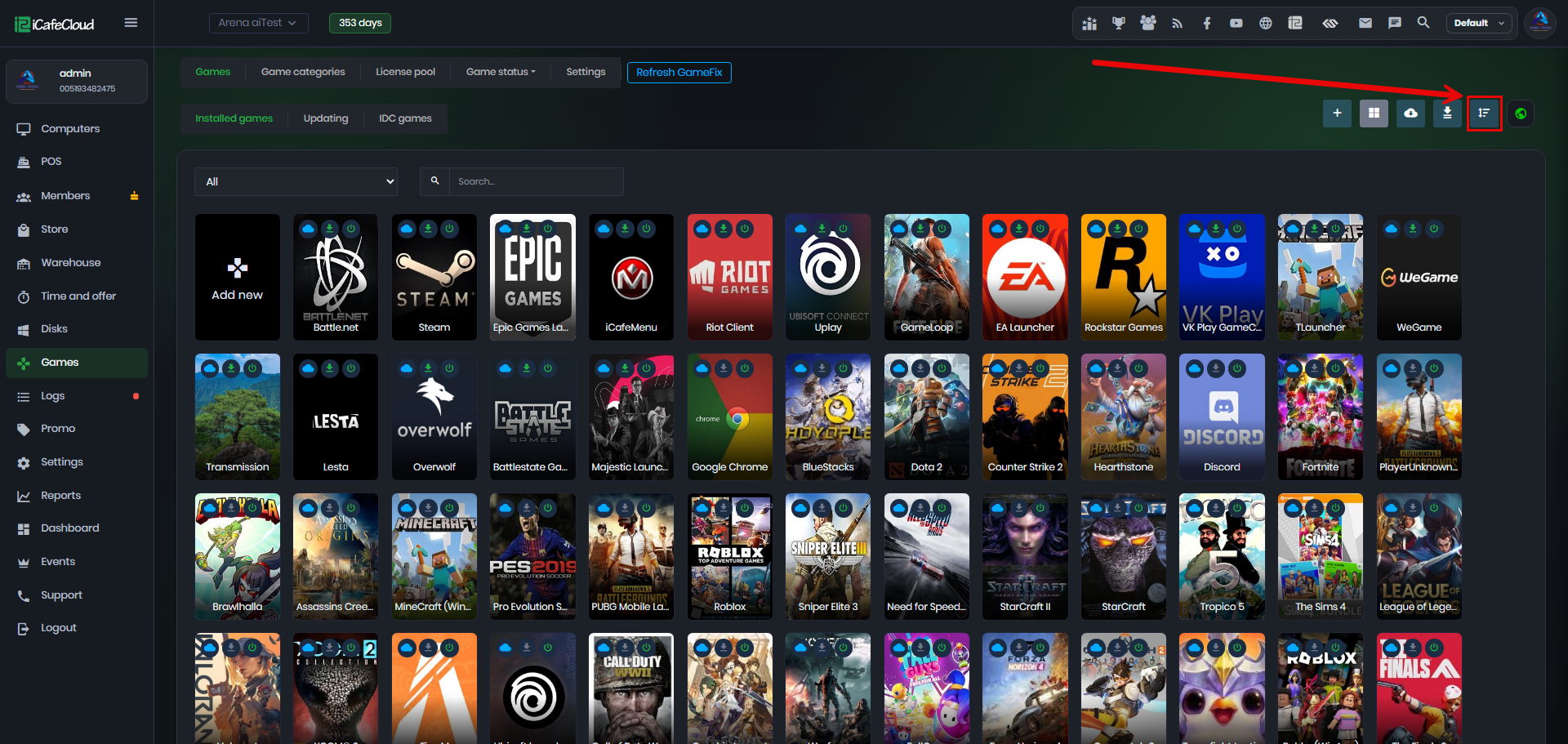
Figure 1
- In the order list, select the game you want to display first, then click the Plus (+) button to add it to the display order. (Figure 2)
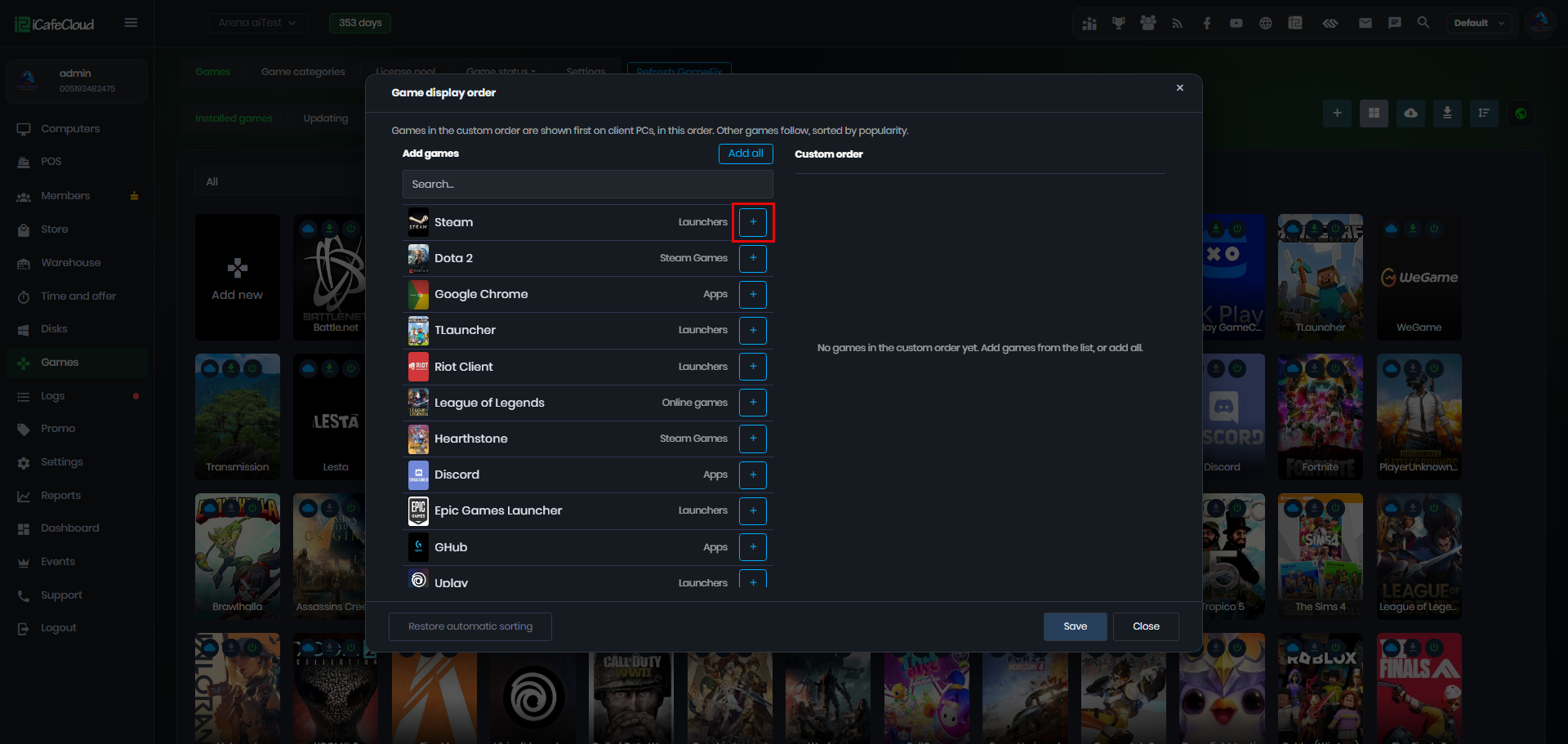
Figure 2
- Once you have added a few games, they will appear in the order list, numbered sequentially from 1 at the top. This determines the order in which the games are displayed on the client side. (Figure 3)
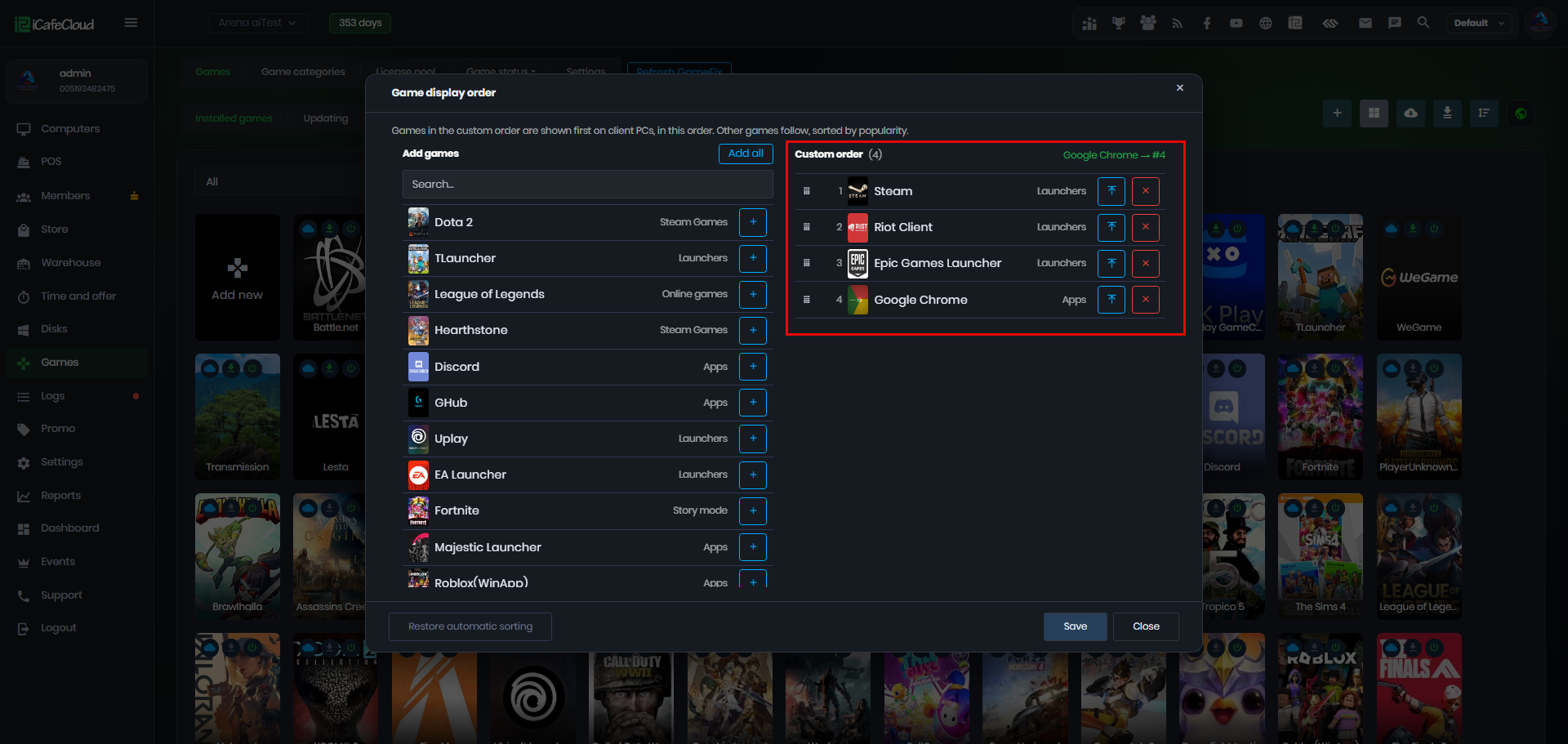
Figure 3
- If you want to adjust the custom order and move a game higher in the list, you don't need to start over. Simply select the game and click Move to the Top to place it at the beginning of the list.(Figure 4)
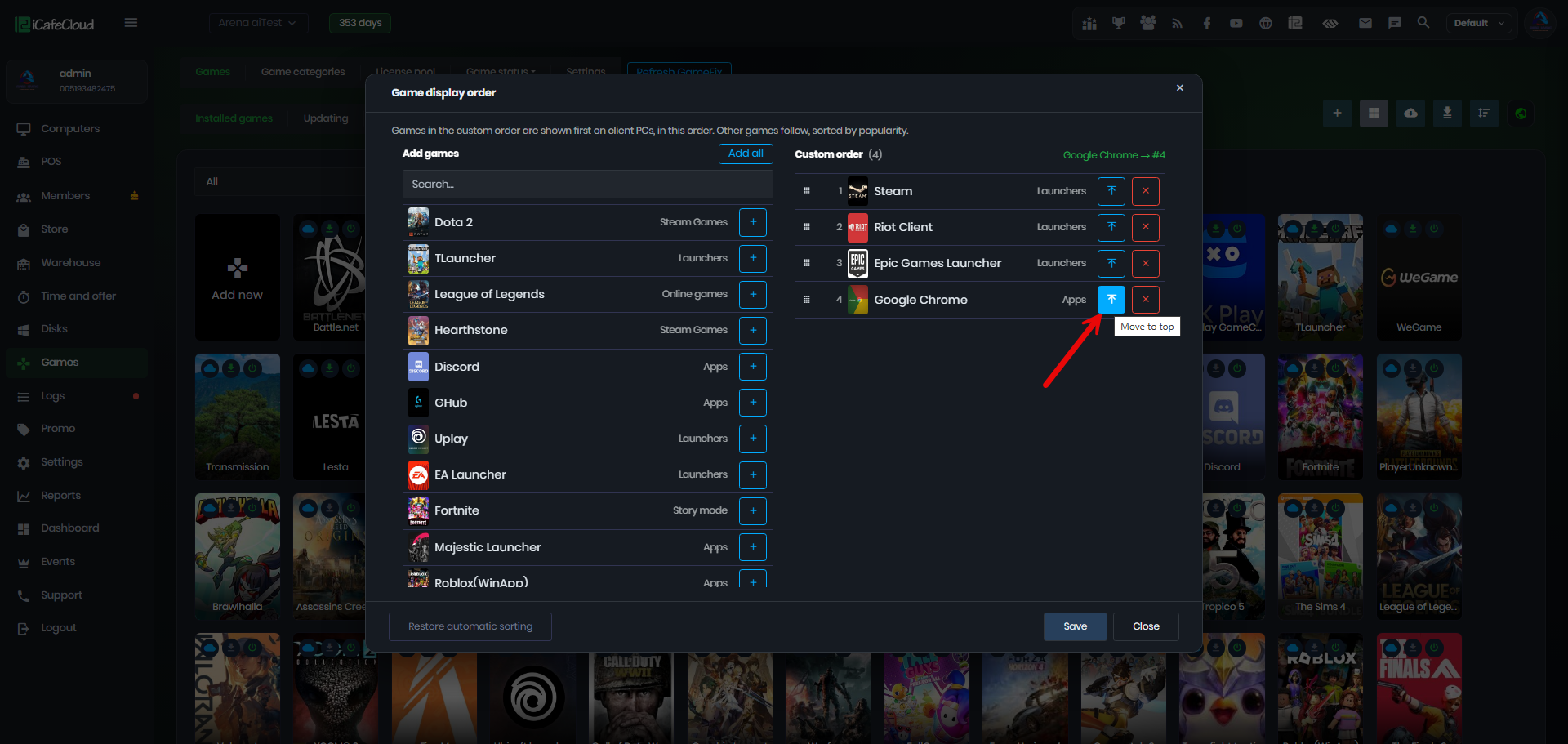
Figure 4
- On the client side, the games will be displayed in the same order as the custom list you configured.(Figure 5)
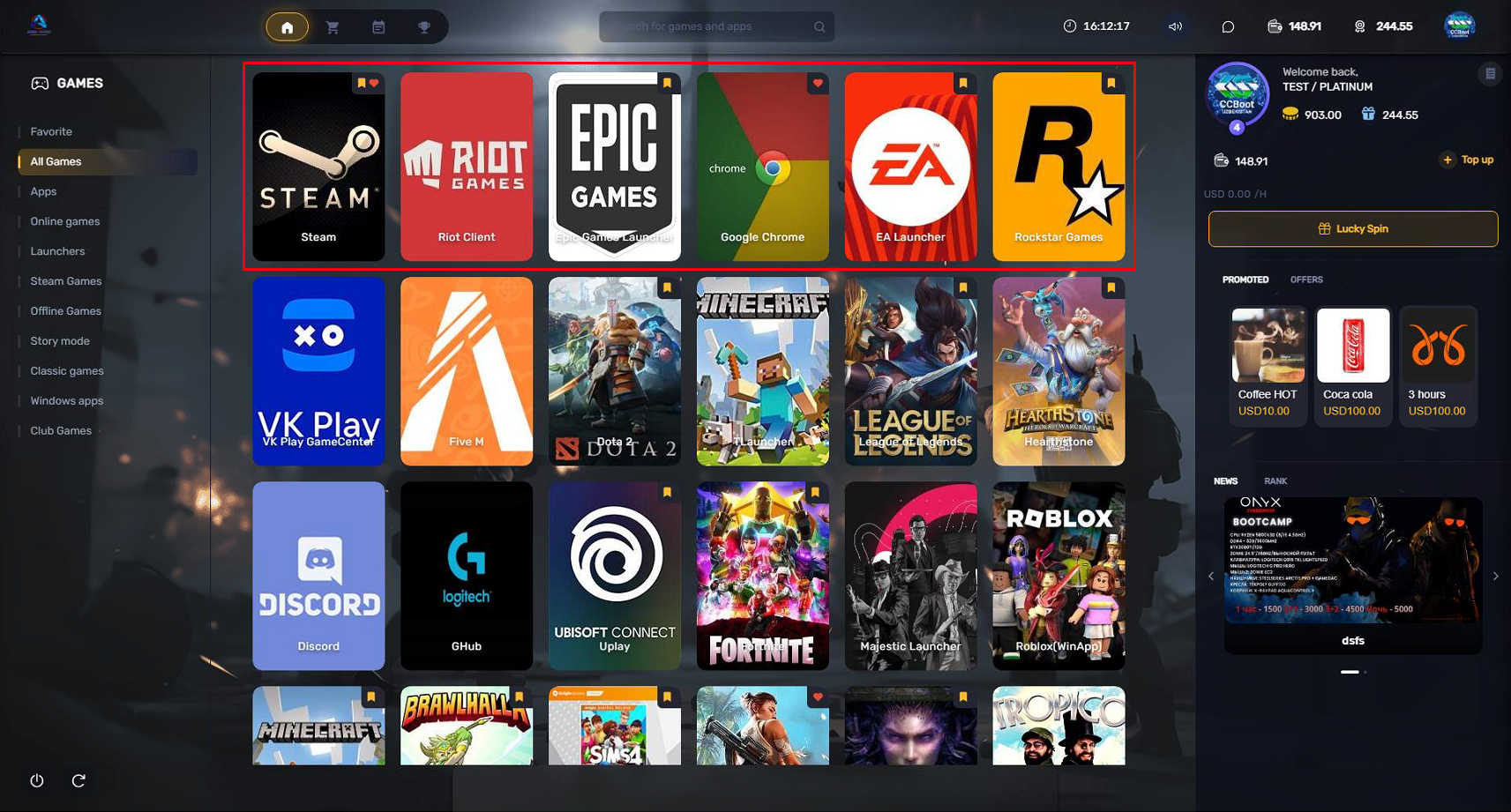
Figure 5