

The following explains how to configure the device manager so employees can register, track, and verify devices or items lent to customers during a session, such as controllers, USB chargers, or headphones, ensuring all items are returned at checkout.
- Navigate to POS - Settings - Allow devices manager change to YES (Figure 1)
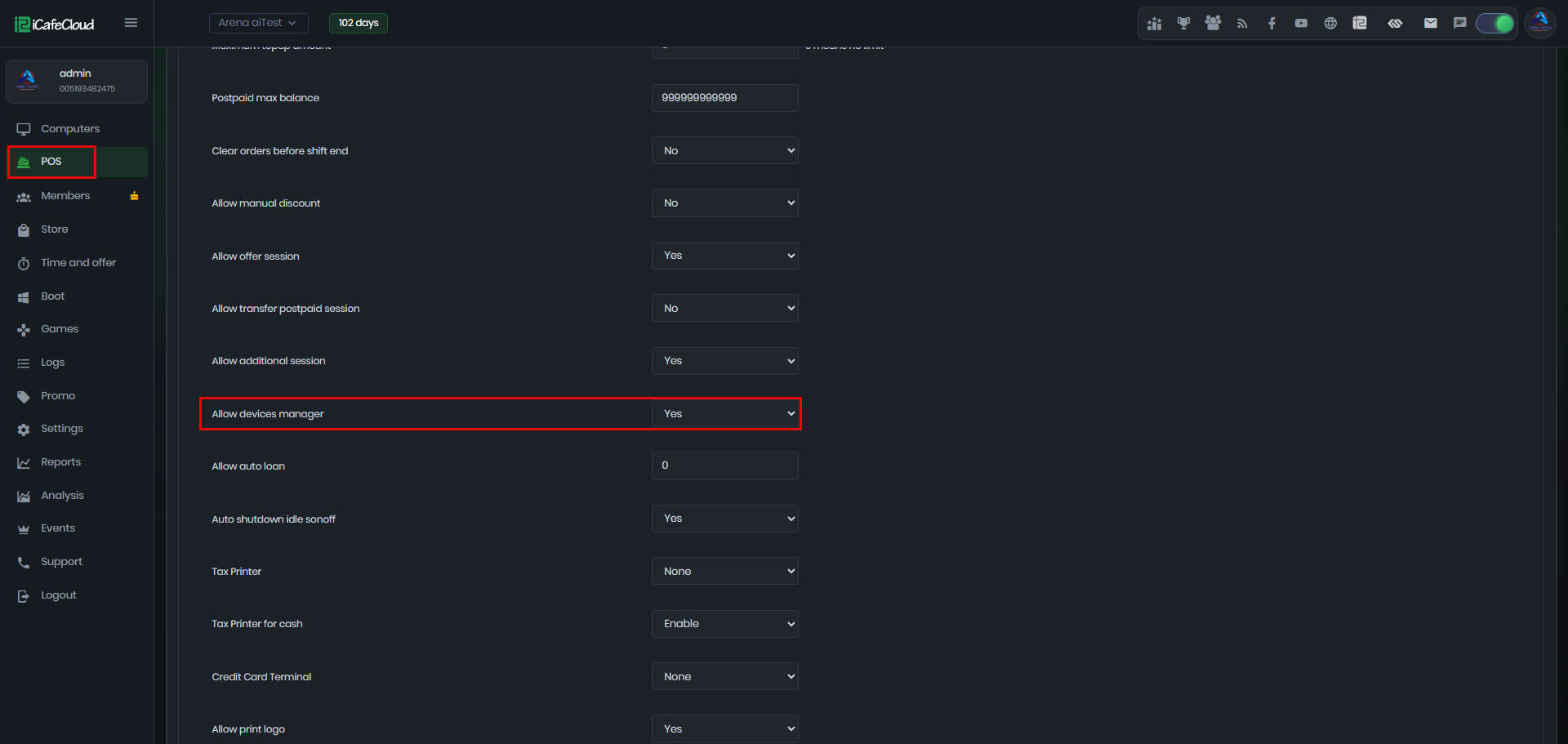
Figure 1
- On the Computers page, when a session is active, open the menu and navigate to Session. You will notice the Devices option.
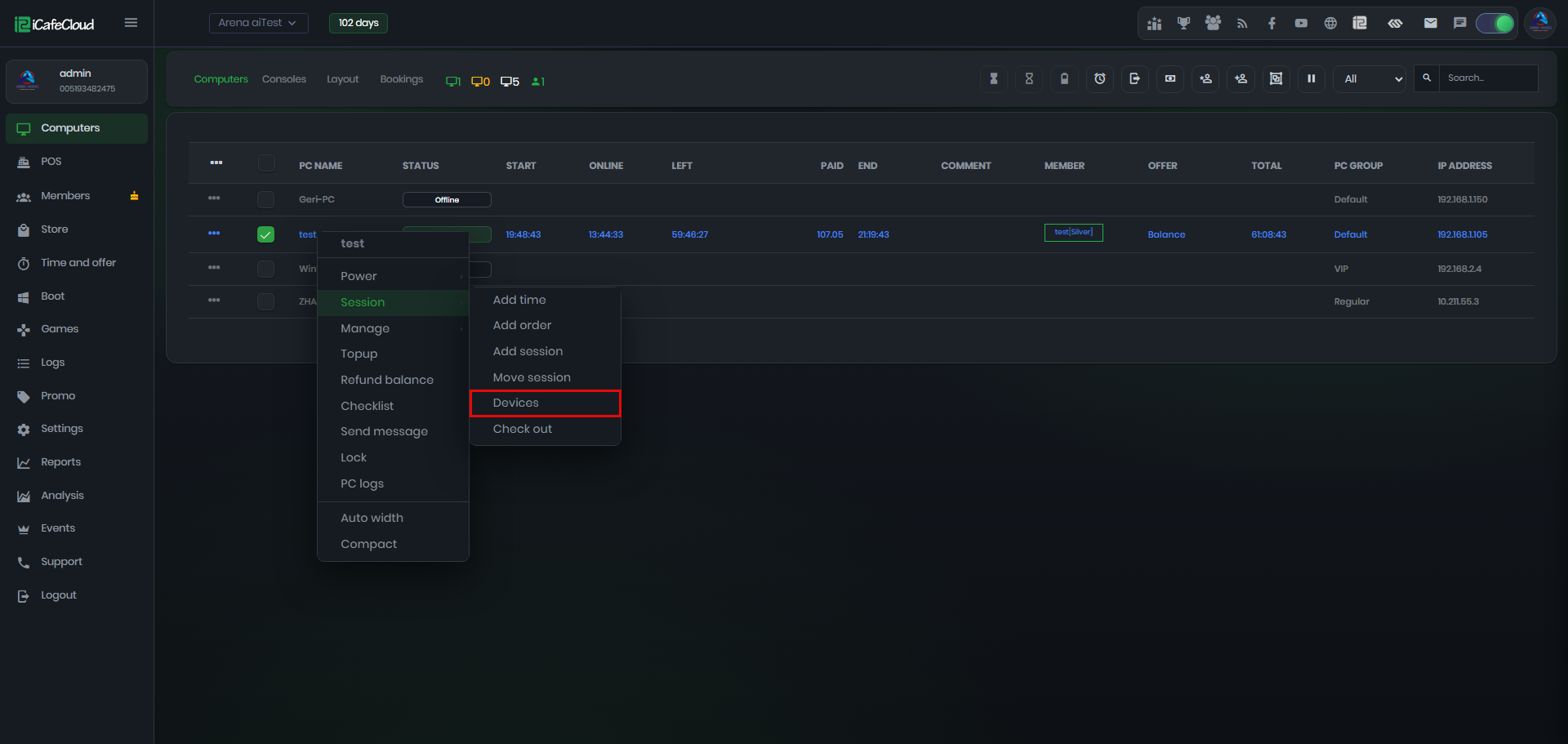
Figure 2
- By clicking Devices, the Devices page will open, where you can add items.(Figure 3)
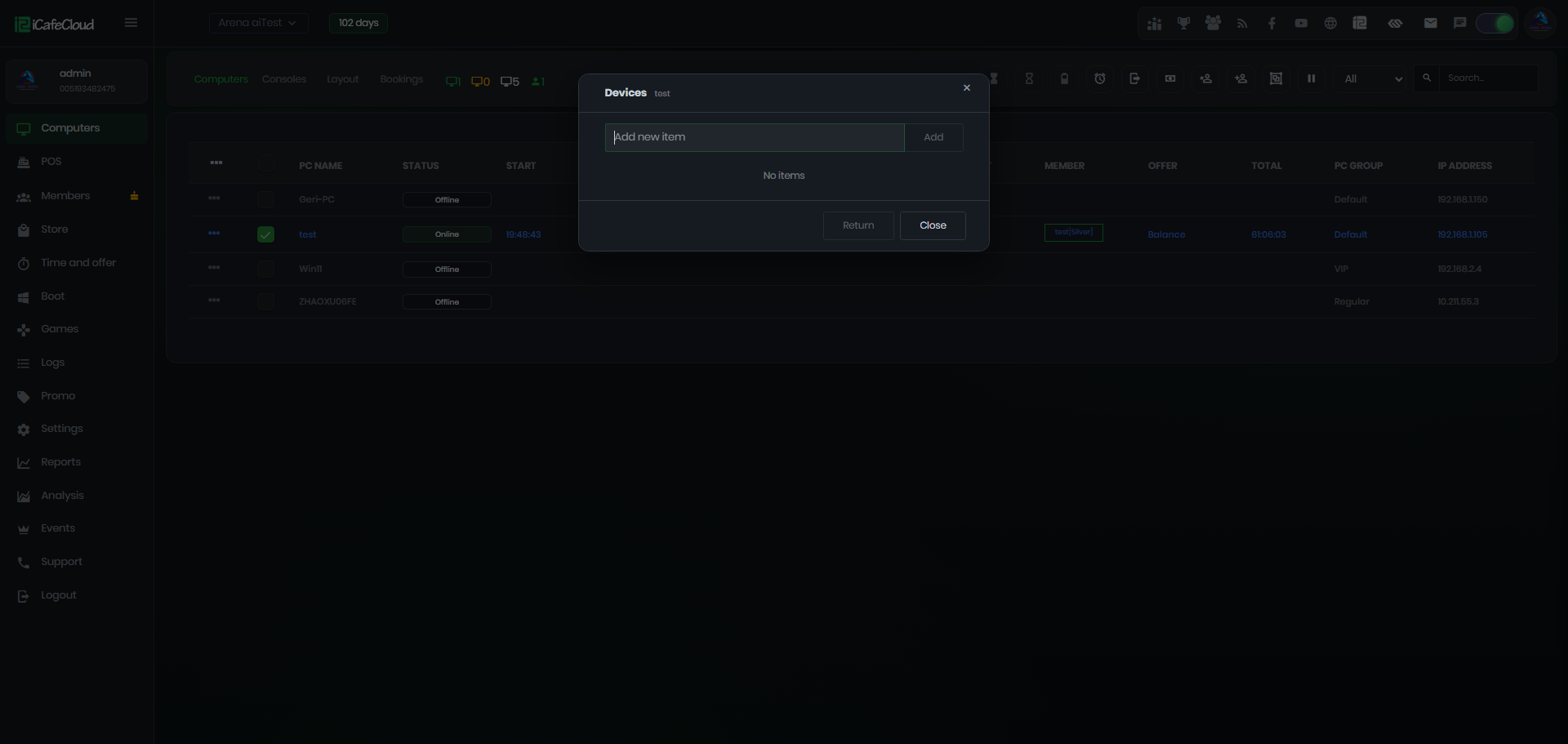
Figure 3
- You can enter any item description, such as a PS5 controller, USB charger, headphones, or any other customer belonging, and then click Add. The item will be recorded and displayed in the device list along with the date and time it was added. (Figure 4)
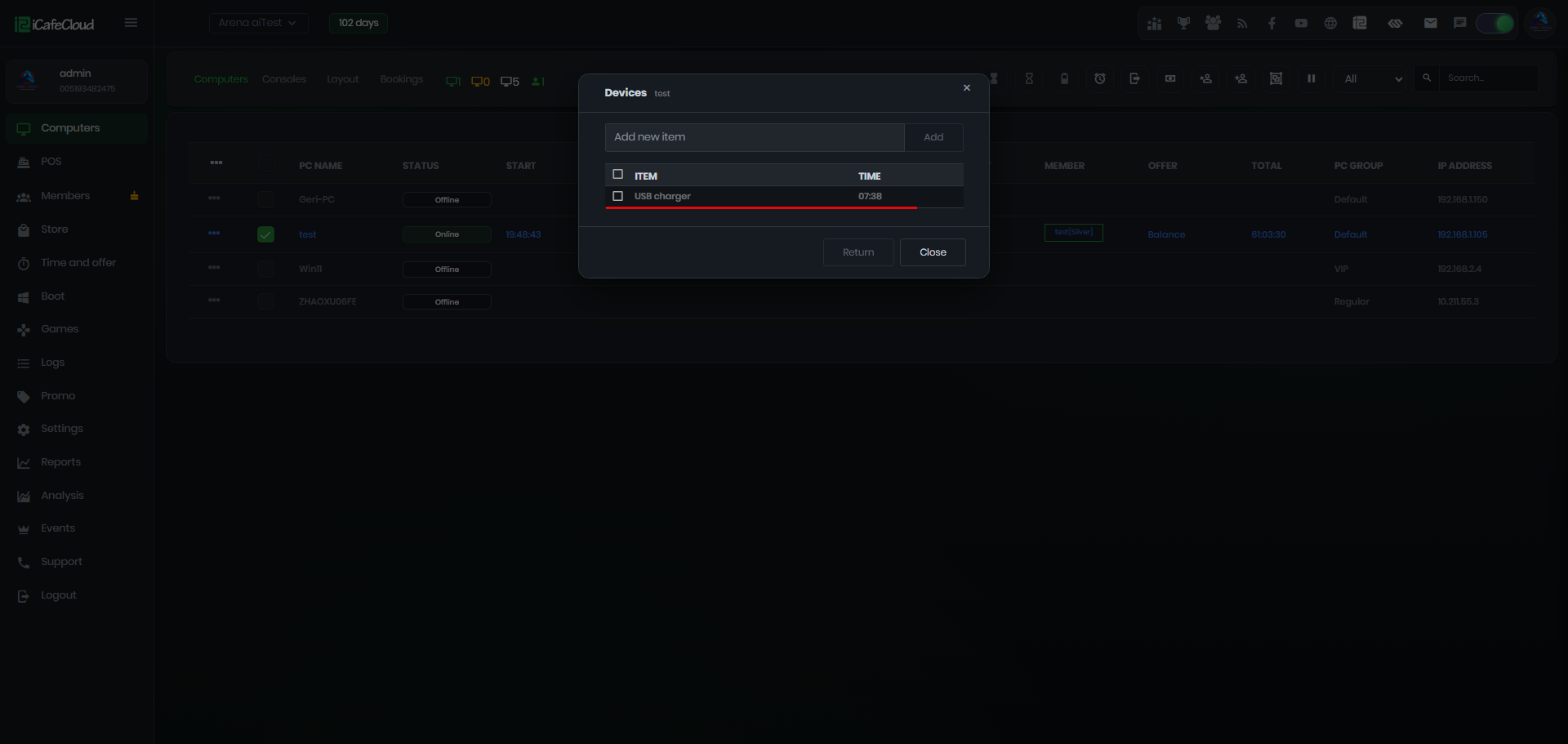
Figure 4
- Once the PC is checked out, any recorded devices or belongings will be displayed at the bottom of the checkout window. This helps staff verify that all items have been returned before completing the checkout process. (Figure 5)
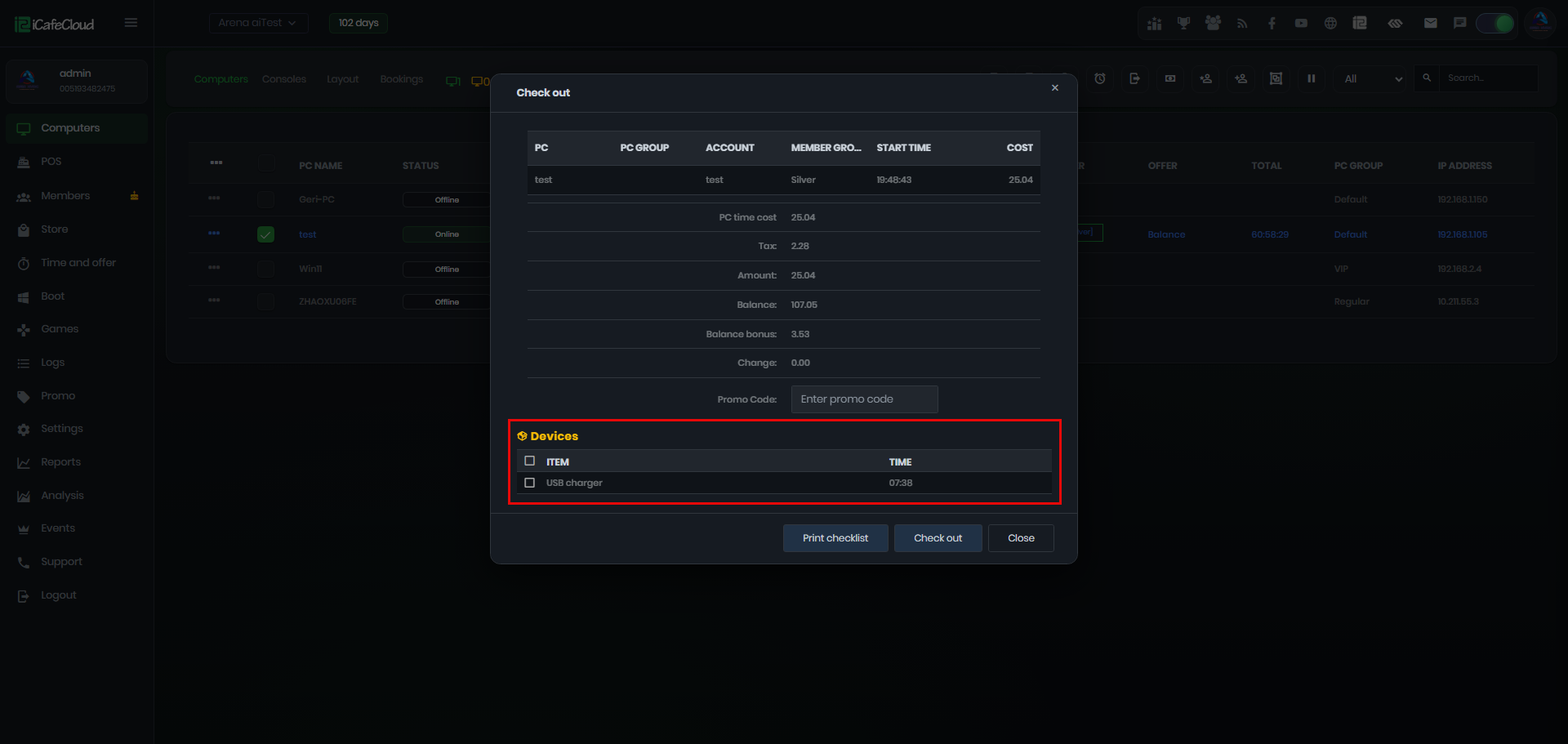
Figure 5
- If the devices have not been checked during checkout, the system will not allow the process to continue and will prompt the staff to confirm or verify all registered devices before completing the session. (Figure 6)
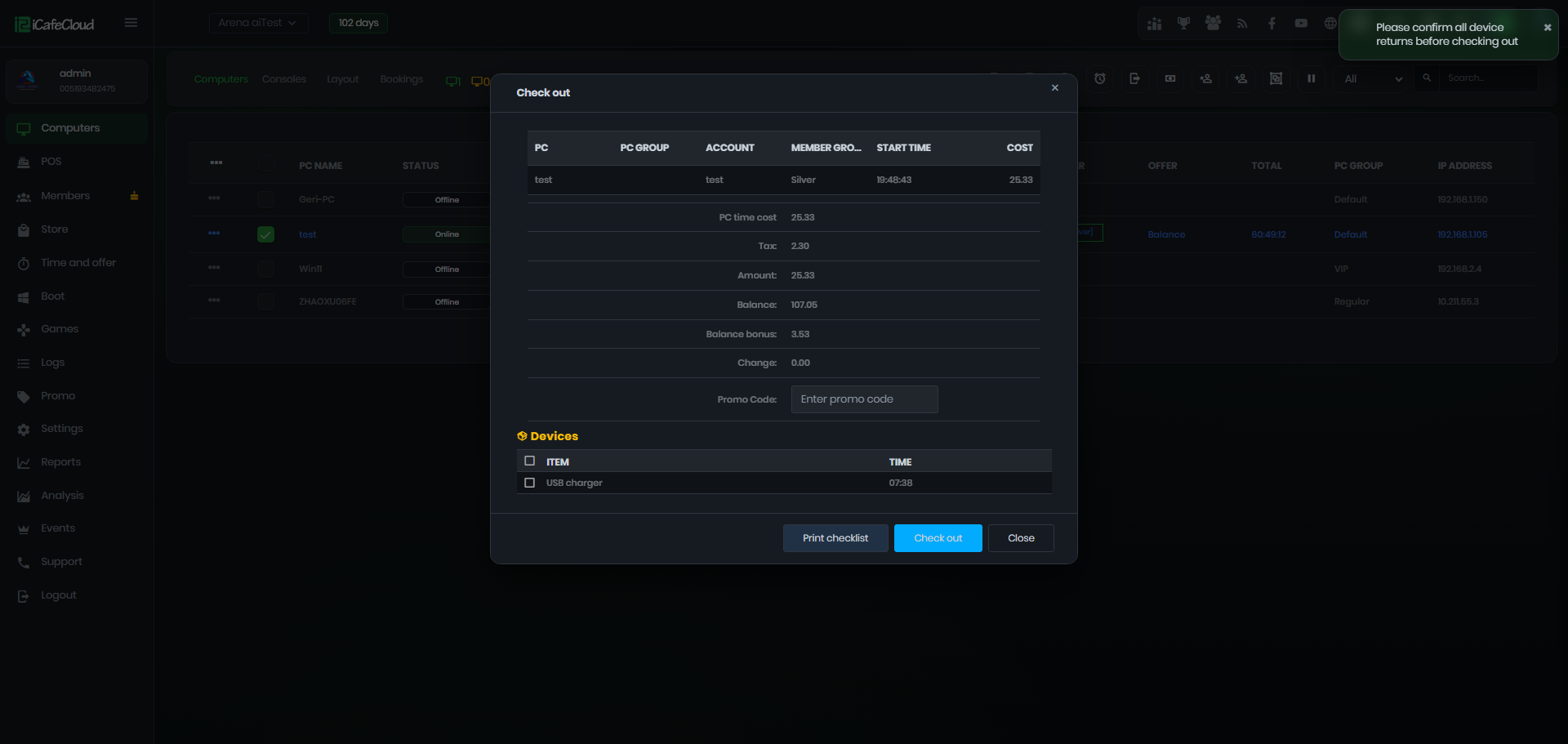
Figure 6
- When checkout is successful, the Logs page will show a Device Return event, indicating that all registered devices have been returned and verified during the session.(Figure 7)
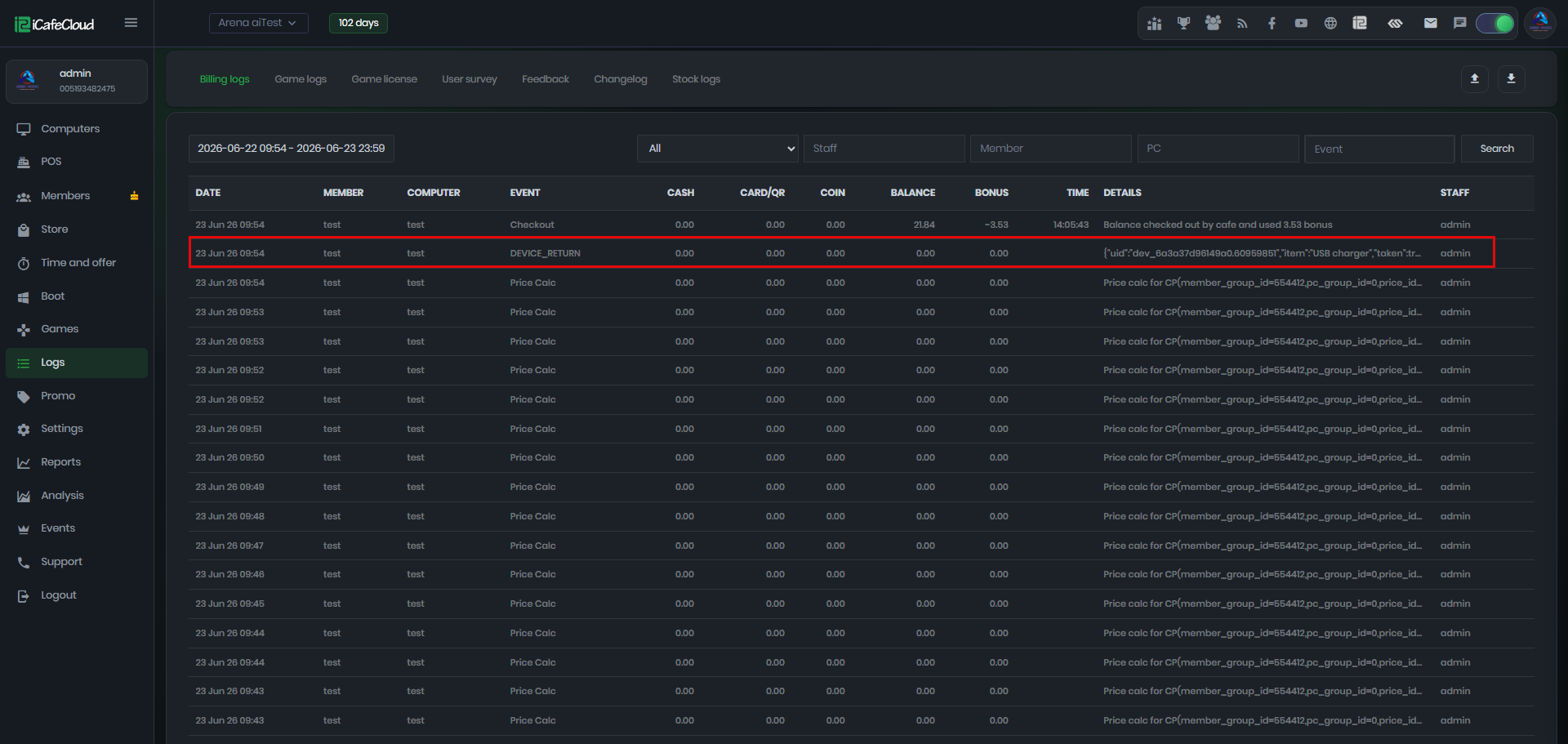
Figure 7