
2025-12-08
pay, room
The following instructions explain how to enable the "Pay by Room" function. This feature allows you to start a session for all PCs in the same room and check them out as a room.
- Go to Computers page click layout and then click at unlock rooms (Figure 1)
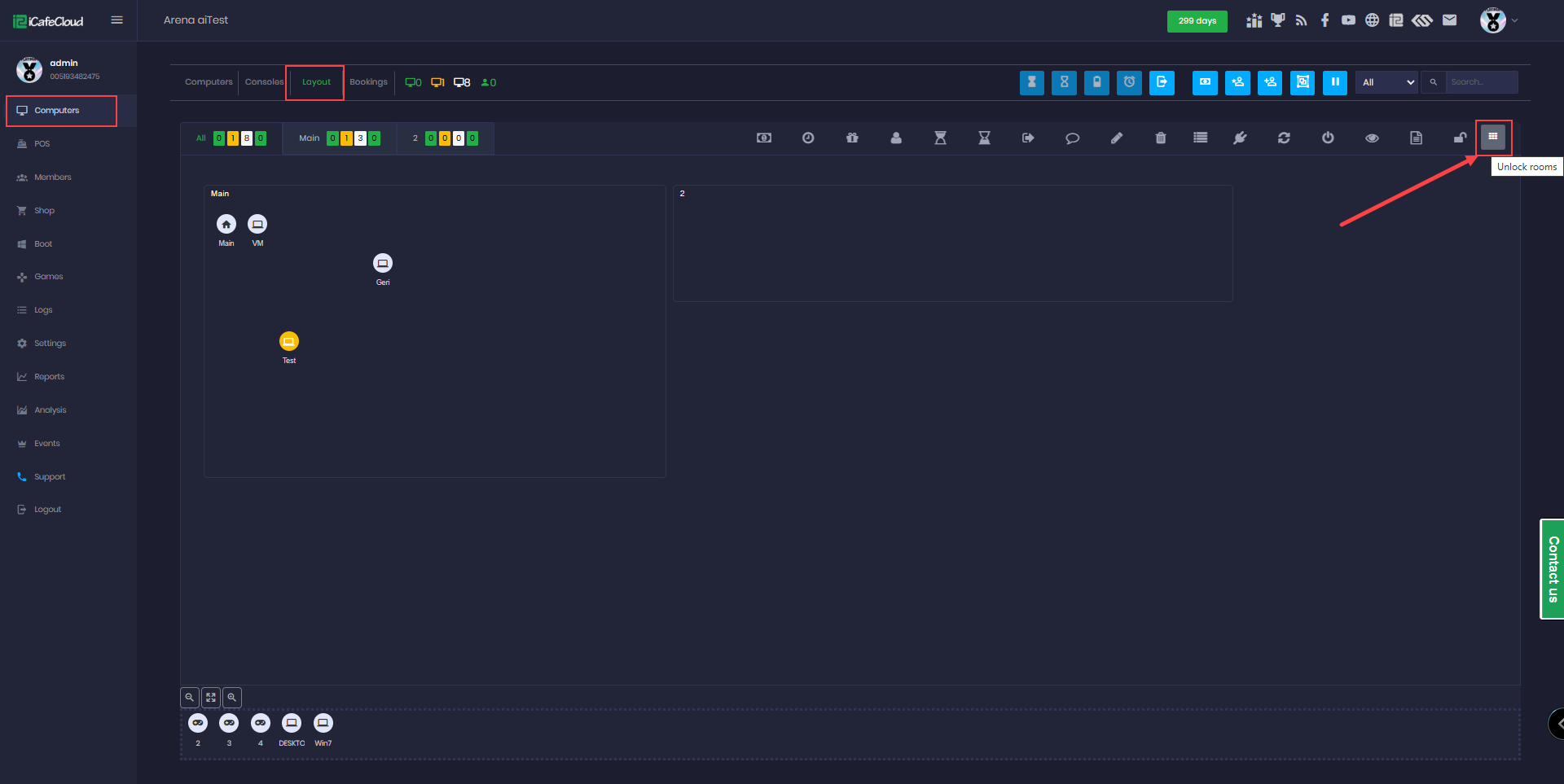
Figure 1
- Click Manage Groups, then edit the specific group you want to enable for Pay by Room (Figure 2).
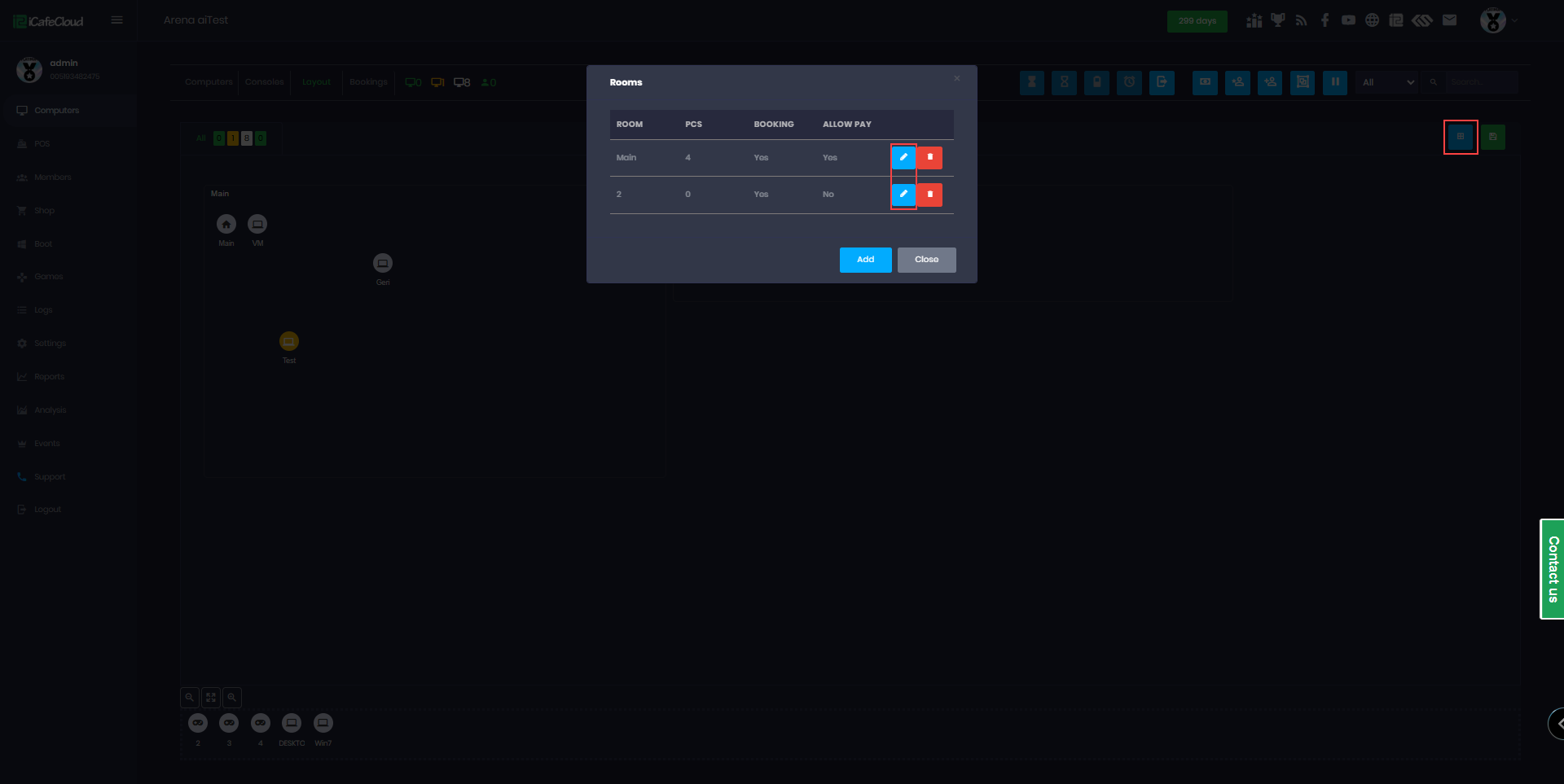
Figure 2
- Next, locate the Allow Pay by Room setting and change it to Yes. (Figure 3)
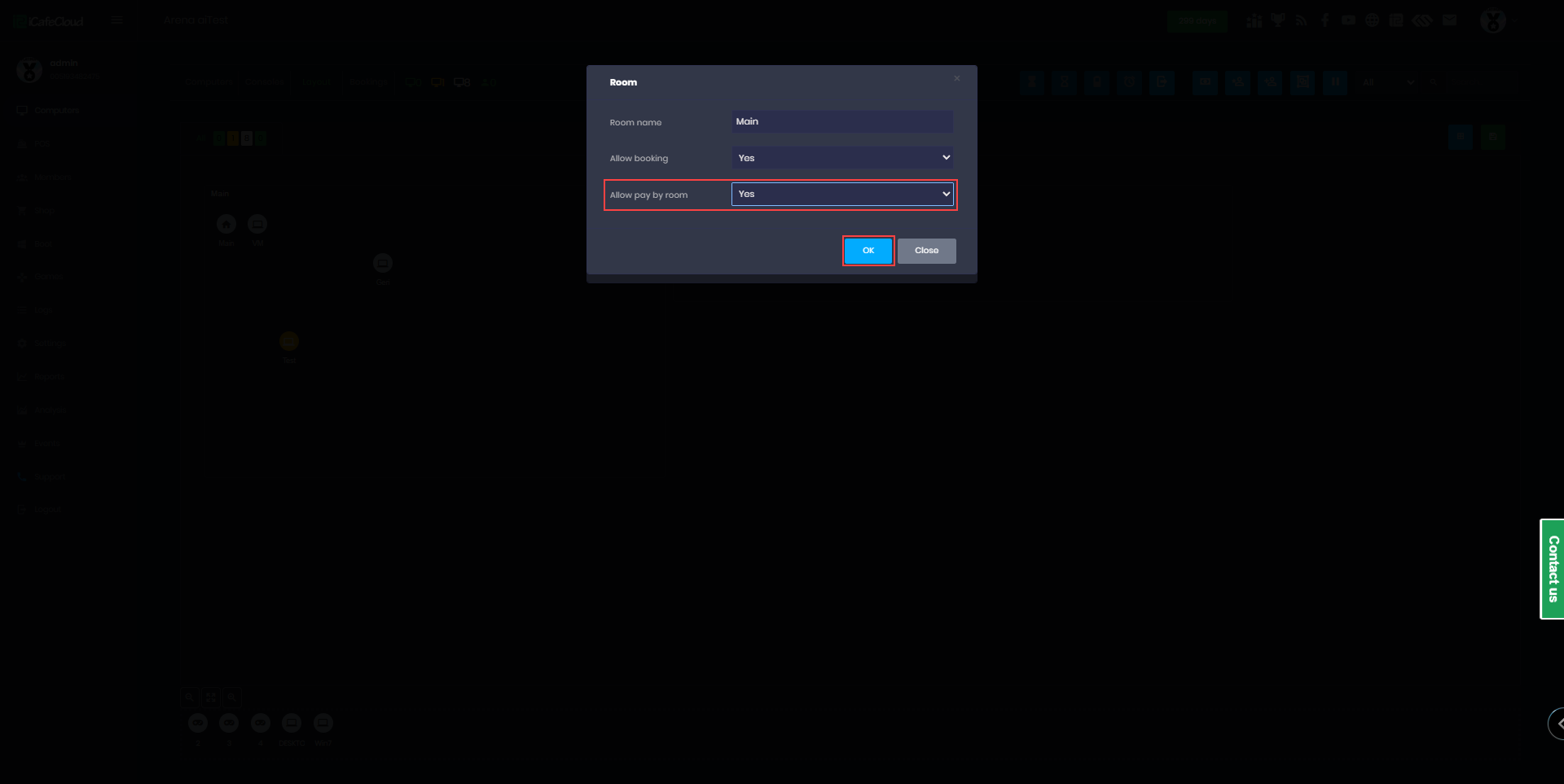
Figure 3
- Once enabled, a console named after the group will be added automatically. (Figure 4)
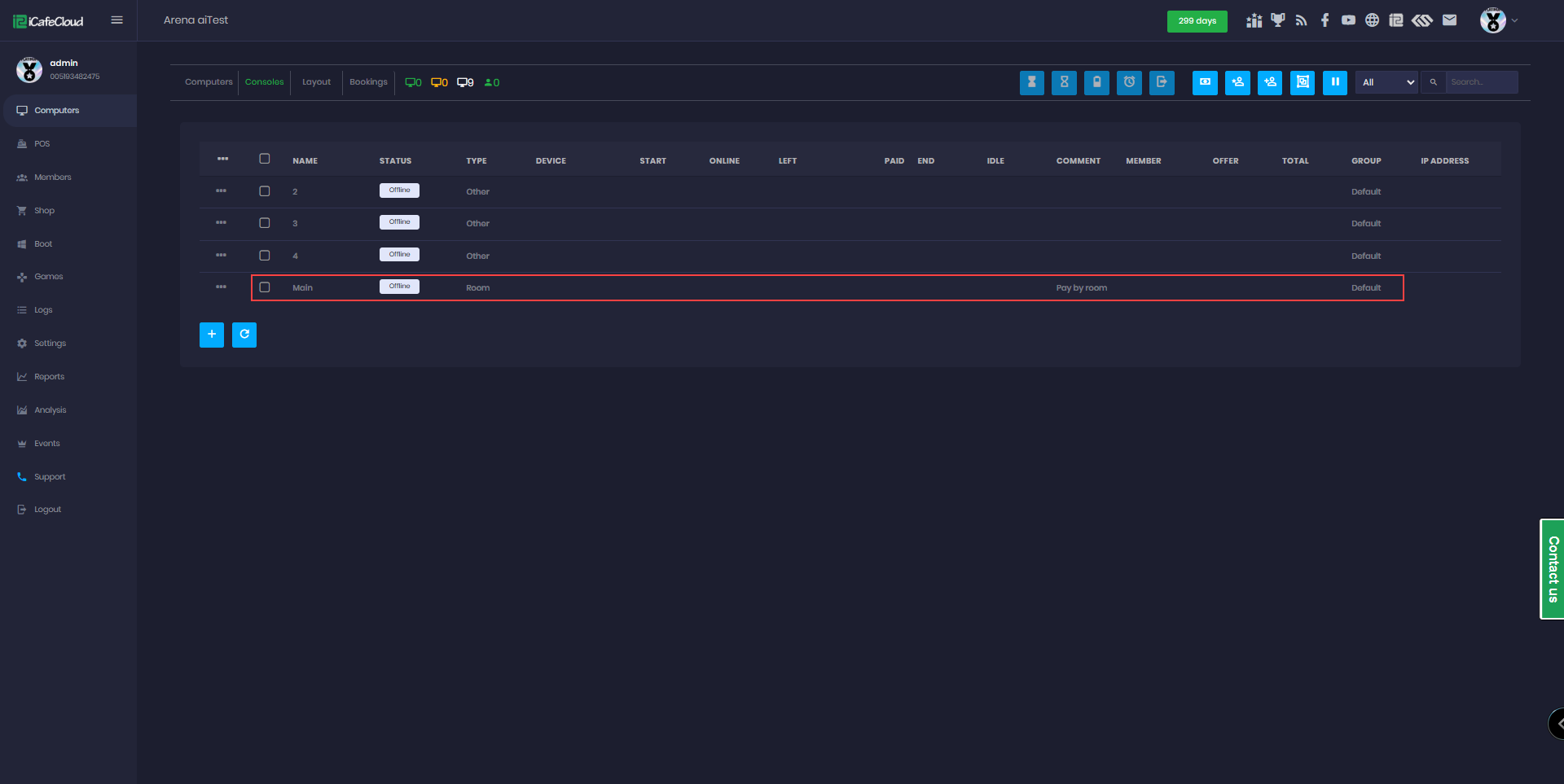
Figure 4
- After PCs or consoles are added to a room, separate sessions can no longer be started using the Session button.
- Once you start a session at the console using Pay by Room, it will activate the same session for all PCs or consoles within that room. A notification will then appear, listing the names of the PCs/consoles that started the session, along with a "Room session started" confirmation. (Figure 5)
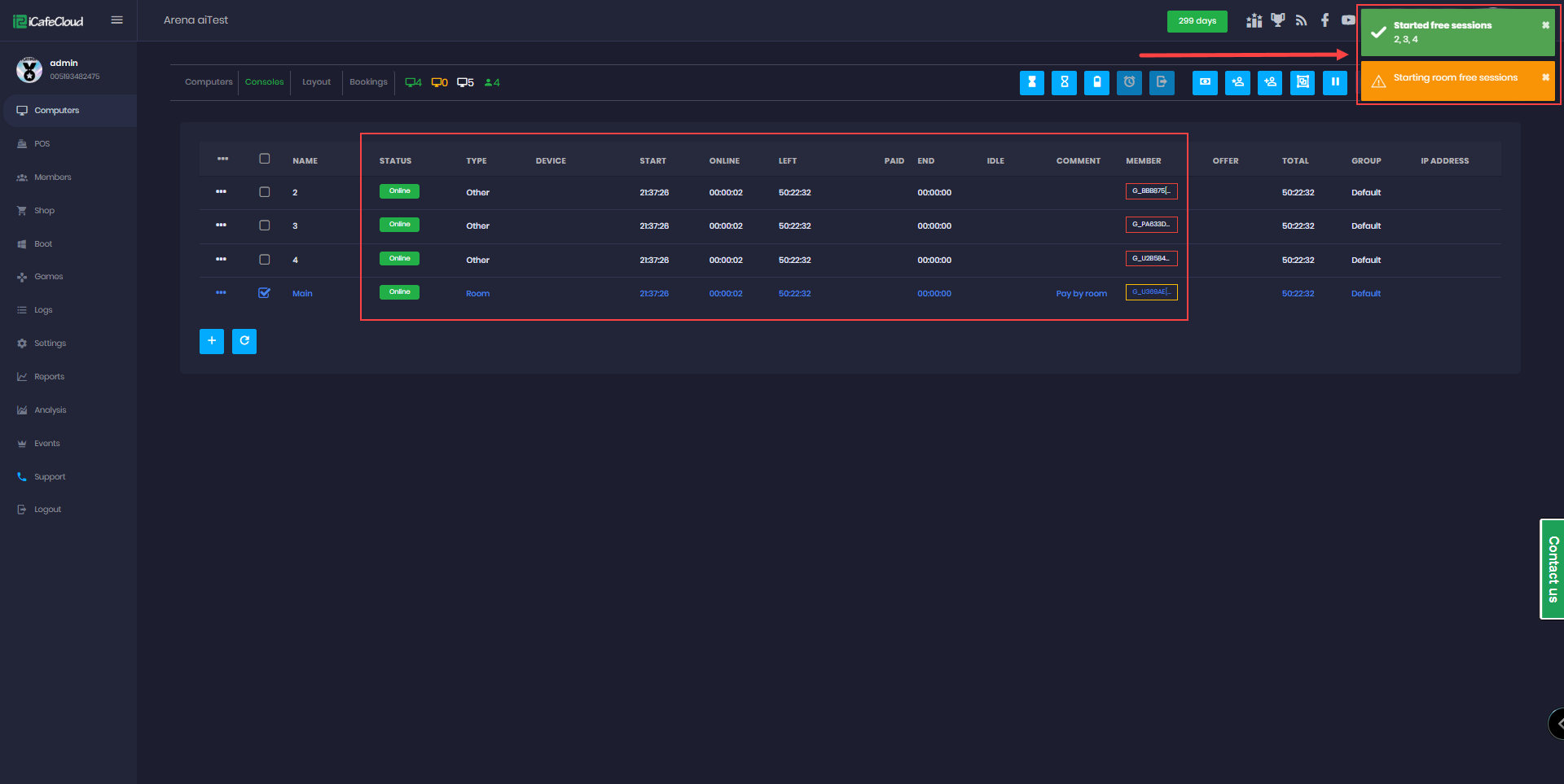
Figure 5
- By checking out the "Pay by Room" console, all PCs/consoles in the same room will be automatically checked out, and the total amount for all devices will be displayed together. (Figure 6)
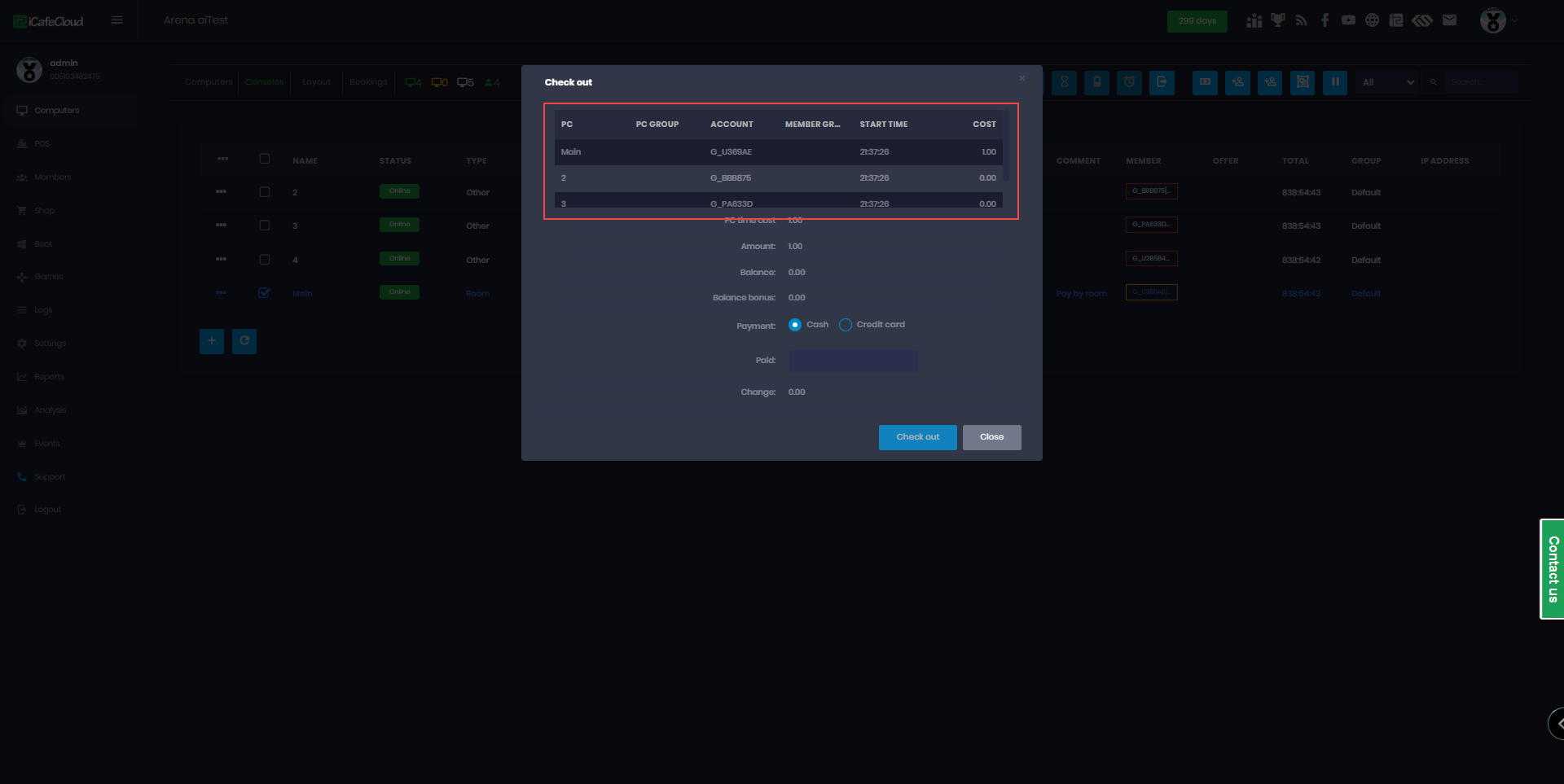
Figure 6
- If any PC or console in the same room is already in an active session, starting the Pay by Room console will trigger a notification stating the room is occupied. The session will then start only for the Pay by Room console itself and not for any other devices in the room. (Figure 7)
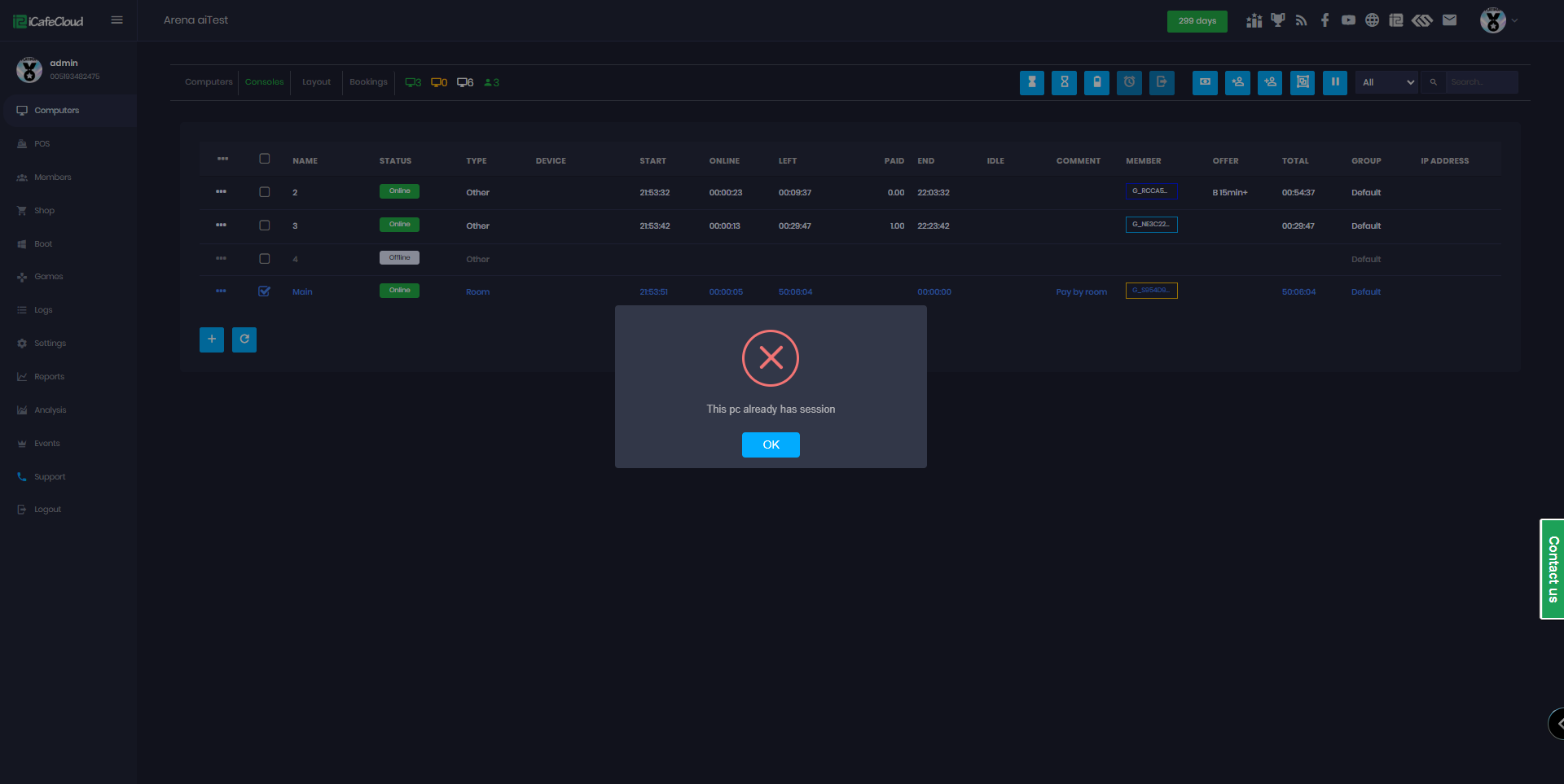
Figure 7