

A cyber cafe management solution gives your front desk a record of each employee's shift. In iCafeCloud, staff open a shift under their own account, enter the cash they start with, and use the shift report when they close. For a routine handoff, I'd keep the conversation at the counter to the drawer and anything that still needs someone's attention.

Two attendants at the front desk while customers play in the gaming area
Start with the cash in the drawer
Sign in with your own staff account and choose Yes when iCafeCloud asks if you want to start a shift. Enter the cash already in the drawer for making change. If there's no opening cash, leave it at 0. Use Details if you need to see the starting stock.
Count it first. If the drawer should have $100 for change and you count $80, enter $80 and check with whoever prepared the drawer about the difference. That's the cash you're taking responsibility for at the start of your shift.
If you take the outgoing shift's takings to the safe and leave a smaller float in the drawer, count what you actually left for the next employee. Say the closing drawer held $160 and you removed $60. The incoming employee's opening amount is $100 if that's what they count. Those reports capture different moments.
Two employees can have shifts open at the same time. Each shift belongs to its own staff account, so the next employee can sign in with their own login if the two shifts overlap.
Close the shift and check the drawer
Ready to close? Click End Shift and confirm. Open the Shift Report to see when the shift started and ended, along with the cash and QR payment totals and the products sold. When you count the drawer, compare the physical cash with the report's ending cash figure, which includes the opening cash. Count bills and coins. Check QR payments separately.
Say you start with $100 for change and take $60 in cash sales, with no refunds, expenses, or other cash movements. You should count $160 in the drawer even if the shift also took payments by QR. If the count comes up short, go back to the opening amount and check the cash entries for the employee who closed the drawer, while the details of those transactions are still fresh.
Now say the same shift also paid a $12 cash refund and took $8 from the drawer for a shop expense, with both entries recorded for that shift. Expect $140. Count $132? Follow the $8 difference. Check whether the expense appears in the records once, then use Billing Logs to check the time, staff account, and payment type on any sale or refund you're tracing.
If your venue uses the setting that requires pending orders to be cleared before closing, complete the orders shown in the prompt before finishing the shift. For a customer question that still needs an answer, a short note with the order reference and the next action is enough.
During an overlap, the next cashier can help finish an order that the outgoing cashier opened while that earlier shift is still active. For example, the outgoing cashier puts in a snack order and the relief cashier collects the payment. iCafeCloud records that payment under the shift that created the order. If you need to find it later, pull up the earlier shift first.
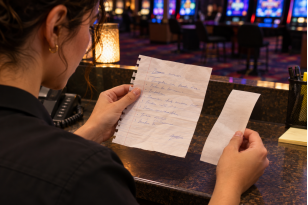
An attendant reviews a handwritten note and receipt at the counter
Have the next employee sign for stock when needed
If your venue uses the stock handoff, review the Stock Management Report at closing. It shows the ending cash and any differences in stock. The incoming employee checks the report and uses their own staff credentials in Sign Staff to confirm it.
Check the item with the difference. If the count for bottled water looks off, check the shelf and use Stock Logs to review sales and restocking during the shift.
For example, suppose the shift opened with 18 bottles of water, sold 5, and restocked 6. The expected count is 19. If you can find only 17 in the cooler, check the shelf where the refill was unpacked before anyone signs. That quick check can tell you whether two bottles are sitting in a different place or the count needs a closer look.
Pull up the same shift later
Open Reports, select the Shift tab, and search by date and time. Pick the employee's shift from the results. Full Report uses that shift's start and end times, which helps when you're checking a shift that continued past midnight.
If you're checking a Friday evening shift that ended at 1 a.m. Saturday, start with a search range that covers Friday evening and Saturday morning. Open the matching staff shift and use Full Report. Its time window follows the shift, so you can review the period that employee worked when a card payment or a cash sale needs checking after midnight.
Check the employee name first. Use the shift times to confirm the record before comparing totals. If two people worked over the same dinner rush, the time alone may point you to both shifts.
For a single shift, print the report or save it as a PDF through the print dialog. If you review several shifts together at the end of the week, open Report Export under Reports, set the date range, and select Staff Shift to download the spreadsheet. It includes a row for each shift and separates opening cash, cash refunds, expenses, and ending cash so you can compare like amounts across several days.
Try the shift controls in a cyber cafe management solution
The iCafeCloud Wiki has separate instructions for Staff shifts, Manage stock in shift, and Check reports by shifts.
If you're choosing software for your venue, see the current iCafeCloud pricing and use the iCafeCloud trial to open and close a staff shift.