

The following explains how to detect and add a Sonoff R4 device in iCafeCloud that allows the device to turn on automatically when a session starts and turn off automatically when checkout occurs.
Before you start
- Install the matching updated iCafeCloud Server on a Windows x64 PC. The Server PC and BASIC R4 must be on the same reachable LAN. The PC may use Ethernet.
- Install the eWeLink mobile app and sign in to the account that will own all BASIC R4 devices. Have the password for the local 2.4 GHz Wi-Fi network ready. If a device is already paired and working in this account, keep its existing pairing.
- Have your iCafeCloud Cafe ID and an API token that permits the Server's public IP address.
- Have the eWeLink account that owns the device. You will enter its email address or international phone number, password, and registered country calling code in the Server setup window.
- In the eWeLink app, tap Add Device. Select the local 2.4 GHz Wi-Fi network and enter its Wi-Fi password. Tap More options, choose Bluetooth Pairing, and follow the instructions in the app to add the BASIC R4.
- After it appears in the device list, enable LAN control in its settings. Repeat these steps until every BASIC R4 has been added to the same eWeLink account and has LAN control enabled. (Figure 1)
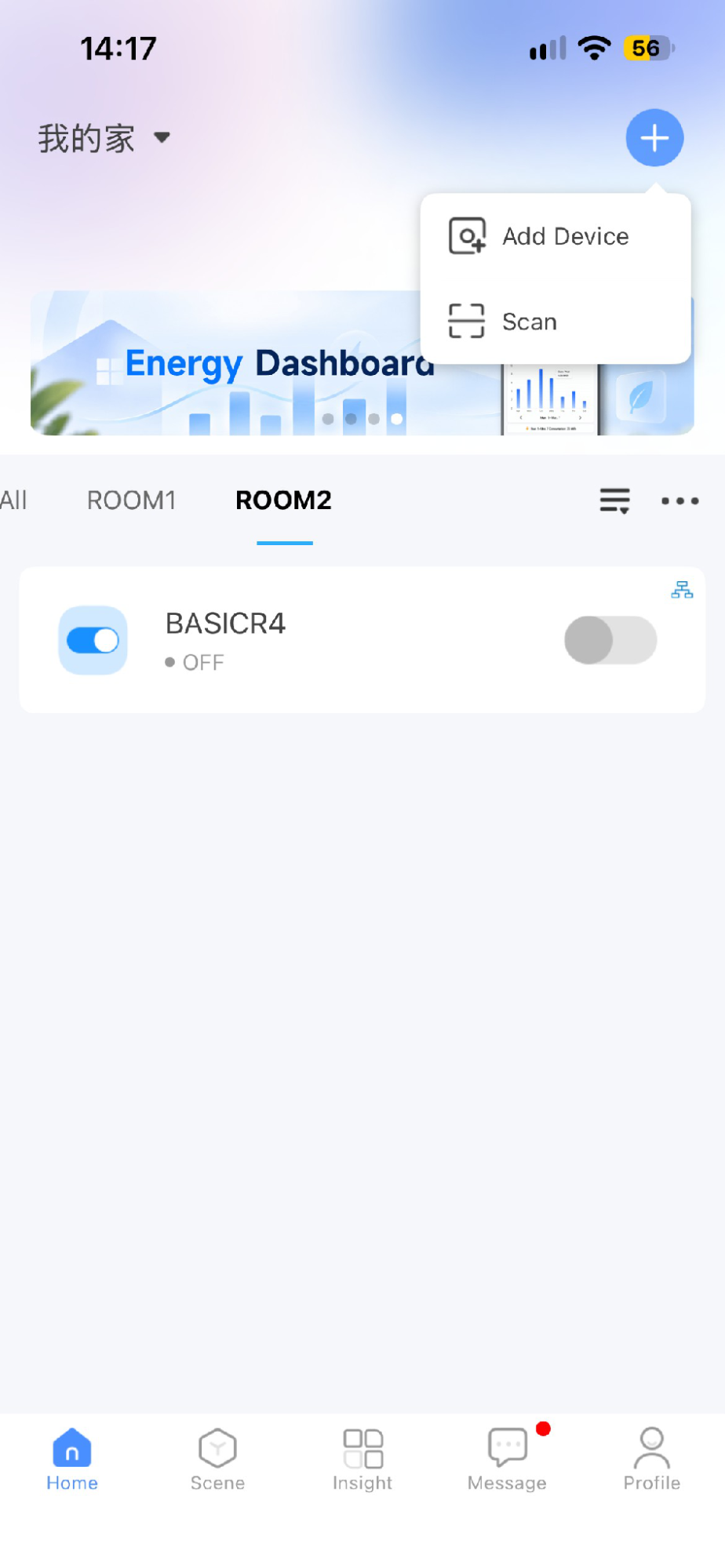
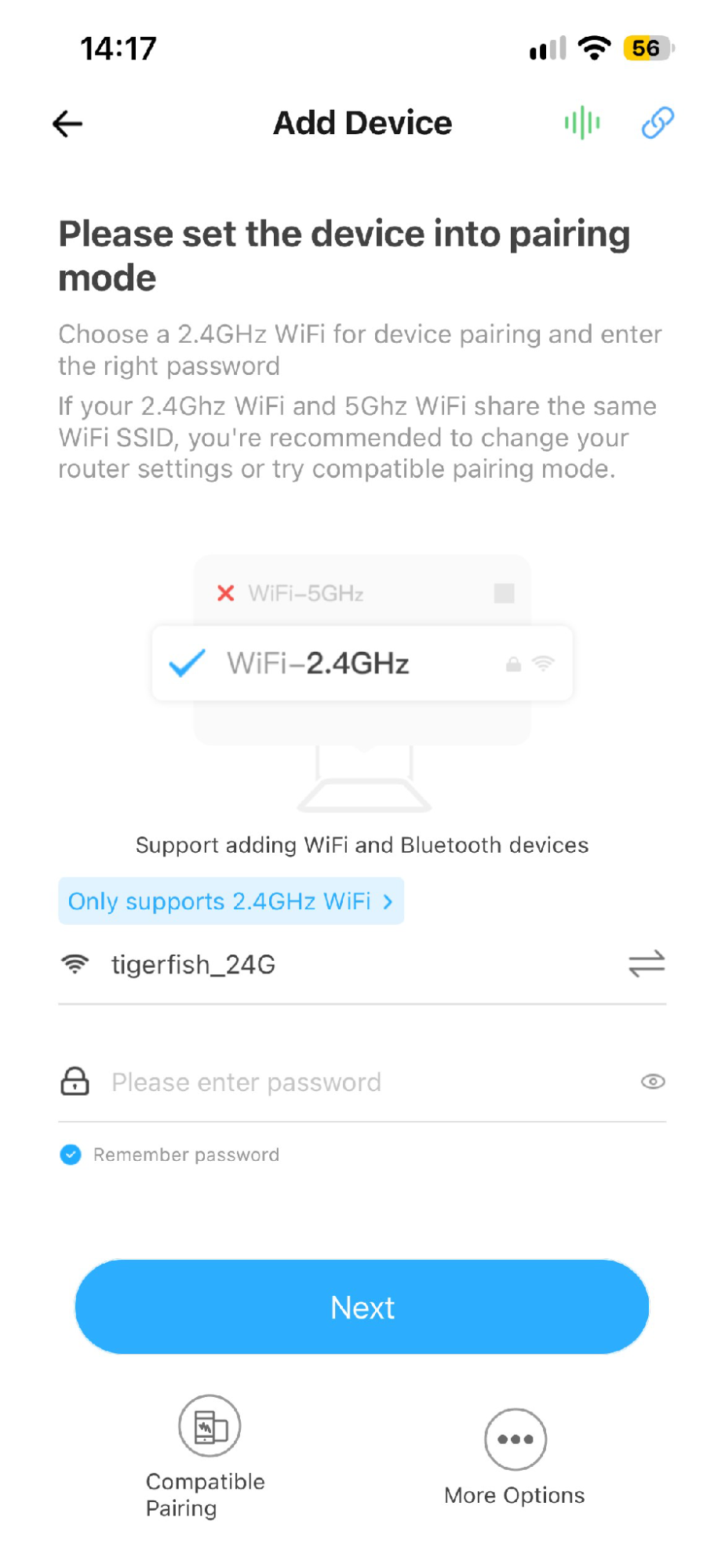
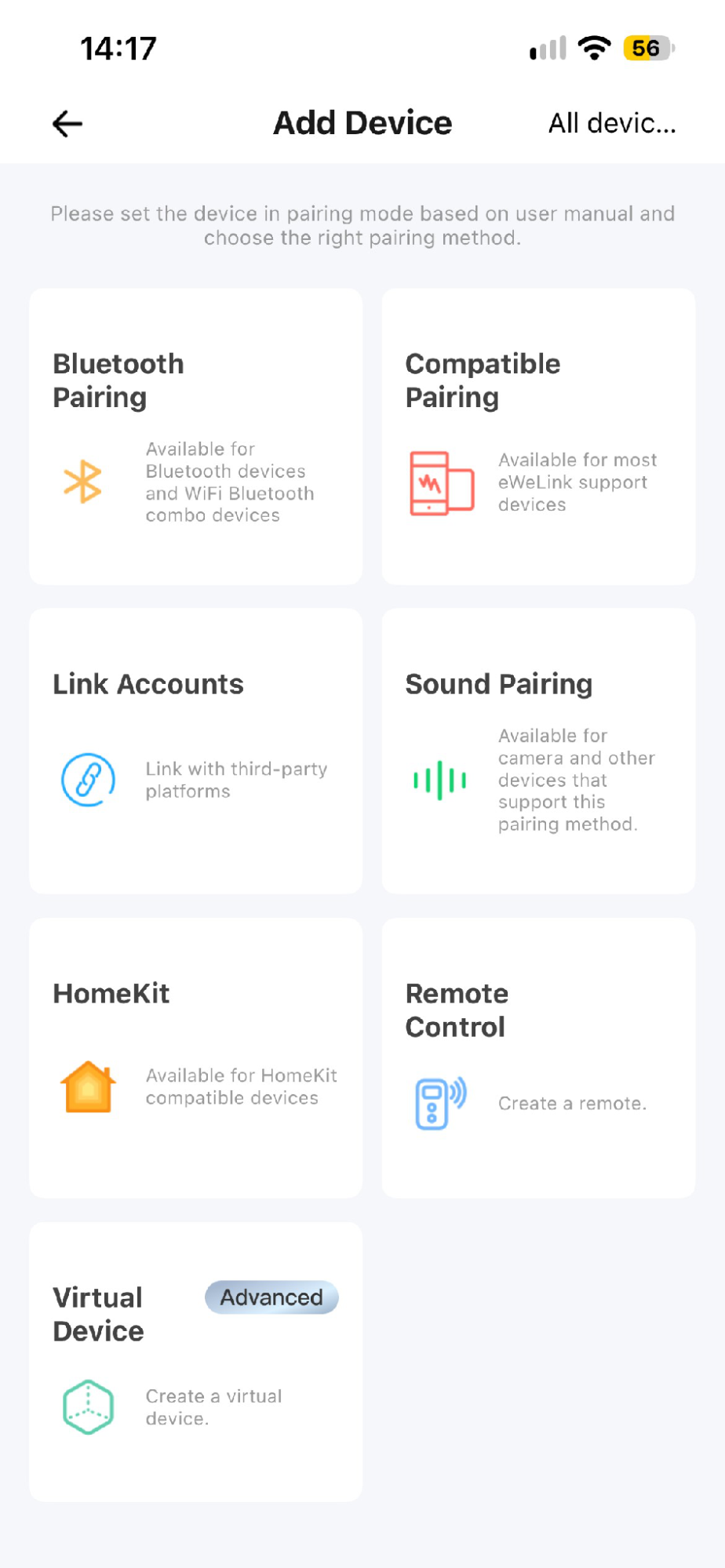
Figure 1
- Start the iCafeCloud Server service.
- In iCafeCloud Server, open Tools →Options, then click SONOFF R4 Setup.
- The setup window has Accounts, Import Devices, and Local Devices tabs. A Complete tab appears only after every imported R4 has a verified Console Device binding.
- The links for API configuration, the eWeLink apps, and this guide are available in the window.(Figure 2)
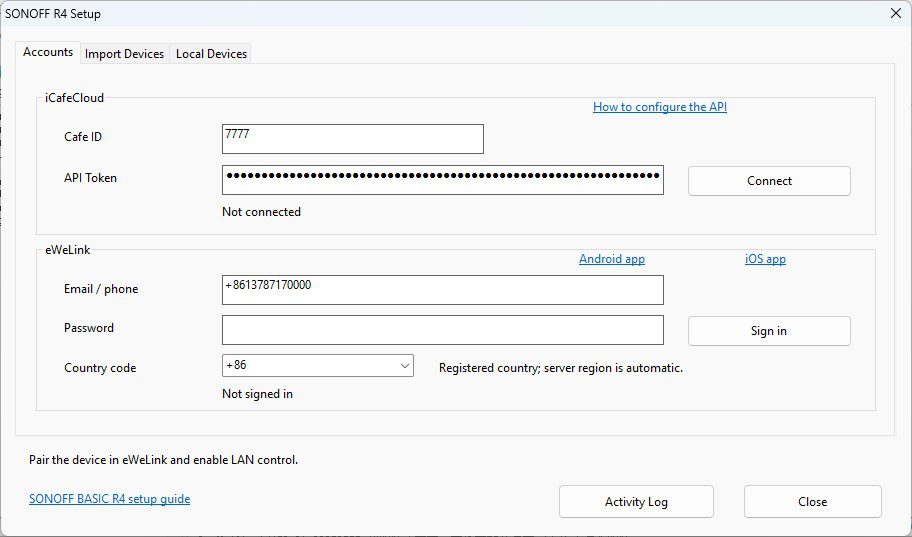
Figure 2
- On Accounts, enter your Cafe ID and API token in the iCafeCloud group, then click Connect. Wait for Connected to iCafeCloud. If you need to replace these details, click Change connection.
- In the eWeLink group, enter the account email address or phone number including its + country code, the password, and the registered country calling code. Click Sign in. The country code is for the account; the cloud region is selected automatically. A successful sign-in loads the device list. The password is cleared from the form after the operation and is not saved by this setup window.
- If a step fails, read the error MessageBox. Activity Log is available at the bottom of the window for diagnosis. Ordinary users do not need to provide an application ID, application secret, APK, captured packets, or PC Bluetooth.
- Open Import Devices. Use Reload devices if the list is stale. Select only the supported BASIC R4 devices, click Import selected, and confirm the action.
- For each selected device, the Server saves the local device configuration and checks for an iCafeCloud Console named SONOFF_
it creates a missing Console and checks again. Import does not switch the relay or change Wi-Fi settings. - A Console being present does not by itself prove that its Device binding or LAN control is ready. If some imports fail, review the MessageBox and the per-device result before retrying. After all selected imports succeed, setup automatically opens Local Devices for the required binding check.(Figure 3 & 4)
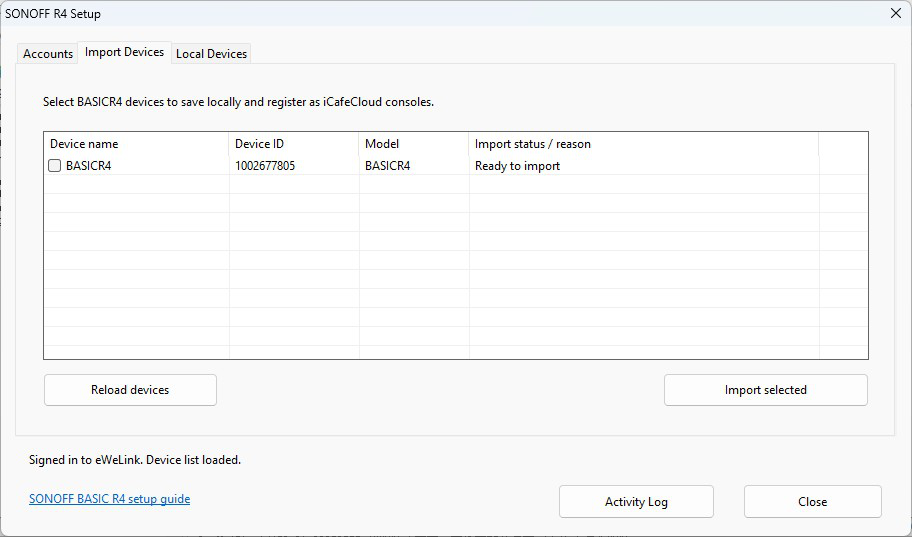
Figure 3
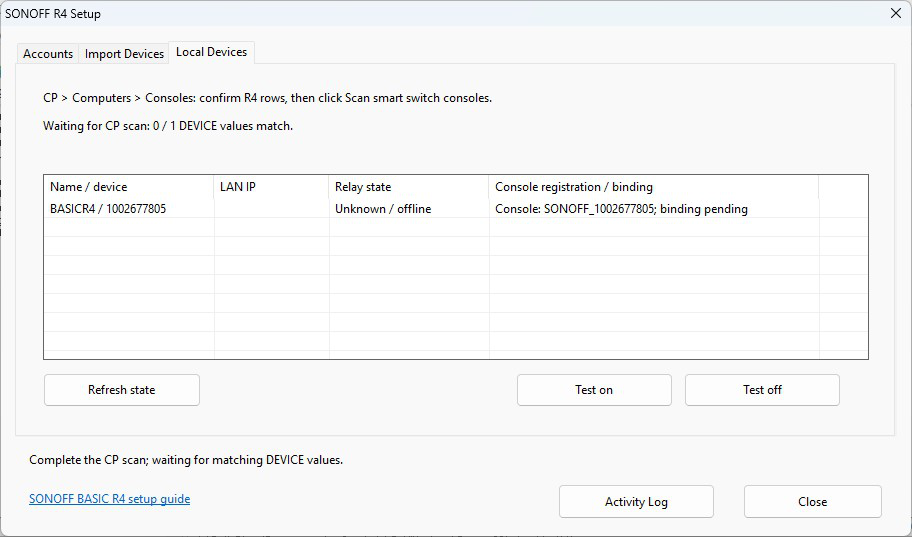
Figure 4
- Log in to CP and open Computers →Consoles. Confirm every imported R4 Console is in the list with the name SONOFF_
. Click Scan smart switch consoles so iCafeCloud Server discovers and binds the devices. Keep the Server and R4 devices running on the reachable LAN. If the setup window warns about an existing unbound Console, review or back up its group and comment first: the CP scan may replace that Console record and its metadata.
- Check the DEVICE column in CP. Each imported R4 Console must have the corresponding non-empty SONOFF_
value. The setup window checks the existing iCafeCloud API automatically every few seconds; Complete appears only when every imported device has the matching Console name, Console type, and DEVICE value. A blank or different DEVICE value means this required step is unfinished. If the API is temporarily unavailable, the error appears in a MessageBox and the setup keeps checking. Do not treat a locally saved device or a Console row alone as setup success. (Figure 5 & 6)
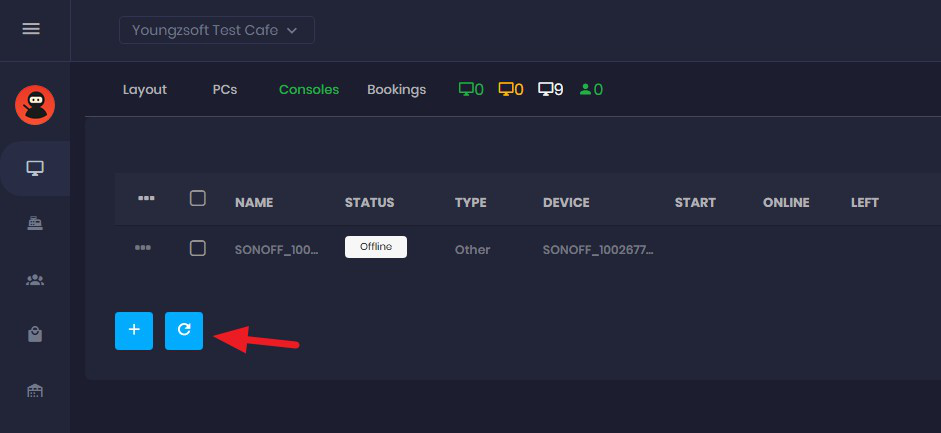
Figure 5
Figure 6
- Click Refresh state to check LAN discovery and the relay state. With the connected load safe to switch, select a local device and use Test on and Test off. A request accepted by the device is still distinct from a confirmed physical state; check the connected load and the refreshed state. If the result is pending or unknown, do not repeatedly send commands.
- Finally, start a valid iCafeCloud session and check that the load turns on; check out and confirm that it turns off. If an idle-device policy turns the relay off, test the ON behavior during a real session.
Troubleshooting
- iCafeCloud connection fails: verify Cafe ID, token, permitted public IP, and network access. Use the How to configure the API link in Accounts.
- Sign-in fails: check the eWeLink account, password, and registered calling code. Complete any account verification in the official eWeLink app. If the installation reports that sign-in is unavailable, contact iCafeCloud support with the Activity Log; do not enter developer credentials.
- Device is absent from Import Devices: verify that it belongs to the signed-in eWeLink account, is a supported BASIC R4, and appears in the mobile app. Then click Reload devices.
- Console exists but binding is pending: complete the CP scan in Computers →Consoles. Keep the Server running and confirm LAN control, network reachability, multicast discovery (UDP 5353), and the DEVICE column. Device isolation can block discovery.
- Relay state remains unknown: use Refresh state and inspect the connected load. Do not assume an accepted request changed the physical relay.
- Existing configuration differs: do not delete the Console or local configuration. Contact support with the per-device result and Activity Log.
Existing working R2 devices and legacy R4 configurations should be retained. Do not remove previously discovered Consoles just to repeat imports.