

The following explains how to configure the QR payment feature, which allows customers to complete payments directly from the client side by scanning a QR code when placing an order
- Go to POS → Settings, then locate the Payment Methods section and select QR Payment to enable it. (Figure 1)
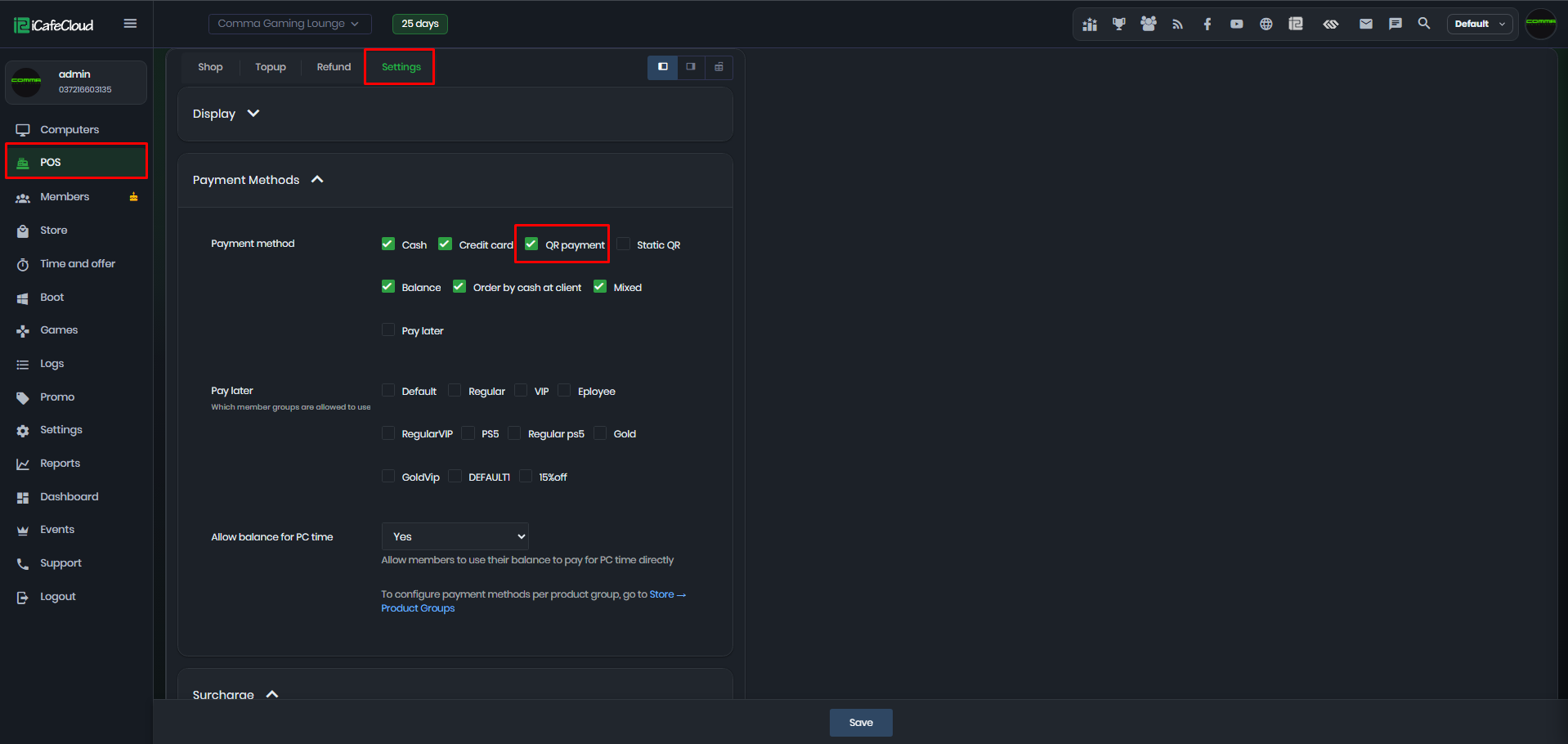
Figure 1
- Go to Store → Product Groups, choose the desired group, and click Edit. In the payment settings, select QR Payment and specify whether it applies to Members, Guests, or both user types.(Figure 2)
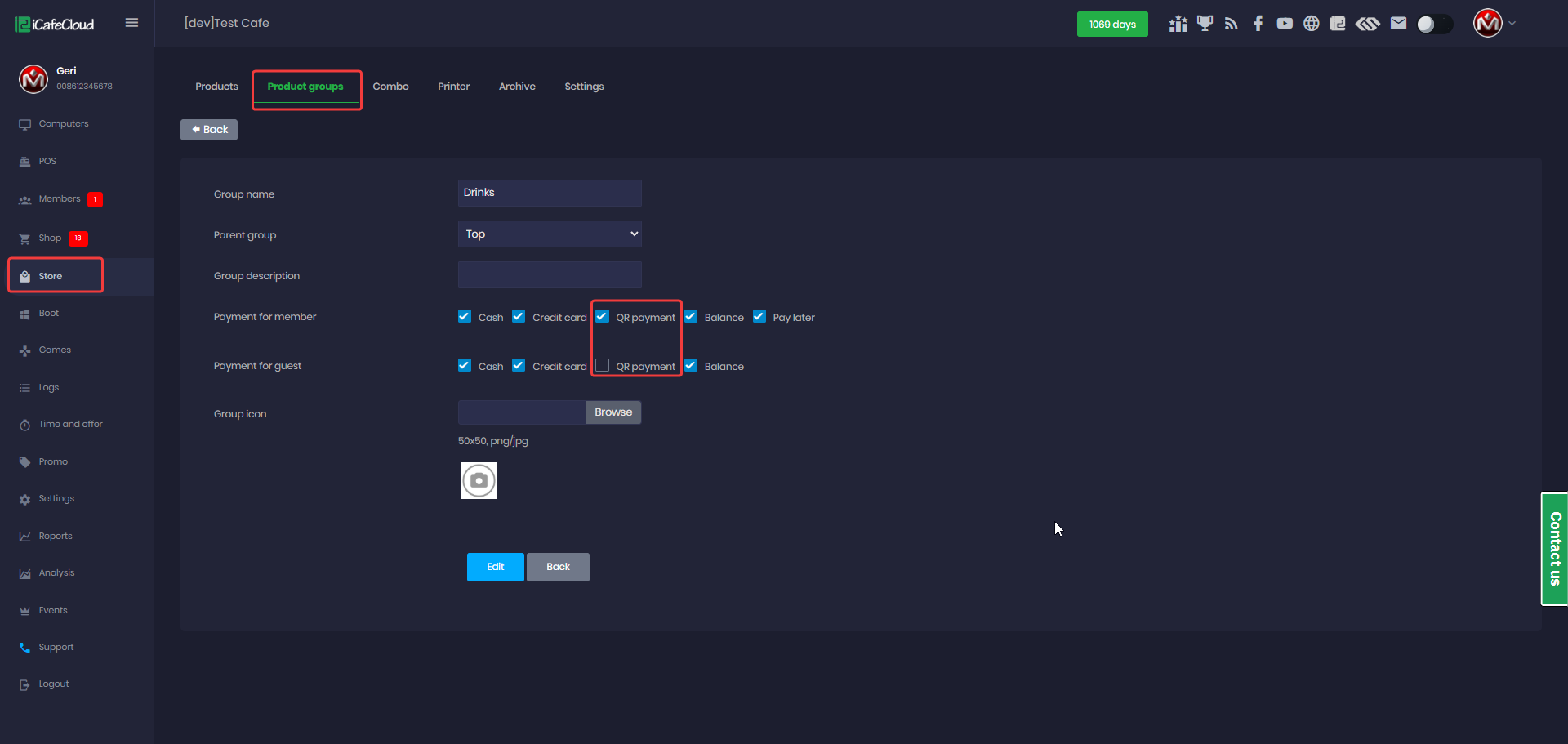
Figure 2
- On the client side, once the user accesses the Shop and clicks on checkout, the QR payment icon will appear among the available payment options. (Figure 3)
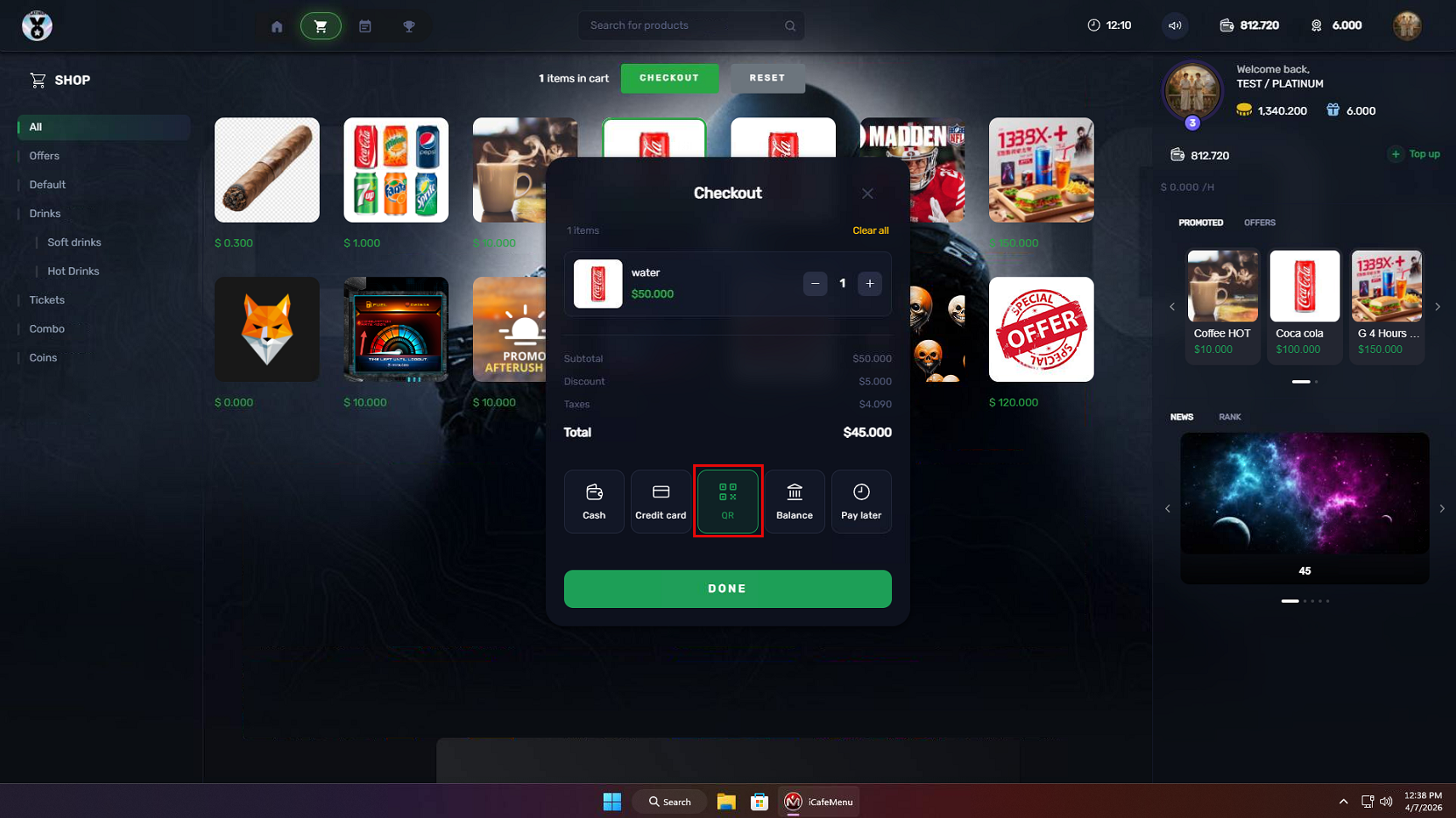
Figure 3
- Once the QR payment method is selected and Checkout is confirmed, a QR code will be automatically generated and displayed within a few seconds for the customer to scan and complete the payment. (Figure 4)
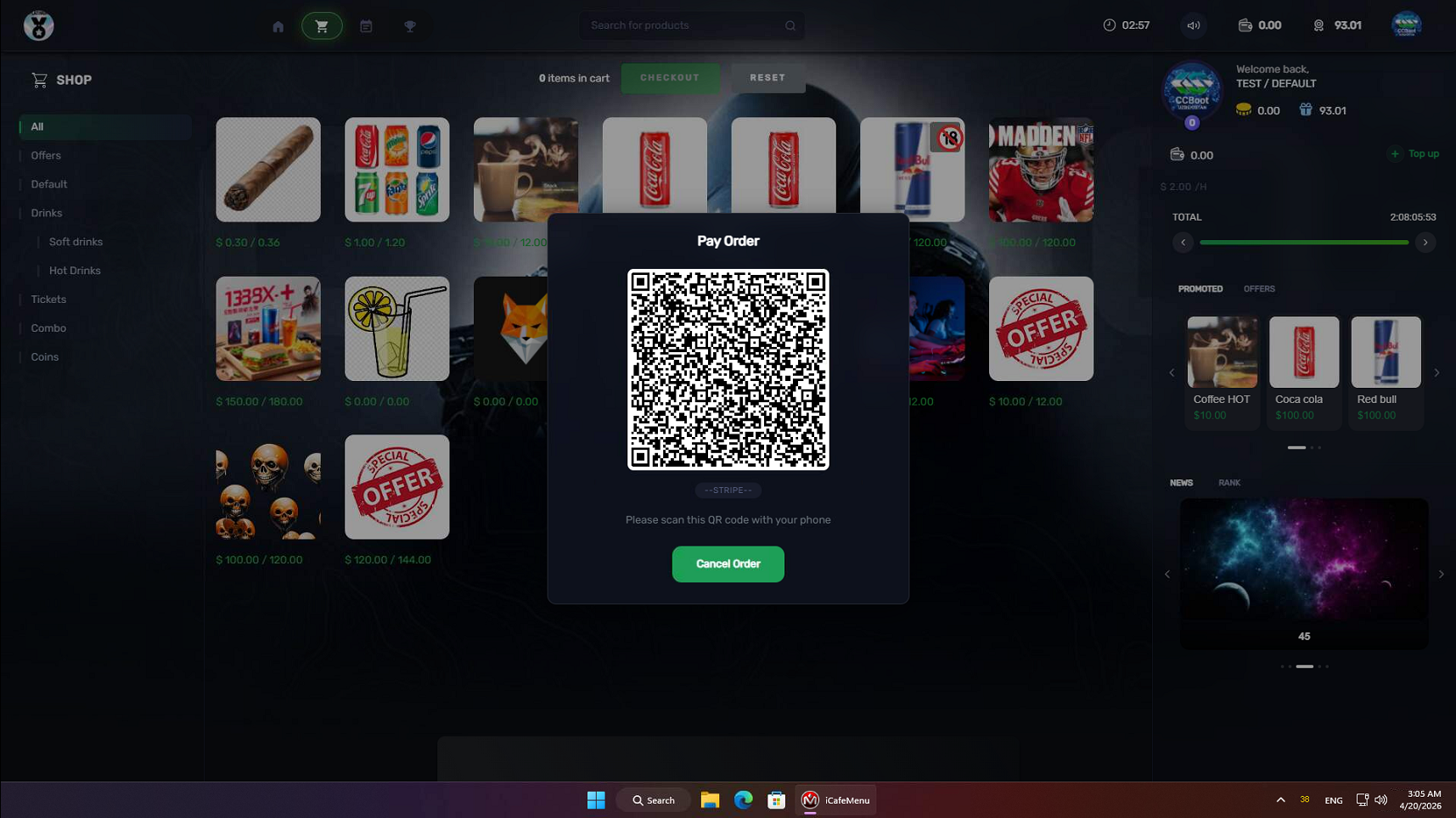
Figure 4
- In the Order List, you can identify orders completed using QR payment. Select the order to regenerate and display the QR code if it was not successfully scanned the first time. (Figure 5)
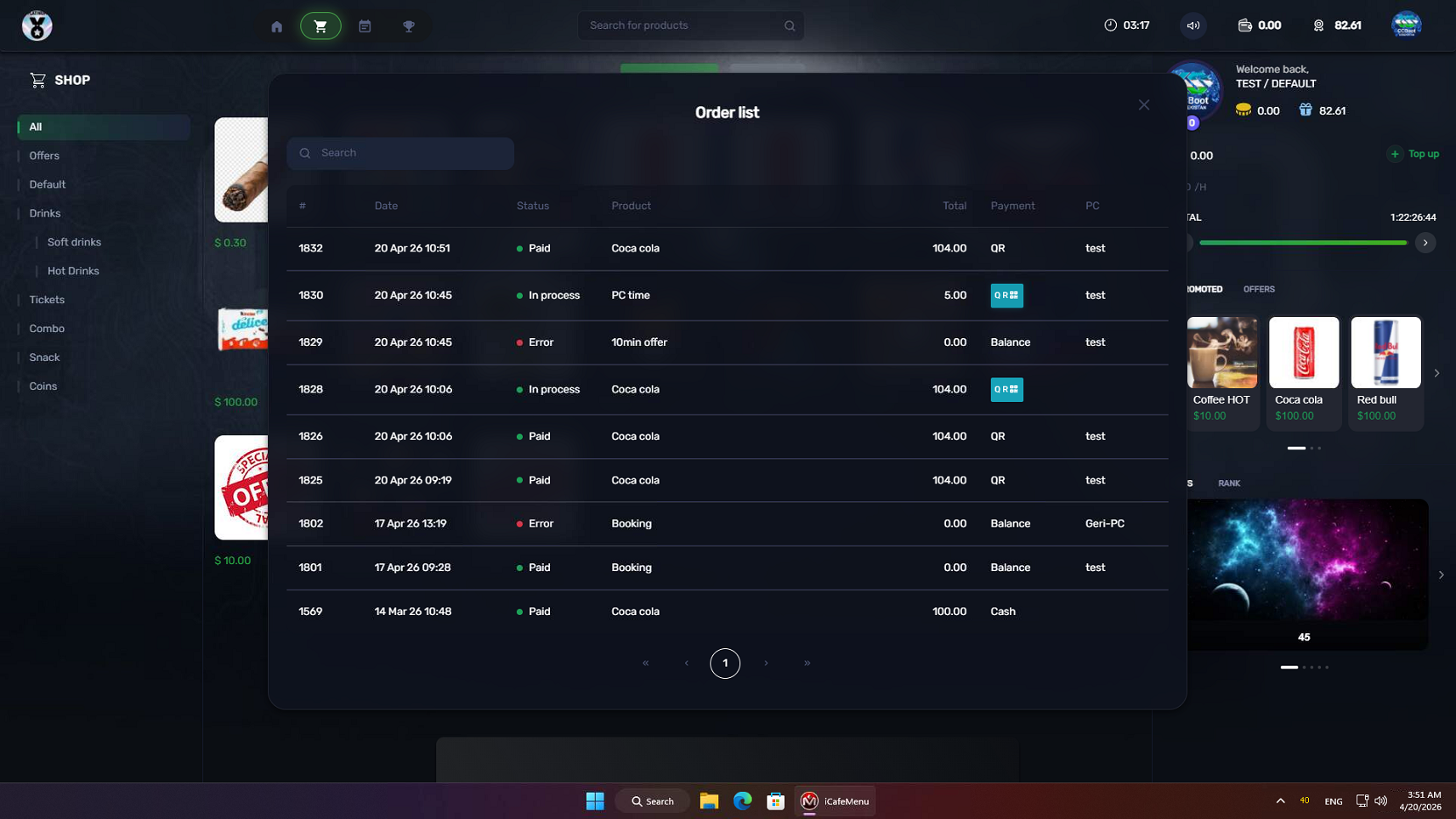
Figure 5
- When the order is completed, a confirmation message will be displayed indicating that the product was purchased successfully. (Figure 6)
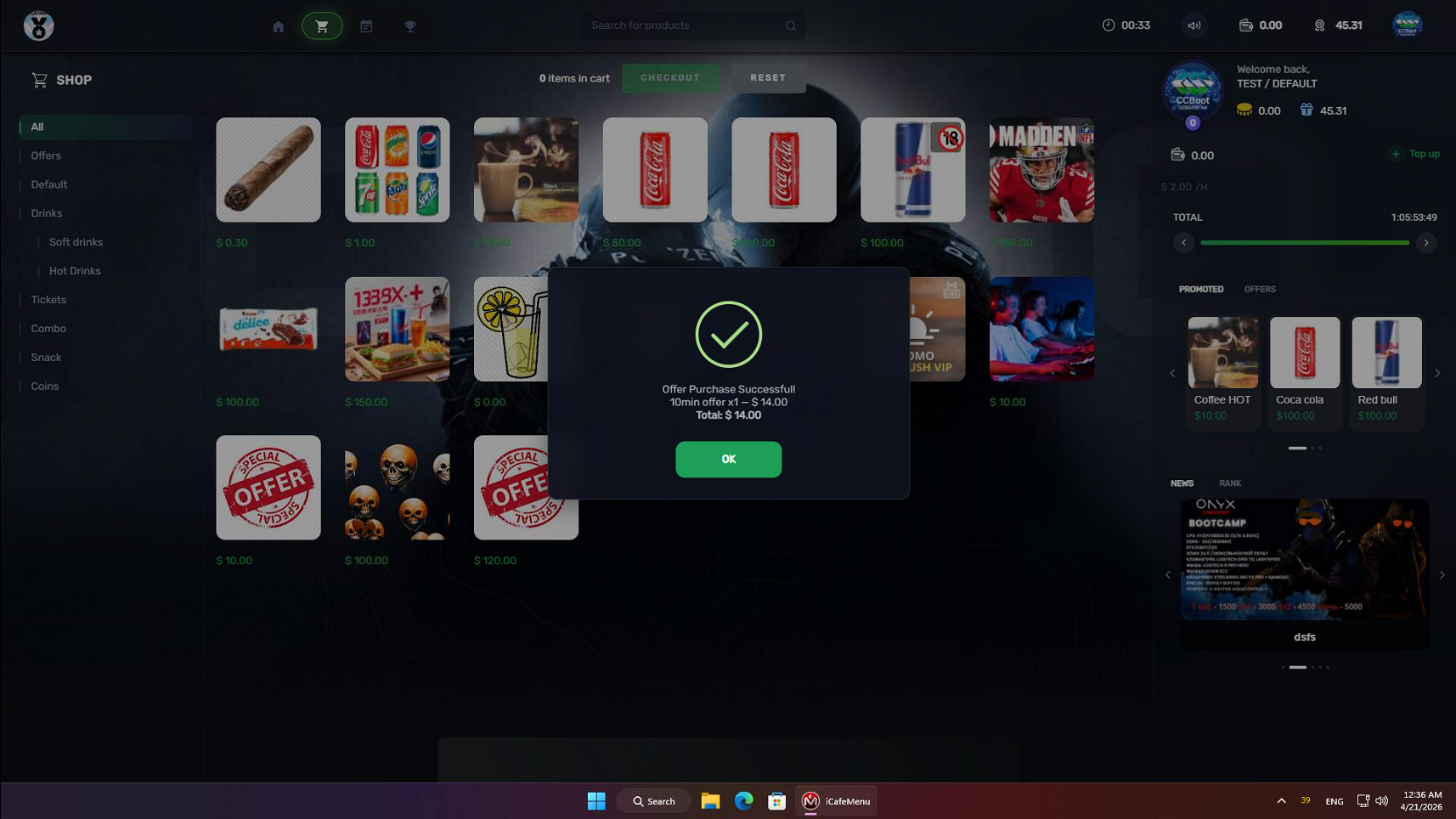
Figure 6