

The following explains how to add news items with images and links, which will be displayed on the client side. News can be used as a promotional space.
- Go to Settings page - Center News and click the “+” add button (Figure 1).

Figure 1
- Enter the news details like :
- News Name: Enter the title or name of the news article.
- Order: Defines the sequence in which news items are displayed, from first to last.
- Duration: Specify the time duration, in milliseconds, before the news automatically transitions to another article.
- URL (News Link): Input the URL or link to the news article you want to display.
- QR Code (Optional): Check this box if you want to enable a QR code for this news entry.
- Picture 500x260 pixels: If you wish to include an image for the client side, you can upload a picture.
- You can use JPEG or PNG
Background Transparency: Customers can create news images with transparent backgrounds.
High-Quality Images: PNG format supports high-quality images, ensuring that customers can produce crisp and clear news pictures. Up to 1MB
- By providing these details, you can easily configure and display your news articles with optional QR codes and images as needed.(Figure 2)

Figure 2
- Now if you want the news to be displayed as a video , hit check on video check box and paste the url of the video (Youtube links are not supported)(Figure 3)
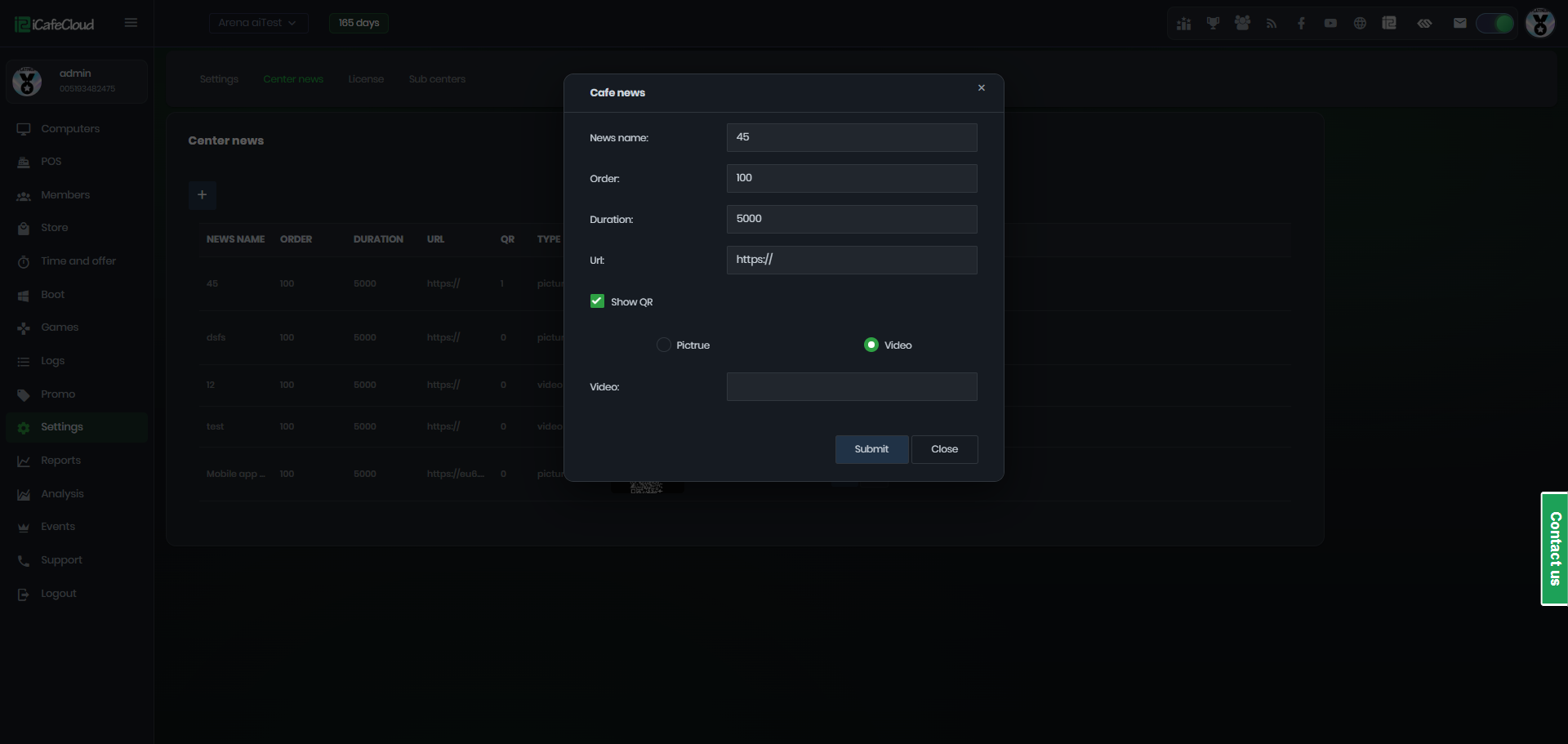
Figure 3
- To use a video from your local storage, you need to use .webm files.
- Copy the video file to the apps/icafemenu/html folder and rename it with a generic name like "intro.webm" and add the full path on Cafe news Video.(Figure 4)
E:\Apps\icafemenu\html\intro.webm
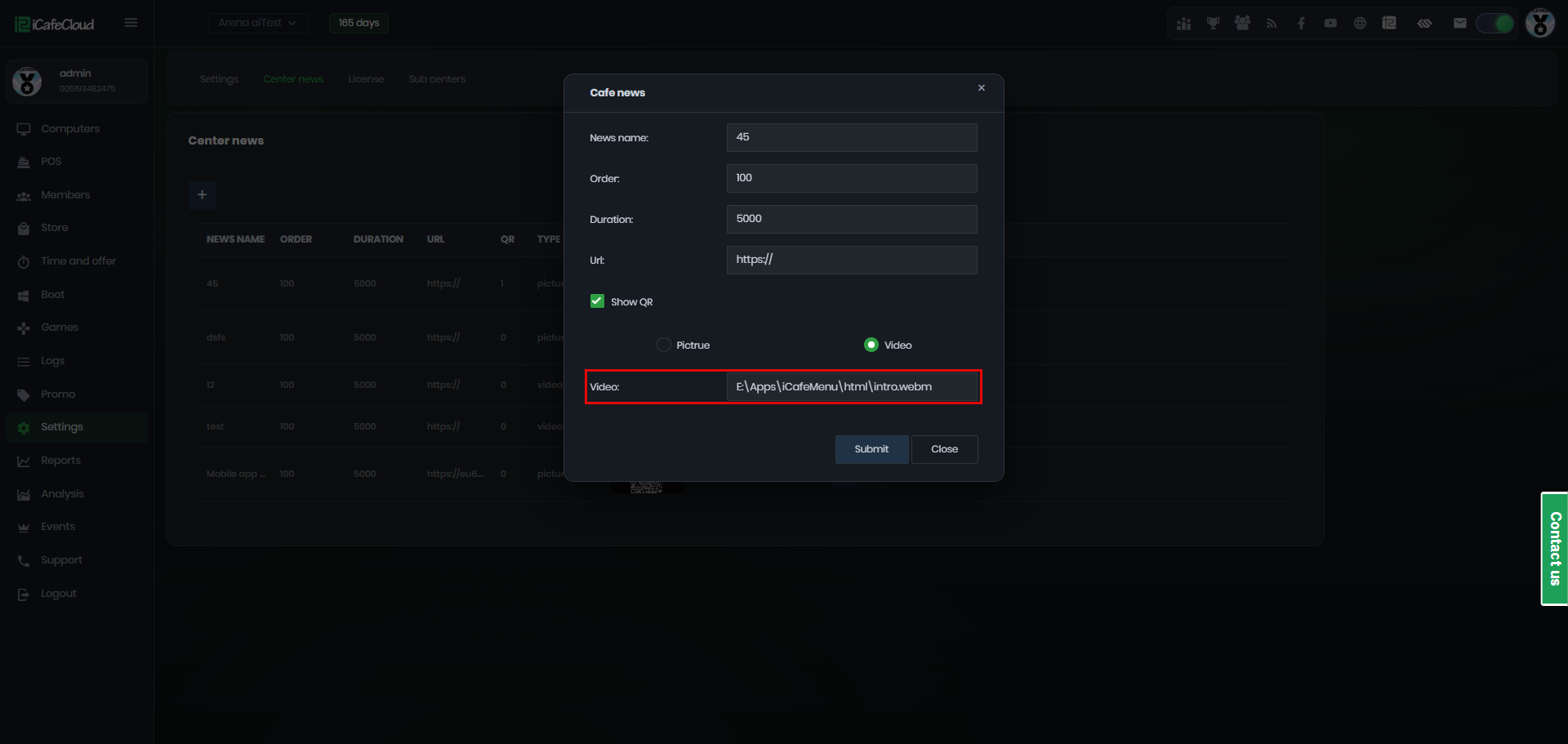
Figure 4
- Click the “Refresh” button on the iCafeCloud server application to apply changes to the client side, and after a reboot, you will be able to see the news.
- The user may navigate forward and backward using the arrows after the client PC has been restarted and can view all of the news thumbnails auto-switch loop (5 seconds for each one) The link will open if the picture is clicked.(Figure 5).
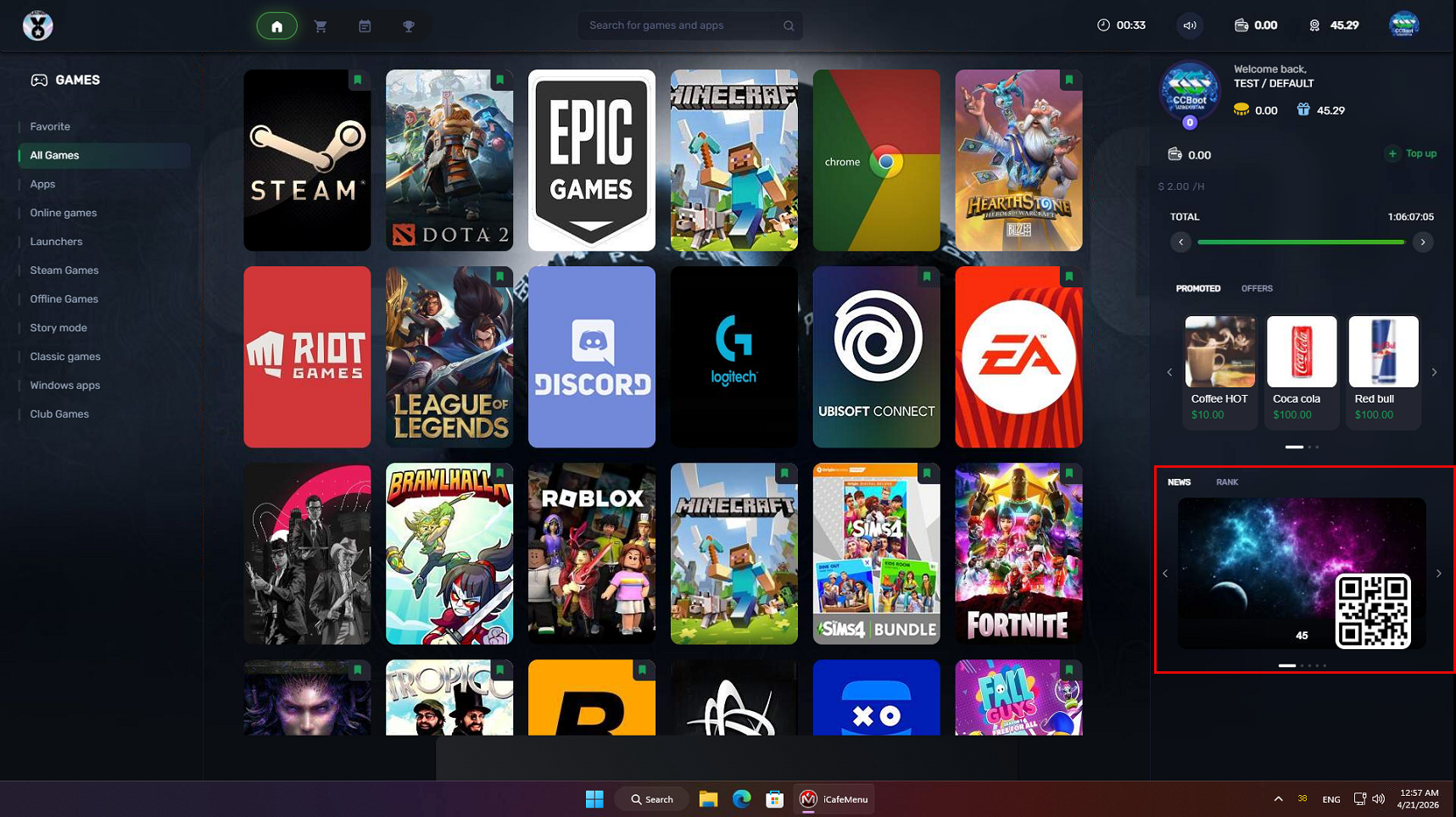
Figure 5