The following explains the process of creating a QR code that directs members to the center’s Member Portal, or allows them to scan it via the iCafeCloud mobile application to associate their account with the center.
- Navigate to Settings > Member Settings, then select Create Member Portal QR. Click the Create button to generate the QR code (Figure 1).
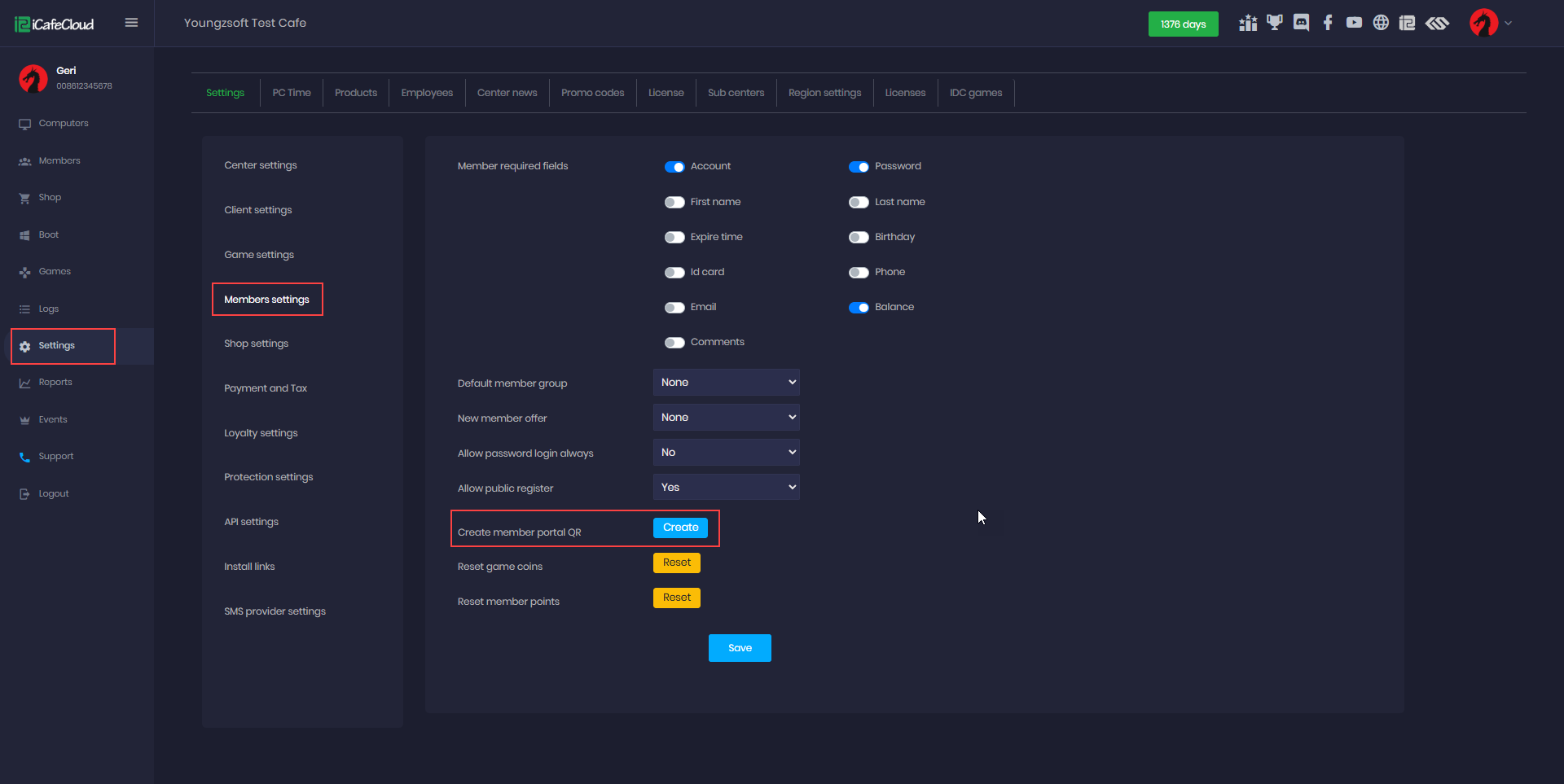
Figure 1
- In the Member Portal QR section, you’ll find various customization options to generate a QR code in your preferred style. You can adjust the size, dot scale, title, and tile size, as well as upload your own logo and background. Once customized, you can easily download or print the QR code directly. (Figure 2)
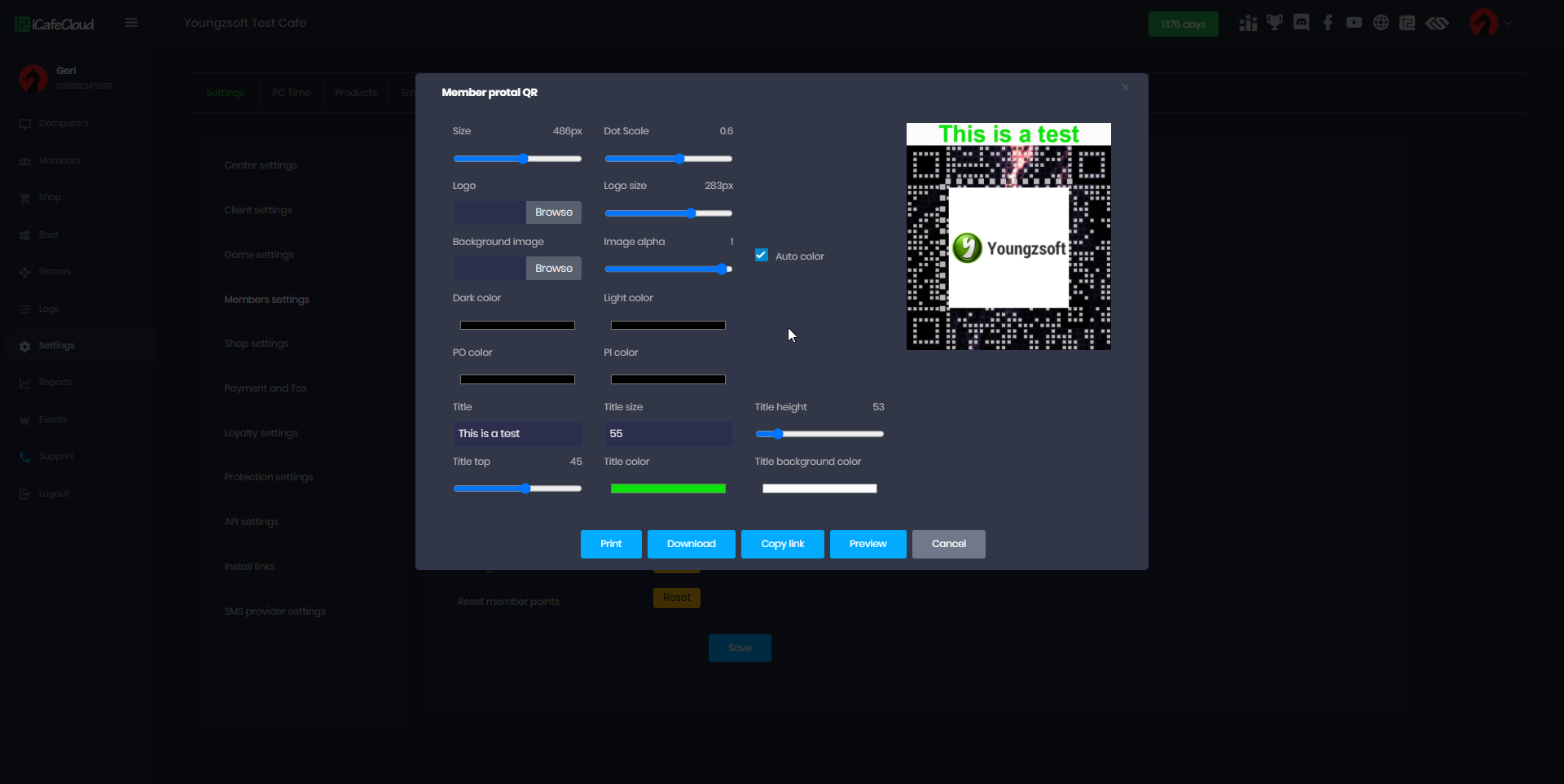
Figure 2
- You can Scan the QR code with the iCafeCloud mobile app directly.
- Or can the QR code and redirect to the portal https://cp.icafecloud.com/shop/(license) (Figure 3)
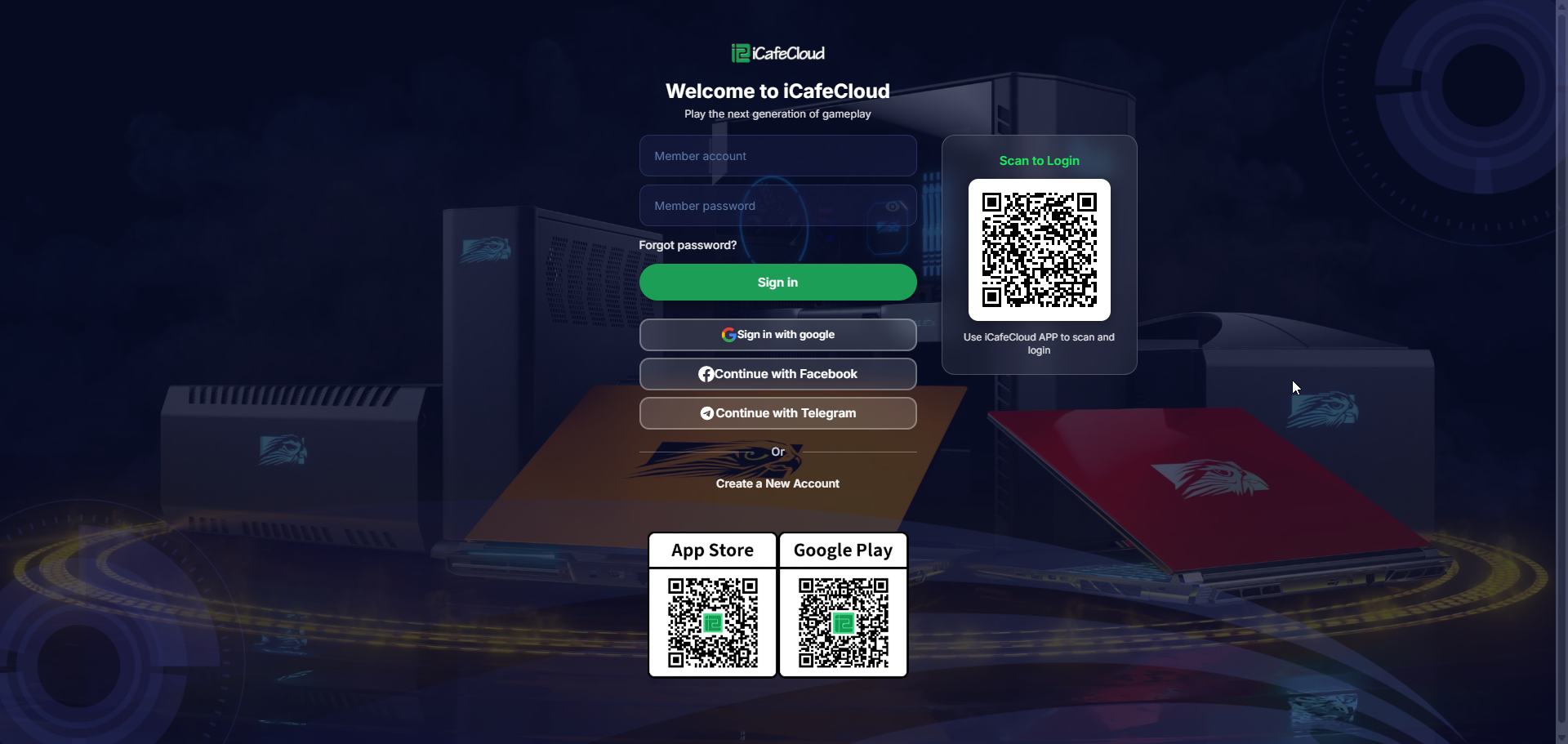
Figure 3
- The QR code can be printed and displayed inside or outside your center.
- It can also be added as a News item to appear on the client interface. (Figure 3)
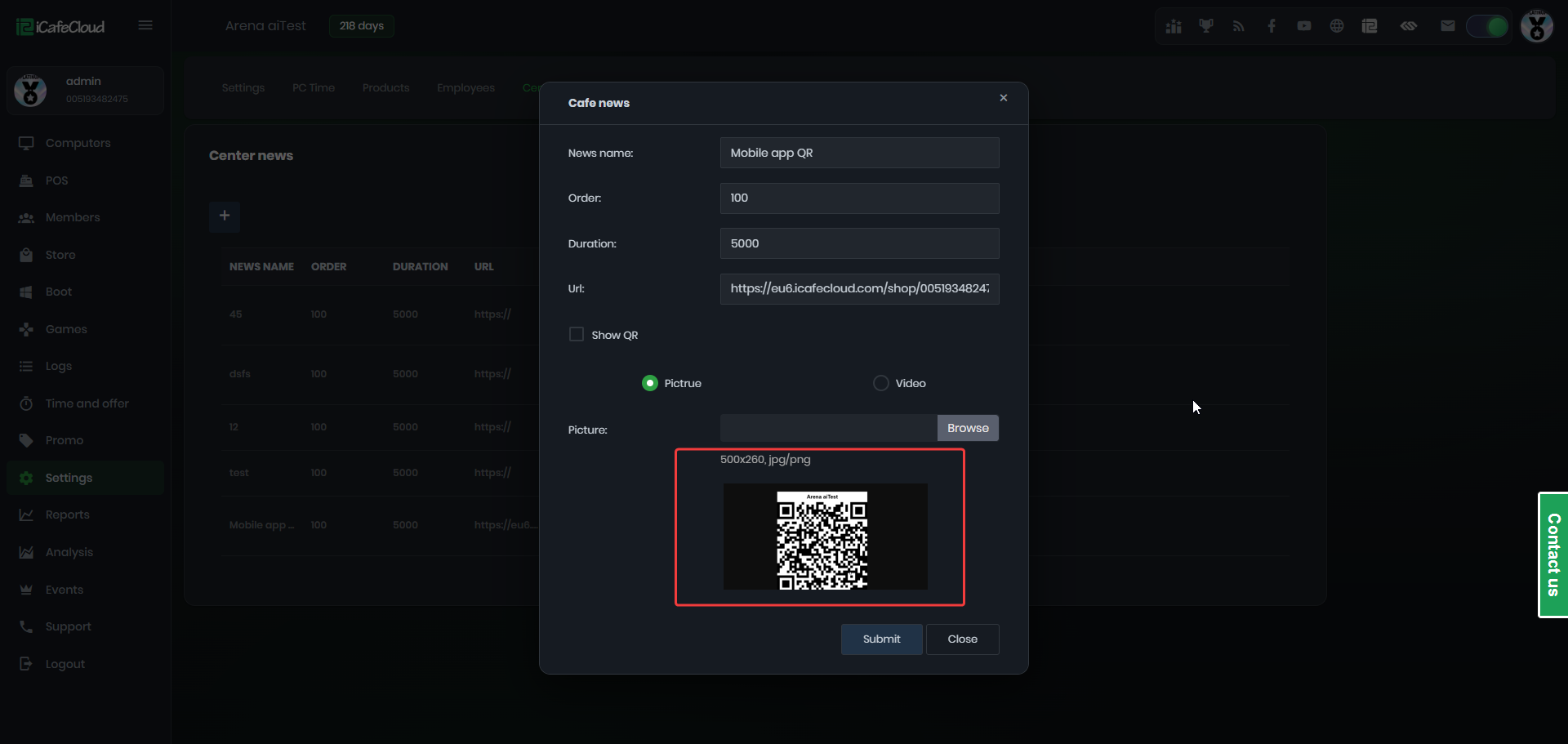
Figure 3
- Alternatively, you can include it in the Login page background image, making it easy for members to scan and access the Member Portal quickly.