
2025-03-22
qr, pay, topup, stripe, USA
The following guide explains how to retrieve your Stripe account details and connect it to iCafeCloud for QR payments in the United States.
- In case you want to use Stripe payments in iCafeCloud follow the steps below
- Create a Stripe account
- After logging in, navigate to 'Developers' and then select 'API Keys' to reveal the test secret key. This is your Gateway API token(Figure 1)
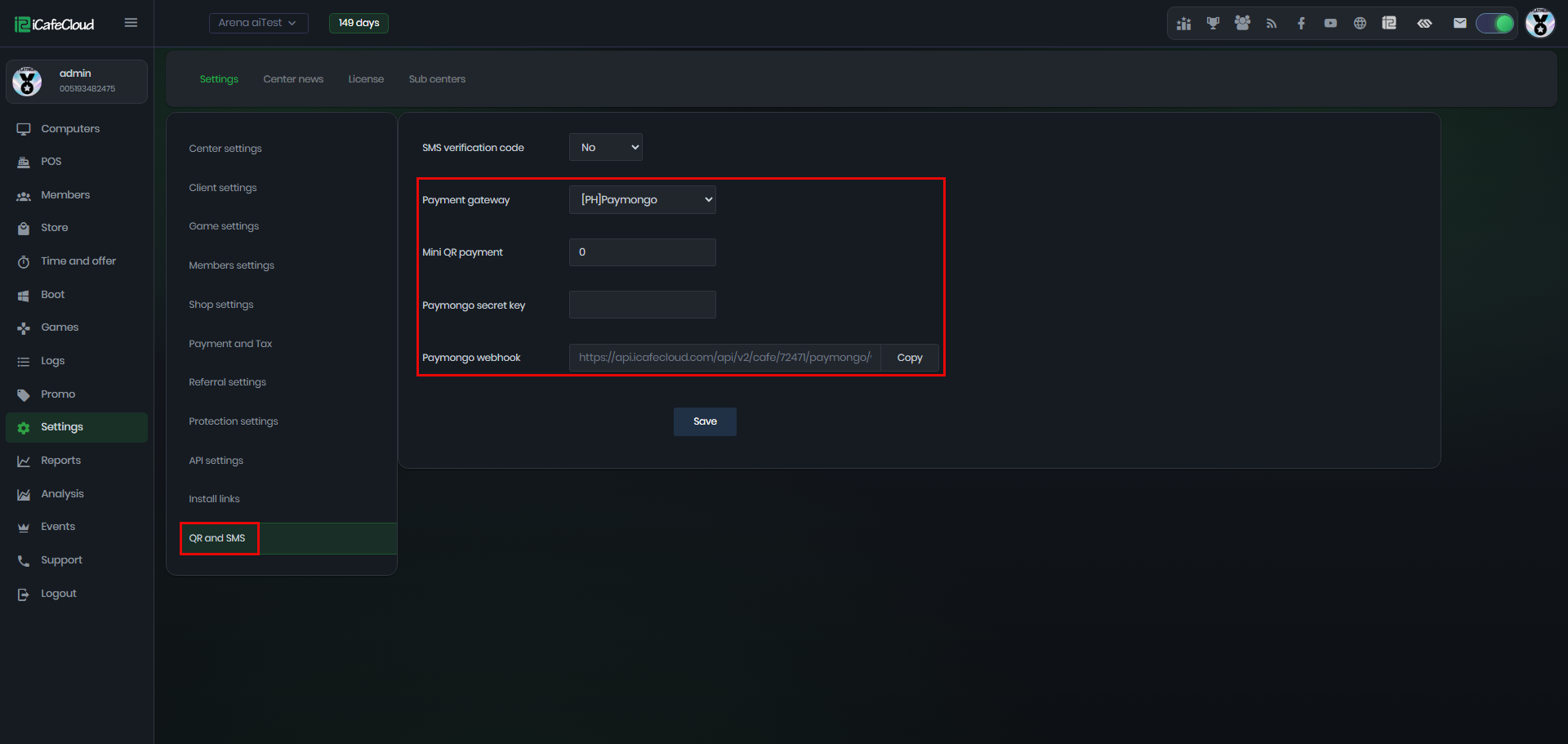
Figure 1
- Next, select 'Webhooks' and click on 'Add an endpoint'. (Figure 2)
Figure 2
- Next, enter "https://api.icafecloud.com/api/v2/cafe/YOUR_LICENSE_ID/stripe" in the 'Endpoint URL' field.
- You can find the LICENSE_ID on iCafecloud admin panel - Settings - Api settings - License ID(Figure 3)
Figure 3
- Enter the endpoint URL, choose "Events on your account" and "Latest API version." Then, click "Select events." (Figure 4)
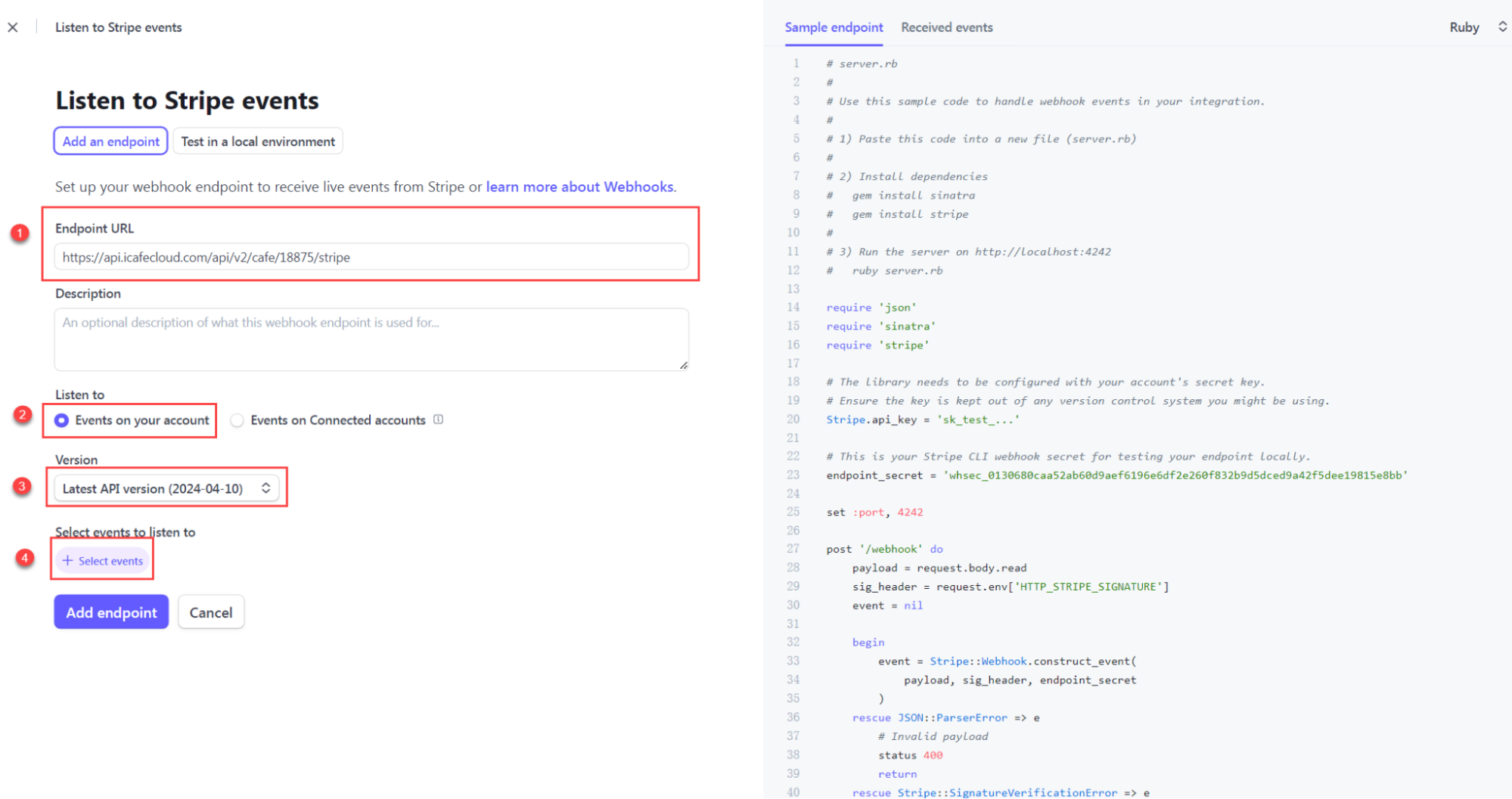
Figure 4
- Choose "Checkout" and select "All Checkout events." Then, click "Add events." (Figure 5)
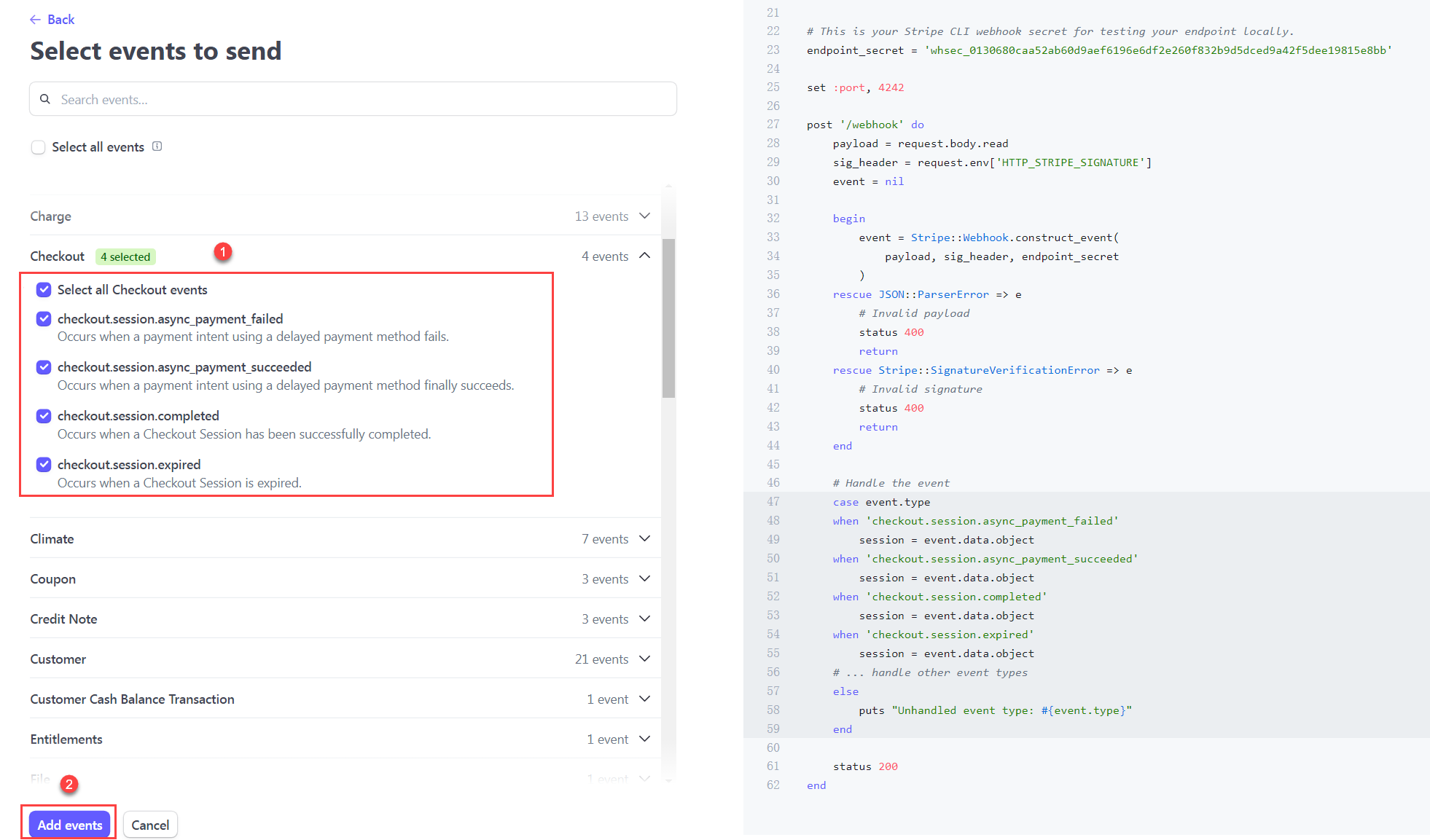
Figure 5
- Finally, click on "Add endpoint." (Figure 6)
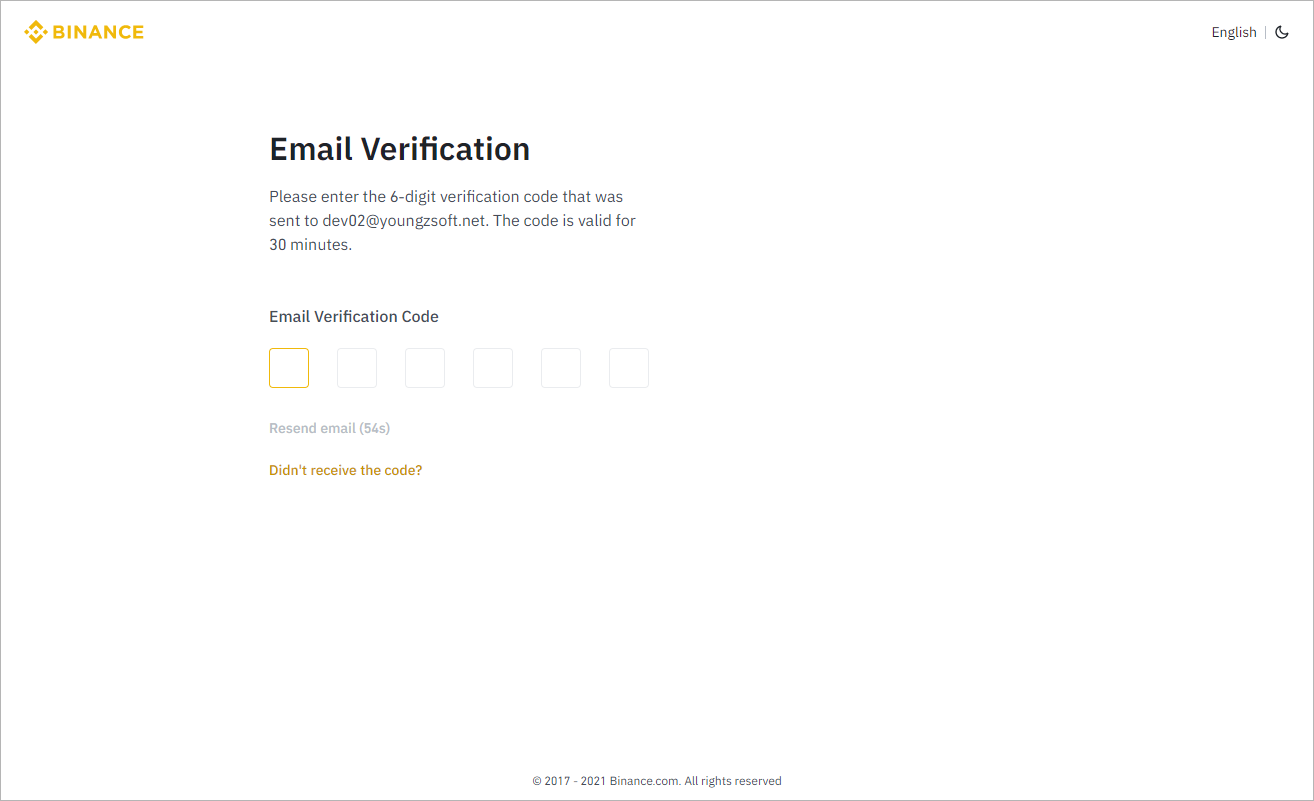
Figure 6
Server side
- In the iCafeCloud admin panel, go to Settings - QR and SMS and select Payment Gateway as Stripe, and enter the Gateway API Token from Step 2. (Figure 7)
- Mini QR Payment: If an amount is set, it represents the minimum payment amount accepted
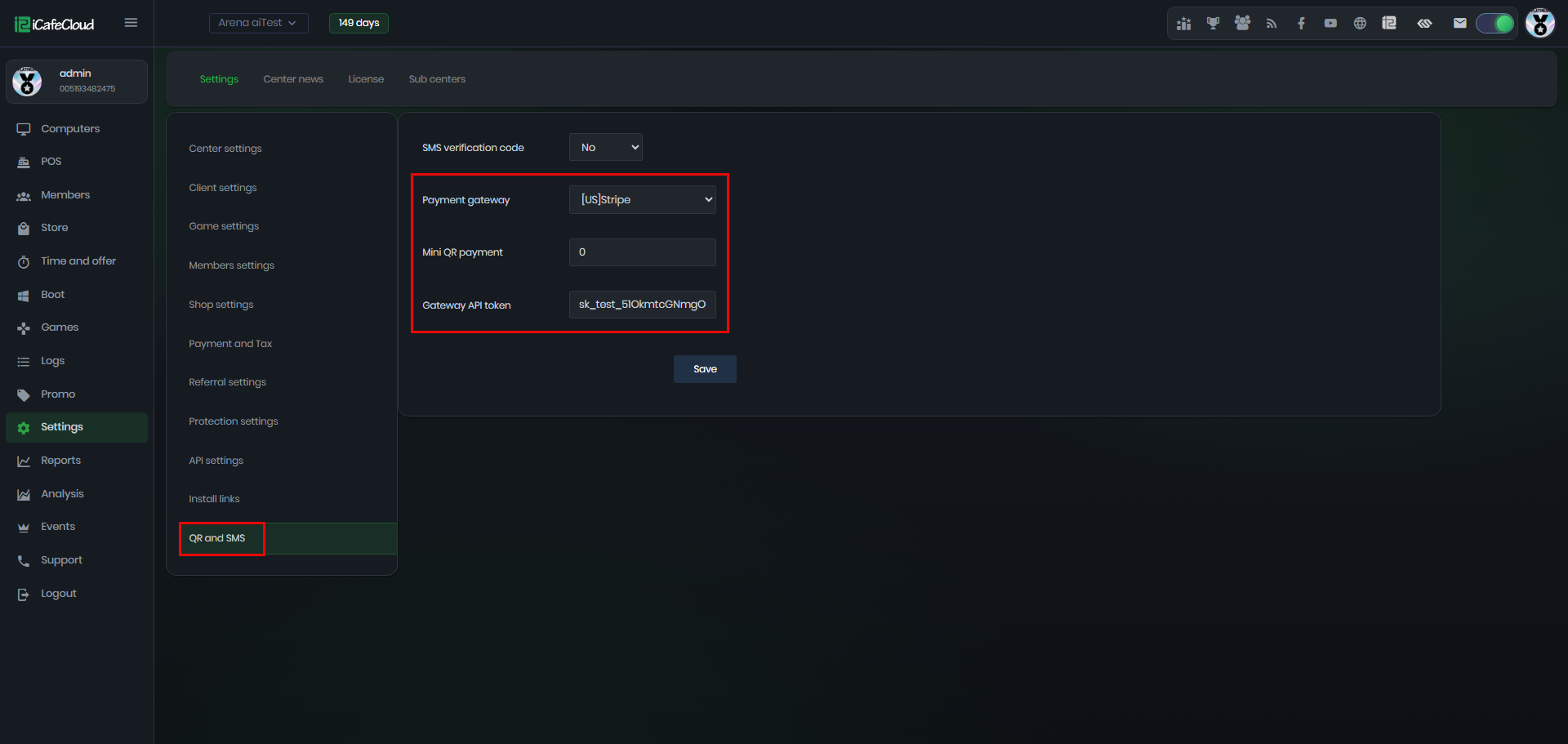
Figure 7
- Navigate to POS - Settings and set the currency symbol to a 3-letter code, such as "USD" or "EUR". (Figure 8)
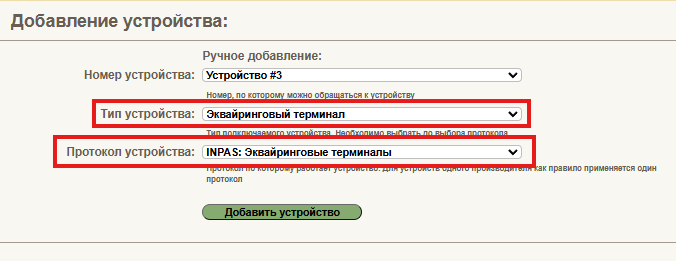
Figure 8
Client side
- On the iCafeMenu login screen, click the Balance button to top up directly.(Figure 9)
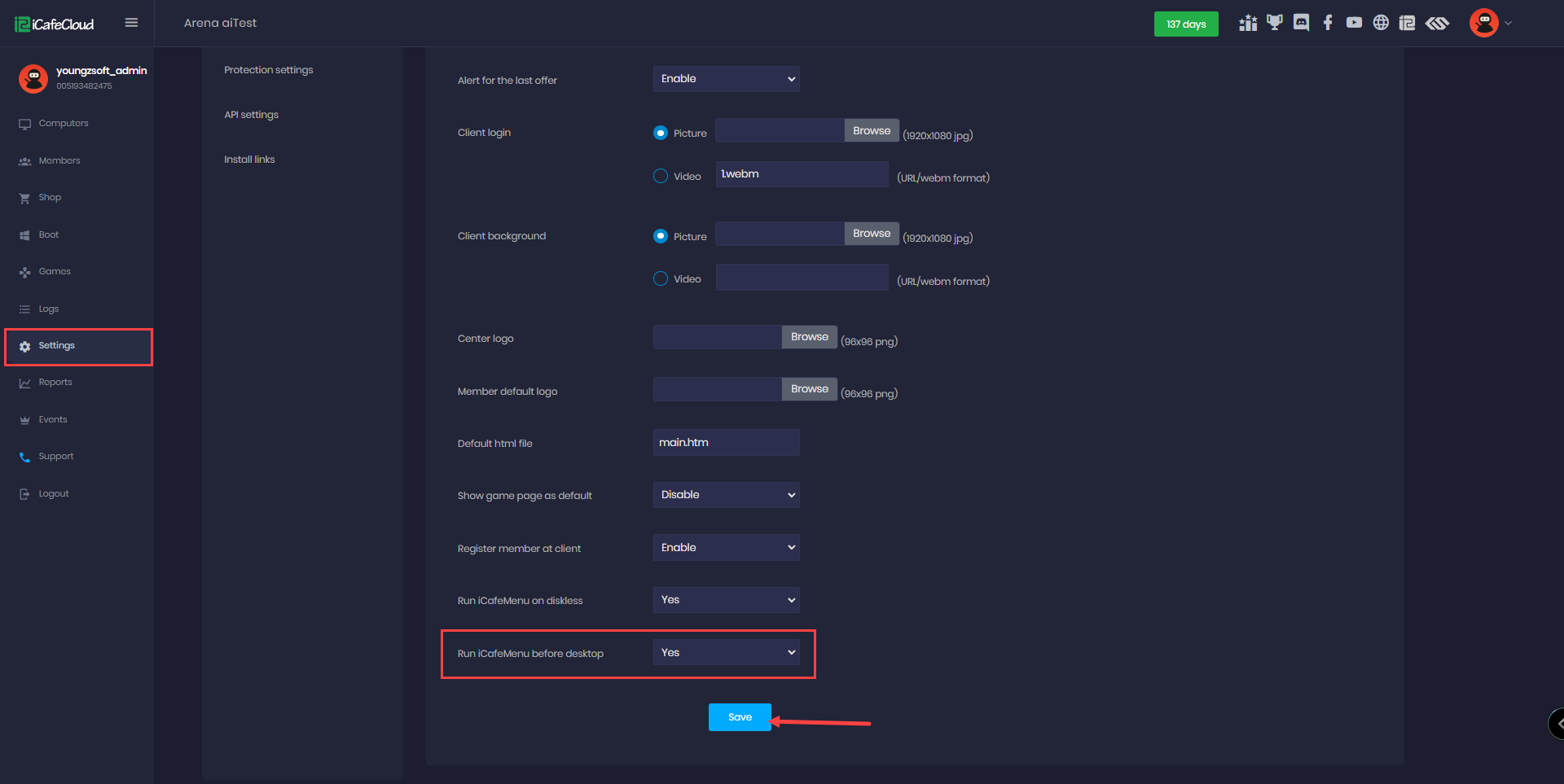
Figure 9
- On the Top-Up Balance screen, enter the member account and choose whether to top up by time or amount. You can select from the preset options or enter a value manually, and the system will adjust it automatically. (Figure 10)
Figure 10
- After you click "OK" to confirm the top-up, a QR code will be displayed. (Figure 11)

Figure 11
- In the admin panel, under the SHOP history transactions, transactions will be displayed as "In Progress". (Figure 12)

Figure 12
- Continue by scanning the QR code. Once the payment is completed, the transaction will be marked as successful, displaying the top-up amount added and the updated total balance.(Figure 13)
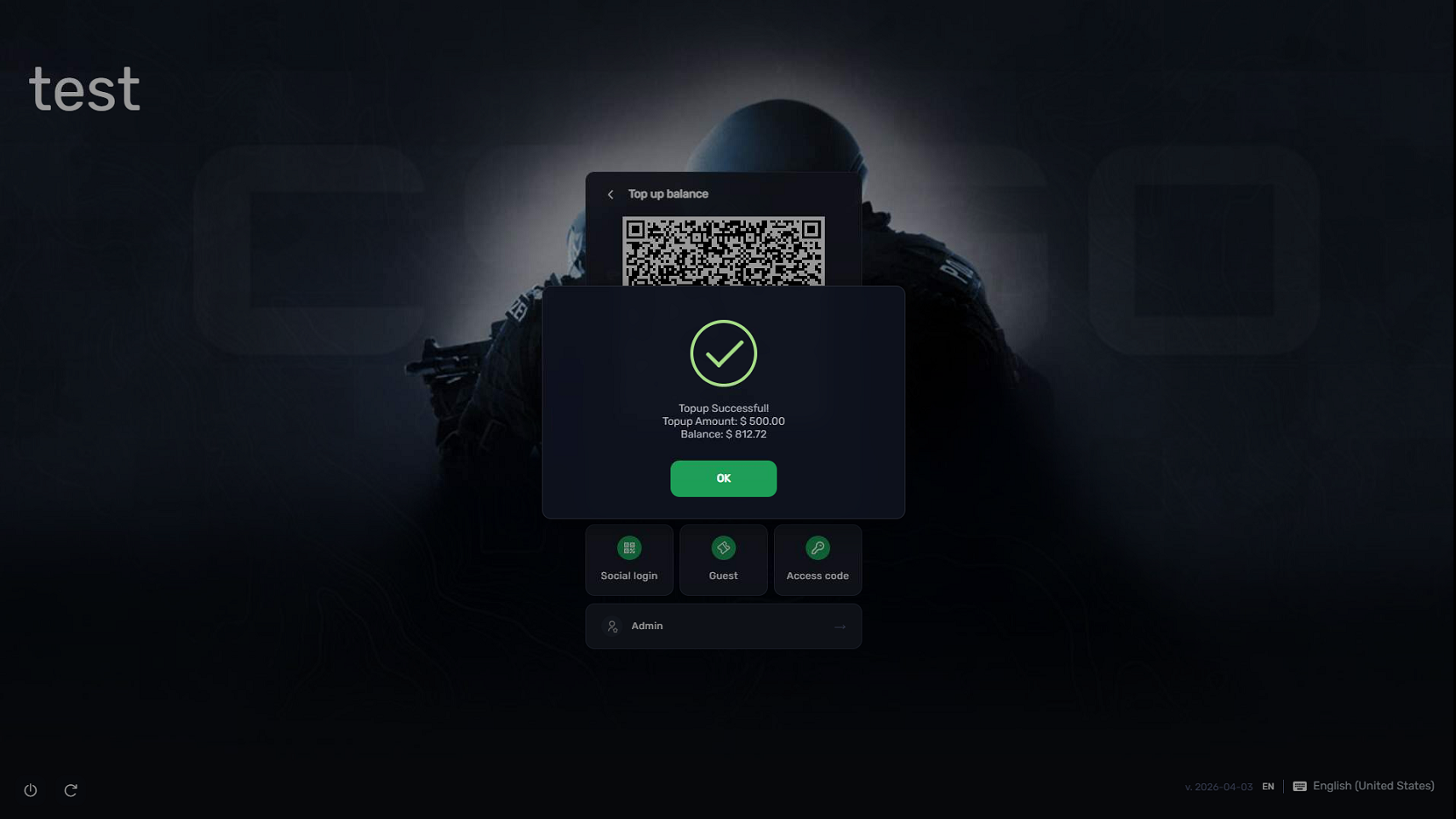
Figure 13
- If the member doesn't have an email address on their account, we will pass null to Stripe, and the member can provide their email when they make a payment.
- If the license doesn't have a center URL set, we will pass null as the success_url to Stripe.
- If the Mini QR payment is set to 10, for example, the minimum payment should be 10 if less, an error will show at the client, preventing the transaction. (Figure 14)
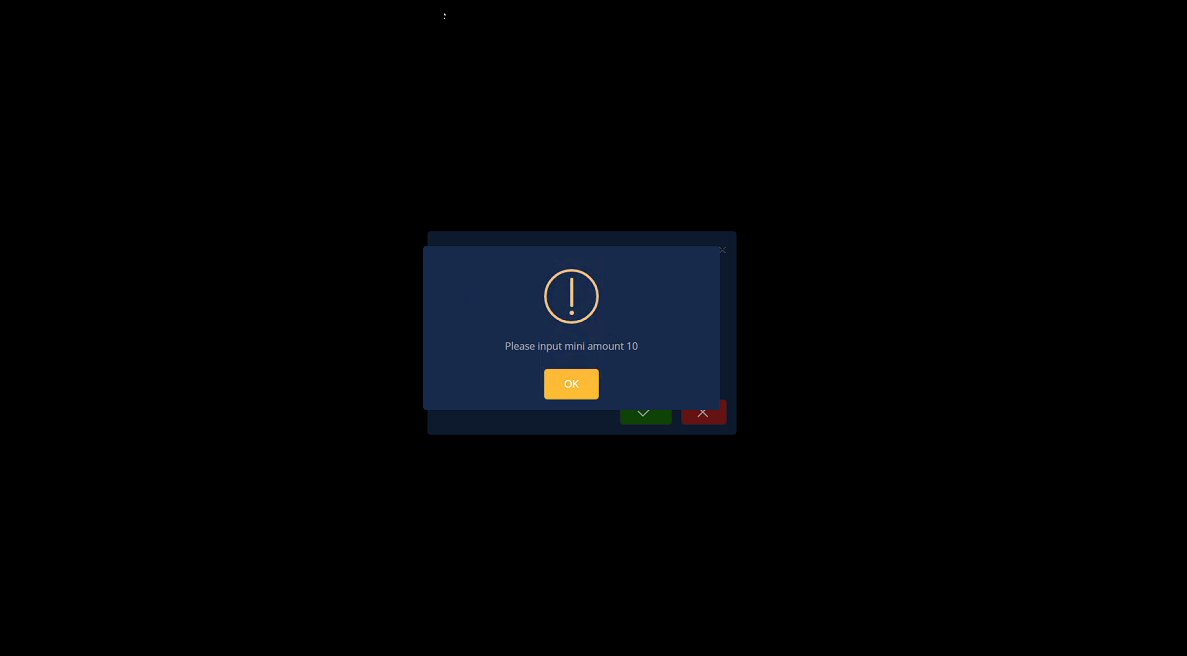
Figure 14